Vue normale

Il y a de nouveaux articles disponibles, cliquez pour rafraîchir la page.
À partir d’avant-hierFlux principal

Building Custom SharePoint Solutions to Meet Your Business Needs

SharePoint is a powerful platform for building custom solutions that meet the unique needs of your business. One way to extend SharePoint’s functionality is by creating custom web parts. A web part is a modular component that can be added to a SharePoint page to display information or perform a specific function. In this blog post, we’ll explore how to create custom web parts in SharePoint to build custom solutions for your business needs.

Planning Your Custom Web Part

Before you begin building your custom web part, it’s important to plan out the requirements and functionality you need. This includes identifying the data sources, user interface, and any other features that you want your web part to include. Some questions you may want to consider during the planning phase include:

  • What data sources will your web part use?
  • How will users interact with your web part?
  • Will your web part require any custom logic or functionality?

Creating Your Custom Web Part Using Out-of-the-Box Features

SharePoint provides several out-of-the-box web parts that you can use as a starting point for your custom web part. These web parts include the Content Editor, Image Viewer, and Script Editor web parts, among others. You can customize these web parts by modifying their properties or adding your own code. To create your custom web part using out-of-the-box features, follow these steps:

  • Navigate to the page where you want to add your web part and click the Edit button.
  • Click the Insert tab on the ribbon and select the web part you want to modify.
  • Modify the properties of the web part or add your own code using the Script Editor web part.

Creating Your Custom Web Part Using PowerApps

PowerApps is a low-code platform that allows you to create custom web parts without writing code. With PowerApps, you can create custom forms, dashboards, and other components that can be added to a SharePoint page. To create your custom web part using PowerApps, follow these steps:

  • Navigate to the PowerApps portal and create a new canvas app.
  • Design your app by adding screens, forms, and other components.
  • Publish your app to SharePoint by selecting the PowerApps option on the Insert tab in the SharePoint ribbon.

Creating Your Custom Web Part Using SPFx

The SharePoint Framework (SPFx) is a modern development framework that allows you to build custom web parts using modern web technologies such as React, Angular, and TypeScript. With SPFx, you can create powerful, dynamic web parts that can be added to any SharePoint page. To create your custom web part using SPFx, follow these steps:

  1. Install the necessary tools and dependencies for SPFx development.
  2. Create a new SPFx web part project using the Yeoman generator.
  3. Develop your web part by adding components, styling, and logic.
  4. Deploy your web part to SharePoint by packaging it as a SharePoint solution and uploading it to the SharePoint app catalog.

Creating custom web parts in SharePoint can be a powerful way to extend SharePoint’s functionality and build custom solutions for your business needs. Whether you use out-of-the-box features, PowerApps, or SPFx, you have the flexibility and power to create web parts that are tailored to your organization’s unique requirements. By planning out your requirements and following best practices for development, you can create web parts that deliver real value to your organization.

The post Building Custom SharePoint Solutions to Meet Your Business Needs appeared first on MS Technology Talk.
Add Multiple control in SPFX Web Part Property Pane

Developing custom components require technical skills but to make it reusable, one need to add configurations to it and this might require a few lines of extra code but will make the component leverage to do customizations on the fly instead of redeploying the component again and again and can be used as a reusable component

Today I will share the scripts to add different type of controls in an SPFx web part which could help to perform different actions and configurations in your web part. I will be using SPFX and PnP property pane controls. For PnP controls, you need to install PnP control module to your solution.

Today I will be sharing Below components to the Property Control

  • Text Field – PropertyPaneTextField
  • SharePoint List Picker Control – PropertyFieldListPicker
  • Date Field – PropertyFieldDateTimePicker
  • Number Field – PropertyFieldNumber
  • Dropdown – PropertyPaneDropdown
  • Checkbox – PropertyPaneCheckbox
  • Color picker – PropertyFieldSwatchColorPicker

Text Field – PropertyPaneTextField Control

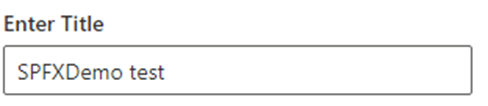
This is the most simple control which you can see when you create a new spfx web part, a default Text field control is added to the property Pane.

Import Section

import {
  IPropertyPaneConfiguration,
  PropertyPaneTextField
} from '@microsoft/sp-property-pane';

Declare property in Export interface

export interface ISpfxDemoWebPartProps {
  title: string;  
}

Code Snippet

 PropertyPaneTextField('title', {
                  label: "Enter Title"
                
})

SharePoint List Picker Control – PropertyFieldListPicker Control

This control shows all the SharePoint list and libraries under current SharePoint site

Import Section

import { PropertyFieldListPicker, PropertyFieldListPickerOrderBy } from '@pnp/spfx-property-controls/lib/PropertyFieldListPicker';

Declare property in Export interface

export interface ISpfxDemoWebPartProps {
  listId?: string;
}

Code Snippet

PropertyFieldListPicker('listId', {
                  label: 'Select List',
                  selectedList: this.properties.listId,
                  orderBy: PropertyFieldListPickerOrderBy.Title,
                  includeHidden: false,
                  onPropertyChange: this.onPropertyPaneFieldChanged.bind(this),
                  properties: this.properties,
                  context: this.context,
                  deferredValidationTime: 0,
                  key: 'listId'
                })

Date Field – PropertyFieldDateTimePicker Control

This control will help you to select the Date and time.

Import Section

import { PropertyFieldDateTimePicker, DateConvention, TimeConvention, IDateTimeFieldValue } from '@pnp/spfx-property-controls/lib/PropertyFieldDateTimePicker';

Declare property in Export interface

export interface ISpfxDemoWebPartProps {
   defaultDate?: IDateTimeFieldValue;
 }

Code Snippet

PropertyFieldDateTimePicker('defaultDate', {
                  label: 'Default Date',
                  initialDate: this.properties.defaultDate,
                  dateConvention: DateConvention.Date,
                  onPropertyChange: this.onPropertyPaneFieldChanged,
                  properties: this.properties,
                  deferredValidationTime: 0,
                  key: 'defaultDate'
                })

Number Field – PropertyFieldNumber Control

This control allows you to select a numeric value from property pane. You can also set min and max value for the control.

Import Section

import { PropertyFieldNumber } from '@pnp/spfx-property-controls/lib/PropertyFieldNumber';

Declare property in Export interface

export interface ISpfxDemoWebPartProps {
  repeatValue?: number;
}

Code Snippet

PropertyFieldNumber("repeatValue", {
                  key: "repeatValue",
                  label: "Select Repeat Value",
                  description: "Number field ",
                  value: this.properties.repeatValue,
                  maxValue: 10,
                  minValue: 1,
                  disabled: false                  
                })

Dropdown – PropertyPaneDropdown Control

The control is used to select a value from a choice of list, you can add custom values to it as I am using it for language selection.

Import Section

import { PropertyPaneDropdown } from '@microsoft/sp-property-pane';

Declare property in Export interface

export interface ISpfxDemoWebPartProps {
  language?: string;
}

Code Snippet

PropertyPaneDropdown('language', {
                  label: "Select Language",
                  options: [
                    { key: 'Eng', text:'English'},
                    { key: 'Ur', text:'Urdu'},
                    { key: 'Ar', text:'Arabic'}
                  ]
                })

Checkbox – PropertyPaneCheckbox Control

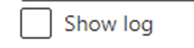
This control is available with sp-property-pane module. It is used to show a checkbox on the control which could be use for multiple reasons. I used it for enabling logs in my solution.

Import Section

import { PropertyPaneCheckbox } from '@microsoft/sp-property-pane';

Declare property in Export interface

export interface ISpfxDemoWebPartProps {
  showlogs?: string;
}

Code Snippet

PropertyPaneCheckbox('showlogs',{  
                  checked:false,  
                  disabled:false,  
                  text: 'Show log'  
                })

Color picker – PropertyFieldSwatchColorPicker Control

This control allows you to pick a color and you can define a list of color to be available for selection.

Import Section

import { PropertyFieldSwatchColorPicker, PropertyFieldSwatchColorPickerStyle } from '@pnp/spfx-property-controls/lib/PropertyFieldSwatchColorPicker';

Declare property in Export interface

export interface ISpfxDemoWebPartProps {
  bgColor: string;
}

Code Snippet

PropertyFieldSwatchColorPicker('bgColor', {
                  label: 'Select Background Color',
                  selectedColor: this.properties.bgColor,
                  onPropertyChange: this.onPropertyPaneFieldChanged,
                  properties: this.properties,
                  colors: [
                    { color: '#ffb900', label: 'Default Yellow' },
                    { color: '#fff100', label: 'Light Yellow' },
                    { color: '#d83b01', label: 'Orange'},
                    { color: '#e81123', label: 'Red' },
                    { color: '#a80000', label: 'Dark Red'},
                    { color: '#5c005c', label: 'Dark Magenta' },
                    { color: '#e3008c', label: 'Light Magenta'},
                    { color: '#5c2d91', label: 'Purple'},
                    { color: '#0078d4', label: 'Blue'},
                    { color: '#00bcf2', label: 'Light Blue' },
                    { color: '#008272', label: 'Teal'},
                    { color: '#107c10', label: 'Green'},
                    { color: '#bad80a', label: 'Light Green' },
                    { color: '#eaeaea'},
                    { color: 'black', label: 'Black'},
                    { color: '#333333', label: 'Neutral'},
                    { color: 'rgba(102, 102, 102, 0.5)', label: 'Half Gray' }
                  ],
                  key: 'bgColor'
                })

The post Add Multiple control in SPFX Web Part Property Pane appeared first on MS Technology Talk.

Dear Microsoft: Determining Solution Usage in Your Tenant Shouldn’t Be Like This

You love the SharePoint Framework, so you build stuff with it. It’s the accepted development model, and it’s been around for years now. There’s no risk of falling behind or getting out of sync with the rest of the Microsoft 365 development world. You’re playing by the rules!

SPFx logo courtesy John Fitzpatrick @maddfitz

Scenario One

You’ve created some fantastic Web Parts and made them available across your tenant. Time passes, and there’s a regime change in your organization. Someone new in power wants an inventory of where those Web Parts are in use to understand how valuable they really are – some measure of ROI for the original investment.

Scenario Two

You use some community maintained Web Parts and they provide fantastic capabilities. Because of some business changes, you decide to build your own versions of the Web Parts, which will function quite differently. So you need to know how many places you’ll need to reconfigure when you have the new Web Parts ready.

Scenario Three

Because of attrition and some truly colossal budgeting mistakes, the team who originally built your Intranet is long gone. you know they did some less than ordinary things, but you’re not sure what. Web Parts are starting to break and you need to do some triage. (Or it’s possible the consultants who built things and didn’t communicate well left you with a mess – but that rarely happens. 😉 )


The examples above are basically unsolvable. Deploying Web Parts tenant-wide seems like a fantastic idea, but there is no tooling you can use to identify completely where those solutions and their Web Parts are in use. Even if you were cautious and you only deployed the solutions with the Web Parts to sites where they were requested or it seemed like they would be useful, you can’t figure out where they are actually used – or whether they are in use at all.

Why is this? Because there is no pages API. We can write PowerShell to loop through all the sites in the tenant to see where a solution is deployed. That looks something like this (code based on a @ToddKlindt example):

# Get all the sites
$sites = Get-PnPTenantSite

# Loop through the sites
foreach ($site in $sites) {

    $app = Get-PnPApp | Where-Object -Property title -Like -Value $appToFind 
    if ($app) {
        Write-Host "$($site.Url) has $($appToFind)"
        # Loop through the pages - Oh, No!
    }
    
}

Great, we know where the solution is deployed. All we need to do is loop through the pages to see where the Web Parts are in use. Damn, no. No pages API. We could try to load the pages into memory and try to do some sort of jQuery selector like stuff to see if the Web Parts are there, but the page assembly pipeline and progressive loading means you may not even have a real view of the page.

Wait! App Insights! We can just run through that data and see where the Web Parts are used. Oh, dang. We weren’t told to use App Insights or it was deemed to complex or expensive to bother with. No joy there.

What we really need is a solutions dashboard that shows us where solutions are used, how many times Web Parts are installed, how often they load, where there are performance issues, etc. But the only way that dashboard could realistically be built is – you guessed it! – if there were a pages API.


My search hero, Mikael Svenson (@mikaelsvenson) suggested a way to find the Web Parts with search in his post Locate pages where a particular web part is being using on modern SharePoint sites which is based on a post by Beau Cameron (@beau__cameron) called Experiment – Find out where SPFx Web Parts are being used in Modern SharePoint sites. So you can get at this info via search, but it’s a bit of a kludge.

I’m going to try to devise something with this approach, but my disgruntlement stands. See my follow up post: Upgrading the PnP Modern Search Web Parts from v3 to v4: Where are they?


When Microsoft builds new functionality like modern pages and doesn’t provide an API, they are blocking all sorts of scenarios. Those blocked scenarios are important to them as well as us. Remember that modern pages have been around for years now. It’s inexcusable that there isn’t an API for them. I’ve been involved in many discussions that have ended with…but there isn’t a pages API, so we can’t do that. Some of those discussions have been with people who work at Microsoft.

Modern solution management is going to become ever more important as organizations continue to use the excellent capabilities arriving regularly to the Microsoft 365 platform. But for every shiny new capability that rolls out, there are a dozen unfulfilled needs or broken promises. Understanding solution usage in our tenants shouldn’t require a PhD in PowerShell, a live chicken, divinity lessons, and 12 garter (not Gartner) snakes.

Site collection app catalog available in SharePoint Online

The site collection app catalog is now generally available for all tenants in SharePoint Online.
 It allows you to make SharePoint Add-Ins and SPFx solutions available only in certain site collections. This is a great improvements because it allows more flexible deployment options, you can test a solutions only on site collection level before pushing it to the entire tenant and it can decentralize the management of add-ins and SPFx packages.
You can create Site Collection App catalog by using SharePoint Online Management Shell.
Note that you will still need to configure tenant app catalog. If you try to provision site collection app catalog without tenant app catalog you will get below exception.

Add-SPOSiteCollectionAppCatalog : Cannot invoke method or retrieve property from null object. Object returned by the
following call stack is null. "TenantAppCatalog
RootWeb
GetSiteByUrl
new Microsoft.Online.SharePoint.TenantAdministration.Tenant()


For more information on site collection app catalog check out below PnP Webcast:


Fantastic 40 is back in SPFx form

Well, actually not, but I hope that the title of this post will make you want to check it out.
I would like to share a great project called "SPFx Fantastic 40 Web Parts". Except the name, this project has almost nothing to do with the old "Fantastic 40 Application Templates for SharePoint (WSS & MOSS)" because it is a collection of 40 SPFx Client Side Web Parts. It is open source project so you can use it as you find for useful. It was created by Olivier Carpentier, but the code is provided "as is" without support from Microsoft.
I am so excited because the web parts look great and they might be a solution to common needs that the out of the box modern webparts don't fulfill.
It is also a great learning resource and demonstration of what can be done with SPFx.
If it is not an issue for you to consume the web parts assets from CDNs you do not control you can download and deploy the *.sppkg as it is and it will work. I also tried most of the web parts on SharePoint Server 2016 with classic pages and they work and look great.
The web parts are grouped in seven categories and below you can find some samples.

Menu & Carousels & News Management: News Slider

The News Slider Web Part renders a simple news slider carousel to your page. You can manage your active news, manage the layout and easily render a cool slider to enhance your pages.


Social Tools: Tweets Feed

The Tweets Feed Web Part is a SharePoint client side web part built with the SharePoint Framework (SPFx). This web part generates a Twitter Feed on the page, based on the specified account. This Web Part uses the Twitter API to integrate the timeline.


Maps, Charts & Graphs: Bar Chart

The Bar Chart Web Part is a SharePoint client side web part built with the SharePoint Framework (SPFx). This web part insert a Bar Chart in your pages, and you can manage the bar chart settings as items, color, title, legends, etc. This web part uses chart.js lib.


Images Galleries & Tools: Grid Gallery

The grid gallery Web Part renders a pictures slideshow with grid of thumbnails. This web part implements unitegallery.js (a popular jquery script) as a client side web part for SharePoint.


Video & Audio: Media Player

The Media Player Web Part is a SharePoint client side web part built with the SharePoint Framework (SPFx). With it, you can insert a video in your pages that is a HTML 5 compatible video or audio files, a YouTube video or a Vimeo video. This web part uses Plyr.js lib.


Text Tools: Tabs

The Tabs Web Part is a SharePoint client side web part built with the SharePoint Framework (SPFx). This web part helps to create a tab (you manage, add, delete, edit or move a tab dynamically) and the web part editor can easily modify the tabs content thanks a HTML editor (WYSIWYG). This tab control is responsive, so the layout will adapt the render with the screen size.


Tools: Stock Info

The Stock Info Web Part is a SharePoint client side web part built with the SharePoint Framework (SPFx). This web part generates a stock graph picture for a specified stock. This web part uses the Yahoo Financial service.


❌
❌