Vue normale

Il y a de nouveaux articles disponibles, cliquez pour rafraîchir la page.
À partir d’avant-hierFlux principal

SharePoint On-Premise Migrations

SharePoint on-premise migration refers to the process of moving data, content, and settings from a SharePoint on-premise environment to a different environment, such as another on-premise environment, SharePoint Online, or a hybrid environment.

This migration process is necessary when organizations need to upgrade their existing SharePoint environment, move to a different hosting solution, or consolidate multiple on-premise SharePoint farms into a single environment.

Steps Involved in a SharePoint on-premise Migration

The steps involved in a SharePoint on-premise migration include:

  1. Planning: Define the scope of the migration, determine the content to be migrated, and plan the migration timeline.
  2. Preparation: Check the compatibility of the source and destination environments, set up the destination environment, and test the migration process.
  3. Data Migration: Copy the content, data, and settings from the source environment to the destination environment.
  4. Validation: Verify that the data has been successfully migrated and that the destination environment is functioning correctly.
  5. Post-migration activities: Finalize the migration, update the URLs, and configure the environment as needed.

The process of SharePoint on-premise migration can be complex, especially when migrating a large amount of data, so it’s recommended to use a migration tool or engage a professional migration services provider to ensure a smooth migration process.

The post SharePoint On-Premise Migrations appeared first on MS Technology Talk.

SharePoint Migration detail overview

SharePoint Migration is the process of transferring content, data, and configurations from one SharePoint environment to another. The migration process can involve moving from one version of SharePoint to another, from an on-premises environment to the cloud, or from one SharePoint tenant to another. The main goal of SharePoint Migration is to ensure that the content and data remains accessible and usable after the migration.

I am going to write a series of blogs on SharePoint migrations and differences on SharePoint On-Premise and SharePoint online migrations.

Important Migration Factors

There are several factors to consider when planning a SharePoint Migration, including:

  • Source and destination environment compatibility: Ensure that the source and destination environments are compatible and can support the content, data, and configurations being migrated.
  • Content scope: Determine which content, data, and configurations will be migrated, and which will be excluded.
  • Timeline: Establish a timeline for the migration, including planning, preparation, data collection, data migration, testing, and go-live.
  • Tools and methods: Choose the right migration tool and method based on the size of the migration and the complexity of the content and data being migrated.
  • Security and compliance: Ensure that the migration process complies with security and data protection regulations, and that the migrated content and data remains secure in the destination environment.
  • User experience: Consider the impact of the migration on end-users, and plan for training, communication, and support to minimize disruption to the user experience.

The SharePoint Migration process can be complex, so it’s recommended to plan and test the migration thoroughly before executing it. The use of a migration tool can help simplify the process and minimize the risk of data loss or disruption to the user experience.

Different Ways of SharePoint Migrations

There are several different ways to perform SharePoint migrations, depending on the size, complexity, and specific requirements of your migration. Here are some common methods for SharePoint migrations:

Manual Migration:

Manually copying and pasting content and data from one SharePoint environment to another. This method is typically used for small migrations and requires manual configuration of the destination environment.

Third-party Migration Tools:

Using commercial or open-source tools to automate the migration process. These tools can handle complex migrations, manage large amounts of data, and provide detailed reporting and tracking.

SharePoint Migration API:

Using Microsoft’s SharePoint Migration API to automate the migration process. The API provides a set of APIs that can be used to migrate content, data, and configurations from one SharePoint environment to another.

SharePoint Content Deployment:

Using the content deployment feature in SharePoint to move content from one site collection to another. This method is typically used for moving content between site collections within the same SharePoint environment.

SharePoint Backup and Restore:

Using the backup and restore feature in SharePoint to move content, data, and configurations from one environment to another. This method is typically used for moving content, data, and configurations between SharePoint versions or between on-premises and cloud environments. It’s important to choose the right method for your migration based on the size and complexity of your content, data, and configurations, as well as your specific requirements and constraints. It’s also recommended to carefully plan and test your migration process before executing it, to minimize the risk of data loss or disruption to the user experience.

The post SharePoint Migration detail overview appeared first on MS Technology Talk.

Attach additional event listener to out of the box SharePoint ribbon control

Have you ever had a use case where you must do something additional when an out of the box ribbon control is clicked, like "Open With Explorer" or "Export to Excel"? Maybe not, until now?
What could make this use case valid is the fact that the ribbon is slowly being phased out and it is no longer available in the modern experience, in addition not all features available in the ribbon are supported by all browsers and clients.
Having something additional being executed when a button from the ribbon is clicked can help you collect usage data for this features and better plan the move to modern experience or (like it or not) making Edge default browser, which does not support "Open with Explorer".
I am not aware of any other way to collect this information in SharePoint on-prem or Online.
Here is an example script that can be added as Scriptlink user custom action and it will attach additional click event listener on the "Open With Explorer" button. Everything that the function will do is to log the action, user name and the document library title in the console, but you can do whatever you find for useful, like logging it in the ULS or calling an API that will record the event.
I have tested it in SharePoint 2016 but it should work in SharePoint 2013 and SharePoint Online classic experience lists, it requires JQuery.


The Script:

Build trust for federated search between two SharePoint Server farms

Federated search is when you aim to receive search result from separate SharePoint (on-premises) by performing a search query in a separate on-premise SharePoint farm.
If you have done such configuration probably you have seen the official documentation for setting it up. This procedure will work in most of the cases.
However, this will not work if you do not have outbound connectivity from the remote farm that will receive the search query (ReceivingFarm) to the farm that is sending the query (SendingFarm).
In that case the federated search will be possible as long as the SendingFarm can access the ReceivingFarm, vice versa is not required, but you should take a bit different approach when building the trust since the SendingFarm web app metadata end point will not be available.
The first thing that needs to be done is to export the root and the token signing certificates from the SendingFarm and also get the Issuer Name (NameIdentifier) of the SendingFarm STS .

## Export Root Certificate
$rootCert = (Get-SPCertificateAuthority).RootCertificate
$rootCert.Export("Cert") | Set-Content "C:\SendingFarmRoot.cer" -Encoding byte
 
## Export Signing Certificate
$stsCert = (Get-SPSecurityTokenServiceConfig).LocalLoginProvider.SigningCertificate
$stsCert.Export("Cert") | Set-Content "C:\SendingFarmSTS.cer" -Encoding byte
 
## Get the STS Issuer Name
$issuerName = (Get-SPSecurityTokenServiceConfig).NameIdentifier

The difference from the official procedure will be how we are going to create the trusted token issuer and the trusted root authority in the ReceivingFarm, this is step 3 in the official procedure.
First copy the SendingFarm certificated to the ReceivingFarm.
Having above done you can create the trusted security token issuer and the trusted root authority  in the ReceivingFarm.

## Read SendingFarm Signing certificate
$stsCert = Get-PfxCertificate "C:\Install\Certs\SendingFarmSTS.cer"
## Read SendingFarm root certificate
$rootCert = Get-PfxCertificate "C:\Install\Certs\SendingFarmRoot.cer"
# Create a trusted security token issuer
$i = New-SPTrustedSecurityTokenIssuer -Name "SendingFarm" `
                                      -Certificate $stsCert `
                                      -IsTrustBroker:$false `
                                      -RegisteredIssuerName "<SendingFarm IssuerName>"
 
# Configure trust of the token-signing certificate'
# by adding the trust used to sign oAuth tokens'
# to the list of trusted root authorities'
# in ReceivingFarm
New-SPTrustedRootAuthority -Name "SendingFarm" `
                           -Certificate $rootCert


Now, you can continue with the trust configuration as it is described in the documentation.

I hope you found this helpful!

Search result security trimming for File Share content source with ADFS users

Indexing of file shares is a common requirement if you have  legacy file share that hasn't been migrated to SharePoint or you are using file share for archiving purposes. SharePoint Search can provide this functionality.
SharePoint also support search result trimming for file share content. That means that if the user does not have permission to a certain content on the file share, the user will not see the content appearing in the search results.
If you are using Windows integrated authentication the security trimming does not require anything special, it will just work. This is not the case if your users are using ADFS to authenticate against SharePoint. If you are using ADFS it is mandatory to have two more claims in order to make the security trimming working.
Those claims are Primary SID and Primary Group SID. In some articles you can find that the Primary SID is required in S2S authentication scenario, but nothing about the Primary Group SID. The Primary SID is the User object SID and the Primary Group SID is the SID of the Domain's primary group
In this post I will demonstrate how to setup it up in ADFS and SharePoint. I have tested it with ADFS 4.0 and SharePoint Server 2016.

On the ADFS side you will need to create two Issuance Transformation rules using template "Pass Through or Filter an Incoming Claim".
You can use below rules to append your rule file and import it to your SharePoint Relying Party Trust(s).
But first, you will have to export your current rules by using below command.


$sprp = Get-AdfsRelyingPartyTrust -Name "<SharePointRP_Name>"
$sprp.IssuanceTransformRules | Out-File "C:\IssuanceTransformRules.txt"


Append the file with below rules for Primary SID and Primary Group SID or any additional rules you might want.


@RuleTemplate = "PassThroughClaims"
@RuleName = "Pass Primary Group SID"
c:[Type == "http://schemas.microsoft.com/ws/2008/06/identity/claims/primarygroupsid"]
 => issue(claim = c);
 
@RuleTemplate = "PassThroughClaims"
@RuleName = "Pass Primary SID"
c:[Type == "http://schemas.microsoft.com/ws/2008/06/identity/claims/primarysid"]
 => issue(claim = c);


Now, import  the file containing your old and newly added rules.


Set-AdfsRelyingPartyTrust -TargetName "<SharePointRP_Name>"`
 -IssuanceTransformRulesFile "C:\IssuanceTransformRules.txt"


On the SharePoint side you will have to create the claim type mappings for the two new claims. You can use the example script below.


Add-PSSnapin *SH*
 
$sts = Get-SPTrustedIdentityTokenIssuer
 
$sts.ClaimTypes.Add("http://schemas.microsoft.com/ws/2008/06/identity/claims/primarygroupsid")
$sts.ClaimTypes.Add("http://schemas.microsoft.com/ws/2008/06/identity/claims/primarysid")
 
$sts.Update()
 
$map = New-SPClaimTypeMapping `
-IncomingClaimType  "http://schemas.microsoft.com/ws/2008/06/identity/claims/primarygroupsid" `
-IncomingClaimTypeDisplayName  "Primary group SID" -SameAsIncoming
$map2 = New-SPClaimTypeMapping `
-IncomingClaimType "http://schemas.microsoft.com/ws/2008/06/identity/claims/primarysid" `
-IncomingClaimTypeDisplayName "Primary SID" -SameAsIncoming
 
Add-SPClaimTypeMapping -Identity $map -TrustedIdentityTokenIssuer $sts
Add-SPClaimTypeMapping -Identity $map2 -TrustedIdentityTokenIssuer $sts


And that's is all you need to do. If everything is fine you will see values for the two new claims and the security trimming should work for the ADFS users.


If you are wondering how to see the claims, I am using one of the many SharePoint Claims Viewer web parts found on the internet. I am also using LDAPCP for claims provider. Above requirement and scripts will be the same if you are using the OOTB claims provider.
I hope you found it helpful!

Change Site Policy Deletion notification email template in SharePoint

The Site Policies in SharePoint are information management tool that helps you implement some site life cycle management. Whether this is dictated by internal house keeping rules or some external regulations that apply to your organisation, the Site Policy is the out of the box way to go if you want to "close" a site, delete it or both, automaticaly after certain period of time.
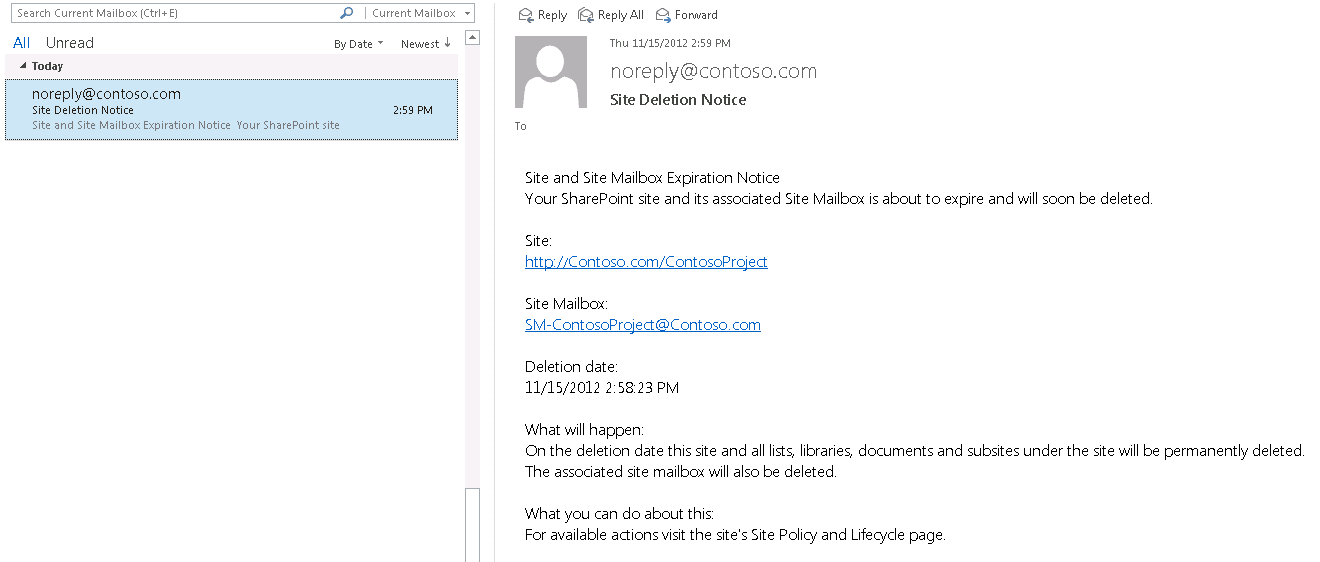
With site policies you have the option to notify the site owners in advance before the site is deleted. The mail looks like the one below.

Site Deletion Notice

The information in this email might not be suitable for your organization.
Fortunately there is a way to change the default Site Policy notification email body template and the email subject. This is not done in some XML template file like the Alerts template, maybe there is one, but I have not found it. There is SSOM and CSOM API that you can use to set custom email body template per policy.
The documentation of this is very poor and the best resource on this is the article Site Policy in SharePoint.
Unfortunately I have not managed to make this work server side or using PowerShell. I have tried with SharePoint 2013, SharePoint 2016 and SharePoint Online ssom and csom as well.
The only way I found it working is from console application using the CSOM approach.
The site policy post above is good and the code should work as it is, but it has some gaps.
There are three placeholders that we can use, placeholders for Site Url, Deletion Date and Mailbox Id.
However the placeholders with curly braces that are demonstrated in the post will not work.
I would like to save you some time testing especially if you are targeting SharePoint Online, as there you cannot manually run the "Expiration Policy" timer job.

The correct placeholders are below, without curly braces or any spaces.

SiteUrl: <!--SiteUrl-->
Deletion Date: <!--SiteDeleteDate-->
Mailbox ID: <!--TeamMailboxID-->


I hope you found this helpful!

Fantastic 40 is back in SPFx form

Well, actually not, but I hope that the title of this post will make you want to check it out.
I would like to share a great project called "SPFx Fantastic 40 Web Parts". Except the name, this project has almost nothing to do with the old "Fantastic 40 Application Templates for SharePoint (WSS & MOSS)" because it is a collection of 40 SPFx Client Side Web Parts. It is open source project so you can use it as you find for useful. It was created by Olivier Carpentier, but the code is provided "as is" without support from Microsoft.
I am so excited because the web parts look great and they might be a solution to common needs that the out of the box modern webparts don't fulfill.
It is also a great learning resource and demonstration of what can be done with SPFx.
If it is not an issue for you to consume the web parts assets from CDNs you do not control you can download and deploy the *.sppkg as it is and it will work. I also tried most of the web parts on SharePoint Server 2016 with classic pages and they work and look great.
The web parts are grouped in seven categories and below you can find some samples.

Menu & Carousels & News Management: News Slider

The News Slider Web Part renders a simple news slider carousel to your page. You can manage your active news, manage the layout and easily render a cool slider to enhance your pages.


Social Tools: Tweets Feed

The Tweets Feed Web Part is a SharePoint client side web part built with the SharePoint Framework (SPFx). This web part generates a Twitter Feed on the page, based on the specified account. This Web Part uses the Twitter API to integrate the timeline.


Maps, Charts & Graphs: Bar Chart

The Bar Chart Web Part is a SharePoint client side web part built with the SharePoint Framework (SPFx). This web part insert a Bar Chart in your pages, and you can manage the bar chart settings as items, color, title, legends, etc. This web part uses chart.js lib.


Images Galleries & Tools: Grid Gallery

The grid gallery Web Part renders a pictures slideshow with grid of thumbnails. This web part implements unitegallery.js (a popular jquery script) as a client side web part for SharePoint.


Video & Audio: Media Player

The Media Player Web Part is a SharePoint client side web part built with the SharePoint Framework (SPFx). With it, you can insert a video in your pages that is a HTML 5 compatible video or audio files, a YouTube video or a Vimeo video. This web part uses Plyr.js lib.


Text Tools: Tabs

The Tabs Web Part is a SharePoint client side web part built with the SharePoint Framework (SPFx). This web part helps to create a tab (you manage, add, delete, edit or move a tab dynamically) and the web part editor can easily modify the tabs content thanks a HTML editor (WYSIWYG). This tab control is responsive, so the layout will adapt the render with the screen size.


Tools: Stock Info

The Stock Info Web Part is a SharePoint client side web part built with the SharePoint Framework (SPFx). This web part generates a stock graph picture for a specified stock. This web part uses the Yahoo Financial service.


❌
❌