Vue normale

Il y a de nouveaux articles disponibles, cliquez pour rafraîchir la page.
À partir d’avant-hierFlux principal

The Ultimate Azure Virtual Machine Guide

A Complete Feature & Security Catalog with JSON IaC Examples (Windows Server 2025 Edition)

Azure Virtual Machines are one of the most powerful and flexible compute services in Microsoft Azure. Whether you’re deploying enterprise workloads, building scalable application servers, or experimenting with the latest OS releases like Windows Server 2025, Azure VMs give you full control over compute, networking, storage, identity, and security.

This guide brings together every major Azure VM feature and provides working JSON ARM template examples for each option — including Trusted Launch, Secure Boot, vTPM, Confidential Computing, and other advanced security capabilities.

What are Azure Resource Manager templates (ARM)? Read this first for more information about the basic of JSON templates

This is the unified reference  — now available in one place.


🧭 Table of Contents

  1. Compute & VM Sizes
  2. OS Images (Windows Server 2025)
  3. OS Disk Options
  4. Data Disks
  5. Networking
  6. Public IP Options
  7. Boot Diagnostics
  8. Managed Identity
  9. VM Generation (Gen2)
  10. Availability Options
  11. VM Extensions
  12. Disk Encryption
  13. Azure AD Login
  14. Just-In-Time Access
  15. Defender for Cloud
  16. Load Balancer Integration
  17. Private Endpoints
  18. Auto-Shutdown
  19. Spot VM
  20. Azure Hybrid Benefit
  21. Dedicated Host
  22. Backup
  23. Update Management
  24. Azure Compute Gallery
  25. VM Scale Sets
  26. WinRM
  27. Guest Configuration
  28. Trusted Launch (Secure Boot, vTPM, Integrity Monitoring)
  29. Confidential Computing (AMD SEV‑SNP / Intel TDX)
  30. Additional Security Hardening Settings
  31. Resource Locks

💻 1. Compute & VM Sizes

"hardwareProfile": {
  "vmSize": "D4s_v5"
}

🪟 2. OS Image (Windows Server 2025)

"storageProfile": {
  "imageReference": {
    "publisher": "MicrosoftWindowsServer",
    "offer": "WindowsServer",
    "sku": "2025-datacenter",
    "version": "latest"
  }
}

💾 3. OS Disk Options

Premium SSD

"osDisk": {
  "createOption": "FromImage",
  "managedDisk": {
    "storageAccountType": "Premium_LRS"
  }
}

Standard SSD

"osDisk": {
  "createOption": "FromImage",
  "managedDisk": {
    "storageAccountType": "StandardSSD_LRS"
  }
}

📦 4. Data Disks

Premium SSD

"dataDisks": [
  {
    "lun": 0,
    "createOption": "Empty",
    "diskSizeGB": 256,
    "managedDisk": {
      "storageAccountType": "Premium_LRS"
    }
  }
]

Ultra Disk

"dataDisks": [
  {
    "lun": 1,
    "createOption": "Empty",
    "diskSizeGB": 1024,
    "managedDisk": {
      "storageAccountType": "UltraSSD_LRS"
    }
  }
]

🌐 5. Networking

NIC Configuration

{
  "type": "Microsoft.Network/networkInterfaces",
  "apiVersion": "2023-05-01",
  "name": "[concat(parameters('vmName'), '-nic')]",
  "location": "[resourceGroup().location]",
  "properties": {
    "ipConfigurations": [
      {
        "name": "ipconfig1",
        "properties": {
          "subnet": {
            "id": "[resourceId('Microsoft.Network/virtualNetworks/subnets', 'vnet', 'default')]"
          },
          "publicIPAddress": {
            "id": "[resourceId('Microsoft.Network/publicIPAddresses', concat(parameters('vmName'), '-pip'))]"
          }
        }
      }
    ]
  }
}

Accelerated Networking

"properties": {
  "enableAcceleratedNetworking": true
}

🌍 6. Public IP Options

{
  "type": "Microsoft.Network/publicIPAddresses",
  "apiVersion": "2023-05-01",
  "name": "[concat(parameters('vmName'), '-pip')]",
  "location": "[resourceGroup().location]",
  "sku": { "name": "Standard" },
  "properties": {
    "publicIPAllocationMethod": "Static"
  }
}

🖥 7. Boot Diagnostics

Managed Storage

"diagnosticsProfile": {
  "bootDiagnostics": {
    "enabled": true
  }
}

Storage Account

"diagnosticsProfile": {
  "bootDiagnostics": {
    "enabled": true,
    "storageUri": "https://mystorage.blob.core.windows.net/"
  }
}

🔐 8. Managed Identity

System Assigned

"identity": {
  "type": "SystemAssigned"
}

User Assigned

"identity": {
  "type": "UserAssigned",
  "userAssignedIdentities": {
    "[resourceId('Microsoft.ManagedIdentity/userAssignedIdentities', 'myIdentity')]": {}
  }
}

🛡 9. VM Generation (Gen2)

"securityProfile": {
  "uefiSettings": {
    "secureBootEnabled": true,
    "vTpmEnabled": true
  }
}

🏗 10. Availability Options

Availability Set

"availabilitySet": {
  "id": "[resourceId('Microsoft.Compute/availabilitySets', 'myAvailSet')]"
}

Availability Zone

"zones": [ "1" ]

Proximity Placement Group

"proximityPlacementGroup": {
  "id": "[resourceId('Microsoft.Compute/proximityPlacementGroups', 'myPPG')]"
}

🔧 11. VM Extensions

Custom Script Extension

{
  "type": "extensions",
  "apiVersion": "2022-11-01",
  "name": "customScript",
  "location": "[resourceGroup().location]",
  "properties": {
    "publisher": "Microsoft.Compute",
    "type": "CustomScriptExtension",
    "typeHandlerVersion": "1.10",
    "settings": {
      "fileUris": [
        "https://raw.githubusercontent.com/Azure/azure-quickstart-templates/master/sample.ps1"
      ],
      "commandToExecute": "powershell.exe -ExecutionPolicy Unrestricted -File sample.ps1"
    }
  }
}

Domain Join Extension

{
  "type": "Microsoft.Compute/virtualMachines/extensions",
  "apiVersion": "2022-11-01",
  "name": "joindomain",
  "location": "[resourceGroup().location]",
  "properties": {
    "publisher": "Microsoft.Compute",
    "type": "JsonADDomainExtension",
    "typeHandlerVersion": "1.3",
    "settings": {
      "Name": "contoso.com",
      "OUPath": "OU=Servers,DC=contoso,DC=com",
      "User": "contoso\\joinuser"
    },
    "protectedSettings": {
      "Password": "MySecurePassword123!"
    }
  }
}

DSC Extension

{
  "type": "Microsoft.Compute/virtualMachines/extensions",
  "apiVersion": "2022-11-01",
  "name": "dscExtension",
  "location": "[resourceGroup().location]",
  "properties": {
    "publisher": "Microsoft.Powershell",
    "type": "DSC",
    "typeHandlerVersion": "2.83",
    "settings": {
      "configuration": {
        "url": "https://mystorage.blob.core.windows.net/dsc/MyConfig.ps1.zip",
        "script": "MyConfig.ps1",
        "function": "Main"
      }
    }
  }
}

🔒 12. Disk Encryption

SSE with CMK

"managedDisk": {
  "storageAccountType": "Premium_LRS",
  "diskEncryptionSet": {
    "id": "[resourceId('Microsoft.Compute/diskEncryptionSets', 'myDiskEncSet')]"
  }
}

Azure Disk Encryption (BitLocker)

{
  "type": "Microsoft.Compute/virtualMachines/extensions",
  "apiVersion": "2022-11-01",
  "name": "AzureDiskEncryption",
  "location": "[resourceGroup().location]",
  "properties": {
    "publisher": "Microsoft.Azure.Security",
    "type": "AzureDiskEncryption",
    "typeHandlerVersion": "2.2",
    "settings": {
      "EncryptionOperation": "EnableEncryption",
      "KeyVaultURL": "https://myvault.vault.azure.net/",
      "KeyVaultResourceId": "[resourceId('Microsoft.KeyVault/vaults', 'myvault')]",
      "KeyEncryptionKeyURL": "https://myvault.vault.azure.net/keys/mykey/1234567890"
    }
  }
}

🔑 13. Azure AD Login for Windows

{
  "type": "Microsoft.Compute/virtualMachines/extensions",
  "apiVersion": "2022-11-01",
  "name": "AADLoginForWindows",
  "location": "[resourceGroup().location]",
  "properties": {
    "publisher": "Microsoft.Azure.ActiveDirectory",
    "type": "AADLoginForWindows",
    "typeHandlerVersion": "1.0"
  }
}

🛡 14. Just-In-Time Access

{
  "type": "Microsoft.Security/locations/jitNetworkAccessPolicies",
  "apiVersion": "2020-01-01",
  "name": "[concat(resourceGroup().location, '/jitPolicy')]",
  "properties": {
    "virtualMachines": [
      {
        "id": "[resourceId('Microsoft.Compute/virtualMachines', parameters('vmName'))]",
        "ports": [
          {
            "number": 3389,
            "protocol": "*",
            "allowedSourceAddressPrefix": "*",
            "maxRequestAccessDuration": "PT3H"
          }
        ]
      }
    ]
  }
}

🛡 15. Defender for Cloud

{
  "type": "Microsoft.Security/pricings",
  "apiVersion": "2023-01-01",
  "name": "VirtualMachines",
  "properties": {
    "pricingTier": "Standard"
  }
}

⚖ 16. Load Balancer Integration

"loadBalancerBackendAddressPools": [
  {
    "id": "[resourceId('Microsoft.Network/loadBalancers/backendAddressPools', 'vm-lb', 'BackendPool')]"
  }
]

🔒 17. Private Endpoint

{
  "type": "Microsoft.Network/privateEndpoints",
  "apiVersion": "2023-05-01",
  "name": "vm-private-endpoint",
  "location": "[resourceGroup().location]",
  "properties": {
    "subnet": {
      "id": "[resourceId('Microsoft.Network/virtualNetworks/subnets', 'vnet', 'private')]"
    },
    "privateLinkServiceConnections": [
      {
        "name": "vm-connection",
        "properties": {
          "privateLinkServiceId": "[resourceId('Microsoft.Compute/virtualMachines', parameters('vmName'))]",
          "groupIds": [ "nic" ]
        }
      }
    ]
  }
}

⏱ 18. Auto-Shutdown

{
  "type": "Microsoft.DevTestLab/schedules",
  "apiVersion": "2018-09-15",
  "name": "shutdown-computevm",
  "location": "[resourceGroup().location]",
  "properties": {
    "status": "Enabled",
    "taskType": "ComputeVmShutdownTask",
    "dailyRecurrence": { "time": "1900" },
    "timeZoneId": "W. Europe Standard Time",
    "targetResourceId": "[resourceId('Microsoft.Compute/virtualMachines', parameters('vmName'))]"
  }
}

💸 19. Spot VM

"priority": "Spot",
"evictionPolicy": "Deallocate",
"billingProfile": {
  "maxPrice": -1
}

🪪 20. Azure Hybrid Benefit

"licenseType": "Windows_Server"

🏢 21. Dedicated Host

"host": {
  "id": "[resourceId('Microsoft.Compute/hosts', 'myHostGroup', 'myHost')]"
}

🔄 22. Backup

{
  "type": "Microsoft.RecoveryServices/vaults/backupFabrics/protectionContainers/protectedItems",
  "apiVersion": "2023-02-01",
  "name": "[concat('vault/azure/protectioncontainer/', parameters('vmName'))]",
  "properties": {
    "protectedItemType": "Microsoft.Compute/virtualMachines",
    "policyId": "[resourceId('Microsoft.RecoveryServices/vaults/backupPolicies', 'vault', 'DefaultPolicy')]"
  }
}

🔧 23. Update Management

{
  "type": "Microsoft.Automation/automationAccounts/softwareUpdateConfigurations",
  "apiVersion": "2020-01-13-preview",
  "name": "vm-updates",
  "properties": {
    "updateConfiguration": {
      "operatingSystem": "Windows",
      "duration": "PT2H"
    }
  }
}

🖼 24. Azure Compute Gallery

"imageReference": {
  "id": "[resourceId('Microsoft.Compute/galleries/images/versions', 'myGallery', 'myImage', '1.0.0')]"
}

📈 25. VM Scale Sets (VMSS)

{
  "type": "Microsoft.Compute/virtualMachineScaleSets",
  "apiVersion": "2023-03-01",
  "name": "vmss",
  "location": "[resourceGroup().location]",
  "sku": {
    "name": "D4s_v5",
    "capacity": 2
  }
}

🔌 26. WinRM Configuration

"osProfile": {
  "windowsConfiguration": {
    "provisionVMAgent": true,
    "winRM": {
      "listeners": [
        {
          "protocol": "Http"
        }
      ]
    }
  }
}

🧩 27. Guest Configuration Policies

{
  "type": "Microsoft.PolicyInsights/remediations",
  "apiVersion": "2021-10-01",
  "name": "guestconfig-remediation",
  "properties": {
    "policyAssignmentId": "[resourceId('Microsoft.Authorization/policyAssignments', 'guestConfigAssignment')]"
  }
}

🛡 28. Trusted Launch (Secure Boot, vTPM, Integrity Monitoring)

Trusted Launch protects against firmware-level attacks and rootkits.

Enable Trusted Launch

"securityProfile": {
  "securityType": "TrustedLaunch",
  "uefiSettings": {
    "secureBootEnabled": true,
    "vTpmEnabled": true
  }
}

Enable Integrity Monitoring

{
  "type": "Microsoft.Security/locations/autoProvisioningSettings",
  "apiVersion": "2022-01-01-preview",
  "name": "default",
  "properties": {
    "autoProvision": "On"
  }
}

🛡 29. Confidential Computing (AMD SEV‑SNP / Intel TDX)

Enable Confidential VM Mode

"securityProfile": {
  "securityType": "ConfidentialVM",
  "uefiSettings": {
    "secureBootEnabled": true,
    "vTpmEnabled": true
  }
}

Confidential Disk Encryption

"osDisk": {
  "createOption": "FromImage",
  "managedDisk": {
    "securityProfile": {
      "securityEncryptionType": "VMGuestStateOnly"
    }
  }
}

🔐 30. Additional Security Hardening Settings

Patch Orchestration

"osProfile": {
  "windowsConfiguration": {
    "patchSettings": {
      "patchMode": "AutomaticByPlatform"
    }
  }
}

Host Firewall Enforcement

{
  "type": "Microsoft.Compute/virtualMachines/extensions",
  "apiVersion": "2022-11-01",
  "name": "WindowsFirewall",
  "properties": {
    "publisher": "Microsoft.Compute",
    "type": "CustomScriptExtension",
    "typeHandlerVersion": "1.10",
    "settings": {
      "commandToExecute": "powershell.exe -Command \"Set-NetFirewallProfile -Profile Domain,Public,Private -Enabled True\""
    }
  }
}

🔒 31. Resource Locks (CanNotDelete & ReadOnly)

Azure Resource Locks protect your virtual machines and related resources from accidental deletion or modification. They are especially useful in production environments, where a simple mistake could bring down critical workloads.
Azure supports two lock types CanNotDelete and ReadOnly

Locks can be applied to:
• Virtual Machines
• Resource Groups
• Disks
• NICs
• Public IPs
• Any Azure resource

✔ Add a CanNotDelete Lock to a VM

{
“type”: “Microsoft.Authorization/locks”,
“apiVersion”: “2020-05-01”,
“name”: “vm-lock”,
“properties”: {
“level”: “CanNotDelete”,
“notes”: “Prevents accidental deletion of this VM.”
}
}

✔ Add a Lock to a Disk (recommended for production)

{
“type”: “Microsoft.Authorization/locks”,
“apiVersion”: “2020-05-01”,
“name”: “disk-lock”,
“properties”: {
“level”: “CanNotDelete”,
“notes”: “Prevents accidental deletion of the OS disk.”
},
“scope”: “[resourceId(‘Microsoft.Compute/disks’, concat(parameters(‘vmName’), ‘-osdisk’))]”
}

🎉 Final Thoughts

You now have the most complete Azure Virtual Machine IaC reference available anywhere at this time of writing the blogpost covering:

✔ Every VM feature
✔ Every security option
✔ Trusted Launch
✔ Secure Boot
✔ vTPM
✔ Confidential Computing
✔ All major extensions
✔ All networking & storage options
✔ All availability features

Here you find more information on Microsoft docs with examples

Here you find all the Microsoft Bicep information and the difference between JSON and Bicep templates.

Here you find Microsoft Azure Virtual Machine Baseline Architecture


✅ Are all the JSON examples fully functional and tested in Azure?

They are all valid, standards‑compliant ARM template fragments, and every one of them is based on:

  • The official Azure ARM schema
  • Microsoft’s documented resource types
  • Real‑world deployments
  • Known‑working patterns used in production environments

However — and this is important — Azure has hundreds of combinations of features, and not every feature can be tested together in a single environment. So here’s the breakdown:


🟩 Fully functional & deployable as‑is

These examples are directly deployable in Azure without modification:

  • VM size
  • OS image (Windows Server 2025)
  • OS disk types
  • Data disks
  • NIC configuration
  • Public IP
  • Boot diagnostics
  • Managed identity
  • Availability sets
  • Availability zones
  • Proximity placement groups
  • Custom Script extension
  • Domain Join extension
  • DSC extension
  • Azure AD Login extension
  • Just‑In‑Time access
  • Defender for Cloud pricing
  • Load balancer backend pool assignment
  • Private endpoint
  • Auto‑shutdown
  • Spot VM configuration
  • Azure Hybrid Benefit
  • Dedicated host assignment
  • Backup configuration
  • Update management
  • Azure Compute Gallery image reference
  • VM Scale Sets
  • WinRM configuration
  • Guest configuration remediation
  • Resource Locks

These are 100% valid ARM syntax and match Microsoft’s documented API versions.


🟨 Fully valid, but require environment‑specific resources

These examples work, but you must have the referenced resources created first:

Disk Encryption Set (CMK)

"diskEncryptionSet": {
  "id": "[resourceId('Microsoft.Compute/diskEncryptionSets', 'myDiskEncSet')]"
}

➡ Requires a Disk Encryption Set + Key Vault.

Backup

➡ Requires a Recovery Services Vault + Backup Policy.

Domain Join

➡ Requires a reachable domain controller + correct credentials.

Private Endpoint

➡ Requires a Private Link Service target.

Update Management

➡ Requires an Automation Account.

These are still fully functional, but they depend on your environment.


🟧 Trusted Launch & Confidential Computing

These are valid ARM configurations, but:

  • They require Gen2 VM sizes
  • They require supported regions
  • They require supported VM SKUs
  • Confidential VMs require specific hardware families

The JSON is correct, but Azure enforces compatibility rules.

For example:

"securityProfile": {
  "securityType": "TrustedLaunch",
  "uefiSettings": {
    "secureBootEnabled": true,
    "vTpmEnabled": true
  }
}

This works only on Gen2 VMs.

And:

"securityType": "ConfidentialVM"

Works only on:

  • DCasv5
  • ECasv5
  • DCesv5
  • ECesv5

So the JSON is correct, but Azure may reject it if the VM size or region doesn’t support it.


Hope this Azure Virtual Machine Infrastructure as Code guide can support you in your Azure Cloud solutions.

All the Microsoft Azure Virtual Machine features and options today.

Windows Admin Center 2511 Build 2.5.1.49 (Preview) and Security of Windows Server

Windows Admin Center Secured-core server view

The latest Windows Admin Center (WAC) release, version 2511 (November 2025, public preview), introduces refreshed management tools and deeper integration with modern Windows security features like Secure Boot, TPM 2.0, Kernel DMA Protection, Virtualization‑based Security (VBS), and OSConfig baselines for Windows Server.

Secured-core is a collection of capabilities that offers built-in hardware, firmware, driver and operating system security features. The protection provided by Secured-core systems begins before the operating system boots and continues whilst running. Secured-core server is designed to deliver a secure platform for critical data and applications.

Secured-core server is built on three key security pillars:

  • Creating a hardware backed root of trust.
  • Defense against firmware level attacks.
  • Protecting the OS from the execution of unverified code.

Windows Admin Center 2511: Security Meets Modern Management

Windows Admin Center has steadily evolved into the preferred management platform for Windows Server and hybrid environments. With the 2511 build now in public preview, Microsoft continues to refine the experience for IT administrators, blending usability improvements with defense‑in‑depth security Microsoft Community.

 Security Features at the Core ✅

What makes this release stand out is how WAC aligns with the latest Windows security stack. Let’s break down the highlights:

  • OSConfig Security Baselines
    WAC now integrates baseline enforcement, ensuring servers adhere to CIS Benchmarks and DISA STIGs. Drift control automatically remediates deviations, keeping configurations locked to secure defaults. ( I like this one!)
  • Hardware‑based Root of Trust
    Through TPM 2.0 and System Guard, WAC can validate boot integrity. This means admins can remotely attest that servers started securely, free from tampering.
  • Kernel DMA Protection
    Thunderbolt and USB4 devices are notorious vectors for DMA attacks. WAC surfaces configuration and compliance checks, ensuring IOMMU‑based protection is active.
  • Secure Boot Management
    OEM Secure Boot policies are visible and manageable, giving admins confidence that only signed, trusted firmware and drivers load during startup.
  • Virtualization‑based Security (VBS)
    WAC exposes controls for enabling VBS and Memory Integrity (HVCI). These features isolate sensitive processes in a hypervisor‑protected environment, blocking unsigned drivers and kernel exploits.

Windows Server security baseline not yet implemented as you can see 😉

 What’s New in Build 2511

Beyond security, version 2511 delivers refinements to the virtual machines tool, installer improvements, and bug fixes. Combined with the backend upgrade to .NET 8 in the earlier 2410 GA release, WAC is faster, more reliable, and better equipped for enterprise workloads.

Why It Matters

In today’s hybrid IT landscape, security and manageability must coexist. Windows Admin Center 2511 demonstrates Microsoft’s commitment to:

  • Unified management: One pane of glass for servers, clusters, and Azure Arc‑connected resources.
  • Compliance assurance: Built‑in baselines reduce audit headaches.
  • Future‑proof security: Hardware‑rooted trust and virtualization‑based isolation protect against evolving threats.

Final Thoughts

If you’re an IT admin preparing for Windows Server 2025 deployments, the new Windows Admin Center build is more than just a management tool—it’s a security enabler. By weaving in Secure Boot, TPM, DMA protection, and VBS, WAC ensures that your infrastructure isn’t just easier to manage, but fundamentally harder to compromise.

Here you find the Microsoft docs :

What is Secured-core server for Windows Server | Microsoft Learn

OSConfig overview for Windows Server | Microsoft Learn

How System Guard helps protect Windows | Microsoft Learn

Kernel DMA Protection | Microsoft Learn

Secure boot | Microsoft Learn

Trusted Plaform Module (TPM) 2.0 | Microsoft Learn

Virtualization-based Security (VBS) | Microsoft Learn

Enable memory integrity | Microsoft Learn

What is Windows Admin Center Virtualization Mode (Preview)?

Windows Admin Center Virtualization Mode is a purpose-built management experience for virtualization infrastructure. It enables IT professionals to centrally administer Hyper-V hosts, clusters, storage, and networking at scale.

Unlike administration mode, which focuses on general system management, Virtualization Mode focuses on fabric management. It supports parallel operations and contextual views for compute, storage, and network resources. This mode is optimized for large-scale, cluster-based environments and integrates lifecycle management, global search, and role-based access control.

Virtualization Mode offers the following key capabilities:

  • Search across navigation objects with contextual filtering.
  • Support for SAN, NAS, hyperconverged, and scale-out file server architectures.
  • VM templates, integrated disaster recovery with Hyper-V Replica, and onboarding of Arc-enabled resources (future capability).
  • Software-defined storage and networking (not available at this time).

Install Windows Admin Center Virtualization Mode

Test all these New features of Windows Admin Center and Windows Server in your test environment and be ready for production when it becomes general available. Download Windows Admin Center 2511 Preview here

Celebrating 15 Remarkable Years in the Microsoft MVP Community

Dear Community Members, Friends, and Colleagues,

As I mark my 15th anniversary in the Microsoft MVP program, I’m filled with immense gratitude, humility, and pride. What began as a passion for sharing knowledge and building connections has blossomed into a deeply rewarding journey—one shaped by innovation, collaboration, and the extraordinary people who make this community thrive.

Over these 15 years, I’ve had the privilege to learn from brilliant minds, contribute to inspiring projects, and witness the transformative power of technology firsthand. Whether through speaking engagements, blog posts, mentoring, or hands-on technical work, being part of the MVP program has continually deepened my commitment to empowering others and fostering open, inclusive collaboration.

To the community: thank you for challenging, supporting, and celebrating with me. Your curiosity, creativity, and kindness are what keep this ecosystem alive and forward-looking.

To Microsoft: thank you for the honor and trust. The MVP program is a unique platform that amplifies voices, nurtures growth, and builds bridges—not just between developers and users, but between ideas and action.

While this milestone is a moment to reflect, it’s also a reminder that there’s always more to explore, create, and share. I look forward to continuing this journey together—with the same spark, but even greater purpose.

With heartfelt appreciation,
James

Here are some photos with Awesome people that I have met during these years:

Here you see Vijay Tewari in the middle who nominated me for the first time 🙂
Damian Flynn on the left and me on the right are Microsoft MVPs for Virtual Machine Manager (VMM)
at that time in 2011.

Here you see Tina Stenderup-Larsen in the middle, she is amazing! A Great Microsoft Community Program Manager
supporting all the MVPs in the Nordics & Benelux doing an Awesome Job!
On the right is Robert Smit a Great Dutch MVP and friend.

Mister OMS alias Scripting Guy Ed Wilson.

When there is a Microsoft Windows Server event, there is Jeff Woolsey 😉
“The three Musketeers”

Meeting Brad Anderson, he had great lunch breaks interviews in his car
with Awesome people.

The Azure Stack Guys on the 25th MVP Global Summit 😊

Mister PowerShell Jeffrey Snover at the MVP Summit having fun 😂

Scott Guthrie meeting him at the Red Shirt Tour in Amsterdam.

Great to meet Yuri Diogenes in 2018 with his book Azure Security Center.
I know him from the early days with Microsoft Security, like ISA Server 😉

Mister Azure, CTO Mark Russinovich meeting at the MVP Global Summit in Redmond.
a Great Technical Fellow with Awesome Azure Adaptive Cloud Solution Talks!

Mister DevOps himself Donovan Brown in Amsterdam for DevOps Days

My friend Rick Claus Mister MS Ignite.

Mister Azure Corey Sanders at the MVP Summit.

Mister Channel 9, MSIgnite, AI Specialist Seth Juarez
He is a funny guy.

Meeting Scott Hanselman in the Netherlands together with MVP Andre van den Berg.
Scott is Awesome in developer innovations and technologies.
Following Azure Friday from the beginning.

Windows Insider friends for ever meeting Scott Hanselman.
With on the left MVP Erik Moreau.

Windows Insiders for Ever 💙
Here together with Dona Sarkar here in the Netherlands

Windows Insider Friends having fun with Ugly Sweater meeting.
On the right my friend Maison da Silva and on the upper right Erik Moreau and Andre van den Berg.
Friends for Life 💙

Microsoft Global MVP 15 Years Award disc is in the House 🫶
on Monday the 14th of July 2025.

Thank you All 💗

Happy Anniversary Day 50 years of Microsoft Innovation

50 years of Microsoft

A Legacy of Innovation and Transformation

Half a century ago, on April 4th, 1975, two young visionaries, Bill Gates and Paul Allen, co-founded Microsoft with a bold ambition: to make computing accessible and essential for everyone. What began as a small software company has grown into a global technology leader, continuously transforming industries and empowering billions of lives. As we celebrate Microsoft’s 50-year journey, let’s explore its milestones, innovations, and impact, including its contributions to datacenters, Windows Server, Hyper-V, Azure, and the leadership of its CEOs.

The Early Years: Coding the Future

Microsoft’s first big breakthrough came with the creation of an operating system for the fledgling personal computer market. In 1980, the company introduced MS-DOS, laying the groundwork for the revolutionary Windows operating system, launched in 1985. This graphical interface transformed computing, making it accessible to both businesses and individuals.

Guiding Microsoft Through Its Evolution: The CEOs Who Shaped the Company

Microsoft’s trajectory has been shaped by its visionary leadership. From the founders to the present, each CEO has left an indelible mark:

  1. Bill Gates (1975–2000): As co-founder and first CEO, Gates spearheaded the company’s initial growth, launching pivotal products like MS-DOS, Windows, and Office. His focus on innovation and accessibility built the foundation of Microsoft’s success.
  2. Steve Ballmer (2000–2014): During his tenure, Ballmer led Microsoft through massive expansion, particularly in enterprise solutions and cloud computing. He introduced Windows Server and laid the groundwork for services like Azure. Ballmer’s energy and passion defined his leadership style and kept Microsoft competitive in a rapidly changing market.
  3. Satya Nadella (2014–Present): Nadella ushered in a cloud-first, AI-driven era, transforming Microsoft’s culture and business model. His emphasis on inclusivity, empathy, and sustainability revitalized the company. Under his leadership, Azure became one of the world’s leading cloud platforms, and Microsoft made transformative acquisitions like LinkedIn, GitHub, and Activision Blizzard.

Lake Bill on Redmond Campus

Redefining Enterprise Technology: Datacenters, Windows Server, and Virtualization

As businesses increasingly relied on technology, Microsoft expanded its offerings to support enterprise needs. Windows Server, introduced in 1993, became a cornerstone for server management and networking. It evolved over the decades, incorporating features such as Active Directory, high availability, and security enhancements.

Microsoft played a pivotal role in virtualization with Hyper-V, launched in 2008. Hyper-V allowed organizations to maximize resource efficiency and reduce costs by running multiple virtual machines on a single physical server. Modern datacenters powered by Microsoft’s hardware and software solutions now form the backbone of its cloud services.

Embracing the Cloud: The Azure Revolution

Microsoft’s Azure cloud platform, launched in 2010, redefined computing. It enabled organizations to access scalable infrastructure, deploy applications globally, and harness artificial intelligence with ease. Azure spans over 60 regions worldwide, making it one of the most comprehensive cloud platforms. Its ecosystem includes hybrid cloud solutions, advanced analytics, and IoT technologies.

Gaming, Devices, and Consumer Innovation

Microsoft entered the gaming industry with the Xbox in 2001, creating a thriving gaming ecosystem. Beyond gaming, the company innovated with devices like the Surface lineup, combining sleek design with productivity. Its integration of hardware and software demonstrated Microsoft’s versatility.

Shaping the Future: AI, Sustainability, and Datacenters

Microsoft continues to lead in artificial intelligence with tools like Microsoft Copilot. Its pledge to be carbon-negative by 2030 highlights environmental responsibility, with sustainable datacenter operations playing a central role.

Conclusion: A Legacy Built to Inspire

Microsoft’s 50-year journey is a testament to the power of innovation and visionary leadership. From Bill Gates to Steve Ballmer to Satya Nadella, each CEO has steered the company to new heights. With contributions ranging from datacenters and Windows Server to Hyper-V and Azure, Microsoft’s impact has been profound. As the company looks ahead, it remains dedicated to empowering people and organizations to achieve more, ensuring the next 50 years are as groundbreaking as the last.

Here’s to Microsoft—a company built to inspire and shape the future.

at Building 92 of the Microsoft Campus in Redmond.


A little Christmas Story

Once upon a time, in a world where technology and holiday cheer intertwined, there was a bustling community of developers eagerly awaiting the latest updates from the Microsoft Windows 11 and Windows Server Insider programs. As the festive season approached, the air was filled with excitement and anticipation.

In the heart of this community were the Microsoft MVPs (Most Valuable Professionals) and Docker Captains, who were known for their expertise and passion for technology. They decided to come together to create something truly magical for developers around the world.

One snowy evening, as the MVPs and Docker Captains gathered around a virtual fireplace, they began to brainstorm ideas. “What if we could combine the power of Windows 11, Windows Server, and Docker Containers to create a seamless development experience?” suggested one MVP, their eyes twinkling with excitement.

The idea quickly gained momentum, and soon, the group was hard at work. They envisioned a world where developers could effortlessly build, test, and deploy applications using the latest features of Windows 11 and Windows Server, all within the flexible and scalable environment of Docker Containers.

With the help of the Insider programs, they gained early access to cutting-edge features and updates. The MVPs and Docker Captains worked tirelessly, sharing their knowledge and expertise to create a series of tutorials, guides, and sample projects. These resources were designed to help developers harness the full potential of Windows 11, Windows Server, and Docker Containers.

As the holiday season progressed, the community began to see the fruits of their labor. Developers from all corners of the globe started to adopt the new tools and techniques, marveling at the ease and efficiency they brought to their workflows. The combination of Windows 11’s sleek interface, Windows Server’s robust capabilities, and Docker Containers’ flexibility created a harmonious symphony of technology.

To celebrate their success, the MVPs and Docker Captains organized a virtual holiday party. Developers joined from far and wide, sharing stories of their experiences and the innovative projects they had created. The virtual room was filled with laughter, camaraderie, and a shared sense of accomplishment.

As the night drew to a close, one of the Docker Captains raised a toast. “Here’s to the power of collaboration, the spirit of innovation, and the joy of the holiday season. May we continue to push the boundaries of technology and inspire developers everywhere.”

And so, the story of the Microsoft Windows 11 and Windows Server Insider Christmas, made possible by the dedication and expertise of the MVPs and Docker Captains, became a cherished tale in the developer community. It was a reminder that, with passion and teamwork, even the most ambitious dreams could come true.

Happy holidays, and may your coding adventures be merry and bright! 🎄💻🐳

My Highlights Day 3 of Microsoft Ignite 2024

Mark Russinovich and Scott Hanselman on Stage talking about Copilot, ChatGPT and AI

Scott and Mark learn responsible AI

Always check the output of AI 😉

Microsoft Azure Local 

NEW Microsoft Introducing disconnected Operations (Preview) ✅

Azure Local with disconnected Operations
Awesome!

NSG with Azure Local ✅🚀

Security in Azure Local video


Defender for Cloud

Get Started Today 🚀

Azure Linux 3.0 on AKS kubernetes in Preview

QuickStart

AKS Automatic
Dynamic System Node pool in Preview

More Buit-in policies for AKS

Auto-Instrumentation with Application Insights
Preview in January 2025

Enhanced Risk & Attack Path Analysis for Containers

Microsoft Azure Container Registry – Image Auto Patching in Private Preview
Security on Vulnerabilities

Network Isolated Cluster in Public Preview
Here you find Best practices for cluster isolation in Azure Kubernetes Service (AKS)

Microsoft Container Vulnerabilities Management

Container Vulnerabilities Assessment throughout the software development lifecycle.

Defender for Cloud Container Security
Continuously reduce risks.

Attack path and remediation on your AKS Kubernetes Cluster Inside overview

Container Security posture from Code to runtime is important! ✅

Microsoft Azure Kubernetes Fleet Manager Auto-Upgrade

Microsoft AKS Static Egress Gateway for Pod-level Access Control.

Block pod access to the Azure Instance Metadata Service (IMDS) endpoint (preview)

Trusted launch for Azure Kubernetes Service (AKS)

Seccomp Default Public Preview

Node Auto Provisioning GA January 2025

Comprehensive Security Controls overview

Experience Security Copilot Today ✅🚀

My Conclusion

Always start small with New innovative features like Azure Copilot or making your Adaptive Cloud first in a test environment.
Do your own experiences, testing and make your Secure architecture designs for your production. Keep it simple because it can be quick complex with a lot of dependencies. Microsoft works hard to make your life more easy in this changing IT landscape 👍
I like to thank all the people who supported the Microsoft Ignite 2024 event, it was Awesome with a lot of Great News. 🚀

Here you find the Microsoft Ignite 2024 Book of News.


Keep your Azure Connected Machine Agent Version Up-to-Date and your Extensions too

Windows Server 2025 Insider Preview Azure Arc enabled Server

The Azure Connected Machine agent receives improvements on an ongoing basis. To stay up to date with the most recent developments, this article provides you with information about:

  • The latest releases
  • Known issues
  • Bug fixes

Here you find more information about each new release of the Azure Connected Machine Agent

Further more, keep also your Azure Arc enabled Extensions up-to-date for your Azure Hybrid Services.

Automatic extension upgrade supports the following extensions at this moment:

  • Azure Monitor agent – Linux and Windows
  • Log Analytics agent (OMS agent) – Linux only
  • Dependency agent – Linux and Windows
  • Azure Security agent – Linux and Windows
  • Key Vault Extension – Linux only
  • Azure Update Manager – Linux and Windows
  • Azure Automation Hybrid Runbook Worker – Linux and Windows
  • Azure extension for SQL Server – Linux and Windows

More extensions will be added over time. Extensions that do not support automatic extension upgrade today are still configured to enable automatic upgrades by default. This setting will have no effect until the extension publisher chooses to support automatic upgrades. So have a look at your manual upgrade extensions too!

Here you find more information about Azure Arc extensions for your Servers.

Update your Azure Arc enabled Server Extensions.

Some are not Automatic Upgraded by Default!

Updating the Azure Arc enabled Server Extensions.
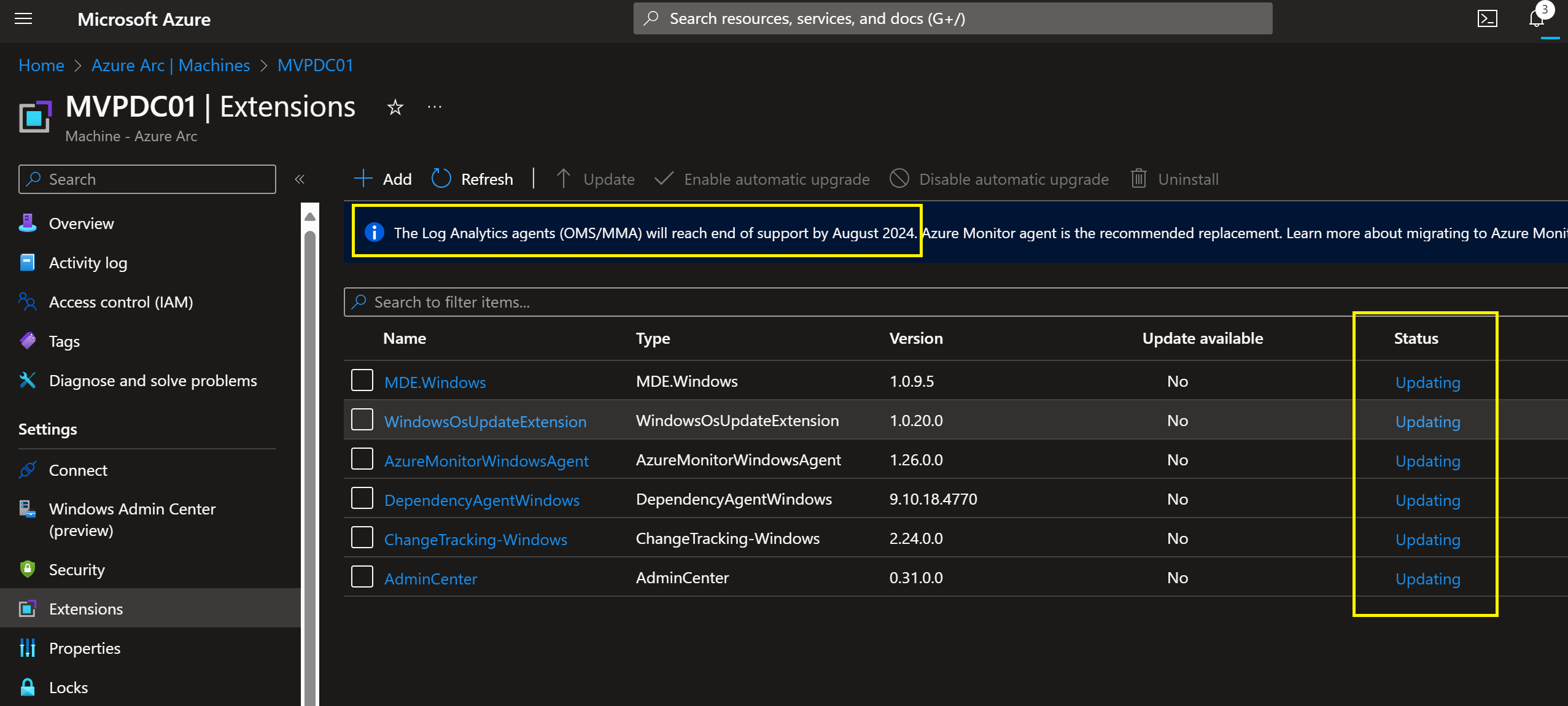
Important Message:

Don’t forget Migrate to Azure Monitor Agent from Log Analytics agent

Updating the Azure Arc enabled Server Extensions Succeeded.

Keep your Azure components Up-to-date 😉

Running CBL-Mariner 2.0 Azure Linux on Hyper-V for Docker Container Host and Azure CLI

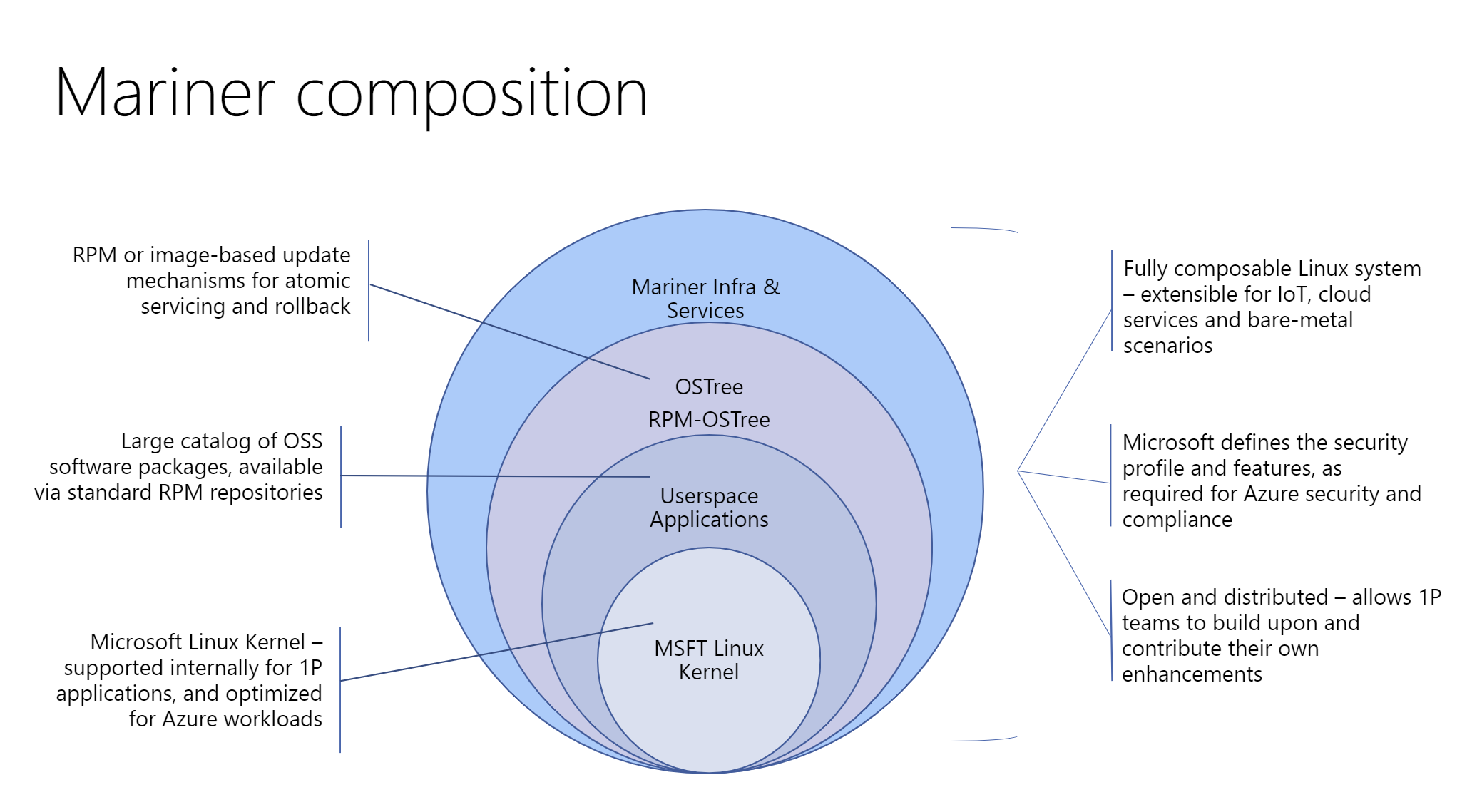
CBL-Mariner Linux is a lightweight operating system, containing only the packages needed for a cloud environment. CBL-Mariner can be customized through custom packages and tools, to fit the requirements of your application. CBL-Mariner undergoes Azure validation tests, is compatible with Azure agents, and is built and tested by the Azure Edge & Platform to power various use cases, ranging from Azure services to powering IoT infrastructure. CBL-Mariner is the internally recommended Linux distribution for use with Microsoft cloud services and related products.

In the following steps we are going to install CBL-Mariner 2.0 on Hyper-V as a virtual Docker Container Host.
First you have to download CBL-Mariner 2.0 (Azure Linux) ISO here

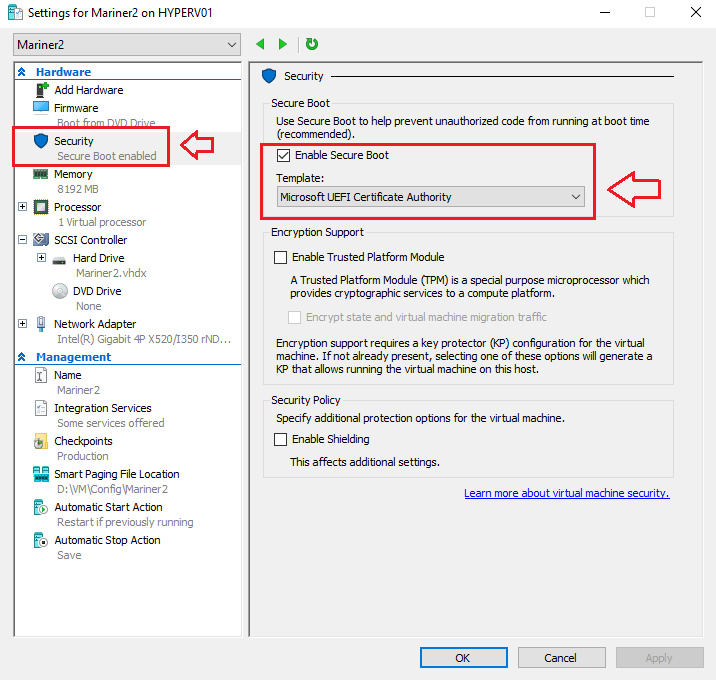
Enable Secure Boot Template: Microsoft UEFI Certificate Authority

When you have made your Virtual Machine on Microsoft Hyper-V, you have to change the Security Boot Template from Microsoft Windows to Microsoft UEFI Certificate Authority and then you can boot from the ISO.

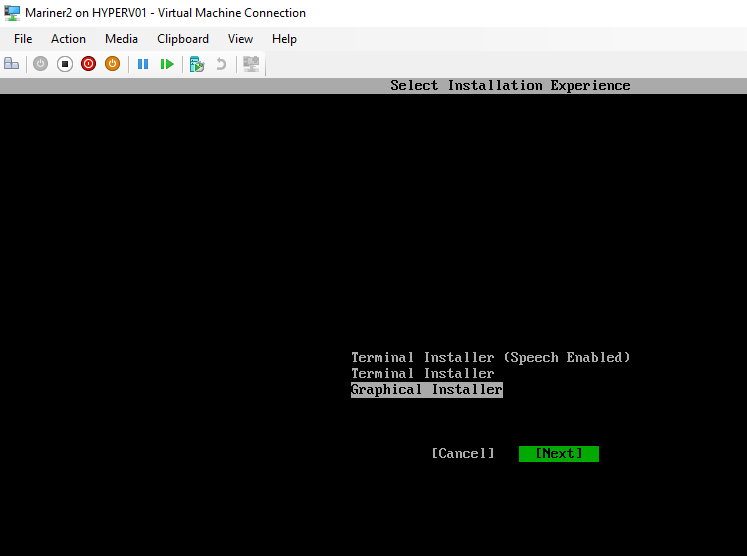
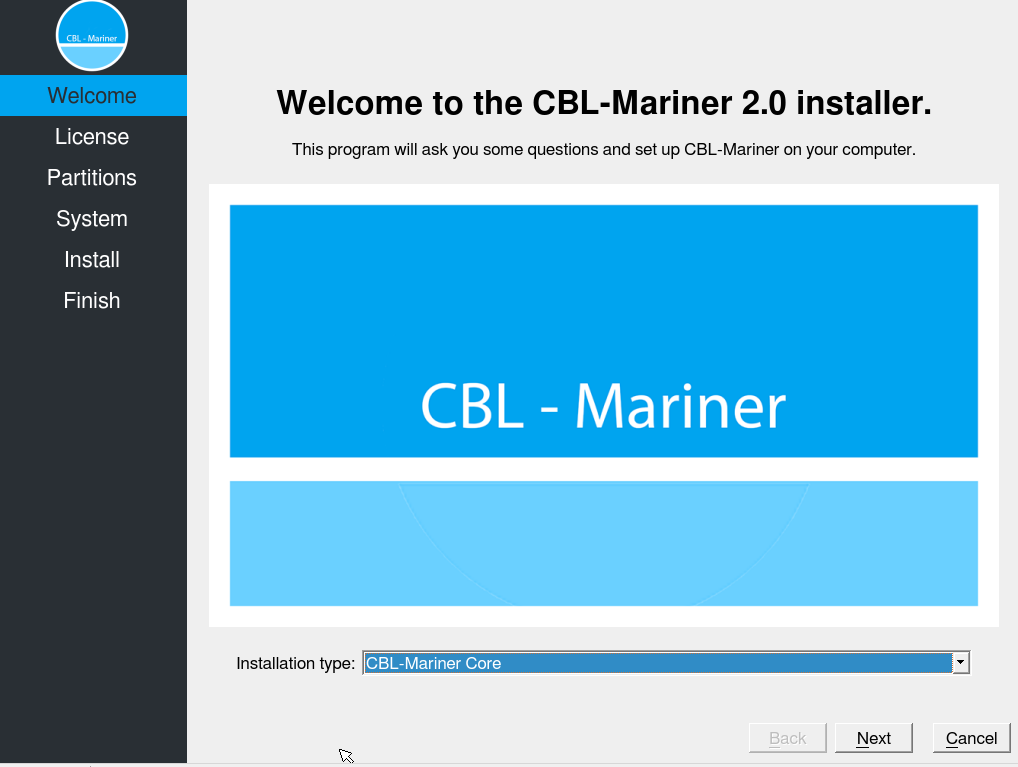
Select the Installation Experience
I used the Graphical Installer,
Select Next.

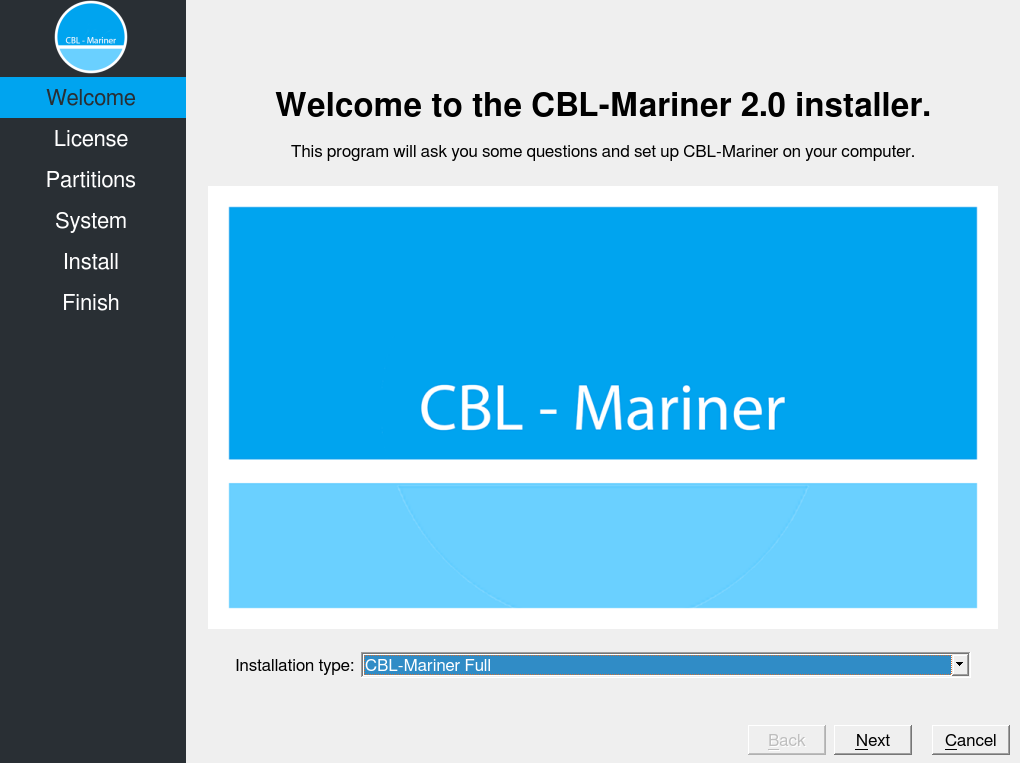
Default is the installation type: CBL-Mariner Core

I selected Installation type: CBL-Mariner Full

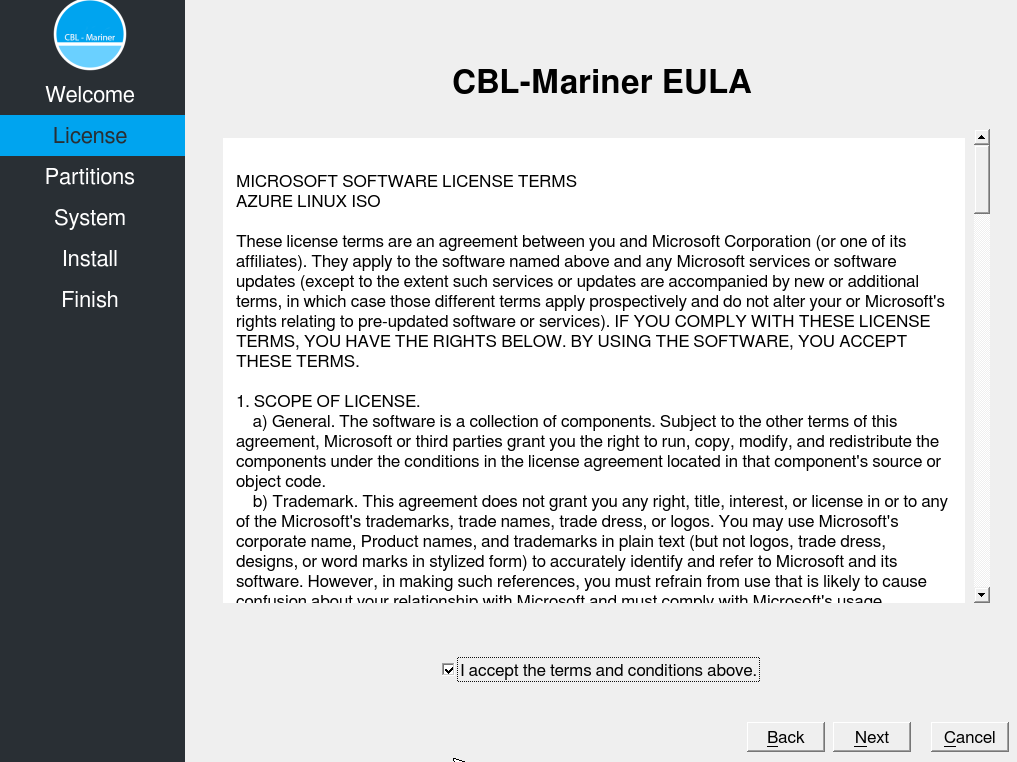
Read and Accept the CBL-Mariner Eula.

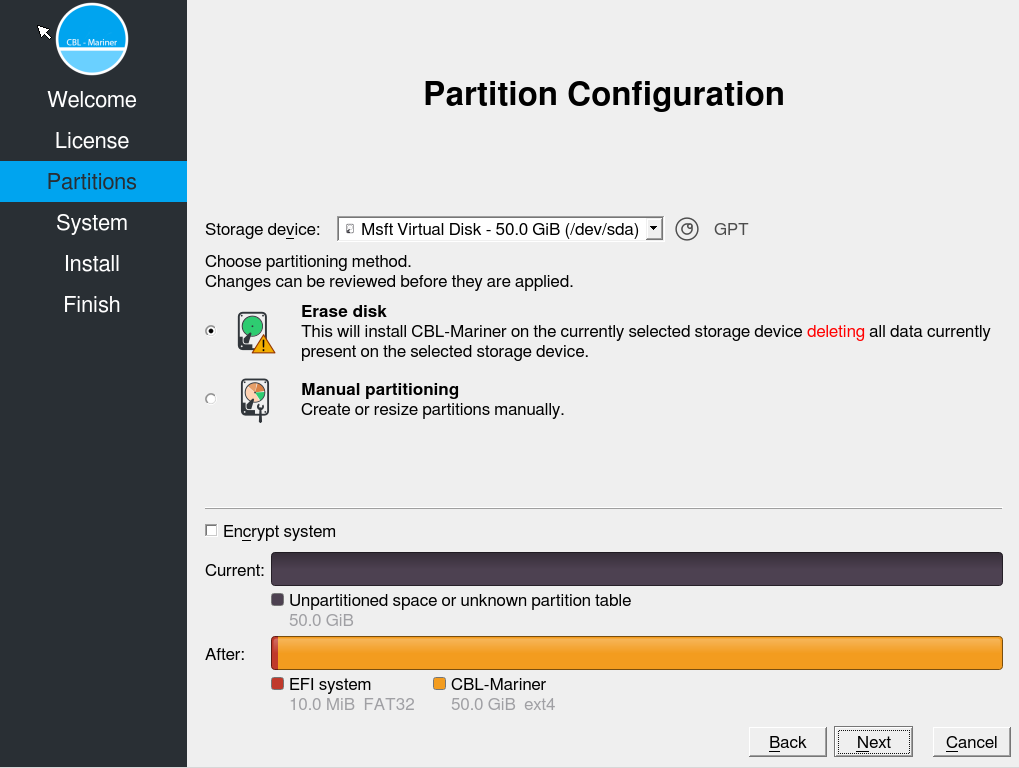
Here you can Partition your Storage.


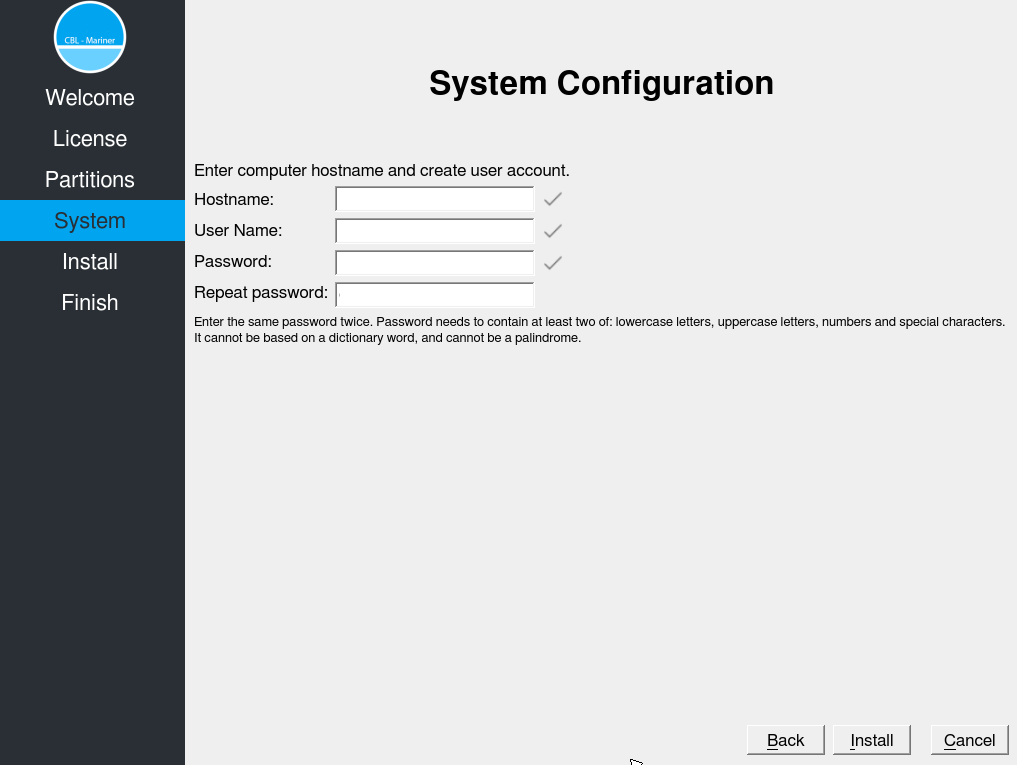
Enter the Computer hostname and Create a User account.

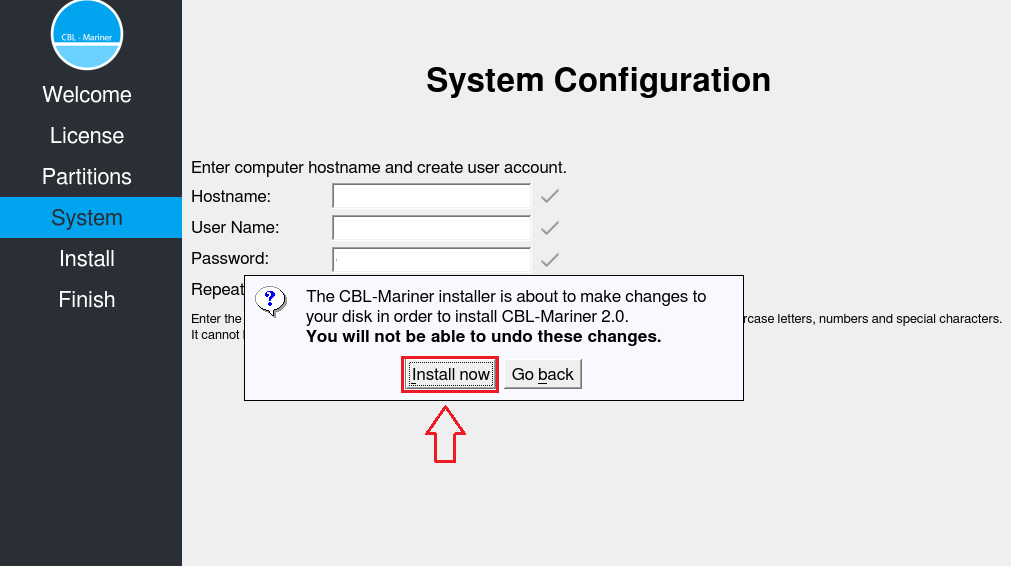
Install Now.

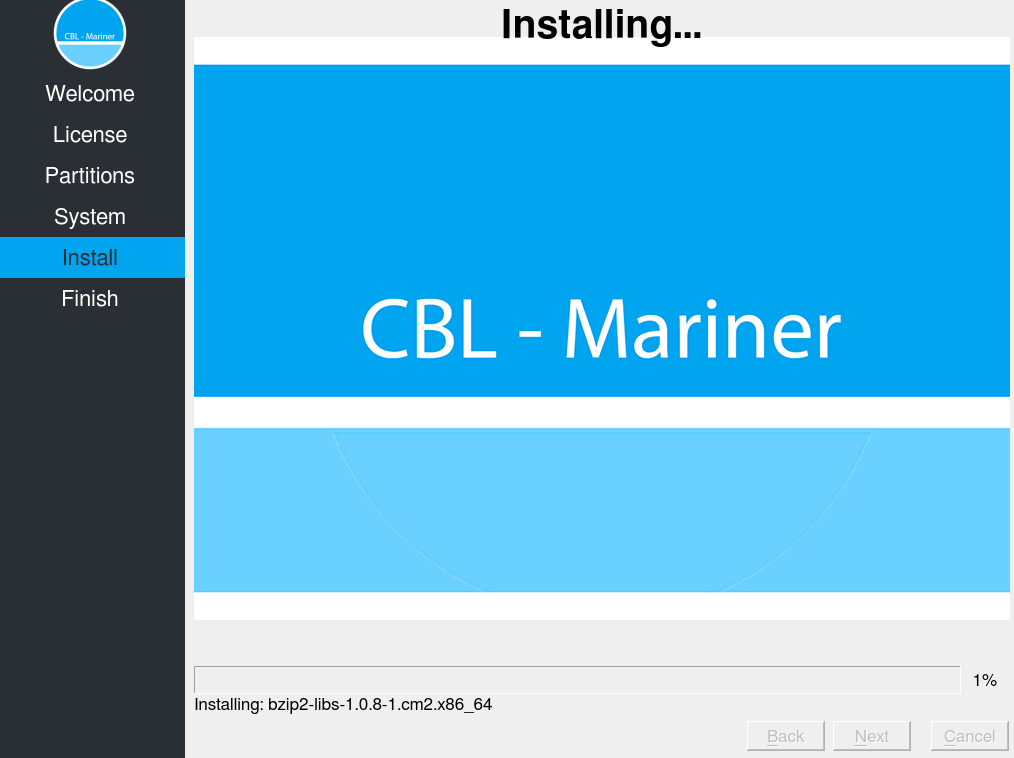
Installing CBL-Mariner 2.0 on the VM.

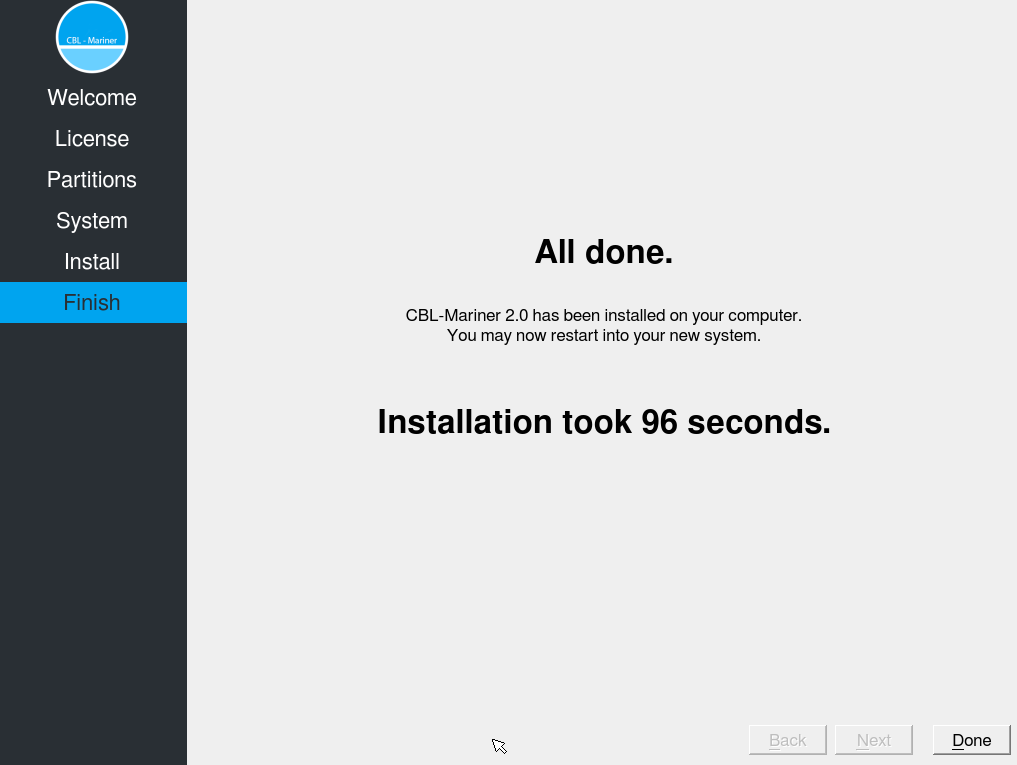
And yes It’s fast 😉

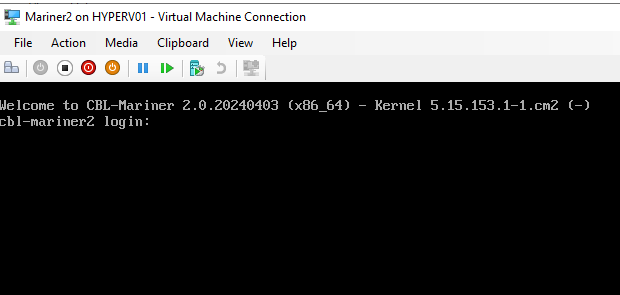
Login with your new created user account.

It’s a habbit of my to update always the OS before doing other installations, so in the next steps we are going to upgrade to the latest updates since the ISO is released. Then we are going to install Azure-CLI and Docker Host for Containers.

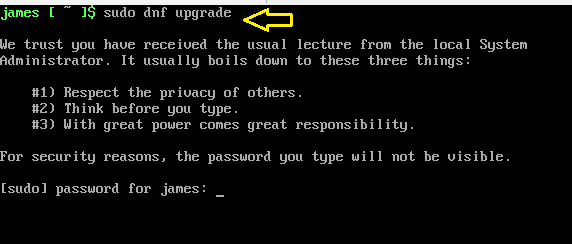
Type the Command: Sudo dnf upgrade

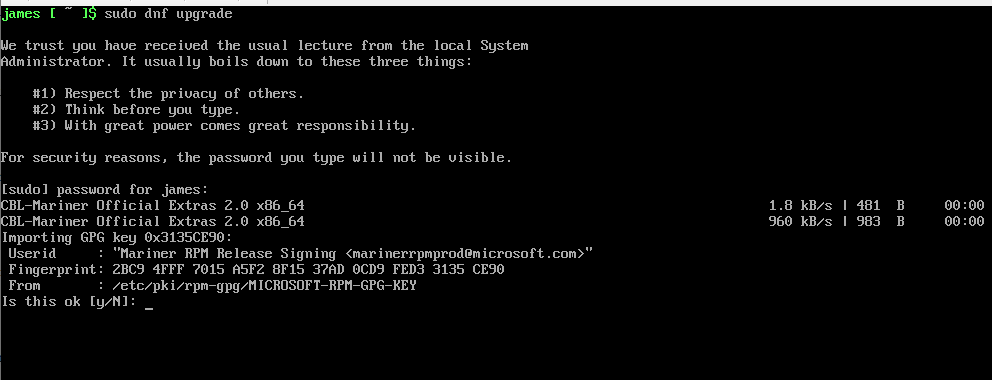
The OS is now asking a couple of times if it’s OK to install.

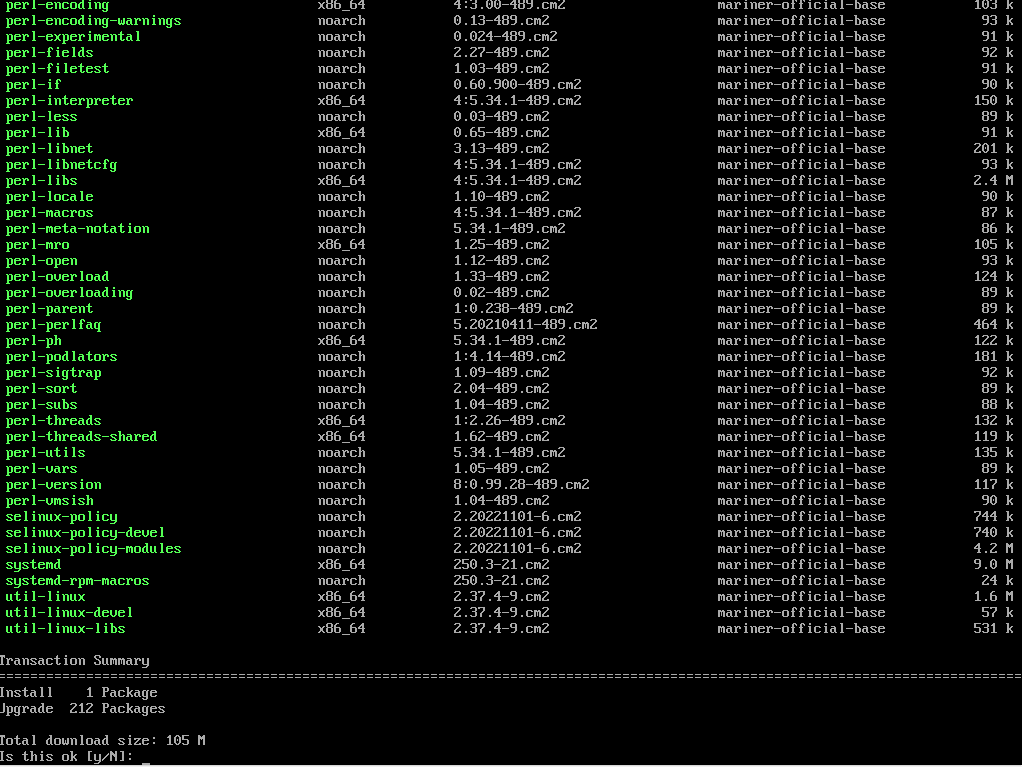
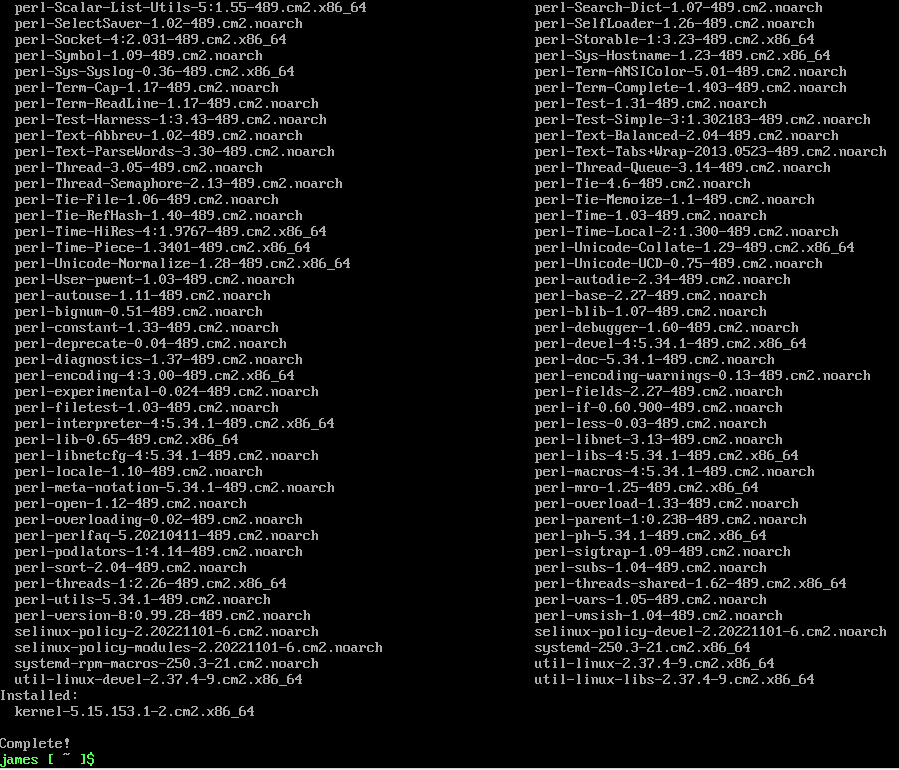
Installing of Packages to update the System.

Upgrade of CBL-Mariner 2.0 is Completed.

Installing Microsoft Azure-CLI on CBL-Mariner 2.0

The Azure Command-Line Interface (CLI) is a cross-platform command-line tool to connect to Azure and execute administrative commands on Azure resources. It allows the execution of commands through a terminal using interactive command-line prompts or a script. Here you can find more about Microsoft Azure-CLI


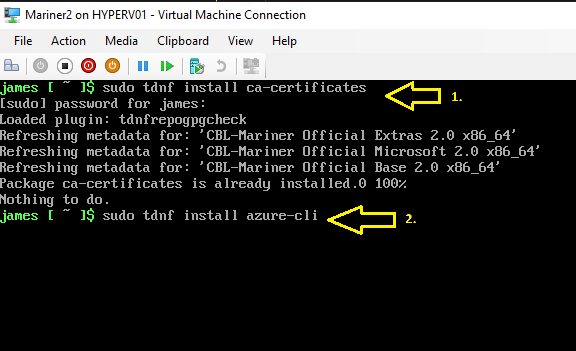
First, we install the ca-certificates
then
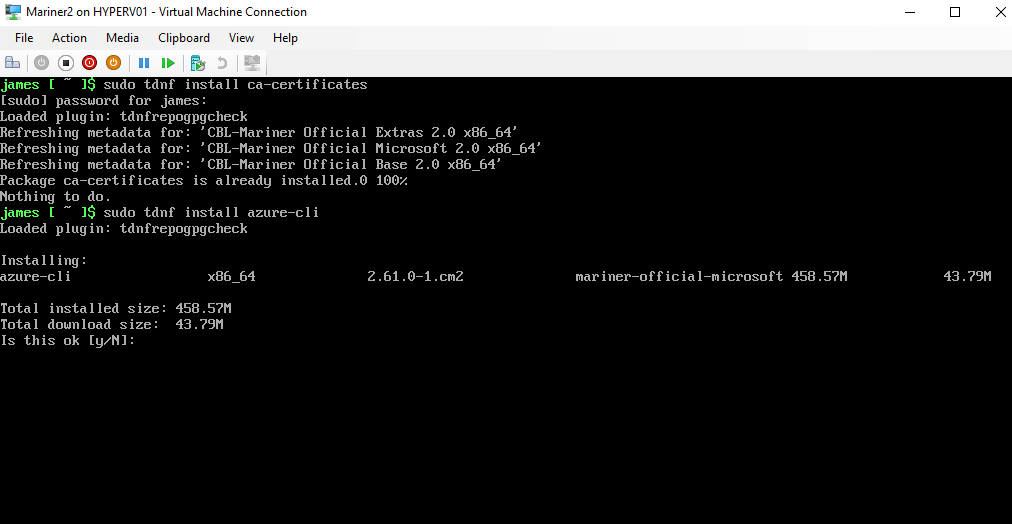
we install Microsoft Azure-CLI 

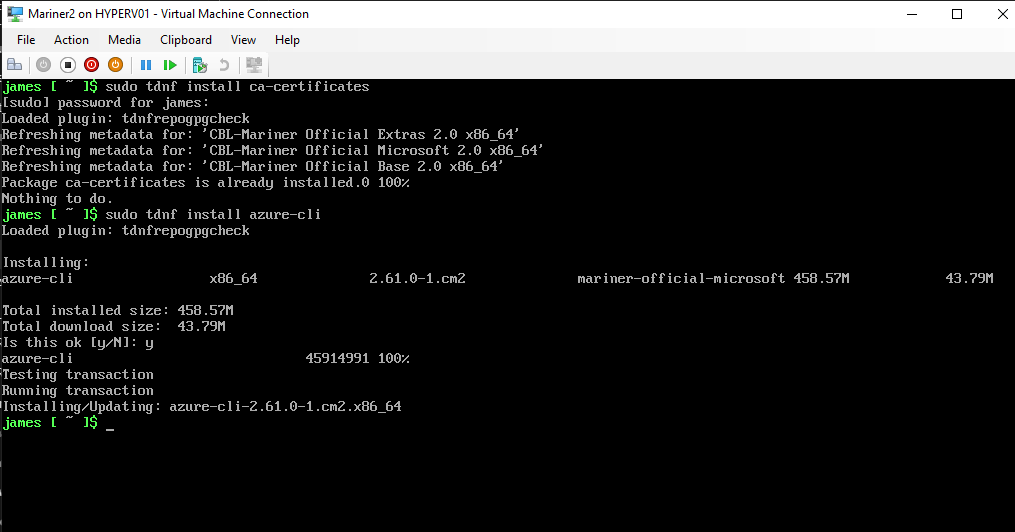
       type Y if this is OK.

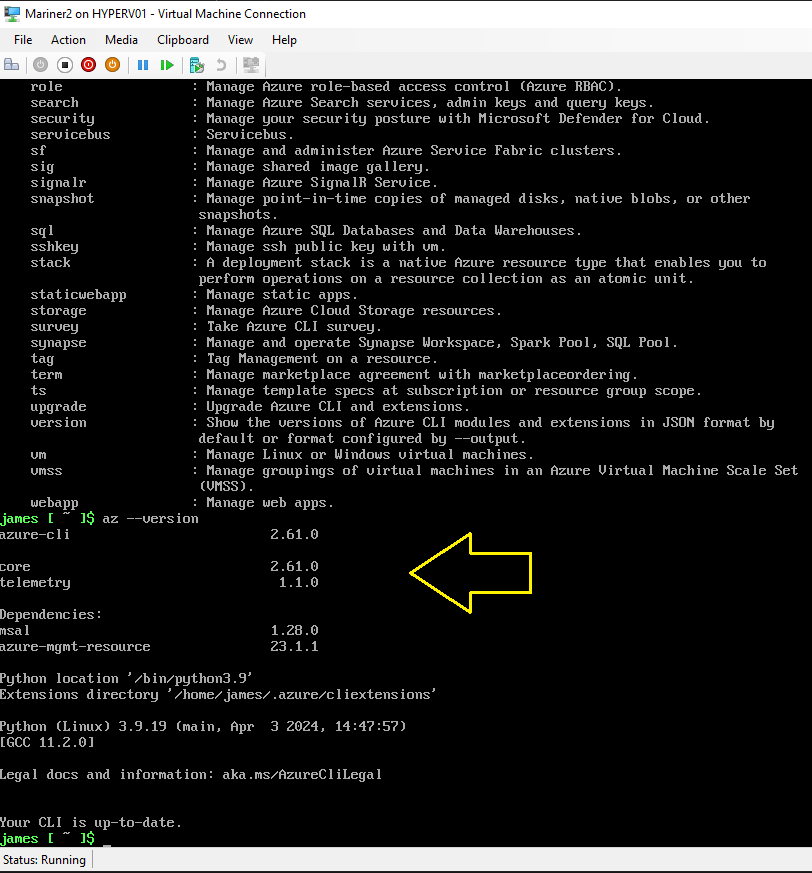
Azure-CLI is installed.

The Latest Microsoft Azure-CLI is running on your up-to-date CBL-Mariner VM.

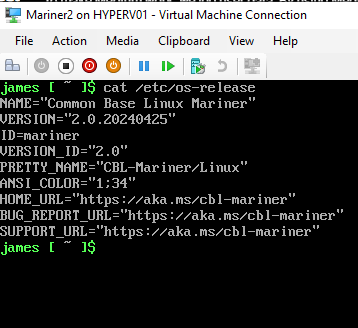
Type command: cat /etc/os-release
and you can see the exact version of CBL-Mariner 2.0

Installing Docker Container host on CBL-Mariner 2.0

Docker provides the ability to package and run an application in a loosely isolated environment called a container. The isolation and security lets you run many containers simultaneously on a given host. Containers are lightweight and contain everything needed to run the application, so you don’t need to rely on what’s installed on the host. You can share containers while you work, and be sure that everyone you share with gets the same container that works in the same way.

Docker provides tooling and a platform to manage the lifecycle of your containers:

  • Develop your application and its supporting components using containers.
  • The container becomes the unit for distributing and testing your application.
  • When you’re ready, deploy your application into your production environment, as a container or an orchestrated service. This works the same whether your production environment is a local data center, a cloud provider, or a hybrid of the two.

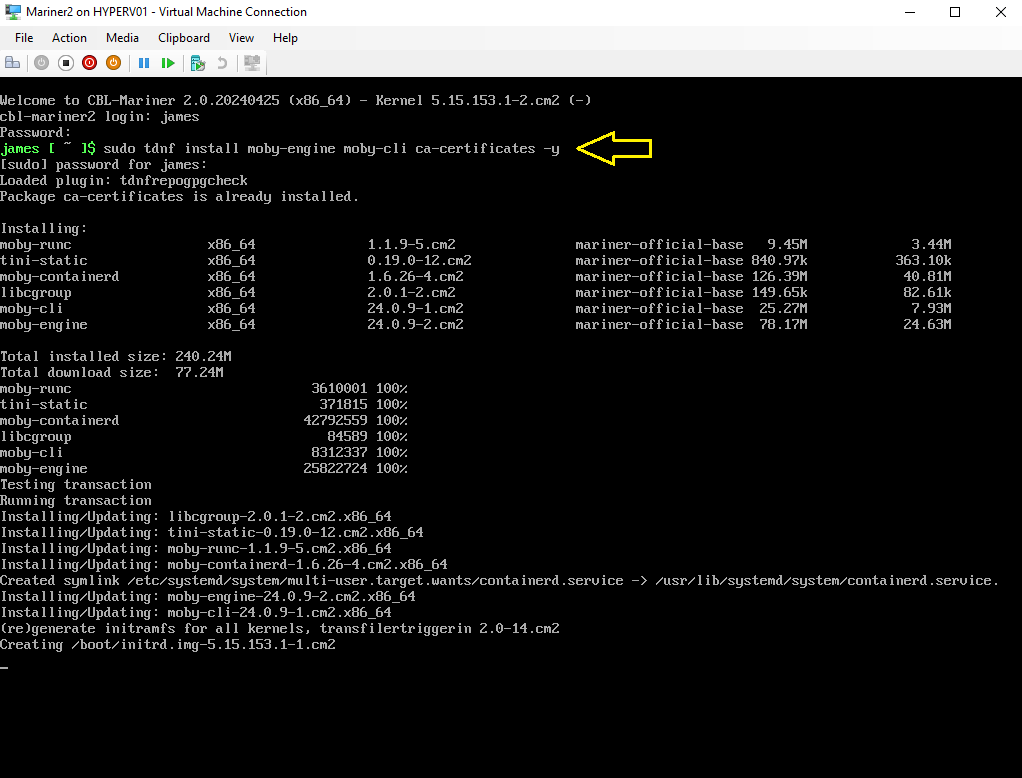
Now we are going to install the Docker Container host software on Microsoft CBL-Mariner 2.0 (Azure Linux):

Type Command: sudo tdnf install moby-engine moby-cli ca-certificates -y

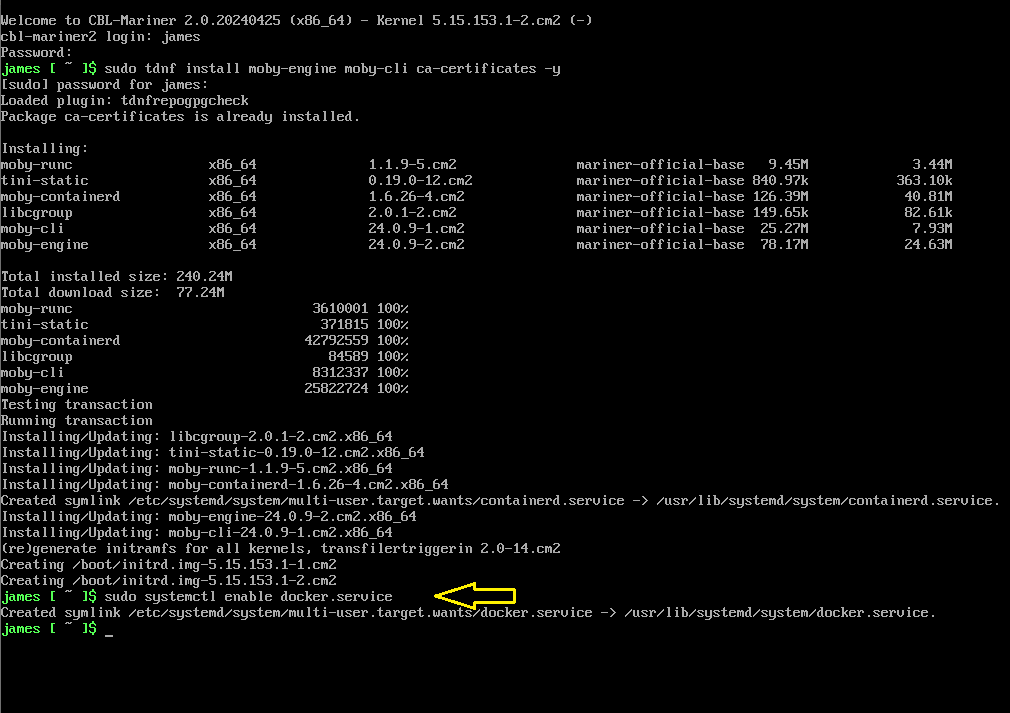
Type command: sudo systemctl enable docker.service

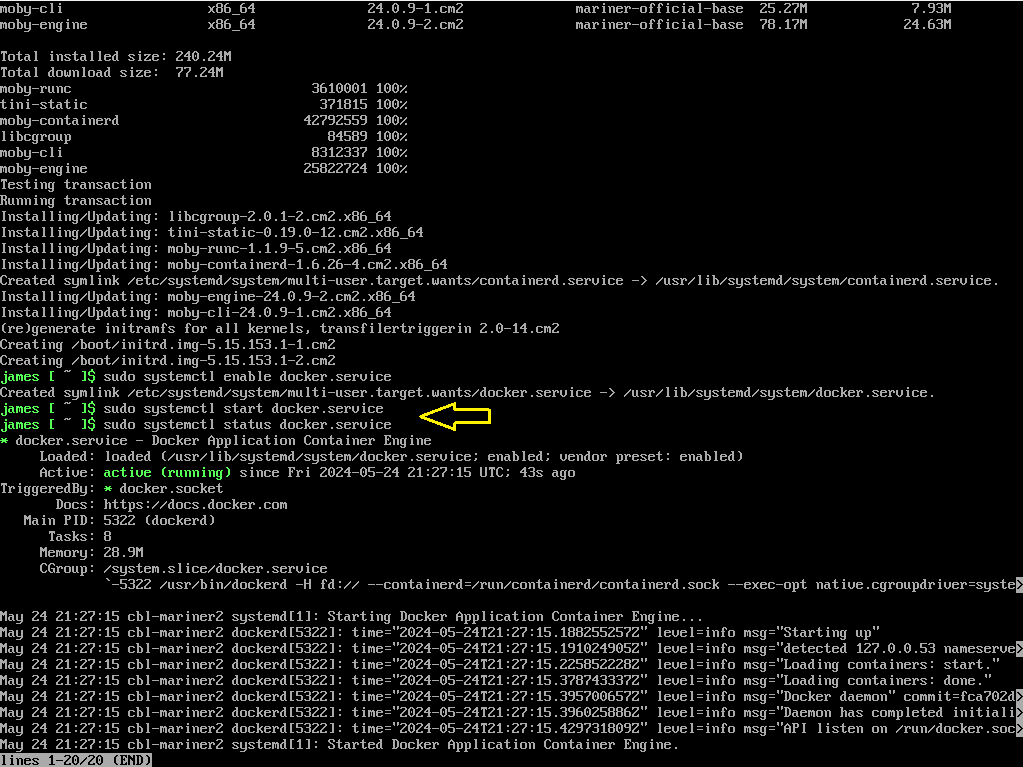
Type command: sudo systemctl start docker.service
and then
type command: sudo systemctl status docker.service

Now you can pull or create your containers from here for example:
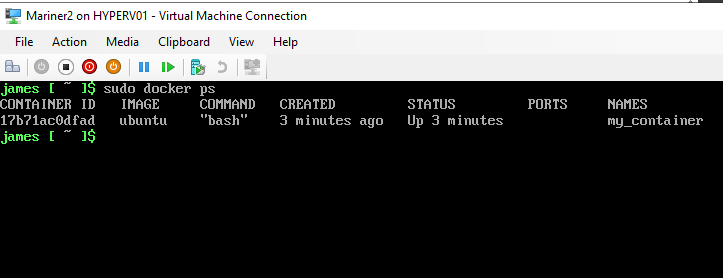
Type Command: docker run -it -d –name my_container ubuntu bash

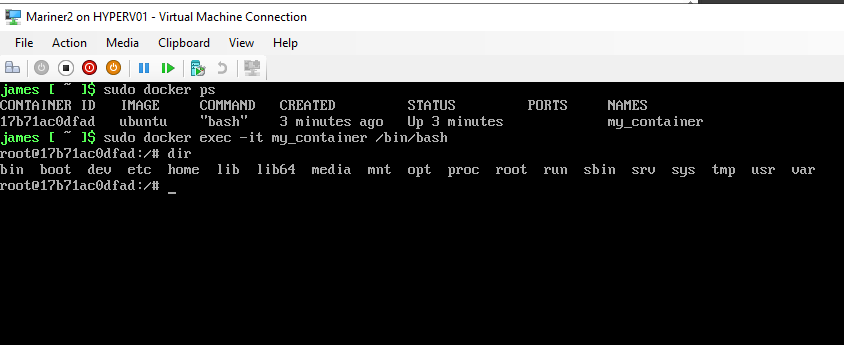
Here I’m inside the Ubuntu Linux Container running on CBL-Mariner 2.0 with Docker Container Host.

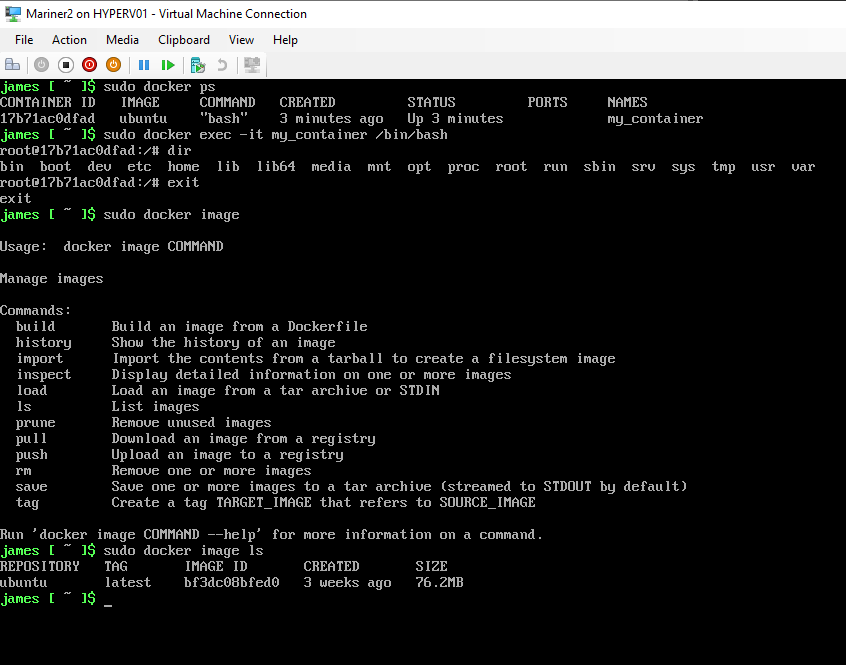
Docker Container Ubuntu image.

More information about Microsoft CBL-Mariner 2.0 you can find here:

Microsoft CBL-Mariner 2.0 (Azure Linux) on Github

Microsoft CBL-Mariner 2.0 (Azure Linux) Security

Microsoft CBL-Mariner 2.0 (Azure Linux) Toolkit docs

Conclusion

Running Microsoft CBL-Mariner 2.0 (Azure Linux) on Azure Stack HCI Hyper-V Cluster or in Microsoft Azure Cloud can be very powerfull as a lightweight Linux operating system at the Edge. Now we did running Docker Container Host on CBL-Mariner 2.0 (AzureLinux) but you can also install Microsoft Azure Arc agent to use this Operating System in a Adaptive Cloud way for Azure Hybrid Management and security. Try it yourself first in your test lab and when you have build a great security by design solution, use it in production for your business.

Join Containers in the Cloud LinkedIn Community Group for Free

#Microsoft Windows Server Summit 2024 #Winserv #Hyperv #HybridIT

Don’t miss this Awesome Microsoft Windows Server Summit 2024 virtual event to get the latest and Greatest information powered by the Engineering team!

When: March 26-28, 2024. Mark your Calendar 😉

Topic wise: it will be wide ranging covering all the new goodness of Windows Server 2025, on-prem and Hybrid scenarios, Azure Arc, Identity, Virtualization, SMB updates and more! 
Here you can find more information: Windows Server Summit 2024

Get started Today with Windows Server 2025 Insider Preview Build in your test environment!

Updating my MVPLAB with Windows Server 2025 Insider Preview Build 26040

Microsoft Windows Server 2025 Datacenter Insider Preview Build 26040

Microsoft released a new Windows Server Insider preview Build 26040 on January 26th and changed Windows Server vNext name into Microsoft Windows Server 2025!

So time to update my MVPLAB domain stack.local.

I’m updating my domain controller from build 26010 to 26040.

Before we can move further, we have to run adprep.

Run adprep from the new ISO on the Domain controller.
by Typing C and enter it will run.

Schema upgrade from 90 to 91

adprep /domainprep.

Adprep successfully updated.

After this click on refresh in the Windows Server Setup if you have this still open.


I want to keep my files, settings and apps on my domain controller.
Click on Install

Installing Windows Server 2025 Insider Preview Build 26040

Don’t turn off your machine. 😉

Microsoft Windows Server 2025 Datacenter Insider Preview Build 26040
is running as my Domain Controller.

Don’t forget the last updates.

Running Schema object version 91.

Here you can find more information about Windows Server 2025 Insider Preview Build 26040

Follow Jeff Woolsey on X (Twitter) here

Follow Ned Pyle on X (Twitter) here

Get started by joining Windows Server Insider program

Make your Windows Servers Hybrid with Microsoft Azure Arc
for more Hybrid IT management Benefits

How to Integrate Security Updates into Windows Image (ISO/WIM)?

In order to ensure that the Windows image that you deploy to computers in your network always has the latest security updates, you can add new update packages to your…

The post How to Integrate Security Updates into Windows Image (ISO/WIM)? appeared first on Windows OS Hub.

Le nouveau Windows LAPS est disponible : quelles sont les nouveautés ?

La nouvelle version de LAPS, appelée Windows LAPS, est officiellement disponible ! Faisons le point sur les nouveautés apportées par Microsoft !

Au fait, c'est quoi LAPS ou Windows LAPS ? LAPS pour Local Administrator Password Solution est une solution permettant de sécuriser les comptes "Administrateur" locaux de vos postes de travail et serveurs en générant un mot de passe unique sur chaque machine. Ainsi, le mot de passe du compte Administrateur local de la machine A sera différent du mot de passe du compte Administrateur local de la machine B.

Le mot de passe généré est stocké dans l'Active Directory (ou dans Azure Active Directory avec la nouvelle version !) et il est renouvelé régulièrement, de façon automatique.

Windows LAPS est intégré nativement à Windows

Ce mardi 11 avril 2023, Microsoft a mis en ligne de nouvelles mises à jour via son traditionnel Patch Tuesday. Suite à l'installation de cette mise à jour, Windows LAPS va prendre place automatiquement dans Windows donc il ne sera plus nécessaire de le déployer par GPO ou autre en tant qu'application additionnelle. Cela est vrai pour les systèmes suivants :

  • Windows 11 Pro, Education, et Enterprise
  • Windows 10 Pro, Education, et Enterprise
  • Windows Server 2022 et Windows Server Core 2022
  • Windows Server 2019

Windows LAPS et l'Active Directory : les nouveautés

LAPS, que l'on appellera désormais Legacy LAPS, est déjà très bien intégré à l'Active Directory. Mais avec Windows LAPS, on a le droit à quelques nouveautés appréciables (et attendues). Tout d'abord, les mots de passe stockés dans l'Active Directory seront chiffrés, ce qui n'était pas le cas jusqu'ici. Autre point très intéressant, Windows LAPS va donner accès à l'historique des mots de passe, ce qui est pratique si l'on restaure une machine à un état antérieur, car on a toujours accès aux précédents mots de passe.

Comme le montre l'image ci-dessous, dans les propriétés d'un objet ordinateur, nous avons aussi la possibilité de voir la date d'expiration, ainsi que le nom du compte Administrateur local de la machine.

Windows LAPS - Active Directory - Exemple
Source : Microsoft - YouTube - Windows IT Pro

Windows LAPS permet aussi de bénéficier de la rotation automatique des mots de passe. Dès qu'un mot de passe Administrateur est utilisé sur une machine, il est renouvelé dans la foulée. On peut noter  aussi la prise en charge des mots de passe du mode de restauration des services d'annuaire (DSRM) Active Directory.

Enfin, un mode émulation permettra d'utiliser les anciennes politiques de LAPS pour se préparer à utiliser la nouvelle version. Autrement dit, c'est un mode pour vous aider à passer de Legacy LAPS à Windows LAPS.

Windows LAPS pour Azure Active Directory

LAPS n'aura plus besoin impérativement d'un Active Directory pour fonctionner, car il est pris en charge par Azure Active Directory. Pour le moment, cette partie est accessible en private preview.

Dans ce mode de fonctionnement, le mot de passe de l'Administrateur local d'une machine est directement stocké dans le Cloud, au sein du périphérique inscrit. Les appareils inscrits en mode hybride sont aussi pris en charge.

Des paramètres de configuration seront disponibles dans le portail Microsoft Endpoint Manager sous la forme de stratégies, et c'est là aussi que l'on pourra demander la rotation d'un mot de passe (déclencher un changement). La rotation automatique en cas d'utilisation du mot de passe est aussi de la partie. En ce qui concerne la récupération du mot de passe d'un appareil, il conviendra d'utiliser le portail Azure ou de s'appuyer sur Microsoft Graph.

Pour gérer les autorisations d'accès à ces mots de passe, Microsoft a introduit deux nouvelles permissions dans Microsoft Graph et il y a aussi des politiques Azure RBAC.

Un nouveau module PowerShell et un nouvel ADMX

Microsoft a également introduit une nouvelle version du module PowerShell pour Windows LAPS. Ce module est plus complet que le précédent, et offre la possibilité de récupérer le mot de passe dans l'Active Directory ou Azure Active Directory (jusqu'ici, c'était possible pour l'AD). Voici la liste des commandes :

Windows LAPS - PowerShell

En complément, Microsoft a mis en ligne un nouveau fichier ADMX donnant accès aux paramètres de GPO pour Windows LAPS. Enfin, on peut citer la création d'un nouveau journal dédié à Windows LAPS dans l'Observateur d'événements de Windows.

L'annonce officielle de Microsoft est disponible à cette adresse tandis que la documentation de Windows LAPS est accessible ici.

Est-ce que ça vous intéresse un tutoriel complet sur Windows LAPS ? Ou peut-être même une vidéo ?

The post Le nouveau Windows LAPS est disponible : quelles sont les nouveautés ? first appeared on IT-Connect.

Windows Server 2022 et FSRM – Message d’erreur personnalisé sur un accès refusé

I. Présentation

Dans ce tutoriel, nous allons apprendre à mettre en place un message d'erreur personnalisé lorsqu'un utilisateur sous Windows essaie d'accéder à un répertoire sur lequel il n'a pas les droits. En complément, nous pourrons aussi lui permettre d'effectuer une demande d'assistance, toujours à partir de cette même fenêtre !

Le constat : sous Windows, lorsqu'un utilisateur essaie d'accéder à un répertoire partagé auquel il n'a pas accès, une erreur "Windows ne peut pas accéder à \\....." s'affiche à l'écran, et dans le détail c'est clairement qu'il s'agit d'un problème d'autorisation. Ce message bloque l'utilisateur, mais ne lui indique pas la marche à suivre s'il estime qu'il devrait avoir accès à ce répertoire.

Windows - Personnaliser message erreur accès refusé partage

Pour trouver une solution, il faut s'orienter vers la console FSRM que nous allons continuer d'explorer après avoir vu la gestion des quotas et le filtrage de fichiers. FSRM va nous offrir la possibilité de :

  • Définir un message d'erreur global
    • Configurer les options > Assistance en cas d'accès refusé > Afficher le message suivant
  • Définir un message d'erreur spécifique pour un dossier ou une arborescence
    • Gestion de la classification > Propriétés de classification > Définir les propriétés de gestion des dossiers > Message d'assistance en cas d'accès refusé > Ajouter

Voyons dans la pratique comment effectuer cette configuration.

II. FSRM et l'assistance en cas d'accès refusé

Tout d'abord, à partir de la console FSRM, effectuez un clic droit sur la racine de l'arborescence et choisissez "Configurer les options".

FSRM - Assistance accès refusé sur dossier - Etape 1

Ici, c'est l'onglet "Assistance en cas d'accès refusé" qui va nous intéresser. Nous devons cocher l'option "Activer l'assistance en cas d'accès refusé" et définir un message d'erreur personnalisé (zone de texte en dessous). Ce message s'affichera lorsqu'un accès refusé sera généré sur Windows (comme celui montré en introduction).

FSRM - Assistance accès refusé sur dossier - Etape 2

Cliquez ensuite sur le bouton "Configurer les demandes par courrier électronique". Si vous souhaitez permettre à l'utilisateur de faire une demande d'accès par e-mail, c'est cette section qu'il faut renseigner. Tout d'abord, il faut cocher l'option "Autoriser les utilisateurs à demander de l'assistance" avant de s'intéresser aux autres options.

FSRM - Assistance accès refusé sur dossier - Etape 3

Quand votre configuration est prête, cliquez sur le bouton "Aperçu" visible sur la fenêtre principale des options. Cela permet d'avoir une prévisualisation de la fenêtre "Accès refusé" telle qu'elle sera côté utilisateur.

III. Tester la configuration

Après avoir mis en place cette configuration, nous allons effectuer un test comme à chaque fois. Ici, il suffit de prendre un utilisateur n'ayant pas accès à un répertoire spécifique, que ce soit un sous-répertoire d'un partage ou un répertoire racine. Et là, on voit le message "Problème d'accès à \\...." qui s'affiche avec :

  • Le message d'erreur personnalisé défini dans FSRM
  • Le bouton pour demander de l'aide

FSRM - Assistance accès refusé sur dossier - Etape 4

Si l'on clique sur le bouton "Demander de l'aide", une zone de saisie s'affiche afin que l'utilisateur puisse expliquer pourquoi il a besoin d'accéder à ce répertoire. Une fois qu'il a complété sa demande, il ne lui reste plus qu'à cliquer sur "Envoyer un message".

FSRM - Assistance accès refusé sur dossier - Etape 5

Côté administrateur, un e-mail sera reçu (envoyé depuis FSRM) avec les détails de la demande : utilisateur à l'origine de la mande, chemin d'accès concerné, justification de l'utilisateur, ainsi que les autorisations actuelles de cet utilisateur. Ensuite, libre à vous de répondre positivement ou non à cette demande.

FSRM - Assistance accès refusé sur dossier - Etape 6

IV. Message d'erreur spécifique sur un dossier

Nous venons de configurer un message d'erreur spécifique qui s'appliquera sur les différents répertoires partagés du serveur. Si l'on souhaite définir un message spécifique sur un répertoire spécifique, c'est possible aussi, toujours via la console FSRM.

Pour configurer ce message, il faut accéder à "Gestion de la classification" et faire un clic droit sur "Propriétés de classification" pour cliquer sur "Définir les propriétés de gestion des dossiers".

FSRM - Assistance accès refusé sur dossier - Etape 7

Ici, on va choisir la propriété "Message d'assistance en cas d'accès refusé" et cliquer sur le bouton "Ajouter" car la liste est vide par défaut.

FSRM - Assistance accès refusé sur dossier - Etape 8

On sélectionne le répertoire, par exemple "P:\Partage\PrivéAdm" et on indique le message d'erreur spécifique à ce répertoire dans la zone "Valeur". On valide.

FSRM - Assistance accès refusé sur dossier - Etape 9

Désormais, lorsqu'un utilisateur va tenter d'accéder à ce répertoire, il aura le message personnalisé grâce à la règle que nous venons de créer. Voici un exemple :

FSRM - Assistance accès refusé sur dossier - Etape 10

Pour aller plus loin, il convient de configurer aussi la propriété "Adresse de messagerie du propriétaire du dossier". Ce qui va permettre d'alerter la bonne personne lorsqu'il y a une demande d'aide : on pourrait préciser ici l'adresse e-mail du responsable de service, s'il s'agit d'un répertoire propre à un service de l'entreprise. Généralement, c'est le responsable du service en question qui donne son accord ou non lorsqu'il y a une demande d'accès, et ensuite, elle est mise en place par le service informatique.

FSRM - Assistance accès refusé sur dossier - Etape 11

V. Conclusion

Grâce à cette fonctionnalité très intéressante de FSRM mais qui est un peu cachée on va dire, nous pouvons rendre plus accessible les demandes d'accès aux répertoires partagés sans avoir besoin d'utiliser un outil tiers, ou sans obliger l'utilisateur à faire la demande par e-mail. Ici, le flux est géré par FSRM et la demande d'aide va générer aussi un événement visible dans l'Observateur d'événements de Windows Server.

The post Windows Server 2022 et FSRM – Message d’erreur personnalisé sur un accès refusé first appeared on IT-Connect.

Configure User’s Folder Redirection with Group Policy

Folder Redirection enables you to store some user profile folders (special folders like Desktop, Documents, Pictures, Downloads, etc.) in a shared network folder on your file server. Redirected folders work…

The post Configure User’s Folder Redirection with Group Policy appeared first on Windows OS Hub.

How to Delete Old User Profiles in Windows?

Administrators should occasionally delete old user profiles (retired or inactive users, etc.) from C:\Users on Windows workstations and servers. The Windows user profile cleanup task is most commonly performed on…

The post How to Delete Old User Profiles in Windows? appeared first on Windows OS Hub.

Keep your Azure Arc Server extensions up-to-date #AzureHybrid #HybridIT #Azure

Microsoft Azure Arc enabled Servers

When you have your Servers Azure Arc enabled, you will work with Azure Arc extensions to work with Azure hybrid features like Defender for Cloud, Azure Monitor, Windows Admin Center and more. For each Azure Arc extension you can get updates, and it’s important to keep them up-to-date for new functionality and security. You have Azure Arc extensions for Windows Servers but also for Linux Servers.
Some of the Azure Arc extensions will automatic upgrade when you have enabled it and some must go manually from the Azure Portal.
More information about Azure Arc extensions you can find them here

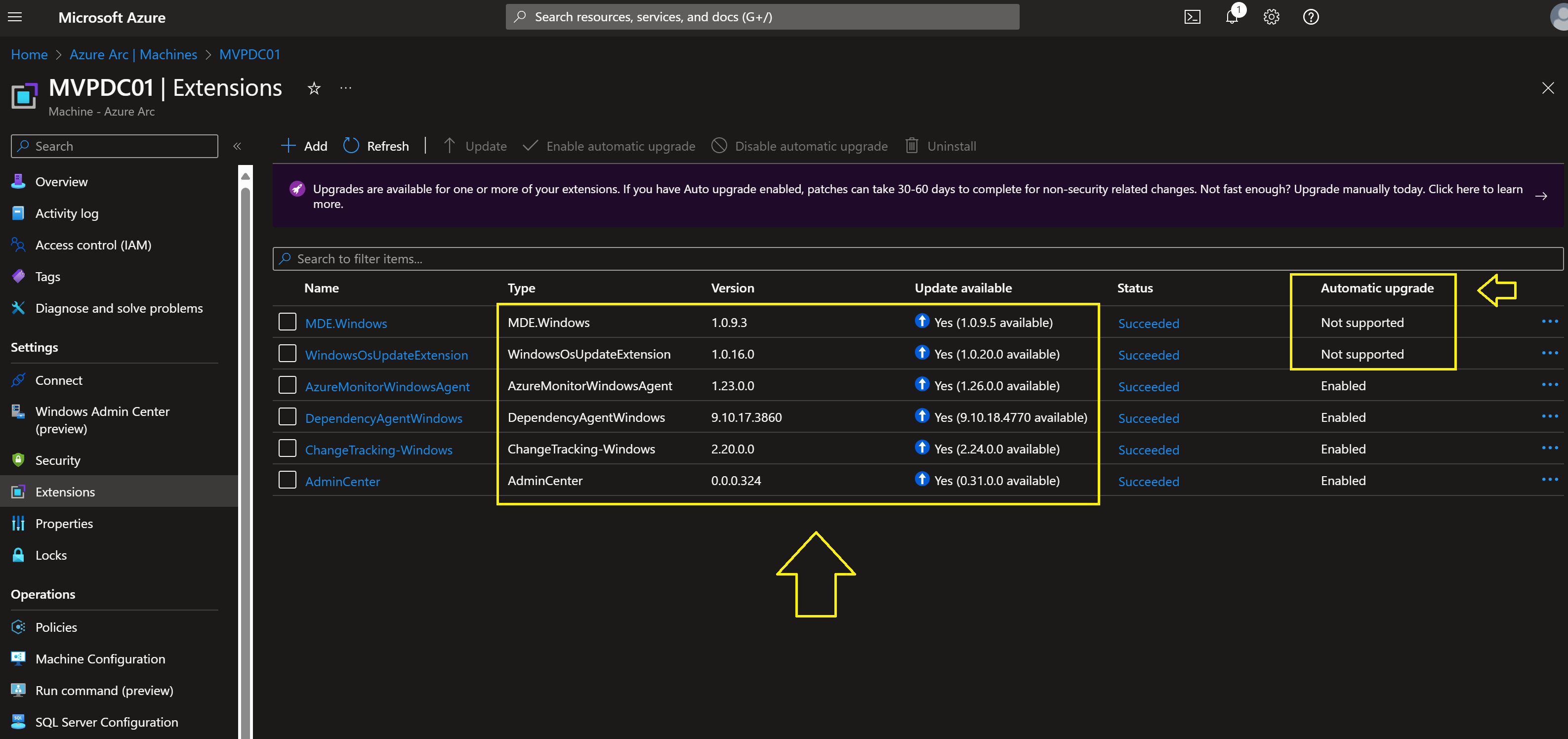
In the next steps you will see the Update management of the Azure Arc enabled extensions :

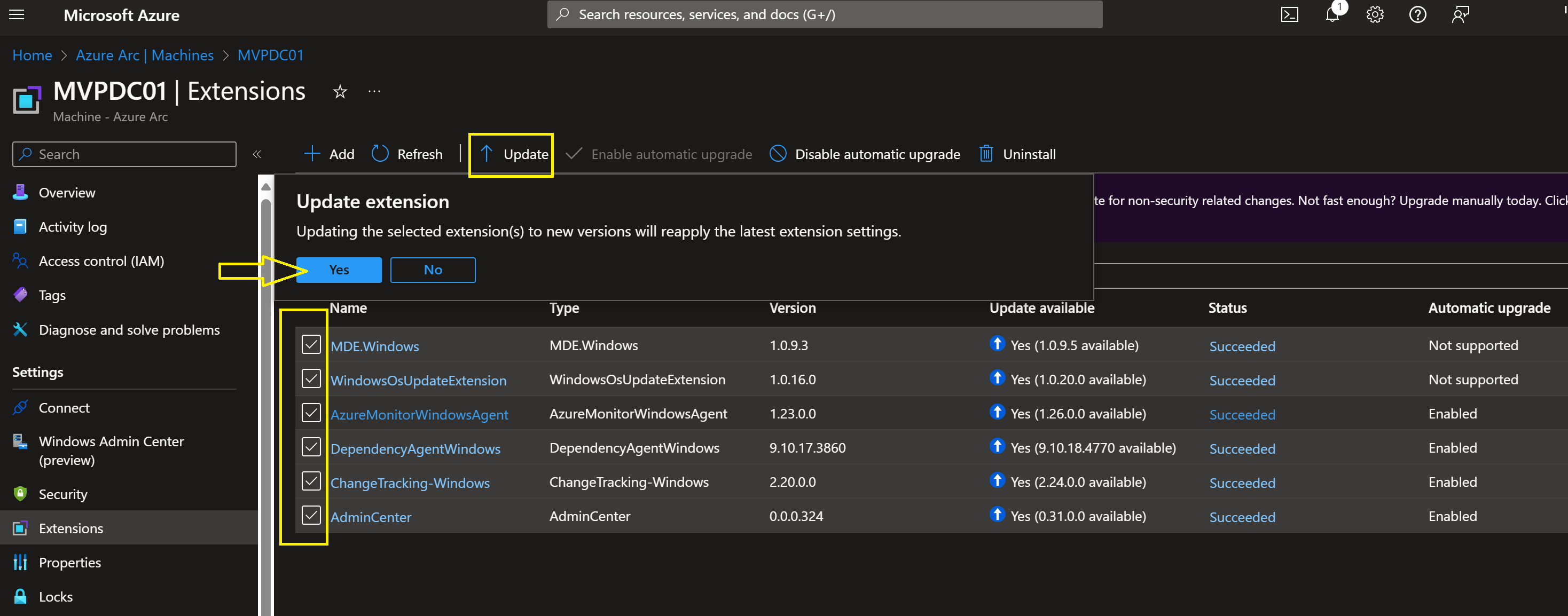
Here I update one extension.

Inside the WindowsOsUpdateExtension

Here you can see that the WindowsOsUpdateExtension is up-to-date
and Status Succeeded

On the right of this screenshot you see Automatic Upgrade and some extensions are enabled, but some are not supported.
That’s why it’s important to check these updates.

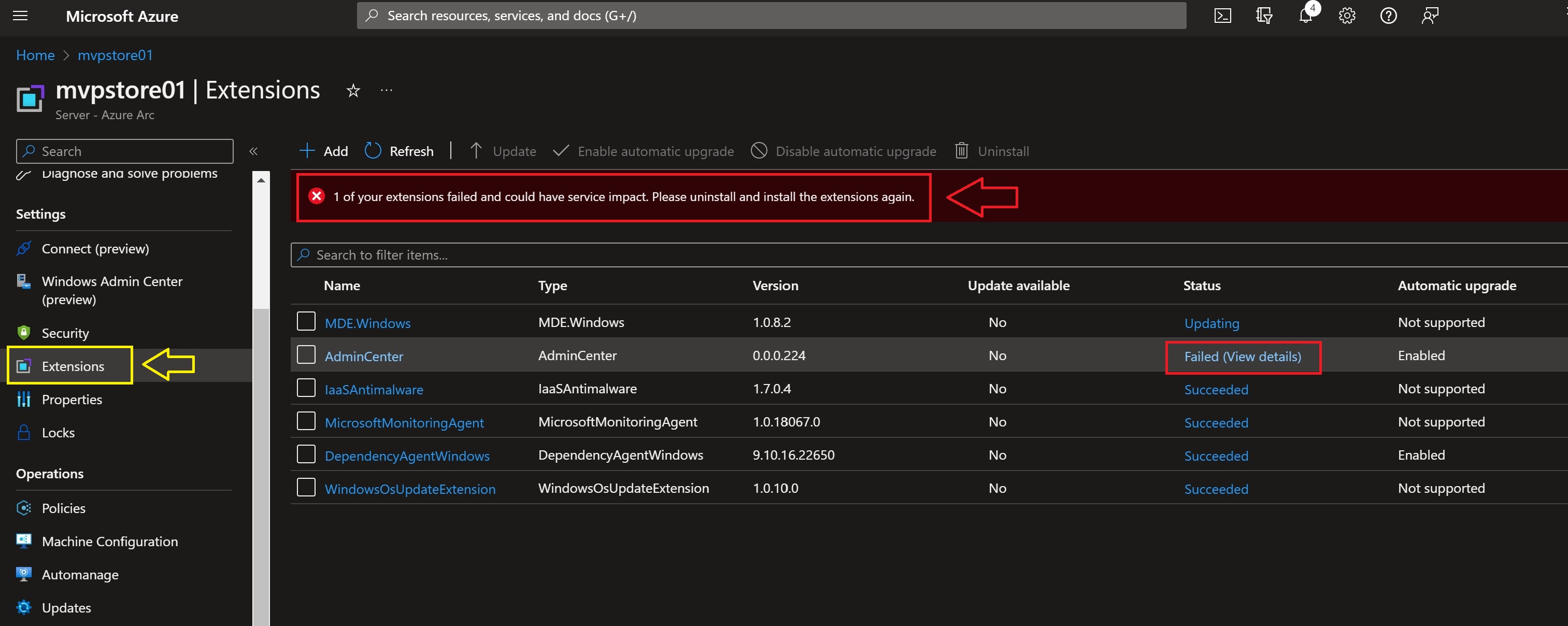
Here you can see in the Status that two Azure Arc extensions are updating

And sometimes it failed to update.
But you can see what you can do best with this failed Status.

Here you see the error message and the Tips.
And when you can’t fix it yourself you can make a Support ticket right away.

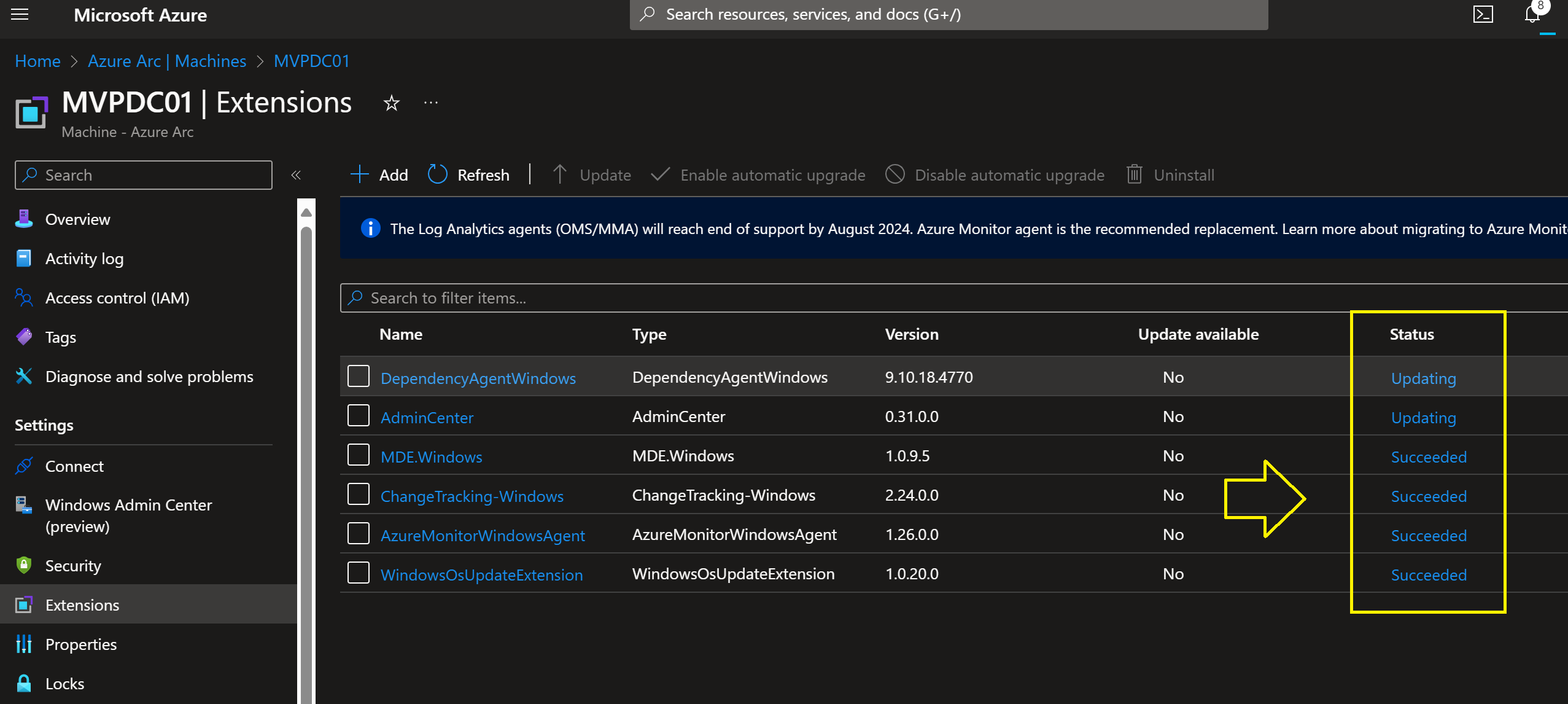
Here you can see that all the Azure Arc extensions are updated successfully

So I selected all my Azure Arc enabled Servers and updated them all.

Conclusion

With Microsoft Azure Arc enabled Servers you have do some IT management to keep your Azure Arc extensions up-to-date.
I did this without rebooting Servers, just from the Azure Portal update Azure Arc extension.
Here you find more information about Microsoft Azure Arc for Azure Hybrid IT

Join Azure Hybrid Community Group on LinkedIn

mountainss

Thank you #Community and #Microsoft for this Awesome Year 2022! Happy Holidays

What a Year 2022!!

I like to thank you Community for Supporting, Sharing and Reading New Microsoft technologies on my Blog, Twitter, Facebook and
LinkedIn Community Groups 💗 I wish you all happy Holidays, Merry Christmas and a Healthy New Year 2023 may the Best Wishes comes true ! 🎄🥂

I’m very proud and Honored  on the Microsoft Global MVP Awards 2022-2023 !

  • MVP Award for Cloud and Datacenter Management
  • MVP Award for Windows Insiders
  • MVP Award for Azure Hybrid

Thank you Microsoft Product Groups, MVP Award Program, Windows Insider Team, Azure Hybrid Team, Windows Server and Azure Stack HCI Team for all your support, NDA PGI sessions, and for the Awesome software, Features, solutions you are building 🙂
Wish you all Happy Holidays, Merry Christmas and a Healthy New Year 2023 may the Best Wishes comes true ! 🎄🥂

Here are some Great links for Reading and Sharing :

JOIN these LinkedIn Community Groups for free and Share New Microsoft Technologies Together:

Windows Admin Center Community Group

Containers in the Cloud Community Group

Microsoft Azure Monitor & Security for Hybrid IT Community Group

Azure Hybrid Community Group

Azure DevOps Community Group

What I really love is the Microsoft Tech Community platform


For Microsoft Azure Hybrid:

Azure Arc Jumpstart site

Azure Hybrid and Multi Cloud documentation

Microsoft Azure Arc Community monthly Meetup (GitHub)

Follow on Twitter for Azure Hybrid:

——————————————————————————————————————————————————-
For Windows Insiders:

Microsoft Windows Insiders Blog

Windows Insider Team on YouTube

The Windows Insider Program Team is really active on Twitter:
@WindowsInsider

@JenMsft

@NorthFaceHiker

@brandonleblanc

@amanda_lango


Get started with the Windows Server Insider program

What’s New in Windows Server 2022

Overview of Windows Admin Center

What’s New in SQL Server 2022


mountainss

❌
❌