Vue normale

Il y a de nouveaux articles disponibles, cliquez pour rafraîchir la page.
À partir d’avant-hierFlux principal

Microsoft Azure SRE Agent and Arc enabled Windows Server 2025

Bringing Reliability to the Edge: Azure SRE Agent Meets Windows Server 2025 with Arc for Adaptive Cloud

The next wave of hybrid cloud operations is no longer about simply connecting servers to Azure—it’s about giving every workload, wherever it runs, the same intelligent operational experience as native cloud services. With Windows Server 2025, Azure Arc, and the new Microsoft Azure SRE Agent, Microsoft is closing the gap between cloud and datacenter in a way that finally feels unified.

This post explores how these technologies fit together and why they matter for modern SRE, operations, and hybrid cloud engineering.

Why Azure SRE Agent Changes the Game

Azure SRE Agent is Microsoft’s new operational automation platform designed to reduce toil, accelerate incident response, and build institutional knowledge over time. It’s not just a bot—it’s an AI‑driven operational brain that learns your environment and executes tasks across Azure and hybrid systems.

  • It automates operational work so teams can focus on high‑value tasks
  • It connects observability tools, incident platforms, and source code systems to automate end‑to‑end workflows
  • It continuously builds expertise on your environment and remembers every investigation
  • It manages all Azure services through Azure CLI and REST APIs, including compute, storage, networking, databases, and monitoring

What makes SRE Agent unique is its learning loop. Every incident, every triage, every fix becomes part of a persistent knowledge base that never leaves your environment. New engineers ramp faster, and on‑call becomes more consistent and predictable.

Windows Server 2025: Built for Adaptive Cloud

Windows Server 2025 is the most cloud‑aligned release of Windows Server to date. It brings:

  • Deep Azure Arc integration
  • Modernized SMB, storage, and security
  • Hotpatching for non‑Azure VMs
  • Enhanced virtualization and container support
  • A platform designed for Adaptive Cloud—Microsoft’s strategy to unify cloud and edge operations

But the real magic happens when you connect Windows Server 2025 to Azure Arc and layer the SRE Agent on top.

Azure Arc: The Bridge to Adaptive Cloud

Azure Arc turns any server—physical, virtual, on‑premises, or multi‑cloud—into a first‑class Azure resource. For Windows Server 2025, Arc is not an add‑on; it’s the operational backbone.

With Arc, you get:

  • Azure Policy for servers
  • Azure Monitor and Log Analytics
  • Update management
  • Security baselines
  • Inventory and change tracking
  • GitOps for configuration
  • Arc‑enabled VM extensions (including custom agents)

This is where the SRE Agent fits perfectly.

How Azure SRE Agent Complements Arc‑Enabled Windows Server 2025

  1. Unified Observability and Incident Automation

Arc brings Windows Server 2025 into Azure Monitor and Log Analytics.
SRE Agent then uses those signals to:

  • Automate triage
  • Trigger runbooks
  • Correlate recurring alerts
  • Reduce alert fatigue
  • Generate weekly hygiene and monthly threshold audits

Because SRE Agent integrates natively with Azure Monitor alerts, Application Insights, and Log Analytics, it becomes the automation layer on top of Arc’s observability foundation.

  1. Runbooks and Subagents for Hybrid Operations

SRE Agent supports:

  • Custom runbooks
  • Azure CLI automation
  • REST API calls
  • Subagents for specialized services (VMs, databases, networking)

This means you can automate:

  • Windows Server 2025 patching
  • Storage troubleshooting
  • Network diagnostics
  • Service restarts
  • Log collection
  • Configuration drift correction

All triggered by alerts, schedules, or incidents.

  1. Institutional Knowledge for Hybrid Environments

Every investigation teaches the agent something new:

  • Root causes
  • Resolution steps
  • Team preferences
  • Operational patterns

This knowledge persists across conversations and across your hybrid estate.
For organizations with large Windows Server fleets, this is transformative.

  1. Consistent Operations Across Cloud and Datacenter

Adaptive Cloud is about making on‑prem feel like Azure.
With Arc + SRE Agent:

  • Azure Monitor alerts → same experience
  • Incident workflows → same experience
  • Automation → same experience
  • Knowledge base → shared across environments

Windows Server 2025 becomes a true extension of Azure—not just connected, but operationally unified.

A Practical Example: Automated Incident Response on Windows Server 2025

Imagine a Windows Server 2025 VM running on‑prem, Arc‑enabled, and monitored by Azure Monitor.

  1. Disk latency spikes
    Azure Monitor fires an alert.
  2. SRE Agent receives the alert
    It correlates with similar incidents from the past month.
  3. Agent runs diagnostics
    Using Azure CLI and REST API automation through Arc.
  4. Agent identifies the root cause
    A runaway process consuming I/O.
  5. Agent mitigates automatically
    • Restarts the service
    • Collects logs
    • Updates the incident ticket
    • Suggests preventive actions based on historical patterns

This is not theoretical—this is exactly what SRE Agent is designed to do.

Why This Matters for SRE and Ops Teams

Less Toil, More Engineering

SRE Agent automates the repetitive work that burns out on‑call engineers.

Faster MTTR

Automated triage and mitigation reduce downtime dramatically.

Better On‑Call Experience

New engineers inherit the agent’s knowledge from day one.

Consistent Hybrid Operations

Arc + SRE Agent gives you a single operational model across cloud and datacenter.

Future‑Proofing

Windows Server 2025 is built for Adaptive Cloud, and SRE Agent is the automation engine that makes it real.

Conclusion: The Future of Hybrid Reliability Engineering

The combination of:

  • Windows Server 2025
  • Azure Arc
  • Azure SRE Agent

creates a hybrid environment where operational excellence is built‑in, not bolted on.

SRE Agent brings intelligence and automation.
Arc brings governance and observability.
Windows Server 2025 brings a modern, cloud‑aligned OS.

Together, they deliver the most complete Adaptive Cloud experience Microsoft has ever offered.

If you’re building a hybrid environment that needs reliability, automation, and consistency, this trio should be at the top of your roadmap.
Important Note: Always test first this configuration in a test environment before you go into production.

Here you find more information about Azure SRE Agent to get Started

Step‑by‑Step: Deploying SRE Agent for Arc‑Enabled Servers

Below is a practical, engineering‑focused workflow you can use in production.

  1. Prerequisites

Before deploying SRE Agent, ensure:

✔ Windows Server 2025 is Arc‑enabled

Your server must appear as a connected machine in Azure Arc.

✔ Azure Monitor Agent (AMA) is installed

SRE Agent relies on metrics, logs, and alerts from Azure Monitor to drive investigations and automations.

✔ Log Analytics workspace is configured

This is where SRE Agent queries logs and correlates signals during root cause analysis.

✔ You have permissions

You need:

  • Azure Contributor (or custom role with ARM + extension permissions)
  • Ability to deploy VM extensions to Arc machines
  1. Create Your SRE Agent in the Portal

  • “Create and set up your first agent” is the starting point for onboarding

In Azure Portal:

  1. Search for Azure SRE Agent
  2. Select Create Agent (NEW then you go to https://sre.azure.com)
  3. Sign in with your Azure Account.
  4. Choose:
    • Subscription
    • Resource group
    • Region
  5. Assign an Agent name
  6. Select your Model provider ( Important: Learn more about your data protection)
  7. Link your Log Analytics workspace

This creates the operational brain that will manage your hybrid servers.

  1. Connect SRE Agent to Your Arc‑Enabled Servers

SRE Agent works across any Azure resource accessible via ARM, Azure CLI, or REST APIs

For Arc‑enabled servers, this means:

Option A — Use the SRE Agent Portal

Option B — Use Azure CLI

az sre agent resource add \

This registers the server so SRE Agent can query logs, metrics, and run automations.

  1. Add Runbooks, Docs, and Custom Logic

You can “enhance your agent with runbooks, architecture docs, and domain‑specific custom agents”

For Windows Server 2025, common runbooks include:

  • Restarting Windows services
  • Collecting event logs
  • Checking disk latency
  • Resetting IIS pools
  • Running PowerShell remediation scripts
  • Triggering Arc extension installs

Upload these into the SRE Agent portal under Automation.

  1. Configure Alerts to Trigger SRE Agent

SRE Agent delivers “autonomous incident response” by reacting to Azure Monitor alerts

For Arc‑enabled servers:

  1. Open Azure Monitor → Alerts
  2. Create rules for:
    • CPU spikes
    • Memory pressure
    • Disk latency
    • Service crashes
    • Security events
  3. Set Action Group → SRE Agent

Now SRE Agent will automatically:

  • Gather context
  • Query logs, metrics, traces
  • Identify root cause
  • Suggest or execute mitigations
  1. Enable Scheduled Tasks for Routine Operations

SRE Agent can run scheduled tasks for routine operations

For Windows Server 2025, useful schedules include:

  • Daily health checks
  • Weekly patch compliance scans
  • Monthly configuration drift audits
  • Log cleanup routines
  • Certificate expiry checks

These tasks run across Arc‑enabled servers without needing Azure Automation or DSC.

  1. Let the Agent Learn Your Environment

SRE Agent improves over time:

  • Day 1: Answers questions, runs queries, analyzes metrics
  • Week 1: Learns team patterns and critical metrics
  • Month 1: Recognizes recurring issues and applies past learnings automatically

This is especially powerful in hybrid environments where operational knowledge is often tribal and undocumented.

What You Gain After Deployment

Once SRE Agent is fully connected to your Arc‑enabled Windows Server 2025 fleet, you get:

  1. Autonomous Incident Response

Triggered by Azure Monitor alerts, SRE Agent performs triage, root cause analysis, and remediation.

  1. Multi‑Signal Correlation

It queries logs, metrics, traces, and deployment history simultaneously to identify issues faster

  1. Extensible Automation

Built‑in connectors plus MCP integrations for Slack, Jira, Datadog, and internal APIs

  1. Knowledge That Never Leaves

Every investigation is stored as persistent operational knowledge for your team

  1. Unified Hybrid Operations

Arc + SRE Agent gives you a consistent operational model across cloud and datacenter.

Conclusion

Deploying Azure SRE Agent on Arc‑enabled Windows Server 2025 is one of the most impactful steps you can take toward a true Adaptive Cloud environment. You get:

  • Cloud‑grade automation
  • Hybrid observability
  • AI‑driven incident response
  • Persistent operational knowledge
  • A unified experience across your entire estate

This is the future of hybrid SRE — and it’s available today!


Azure Local Cluster + Azure Cloud + Docker AI Edge

Azure Local Cluster on‑site working in tandem with Azure Cloud, running Dockerized AI workloads at the edge — is not just viable. It’s exactly the direction modern distributed AI systems are heading.

Let me unpack how these pieces fit together and why the architecture is so compelling.

Azure Local Baseline reference Architecture

A powerful hybrid model for real‑world AI

Think of this setup as a two‑layer AI fabric:

  • Layer 1: On‑site Azure Local Cluster
    Handles real‑time inference, local decision‑making, and data preprocessing.
    This is where Docker containers shine: predictable, isolated, versioned workloads running close to the data source.
  • Layer 2: Azure Cloud
    Handles heavy lifting: model training, analytics, fleet management, OTA updates, and long‑term storage.

Together, they create a system that is fast, resilient, secure, and scalable

Why this architecture works so well

  1. Ultra‑low latency inference

Your on‑site Azure Local Cluster can run Dockerized AI models directly on edge hardware (Jetson, x86, ARM).
This eliminates cloud round‑trips for:

  • object detection
  • anomaly detection
  • robotics control
  • industrial automation

Azure Local provides the core platform for hosting and managing virtualized and containerized workloads on-premises or at the edge.

  1. Seamless model lifecycle management

Azure Cloud can:

  • train new models
  • validate them
  • push them as Docker images
  • orchestrate rollouts to thousands of edge nodes

Your local cluster simply pulls the new container and swaps it in.
This is exactly the “atomic update” pattern from the blogpost.

  1. Strong separation of concerns

Local cluster = deterministic, real‑time execution
Cloud = dynamic, scalable intelligence

This separation avoids the classic problem of trying to run everything everywhere.

  1. Enterprise‑grade security

Azure Arc, IoT Edge, and Container Registry gives you:

  • signed images
  • policy‑based deployments
  • identity‑bound devices
  • encrypted communication

This is critical when edge devices live in factories, stores, or public spaces.

  1. Cloud‑assisted intelligence

Even though inference happens locally, the cloud can still:

  • aggregate telemetry
  • retrain models
  • detect drift
  • optimize pipelines
  • coordinate multi‑site deployments

This is how AI systems improve over time. 

How Docker fits into this hybrid world

Docker becomes the unit of deployment across both environments for DevOps and developers.

On the edge:

  • lightweight images
  • Hardened images
  • GPU‑enabled containers
  • read‑only root filesystems
  • offline‑capable workloads

In the cloud:

  • CI/CD pipelines
  • model registries
  • automated scanning
  • versioned releases

The same container image runs in both places — but with different responsibilities.

My take: This is one of the strongest architectures for real‑world AI

If your goal is:

  • real‑time AI
  • high reliability
  • centralized control
  • scalable deployments
  • secure operations
  • hybrid cloud + edge synergy

…then Azure Local Cluster + Azure Cloud + Docker AI Edge is a near‑ideal solution.

It gives you the best of both worlds:
cloud intelligence + edge autonomy.

Here you find more about Microsoft Azure Local 

Here you find more blogposts about Docker, Windows Server 2025, and Azure Cloud Services :

Windows Server 2025 Core and Docker – A Modern Container Host Architecture

Docker Desktop Container Images and Azure Cloud App Services

Windows Admin Center 2511 Build 2.5.1.49 (Preview) and Security of Windows Server

Windows Admin Center Secured-core server view

The latest Windows Admin Center (WAC) release, version 2511 (November 2025, public preview), introduces refreshed management tools and deeper integration with modern Windows security features like Secure Boot, TPM 2.0, Kernel DMA Protection, Virtualization‑based Security (VBS), and OSConfig baselines for Windows Server.

Secured-core is a collection of capabilities that offers built-in hardware, firmware, driver and operating system security features. The protection provided by Secured-core systems begins before the operating system boots and continues whilst running. Secured-core server is designed to deliver a secure platform for critical data and applications.

Secured-core server is built on three key security pillars:

  • Creating a hardware backed root of trust.
  • Defense against firmware level attacks.
  • Protecting the OS from the execution of unverified code.

Windows Admin Center 2511: Security Meets Modern Management

Windows Admin Center has steadily evolved into the preferred management platform for Windows Server and hybrid environments. With the 2511 build now in public preview, Microsoft continues to refine the experience for IT administrators, blending usability improvements with defense‑in‑depth security Microsoft Community.

 Security Features at the Core ✅

What makes this release stand out is how WAC aligns with the latest Windows security stack. Let’s break down the highlights:

  • OSConfig Security Baselines
    WAC now integrates baseline enforcement, ensuring servers adhere to CIS Benchmarks and DISA STIGs. Drift control automatically remediates deviations, keeping configurations locked to secure defaults. ( I like this one!)
  • Hardware‑based Root of Trust
    Through TPM 2.0 and System Guard, WAC can validate boot integrity. This means admins can remotely attest that servers started securely, free from tampering.
  • Kernel DMA Protection
    Thunderbolt and USB4 devices are notorious vectors for DMA attacks. WAC surfaces configuration and compliance checks, ensuring IOMMU‑based protection is active.
  • Secure Boot Management
    OEM Secure Boot policies are visible and manageable, giving admins confidence that only signed, trusted firmware and drivers load during startup.
  • Virtualization‑based Security (VBS)
    WAC exposes controls for enabling VBS and Memory Integrity (HVCI). These features isolate sensitive processes in a hypervisor‑protected environment, blocking unsigned drivers and kernel exploits.

Windows Server security baseline not yet implemented as you can see 😉

 What’s New in Build 2511

Beyond security, version 2511 delivers refinements to the virtual machines tool, installer improvements, and bug fixes. Combined with the backend upgrade to .NET 8 in the earlier 2410 GA release, WAC is faster, more reliable, and better equipped for enterprise workloads.

Why It Matters

In today’s hybrid IT landscape, security and manageability must coexist. Windows Admin Center 2511 demonstrates Microsoft’s commitment to:

  • Unified management: One pane of glass for servers, clusters, and Azure Arc‑connected resources.
  • Compliance assurance: Built‑in baselines reduce audit headaches.
  • Future‑proof security: Hardware‑rooted trust and virtualization‑based isolation protect against evolving threats.

Final Thoughts

If you’re an IT admin preparing for Windows Server 2025 deployments, the new Windows Admin Center build is more than just a management tool—it’s a security enabler. By weaving in Secure Boot, TPM, DMA protection, and VBS, WAC ensures that your infrastructure isn’t just easier to manage, but fundamentally harder to compromise.

Here you find the Microsoft docs :

What is Secured-core server for Windows Server | Microsoft Learn

OSConfig overview for Windows Server | Microsoft Learn

How System Guard helps protect Windows | Microsoft Learn

Kernel DMA Protection | Microsoft Learn

Secure boot | Microsoft Learn

Trusted Plaform Module (TPM) 2.0 | Microsoft Learn

Virtualization-based Security (VBS) | Microsoft Learn

Enable memory integrity | Microsoft Learn

What is Windows Admin Center Virtualization Mode (Preview)?

Windows Admin Center Virtualization Mode is a purpose-built management experience for virtualization infrastructure. It enables IT professionals to centrally administer Hyper-V hosts, clusters, storage, and networking at scale.

Unlike administration mode, which focuses on general system management, Virtualization Mode focuses on fabric management. It supports parallel operations and contextual views for compute, storage, and network resources. This mode is optimized for large-scale, cluster-based environments and integrates lifecycle management, global search, and role-based access control.

Virtualization Mode offers the following key capabilities:

  • Search across navigation objects with contextual filtering.
  • Support for SAN, NAS, hyperconverged, and scale-out file server architectures.
  • VM templates, integrated disaster recovery with Hyper-V Replica, and onboarding of Arc-enabled resources (future capability).
  • Software-defined storage and networking (not available at this time).

Install Windows Admin Center Virtualization Mode

Test all these New features of Windows Admin Center and Windows Server in your test environment and be ready for production when it becomes general available. Download Windows Admin Center 2511 Preview here

Docker Desktop Container Images and Azure Cloud App Services

Docker Desktop and Azure App Cloud Services

Expanded Architecture: Docker developer environment with Azure Cloud Services.

Development Environment

  • Docker Desktop + Tools: Visual Studio Code, Azure CLI, Docker Scout, AI, MCP
  • Docker Scout CLI: Compares image versions, detects CVEs, integrates with pipelines

Container Host (Windows Server 2025 Core)

  • Hyper-V Isolated Containers: For enhanced security
  • Workloads: Microservices, legacy apps, AI containers
  • GitOps Operator: Automated deployment via Git repositories
  • Azure Arc Agent: Connects on-prem host to Azure Control Plane

Here you find more information about Docker on Windows Server 2025 Core

Your Windows 11 Laptop with Docker Desktop

☁ Azure Cloud Integrations

Component Function
Azure App Service (Docker) Hosts web apps as Docker containers with autoscaling and Key Vault integration
Azure DevOps + Pipelines CI/CD for image build, scan, push, and deployment
Azure Copilot Security AI-driven security recommendations and policy analysis
Azure Container Registry (ACR) Secure storage and distribution of container images
Azure Key Vault Secrets management: API keys, passwords, certificates
Microsoft Defender for Cloud Runtime protection, image scanning, threat detection
Azure Policy & RBAC Governance and access control
Azure Monitor + Sentinel Logging, metrics, threat detection
Azure Update Manager Hotpatching of Windows and container images without reboot

More information on Strengthening Container Security with Docker Hardened Images and Azure Container Registry

DevSecOps Workflow

  1. Build & Harden Image → Dockerfile + SBOM
  2. Scan with Docker Scout → CLI or pipeline
  3. Push to ACR → With signing and RBAC
  4. Deploy via Azure DevOps Pipelines → App Service or Arc-enabled host
  5. Inject Secrets via Key Vault → Automatically at runtime
  6. Monitor & Patch → Azure Monitor + Update Manager
  7. Audit & Alerting → Azure Sentinel + Defender
  8. Security Guidance → Copilot Security analyzes policies and offers recommendations

Example of Deploying a custom container to Azure App Service with Azure Pipelines

Microsoft Azure App Service is really scalable for Docker App Solutions:

Azure App Service is designed to scale effortlessly with your application’s needs. Whether you’re hosting a simple web app or a complex containerized microservice, it offers both vertical scaling (upgrading resources like CPU and memory) and horizontal scaling (adding more instances). With built-in autoscaling, you can respond dynamically to traffic spikes, scheduled workloads, or performance thresholds—without manual intervention or downtime.

From small startups to enterprise-grade deployments, App Service adapts to demand with precision, making it a reliable platform for modern, cloud-native applications.

Scale Up Features and Capacities Learn how to increase CPU, memory, and disk space by changing the pricing tier

Enable Automatic Scaling (Scale Out) Configure autoscaling based on traffic, schedules, or resource metrics

Per-App Scaling for High-Density Hosting Scale individual apps independently within the same App Service Plan

Conclusion

For modern developers, the combination of Azure App Services and Docker Desktop offers a powerful, flexible, and scalable foundation for building, testing, and deploying cloud-native applications.

  • Developers can build locally with Docker, ensuring consistency and portability.
  • Then deploy seamlessly to Azure App Services, leveraging its cloud scalability and integration.
  • This workflow reduces configuration drift, accelerates testing cycles, and improves team collaboration.

Install Microsoft Windows Server 2025 Insider Preview Build 26360

Try Now!

Windows Server 2025 Insider Preview Build 26360

Exploring the Latest Features in Microsoft Windows Server Insider Preview Builds

Microsoft’s Windows Server Insider Preview Builds are a treasure trove of innovation and advanced features designed to enhance performance, security, and flexibility for IT professionals. Today, we’re diving into the latest updates and new features introduced in the Windows Server 2025 Insider Preview Build.
Here you find more on What’s New in Microsoft Windows Server 2025 🚀

Here are some Highlights of new Windows Server 2025 Insider Preview features:

  1. Enhanced Security with Delegated Managed Service Accounts (dMSA)

One of the standout features in this build is the introduction of Delegated Managed Service Accounts (dMSA). This new account type allows for migration from traditional service accounts to machine accounts with managed and fully randomized keys. By linking authentication to the device identity, dMSA helps prevent credential harvesting through compromised accounts, a common issue with traditional service accounts.

  1. Windows Admin Center (WAC) Integration

Starting with this build, users can now download and install the Windows Admin Center (WAC) directly from the Windows Server Desktop. This in-OS app simplifies the installation process and provides a seamless experience for managing your server infrastructure.

  1. Bluetooth Connectivity

Windows Server 2025 now supports Bluetooth connectivity, allowing users to connect mice, keyboards, headsets, and other peripherals directly to the server. This feature enhances flexibility and convenience for server management.

  1. DTrace for Real-Time Performance Monitoring

The new build includes DTrace, a powerful command-line utility that enables real-time performance monitoring and troubleshooting. DTrace allows users to dynamically instrument both kernel and user-space code without modifying the code itself, supporting a range of data collection and analysis techniques.

  1. Improved Upgrade Experience

Upgrading to Windows Server 2025 has never been easier. The build supports in-place upgrades from Windows Server 2012 R2 and later versions, allowing you to upgrade up to four versions at a time. This streamlined upgrade process ensures a smooth transition to the latest server version.

  1. Feedback Hub for User Input

The new Feedback Hub app is now available for Server Desktop users. This app allows users to submit feedback or report issues directly to Microsoft, helping the development team understand user experiences and improve future builds.

  1. SMB over QUIC and Alternative Ports

The build introduces SMB over QUIC with support for alternative ports. This feature enhances security and performance by allowing SMB traffic to use custom-defined ports instead of the default UDP/443 port.

  1. Enhanced Desktop Experience

When you sign in for the first time, the desktop shell experience now conforms to the style and appearance of Windows 11. This visual update provides a familiar and modern interface for server administrators.

These new features and enhancements in the Windows Server 2025 Insider Preview Build demonstrate Microsoft’s commitment to providing cutting-edge solutions for IT professionals. Whether you’re looking to improve security, streamline management, or enhance performance, the latest Windows Server Insider Preview Build has something to offer.

Stay tuned for more updates and features as Microsoft continues to innovate and improve its server offerings.

Conclusion:

Become a Microsoft Windows Server Insider and get all the newest features first to play with it in your test environment.


Get started here and register for free

Unlocking the Future of Hybrid Cloud Management with Azure Arc, Windows Admin Center, and Azure Copilot

Microsoft Azure Arc enabled Windows Server 2025 Insider Preview in Windows Admin Center

In the ever-evolving landscape of IT infrastructure, the need for seamless integration and management across on-premises, edge, and cloud environments has never been more critical. Enter Azure Arc-enabled servers, Windows Admin Center, and Azure Copilot—three powerful tools that together redefine hybrid cloud management.

Azure Arc: Bridging the Gap

Azure Arc is a game-changer for organizations looking to extend Azure management capabilities to any infrastructure. Whether your servers are on-premises, at the edge, or in another cloud, Azure Arc enables you to manage them through a single pane of glass. This unified approach simplifies operations, enhances security, and ensures compliance across diverse environments.

With Azure Arc, you can:

  • Deploy and manage Kubernetes clusters anywhere.
  • Apply Azure policies consistently across all your resources.
  • Leverage Azure services like Azure Monitor and Azure Security Center for comprehensive monitoring and security.

Windows Admin Center: Simplified Server Management

Windows Admin Center (WAC) is a browser-based management tool that brings simplicity and efficiency to server management. Integrated with Azure Arc, WAC provides a centralized platform to manage your Windows Servers, whether they are on-premises or in the cloud.

Key features of Windows Admin Center include:

  • Intuitive Dashboard: A user-friendly interface that provides a holistic view of your server environment.
  • Streamlined Management: Tools for managing server roles, storage, networking, and more.
  • Azure Integration: Seamless connectivity with Azure services, enabling hybrid scenarios like Azure Backup and Azure Site Recovery.

Azure Copilot: AI-Powered Assistance

Azure Copilot is the latest addition to the Azure ecosystem, bringing AI-powered assistance to your fingertips. Integrated with both Azure Arc and Windows Admin Center, Azure Copilot leverages machine learning to provide insights, recommendations, and automation, making your IT operations smarter and more efficient.


With Azure Copilot, you can:

  • Automate Routine Tasks: Reduce manual intervention with intelligent automation.
  • Gain Actionable Insights: Use predictive analytics to anticipate issues before they occur.
  • Enhance Security: Receive real-time security recommendations and threat detection.


The Power of Integration

The true strength of these tools lies in their integration. Azure Arc extends Azure’s reach to any infrastructure, Windows Admin Center simplifies server management, and Azure Copilot adds a layer of intelligence and automation. Together, they create a robust hybrid cloud management solution that empowers IT professionals to manage complex environments with ease.
This is called Microsoft Adaptive Cloud

Imagine a scenario where you can deploy a Kubernetes cluster on-premises, manage it through Windows Admin Center, and use Azure Copilot to automate updates and monitor performance—all from a single interface. This level of integration not only enhances operational efficiency but also ensures that your infrastructure is secure, compliant, and ready for the future.


Conclusion

As organizations continue to navigate the complexities of hybrid cloud environments, the combination of Azure Arc, Windows Admin Center, and Azure Copilot offers a comprehensive solution that simplifies management, enhances security, and drives innovation. Embrace the future of IT infrastructure management with these powerful tools and unlock new possibilities for your organization.

Ready to transform your hybrid cloud strategy? Dive into the world of Azure Arc, Windows Admin Center, and Azure Copilot today and experience the future of IT management.

For more information on these tools and how they can benefit your organization, check out the latest updates from Microsoft Docs:

Microsoft Azure Arc documentation

Microsoft Azure Copilot documentation

Microsoft Azure Windows Admin Center for Arc Enabled Servers

Microsoft Windows Server 2025 is available and System Center 2025

Windows Server 2025 and SystemCenter 2025 available!

Windows Server 2025 and System Center 2025: A New Era of IT Management

Microsoft has officially launched Windows Server 2025 and System Center 2025, marking a significant milestone in the evolution of IT infrastructure management. These releases bring a host of new features and enhancements designed to improve security, performance, and manageability for both on-premises and hybrid cloud environments.

Windows Server 2025: Key Features and Enhancements

  • Advanced Security Features: Windows Server 2025 introduces several security enhancements, including Credential Guard, which is now enabled by default to protect against credential theft attacks. The new Active Directory functionalities offer improved security for confidential attributes and default machine account passwords.
  • Hybrid Cloud Capabilities: With hotpatching enabled by Azure Arc, Windows Server 2025 allows for seamless updates without requiring reboots, minimizing downtime and enhancing operational efficiency. This feature is particularly beneficial for organizations operating in hybrid cloud environments.
  • Performance Improvements: Windows Server 2025 delivers up to 60% more storage IOPs performance compared to its predecessor, thanks to NVMe storage performance enhancements. Additionally, the introduction of block cloning support provides significant performance benefits when copying files.
  • User Experience Enhancements: The new Desktop shell in Windows Server 2025 adopts the Windows 11 look and feel, supporting features like Bluetooth mice and keyboards, 7z and TAR compression formats, and the new Task Manager.

System Center 2025: Streamlined Management

  • Infrastructure Modernization: System Center 2025 supports the latest Windows Server version from Day 0, providing management and monitoring capabilities for Azure Stack HCI 23H2 clusters. This ensures that organizations can manage heterogeneous infrastructure with a single management plane.
  • Enhanced Security: System Center 2025 includes support for Transport Layer Security (TLS) version 1.3, ensuring that all data transmissions are protected by the latest encryption standards. Additionally, Data Protection Manager (DPM) 2025 introduces the capability to securely store passphrases in Azure Key Vault.
  • Improved Automation and Monitoring: System Center Orchestrator allows for efficient creation and execution of runbooks using native PowerShell scripts, while System Center Operations Manager provides comprehensive monitoring of health, capacity, and usage across applications and infrastructure.
  • Backup and Disaster Recovery: DPM 2025 offers flexible and efficient data protection strategies, including the ability to exclude specific disks from backups in Hyper-V environments. This ensures that organizations can tailor their backup solutions to meet their specific needs.

Conclusion

The release of Windows Server 2025 and System Center 2025 represents a significant advancement in IT infrastructure management. With enhanced security, improved performance, and robust hybrid cloud capabilities, these new versions are set to empower organizations to achieve greater efficiency and agility in their operations. Whether you’re managing on-premises servers or hybrid cloud environments, Windows Server 2025 and System Center 2025 provide the tools and features needed to stay ahead in the ever-evolving world of IT.

For more detailed information, you can visit the official Microsoft blog.

Don’t forget Microsoft Ignite Global Event

Update Windows 11 Insider Dev Preview Build 26120.1330 with Azure Windows Admin Center

Windows 11 Insider Preview Dev Build Update 26120.1330 in Microsoft Azure WAC.

The Microsoft Windows Insider Program Team released Windows 11 Insider Preview Dev Build Update 26120.1330

JOIN the Windows Insider Program, It’s a community of millions of Windows’ biggest fans who get to preview Windows features. While previewing Windows, Insiders can provide feedback and engage directly with Microsoft engineers to help shape the future of Windows.

Here I manage Windows 11 Insider Build in my MVP LAB with Microsoft Azure Windows Admin Center.

Since June 2024 Microsoft Azure Windows Admin Center supports Windows 10 / 11 in the Cloud.

Update Done via Azure WAC 😉

Microsoft Azure Copilot Preview in the Cloud to Support you

Azure Copilot

Microsoft Copilot in Azure (preview) is an AI-powered tool to help you do more with Azure. With Microsoft Copilot in Azure, you can gain new insights, discover more benefits of the cloud, and orchestrate across both cloud and edge. Copilot leverages Large Language Models (LLMs), the Azure control plane, and insights about your Azure environment to help you work more efficiently.

You can try Copilot now in the Microsoft Azure portal in Preview !

Click on Copilot and click on Next.

Give your feedback.

Click on Try Copilot.

Now you can use Azure Copilot Preview.

for example, show me all running Virtual Machines.

Here you find the Microsoft Azure Copilot capabilities

Prompt engineering is the process of designing prompts that elicit the best and most accurate responses from large language models (LLMs) like Microsoft Copilot in Azure (preview). As these models become more sophisticated, understanding how to create effective prompts becomes even more essential. Read here more about Write effective prompts for Microsoft Copilot in Azure

Conclusion

Microsoft Azure Copilot preview can be very handy to support you with deployments, troubleshooting in Azure Cloud services and
Hybrid with Azure Arc. Time to market and going live in production can be quicker because you don’t have to search yourself for the right command or scripts. Copilot will be smarter and more efficient, and you can learn from Copilot approaches. You are still in control because you have to check it if Copilot advise is the right thing to do. Try it yourself and experience the Azure Copilot Preview version 😉

Join the Azure Copilot and Microsoft Security Copilot LinkedIn Community Group


#Microsoft Windows Server Summit 2024 #Winserv #Hyperv #HybridIT

Don’t miss this Awesome Microsoft Windows Server Summit 2024 virtual event to get the latest and Greatest information powered by the Engineering team!

When: March 26-28, 2024. Mark your Calendar 😉

Topic wise: it will be wide ranging covering all the new goodness of Windows Server 2025, on-prem and Hybrid scenarios, Azure Arc, Identity, Virtualization, SMB updates and more! 
Here you can find more information: Windows Server Summit 2024

Get started Today with Windows Server 2025 Insider Preview Build in your test environment!

Updating my MVPLAB with Windows Server 2025 Insider Preview Build 26040

Microsoft Windows Server 2025 Datacenter Insider Preview Build 26040

Microsoft released a new Windows Server Insider preview Build 26040 on January 26th and changed Windows Server vNext name into Microsoft Windows Server 2025!

So time to update my MVPLAB domain stack.local.

I’m updating my domain controller from build 26010 to 26040.

Before we can move further, we have to run adprep.

Run adprep from the new ISO on the Domain controller.
by Typing C and enter it will run.

Schema upgrade from 90 to 91

adprep /domainprep.

Adprep successfully updated.

After this click on refresh in the Windows Server Setup if you have this still open.


I want to keep my files, settings and apps on my domain controller.
Click on Install

Installing Windows Server 2025 Insider Preview Build 26040

Don’t turn off your machine. 😉

Microsoft Windows Server 2025 Datacenter Insider Preview Build 26040
is running as my Domain Controller.

Don’t forget the last updates.

Running Schema object version 91.

Here you can find more information about Windows Server 2025 Insider Preview Build 26040

Follow Jeff Woolsey on X (Twitter) here

Follow Ned Pyle on X (Twitter) here

Get started by joining Windows Server Insider program

Make your Windows Servers Hybrid with Microsoft Azure Arc
for more Hybrid IT management Benefits

Keep your Azure Arc Server extensions up-to-date #AzureHybrid #HybridIT #Azure

Microsoft Azure Arc enabled Servers

When you have your Servers Azure Arc enabled, you will work with Azure Arc extensions to work with Azure hybrid features like Defender for Cloud, Azure Monitor, Windows Admin Center and more. For each Azure Arc extension you can get updates, and it’s important to keep them up-to-date for new functionality and security. You have Azure Arc extensions for Windows Servers but also for Linux Servers.
Some of the Azure Arc extensions will automatic upgrade when you have enabled it and some must go manually from the Azure Portal.
More information about Azure Arc extensions you can find them here

In the next steps you will see the Update management of the Azure Arc enabled extensions :

Here I update one extension.

Inside the WindowsOsUpdateExtension

Here you can see that the WindowsOsUpdateExtension is up-to-date
and Status Succeeded

On the right of this screenshot you see Automatic Upgrade and some extensions are enabled, but some are not supported.
That’s why it’s important to check these updates.

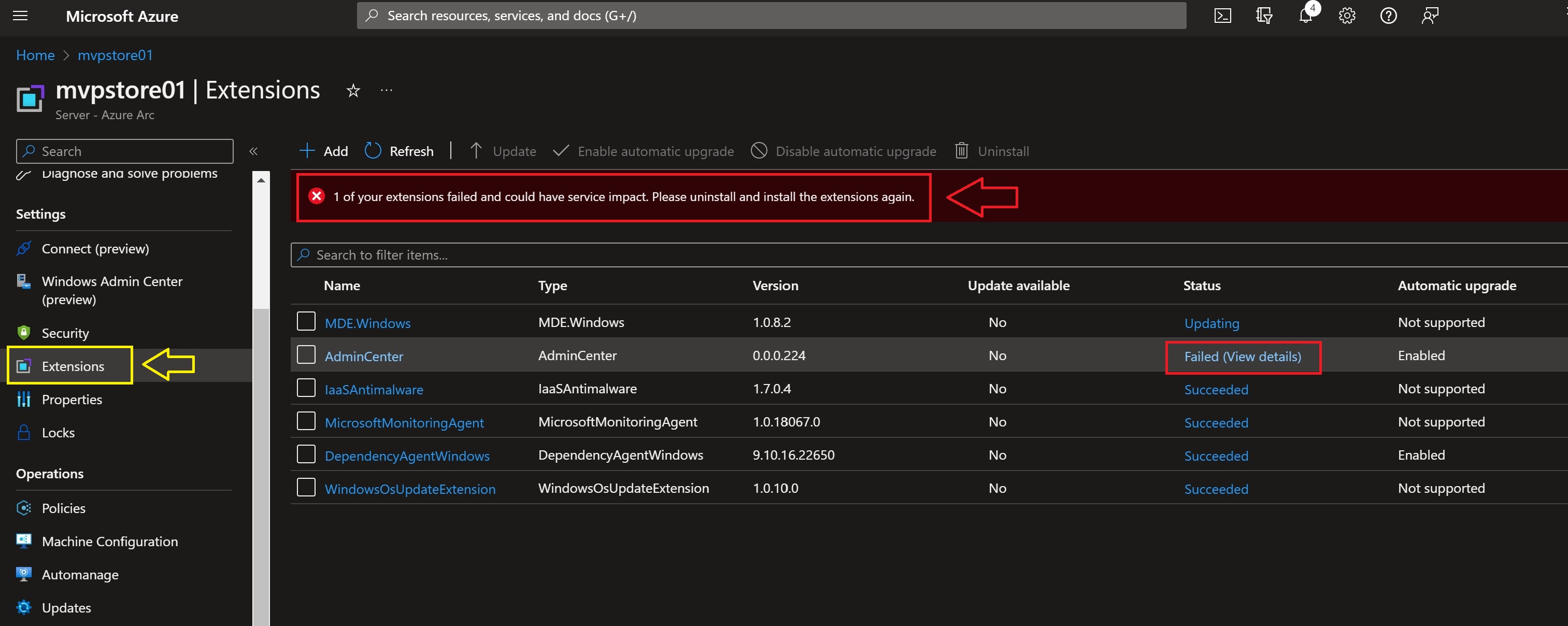
Here you can see in the Status that two Azure Arc extensions are updating

And sometimes it failed to update.
But you can see what you can do best with this failed Status.

Here you see the error message and the Tips.
And when you can’t fix it yourself you can make a Support ticket right away.

Here you can see that all the Azure Arc extensions are updated successfully

So I selected all my Azure Arc enabled Servers and updated them all.

Conclusion

With Microsoft Azure Arc enabled Servers you have do some IT management to keep your Azure Arc extensions up-to-date.
I did this without rebooting Servers, just from the Azure Portal update Azure Arc extension.
Here you find more information about Microsoft Azure Arc for Azure Hybrid IT

Join Azure Hybrid Community Group on LinkedIn

mountainss

#MVPLABSerie Azure Arc enabled SQL Server Health Assessment #AzureHybrid #AzureArc #SQLServer

Azure Hybrid

In earlier MVPLABSerie blogpost I wrote about making your on-premises Servers hybrid with Azure Arc enabled Servers.
In my mvplab.local domain, there is a SQL 2022 Cluster running which also has the Azure Connected Machine Agent version 1.24.

One of the benefits of Azure Arc enabled Servers for SQL is that you can do on-demand SQL Health assessments on your SQL Environment in your On-premises Datacenter. In the following step-by-step guide we will prepare the SQL Cluster nodes.

Go to this link to watch the video

In my mvplab.local domain I’m doing the following steps :

Go in the Azure Portal to Azure Arc
Click on SQL Servers
under Infrastructure.
Click on Add

I Choose for Connect Servers
because both SQL Nodes are already connected in my MVPLAB.local domain.

Prerequisites
Click on Next Server details.

Select the right Azure Subscription and Resource Group
Select the region and Operating System
Set Proxy server URL
if you need one
Click on Next.

Set your owner tags if needed.
Here you can find more information about Tags Management

From here you have to download the Script
and Run it locally on both SQL Nodes. ( or your Single SQL Server )

Run the script in administrator modus of Powershell ISE.
go to page https://microsoft.com/devicelogin
and enter the Code

Login and continue.

Here you see that the Azure Connected Machine Agent already is installed.
But it will now add the SQL Extension.

Installation Completed Successfully.

Now we have two Azure Arc enabled SQL Servers connected.

Overview of SQL 2022 Node in Azure Arc.

You can see the Databases running.

Here you can set your Admin from Azure Active Directory.

But we want to do a SQL Assessment, but the Azure Monitoring Agent is still missing.

Here you see that the SQL extension is installed.
Now we will add the Azure Monitor Agent to my existing Log Analytics Workspace.
Click on Add

Select Log Analytics Agent – Azure Arc.

Add your Workspace ID
Add your Workspace Kay
Click on Review + Create

Validation Passed.

Azure Monitoring Agent is Installed.

From here you can do the On-Demand SQL Assessments via
Microsoft Azure Arc enabled SQL Servers.

The SQL Server Assessment focuses on several key pillars, including:

  • SQL Server configuration
  • Database design
  • Security
  • Performance
  • Always On
  • Cluster
  • Upgrade readiness
  • Error log analysis
  • Operational Excellence

Example of SQL Server Assessment results.

On each assessment result you get a recommendation from Microsoft so you can make your SQL environment Health and Secure!

Conclusion

To get these health results of your SQL environment is Awesome 🙂 You are in control of your Azure Hybrid Arc enabled SQL Servers to keep them Healthy and Secure. The following Azure Arc enabled SQL Server blogpost is about Azure Defender for Cloud for your SQL Servers. With these two Azure Arc for SQL Server features you get the best Insights to keep your data as save as possible.

mountainss

❌
❌