Vue normale

Il y a de nouveaux articles disponibles, cliquez pour rafraîchir la page.
À partir d’avant-hierSharePoint

Celebrating 15 Remarkable Years in the Microsoft MVP Community

Dear Community Members, Friends, and Colleagues,

As I mark my 15th anniversary in the Microsoft MVP program, I’m filled with immense gratitude, humility, and pride. What began as a passion for sharing knowledge and building connections has blossomed into a deeply rewarding journey—one shaped by innovation, collaboration, and the extraordinary people who make this community thrive.

Over these 15 years, I’ve had the privilege to learn from brilliant minds, contribute to inspiring projects, and witness the transformative power of technology firsthand. Whether through speaking engagements, blog posts, mentoring, or hands-on technical work, being part of the MVP program has continually deepened my commitment to empowering others and fostering open, inclusive collaboration.

To the community: thank you for challenging, supporting, and celebrating with me. Your curiosity, creativity, and kindness are what keep this ecosystem alive and forward-looking.

To Microsoft: thank you for the honor and trust. The MVP program is a unique platform that amplifies voices, nurtures growth, and builds bridges—not just between developers and users, but between ideas and action.

While this milestone is a moment to reflect, it’s also a reminder that there’s always more to explore, create, and share. I look forward to continuing this journey together—with the same spark, but even greater purpose.

With heartfelt appreciation,
James

Here are some photos with Awesome people that I have met during these years:

Here you see Vijay Tewari in the middle who nominated me for the first time 🙂
Damian Flynn on the left and me on the right are Microsoft MVPs for Virtual Machine Manager (VMM)
at that time in 2011.

Here you see Tina Stenderup-Larsen in the middle, she is amazing! A Great Microsoft Community Program Manager
supporting all the MVPs in the Nordics & Benelux doing an Awesome Job!
On the right is Robert Smit a Great Dutch MVP and friend.

Mister OMS alias Scripting Guy Ed Wilson.

When there is a Microsoft Windows Server event, there is Jeff Woolsey 😉
“The three Musketeers”

Meeting Brad Anderson, he had great lunch breaks interviews in his car
with Awesome people.

The Azure Stack Guys on the 25th MVP Global Summit 😊

Mister PowerShell Jeffrey Snover at the MVP Summit having fun 😂

Scott Guthrie meeting him at the Red Shirt Tour in Amsterdam.

Great to meet Yuri Diogenes in 2018 with his book Azure Security Center.
I know him from the early days with Microsoft Security, like ISA Server 😉

Mister Azure, CTO Mark Russinovich meeting at the MVP Global Summit in Redmond.
a Great Technical Fellow with Awesome Azure Adaptive Cloud Solution Talks!

Mister DevOps himself Donovan Brown in Amsterdam for DevOps Days

My friend Rick Claus Mister MS Ignite.

Mister Azure Corey Sanders at the MVP Summit.

Mister Channel 9, MSIgnite, AI Specialist Seth Juarez
He is a funny guy.

Meeting Scott Hanselman in the Netherlands together with MVP Andre van den Berg.
Scott is Awesome in developer innovations and technologies.
Following Azure Friday from the beginning.

Windows Insider friends for ever meeting Scott Hanselman.
With on the left MVP Erik Moreau.

Windows Insiders for Ever 💙
Here together with Dona Sarkar here in the Netherlands

Windows Insider Friends having fun with Ugly Sweater meeting.
On the right my friend Maison da Silva and on the upper right Erik Moreau and Andre van den Berg.
Friends for Life 💙

Microsoft Global MVP 15 Years Award disc is in the House 🫶
on Monday the 14th of July 2025.

Thank you All 💗

Planning the Transition: Upgrading from Windows 10 to Windows 11 in Enterprise Environments

Windows 10 Laptop needs Upgrade 🚀

Planning the Transition: Upgrading from Windows 10 to Windows 11 in Enterprise Environments

The upgrade from Windows 10 to Windows 11 offers enterprise businesses exciting opportunities to enhance productivity, security, and the overall user experience. However, this transition requires thoughtful planning, especially when deploying at scale across varied environments. Let’s explore how enterprises can prepare for a seamless upgrade, considering scenarios like using Microsoft Intune, MECM, or focusing solely on the end-user perspective.

⚠ IMPORTANT: Windows 10 will be supported until October 14, 2025. After this date, Microsoft will no longer provide technical support or security updates for Windows 10. (You can join ESU Program for Windows 10 if necessary)

Understanding the Upgrade Landscape

Before diving into deployment strategies, enterprises should consider:

  • System Requirements: Ensure devices meet Windows 11 hardware requirements. Tools like the PC Health Check app can help.
  • Application Compatibility: Use Microsoft’s App Assure to verify that critical business applications work smoothly.
  • Infrastructure Readiness: Decide whether your deployment will be managed through on-premises infrastructure, cloud-based management, or a hybrid approach.

Scenario 1: Deployment Using Microsoft Intune

Microsoft Intune is an excellent choice for organizations embracing a modern, cloud-first management approach. It simplifies remote deployment and is particularly well-suited for enterprises with hybrid or remote workforces.

Steps to Deploy with Intune:

  1. Prepare Devices: Ensure all devices are enrolled in Intune and compliant with Azure AD.
  2. Set Up Deployment Policies: Use Intune to create a feature update deployment policy that targets eligible devices.
  3. End-User Impact: Notify employees about the upgrade. With Intune, upgrades are minimally disruptive, allowing installations to occur outside work hours.
  4. Monitoring Progress: Use the Intune admin center to track the deployment and address any failed upgrades.

Best Use Case: Organizations prioritizing remote or hybrid work scenarios, or those aiming to reduce reliance on on-premises infrastructure.

Scenario 2: Deployment Using MECM (Microsoft Endpoint Configuration Manager)

MECM provides robust control for enterprises with significant on-premises infrastructure. It’s ideal for managing complex upgrade scenarios, like retaining user profiles and configurations during deployment.

Steps to Deploy with MECM:

  1. Assess Readiness: Use MECM to run hardware inventory reports and verify device eligibility.
  2. Prepare the Upgrade Package: Download Windows 11 media and create a task sequence in MECM for an in-place upgrade.
  3. Deployment Strategy: Schedule phased rollouts, starting with a pilot group before scaling across the organization.
  4. Monitoring Progress: Leverage MECM’s detailed reporting tools to ensure smooth execution and troubleshoot issues.

Best Use Case: Enterprises requiring greater control over deployment tasks or operating primarily within an on-premises environment.

Scenario 3: Focusing on the End-User Experience

For some organizations, the primary focus of the upgrade is minimizing disruptions for end users and ensuring a seamless experience during and after the transition.

Key Considerations for End Users:

  1. Communication: Inform employees about what to expect, including changes in interface and new features in Windows 11.
  2. Training & Support: Offer training sessions or documentation to familiarize users with Windows 11’s productivity enhancements, Microsoft Learn is a great Learning platform for Windows 11 Training
  3. Feedback Mechanism: Provide a channel for users to report issues or seek support during the rollout.

Best Use Case: Any enterprise prioritizing user satisfaction and productivity during the upgrade.

Recommendations for a Smooth Transition

  • Pilot Testing: Start with a small group of users to test the upgrade process and gather insights.
  • Backup Strategy: Ensure critical data is backed up before proceeding with mass deployments.
  • Define Success Metrics: Monitor upgrade success rates, user satisfaction, and system performance post-upgrade.

Whether you’re leveraging Intune, MECM, or focusing on empowering end users, careful planning and clear communication are the keys to success. With the right approach, your organization can unlock the full potential of Windows 11 while keeping disruptions to a minimum.

Ready to take the first step? Let the upgrade journey begin! 🚀

Here you find more information from Microsoft about Planning for Windows 11

Here you find Microsoft Intune Documentation

Here you find Microsoft Endpoint Configuration Managers Documentation (MECM)

Have a look at Microsoft Copilot + PC to be ready for AI in your Business

Happy Anniversary Day 50 years of Microsoft Innovation

50 years of Microsoft

A Legacy of Innovation and Transformation

Half a century ago, on April 4th, 1975, two young visionaries, Bill Gates and Paul Allen, co-founded Microsoft with a bold ambition: to make computing accessible and essential for everyone. What began as a small software company has grown into a global technology leader, continuously transforming industries and empowering billions of lives. As we celebrate Microsoft’s 50-year journey, let’s explore its milestones, innovations, and impact, including its contributions to datacenters, Windows Server, Hyper-V, Azure, and the leadership of its CEOs.

The Early Years: Coding the Future

Microsoft’s first big breakthrough came with the creation of an operating system for the fledgling personal computer market. In 1980, the company introduced MS-DOS, laying the groundwork for the revolutionary Windows operating system, launched in 1985. This graphical interface transformed computing, making it accessible to both businesses and individuals.

Guiding Microsoft Through Its Evolution: The CEOs Who Shaped the Company

Microsoft’s trajectory has been shaped by its visionary leadership. From the founders to the present, each CEO has left an indelible mark:

  1. Bill Gates (1975–2000): As co-founder and first CEO, Gates spearheaded the company’s initial growth, launching pivotal products like MS-DOS, Windows, and Office. His focus on innovation and accessibility built the foundation of Microsoft’s success.
  2. Steve Ballmer (2000–2014): During his tenure, Ballmer led Microsoft through massive expansion, particularly in enterprise solutions and cloud computing. He introduced Windows Server and laid the groundwork for services like Azure. Ballmer’s energy and passion defined his leadership style and kept Microsoft competitive in a rapidly changing market.
  3. Satya Nadella (2014–Present): Nadella ushered in a cloud-first, AI-driven era, transforming Microsoft’s culture and business model. His emphasis on inclusivity, empathy, and sustainability revitalized the company. Under his leadership, Azure became one of the world’s leading cloud platforms, and Microsoft made transformative acquisitions like LinkedIn, GitHub, and Activision Blizzard.

Lake Bill on Redmond Campus

Redefining Enterprise Technology: Datacenters, Windows Server, and Virtualization

As businesses increasingly relied on technology, Microsoft expanded its offerings to support enterprise needs. Windows Server, introduced in 1993, became a cornerstone for server management and networking. It evolved over the decades, incorporating features such as Active Directory, high availability, and security enhancements.

Microsoft played a pivotal role in virtualization with Hyper-V, launched in 2008. Hyper-V allowed organizations to maximize resource efficiency and reduce costs by running multiple virtual machines on a single physical server. Modern datacenters powered by Microsoft’s hardware and software solutions now form the backbone of its cloud services.

Embracing the Cloud: The Azure Revolution

Microsoft’s Azure cloud platform, launched in 2010, redefined computing. It enabled organizations to access scalable infrastructure, deploy applications globally, and harness artificial intelligence with ease. Azure spans over 60 regions worldwide, making it one of the most comprehensive cloud platforms. Its ecosystem includes hybrid cloud solutions, advanced analytics, and IoT technologies.

Gaming, Devices, and Consumer Innovation

Microsoft entered the gaming industry with the Xbox in 2001, creating a thriving gaming ecosystem. Beyond gaming, the company innovated with devices like the Surface lineup, combining sleek design with productivity. Its integration of hardware and software demonstrated Microsoft’s versatility.

Shaping the Future: AI, Sustainability, and Datacenters

Microsoft continues to lead in artificial intelligence with tools like Microsoft Copilot. Its pledge to be carbon-negative by 2030 highlights environmental responsibility, with sustainable datacenter operations playing a central role.

Conclusion: A Legacy Built to Inspire

Microsoft’s 50-year journey is a testament to the power of innovation and visionary leadership. From Bill Gates to Steve Ballmer to Satya Nadella, each CEO has steered the company to new heights. With contributions ranging from datacenters and Windows Server to Hyper-V and Azure, Microsoft’s impact has been profound. As the company looks ahead, it remains dedicated to empowering people and organizations to achieve more, ensuring the next 50 years are as groundbreaking as the last.

Here’s to Microsoft—a company built to inspire and shape the future.

at Building 92 of the Microsoft Campus in Redmond.


A little Christmas Story

Once upon a time, in a world where technology and holiday cheer intertwined, there was a bustling community of developers eagerly awaiting the latest updates from the Microsoft Windows 11 and Windows Server Insider programs. As the festive season approached, the air was filled with excitement and anticipation.

In the heart of this community were the Microsoft MVPs (Most Valuable Professionals) and Docker Captains, who were known for their expertise and passion for technology. They decided to come together to create something truly magical for developers around the world.

One snowy evening, as the MVPs and Docker Captains gathered around a virtual fireplace, they began to brainstorm ideas. “What if we could combine the power of Windows 11, Windows Server, and Docker Containers to create a seamless development experience?” suggested one MVP, their eyes twinkling with excitement.

The idea quickly gained momentum, and soon, the group was hard at work. They envisioned a world where developers could effortlessly build, test, and deploy applications using the latest features of Windows 11 and Windows Server, all within the flexible and scalable environment of Docker Containers.

With the help of the Insider programs, they gained early access to cutting-edge features and updates. The MVPs and Docker Captains worked tirelessly, sharing their knowledge and expertise to create a series of tutorials, guides, and sample projects. These resources were designed to help developers harness the full potential of Windows 11, Windows Server, and Docker Containers.

As the holiday season progressed, the community began to see the fruits of their labor. Developers from all corners of the globe started to adopt the new tools and techniques, marveling at the ease and efficiency they brought to their workflows. The combination of Windows 11’s sleek interface, Windows Server’s robust capabilities, and Docker Containers’ flexibility created a harmonious symphony of technology.

To celebrate their success, the MVPs and Docker Captains organized a virtual holiday party. Developers joined from far and wide, sharing stories of their experiences and the innovative projects they had created. The virtual room was filled with laughter, camaraderie, and a shared sense of accomplishment.

As the night drew to a close, one of the Docker Captains raised a toast. “Here’s to the power of collaboration, the spirit of innovation, and the joy of the holiday season. May we continue to push the boundaries of technology and inspire developers everywhere.”

And so, the story of the Microsoft Windows 11 and Windows Server Insider Christmas, made possible by the dedication and expertise of the MVPs and Docker Captains, became a cherished tale in the developer community. It was a reminder that, with passion and teamwork, even the most ambitious dreams could come true.

Happy holidays, and may your coding adventures be merry and bright! 🎄💻🐳

Update Windows 11 Insider Dev Preview Build 26120.1330 with Azure Windows Admin Center

Windows 11 Insider Preview Dev Build Update 26120.1330 in Microsoft Azure WAC.

The Microsoft Windows Insider Program Team released Windows 11 Insider Preview Dev Build Update 26120.1330

JOIN the Windows Insider Program, It’s a community of millions of Windows’ biggest fans who get to preview Windows features. While previewing Windows, Insiders can provide feedback and engage directly with Microsoft engineers to help shape the future of Windows.

Here I manage Windows 11 Insider Build in my MVP LAB with Microsoft Azure Windows Admin Center.

Since June 2024 Microsoft Azure Windows Admin Center supports Windows 10 / 11 in the Cloud.

Update Done via Azure WAC 😉

Blog Post: [Autopilot] Les changements de Mars 2023 (Apps du Store, Renommage, etc.)

En Mars 2023, Microsoft a introduit différents changements à Windows Autopilot permettant d’améliorer le comportement. On retrouve notamment : Un nouveau changement fonctionnel oblige à reno mmer le périphérique pendant la phase du technicien pour le préapprovisionnement des périphérique Azure AD Join . Une fois que le technicien aura sélectionné le bouton de provisionnement, Microsoft effectuera immédiatement le renommage du périphérique et le redémarrage du périphérique, puis passe à l'ESP du périphérique. Au cours du flux d'utilisateurs, le renommage de l'appareil est alors ignoré, ce qui permet de conserver intactes les ressources qui dépendent du nom du périphérique (comme les certificats SCEP). Pour appliquer cette modification, pour Windows 10, vous devez installer la mise à jour de qualité KB5023773 ou une version plus récente. Pour Windows 11, vous devez installer la mise à jour de qualité KB5023778 ou une version plus récente. La page d'état d'inscription (ESP) prend désormais en charge les nouvelles applications du Microsoft Store pendant Windows Autopilot. Cette mise à jour permet une meilleure prise en charge de la nouvelle expérience Microsoft Store. Une nouvelle option est disponible dans le profil ESP (Enrollment Status Page) qui vous permet de choisir si vous voulez essayer d'installer les applications requises pendant la phase de pré-provisionnement (white glove) du technicien. Microsoft comprend que l'installation d'autant d'applications que possible pendant le préapprovisionnement est souhaitée pour réduire le temps d'installation de l'utilisateur final. Pour vous aider à installer autant d'applications que possible pendant le préapprovisionnement, Microsoft a mis en place une option permettant de tenter l'installation de toutes les applications requises attribuées à un appareil pendant la phase du technicien. En cas d'échec de l'installation d'une application, l'ESP se poursuit à l'exception des applications spécifiées dans le profil ESP. Pour activer cette fonction, modifiez votre profil de page d'état d'inscription en sélectionnant Oui dans le nouveau paramètre intitulé Only fail selected apps in technician phase (Échec de l'installation des applications sélectionnées en phase technicien). Ce paramètre n'apparaît que si vous avez sélectionné des applications bloquantes. Source : What's new in Autopilot | Microsoft Learn

How to Install and Configure Hyper-V

Hyper-V is next to ESX one the most used Hypervisors to run VMs. Hyper-V is available for free, and you can install Hyper-V on Windows Server and on Windows 10 and 11, allowing you to run and manage multiple VMs on your computer. In this ... Read moreHow to Install and Configure Hyper-V

The post How to Install and Configure Hyper-V appeared first on LazyAdmin.

How to Deploy Microsoft LAPS – Complete Guide

Microsoft LAPS can be used to manage local administrator passwords on your domain-joined devices. LAPS (Local Administrator Password Solution), creates a unique and random password for each device client in your network and stored the password in the Active Directory. The advantage of Microsoft LAPS ... Read moreHow to Deploy Microsoft LAPS – Complete Guide

The post How to Deploy Microsoft LAPS – Complete Guide appeared first on LazyAdmin.

Manually re-enroll a Hybrid Azure AD Join Windows 10 / Windows 11 device to Microsoft Endpoint Manager without loosing the current configuration

Edit 01/06/2022 : updating this article to include Azure Virtual Desktop Windows 10 / Windows 11 multi-session enrollment command using Device Credential

——–

There are several ways to enroll a Windows 10 PC to Microsoft Intune:

Manually

  • During the Out-of-the-box Experience (OOBE), when starting a Windows 10 PC for the first time
  • In the Windows Settings, after the PC configuration

Manual enrollment will require that the user enters his Azure AD credentials.

Automatically

  • Using Azure AD Join + automatic Intune enrollment
  • Using Hybrid Azure AD Join + automatic Intune enrollment

Automatic enrollment can be triggered using a Group Policy, SCCM Co-Management or Windows AutoPilot.

Windows 10 automatic enrollment requires the creation of public DNS records enterpriseregistration and enterpriseenrollment. More info here.

However, sometimes it is possible that a Windows 10 PC is in an inconsistent enrollment state, with error “The sync could not be initiated“.

This can happen because:

  • The PC was shut down during a long time, and the Microsoft Intune certificate is expired (located in Local Machine / Certificates / Personal)
  • Someone manually deleted the Microsoft Intune certificate
  • The PC is enrolled in another Intune tenant

Prerequisites: check Hybrid Azure AD Join status

Before re-enrolling your device to Microsoft Intune, you need to make sure that the certificates for Hybrid Azure AD Join are not expired as well.

Follow this procedure to Manually re-register a Windows 10 / Windows 11 or Windows Server machine in Hybrid Azure AD Join.

Method 1: With data and configuration loss

The easiest way to unenroll a Windows 10 PC from Microsoft Intune is to disconnect the work or school account.

Just go to All settings > Accounts > Access work or school, select your corporate account and click Disconnect.

Important: this menu is not available on Windows 10 / Windows 11 multi-session edition for Azure Virtual Desktop.

However, the problem with this is that all data and configuration pushed by Microsoft Intune will be deleted from the PC.

Method 2: Without data or configuration loss

There is a way to manually re-enroll your Windows 10 PC without loosing all the current configuration and apps deployed by Microsoft Intune.

This method is not officially supported by Microsoft

As you may know, automatic enrollment can be triggered either by a Group Policy Object or by the SCCM client on a co-managed device.

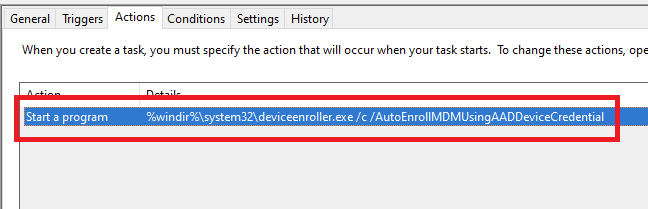
In both cases, the feature will basically create a scheduled task to enroll the PC at next logon. The command is different if you are trying to enroll Windows 10 / Windows 11 Enterprise multi-session devices from Azure Virtual Desktop (using Device Credential) or a regular Windows 10 / Windows 11 device using User Credential:

Windows 10 / Windows 11 Enterprise (with User Credential)

Task launched in the SYSTEM context:

%windir%\system32\deviceenroller.exe /c /AutoEnrollMDM

Windows 10 / Windows 11 Enterprise Multi-session for Azure Virtual Desktop (with Device Credential)

Task launched in the SYSTEM context:

%windir%\system32\deviceenroller.exe /c /AutoEnrollMDMUsingAADDeviceCredential

To manually re-enroll the PC, we will need to clean up the environment and relaunch this command in the SYSTEM context to re-enroll the PC.

Here are the steps that you need to follow to make it work:

  1. Delete stale scheduled tasks
  2. Delete stale registry keys
  3. Delete the Intune enrollment certificate
  4. Restart the enrollment process

Step 1: Delete stale scheduled tasks

Follow this procedure:

  • Run the Task Scheduler as an administrator.

  • Go to Task Scheduler Library > Microsoft > Windows > EnterpriseMgmt. Write down the enrollment ID somewhere, you will need it for the cleanup.

  • Delete all the existing tasks the enrollment folder.

  • Delete the enrollment ID folder.

Step 2: delete stale registry keys

Use the previous enrollment ID to search the regitry:

  • Open the Registry Editor as an administrator.

  • Search for the enrollment ID you wrote in the following locations and if found, delete the key that is containing the ID:
    • HKEY_LOCAL_MACHINE\SOFTWARE\Microsoft\Enrollments\xxxxxxxxxxxxx
    • HKEY_LOCAL_MACHINE\SOFTWARE\Microsoft\Enrollments\Status\xxxxxxxxxxxxx
    • HKEY_LOCAL_MACHINE\SOFTWARE\Microsoft\EnterpriseResourceManager\Tracked\xxxxxxxxxxxxx
    • HKEY_LOCAL_MACHINE\SOFTWARE\Microsoft\PolicyManager\AdmxInstalled\xxxxxxxxxxxxx
    • HKEY_LOCAL_MACHINE\SOFTWARE\Microsoft\PolicyManager\Providers\xxxxxxxxxxxxx
    • HKEY_LOCAL_MACHINE\SOFTWARE\Microsoft\Provisioning\OMADM\Accounts\xxxxxxxxxxxxx
    • HKEY_LOCAL_MACHINE\SOFTWARE\Microsoft\Provisioning\OMADM\Logger\xxxxxxxxxxxxx
    • HKEY_LOCAL_MACHINE\SOFTWARE\Microsoft\Provisioning\OMADM\Sessions\xxxxxxxxxxxxx

DO NOT delete registry keys that are not in the list above. They will be overwritten after the new enrollment.

Step 3: delete the Intune enrollment certificate

Follow the procedure:

  • Search for the option “Manage computer certificates” or use the command certlm.msc as an administrator.

  • Go to Personal > Certificates and delete the certificate issued by either “Microsoft Intune MDM Device CA” or “SC_Online_Issuing” (depending on the date of the enrollment).

Step 4: Restart the enrollment process

To be properly executed, the enrollment command must be entered in a SYSTEM context. We will use the PSExec tool for that purpose.

  • Use PSExec to launch a Command Prompt as SYSTEM:
psexec /i /s cmd

  • In the Command Prompt, enter one of the following command depending on your enrollment type:

Windows 10 / Windows 11 Enterprise (using User Credential)

%windir%\system32\deviceenroller.exe /c /AutoEnrollMDM

Windows 10 / Windows 11 Enterprise Multisession for Azure Virtual Desktop (using User Credential)

%windir%\system32\deviceenroller.exe /c /AutoEnrollMDMUsingAADDeviceCredential

  • In the computer certificate store, check that a new Intune certificate has been enrolled for the device:

  • You are now ready to start a policy sync from the Windows Settings, and check that the connection with the Intune service is now OK:

Thank you #Community and #Microsoft for this Awesome Year 2022! Happy Holidays

What a Year 2022!!

I like to thank you Community for Supporting, Sharing and Reading New Microsoft technologies on my Blog, Twitter, Facebook and
LinkedIn Community Groups 💗 I wish you all happy Holidays, Merry Christmas and a Healthy New Year 2023 may the Best Wishes comes true ! 🎄🥂

I’m very proud and Honored  on the Microsoft Global MVP Awards 2022-2023 !

  • MVP Award for Cloud and Datacenter Management
  • MVP Award for Windows Insiders
  • MVP Award for Azure Hybrid

Thank you Microsoft Product Groups, MVP Award Program, Windows Insider Team, Azure Hybrid Team, Windows Server and Azure Stack HCI Team for all your support, NDA PGI sessions, and for the Awesome software, Features, solutions you are building 🙂
Wish you all Happy Holidays, Merry Christmas and a Healthy New Year 2023 may the Best Wishes comes true ! 🎄🥂

Here are some Great links for Reading and Sharing :

JOIN these LinkedIn Community Groups for free and Share New Microsoft Technologies Together:

Windows Admin Center Community Group

Containers in the Cloud Community Group

Microsoft Azure Monitor & Security for Hybrid IT Community Group

Azure Hybrid Community Group

Azure DevOps Community Group

What I really love is the Microsoft Tech Community platform


For Microsoft Azure Hybrid:

Azure Arc Jumpstart site

Azure Hybrid and Multi Cloud documentation

Microsoft Azure Arc Community monthly Meetup (GitHub)

Follow on Twitter for Azure Hybrid:

——————————————————————————————————————————————————-
For Windows Insiders:

Microsoft Windows Insiders Blog

Windows Insider Team on YouTube

The Windows Insider Program Team is really active on Twitter:
@WindowsInsider

@JenMsft

@NorthFaceHiker

@brandonleblanc

@amanda_lango


Get started with the Windows Server Insider program

What’s New in Windows Server 2022

Overview of Windows Admin Center

What’s New in SQL Server 2022


mountainss

❌
❌