Vue normale

Il y a de nouveaux articles disponibles, cliquez pour rafraîchir la page.
À partir d’avant-hierFlux principal

[Publicaciones]: Disponible la actualización de Mayo de 2026 de Office 365 for IT Pros!

Nuevo mes y nueva actualización del libro de referencia de Office 365 en la que hemos estado trabajando el equipo de autores durante el mes pasado. Los detalles de las actualizaciones realizadas los podéis encontrar en nuestro Sitio Web:

Office 365 for IT Pros May 2026 Update

Office 365 evoluciona de forma constante y por este motivo, nuestro libro evoluciona de forma constante e incorpora los detalles de las nuevas características liberadas por Microsoft.

zyvg7sjrtjgpg6eqabhkj3n9zdmx

[Publicaciones]: Disponible la actualización de Abril de 2026 de Office 365 for IT Pros!

Nuevo mes y nueva actualización del libro de referencia de Office 365 en la que hemos estado trabajando el equipo de autores durante el mes pasado. Los detalles de las actualizaciones realizadas los podéis encontrar en nuestro Sitio Web:

Office 365 for IT Pros Update for April 2026

Office 365 evoluciona de forma constante y por este motivo, nuestro libro evoluciona de forma constante e incorpora los detalles de las nuevas características liberadas por Microsoft.

zyvg7sjrtjgpg6eqabhkj3n9zdmx

[Publicaciones]: Disponible la actualización de Marzo de 2026 de Office 365 for IT Pros!

Nuevo mes y nueva actualización del libro de referencia de Office 365 en la que hemos estado trabajando el equipo de autores durante el mes pasado. Los detalles de las actualizaciones realizadas los podéis encontrar en nuestro Sitio Web:

March 2026 Update for Office 365 for IT Pros

Office 365 evoluciona de forma constante y por este motivo, nuestro libro evoluciona de forma constante e incorpora los detalles de las nuevas características liberadas por Microsoft.

zyvg7sjrtjgpg6eqabhkj3n9zdmx

Power Platform: New Analytics Capabilities for the Power Platform!

Power Platform Analytics is evolving to incorporate insights on the adoption and usage status of Power Apps, Power Automate, and Agents within an organization over the last 28 days. It provides a summarized report by core Power Platform workload, followed by an inventory of Apps, Flows, and Agents:

This new usage Analytics is currently in Preview and, for now, only provides a snapshot of the last 28 days with no option to change the time range.

[Eventos]: Participaré en el Global Bootcamp 2026 de Barcelona!

Este sábado tendré el honor de participar en la edición 2026 del Global Bootcamp de Barcelona en la que realizaré dos sesiones un tanto diferentes. La primera, como no, focalizada en Agentes en el ámbito de SharePoint que en unos días cumple 25 años.

La segunda, como parte del patrocinio de RICOH España, estará orientada a Vibe Coding en la Power Platform.

Agradecer al equipo organizador (Jonathan, Carlos, Toni, entre otros) por contar conmigo en el evento y a mi empresa por hacer posible que participe como Speaker y también se patrocinador platino. Nos vemos este sábado.

Power Platform: Nuevas Capacidades de Analytics para la Power Platform (I)!

El Analytics de Power Platform está evolucionando para incorporar el punto de vista del estado de la adopción y uso de Power Apps, Power Automate y Agentes en una organización durante los últimos 28 días. Se muestra un informe resumido por workload core de la Power Platform y luego un inventario de Aplicaciones, Flujos y Agentes:

Este nuevo Analytics de uso está actualmente en Preview y por el momento da una foto en los últimos 28 días sin posibilidad de poder cambiar el rango de tiempo.

[Eventos]: Participaré en el Empleatech 2026 en la serie de sesiones técnicas!

Este miércoles 4 de febrero tendré el honor de volver a participar en la edición 2026 de uno de los eventos de referencia de captación de talento de España: Empleatech 2026. En esta ocasión junto con Enrique Arribas estaré dando una sesión técnica (novedad de este año) sobre Vibe Coding en Power Platform aunque el trasfondo es el cambio de paradigma del desarrollador de software en el presente que tiene que construir software orientado a la especificación sin importar si hablamos de NowCode, Low Code o ProCode. Agradecer a Paco Racionero y a la organización de Empleatech el contar conmigo para las sesiones técnicas del evento.

[Publicaciones]: Disponible la actualización de Febrero de 2026 de Office 365 for IT Pros!

Nuevo mes y nueva actualización del libro de referencia de Office 365 en la que hemos estado trabajando el equipo de autores durante el mes pasado. Los detalles de las actualizaciones realizadas los podéis encontrar en nuestro Sitio Web:

February 2026 Update for Office 365 for IT Pros

Office 365 evoluciona de forma constante y por este motivo, nuestro libro evoluciona de forma constante e incorpora los detalles de las nuevas características liberadas por Microsoft.

zyvg7sjrtjgpg6eqabhkj3n9zdmx

[Publicaciones]: Disponible la actualización de Enero de 2026 de Office 365 for IT Pros!

Nuevo mes y nueva actualización del libro de referencia de Office 365 en la que hemos estado trabajando el equipo de autores durante el mes pasado. Los detalles de las actualizaciones realizadas los podéis encontrar en nuestro Sitio Web:

January 2026 Update for Office 365 for IT Pros

Office 365 evoluciona de forma constante y por este motivo, nuestro libro evoluciona de forma constante e incorpora los detalles de las nuevas características liberadas por Microsoft.

zyvg7sjrtjgpg6eqabhkj3n9zdmx

Create a SharePoint online site using Power Automate flow

In this article, I will demonstrate how to provision a SharePoint online modern site using a Power automate flow. As there is no standard Power automate action for creating a SharePoint site (previously called “site collections”) using SharePoint connector, we will use the Send an HTTP Request to SharePoint action and SharePoint REST API in Power automate flow.

Follow below steps to create a SharePoint online modern communication site using Power Automate flow:

1. Go to make.powerautomate.com and create a new Instant cloud flow with Manually trigger a flow trigger.

2. Add Send an HTTP request to SharePoint action in Power automate flow.

3. Use configurations for Send an HTTP request to SharePoint action in below format:

MethodPOST

Uri_api/SPSiteManager/create

Headers:

{
	"accept": "application/json;odata=verbose",
	"content-type": "application/json;odata=verbose"
}

Body:

{
	"request": {
		"Title": "My Communication Site",
		"Url": "https://contoso.sharepoint.com/sites/MyCommSite",
		"Description": "My Communication Site created using Power Automate flow",
		"Owner": "gsanap@contoso.com",
		"Lcid": 1033,
		"WebTemplate": "SITEPAGEPUBLISHING#0",
		"SiteDesignId": "6142d2a0-63a5-4ba0-aede-d9fefca2c767",
		"ShareByEmailEnabled": false
	}
}

Where,

Url

URL for the new SharePoint online modern site (site collection)

LCID

Locale identifier (LCID) for the site language. 1033 is for English language, check LCID for other languages at: Language.Lcid property

WebTemplate

WebTemplate property is used to specify which type of SharePoint site to you want to create. You can use following values for this property:

  • Communication Site: SITEPAGEPUBLISHING#0
  • Team Site (not connected to M365 group): STS#3

SiteDesignId

SiteDesignId property is used to apply site template (previously called “site design”) to newly created SharePoint site.

If you want to apply an out-of-the-box available site template, use the following values:

  • Topic: 96c933ac-3698-44c7-9f4a-5fd17d71af9e
  • Showcase: 6142d2a0-63a5-4ba0-aede-d9fefca2c767
  • Blank: f6cc5403-0d63-442e-96c0-285923709ffc

ShareByEmailEnabled

If this property is set to true, it will enable sharing SharePoint files via Email.

Your final Power automate flow should look like this:

Create a SharePoint online modern communication site using Power Automate flow and SharePoint REST API
Create a SharePoint online site using Power Automate flow

4. Save your flow and Run it using Test > Manually options at the top right corner. After flow run completes successfully, navigate to the site URL mentioned in Send an HTTP request to SharePoint action in Power automate flow and you will see a newly created SharePoint online modern communication site like:

SharePoint online modern communication site created using Power Automate flow and SharePoint REST API with Send an HTTP request to SharePoint action
SharePoint online modern communication site created using Power Automate

Learn more

Add, update, or delete images in SharePoint/Microsoft Lists using Power Apps

In my previous blog about image columns in SharePoint, I explained all you need to know about New Image column type in SharePoint online including how to create an image column, how to add image to a list item, where the Images will be stored, etc.

Last year Microsoft added support for displaying images from SharePoint Online/Microsoft Lists to Power Apps canvas apps. Now, Microsoft is adding support for adding, updating, and deleting images from image columns in SharePoint online/Microsoft Lists using Power Apps canvas apps.

Newly created canvas apps that have a SharePoint data connection and are connected to a list can use controls that can add, update, or delete images from the SharePoint list. To use the same functionality in existing canvas apps, you have to delete the existing SharePoint data connection and then re-add it to refresh the data schema.

Configure SharePoint Form control to add pictures/images

Follow below steps to configure SharePoint Form control in canvas app to add pictures/images to SharePoint lists:

1. Create a SharePoint online list and then create an image column in the SharePoint list.

2. Go to make.powerapps.com, create a blank canvas app and add SharePoint list data source.

3. Add Form control in app from Insert > Forms > Edit form

4. Set Data Source property of form control to SharePoint list data source and DefaultMode property to FormMode.New

5. Select form control from tree view, click on Edit fields option from Properties panel at the right side of screen.

6. Add your image column to form using + Add field option on Fields panel and select Add picture as a Control type as shown in below image. Power Apps will add Add picture control inside the data card for image column.

Add image column to form and select “Add picture” as control type

7. Add a button control in canvas app and set it’s OnSelect property to:

SubmitForm(Form1)

8. Now when you run the canvas application, you can select an image from your computer using Add picture control and save it to SharePoint list using SubmitForm() function used in button control.

Add, update, or delete images in SharePoint/Microsoft Lists using Power Apps

Using Patch() function to add/update image column using Power Apps

You can also use the Patch() function to add or update an image in image columns in SharePoint/Microsoft Lists using Power apps canvas apps. You can use similar code as given below on OnSelect property of button control:

Patch(
    'Logo Universe',
    Defaults('Logo Universe'),
    {
        Title: TextInputControl.Text,
        Image: ImageControl.Image
    }
)

Delete an image from SharePoint image column using Power Apps

You can delete an image from SharePoint image column using Blank() value for image column in Power Apps Patch function:

Patch(
    'Logo Universe',
    Defaults('Logo Universe'),
    {
        Title: TextInputControl.Text,
        Image: Blank()
    }
)

Limitations

  1. Images up to 30MB in size are supported while adding/updating images.
  2. Below image formats are supported currently while using this feature.

Supported Image formats

Below image formats are supported currently while using this feature:

  • JPG and JPEG
  • PNG
  • GIF
  • TIF and TIFF
  • HEIC and HEIF
  • JPE, MEF, MRW, NEF, NRW, ORF, PANO, PEF, RW2, SPM, XBM, XCF

Release Timeline

  • Targeted Release: Rollout started in late September 2022 (previously early September 2022) and expected to complete by mid-October 2022 (previously mid-September 2022).
  • Standard Release: Microsoft will begin rolling out this feature in mid-October 2022 (previously mid-September 2022) and expects to complete it by late October 2022 (previously late September 2022).

Learn more

I hope you liked this blog. Please give your valuable feedback & suggestions in the comments section below and share this blog with others.

Power Apps can now display images from SharePoint Online/Microsoft Lists

In my previous blog all you need to know about Image column type in SharePoint online, I explained how to create an image column, adding images to SharePoint list items and where the Images will be stored in SharePoint online site.

At the time I wrote that blog, it was not possible to display the images from SharePoint online/Microsoft lists in Power Apps. But, Power Apps image controls can now display images that are stored in image columns in SharePoint online/Microsoft Lists. The Images in Power Apps can be displayed in four different sizes:

  • Small
  • Medium
  • Large
  • Full

This feature is associated with Microsoft 365 Roadmap ID 81986.

How this will affect your organization

New Power apps that use the SharePoint connector to add a list as a data source may display images from the list if they are present in the list. Existing apps can also be updated to show images.

Release Timeline

  • Targeted release will begin rolling out in late February (previously early February) and will be complete by early March (previously end of February).
  • Standard release to all other cloud environments will begin early March (previously early February) and be complete by mid-March (previously mid-February).

What you need to do to prepare

You might want to notify your users about this new functionality and update your training and documentation as appropriate.

Learn more

Easily Create Power BI Reports from SharePoint Online/Microsoft Lists

Microsoft is announcing a feature which will provide a new guided authoring experience in SharePoint Online/Microsoft Lists that will make it easy to quickly create business intelligence reports in Power BI using your list schema and data.

Using this feature you can visualize your list in Power BI. This is a new view and author experience that auto-generates an initial report for you based on the information in your list. You can specify fields to create from, or update the visuals shown in the report.

If you want more advanced report authoring capabilities, you can move into Edit mode and further refine. To create a report from a list, click the Integrate menu, choose Power BI and then you will see “Visualize the list”.

Key points

  • Microsoft 365 Roadmap ID 72175 and 93221
  • Timing:
    • Targeted Release: rolling out in early May – Completed
    • Standard Release: rolling out from early June (previously late May) to mid-July (previously early June) – Completed
    • Government: Microsoft will begin rolling out in mid-June (previously early May) and expect to complete by late June (previously early June).
  • Roll-out: tenant level
  • Control type: admin control
  • Action: review and assess

How this will affect your organization

List users will see a new menu option in Integrate Power BI > Visualize this list, which allows users to create a new Power BI report using that list.

With just one click, you’ll be able to autogenerate a basic report and customize the list columns that are shown in the report. To take further advantage of Power BI’s advanced data visualization capabilities, just go into Edit mode. Once a report is saved and published, it will appear in the same submenu under Integrate> Power BI.

Easily Create Power BI Reports from SharePoint Online/Microsoft Lists
Auto-generated initial report from SharePoint online list in Power BI
Auto-generated initial report in Power BI
Notes
  • Users with a Microsoft 365 E5 license or Power BI Pro license will have access to the full report authoring and viewing experience.
  • Users without either of the above licenses will be prompted by Power BI to sign up for a 60-day free trial of Power BI Pro when they attempt to save a new report or edit/view an existing report. To turn off self-service sign-up so that the option for a trial is not exposed to List users, click here.
  • Users with a Power BI free license may only visualize their list data, but cannot publish or view reports.

What you need to do to prepare

This feature is ON by default, but can be turned off from the Power BI Admin Portal under Tenant settings.

If this feature is disabled for tenants, users will continue to see the Power BI submenu in the List command bar, but any attempt to create or view a report will result in an error page.

Note

Certain complex column types in Lists such as Person, Location, Rich Text, Multi-select Choice, and Image are not currently supported when the Power BI report is autogenerated.

Learn more

Get the difference between two dates EASY

We have all been there, we need to check the difference between 2 dates, and if you ever had to implement this you would need to use some crazy mathematical equations using the ticks() expression. But now.. I’m not sure when this expression got added, but we can now use dateDifference() expression instead of using … Continue reading "Get the difference between two dates EASY"

image-1

jcook127001

SharePoint Online and Power Platform: Creating Powerful Solutions

SharePoint Online is a powerful collaboration tool that enables organizations to store, share, and manage content and documents securely in the cloud. However, with the integration of Power Platform, SharePoint Online becomes a robust platform for creating powerful solutions that can automate business processes, build custom applications, and integrate with other services.

Power Platform is a suite of tools that includes PowerApps, Power Automate, and Power BI. These tools are designed to enable users to create custom applications, automate workflows, and gain insights from data. By combining the capabilities of SharePoint Online and Power Platform, organizations can create powerful solutions that address their unique business needs.

Here are some of the ways that SharePoint Online and Power Platform can be used to create powerful solutions:

Automating workflows

Power Automate, formerly known as Microsoft Flow, is a cloud-based service that enables users to create automated workflows between different applications and services. With SharePoint Online, users can create workflows that automate tasks such as document approval, notifications, and reminders. These workflows can be triggered automatically based on specific conditions, such as when a document is added or modified.

Building custom applications

PowerApps enables users to build custom applications without any coding knowledge. With SharePoint Online, users can create custom forms and applications that integrate with SharePoint lists and libraries. This enables users to create custom solutions that automate business processes, such as managing customer information or tracking inventory.

Integrating with other services

Power BI is a business analytics service that enables users to analyze data and share insights. With SharePoint Online, users can create dashboards and reports that integrate with Power BI. This enables users to gain insights from data stored in SharePoint Online and other services, such as Excel or Dynamics 365.

Creating chatbots

Power Virtual Agents is a service that enables users to create chatbots without any coding knowledge. With SharePoint Online, users can create chatbots that provide quick access to information stored in SharePoint lists and libraries. This enables users to create conversational interfaces that automate common tasks and provide answers to frequently asked questions.

In conclusion, SharePoint Online and Power Platform can be used to create powerful solutions that automate business processes, build custom applications, and integrate with other services. These tools enable organizations to work more efficiently, gain insights from data, and provide better service to customers. If you’re not already using SharePoint Online and Power Platform, it’s worth exploring how these tools can help you achieve your business goals.

The post SharePoint Online and Power Platform: Creating Powerful Solutions appeared first on MS Technology Talk.

SharePoint filter query in Power Automate

SharePoint is a powerful tool for businesses to store and manage data. However, as data accumulates, it can become difficult to find and sort through information. That’s where filters come in. SharePoint filter queries allow users to narrow down their data to only what they need, making it easier to manage and analyze.

In this blog post, we’ll explore SharePoint filter queries in Power Automate, and how they can help streamline your business processes.

What are SharePoint filter queries?

SharePoint filter queries are a way to narrow down the data stored in SharePoint lists or libraries. Filters allow users to specify which data should be returned based on specific criteria. These criteria can include anything from dates and numbers to text strings and user names.

Filter queries in SharePoint are written in OData syntax, which is a standardized way of expressing queries across a range of data sources. This syntax can be a bit intimidating for those who are new to SharePoint, but once you get the hang of it, it can be a powerful tool for managing your data.

Using filters in Power Automate

Power Automate is a cloud-based tool that allows users to automate tasks and workflows. With Power Automate, you can easily connect SharePoint to other applications and automate tasks based on specific criteria.

To use filters in Power Automate, you’ll need to create a flow that connects to your SharePoint list or library. Once you’ve done that, you can add a “Get items” action to your flow. This action allows you to specify which items you want to retrieve from your SharePoint list or library.

To add a filter query to your “Get items” action, you’ll need to click on the “Show advanced options” link in the action’s configuration panel. From there, you can enter your filter query using the OData syntax.

Here’s an example of a filter query that retrieves all items from a SharePoint list where the “Status” column is set to “In Progress”:

Status eq 'In Progress'

In this example, “Status” is the name of the column we want to filter by, “eq” is the operator we’re using to compare values, and “In Progress” is the value we’re comparing against.

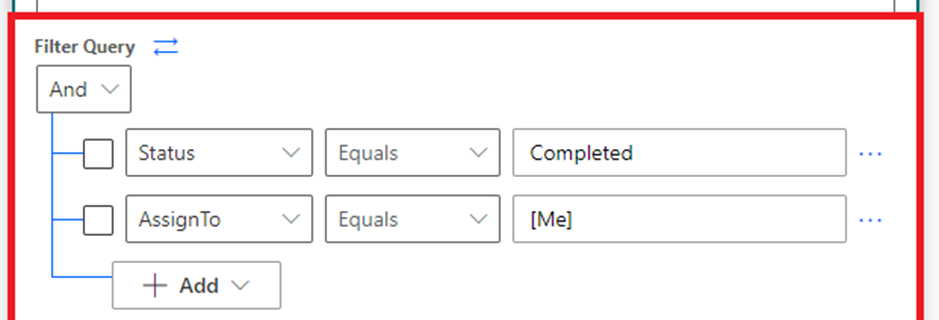
You can also use logical operators like “and” and “or” to combine multiple criteria in your filter query. Here’s an example of a filter query that retrieves all items from a SharePoint list where the “Status” column is set to “In Progress” and the “Assigned To” column is set to the current user:

Status eq 'In Progress' and AssignedTo eq '[Me]'

In this example, “[Me]” is a special keyword that represents the current user.

Once you’ve added your filter query, you can save your flow and test it to make sure it’s working correctly.

Benefits of using filters in Power Automate

Using filters in Power Automate can help streamline your business processes in a number of ways. Here are a few benefits:

  • Reduced workload: By automating tasks based on specific criteria, you can reduce the amount of manual work required to manage your data.
  • Improved accuracy: Filters help ensure that you’re only working with the data you need, which can improve the accuracy of your analyses and reports.
  • Faster decision-making: By quickly retrieving the data you need, you can make faster and more informed decisions.
  • Better collaboration: By sharing specific views of your data with others, you can improve collaboration and communication within your team.

SharePoint filter queries in Power Automate are a powerful tool for managing and analyzing data. By using filters, you can narrow down your data to only what you need, making it easier to manage and analyze. If you’re new to SharePoint filter queries, it may take some time to learn but at you will get the data what you need.

The post SharePoint filter query in Power Automate appeared first on MS Technology Talk.

How to Check if a Microsoft Team Already Exists using Power Automate using Team Title

Power Automate (formerly known as Microsoft Flow) is a powerful tool that allows you to automate workflows between different applications and services. One common use case is to automate the creation of Microsoft Teams. However, before creating a new Microsoft Team, it’s important to check if a team with the same title already exists. In this blog post, we’ll show you how to use Power Automate to check if a Microsoft Team already exists using the team title.

Comparing a Microsoft Team’s existence based on its title is a simple process. You can add this activity to a new Flow by passing the team title as a parameter, or you can include it in an existing Flow. The result of this action will be a Boolean value.

Step 1: “List Teams” Action from the Microsoft Teams Connector

Next, you need to add the “List Teams” action from the Microsoft Teams connector. To do this, search for “List Teams” in the search bar and select the “Get teams” action.

Step 2: Add expression to “Compose” Action

Now, Add the “Compose” Action and can add a formula express on “List Teams” action verifying the Team Title to compare. Check the below example:

contains(string(outputs('List_teams')?['body']),triggerBody()['text'])

This will return a Boolean value which you can condition to condition and can add actions to your flow to perform additional actions based on this information.

In this blog post, we showed you how to use Power Automate to check if a Microsoft Team already exists using the team title. By following these steps, you can ensure that you don’t create duplicate Microsoft Teams and streamline your workflow. Power Automate is a powerful tool that can help you automate many repetitive tasks, saving you time and improving your productivity.

The post How to Check if a Microsoft Team Already Exists using Power Automate using Team Title appeared first on MS Technology Talk.

Power Automate Meeting Reminder

Problématique :

Je rate parfois les rappels d’une réunion Teams. Notification perdue parmi toutes les notifications Windows.

Solution :

Un automatisme Power Automate qui m’envoie un message dans Teams 5min avant une réunion. Cela permet, de mon téléphone ou PC, de voir le rappel sans avoir Outlook ouvert.

Je suis notifié avant une réunion

Recette :

  1. Un Power Automate qui se déclenche toutes les 5 minutes
  2. Il récupère les meeting de ma journée
  3. Compare l’heure actuelle à l’heure de début de chaque réunion
    • Si l’heure de début est dans moins de 5min, alors envoie de message via Teams à l’utilisateur

Télécharger la solution

Télécharger la recette Power Automate

Comment l’installer ?

  • Aller sur Power Automate (via www.office.com)
  • Importer le Power Automate (importer le zip précédemment téléchargé)
  • Éditer le Power automate et configurer votre Email

Vérifier que votre calendrier est sélectionné :

  • Sauvegarder
  • Activer le power automate

C’est tout bon !

Laissez vos suggestions dans les commentaires pour améliorer le Power automate !

Qu’en pensez-vous ?

The post Power Automate Meeting Reminder appeared first on Collabmania.

Power Automate: Office 365 Outlook – When a new email mentioning me arrives Trigger

I’ve mentioned this many times, but sorting email is where productivity dies, even if you have a quick way to do it. There’s nothing better than having Power Automate doing all the work for you, so today, we’ll explore the “when a new email mentioning me arrives” trigger for Office 365.

Let’s see how to use it and how to find it.

Where to find it?

To find it, you can search for the “When a new email mentioning me arrives” trigger or go to the “Office 365 Outlook”:

Select “When a new email mentioning me arrives”:

Here’s what it looks like:

There are advanced options that we’ll explore below, but here’s how to activate them:

Here’s the advanced view.

Pro Tip:
Power Automate tends to save the most common triggers on the main screen, so check there before going through the full hierarchy. Also, you can use the search to find it quickly.

Let’s check the “advanced” fields since they allow us to filter emails we don’t want to process.

Fields

There are a lot of fields that we can configure. Let’s look at them individually.

Folder

If you leave it blank, Power Automate will look at all incoming emails, but you can define different folders to trigger instead of the inbox. For example, you may have a folder where you send a pre-defined answer to the person that emails you while mentioning you or send you a notification when this happens. The folder is a great way to limit catching all emails that arrive mentioning you so that the Flow doesn’t fire for all emails, so be sure to define it if possible.

“To”, “CC”, “To or CC,” or “From”

These fields were a great idea from Microsoft when creating this trigger. Since we receive many emails, it doesn’t make sense for the trigger to fire each time we receive an email mentioning us. For example, we may only want a subset of the total emails or emails from specific co-workers. With these filters, we don’t need to add large “Condition” or “Switch” actions to filter the emails you want. The trigger does all the work for you.

Just so you know, the trigger will run only if at least one matches, so this is also good if you have substantial limitations on the number of Flows you can run a day.

To use it, separate the emails with “;”. You can have internal and external emails, but keep this field with only the email. When you copy emails from some email clients, you’ll have the name associated with it, so be sure to remove it.

Finally, I want to highlight the “To or CC” field. If you add an email to the “To” field or the “CC” field, the email must contain both for the Flow to trigger. But if you want either one, you can use the “To or CC” field.

Importance

The “importance” field is often ignored, but some organizations can have strict rules on how to use it. If yours is one of them, you can have a Flow that sends you a notification each time a “High” priority email arrives, for example. The available possibilities are:

  1. Any
  2. High
  3. Normal
  4. Low

Only with Attachments

For example, if you have a Flow that archives your attachments automatically, you may want to trigger Flows that have them. Having your Flow trigger only when a condition is satisfied makes your life easier because you don’t need to validate, for each email that arrives, if there’s an attachment or not.

Include Attachments

Should the trigger include the attachment information or not? There is, however, something that you should know. Even if you enable this feature, Flow (at the time of writing this article) won’t fetch the attachments correctly. I go into detail in this article, but you need to know that you need to fetch the articles separately using the “Get email” action.

Subject Filter

As with the other fields, we can filter the subject for a specific string, and the Flow will only trigger if that condition is met.

Usage

It’s essential to define what is an email “arriving”. It doesn’t need to be a new email or an email that drops in the inbox. We consider it as “arriving” any email that is moved to a folder, being automatically when it arrives in your inbox, or you move it to another folder. This is super important because it opens the doors to a lot of automation based on moving emails to folders.

This trigger will fire if the emails mention you in the body, so you’ll have access to all properties of that email in the following actions. For example, here’s how to access the email’s subject using a “Compose” action.

Notice that you don’t need to use the “Apply to each” action because you only have one email each time, meaning that if you receive multiple emails where you’re mentioned, your Flow will trigger once per email received.

Please remember that a mention is not the same as having your name. For example, if I write the following email, it won’t be considered a mention.

But the following is:

You need to use the “@“ character to display several suggestions that can be people from this email. Please be careful because some email clients will automatically add the email to the list of senders if it’s mentioned, so be sure you want that person to receive the email.

Limitations

You can’t access emails in shared libraries. You can use the “When a new email arrives in a shared mailbox” trigger to catch emails, but then you need to check int email’s body to see if there’s a mention of you manually.

Also, some emails, like protected emails, could be skipped depending on your tenant configurations. If there’s any issue in the attachments or body of the email, the “When a new email mentioning me arrives” won’t trigger as well.

Recommendations

Here are some things to keep in mind.

Use the filters wisely

Using the filter fields is a fantastic way to trigger your Flow when the condition is met, limiting the number of times the Flow fires. But it’s important to know that the flow triggers only if all filters are met. Test your triggers and ensure they are firing when you want them. Any email that should be parsed but doesn’t fit the filters will be ignored, so it’s a hidden error since there are no error messages or warnings.

Name it correctly

The name is super important in this case since there are a lot of filters. Define in the name what you’re trying to achieve. Always build the name so that other people can understand what you are using without opening the action and checking the details.

Always add a comment

Adding a comment will also help avoid mistakes. Indicate what emails you want to fetch, the ones to ignore the exceptions, and the reasoning behind that. It’s essential to enable faster debugging when something goes wrong. Besides, it’s good to understand the mindset and requirements when building the Flow in case someone else is debugging or improving it.

Back to the Power Automate Trigger Reference.

Photo by Melinda Gimpel on Unsplash

 

❌
❌