Vue normale

Il y a de nouveaux articles disponibles, cliquez pour rafraîchir la page.
À partir d’avant-hierFlux principal

Display related item repeating section in Nintex Workflow task form

Last week I worked with a customer that had repeating sections in Nintex Forms 2013 item form and Nintex Workflow 2013 workflow associated with the list. The customer had the requirement to be able to properly display the repeating section data in the workflow task forms. This requirement does not seems to be a straightforward to accomplish, but in this post I am going to demonstration that this is actually very simple and since I haven't found this in other sources I am sharing my solution and other useful links in this post.
The issue with the repeating section is that it is living as "section"only in the form. You can connect the entire repeating section to a field with type "Multiple lines of text" and you will see that our repeating section value is actually saved as XML.

Nintex Repeating Section

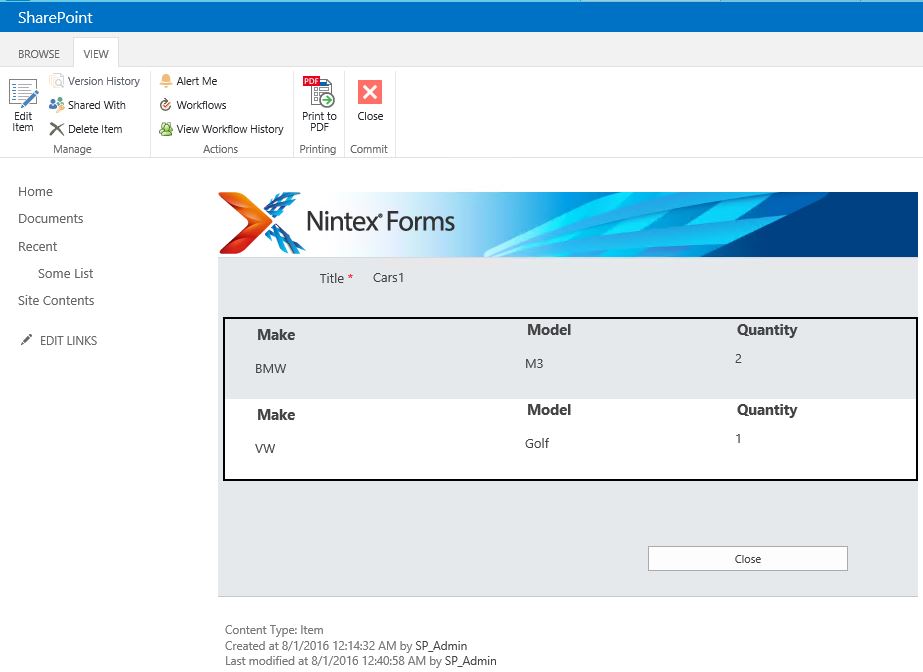
The item actually looks like this:

Nintex Repeating Section  Form

The first nice thing that is not directly related to the title of this post is to make the XML data looks better in List View. To accomplish this I am going to use the CSR (Client-side rendering) approach demonstrated in this post "Displaying Repeating Section as table in List View - the CSR approach". Adapting and applying the script to my list view gives me below result that is way better than the XML.
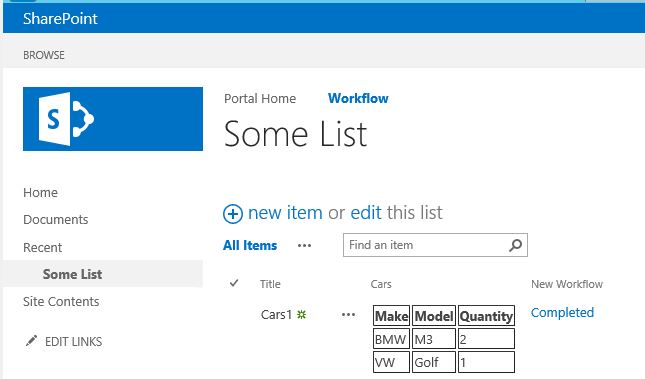
Repeating Section CSR


The way to make sense out of the repeating section in workflow is by querying the XML from the field. I will not go in dept since there are many resource on the subject. One thing that can help you in this task is this article "Nintex Forms/Workflow - Parsing Repeating Section Data" by Vadim Tabakman.
Now to the reason to write this post. If you have tasks in your workflow it will not be unusual you or your customer/users to want to see the related item properties right in the task form instead clicking on links. If you leave the form as it is, the best you can get is to view the repeating section as XML. You can edit the task forms with Nintex Forms for most of the task templates you will get a good starting point and all item properties controls will be created. However check out how this controls look like in three common tasks. From left to right Flexi Task, Request review and Request data.
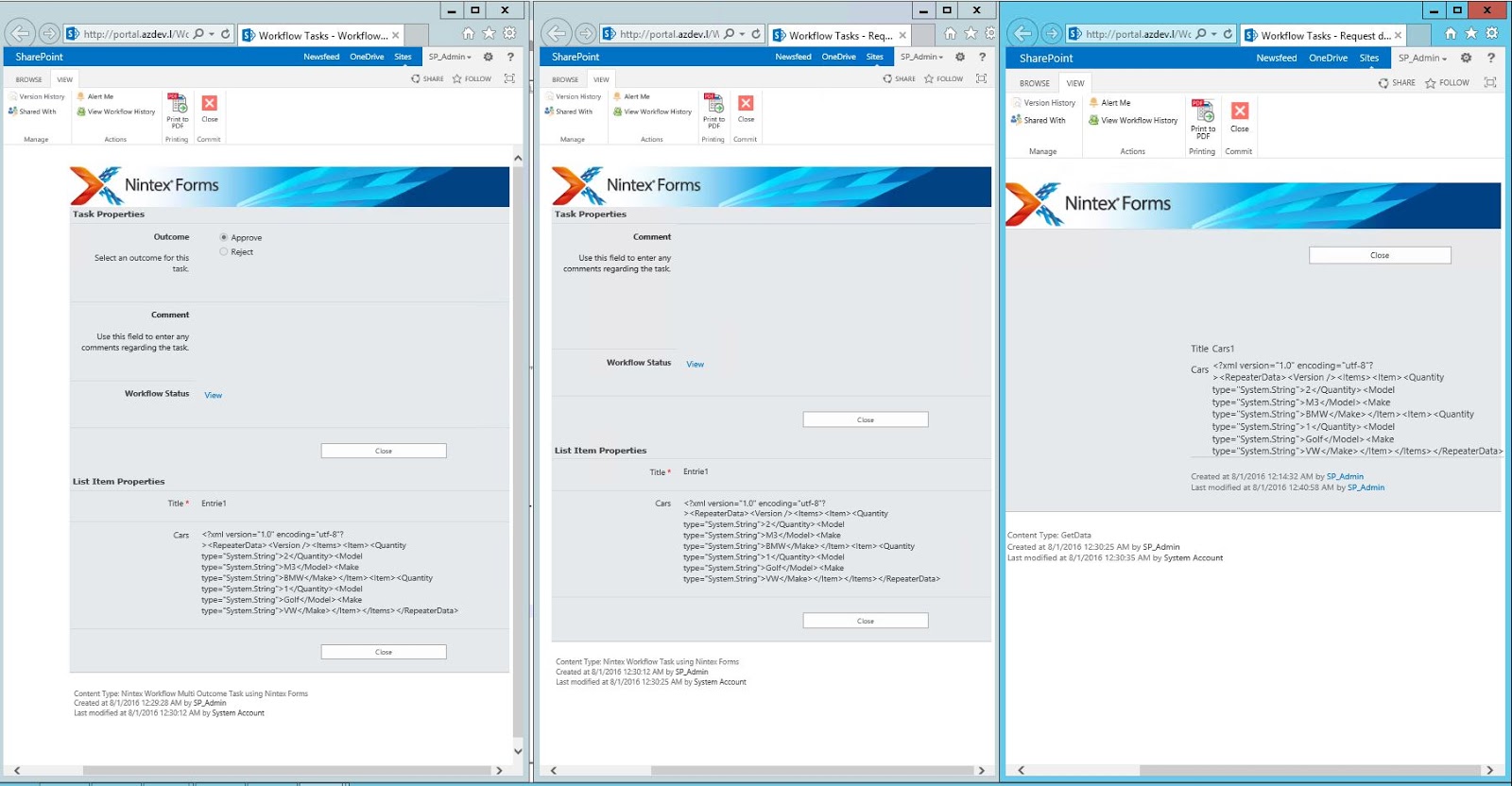
Nintex Task Forms

As you can see the data from the repeating section is displayed as XML. Even in the "Request data" template where I have used "List item" control to display the related item. 
This was also the case with the customer, they had many "Request data" tasks and all of them were using "List item" control to display the related item.
The solution to this is very simple, just create a new repeating section in the task form, recreate all child controls by replicating the data type and the Name of the controls. Then connect the repeating section control to the related item field that contains the XML from the related item. Checkout how a Flexi task looks like if you recreate the repeating section as described.
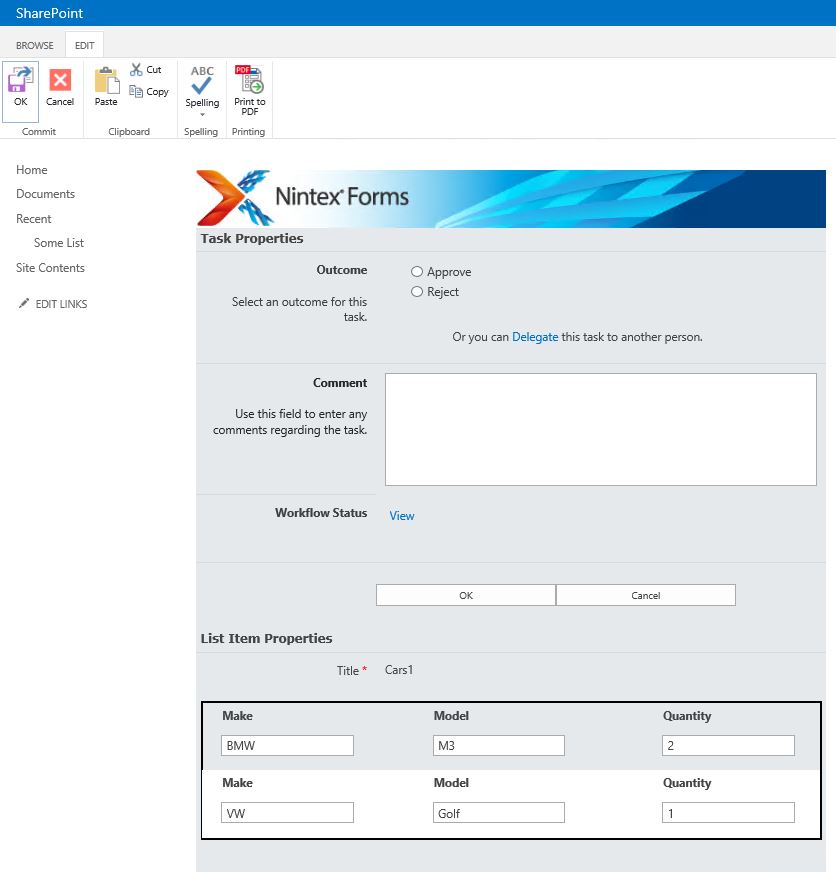
Flexi Task Form


The data from the repeating section in the related item is represented as repeating section in the task form as well. Just make sure that the names of the controls are as in the original item, make the repeating section read only in the task form and you will be completely fine.
I tested the same approach in SharePoint 2016 and Office 365. However something interesting is happening with the XML as you can see in the screenshot below (the field is called Rep)

Task Form Office 365

The important thing is that the repeating section is visualized as expected. If I found what is happening with the XML might blog about it.
I hope that this was helpful! 
Display and Fill related item fields in workflow task with Nintex for Office 365

A couple of weeks ago I posted an article called "Move away from the Workflow Tasks with Nintex for Office 365". The goal of this post was to show some key techniques that you can use if you want to automate a process without using tasks and do all the work in the form so users can see what they are approving.
However, if you want or need to stick with the tasks there is way to display and fill fields from the related item in the task form.
To do this you will need to edit the task template from the workflow designer. This feature was introduced with July 2015 release of Nintex Forms for Office 365.
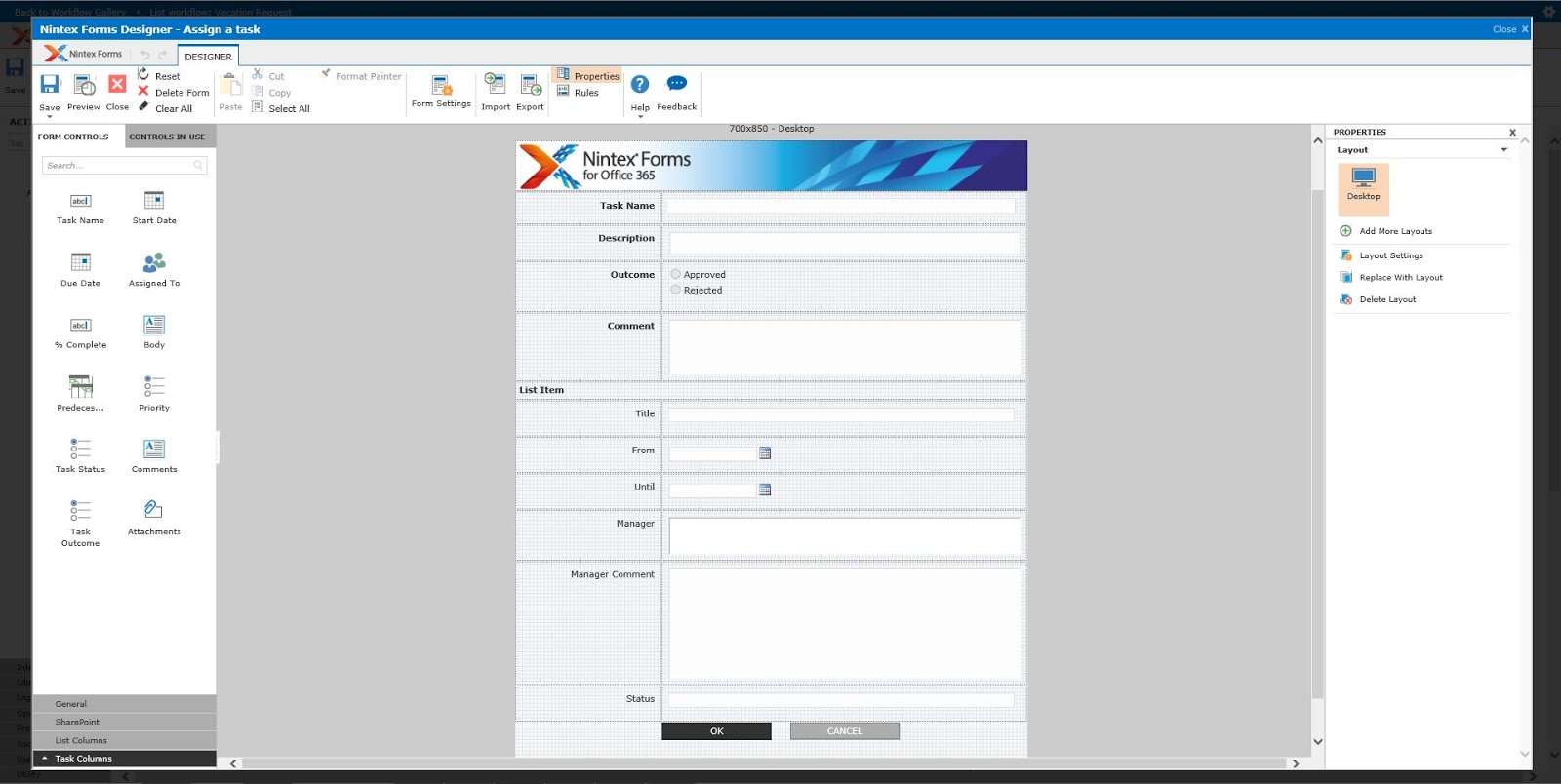
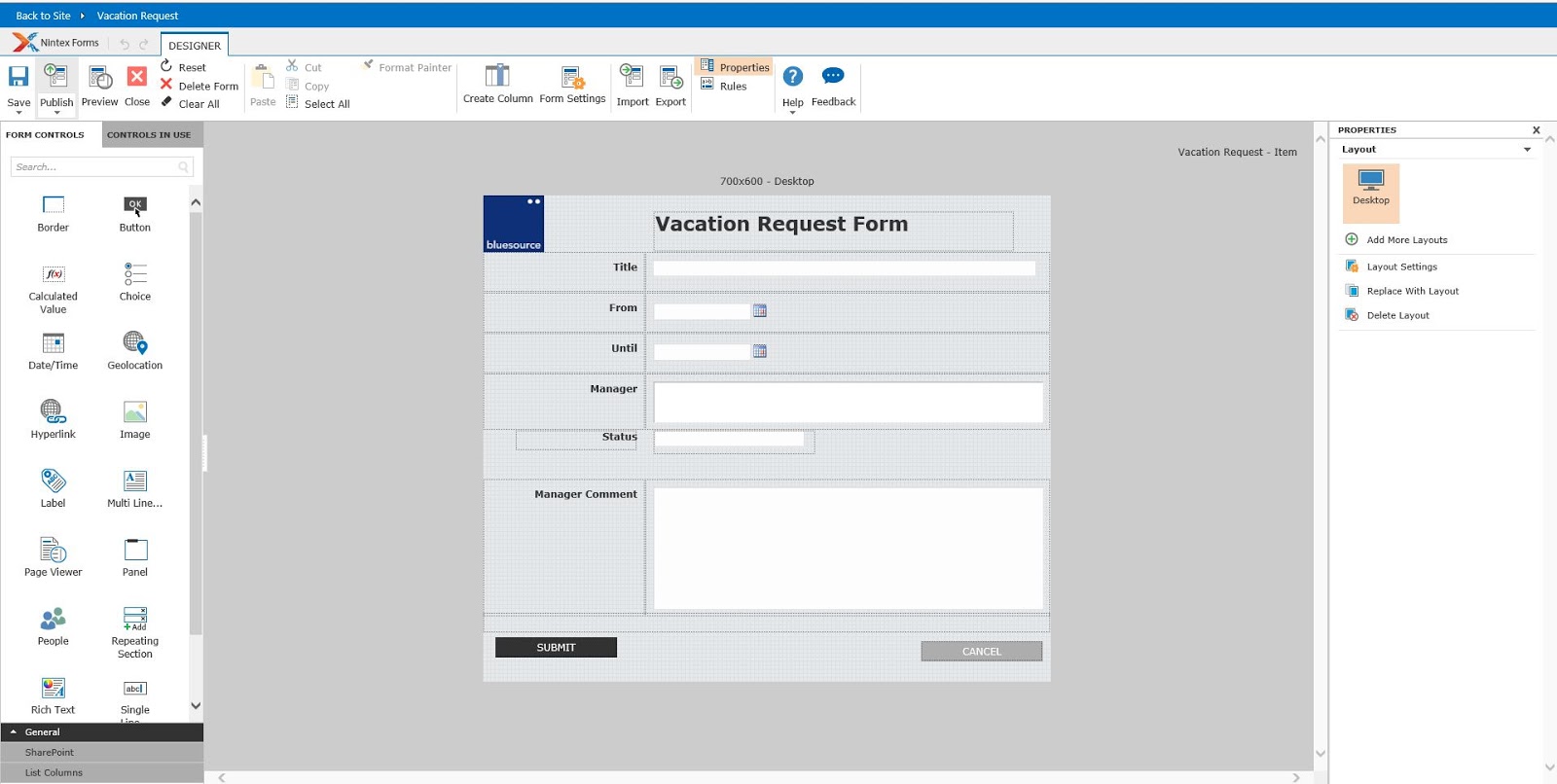
To illustrate how this is working I am going to use the familiar simple Vacation Request form. See how it looks in the form designer below.

Vacation Request

You can see a field with label "Manager Comment" this field is visible only when the form is not in "New Mode", it should contain some information from the manager that will approve the request.
In Nintex Workflow for Office 365 there is no Request Data action, but we can include the field that requires information on task completion in the task form.
If you open a Assign a Task(or Start a Task Process) action configuration page you will see "Edit Task Form" in the action ribbon. By clicking it you will get to the familiar Nintex Forms Designer interface.


In the picture above I am editing the default Nintex task content type and once you open the form designer the initial form includes task columns and item column. Initially all related item columns are disabled, but you can change that for any column you want and make it editable in the task, you can also connect control from the task form to related item column. With some rearrangement you ca see how the Vacation Request approval task looks below.


There is something you should consider if you have many tasks with modified forms. This is something I hit with a customer and later reproduced. This is not yet confirmed by Nintex.
When you edit a task form, the task will be created with Nintex content type(ending with GUID), even if you have specified your own custom content type. This is not an issue because the Nintex content type will have the same columns as the original. However you will have to edit all Task Action forms in the workflow regardless of what content type they are using. If for example two tasks have the same initial custom content type, they will be created under the same Nintex content type after you edit both forms.
This is still not a big deal. However, every time you edit a task form two hidden variables are created and you can easily end up hitting the variable count limitation in the Workflow Manager which is 50 in SharePoint Online. See below error when you try to publish a workflow that has more than 50 variables.

Error publishing workflow. Workflow XAML failed validation due to the following errors: Activity 'DynamicActivity' has 52 arguments, which exceeds the maximum number of arguments per activity (50). HTTP headers received from the server - ActivityId: 9e1fc3bc-5a7c-4821-9605-d595acea851d. NodeId: . Scope: . Client ActivityId : 29ca419d-d068-2000-213e-aae9dfcc2677. The remote server returned an error: (400) Bad Request.


This is not an issue with Nintex, this is just the way the things are working in the background.
In my humble opinion Microsoft should rethink this limitation in SharePoint Online!

I hope that this was helpful!
❌
❌