Microsoft vient de mettre à jour son assistant de configuration Hybride ce qui permettra de ne pas avoir à reconfigurer l’intégralité de la configuration Hybride à chaque changement mineur. une bonne chose ! Article original : https://techcommunity.microsoft.com/t5/exchange-team-blog/hybrid-configuration-wizard-with-granular-configuration-feature/ba-p/4038690 Aujourd’hui, nous sommes heureux d’annoncer la dernière version de l’Assistant de configuration hybride (HCW). Comme nous l’avons annoncé dans… Continue reading L’assistant de configuration hybride avec fonction de configuration granulaire est désormais disponible
Bonjour à tous Hier un client a « planté » 350 utilisateurs pendant une demi-journée car leur suite Office 365 ne pouvait pas se connecter aux services Microsoft alors qu’étrangement ces derniers pouvaient se connecter depuis d’autre poste de travail aux mêmes services, via un navigateur. Après plusieurs investigations aux niveaux des services proxy qui n’ont rien… Continue reading MICROSOFT 0365 : Vérifier vos versions de TLS
We recently enabled a new feature in Office 365, which allows tenant admins to assign more than one Exchange Online license per AAD user. This provides license stacking support and automatic license feature upgrades and downgrades based on the most superior Exchange Online license pack assigned to a user.
SharePoint Online and Teams, for example, have been supporting concurrent license assignments for their own services for some time now. This new feature hence helps bring the same level of support to Exchange Online.
When this will happen:
This has already been rolled out in January 2023.
How this will affect your organization:
As a tenant admin, you would still need to run reporting on license assignments and determine which users might have more than one Exchange Online license assigned. You might then elect to remove the least superior licenses from that user and send them back to the pool of unused licenses, so other users can benefit from them. This is important to understand: if two (or more) licenses are assigned, all of them are “in use” (and might be billed).
What you need to do to prepare:
This message is for your awareness and no action is needed.
Extra Year to Give Tenants Time to Overcome Technical Limitations that Prevent Migration
Without much fanfare, the Exchange Online team decided to give tenants that use client access rules an extra year to make the transition to Azure AD conditional access policies. The original deprecation date of September 2023 is now September 2024. The kicker in this statement is that only rules that cannot be migrated to conditional access policies because of a “technical limitation” can continue working for the extra year.
First announced at the Microsoft Ignite 2017 conference, client access rules are only available in Exchange Online and exist to control connections coming into Exchange Online. You can do things like block POP3 and IMAP4 connections or restrict access to these protocols from specific IP addresses.
Client access rules are a solution created by Exchange Online for an environment that was very different to today. In 2017, customers wanted help to control inbound connections to Exchange Online. Azure AD conditional access policies didn’t have the feature set that’s available now and Exchange Online still supported basic authentication across all its connectivity protocols.
The Current State of Microsoft 365 Connection Management
Moving forward to today, Microsoft has largely eliminated basic authentication from Exchange Online to cut off techniques like password sprays that attackers heavily depended on to retrieve user account credentials. Attackers still try, but attempts to use basic authentication to check username/password combinations fail at the first hurdle. Apart from keeping access to SMTP AUTH, there’s no further need for authentication policies.
Deprecating client access rules could be construed as another side effect of modern authentication becoming the norm in Exchange Online. But the more important factor is that Microsoft 365 favors features that function across the entire ecosystem instead of being tied to a single workload. Azure AD is the directory of record and conditional access policies are how Azure AD controls inbound connections. Dropping client access rules (specific to Exchange Online) to embrace conditional access policies is evidence of that trend. We see the same in the compliance and information protection areas where Microsoft 365 policies take prime position.
Microsoft is pouring engineering effort into Azure AD conditional access policies. In the last year alone, Microsoft has added features such as:
Conditional access policies are closely associated with multi-factor authentication and are often configured to ensure that inbound user connections use MFA, especially for administrator accounts.
Migration Away from Workload-Specific Implementations Can be Problematic
Moving from a workload-specific implementation to a platform-wide implementation can be problematic. It’s likely that the workload-specific code covers narrower use cases that only occur within a workload. For example, Exchange Online mailbox retention policies can process items at a folder level and move items to the online archive when their retention period expires. By comparison, Microsoft 365 retention polices process mailboxes as a single unit and don’t go to folder level and can only delete or keep items instead of being able to move them to the archive. Then again, because Microsoft is actively developing Microsoft 365 retention policies, they benefit from recent innovations like adaptive scopes and disposition reviews, neither of which are available for Exchange mailbox retention policies.
In the case of client access rules, Microsoft acknowledges that they “have encountered a few scenarios where it’s not possible to migrate current rules” and say that they will allow the ongoing use of client access rules “until we can support them” (presumably the scenarios that migration is not currently possible).
Microsoft doesn’t describe what scenarios are problematic. They also don’t say how customers can discover if their client access rules fall into the category of those that Microsoft consider to have a technical limitation that prevents migration. Microsoft plans to disable client access rules that they consider can be migrated to conditional access policies in September 2023. Only rules that receive Microsoft approval can continue running until September 2024, at which point the curtain descends for all client access rules (Figure 1).
Figure 1: Microsoft timeline for deprecation of client access rules
Apart from not documenting the technical limitations that get in the way of migration, Microsoft also doesn’t say how customers receive approval for the one-year extension for client access rules. The blog says that customers should “open a support ticket so we can investigate and understand your needs,” but doesn’t explain how this process results in a rule being allowed to continue running past September 2023.
The Filtering Issue
Browsing the documentation for client access rules, the obvious issue appears to be in the areas of filtering. Like in other areas (like dynamic distribution lists), Exchange Online supports recipient filters for client access rules in a different manner than operated for conditional access policies. You can assign conditional access policies to specific users and groups (including dynamic Microsoft 365 groups), but that’s not quite the same as using a recipient filter. I’m sure that I am missing something else, but recipient filtering seems like the big obstacle for migration.
I strongly support moving away from client access rules to embrace more secure implementations like conditional access policies that operate across the complete Microsoft 365 ecosystem. Microsoft throws continuous access evaluation (CAE) into the pot. Although CAE is a very good innovation to revoke access from accounts immediately important events like password changes occur, the issue here is all about migration.
Client Access Rules Migration Might Need Updates to Conditional Access Policies
If you’re using client access rules, it’s time to review the state of the migration.
Remove client access rules that are no longer necessary.
Migrate the remaining rules to conditional access policies.
If any rules cannot be migrated, contact Microsoft Support to discover if a technical limitation exists to prevent migration. If it does, the rules can continue working until September 2024. If not, Microsoft Support should be able to tell you how to migrate to conditional access policies before September 2023.
Microsoft doesn’t say how they will address the technical limitations that allow some client access rules to remain operational until September 2024. This might be because the Exchange Online team is waiting for their Azure AD colleagues to implement some features in conditional access policies. At least, I hope that’s what’s happening.
Insight like this doesn’t come easily. You’ve got to know the technology and understand how to look behind the scenes. Benefit from the knowledge and experience of the Office 365 for IT Pros team by subscribing to the best eBook covering Office 365 and the wider Microsoft 365 ecosystem.
Microsoft actively develops Azure AD external identities and doesn't do much with mail contacts. Maybe it's a good idea to migrate mail contacts to Azure AD guest accounts. This article explores what's involved in moving mail contacts over to Azure AD guest accounts using PowerShell.
Microsoft souhaite supprimer la fonctionnalité "Client Access Rules" d'Exchange Online au profit de l'accès conditionnel, mais cela entrera en vigueur en septembre 2024 et non en septembre 2023 comme c'était prévu initialement.
Grâce à la fonctionnalité "Client Access Rules" d'Exchange Online, et que l'on retrouve aussi sur les serveurs Exchange on-premise, les administrateurs sont en mesure de créer des règles d'accès basées sur les propriétés d'un client et les requêtes qu'il effectue. Ces règles vont pouvoir s'appliquer sur l'adresse IP du client, le type d'authentification, l'application utilisée ou encore le service Exchange Online sur lequel souhaite se connecter le client. Par exemple :
Bloquer l'accès à un carnet d'adresses hors ligne pour des utilisateurs spécifiques, en filtrant sur le nom de l'utilisateur
Empêcher l'accès des clients en utilisant Exchange Online PowerShell
Bloquer l'accès au centre d'administration Exchange classique (EAC) pour les utilisateurs provenant d'un pays spécifique
En septembre 2022, Microsoft avait annoncé vouloir supprimer cette fonction dans Exchange Online de manière progressive d'ici septembre 2023. De ce fait, les administrateurs sont invités à migrer de la fonction "Client Access Rules" (CAR) vers l'accès conditionnel (conditional access) et l'évaluation continue de l'accès (continuous access evaluation). Il s'agit de méthodes jugées plus sécurisées.
Sauf que Microsoft vient de revoir ses plans puisque la nouvelle date limite est septembre 2023. Pourquoi ? Et bien, il s'avère qu'il est actuellement impossible de migrer certaines règles vers l'accès conditionnel (conditional access) et l'évaluation continue de l'accès. L'équipe d'Exchange précise : "Nous avons travaillé avec les clients pour savoir comment ils utilisent les CAR et comment ils peuvent migrer vers ces nouvelles fonctionnalités, mais nous avons rencontré quelques scénarios où il n'est pas possible de migrer les règles actuelles".
Suite aux problèmes rencontrés, Microsoft s'accorde un peu de répit : "Pour ces scénarios, nous autoriserons l'utilisation de CARs au-delà de la date limite de septembre 2023 précédemment annoncée, jusqu'à ce que nous puissions les prendre en charge."
Même si la date limite est repoussée, travaillez sur le sujet assez rapidement... En cas de difficulté pour migrer une ou plusieurs règles vers les deux fonctions préconisées, vous pouvez ouvrir un ticket auprès de Microsoft.
In this edition of our series on the "Top 5 Best Practices for Exchange Online Domain Transfers," we delve deeper into the importance of validating your plan prior to implementation. Implementing a well-tested and practiced process will help prevent mistakes and encountering unknowns during the migration. Join us as we explore the key considerations for a successful validation phase.
When a user is deleted in Microsoft 365, the mailbox is removed as well. But what if someone still needs access to the mailbox and you forgot to share it first? Or maybe you have deleted the wrong user? In these cases, we can restore ... Read moreHow to Restore a Deleted Mailbox in Office 365
I can’t deny that I have been known to rant in the past, maybe even when hosted by Richard on his RunAs Radio talk show, but that’s when I am pointed to a microphone and Richard goads me into action. In this case, I think it might be a reflection that people are struggling to understand what’s going on. Certainly, a fair degree of miscomprehension is apparent in some of the comments posted to Microsoft’s announcement. Let me try to summarize what’s happening without ranting even a little bit.
What Microsoft is Doing with Unsupported Exchange Servers
First, Microsoft is not targeting every on-premises Exchange server. You can absolutely continue to run on-premises Exchange if that’s the best option for your organization. However, if you have a hybrid organization, the rules of the game are changing to force you to use supported software to send email from the on-premises side.
Initially, Microsoft is targeting on-premises Exchange servers with two characteristics:
The servers send email to Exchange Online over an inbound connector of the on-premises type. In other words, the problem servers act as the routing point of contact with Exchange Online – Microsoft knows about the servers because they’re part of a hybrid organization connected to Exchange Online. These servers are also connected to the internet (otherwise they can’t route email to Exchange Online) and are therefore vulnerable to attack, and because they route messages direct to Exchange Online, they can be the vector used by attackers to inject malware into Exchange Online.
Servers that do not handle the transmission of email to Exchange Online via an inbound connector are unaffected. Anything that happens inside the privacy of an on-premises organization is up its administrators. For now, you could even connect in some Exchange 5.5 servers running a Wolfpack cluster if you wanted – if the server handling email to Exchange Online runs supported software.
Microsoft says that “The enforcement system will eventually apply to all versions of Exchange Server and all email coming into Exchange Online.” This seems a little harsh but it is intended to make sure that email flowing into Exchange Online is safe. The way things seem likely to pan out is that Microsoft will gradually bring Exchange 2010, Exchange 2013, Exchange 2016, and Exchange 2019 into the program. After they’ve made sure that only Exchange servers running supported software can communicate with Exchange Online, Microsoft will extend the requirement to all Exchange servers that communicate with Exchange Online using any means. In other words, even servers that communicate with Exchange Online via an intermediary are subject to throttling and then blocking.
The final stage is to protect Exchange Online against any server that sends email to Exchange Online over SMTP. I’m not quite sure how Microsoft plans to validate that remote SMTP servers are up to scratch, but that’s where they seem to be heading. This part of the plan is likely more of a long-term strategy than a well-defined plan. Practical issues such as identifying what is and is not a supported version of any particular SMTP server that communicates with Exchange Online need to be resolved.
The end game is to ensure that Exchange Online is not exposed to malware or other issues that come in from external servers (outside Exchange Online). In many respects, this is no different to what happens today when Exchange Online Protection blocks spam and malware. Judgement is passed at a server level rather than individual messages.
Initial Focus on Exchange 2007
The initial focus is on Exchange 2007 servers (Figure 1). As you might expect, this is a very small subset of servers in hybrid organizations. I’ve heard that there might be a couple of thousand servers in this category worldwide. Exchange 2007 reached end of life six years ago (April 2017). It has not received any support or security patches since.
These servers are vulnerable to a wide range of known threats. They should not be in active use. The potential exists that an attacker could compromise these servers and use this route to attempt to penetrate Exchange Online. This is the crux of the matter: Exchange Online will not accept email from organizations that transmit email to Exchange Online using obsolete and vulnerable Exchange servers.
Figure 1: Exchange 2007 run in a world where less external threat existed. Now it’s an unsupported Exchange Server
Blocking of Unsupported Exchange Servers Starts in July
Microsoft will use a three-phase report-throttle-block process to “encourage” customers to upgrade the problem servers. Details are in this article. Microsoft will start to throttle traffic from Exchange 2007 servers in June and move to block traffic from those servers in July. It is entirely the responsibility of tenant administrators to respond before a block descends on their on-premises email to Exchange Online. Three options are available:
Upgrade the problem server(s) to a supported version of Exchange Server (2016 or later, patched with the latest cumulative and security updates). This might involve replacement hardware. The load imposed by mail routing to Exchange Online is not likely to stress modern hardware, so a low-end server will suffice.
Move the on-premises side of the inbound connector to a server running a supported version of Exchange Server.
Direct email from Exchange on-premises to Exchange Online via a third-party mail gateway. (note: if the third-party gateway uses unsupported Exchange servers, its traffic is liable to be blocked).
In any of these cases, it makes absolutely no sense to keep vulnerable Exchange servers in production. It’s time to let Exchange 2007 die. Software designed twenty years ago simply cannot cope with the threat that exists today.
Microsoft is clear that Exchange 2007 is only the start. After they finish dealing with Exchange 2007, they will move on to Exchange 2010 and then Exchange 2013 servers that send email to Exchange Online over inbound connectors. It’s probable that the program will extend to Exchange 2016 and Exchange 2019 servers (that are not kept updated) as they age, and maybe even encompass third-party servers with known problem configurations.
Some reaction to the announcement focuses on spam generated from Microsoft cloud accounts. I believe this refers to consumer email accounts. At least one incident occurred where Exchange Online was hijacked and used for spam, but most spam does come from consumer accounts. Microsoft could tighten the use of consumer (Outlook.com) accounts for email, but that’s got nothing to do with the server initiative.
ISVs and Inbound Connectors
Speaking of inbound connectors, in February 2023 Microsoft disabled the ability of new Exchange Online tenants to activate inbound connectors of the on-premises type. This caused a bunch of problems for ISVs that depend on being able to route email for processing to a service that they run before sending messages back to Exchange Online for final delivery. The application of email signatures by a company like Code Two Software is a good example.
Microsoft has now issued guidance about how to handle the issue. Essentially, they have whitelisted some ISVs to reduce the friction caused by the restriction. In other cases, you’ll need to request activation through Microsoft support. According to the ISVs I have spoken with, the new scheme is acceptable. Let’s hope that this proves to be the case in practice.
Microsoft will hold an Ask Me Anything event on May 10 at 9AM PST on the topic of the Exchange Online transport enforcement system. For more details, check out this page. If you have any further questions, that’s the place to bring them.
Insight like this doesn’t come easily. You’ve got to know the technology and understand how to look behind the scenes. Benefit from the knowledge and experience of the Office 365 for IT Pros team by subscribing to the best eBook covering Office 365 and the wider Microsoft 365 ecosystem.
Microsoft announced that Exchange Online will block old Exchange Servers by throttling and then rejecting their inbound email into Exchange Online. The hope is that this tactic will convince those who operate unsupported versions of Exchange Server to upgrade and use supported software that isn't vulnerable to known attack vectors.
Intelligent Technology Depends on Machine Learning Access to User Data
Some years ago, I wrote about how Outlook uses machine learning to predict words to insert in messages. This was an early example of machine learning in Outlook. Text prediction is common practice today and we almost expect applications to include machine learning to help us compose notes, documents, and responses. Given the introduction of ChatGPT and Bing’s AI Bot, some worry about the prospect of increasing amounts of machine-generated text and its effect on human creativeness. It’s definitely a story to follow.
Over the last few years, Microsoft has steadily increased the use of “intelligent technology” in Outlook. Currently, the range of features covers features like birthday detection to text predictions to suggested replies, controlled through OWA settings (Figure 1). Regretfully, the Set-MailboxMessageConfiguration cmdlet doesn’t currently support updating these settings for a mailbox.
Figure 1: OWA options for intelligent features
The combination of Microsoft Research and product engineering groups has driven the introduction of intelligent technology in OWA. For example, Outlook’s suggested replies feature is underpinned by the Azure Machine Learning Service.
Outlook Desktop Lags in Intelligence
Outlook desktop clients receive the intelligent technology features after OWA. This lag has always existed, but at least we can respond to email with an emoji. Oddly, there’s been a few recent reports of Outlook for Windows failing to display the “show text predictions while typing” setting in its options (here’s an example). I don’t see the setting on one PC and do on another, both of which run the same build of Outlook click to run. I even updated the system registry at HKCU\SOFTWARE\Microsoft\Office\16.0\Common\MailSettings to set the InlineTextPrediction DWORD value to 1 to enable text predictions with no effect.
Microsoft Processing of User Data
One thing that people get worried about is the notion that Microsoft “reads” their email to create suggested replies and to build models for text predictions. It’s true that Microsoft processes email to create the suggestions and predictions used by Outlook, but the important thing is that the data used by the learning models constructed to help machine learning understand how individual users work with text remain in user mailboxes. Microsoft doesn’t gather information from the 380-odd million active Office 365 users to improve its detection algorithms. The general foundation for the models come from public data (and I imagine, messages circulating within Microsoft), but the tweaks to make those models personal remain private to the user.
In its user documentation for suggested replies, Microsoft says that “Suggested replies are generated by a computer algorithm and use natural language processing and machine learning technologies to provide response options.” It also says that “Outlook uses a machine learning model to continually improve the accuracy of the suggestions. This model runs on the same servers as your mailbox within your organization. No message content is transmitted or stored outside of your organization.”
These statements don’t mean that the machine learning code runs on 300K Exchange Online mailbox servers. Instead, Microsoft uses a concept called Privacy Preserving Machine Learning (PPML) to transfer data to specialized AI computers in the Microsoft cloud. After processing, Microsoft erases the source information from the AI computers and background agents update mailboxes with user-specific results. It is this information that Outlook consumes locally when dealing with messages.
Email is worldwide, but the structures and syntax used by different languages means that Microsoft’s machine learning processes is limited to certain languages. For instance, at the time of writing, suggested replies are available in only 22 languages.
I’ve heard (but can cite no public evidence) that AI processing occurs on a tenant basis to allow some consolidation of generic results at the tenant level. For instance, if many users in a tenant use “OK” as a standard response, it’s likely that machine learning will consider “OK” as a prime candidate to be a suggested response for everyone in that tenant. The consolidated generic data remains in the tenant.
Viva Insights Processes User Email Too
In addition to the way Microsoft processes user email to understand text patterns, Viva Insights looks through email to detect commitments made by users. Its MyAnalytics predecessor started to scan emails for commitments in 2018. When users open the Viva Insights add-in or use the Viva Insights app in Teams, they see recommendations and insights derived from the contents of the calendar and inbox folders from their mailbox.
Among the information Viva Insights highlights are messages that might contain commitments that the user needs to follow up. Viva Insights displays details of the messages it has found and prompts the users to either note the potential task as complete or add it as a personal To Do task (Figure 2).
Figure 2: Viva Insights that might become tasks
Viva Insights also finds messages where the user asks recipients to do something and prompts them to either follow up or mark the task as done.
There’s lots of deep research into finding commitments in email and highlighting those commitments to users. But again, the important thing is that the data used by Viva Insights remains in user mailboxes and is under the control of users.
Worrying About the Data Used by Machine Learning in Outlook
Those with responsibility for compliance and privacy in an organization are usually the people most worried about the processing of user data. With the growth of machine learning and AI-powered “experiences” and the resultant need for access to user data to learn from, this is a good concern to have. In the case of Microsoft 365, many “connected experiences” exist where people consume a cloud service without realizing where data comes from or is consumed.
Personally, I’m not concerned about how machine learning processes my email as the outcome is useful (when it works), but I realize that others have different feelings. It’s a topic for every organization to work through and figure out how happy they are to have Microsoft process their data to create new features.
To finish off, Figure 3 shows how Bing chat answered my question about how Outlook uses machine learning…
Figure 3: Bing AI answer for How does Outlook use machine learning
Learn how to exploit the data available to Microsoft 365 tenant administrators through the Office 365 for IT Pros eBook. We love figuring out how things work.
During an online discussion following publication of my article about how to purge guest accounts with unredeemed invitations from Azure AD, Microsoft’s Jef Kazimer said that he sees many Microsoft 365 organizations using guest accounts instead of mail contacts because guest accounts have better lifecycle management, even if the guests never sign in.
That idea got me thinking. Exchange Online is the largest Microsoft 365 workload and some organizations create many thousands of mail contacts for different reasons. For instance, they might have contacts for people in partner organizations so that users can easily find those contacts in the Global Address List (GAL). Mail contacts also exist in Exchange Server and many of the contacts now in Exchange Online originated. Hybrid organizations can synchronize on-premises contacts to Azure AD, but the management of those objects must be done on-premises.
Understanding Mail Contacts
Before comparing mail contacts with Azure AD guest accounts, we need to understand what a mail contact is. Mail contact objects exist in both the Exchange directory (EXODS) and Azure AD. For example, to create a mail contact, you run the New-MailContact cmdlet:
This action creates a contact object in both Exchange Online and Azure AD. The Exchange object is what people think of when they think about a mail contact. The Azure AD object exists to hold properties unrelated to email processing. Because it uses mail contacts as addressable email recipients, all Exchange Online really cares about is the email address. Once an object has an email address, Exchange can route messages to it and allow the object to participate in distribution lists. The Get-MailContact cmdlet confirms the details of the new contact object:
The external directory object identifier stored in the mail contact points to the Azure AD object, which we can retrieve using the Get-MgContact cmdlet from the Microsoft Graph PowerShell SDK:
The mail contact is a sparse object so far. To populate the other properties that you might want users to see in the GAL (Figure 1), you must run the Set-Contact cmdlet to update the Azure AD object:
Figure 1: A fully-populated mail contact as seen by Outlook for Windows
The Get-MgContact cmdlet reports the newly-populated properties as does the Get-ExoRecipient cmdlet. There are some exceptions and caveats:
Remember to include the PropertySet All parameter to force Get-ExoRecipient to retrieve the full set of properties.
Get-ExoRecipient doesn’t retrieve the street address because it’s not included in the GAL.
Get-MgContact uses compound properties to hold some information. For instance, to see the elements of a contact’s address, you must expand the properties stored in the Addresses property:
Get-MgContact -OrgContactId (Get-MailContact -Identity Jef.Kazimer).ExternalDirectoryObjectId | Select-Object -ExpandProperty Addresses


City     CountryOrRegion OfficeLocation PostalCode State      Street
----     --------------- -------------- ---------- -----      ------
Bellevue United States   Liberty Square 98004      Washington 14, Preston Villas
Managing Mail Contacts
A Set-MailContact cmdlet is available to update properties of the Exchange objects, including the set of custom attributes available for all mail-enabled objects. The Set-Contact cmdlet updates the information held in Azure AD contact objects such as the address data shown above.
When administrators manage mail contacts through the Microsoft 365 admin center or Exchange admin center, they can work with both Exchange Online and Azure AD object properties. The GUI hides the fact that the settings presented to the administrator come from two directories, much like it disguises the interaction between Azure AD and Exchange when managing mailbox-enabled user accounts.
Guest Accounts and Guest Mail Users
Now that we understand mail contacts, let’s discuss the relationship between Exchange Online and Azure AD guest accounts. Following the creation of a guest account, a background process creates a special type of mail user object with a RecipientTypeDetails setting of GuestMailUser based on the properties of the guest account. The mail user object allows:
Guest members of Outlook groups to participate in group conversations via email.
Mail routing to guest accounts.
Guest accounts to appear in the GAL and other Exchange address lists.
Guest mail user objects exist in the Exchange directory until the removal of their linked guest accounts from Azure AD. Although you can view guest mail user objects through the Exchange admin center, the GUI won’t allow you to update their properties.Changes must be made to the guest account using the Azure AD admin center or with a Graph API (including the Microsoft Graph PowerShell SDK cmdlets). You can update the Exchange-specific properties with the Set-MailUser cmdlet.
To see the set of guest mail user objects, run the Get-ExoRecipient cmdlet:
The last property is True (the default) if the guest account isn’t visible to Exchange address lists. Run the Set-MailUser cmdlet to update HiddenFromAddressListsEnabled to True to expose the object. Here’s an example:
Note that it takes at least a day before newly exposed objects show up in the offline address look (OAB).
Adding Guest Mail Users to Distribution Lists
Because the guest mail users are routable objects, they can be added to distribution lists. This example spells things out, but it’s possible to add a guest mail user to a distribution list by passing its display name or email address without going to the bother of fetching the object with Get-MailUser.
Getting back to the original point, Jef says that guest accounts have better lifecycle management. In other words, if an organization invests in creating guest accounts instead of mail contacts, they’ll benefit from the work Microsoft does to improve how Azure AD manages external identities.
There’s some truth here. An Azure AD guest account supports more properties, including custom security attributes and support dynamic Azure AD Groups and dynamic Azure AD administrative units. They’re a Microsoft 365 entity rather than being restricted to just Exchange Online. Azure AD development for external identities, including guest accounts, is active whereas I suspect the development effort for Exchange mail contacts entered an “only fix bugs” maintenance stage years ago. On the other hand, mail contacts are simple and effective and work across hybrid Exchange organizations.
If you’re a cloud-only organization, the choice exists to use either. If you decide to use Azure AD guest accounts, the existence of guest mail user objects smoothen the transition and make sure that address lists, distribution lists, an email routing continue working. Azure AD guest accounts are a better long-term bet, but that doesn’t mean that anyone should switch anytime soon.
Learn more about how the Microsoft 365 applications like Exchange Online and Azure AD really work on an ongoing basis by subscribing to the Office 365 for IT Pros eBook. Our monthly updates keep subscribers informed about what’s important across the Office 365 ecosystem.
Use Test-Message to Validate Exchange Online Rules Processing Against Email
Announced in Microsoft 365 message center notification MC503297 (26 January 2023, roadmap item 100494), the Exchange Online Test-Message cmdlet is now generally available. The purpose of the cmdlet is very simple: it tests the path of a message through the rules applied by the Exchange Online transport service to reveal what actions those rules take. The intention is to help tenant administrators understand why a rule doesn’t function as expected without having to ask Microsoft support for assistance.
The set of tested rules include:
Exchange Online transport rules (ETRs, also known as mail flow rules). Up to 300 ETRs can exist in an Exchange Online organization to do anything from automatically copying messages sent to a certain domain to applying disclaimers to outbound messages (here’s an example of using an ETR to apply a special disclaimer for calendar meeting notifications.
Rules created to enforce actions from Microsoft 365 DLP policies. For example, to stop people sharing confidential information with external recipients.
Rules created to apply Microsoft Purview retention or sensitivity labels.
Over time, my small tenant has accumulated 25 different transport rules plus a set of DLP policies and some auto-label policies. The permutations and combinations involved in rule processing within the transport service can become very complex indeed. ETRs have a priority order to determine how the transport service runs the rules. A rule can force processing to stop if necessary. DLP policies run after ETRs, and auto-labeling then kicks in if a message is allowed to proceed by ETRs and DLP.
Test-Message Examples
Here’s a simple example of the Test-Message cmdlet in action:
This kind of test runs rules against a sample message. It can only check the message sender and recipients, so apart from cycling through all the available rules, it’s not a very extensive test.
A slightly more complicated example uses a test message that I created with Outlook and saved as a message file. Using a test message makes sure that rules run against precisely the kind of traffic that you expect the rule to detect and process. For instance, you might want to include some specific keywords in the message subject or body text, or an attachment of a certain type.
To pass the message to Test-Message, it must first be encoded and stored in a variable, which is then specified in the MessageFileData parameter.
The server information reported by the cmdlet is the Exchange Online mailbox server where the transport rules run. Given the massive pool of Exchange Online servers, it’s likely that Test-Message will use a different server each time it runs.
Test-Message Output
The output is in messages delivered to the address specified in the SendReportTo parameter for each type of rule processed by the test. In my case, the test generated three messages (DLP, auto-label, and ETR). Figure 1 shows the results for the ETR test. We can see that a match occurred for the Office 365 Message Encryption for selected external domains rule, which executed two actions to apply rights management protection to the message with custom branding. After executing the two actions, the transport service stopped processing further rules because the rule settings forced an exit.
Figure 1: Exchange transport rules report generated by the Test-Message cmdlet
Steps to Follow for Rule Creation
Nice as it is to have a cmdlet to help test rules processing, it won’t replace the simple rules that experienced administrators follow when setting up new ETRs or DLP policies.
Know what your rule should do (the actions).
Know what conditions the rule needs to detect before it runs.
Know what exceptions (if any) exist.
Start with a simple rule and build complexity gradually.
Always ask if your rule is likely to interfere with another rule before enabling it. You might be able to make a small adjustment to an existing rule to do what you want instead of creating a brand-new rule.
The last point is the most important.
Insight like this doesn’t come easily. You’ve got to know the technology and understand how to look behind the scenes. Benefit from the knowledge and experience of the Office 365 for IT Pros team by subscribing to the best eBook covering Office 365 and the wider Microsoft 365 ecosystem.
Restriction forces Customers with New Tenants to Ask Microsoft Support to Enable Inbound Connectors
In an unannounced change, Microsoft recently disabled the ability of new Exchange Online tenants to activate newly-created inbound connectors. The text in the inbound connector FAQ (refreshed on 15 February) says:
“When you create an Inbound connector of OnPremises type manually, you may see the warning message Inbound connector for this service offering is created in a disabled state. Contact Support to enable it.”
The FAQ goes on to say that the customer must contact Microsoft support and provide a business justification for why their tenant needs to use an inbound connector. Microsoft attempts to reassure everyone by saying “Legitimate usage is approved, and the connector is enabled by our service engineers.” I’m sure that’s true, if you manage to speak to a level 1 support engineer who knows about why Microsoft disabled inbound connectors and understand what to do to release the block.
The EX505293 Incident
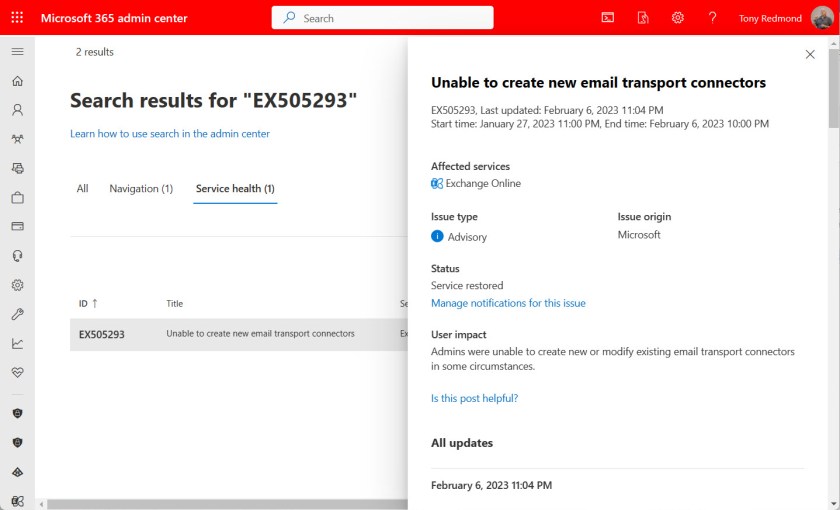
The problem with creating and updating connectors surfaced in incident EX505293 (January 27). Microsoft determined the root cause to be “A recent change to the service introduced a regression that may have prevented some admins from creating or modifying Exchange email transport connectors” and applied a fix that was operational by February 6, 2023. Because the Exchange Hybrid Connection Wizard (HCW) creates connectors, it was affected by the problem.
Figure 1: The EX505293 incident for inbound connectors
Microsoft doesn’t describe the precise nature of the fix in EX505293, but it seems like it allows tenants to create new connectors (in a disabled state). Moreover, the text in EX505293 indicates that the restriction applies only to tenants created from 2023 onwards. Microsoft’s FAQ doesn’t mention why they’ve clamped down on newly-created tenants, but it’s possible that it’s easier for an attacker to spin up a new tenant and create connectors to do bad things than to break in and compromise an existing tenant to take over its connectors.
Good Reasons Exist to Disable Inbound Connectors
Good reasons exist for why Microsoft should block inbound connectors. First, an inbound connector is not required for normal mail flow. The usual reason is that an organization wants to use a third-party solution to process their email. For instance, you might want to route messages through a third-party service to apply corporate email signatures before sending the messages to their final destination. Many of the specialized email signature ISVs like Code Two Software use inbound connectors to bring traffic back into an organization after inserting appropriate email signatures into messages.
Second, attackers who compromise a tenant might create connectors to route email through their services in an attempt to either use the tenant to send spam or to inject malware into user mailboxes (see this report about an attack on a Microsoft 365 tenant). Placing newly-created connectors into an inactive state until the owning tenant justifies the use of the connector closes off this attack vector.
I don’t know why Microsoft decided to restrict newly-created connectors. My gut feel is that something happened to cause immediate action, such as emerging evidence of a new attack technique involving connectors. We won’t know and Microsoft won’t say. Such is the nature of the security war between attackers and defenders playing out every day across IT infrastructures.
The Effect on ISVs
Even if closing off an attack vector stops attackers dead, doing so without due consideration of legitimate usage by ISVs is bad practice, especially when Microsoft didn’t warn ISVs or announce the change in a post in the EHLO blog, post a notification to the Microsoft 365 message center, or publish plans as a Microsoft 365 roadmap item. The change appeared without warning, perhaps to surprise potential attackers. It certainly surprised the affected ISVs.
Instead of being able to install their products and configure everything needed to make their software work, ISVs are now forced to perform a partial installation and ask their customers to contact Microsoft support to enable the disabled inbound connector. Microsoft has left customer-facing ISVs in an invidious position.
Not Good Business
I don’t criticize anything Microsoft does to protect Exchange Online against attack. Too many people depend on Exchange Online to risk potential compromise of user mailboxes. My criticism is entirely focused on the total lack of communication since Microsoft introduced the change referred to in EX505293 and fixed in early February. Operating in a vacuum is good for no-one, especially when Microsoft leaves ISVs out to dry and doesn’t tell them why their code no longer works.
Failure to communicate is always bad for business. It increases costs for ISVs and creates friction between ISVs and their customers. It generates an increased number of calls (and cost) for Microsoft Support to deal with. It slows business productivity where the cloud is supposed to speed things up. It’s a great example of a solution that makes perfect sense when sketched out by engineers on a whiteboard that runs headlong into problems in the real world. All in all, even if it fixed a potential security hole, forcing customers to go to Microsoft support to justify their use of a connector is a poor plan that Microsoft snuck in without saying anything to anyone.
Microsoft might say that they made the change because they want to protect Exchange Online customers. I accept their bona fides, but I expect better from the world’s largest software company, especially in how they deal with ISVs. After all, ISVs help the Microsoft cloud work better for Microsoft customers. They can’t do that if Microsoft changes the rules without saying anything.
Support the work of the Office 365 for IT Pros team by subscribing to the Office 365 for IT Pros eBook. Your support pays for the time we need to track, analyze, and document the changing world of Microsoft 365 and Office 365.
At Ignite 2019 (the last worthwhile event), the Exchange engineering group reported that they were working on a new version of the much-derided message recall feature. I say much-derided because message recall didn’t work most of the time. Microsoft said that Exchange Online users tried to recall messages 800,000 times daily at a 40% success rate. Given the current size of Exchange Online, that number can only have grown since late 2019, so more than half a million people are disappointed daily when they can’t recall a message.
Recall message is a feature that’s almost as old as Outlook for Windows. In the early days of Exchange, the simpler form of networks, fewer external messages, and a less diverse set of clients meant that message recall had some prospect of success. The old mechanism declined over time and badly needed refurbishment.
Figure 1: The message recall option in Outlook for Windows
Deploying Now to Tenants Worldwide
Microsoft announced the new message recall in October 2022 in message center notification MC445411. The last update on 24 January said that the roll-out would start in mid-February, a date confirmed in Microsoft 365 roadmap 59438. The EHLO blog announcing the commencement of the deployment confirmed that tenants should see the new feature by mid-March.
Important Points About Message Recall
The important points about message recall for Exchange Online are:
The implementation uses an Message Recall agent (a background process) that processes special recall messages (of the IPM.Outlook.Recall class) sent from Outlook for Windows to all message recipients. When enabled for a tenant, the existing recall message UI in Outlook (Figure 1) invokes the new feature instead of the old. No other client can recall messages for now, but Microsoft says that they’re working on an API that will allow other clients to recall messages.
The agent steps in when it sees the special messages in the stream passing through the Exchange transport system and processes the recall instruction against recipient mailboxes. Apart from the need to recall a message from Outlook for Windows, no other client dependency exists. After the agent recalls a message, client synchronization makes sure that recalled messages disappear from user view. It doesn’t matter if a message has attachments or if it is protected with a sensitivity label or other encryption.
The agent uses message identifiers to allow it to recall messages even after the recipient has moved them from the inbox.
The message sender receives a message recall report after the agent finishes processing. The report summarizes the successful and failed attempts to recall the message. Typically, the recall report arrives within a minute or so after submission if the agent needs to deal with ten or so recipients. The more recipients, the longer it takes for the agent to collate the recall status for all recipients. Microsoft says that it could take five minutes for a summary report covering “a few hundred recipients.” Receiving this kind of confirmation should reassure people who recall messages that the process worked. However, even a successful recall is no guarantee that the recipient has not read, printed, or otherwise dealt with the message before its recall.
Users can recall messages months after their original sending. Although the extended period means that more recipients are likely to have read the content, recall still removes the copy of the message from their mailboxes.
Because a recalled message is effectively a hard delete of the item from user mailboxes, Exchange Online captures copies of messages recalled by the agent for mailboxes subject to retention or litigation holds to make the messages available for eDiscovery
The Message Recall agent can only process messages delivered to recipients within the same organization. A message cannot be recalled if leaves the organization and goes to another Exchange Online organization, Exchange Server, or another email system. Microsoft has the technical capability to recall messages sent to any Exchange Online organization and to Outlook.com recipients but cites legal and privacy reasons for restricting recall to the sender’s organization.
The Message Recall agent only works for Exchange Online. There’s no equivalent for Exchange on-premises servers.
Messages from shared mailboxes can be recalled. However, the summary report is inaccessible. Microsoft is aware of the issue and is working on a fix.
If organizations don’t want users to be able to recall read messages, they can update their organization configuration by running the Set-OrganizationConfig cmdlet to update the RecallReadMessagesEnabled setting. By default, the setting is null and the feature works. To disable message recall for messages that recipients have already read, run:
The setting affects all mailboxes in the tenant. You can’t enable message recall for selected mailboxes. The setting can also be changed through the Settings section of the Exchange admin center (Figure 2).
Figure 2: The message recall setting in the Exchange admin center
If you want to disable message recall completely, run Set-OrganizationConfig to update the MessageRecallEnabled setting:
Overall, Microsoft estimates the improvements they have made allows message recall to have a 90% success rate. Your mileage will vary depending on the recipients of the messages that you attempt to recall. Obviously, if the majority of your email traffic is external, your success rate will be lower. This might be a factor in tenants where Teams is the preferred choice for internal communications and email is largely reserved for external communications.
Message Recall Helps People
Over my 27 years working with Exchange, I haven’t used message recall more than once or twice. The Microsoft data indicates that I might be unusual. It seems like many people find the need to recall a message and are subsequently disappointed. Let’s hope that the new message recall brings more happiness to those who need it after they make a mistake sending a message that they really wished they hadn’t.
Learn about using Exchange Online and the rest of Office 365 by subscribing to the Office 365 for IT Pros eBook. Use our experience to understand what’s important and how best to protect your tenant.
A Practical365.com article I wrote explaining how to extract and report statistics for room mailboxes is quite popular. The script uses Microsoft Graph API requests to fetch data about events from the calendars of the meeting rooms and analyzes the data. Apparently, many people need this data for one reason or another.
As I noted last week, when you publish a PowerShell script and make it available publicly, you’re likely to get requests for enhancements. Most of the time I don’t mind people sharing their ideas with me because I like hearing what others think and the issues they grapple with. Being forced to respond to questions also encourages research to find the right answers, and that’s a good way to acquire more knowledge.
In a minority of cases, I wonder why the person making a request doesn’t simply amend the code to do what they want. It could be that they don’t feel too confident with PowerShell or don’t know how to make a change. Basic familiarity with PowerShell and the modules used with Microsoft 365 is a core competency for administrators. At least, it is if you want to automate administrative operations.
Report Daily Usage Patterns for Room Mailboxes
In any case, this week a request came in to report the most popular days for meetings. Given that we already have the data about meetings and report statistics like the total events for a room, total minutes booked, average event duration, average attendees, and so on, it’s logical to ask when is a meeting room popular.
The information recorded for each meeting has a start and end date, so finding out the day of the week that the meeting occurred on is easily done with the PowerShell Get-Date cmdlet:
$Day = (Get-Date($MeetingStart)).DayOfWeek
Storing the day of the week for each event allows the script to analyze the information when it generates the other statistics. The basic approach I took is:
Count the total events for each day.
Compute the percentage of the overall events for each day.
Build a very basic chart element for the day. The idea is to build a simple bar chart where the larger the bar, the higher the daily room usage is. I’ve no doubt that those with more artistic minds than mine can come up with a much nicer solution.
Store the information.
After processing all room mailboxes, the script generates summary information, including the daily usage pattern for all rooms (Figure 1).
Figure 1: Daily usage pattern for room mailboxes included with the other report statistics
The daily usage data is stored for each room mailbox and the script outputs the same kind of chart for the individual rooms (Figure 2).
Figure 2: Daily usage patterns for individual room mailboxes
After I published the updated script, I was asked how the script aligns the bars. That’s simple. The script inserts a tab character when creating the output. That’s another old PowerShell trick. If the tab character wasn’t there, the bar chart wouldn’t line up properly.
Download Script from GitHub – But Check Article Comments
Insight like this doesn’t come easily. You’ve got to know the technology and understand how to look behind the scenes. Benefit from the knowledge and experience of the Office 365 for IT Pros team by subscribing to the best eBook covering Office 365 and the wider Microsoft 365 ecosystem.
Join Steve and Paul for season 3, episode 20 of the Practical 365 podcast - this week we're talking licensing - and it i good news; plus the MTR Windows devices are getting a paint job. But why and how does this affect you? Teams meeting recordings are going to get some useful controls, plus Planner gets some really useful new features that we've both been testing out.
User Submissions is a valuable Microsoft 365 feature that helps add an extra layer of defense in your organization. In this article, Damian Scoles discusses the importance of User Submissions and how to set up your configuration.

 Connexion