Vue lecture

Il y a de nouveaux articles disponibles, cliquez pour rafraîchir la page.
✇SharePoint Maven

2 ways to request document approval in SharePoint Online

Approvals… We always need to approve something. In the corporate world, you can’t do much without obtaining approval from your boss, project team, Finance, or Legal department. Luckily, we have a few quick ways to request Document approvals in SharePoint. The below post summarizes both options.

Use Cases for Document Approvals

There are plenty of use cases when you might want to obtain approval for a document. These are just a few from my good old corporate days…

  • Obtain approval from Finance for an invoice before processing it
  • Obtain approval from Legal for a contract before sharing it with the customer
  • Obtain approval for a budget from your boss
  • Obtain approval for a project Charter from Project Owner/Sponsors
  • Obtain approval from a project team for meeting minutes and action items

How to obtain document approval in SharePoint Online

There are two ways for you to obtain approvals in SharePoint. You can do so via SharePoint document library or an Approval Team Apps. I document both below. Both options vary in terms of user experience but rely on the same Power Automate logic.

Option 1: Document Approval via SharePoint document library

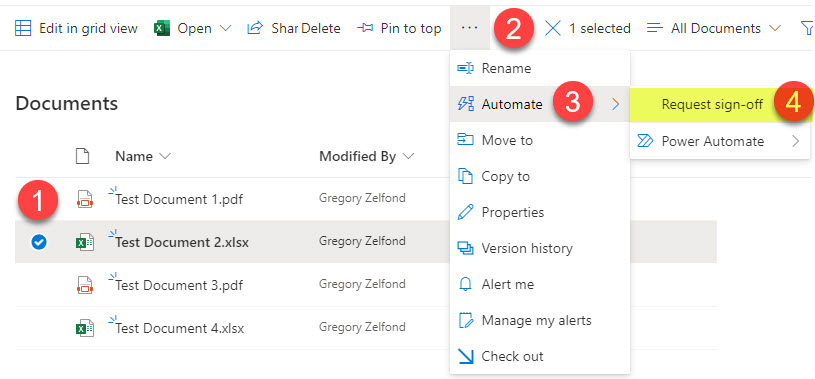
The first option to approve documents is via the SharePoint Document Library. You can easily check the box next to the document and Request Sign-Off. I provided step-by-step instructions here.

Option 2: Document Approval via Approval App in Teams

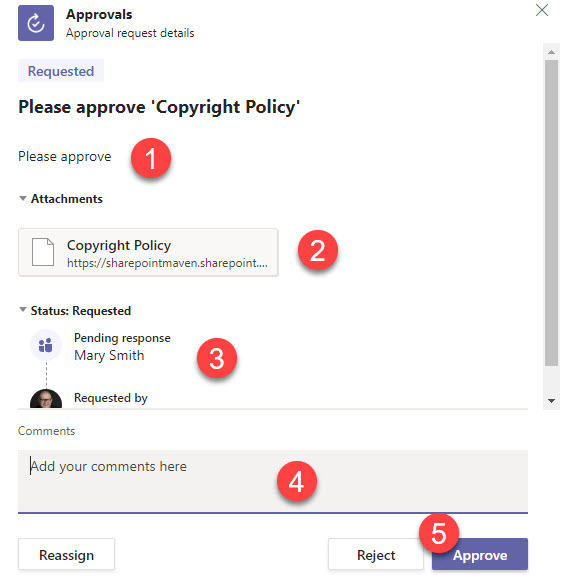
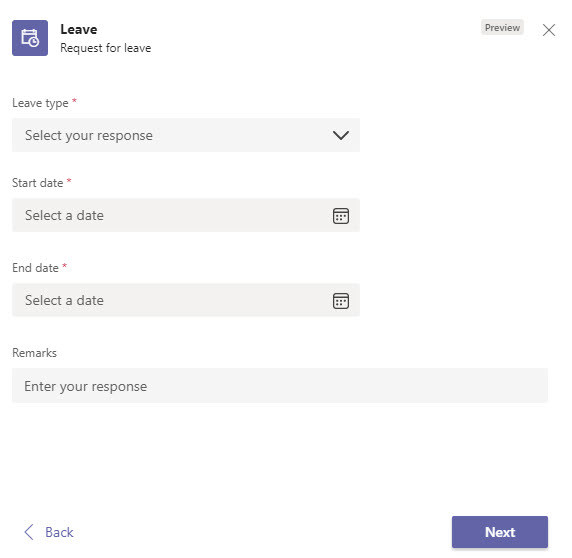
The second option is a bit more “elegant” and is possible thanks to a recent addition to Teams – the Approval App. I once again documented the process in this article.

Which option to choose?

Use SharePoint Request Sign-Off if…

  • You primarily access documents via the SharePoint interface and not Teams
  • You primarily need to request sign-off from documents in a specific document library
  • You prefer that recipients approve via Email (Outlook) rather than the Teams interface

Use Teams Approvals App if…

  • You primarily live in Teams, rather than SharePoint or Outlook
  • You primarily need to request approvals from various sources (document libraries)
  • You prefer that recipients approve via Teams rather than Email (Outlook)

The post 2 ways to request document approval in SharePoint Online appeared first on SharePoint Maven.

✇SharePoint Maven

How to avoid Lookup Column Threshold limit on a view

A while back, I published a post on some most famous and important limits we have in SharePoint Online. These were limits that are most likely to be encountered by the users. Today, I want to introduce you to another limit that exists in SharePoint. Most of you will never experience it; however, for those who use lists or metadata on document libraries – you better not skip this article and read it to the end. Otherwise, you will join a very disappointed percentage of my blog readers after encountering the Lookup Column Threshold limit on a view and then desperately finding this post by googling for a solution. 😊

What is the Lookup Column Threshold limit on a view?

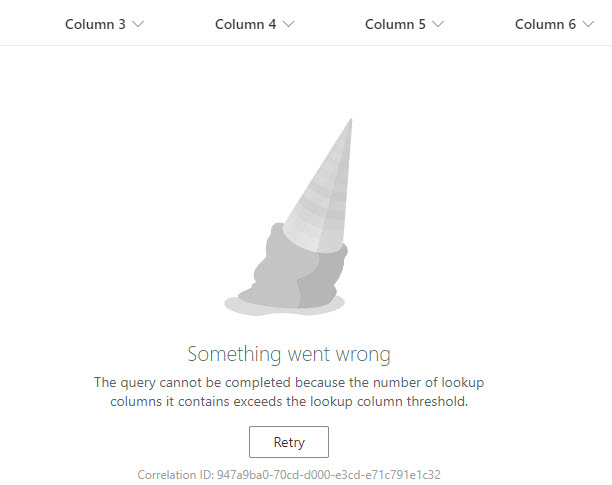
When you create lookup columns on a list or library, for performance reasons, Microsoft limits you to 12 (twelve) columns of that type of column in a single view. This is because when it is a lookup column, you are getting the data from either another list or another source. When you exceed the limit, you will get the following error message when trying to add the 13th column to the view (this just proves that 13 is not a lucky number).

Something went wrong. The query cannot be completed because the number of lookup columns it contains exceeds the lookup column threshold.

Lookup Column Threshold limit on a view

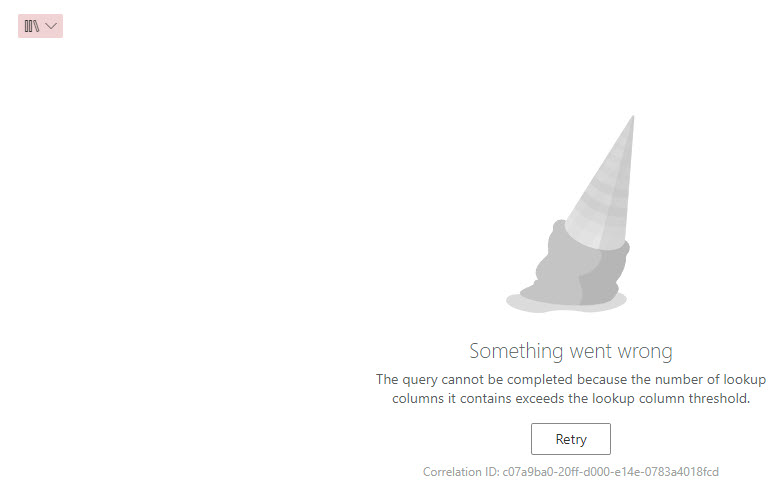
And when you refresh the page and try to go to the document library, your library will go blank with the error message front and center.

Lookup Column Threshold limit on a view

What are lookup columns?

What is interesting here is that the lookup column in the content of this error message is not the same lookup column I blogged about some time ago.  In that post, I referred to the Lookup column type that we have in Lists and Libraries. Those Lookup columns were columns that referenced other lists and libraries on the same site.

Lookup Column Threshold limit on a view

In the context of the Lookup Column Threshold limitation, Lookup Column also refers to other types of columns! By lookup columns here, we imply the columns that obtain their data from other sources. Here is a complete list of the “lookup” columns that will cause the error message:

System Columns (Columns created and displayed out of the box)

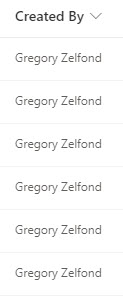
  • Created By Column (lookup against User/Employee Directory)
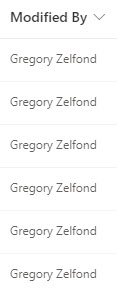
  • Modified By Column (lookup against User/Employee Directory)
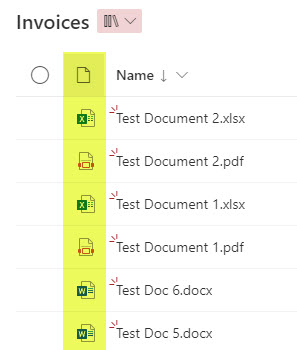
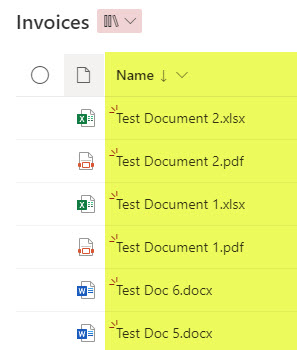
  • Type Colum (Word, Excel, PowerPoint, PDF, etc.)Lookup Column Threshold limit on a view
  • Name Column (Filename)Lookup Column Threshold limit on a view

Manual Columns (Columns created manually by users)

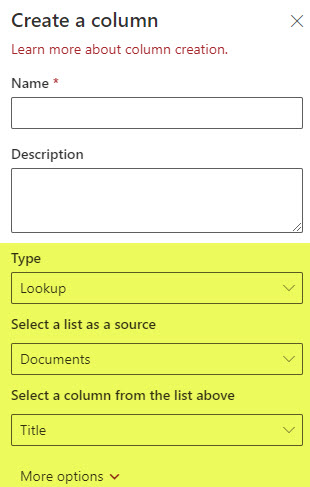
  • Lookup Column (the actual Lookup column, lookup against another list or library)

How to avoid the Lookup Threshold limit on a view

  • The only way to avoid this issue is to limit your views to less than 12 lookup column types mentioned above. To be clear, you can have as many columns as you wish on a list or library, as long you do not exceed the 12 “lookup” ones in a single view. So, if you encounter the above limit, just hide some of the “lookup” columns from a view to fix it.
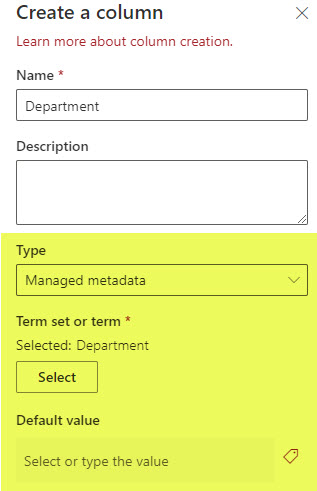
  • Where appropriate, use other types of columns instead of the lookup columns (i.e., Choice instead of Managed Metadata) since those do not count against the limit
  • If you do have many columns you need to display – create additional views on a list or library – just keep the number of “lookup” columns under 12 in any given view.

The post How to avoid Lookup Column Threshold limit on a view appeared first on SharePoint Maven.

✇SharePoint Maven

Project for the Web integration with Teams

One of the key advantages of the Project for the Web application is that it seamlessly integrates with the Teams application. So in this article, I would like to explain the interaction between the two applications and what is possible in terms of Project for the Web usability if you live in Teams all day long.

What is Project for the Web?

Project for the Web is a web-based application that allows organizations to manage projects that require task dependencies and light resource management. Historically, Planner has been the tool of choice for task management on Teams. However, it is meant for Agile/Kanban-style projects. For more sophisticated ones, Project Managers had to rely on the Microsoft Project Desktop application, but it was only used by project managers and did not allow for team collaboration. Project for the Web is a lightweight, web-based version of MS Project Desktop, allowing project managers and teams to collaborate in real-time and set dependencies, manage the effort, etc. To read more about Project for the Web, click here.

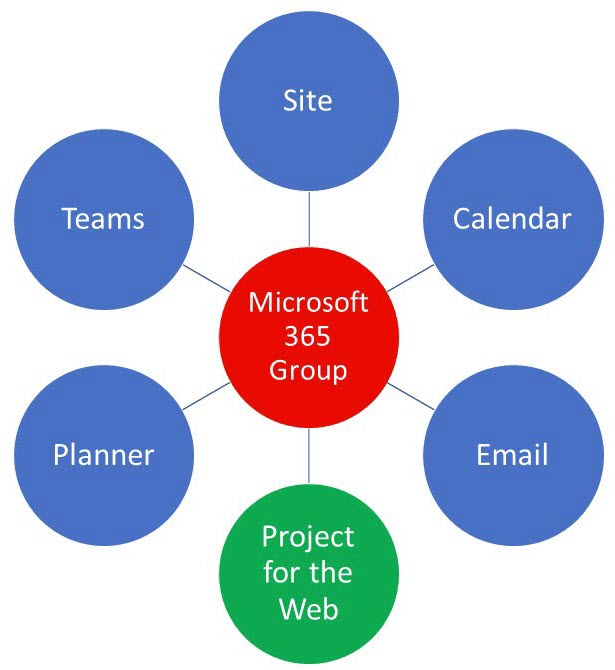
Project for the Web is part of Microsoft 365 Group

One important similarity of Project for the Web application with other applications is the fact that it is part of a Microsoft 365 Group. Just like Teams, Planner, SharePoint Team Site, etc. – Project for the Web is managed by Microsoft 365 Group security. Microsoft 365 Group allows task assignment to users from the pool of Microsoft 365 Group users and allows those users to edit/complete tasks.

Project for the Web integration with Teams

Since Project for the Web and Teams share a Microsoft 365 Group, they also have a pretty seamless integration. Here is how you can rip the benefits of the integration.

Add as a Tab

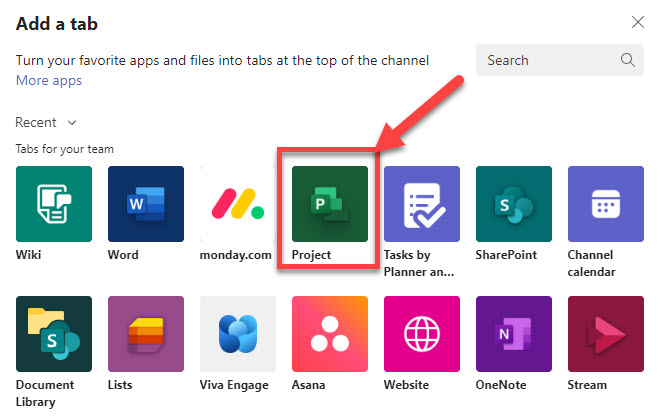
The first one is pretty standard – just like you can add Plan from Planner or Lists from Lists app, you can also add a Project for the Web schedule as a tab/app in a Microsoft Team channel.

Project for the Web integration with Teams

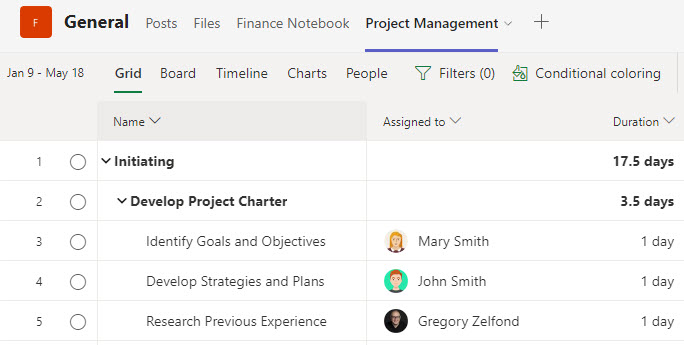
Once you add it to a given channel, you can access all 5 views and manage the tasks from the convenience of the Microsoft Teams channel.

Project for the Web integration with Teams

Chat on a task

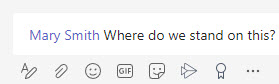
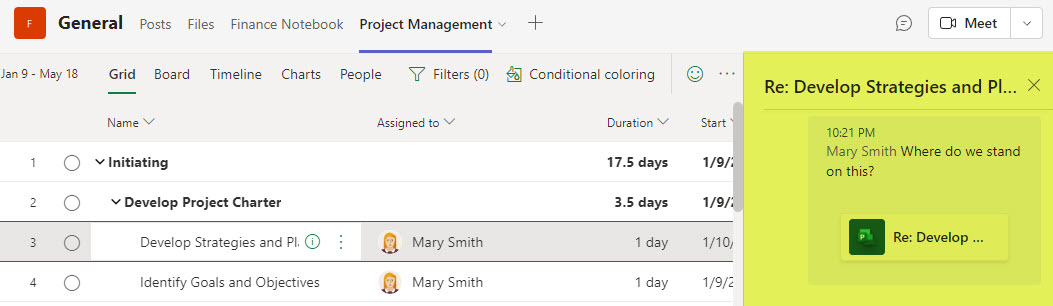
Another capability in terms of Project for the Web Teams integration is that you can chat about any task on the Project Schedule. This is powerful. While we could supply comments on Planner applications for a long time, we could never really chat about a task on a schedule built in Desktop MS Project. We can do so now that we have a web-based version of the application. This allows for a focused discussion about any given task and provides more context, history, and task status for anyone working on the project schedule.

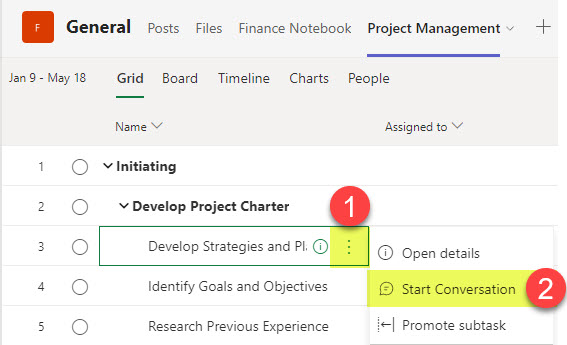
To chat about the task, in a schedule embedded in Teams, just click three dots next to a task and then choose Start Conversation.

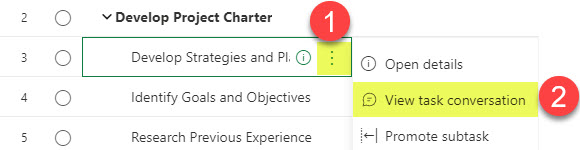
You can view the history of comments/conversations about a given task by clicking three dots and then choosing View task conversation.

Project for the Web integration with Teams

Project for the Web integration with Teams

The post Project for the Web integration with Teams appeared first on SharePoint Maven.

✇SharePoint Maven

Friendly vs. Standard Date format in SharePoint lists and libraries

Well, I guess these are trends of the modern world and social media, but some of its elements made it to SharePoint lists and libraries. If you work with Date type columns a lot, you probably notice the different styles of date format we have as options. In this article, I would like to explain the two types and how to change them if necessary.

Standard Date Type

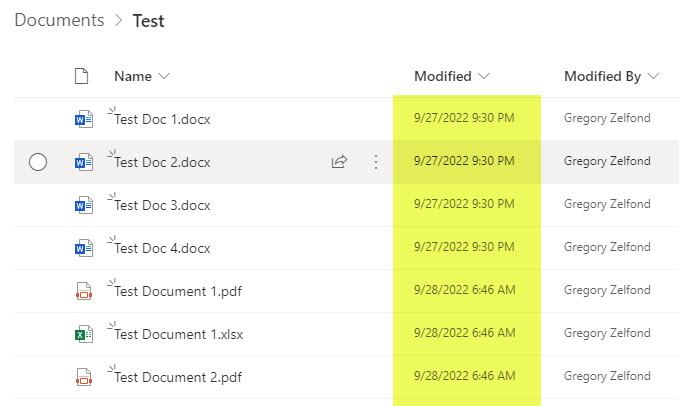
The standard date type displays the dates in the form we are used to seeing: Date/Month/Year (or Month/Date/Year depending on the region you leave in).

Friendly Date Type

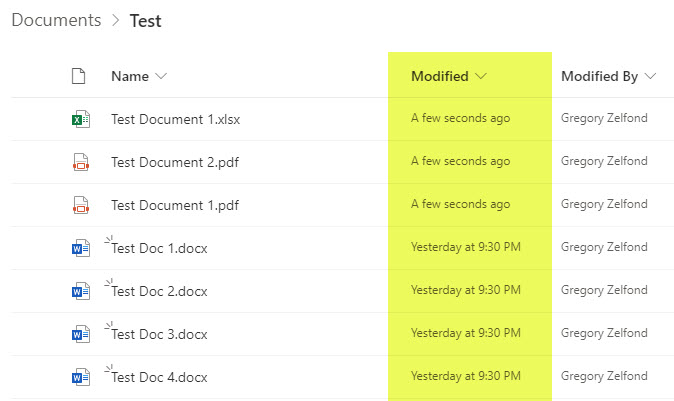
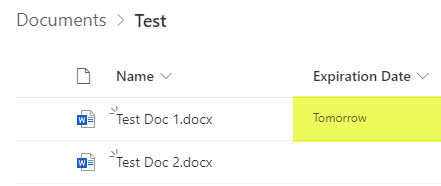
There is another style available now in SharePoint called Friendly. It displays the dates you often see on social media: yesterday, tomorrow, etc.

How to change data formats in SharePoint lists and libraries

The behavior and default display of date fields depend on the type of Date column you have. There is also a way to change it. The same functionality is available on lists and libraries.

System Columns

For system date columns (i.e., Modified, Created), it defaults to Friendly date type.

To change the format from Friendly to Standard, you must go behind the scenes.

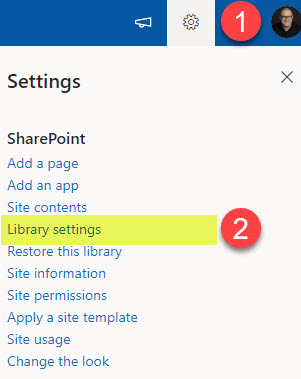
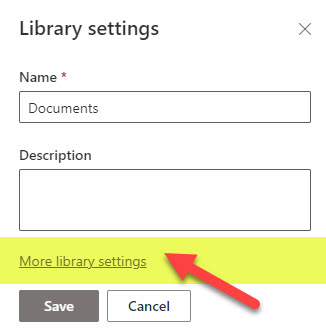
  1. From the document library, click Gear Icon > Library Settings
  2. Click More library settings
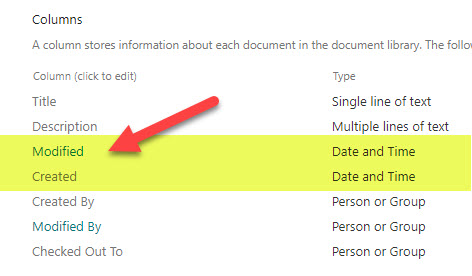
  3. Click on the Modified or Created column
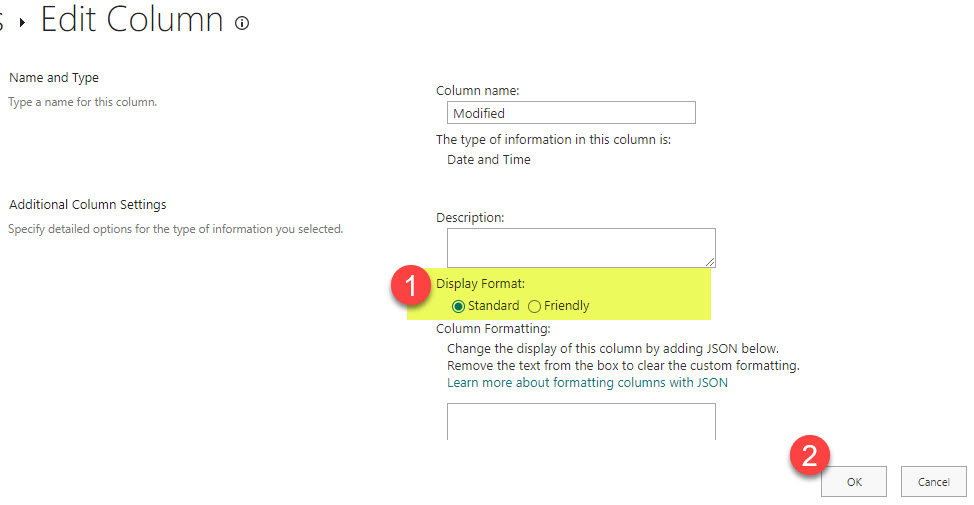
  4. Change the Radio button to Standard and click OKFriendly vs. Standard Date format
  5. Your system columns will now display the Standard date and time in the document libraryFriendly vs. Standard Date format

Custom Columns

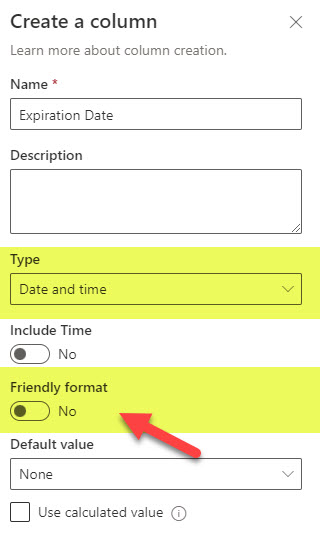
When you create custom date type columns, they default to Standard format. However, you can change the type to Friendly right when you create a column.

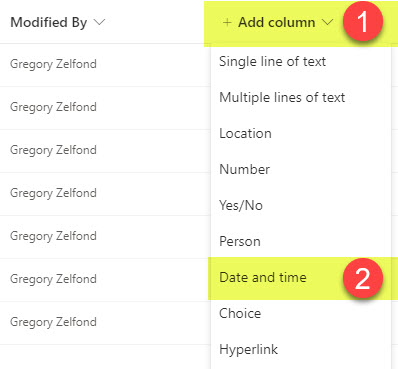
  1. Click Add column > Date and time
  2. Give your Date column a name. You will notice it defaults to Standard.Friendly vs. Standard Date format
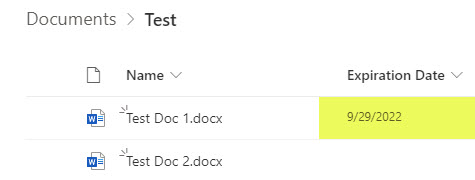
  3. This is what it looks like with the Standard date type
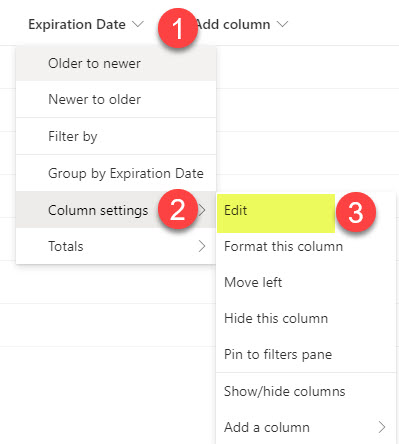
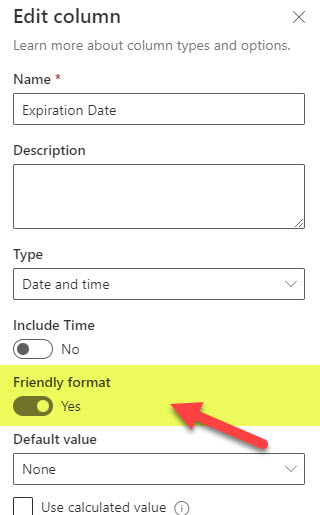
  4. To change the format from one type to another, you can just use the modern interface to do so
  5. And this is what a custom column looks like with the Friendly date typeFriendly vs. Standard Date format

The post Friendly vs. Standard Date format in SharePoint lists and libraries appeared first on SharePoint Maven.

✇SharePoint Maven

Members vs. Other people in Project for the Web

As mentioned in an earlier article, Project for the Web is tightly integrated with Microsoft 365 Group. The same membership that controls access to a SharePoint site and Teams, also controls what users can or can’t do within the Project for the Web application. So in today’s post, I would like to explain this “relationship” a bit further, especially when it comes to assigning tasks within the Project for the Web application. Specifically, I will explain the difference between Members vs. Other people in Project for the Web.

No Group when the Schedule is initially created

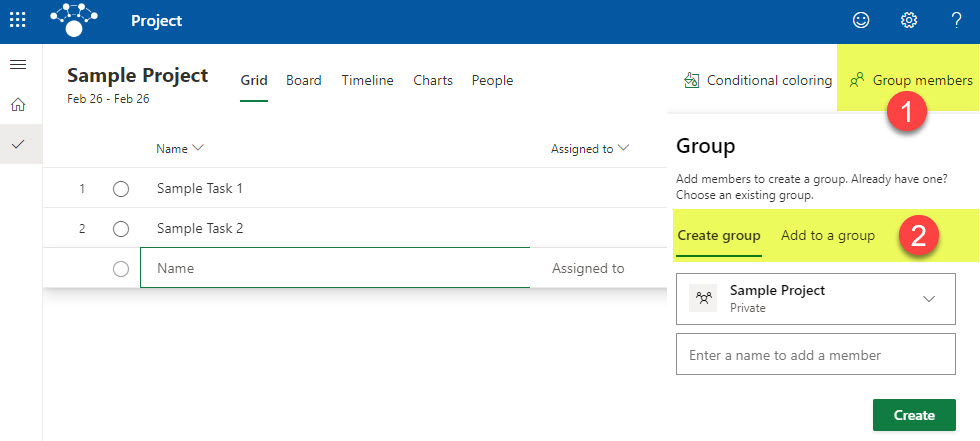
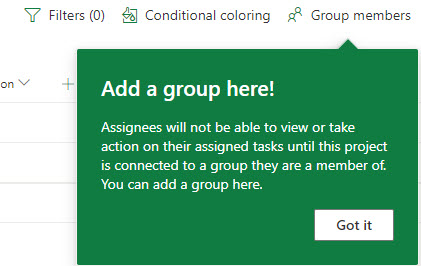
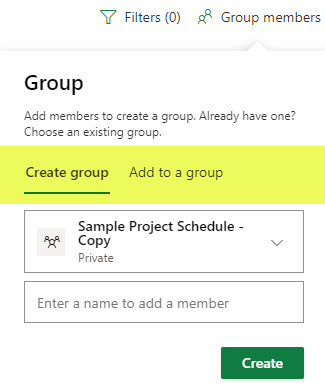
When you initially create a project schedule, it is not attached to any Microsoft 365 Group. This allows you to get started with some tasks and even task assignments without connecting the schedule to any existing Microsoft 365 group or creating a new one. You can connect the schedule to a group or create a brand new group by clicking on Group Members in the upper-right-hand corner.Members vs. Other people in Project for the Web

What happens when you assign a task in a schedule not connected to a group

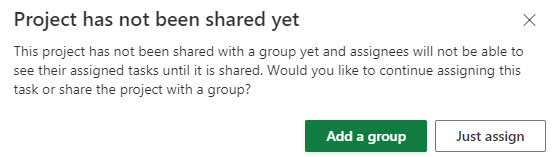
In case you start creating a schedule, and it is not yet connected to a Microsoft Group, and then you decide to assign a given task to any user other than yourself, it will come up with the following message:

“This project has not been shared with a group yet and assignees will not be able to see their assigned tasks until it is shared. Would you like to continue assigning this task or share the project with a group?”

If you choose Add a group option, it will prompt you to other create a new Microsoft 365 Group, or choose an existing one. If you click on Just assign, it will allow you to assign a task to the user without creating a Microsoft 365 Group. However, it will also warn that resources won’t be able to view assigned tasks or manage them until the group is created.

Members vs. Other people in Project for the Web

What happens when you assign a task in a schedule to users outside of the group

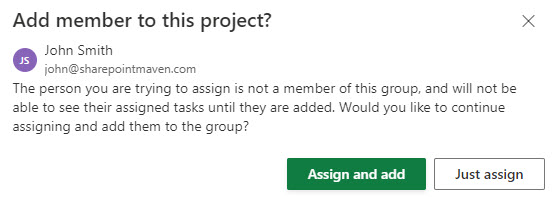
There is also another scenario that is possible. You might connect the schedule to an existing Microsoft 365 Group (or create a new one), but when you assign tasks, you might assign them to users inside and outside of a group. If you assign to users inside of a group, it is all good. However, when you assign tasks to users not part of the group, you will get the following message:

“The person you are trying to assign is not a member of this group, and will not be able to see their assigned tasks until they are added. Would you like to continue assigning and add them to the group?”

Members vs. Other people in Project for the Web

If you choose Assign and add, the user will get the task assignment and become part of a Microsoft 365 Group. In other words, that user will also have access to all the other assets of a Group, like a SharePoint site, Outlook group calendar, a Microsoft Team, Planner, etc.

If you choose Just assign, the user will get the task assignment, but won’t become part of a Microsoft 365 Group.

Members vs. Other people in Project for the Web

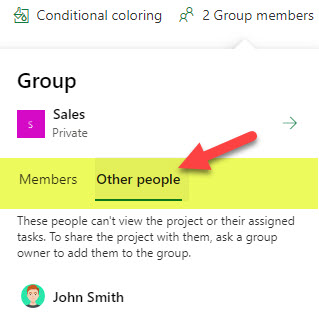
If your schedule has task assignments for users inside and outside the Microsoft 365 group, you can easily see the rosters by clicking Group members in the upper-right-hand corner.

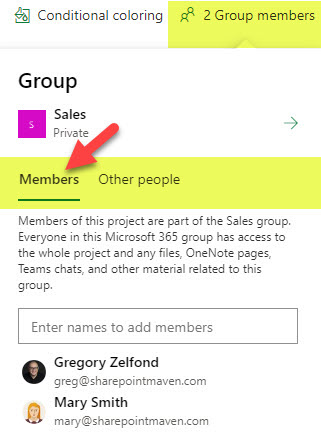
The Members tab will list the members of a Microsoft 365 Group.

Members vs. Other people in Project for the Web

The Other people tab will show the users who have been assigned a task on a schedule but who are not part of a Microsoft 365 Group.

Members vs. Other people in Project for the Web

The post Members vs. Other people in Project for the Web appeared first on SharePoint Maven.

✇SharePoint Maven

How to add images to your SharePoint page using the Image Gallery Web Part

Since SharePoint sites in modern SharePoint are pretty visual, one of the common requirements on employee-facing sites and Intranet Homesites is to add graphics and images. There are a few options available in SharePoint Online, and one of my favorite ones I want to highlight is the ability to add an Image Gallery Web Part. So in this article, I would like to explain how it works.

What is Image Gallery Web Part?

Image Gallery Web Part is a web part that allows you to add multiple images to your page. Moreover, it allows you to change the display options of those images as well.

Image Gallery Web Part

How to add images to your SharePoint page using the Image Gallery Web Part

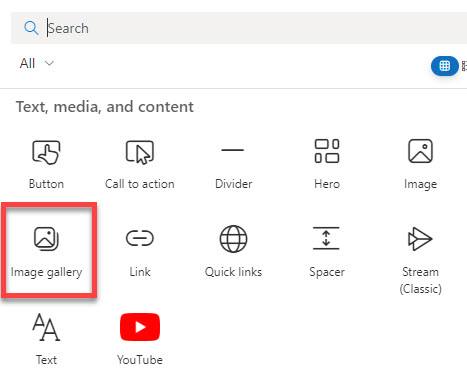
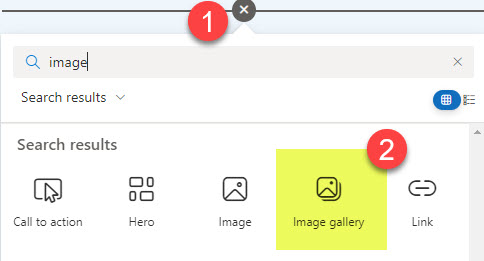
  1. Edit the Page, then find a web part called Image gallery, from the list of available out-of-the-box web partsImage Gallery Web Part
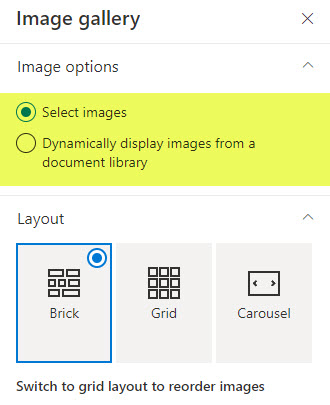
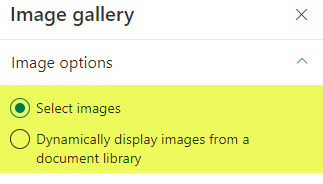
  2. Once you add it to the page, you will notice a side panel where you can configure the settings of the Image gallery web part. You can either upload any images or source them from the document library on your site.
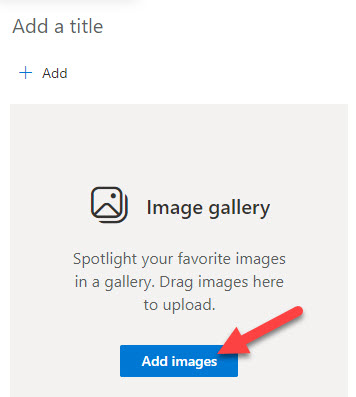
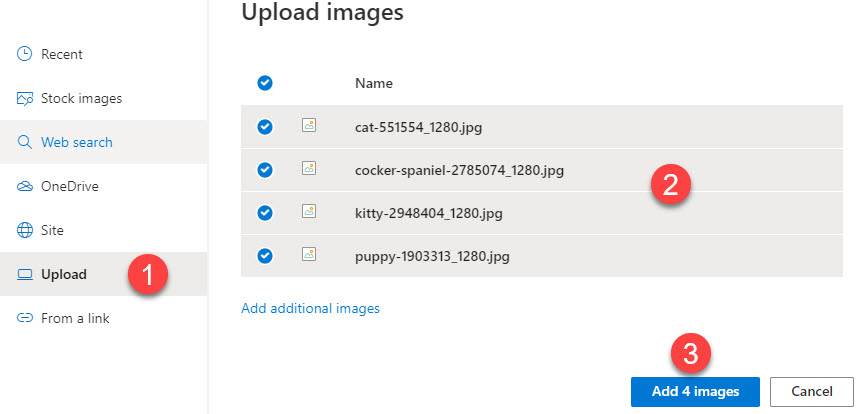
  3. In case you oped to add images on the fly, you click the Add images button
  4. Then, upload the images from your PC or any other locationImage Gallery Web Part
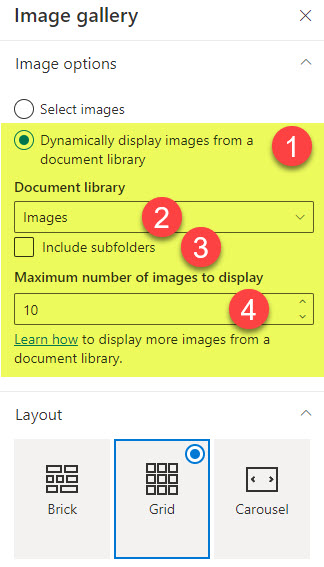
  5. You can also display the images from a document library on your site. This allows you to put all the images into that library, and this web part will draw them from there and display them on your page. You can optionally click the Include subfolders checkbox to include images from the folders within a document library. You can also specify how many images will be displayed on a page at a given time.Image Gallery Web Part
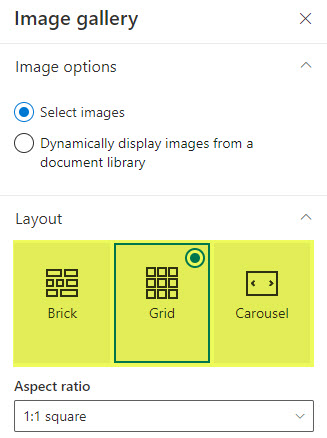
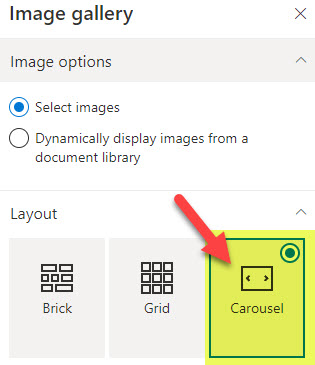
  6. Finally, you can also choose from one of the three available layouts (Brick, Grid, and Carousel). If you choose Carousel, users must manually cycle through the images on your page.

The post How to add images to your SharePoint page using the Image Gallery Web Part appeared first on SharePoint Maven.

✇SharePoint Maven

SharePoint Page Section Templates explained

If you are a Site Owner and edit the pages, I am sure you noticed a new tab appearing within the page editing screen called Section Templates. In this post, I would like to explain to you what these are and how you can use them to help build and expedite the buildout of your SharePoint pages.

What are Pages?

Let’s start with the basics. If you are wondering what SharePoint pages are, here is a great article to check out.

Page Sections

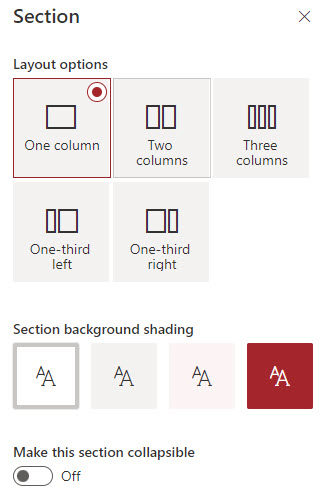
Let’s also understand page structure as well. The Page is broken into sections and columns. Sections are areas on a page where you can add SharePoint Web Parts to. In addition, sections allow you to apply some color to that portion of a page + make them collapsible.

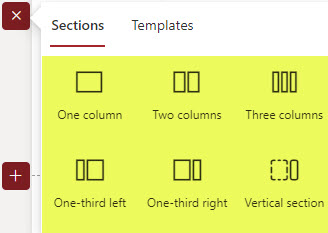
Section Columns

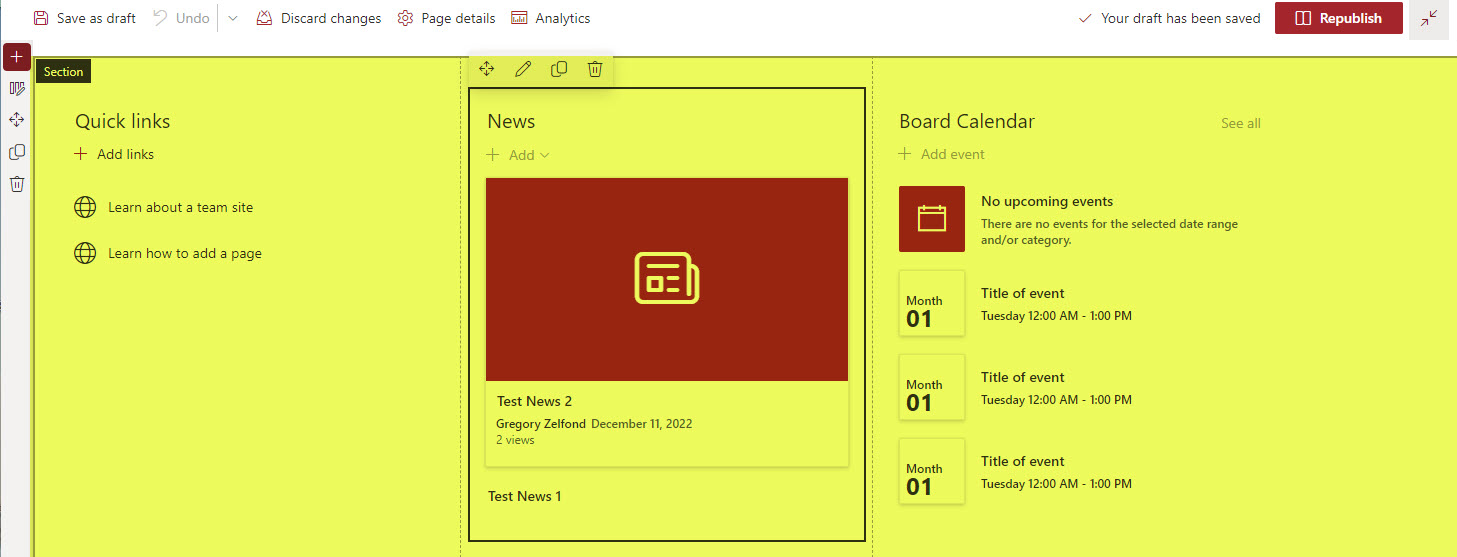
Sections are further broken into columns. Think of them as ways to split the screen into smaller chunks to help organize your web parts and spread or stuff as many web parts as possible. Below is a screenshot of all available section/column layouts.

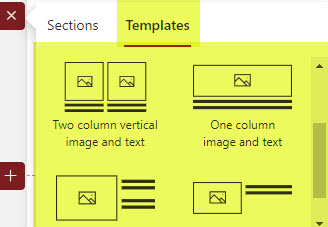
Page Section Templates

Section Templates

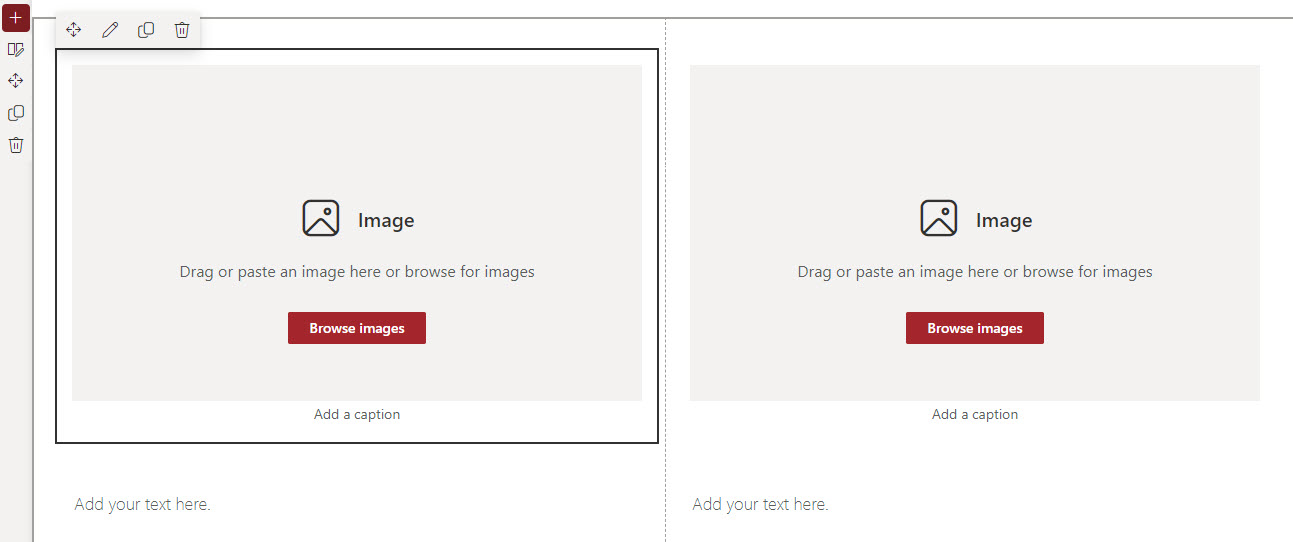
Page Section Templates are essentially pre-built sections that are already broken into columns for you and already contain certain web parts. Below is a screenshot of available section templates containing the Image and Text Web parts. So if you need to quickly add a few images to your pages and carefully align them, you do not need to build stuff manually and can just choose one of the available layouts and add them to a page rather quickly, saving you time. So the only thing you would need to supply are images, add some text, and viola, your Page is ready!

Page Section Templates

Page Section Templates

The post SharePoint Page Section Templates explained appeared first on SharePoint Maven.

✇SharePoint Maven

How to determine which retention policies are applied to a given SharePoint site

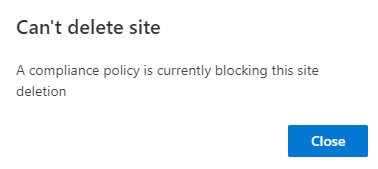
I had an interesting dilemma a few weeks ago with one of my clients. They created several retention policies and applied them to various SharePoint sites in their tenant. They now had a business need to delete one of the sites as they no longer used it. However, by design, they could not delete it because there was a compliance policy applied to that site. So they needed a way to determine which retention policies were applied.

Since they had so many different site and label retention policies created and applied, they wanted a quick way to find which policy affected a given site so they could exclude the site from it. Here is how we got to the bottom of this.

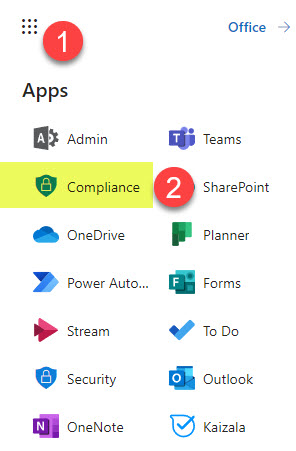
  1. Navigate to the Compliance Center (Microsoft Purview)
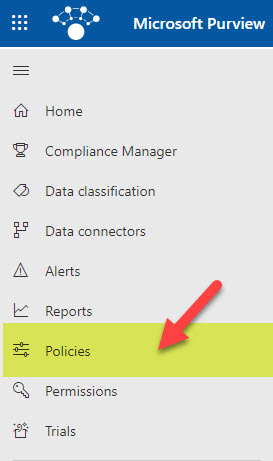
  2. In the menu on the left-hand side, click Policiesdetermine which retention policies
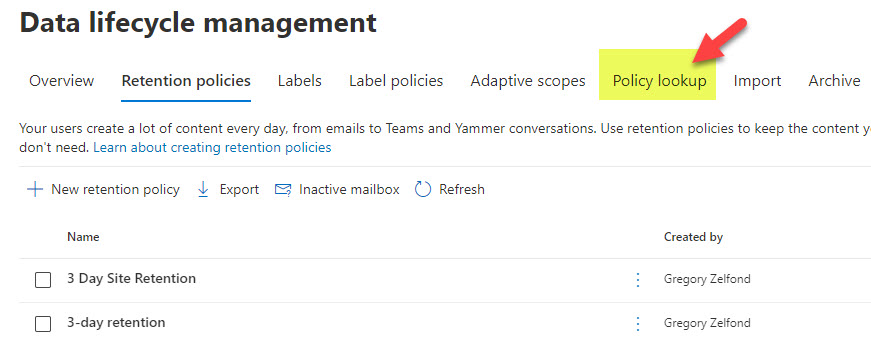
  3. On the Policies/Data lifecycle management page, click Policy lookup tabdetermine which retention policies
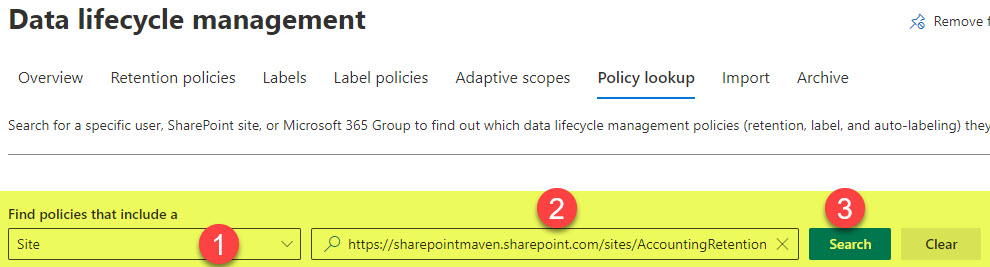
  4. In the search wizard below, choose Site in the Find policies that include drop-down, then paste the URL of a site and click Searchdetermine which retention policies
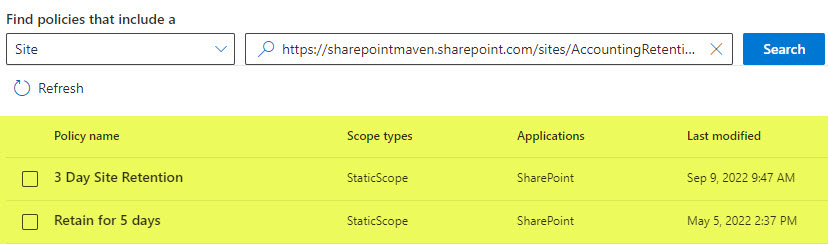
  5. You will now get the search results that match the above criteria. They will show all the policies applied to a given site.determine which retention policies
  6. You can then edit a policy and exclude it from a given site as necessary. By the way, this Policy lookup will find both site retention and label retention policies.

The post How to determine which retention policies are applied to a given SharePoint site appeared first on SharePoint Maven.

✇SharePoint Maven

5 Views in Project for the Web

If you create a schedule using the Project for the Web, you will notice that it has five distinct tabs/views available to manage, organize and assign tasks. So in today’s article, I would like to explain the available views in Project for the Web, their purpose, and limitations.

What is Project for the Web?

Project for the Web is a web-based task management application that allows teams to manage tasks with dependencies and also track the effort spent on those tasks. Think of Project for the Web as the step up from Planner, which is meant for less formal and smaller projects.

Example of the Schedule built in Project for the Web

Example of the Schedule built in Project for the Web

Several views are available within Project for the Web, and that’s what I would like to explain in this article.

5 Views in Project for the Web

5 Views in Project for the Web

View 1: Grid View

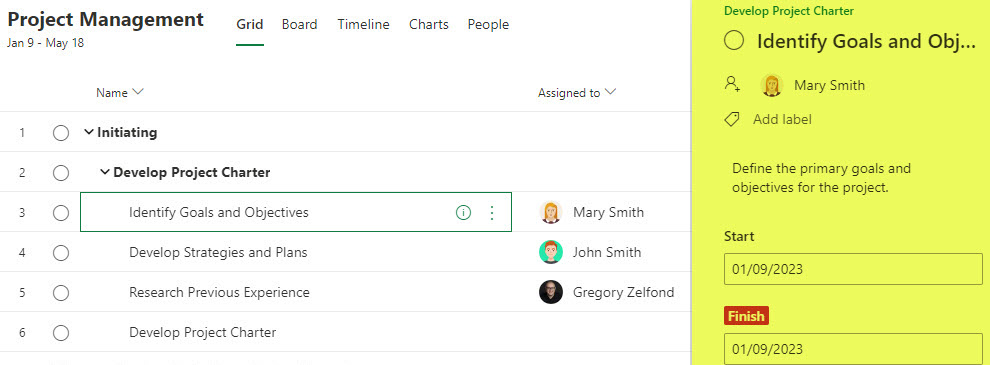
This is a default view that opens when you access any given schedule within Project for the Web application. Essentially it is a table/excel-like list of tasks that allows you to quickly assign them, display built-in fields, create custom fields and organize them using the subtask functionality.

Timeline View in Project for the Web

Grid View in Project for the Web

What is possible using the Grid View

Grid View, compared to other views listed below, gives you the most flexibility in terms of task management. It is a single place where you can assign tasks, change the start and finish dates, change durations and effort, attach documents, create checklists, add notes, and attach files. Essentially this is the view you will probably spend most of the time in while managing a project.

Managing a task in a Grid View of Project for the Web

Managing a task in a Grid View of Project for the Web

View 2: Board View

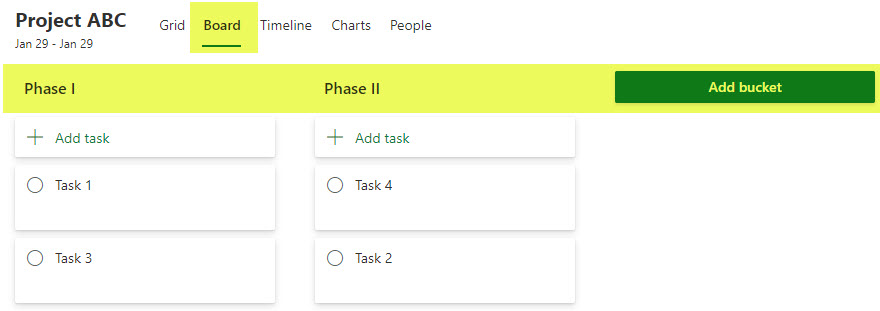
The Board view displays the tasks in Kanban-style mode, similar to what we have in Planner. Just like we have buckets in Planner to organize tasks into various groups, in Project for the Web, we can also organize the tasks into buckets. The Board View takes all the subtasks that do not have children subtasks underneath and displays them in Kanban-style format. By default, they are organized into Bucket 1, but you can rename this default bucket and create additional ones as necessary.

Timeline View in Project for the Web

Board View in Project for the Web

Unfortunately, those buckets (bucket names) are not tied to any of the tasks/parent tasks on the Project Schedule. So however you organize your tasks into buckets on the Board View does not impact anything on the Grid View.

What is possible using the Board View

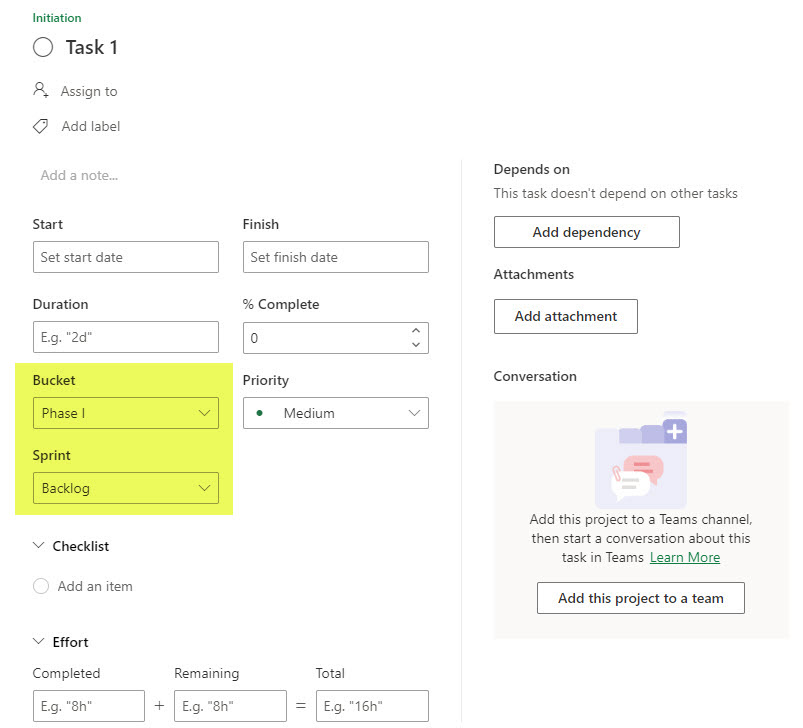
Clicking on a task in the Board View allows you to fill in the task details in a similar manner as you could on the Grid View. In addition to standard fields for the task, you would also see additional fields on the form related to the Board/Kanban-style project management: Bucket and Sprint.

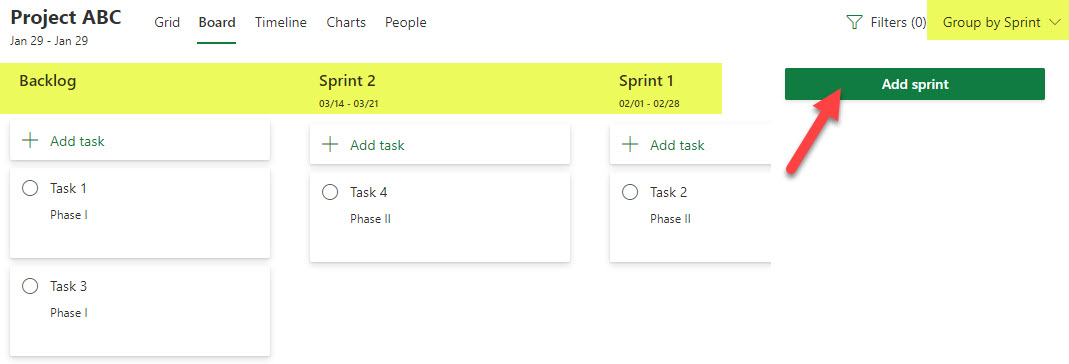
The Board View is useful if your project is more of an Agile type, rather than Waterfall, which requires you to set up dependencies. Another bonus available in the Board View is to group buckets by Sprint, in case you are once again using Agile/Scrum methodology to manage your projects.

View 3: Timeline View

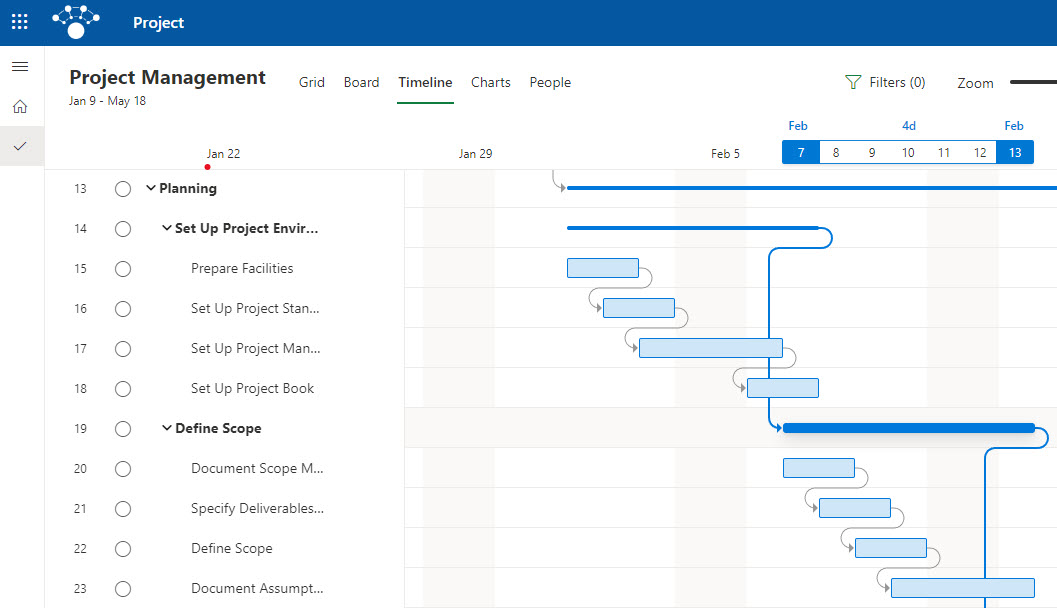
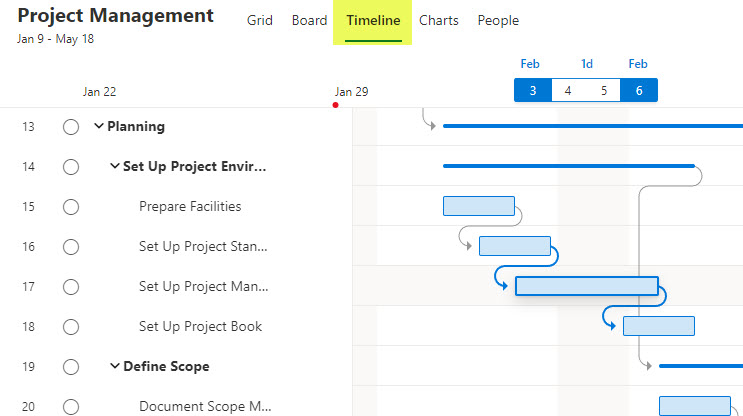
The Timeline View allows you to visualize the tasks in Gantt chart mode. Since we have dependencies on tasks, we can visualize those dependencies using the Gantt-type format.

Timeline View in Project for the Web

Timeline View in Project for the Web

What is possible using the Timeline View

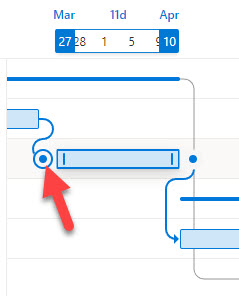
When you display the task list using the Timeline View, it only displays the tasks, no other fields, and then displays the visual representation of a task (the Gantt Chart itself). Moving the bars allows you to adjust the start date, finish date, and duration. You can also create/adjust dependencies by dragging lines/arrows between the tasks on a Gantt Chart.

View 4: Chart View

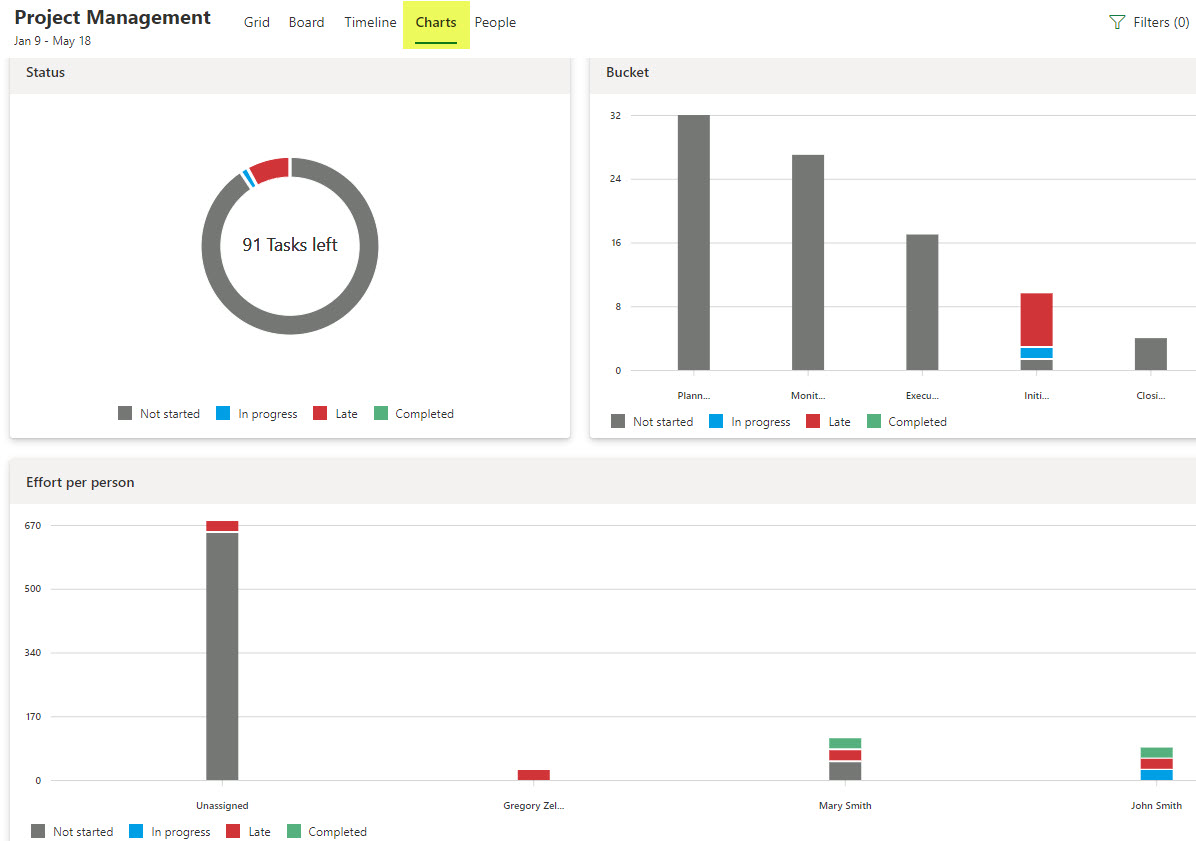
The Chart view is not a view of tasks, but rather some basic reports/analytics on the schedule. It pretty much displays the general overview of the project, including which tasks are late, in progress, completed, and not started.

Chart View in Project for the Web

Chart View in Project for the Web

What is possible using the Chart View

In Chart View, you can’t really do anything. It is a read-only view where you can visualize a basic report that is available. You can’t really manage tasks from that view.

View 5: People View

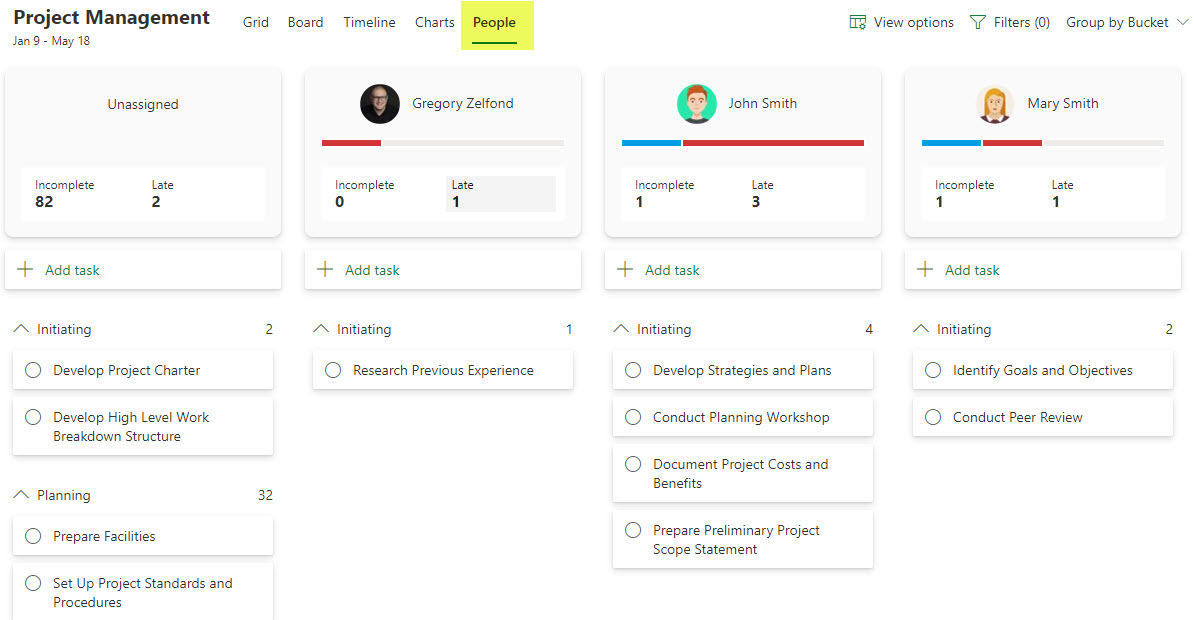
Think of People View as another way to assign tasks. It essentially lists all the team members of the project (Microsoft 365 group) and allows you to visualize the distribution of tasks among team members. On the left-hand side, it shows Unassigned tasks, then next to it on the right, it displays the names of the team members with their assigned tasks underneath.

People View in Project for the Web

People View in Project for the Web

What is possible using the People View

Bu design, you can change task assignments easily by dragging the tasks from one column to another. To change other information about a task, you would just click on the task itself to open up a task form.

The post 5 Views in Project for the Web appeared first on SharePoint Maven.

✇SharePoint Maven

The purpose of the Quick Look Column in Project for the Web

If you started using Project for the Web to manage projects within your organization, I am sure you encountered the mysterious Quick Look column that appears on every project schedule by default. In today’s post, I would like to explain the purpose of this column and what it does.

What is Project for the Web

Project for the Web is a web-based application that allows teams to manage tasks. Unlike its cousin Planner, Project for the Web allows teams to create more sophisticated task schedules, set dependencies on tasks, and manage effort and resources. To read more about Project for the Web and some of its capabilities, read this post.

Sample Project for the Web Schedule in Project for the Web

Sample Project for the Web Schedule in Project for the Web

Quick Look Column in Project for the Web

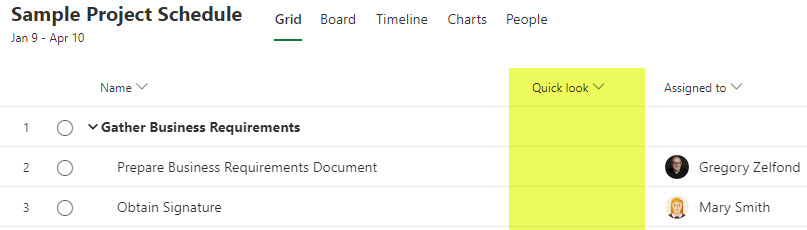
When you create a new schedule within Project for the Web, you get to see the Quick Look field available within the task plan by default. It is a Read-only field that a user can’t fill out. So what is it? Let me explain.

Quick Look Column in Project for the Web

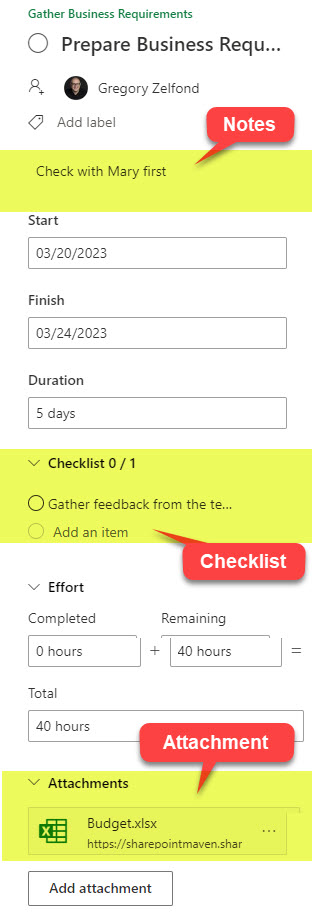
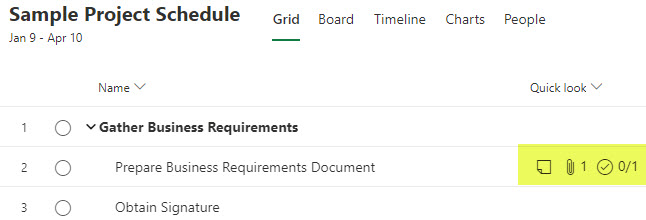
The Quick Look field shows whether or not a given task has additional information not displayed on a task schedule. Here is the additional information you can fill out on a task and shown as an indicator in the Quick Look column:

By default, when you create new tasks, these fields will obviously be blank. However, if you click on the “i” Project Details panel and populate a task with some task notes, attach a file or utilize a checklist option, it will show you the appropriate indicators within the Quick Look column. Otherwise, the users reading or completing the task might miss this important additional information and might not even know it even exists.

In the below example, I added some notes, attached a file, and added a few items to the checklist within a task.

Quick Look Column in Project for the Web

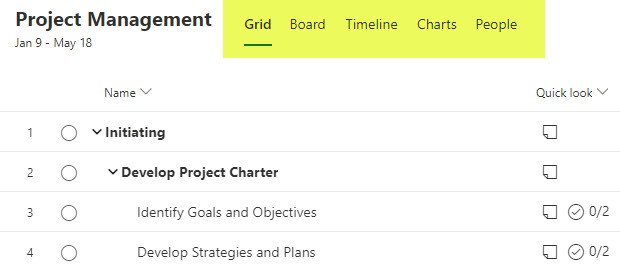
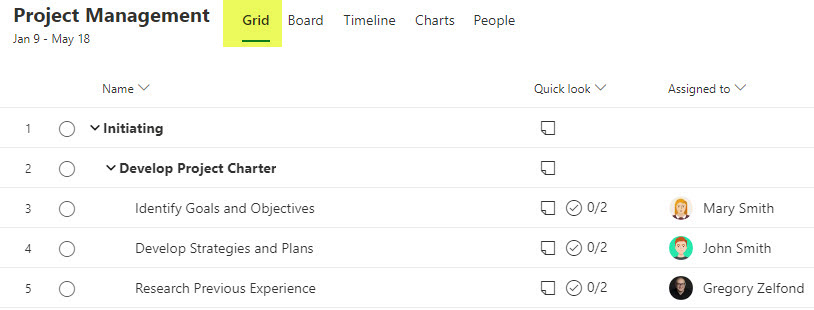
And this is how the task grid looks to the users once the information is populated.

Quick Look Column in Project for the Web

The post The purpose of the Quick Look Column in Project for the Web appeared first on SharePoint Maven.

✇SharePoint Maven

Sync folder vs. Sync Library in SharePoint and OneDrive

I documented the mechanism of OneDrive Sync quite extensively on my blog previously. However, one thing I did not mention before was the difference between syncing the whole library vs. just a folder within a document library. So in this article, I want to explore what will happen when you Sync a folder instead of a document library and some unexpected consequences that might occur.

What is OneDrive Sync?

If you are wondering what I am talking about, please check out this post, where I explain in great detail OneDrive Sync and how it works.

OneDrive Sync of a Document Library

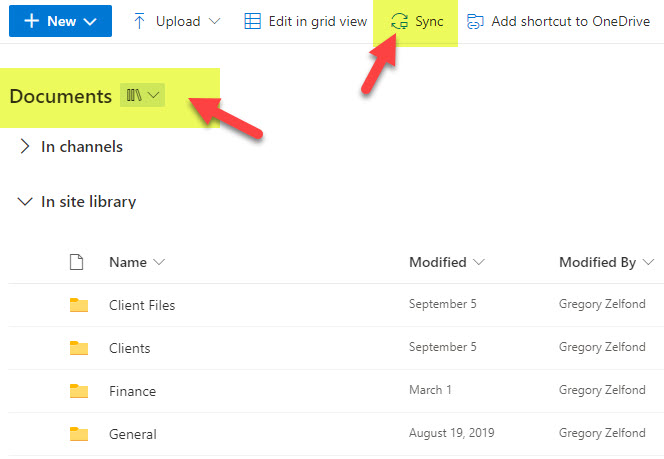
When you sync the whole document Library (which is probably the most common occurrence), by clicking the Sync button at a library level, it syncs the entire document library to your PC, all the folders and subfolders inside of it.

Sync folder vs. Sync Library

Syncing the entire library from SharePoint

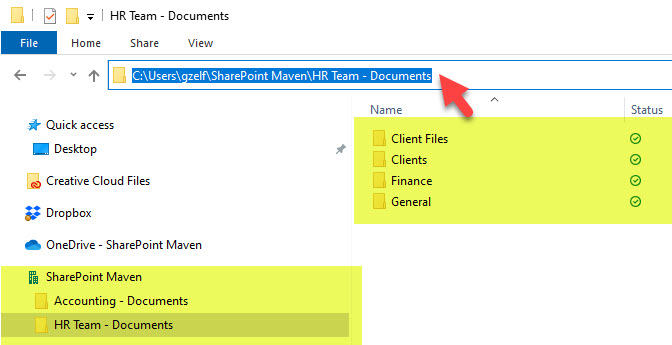
This is how the synchronized document library appears on the PC

The naming convention for the synchronized library on your computer is “Site Name – Document Library Name.” For example, in my case, it is HR Team – Documents, where HR Team is the site name and Documents is the name of a document library.

OneDrive Sync of a folder within a document library

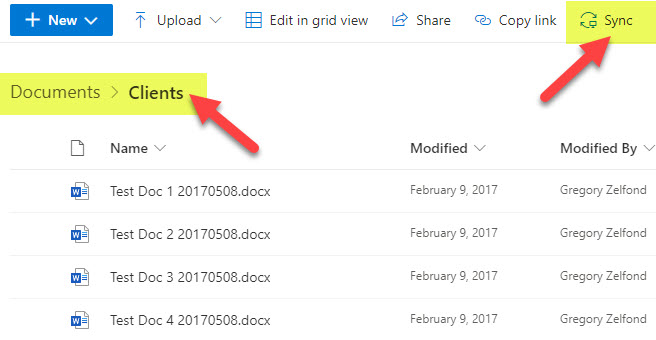
If, instead, you decide to sync just a specific folder from your SharePoint site, by clicking the button at a folder level, it will only synchronize that folder and everything inside.

Syncing a specific folder from SharePoint

Sync folder vs. Sync Library

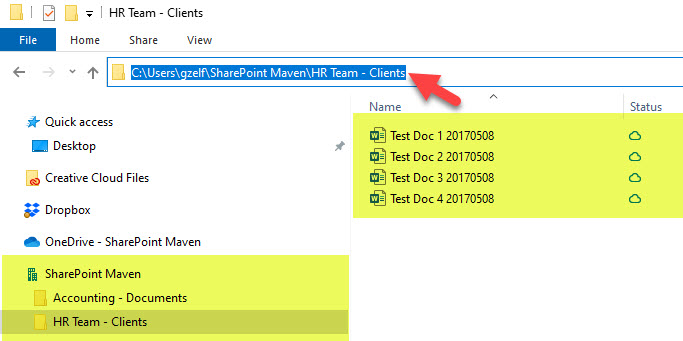
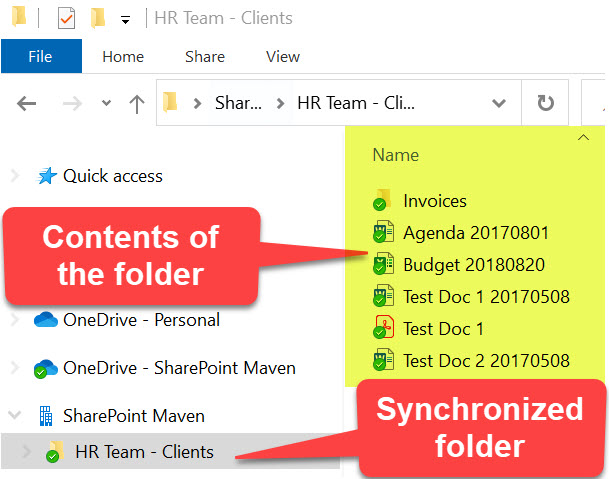
This is how the synchronized folder appears on the PC

The naming convention for the synchronized folders on your computer is “Site Name – Folder Name.” For example, in my case, it is HR Team – Clients, where HR Team is the site name and Clients is the name of a folder within the Documents library.

Syncing a folder and a library together – unintended consequences

Since nothing stops you from clicking the Sync button at both folder and library levels, I want to highlight a few unintended consequences that might occur as a result.

Scenario 1: Sync the document library first, then sync a folder

In case you sync the library first and then decide to sync the folder inside of that library – nothing will really happen. Since you are already syncing the entire library, clicking the Sync button at a folder level won’t do anything extra. So all is good in this case.

Scenario 2: Sync the folder first, then sync the entire document library

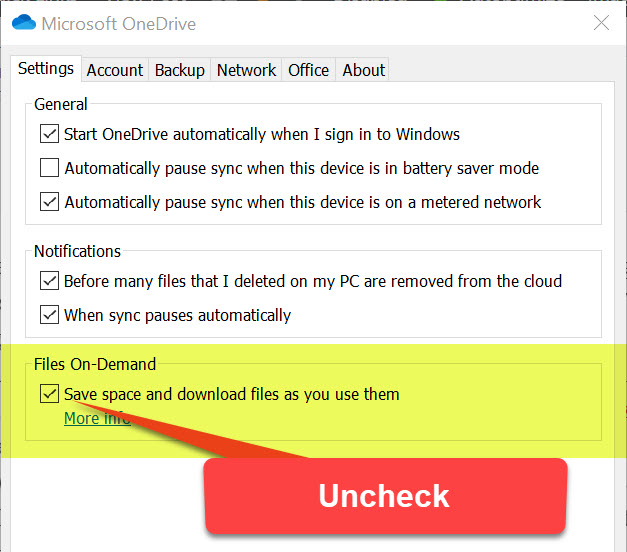
If you do this in the opposite order, this will lead to potential confusion for the users and even possible loss of information/track of changes. This only occurs when you disable Files On-Demand – in other words, physically download the files and folders on your PC.

Here is an issue:

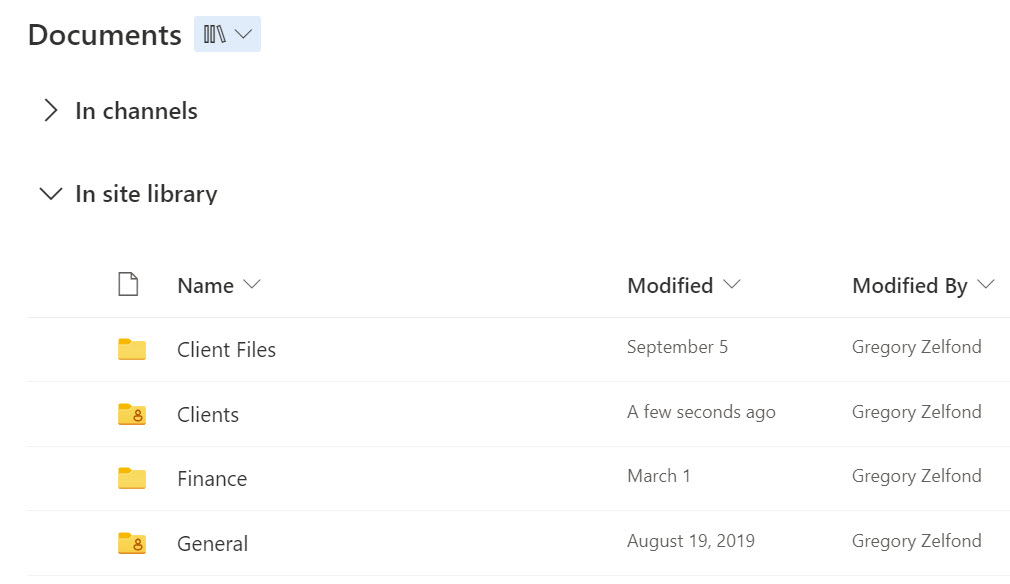
  1. In the example below, I have a document library with a few folders inside
  2. I then sync one of the folders first (the Clients folder in my case). It syncs it onto my PC and makes it available from Windows Explorer (as expected).Sync folder vs. Sync Library
  3.  I then click the Sync button on the entire document library. At this point, it syncs the entire document library with all of its subfolders inside to Windows Explorer, but simultaneously, it stops the sync of the folder I synchronized previously.
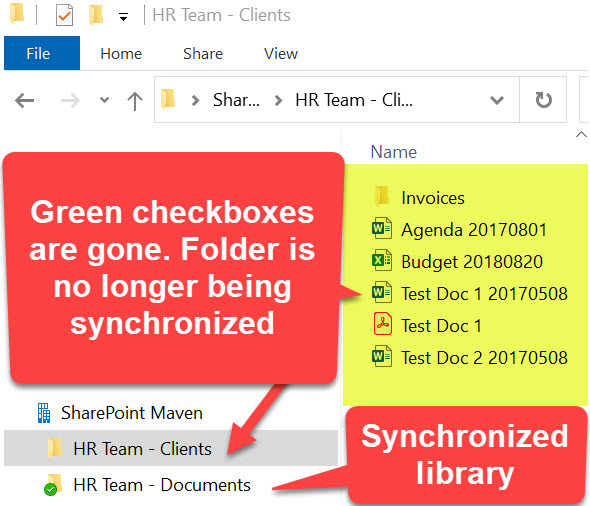
  4. It does not remove the folder from Windows Explorer. It just leaves it in place and synchronizes a document library next to it. It does remove the “green checkbox” over the folder, indicating that the folder is no longer synchronized to SharePoint. However, if the user continues to access files in that folder or update them, none of those changes will make it to the cloud! 😠
  5. So to summarize, if you sync any folders first and then decide to synchronize the entire document library, you must immediately delete the folder from your PC to avoid confusion and possible data loss.

Alternatives to folder syncing

So the best practice to avoid the above-described headache would be to sync the entire libraries and not sync folders.

If you do need to sync just a certain folder or set of folders and not the entire library, I highly recommend syncing the entire library, but then doing the selective sync. I described it in this article.

The post Sync folder vs. Sync Library in SharePoint and OneDrive appeared first on SharePoint Maven.

✇SharePoint Maven

Top 10 limitations in Microsoft Teams

A while back, I published a post on the top 5 limitations we have in SharePoint Online. This turned out to be a pretty popular article of mine. The limits I focused on back then were primarily related to the document management capabilities of SharePoint. Microsoft Teams, a separate application within the Microsoft 365 ecosystem, has its limits. Microsoft does a good job summarizing them all in this article. Most of those limits, documented in the Microsoft article, are technical limits of the application. So what I thought I would do in this article today is summarize what are, in my opinion, the top 10 limitations we have in Microsoft Teams from the user/usability standpoint. Not so much tech limits of the application, but rather annoyances users might encounter by using the application. When appropriate, I also try to explain the reason for the limitation as well.

Depending on when you get to read this article, some limitations could be resolved or mitigated. So I am just documenting the limitations in Microsoft Teams that exist as of the date of this article. The limits below are not listed in any particular order; they appear in the order they came to my mind as I wrote this post.

Limit # 1: Number of channels

The first limit for users to be aware of is the number of channels one can create in a given Team. As of the writing of this post, here are the limits that exist:

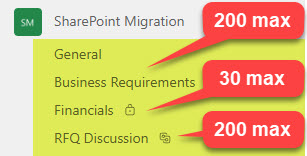
  • Max Number of Standard Channels: 200
  • Max Number of Private Channels: 30
  • Max Number of Shared Channels: 200

Now, in all honesty, in most use cases, you probably won’t exceed those limits. However, I have worked with several clients over the years who tried to use channels within a Team for small projects, legal matters, real estate properties, etc. The idea was that you would create one team and then 1 Standard Channel for each project, client, legal matter, or property. Since 200 is the most you can create in terms of standard channels (including the deleted ones), you could run out of channels to create rather quickly. So my clients were forced to create another team to get around the limit.
limitations in Microsoft Teams

To learn more about the various types of channels, please check out this post. Also, if you are on the fence about whether to create a new team or channel, this article will help as well!

Limit # 2: Limit on available applications in private and shared channels

This limit is extremely annoying and has to deal with the overall architecture of Microsoft Teams and Microsoft 365 Groups. If you use Private and Shared Channels within a Team, you probably noticed that some applications are not available. For example, say, you are in a private channel and are trying to add Planner App as a tab within the channel. Too bad, you won’t be able to. Same with Forms App or Channel Calendar app. How come?
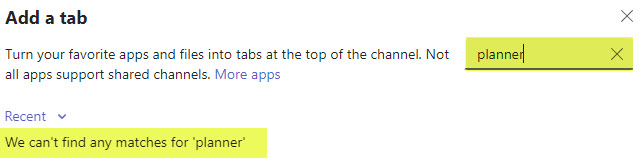
Example of Planner App missing in Private or Shared Channel (when trying to add as a tab)

Example of Planner App missing in Private or Shared Channel (when trying to add as a tab)

As mentioned above, this has to do with the overall architecture of Microsoft Teams. When you create a new Team in Teams, behind the scenes, it creates a Microsoft 365 Group, which is essentially a membership/security group. That group allows you to control access to the various applications available to the user who is part of the Microsoft 365 Group.
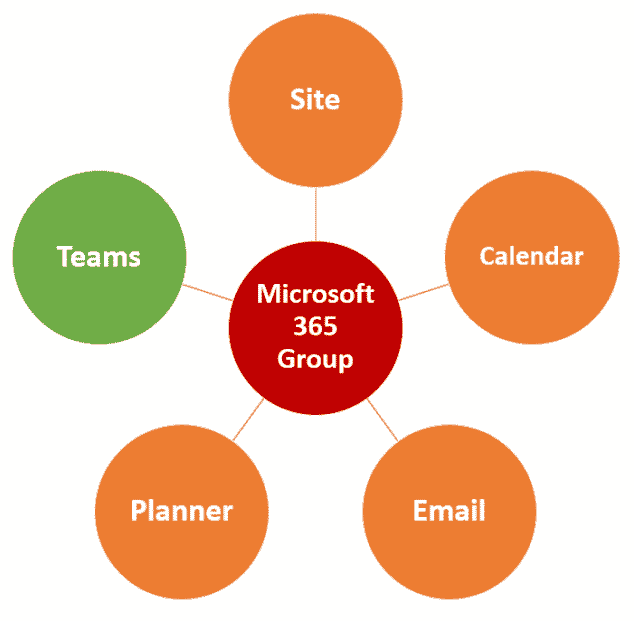
For example, if I create a Team and invite Mary and John into it, all 3 of us will also have access to the associated SharePoint Site, all Plans in Planner that are part of the Group, the Group Calendar in Outlook, Forms, and so on.

However, when you create either a Private or Shared Channel, you create a workspace for a subset of users from the Team. So using the above example, if I create a Private Channel and only invite Mary to it, only Mary and I will have access to the Channel/conversations + a separate SharePoint site that is created as a result.

However, while there is a separate SharePoint site created to store documents that are private to that Private channel, there is no separate “secure” Plan created in Planner. Security to all the plans in Planner is controlled by the Microsoft 365 Group, which, contains myself, John, and Mary. Same with the Group Outlook calendar. You only get one that the whole group shares. And Forms are exact same way, too – all forms that are part of a Microsoft 365 Group can be accessed by the whole group.

So that is why when you try to add a plan from Planner as a tab in a Private channel – you can’t do that. In theory, you could add a plan as a tab, but it will be the plan that is accessible by the whole team and not a subset of users from the Private Channel. So to avoid security issues and not to mislead the Private Channel members that their Private Channel Plan is private to them only, Microsoft prevents you from adding those group-related apps to Private and Shared Channels.

I honestly do not know how Microsoft will resolve this dilemma, unless Plans and Calendars and Forms break free from the Microsoft 365 Group and will have security/permissions of their own somehow.

Limit # 3: Impossible to chat with attendees while sharing screen

Alright, this limitation has baffled me from the start of Microsoft Teams. And in all honesty – this is why I prefer to use Zoom for my training and webinars. It comes down to one simple and @#$% annoyance – you cannot easily chat with attendees while you are sharing your screen. With Zoom, I can still see small videos of my attendees and can easily chat as well. Not with Teams. Yes, I know, I can purchase a second monitor or join Teams from a second device like iPad or phone just to see the chats, but I am Jewish, and a bit frugal about how I spend my money. 😀

Limit # 4: Metadata usage in Teams

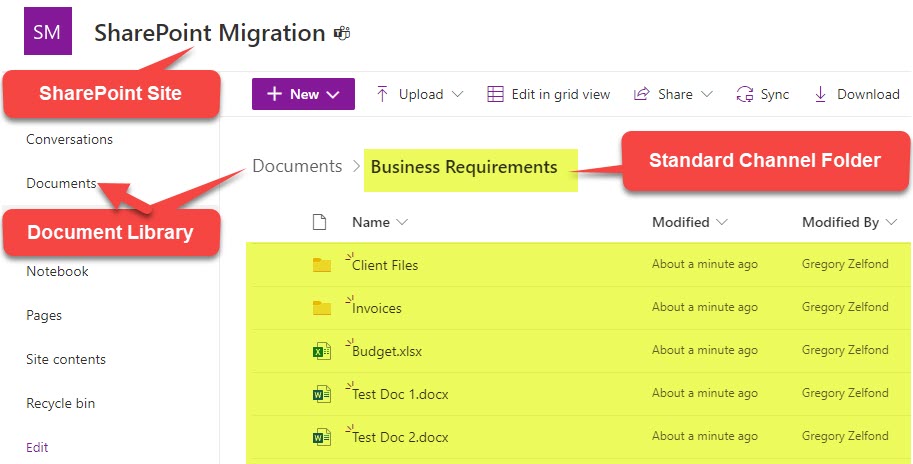
Being a huge fan of metadata, this was my complaint from the release of Teams back in 2017. Metadata does not play well with Teams. While the improvements have been made, and we can now tag and filter files from a Microsoft Teams interface, the fact that for every standard channel, you get a folder – forces the users back into folder mentality.

For this reason, I always recommend creating a separate document library on a Team-connected SharePoint site, so it can be free of channel folders.
Limit # 5: Recording Expiration Limit

Another important limitation users must be aware of is how long the meeting recording is kept. With the recent switch from Stream Classic to New Stream on SharePoint, all the meeting recordings are now saved to SharePoint or OneDrive. As such, the video files count against the limit towards the overall storage limits within your tenant. And since videos tend to take much more space than images or MS Office files and PDFs, they are only kept for a certain number of days before being permanently deleted. By default, it keeps the recordings for 120 days. True, most of the recordings will probably never be watched again after a certain number of days, but there might be a case here or there when you need to watch that staff meeting or training from last year.

There are ways for both regular users and Teams Administrators to increase the limits. I explained how to achieve it in this article.
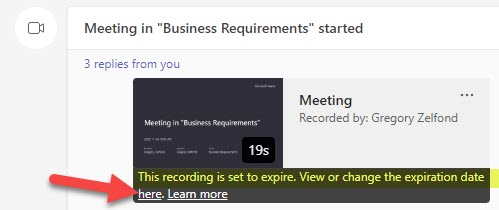
limitations in Microsoft Teams

Limit # 6: Owners can be left out of a Private Channel

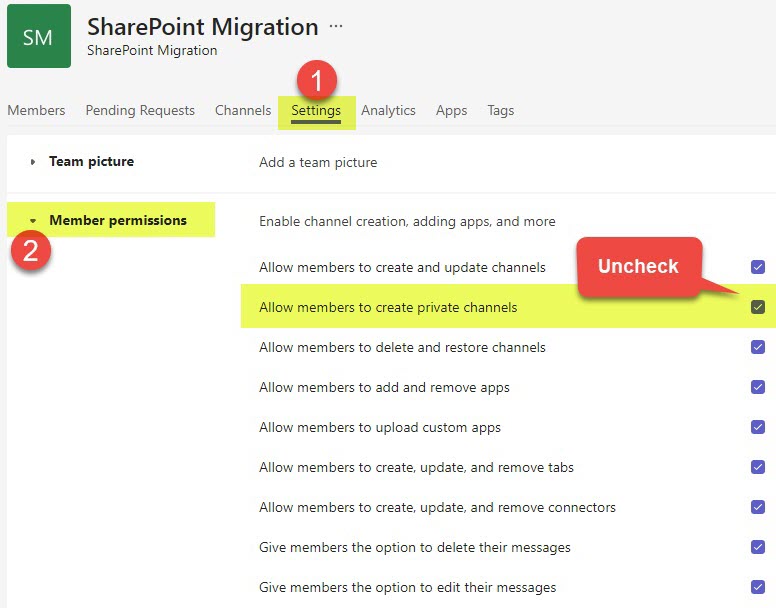
Here is another limit I kind of hate. If you are a Team Owner, you might end up in a situation where a user creates a private channel and does not invite you (the Team Owner!!!) into it. It is almost like a secret room in your own house. Now, I understand there might be valid scenarios for this in a project, but if I am, say, a Project Manager and a Team Owner and happen to be a control freak, and then discover the hidden Private Channels in my own Team, I am not part of, I might not like it. 😀
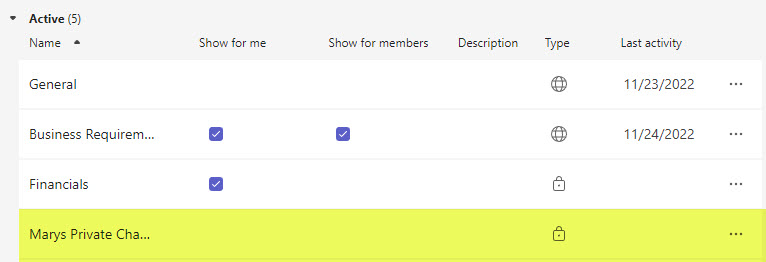
Example of a Private Channel I(the Team Owner) am not part of

Example of a Private Channel I(the Team Owner) am not part of

By the way, if you want to prevent the above scenario, as a Team Owner, you can disable the creation of Private Channels on your Team (by regular members). Check out this post for instructions.
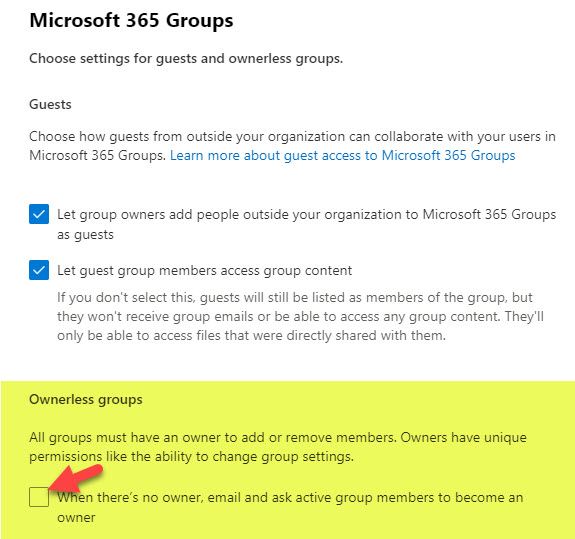
Limit # 7: Ownerless teams

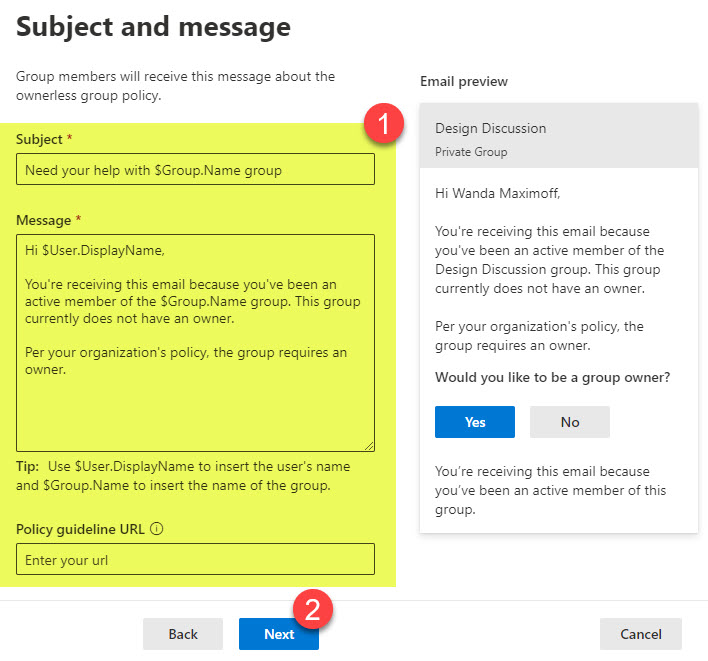
Another limitation is that you might end up in a situation where you have a Team/Group that s left without the Owners. This occurs when the Team Owner leaves the organization, and IT disables/removes their account. Luckily, there is a way to enable a workflow/process within the Admin Center to prevent such occurrences from happening again. I documented the steps in this post.
Limit # 8: When copying a team, private and shared channels are not copied

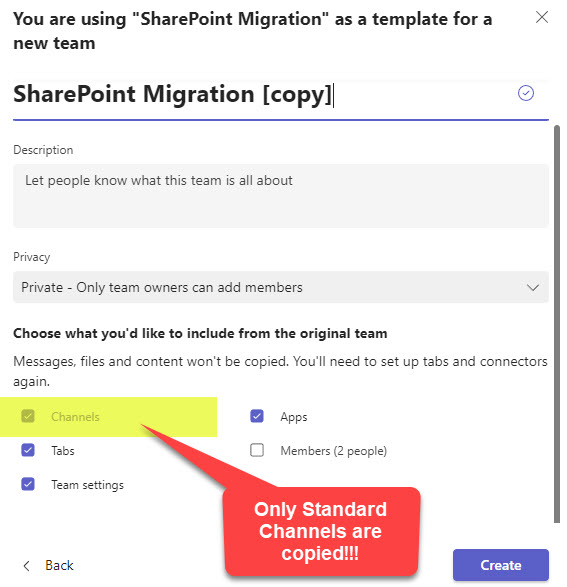
I guess this is more of a “by design” limitation, but something that those looking to replicate teams need to know and understand. The ability to create a team from another team is awesome, since it allows you to easily copy Teams channels and tabs and replicate it for another project, for example. The problem is that private and shared channels are not copied – just the Standard channels and channel folders. So you would need to create standard and private channels manually.
limitations in Microsoft Teams

Limit # 9: Hidden Group Calendar and a Distribution list

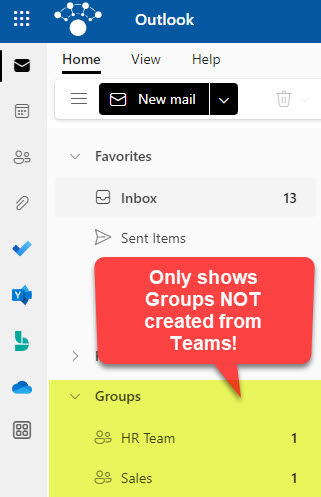
How you create your Team matters! This is yet another unfortunate limitation that drives many users and me crazy. As described earlier, the Teams app is part of a Microsoft 365 Group and is connected to a Team Site, Group Outlook Calendar, Group Outlook Distribution list, and Planner. However, if you create a Team from Teams and then try to access the group calendar, you will be out of luck. Same with the distribution list. The truth of the matter is that they do exist but are hidden from you. This was due to a change made by Microsoft some time ago. This is because with so many Teams created by users, you might not want to clutter their Outlook interface with extra groups created. Not to mention that if users see the same group in Outlook, they might start using email instead of Teams chat. However, there are use cases when you do want to see that group calendar in Outlook or perhaps send an email to all members via Outlook.

The workaround for this would be to create a Team Site first from SharePoint and then connect a Team to it afterward. When you do it in that order, since the Microsoft 365 group is not created via Teams, you will get the Group Calendar in Outlook that is not hidden.
Limit # 10: No easy way to move channels between Teams

When we moved from subsite to Flat Information Architecture in SharePoint, this was a time of joy and relief. No longer we had subsites stuck to a given site collection – we could easily take a site and associate it with a different Hub in a matter of seconds. However, with the evolution of Teams and channels – it seems like we are back to the rigid architecture, as was the case with SharePoint subsites.

While we can easily move files and folders between two SharePoint sites (channel folders), we cannot move channels themselves (that contain chats) between Teams. Yeah, I know what you are going to say – this is probably by design, but I thought I would still mention this as somewhat of a limitation. I understand why Private Channels cannot be moved, but I did get requests from clients in the past on the ability to move standard and shared channels between Teams. Possible Use cases for this involve:

  • Unique projects merge into a bigger project
  • Departments merge to form one larger department team
  • Two separate Teams were created by accident and need to be merged into a single entity
  • Changes in the Org Chart might prompt some of the channel mergers

I guess I understand the technical complexity behind this limitation (unique sites/folders, apps), but at the moment, the merge is only possible with 3rd party migration tools.

The post Top 10 limitations in Microsoft Teams appeared first on SharePoint Maven.

✇SharePoint Maven

Subtasks vs. Checklist in Project for the Web

In today’s article, I would like to continue to familiarize you with the Project for the Web application. Specifically, I want to explain the difference between subtasks and task checklists.

What is Project for the Web?

If you are new to Project for the Web application, I suggest you check out this post first, where I explain the relatively new application at a high level and tell you about its major features and capabilities.
Project for the Web Subtasks

One of the biggest advantages of Project for the Web compared to the Planner application is that you can organize tasks into multiple levels of categories and subcategories, just like you would see such an arrangement on a Gantt Chart Schedule. Below is an example of what I am talking about.

To achieve this level of organization, you would choose the parent category and create a subtask using the task below. You can create multiple levels of subtasks/categories/nested structures. So in other words, a subtask is a manageable effort/task that can be recorded, executed, and tracked on a project schedule.

Project for the Web Checklist

We never really had Checklist capability in the past, at least with the desktop version of the MS Project. However, now that we have Project for the Web, we can break down a task into smaller increments by using the Checklist functionality. This was probably copied from Planner, where we had this capability for quite some time.
Subtasks vs Checklist in Project for the Web

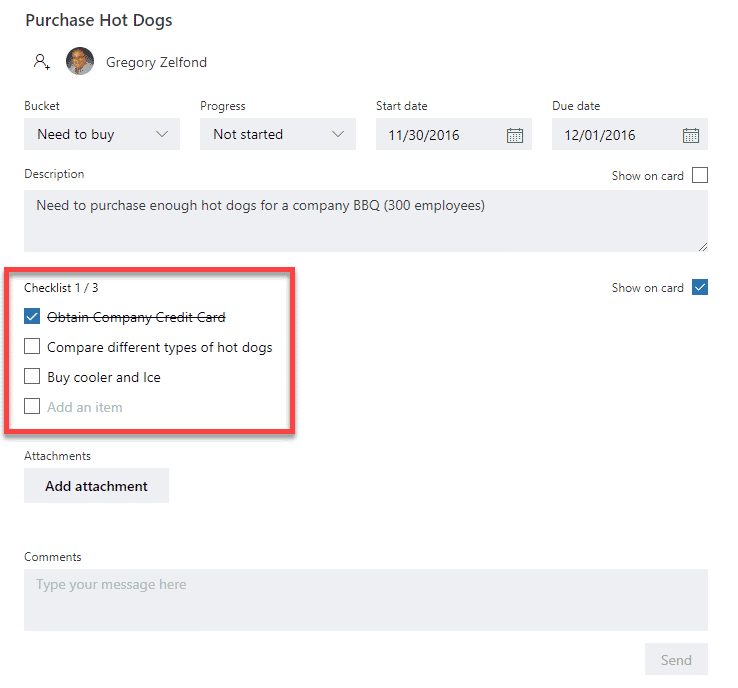
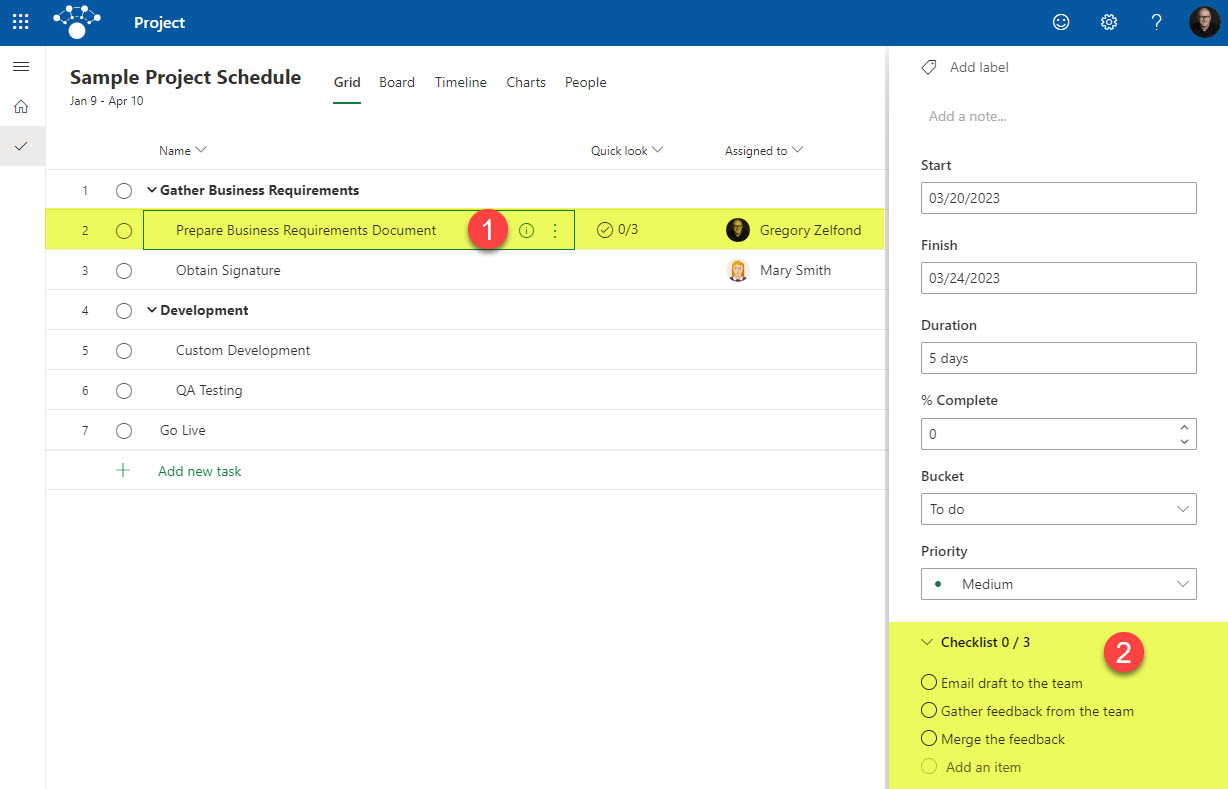
If you click “i” on a given task in Project for the Web, it will open up a task details panel where you can create a checklist inside of a task.
Subtasks vs Checklist in Project for the Web

Checklist Limitations

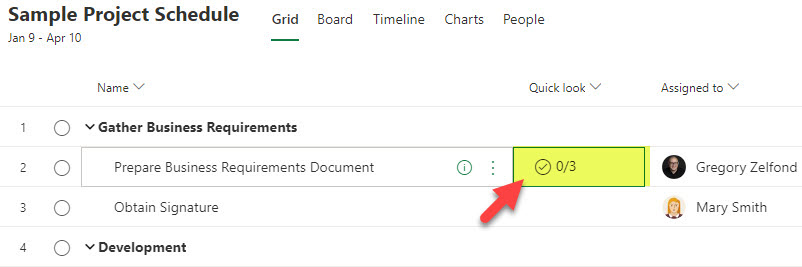
  • The checklist does not show up in the schedule (unless you display the Quick Look column indicator)Subtasks vs Checklist in Project for the Web
  • A checklist can’t be assigned resources, dates, duration, or effort (like a task)
  • Hard to track the status
  • Any given task can only have a max of 10 items in its checklist

Checklist or Subtasks?

From my experience, a checklist might be handy for really small tasks that do not require much tracking in terms of effort, resource assignment, or dates. It might be an excellent way to break a single task into smaller steps, without “polluting” your schedule/timeline. The only thing I want to clarify is that the checklist items should belong to the same individual(s) as those appearing on the task itself. If this is not the case, the checklist items should be their own task with their own user assignment. Otherwise, there is a really good chance those checklist items will never be completed 😊

The post Subtasks vs. Checklist in Project for the Web appeared first on SharePoint Maven.

✇SharePoint Maven

How to manage SharePoint access Site requests

If you own a SharePoint site, I am sure you followed all the best practices regarding the site security setup and permissions. However, you might also want to control the experience of the users who do not have access to the site just yet, but who might need one. Likewise, you might want to view pending access requests at any point in time and either approve or reject them. In addition, if you happened to share the site externally, you might want to track who accepted your invite and who did not. I know I listed a few different scenarios in this article, but they will all be answered by the wonderful feature of Site access requests. Buckle up and enjoy another sermon of wisdom from rabbi Zelfond. By the way, you might want to read this post till the end as I also cover some important and unintended consequences of SharePoint access Site Requests.

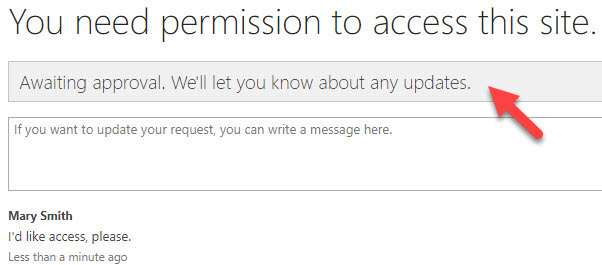
Default User Experience

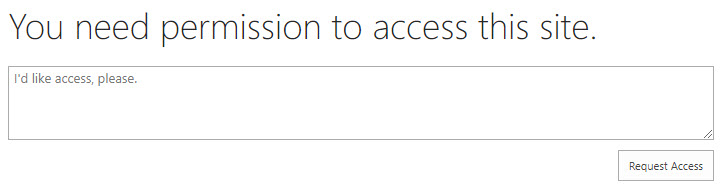
By default, on any given site, when the users who don’t have access to that site, when clicking on its URL, will get this message.

SharePoint access Site Requests

Here they can add a personal message and press the Request Access button, and request access to the site.

SharePoint access Site Requests

You can customize this page and either disable this button or control who the requests go to. Let me explain.

How to disable Site Access Requests

If you do not want users to bother you with these requests, you can disable them altogether.

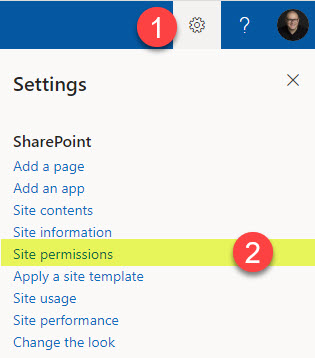
  1. Navigate to the SharePoint Site, click Gear Icon > Site Permissions
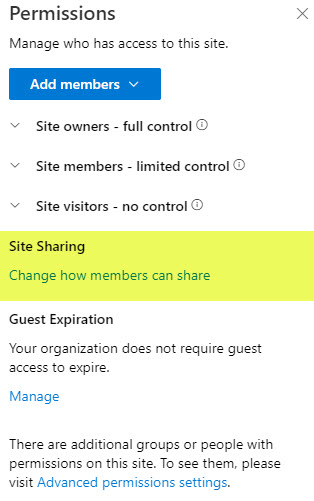
  2. Under Site Sharing, click Change how members can share
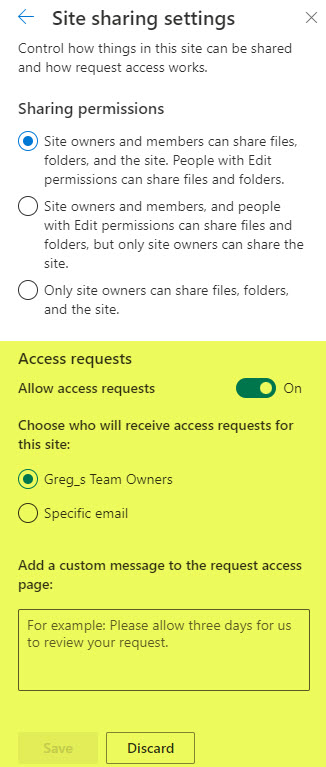
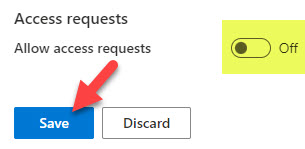
  3. Toggle the switch next to Allow access requests to Off and click SaveSharePoint access Site Requests
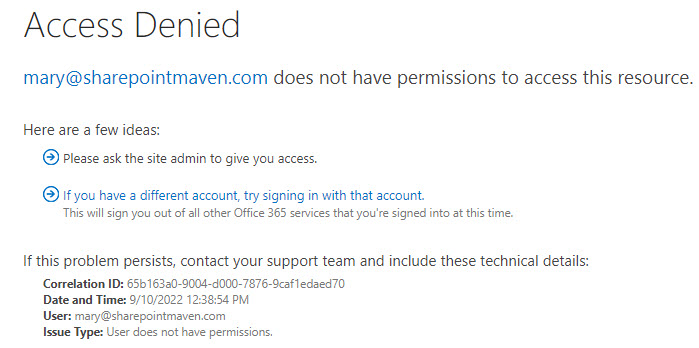
  4. Once disabled, the user will get a nasty message when navigating to the SharePoint site URL: Access Denied. The user does not have permissions to access this resource.

How to specify who the Site Access Requests will be emailed to

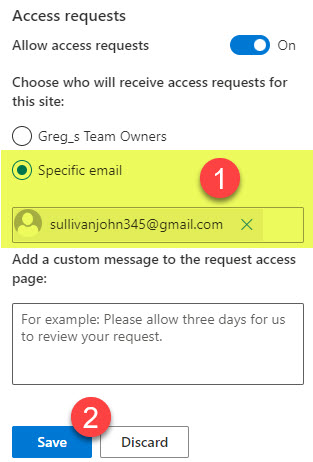
Alternatively, you can also specify who the Site access requests will be emailed to. By default, they are sent to the Site Owners. However, you can also designate an alternate email address. It can be an email address of any user, and can even be an external email address as well. And you can also add a custom message to the request access page if necessary.

SharePoint access Site Requests

What happens to the user when you approve or reject requests

When the user requests access to the site, here is what happens:

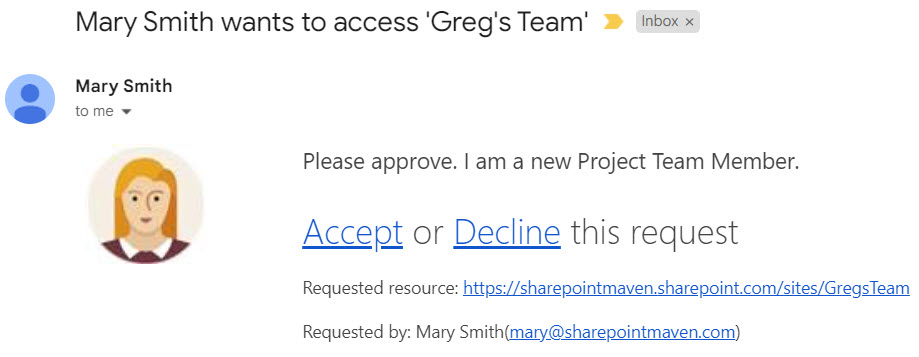
  1. The Site Owners (or whoever you designated to receive these emails) will receive an email like this
  2. The Owner can either Accept or Decline the request
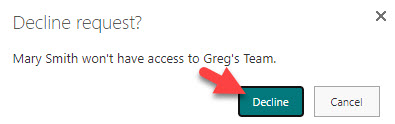
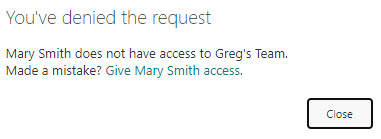
  3. In case the request is Declined, the owner will need to confirm the intentionSharePoint access Site Requests
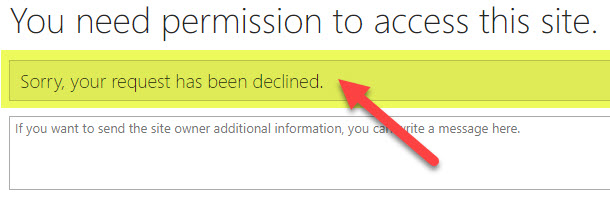
  4. When navigating the site again, the page will display a message: Sorry, your request has been declined.
  5. The user will also receive an email advising that the request has been declined
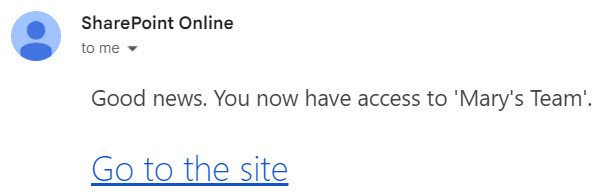
  6. In case the request is Accepted, the user will immediately be granted access to the site and receive a corresponding email

How to access pending and completed sites requests

If you ever want to see all the past and present, and pending SharePoint access Site Requests, this is how you do it.

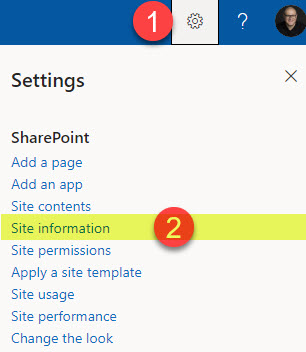
  1. Gear Icon > Site Information
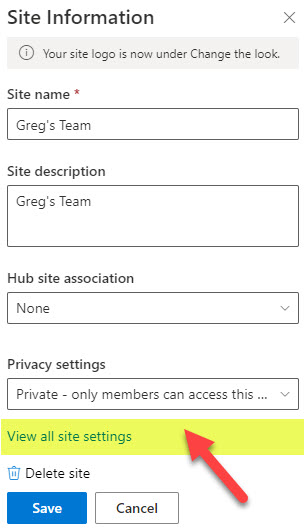
  2. Click on View all site settings
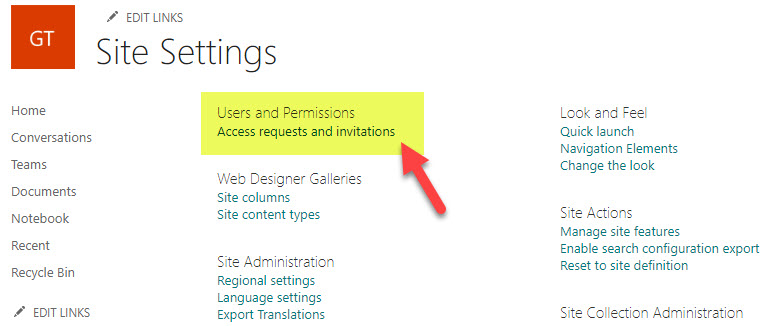
  3. Under the Users and Permissions section, click on Access requests and invitations
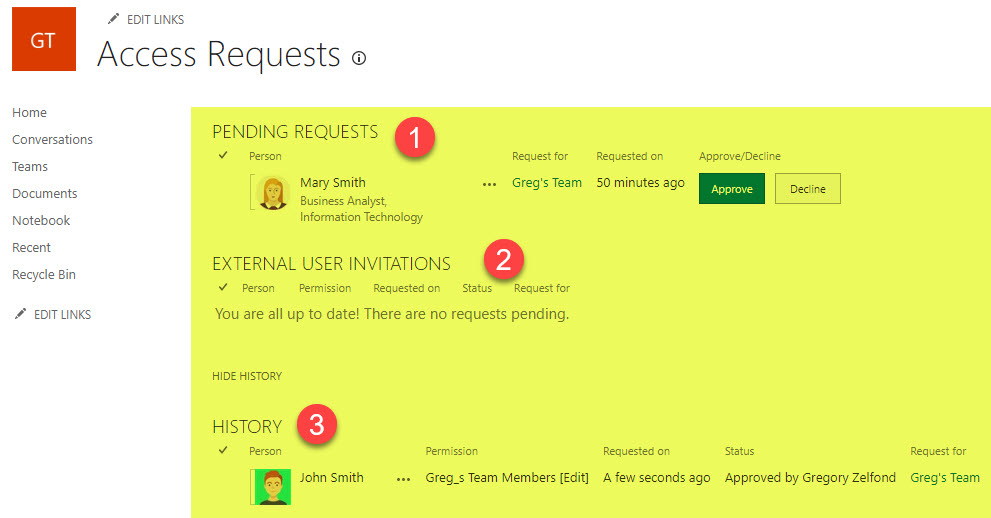
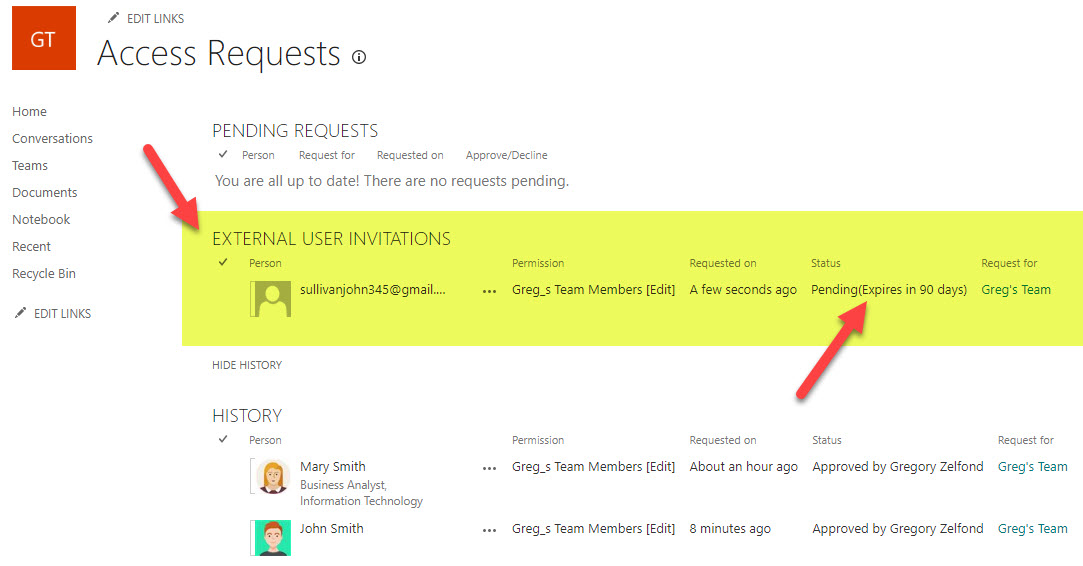
  4. From the page that will appear, you will be able to see pending requests, invitations sent to external users (more on this below), as well as the history of site access requestsSharePoint access Site Requests

View Status of invitations sent to external users

What I also really like about this page above is that it allows you to view the status of pending invitations sent out to external users. So if you shared your site externally and wondering if external users accepted the invite or not, this is the page to view this on!

SharePoint access Site Requests and Group-connected Team Sites

It is also very important to note what is actually happening to the site permissions when you accept the user request to access the site, as this might lead to some unintended consequences. Let me explain.

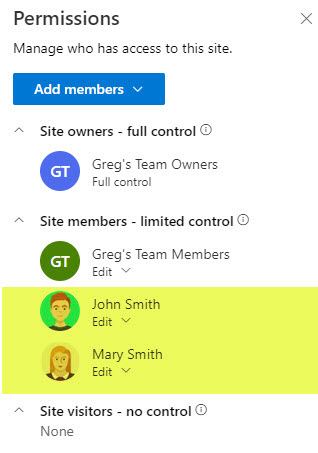
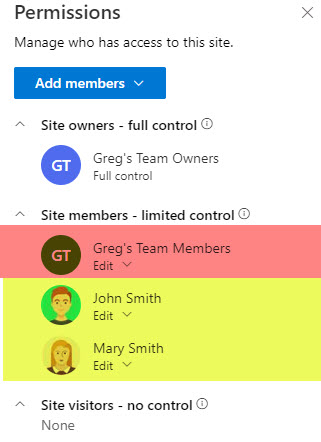
When you Accept a given access request, then navigate to Site Permissions (Gear Icon > Site Permissions), you will see the users automatically added to the SharePoint Site Members Group (those with Edit role)

Of course, you can change their role to Visitor or remove them altogether if necessary. However, this behavior can also lead to confusion and unintended consequences if your SharePoint site is connected to a Microsoft 365 Group (i.e., the site is part of Microsoft Teams).

One would expect that by requesting access to the site, they become a member of the whole Microsoft 365 Group (Teams, Outlook, Planner, etc.). But that is not the case. They are just given access to the site itself only. If you check the group membership, they won’t appear there.

So if you would like to add those users to the group itself and give them access to Teams, etc., you would need to add them as members of the group. By the way, I explained these two different models of security for a group-connected site in this article.

The post How to manage SharePoint access Site requests appeared first on SharePoint Maven.

✇SharePoint Maven

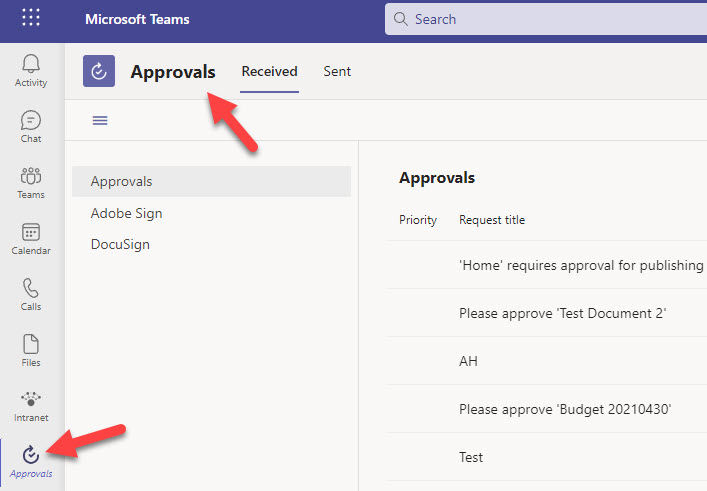
What is an Approval App in Teams?

One of the relatively recent additions to Microsoft Teams was the addition of an Approval app. In this article, I want to explain to you what it is all about and how to make the most out of this wonderful addition.

What is an Approval App in Teams?

Approval App in Teams is an app that allows users to bring together and centralize all of the workflow approval processes. Specifically, it will enable the users to approve or reject items/documents submitted by others or initiate an approval workflow themselves.

Approval App in Teams

Think of Teams App as a subset of the Power Automate application brought inside of Microsoft Teams.

Approval App is a personal App

It is imperative to note that the Approval App is a personal application, not a group one. I explained the difference between the two in this post. That means it shows only the workflows/approvals sent directly to the user or initiated by the user. The App does not show the workflows/business processes created and managed by others.

How to install the Teams Approval App

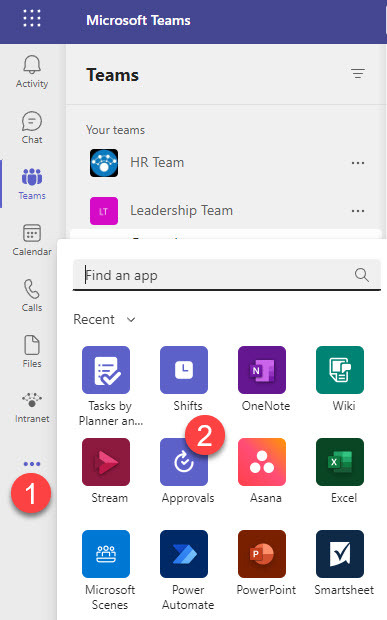
  1. To install the application, click on three dots on the sidebar on the left, then search for ApprovalsApproval App in Teams
  2. The App will now be added to the sidebar for easy access. You can pin it from there so it stays there permanently.

Team Approval App components

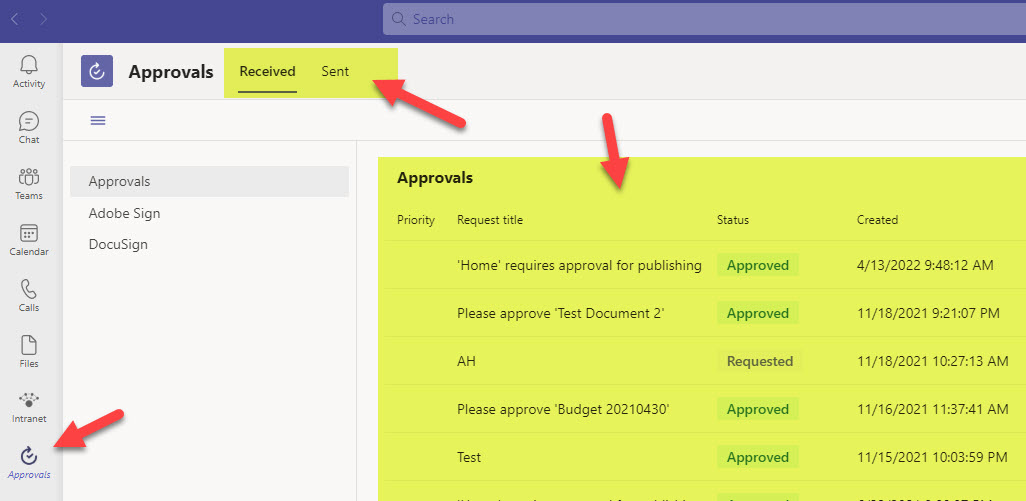
Received Approvals

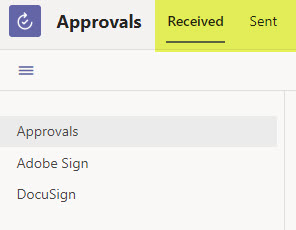
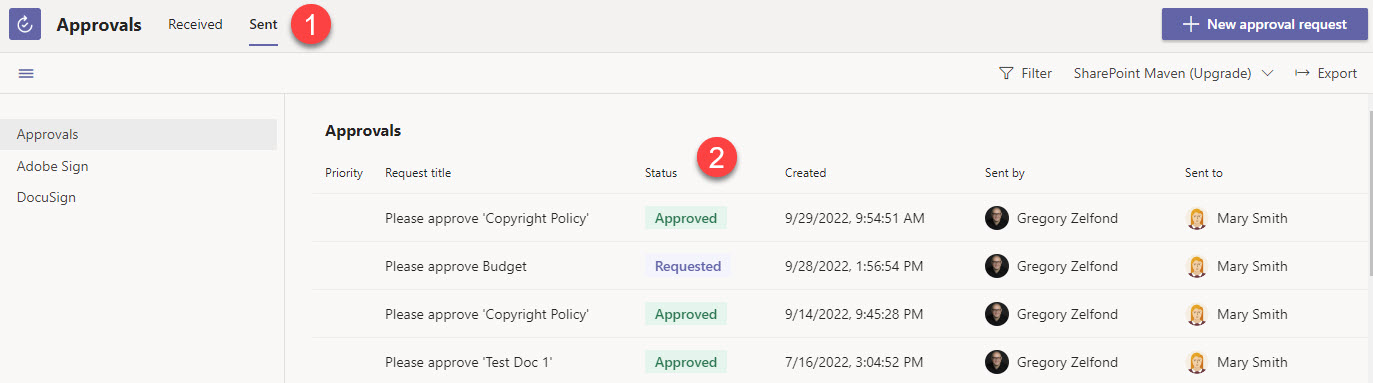
  1. If you are looking to approve or reject items submitted by others, you would need to click on the Received tab
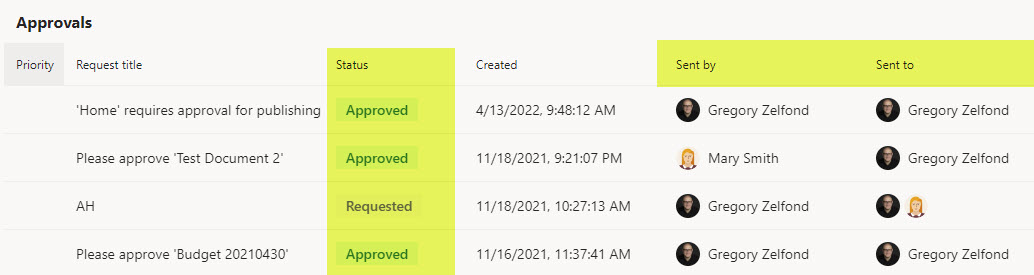
  2. There, you will get a dashboard of all requests submitted to you for Approval
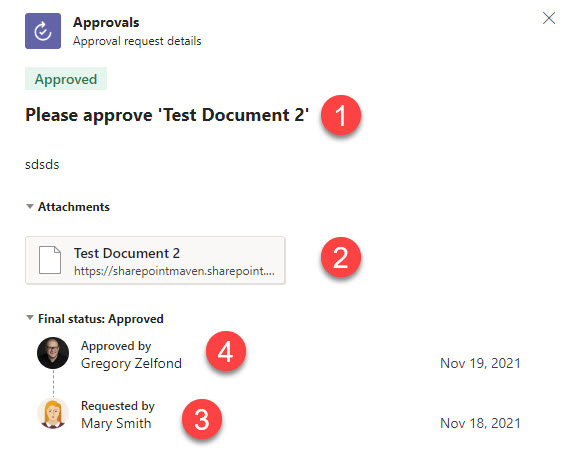
  3. Clicking on the item, will provide you with the history of the approval/submission
  4. And if you need to approve or reject, you can do as wellApproval App in Teams
  5. And it will be marked as such in the dashboard

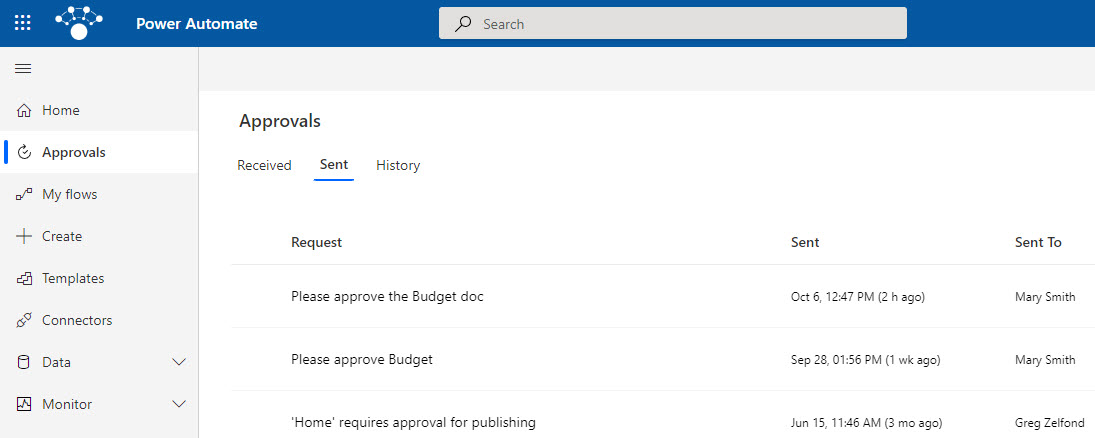
Sent Approvals

If you have submitted a document for review (more about this below), you will need to click on the Sent Approvals tab. It will state to who you sent Approval requests to and their status.

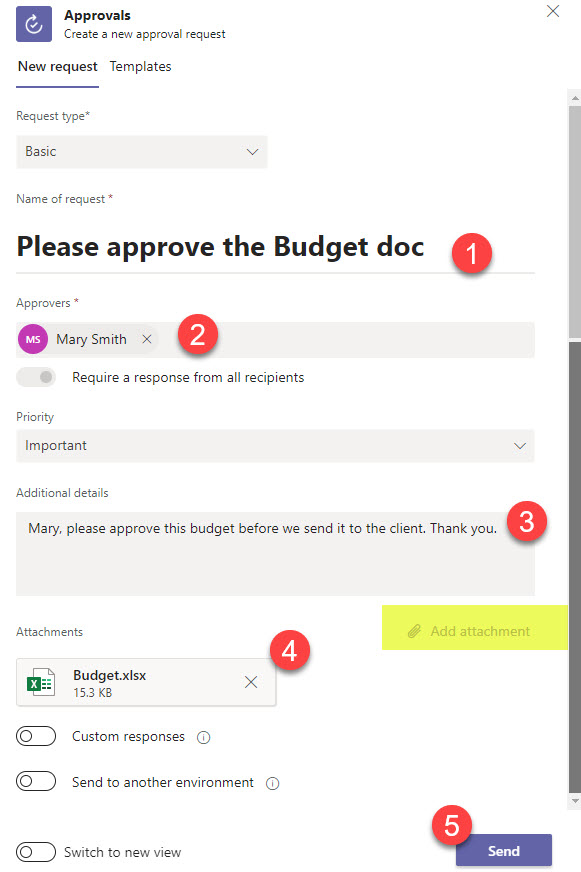
New Approval Request

You can also initiate new approval requests from the Teams Approval App. Just click on the New approval request

Approval App in Teams

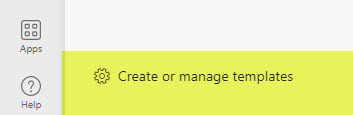
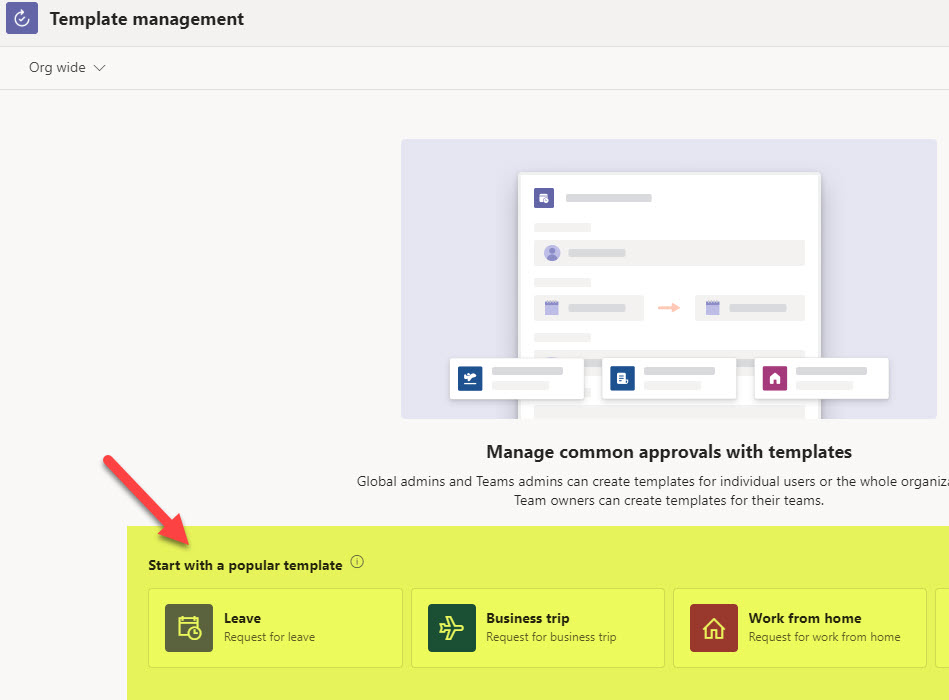
Create or Manage Approval Templates

There is also a way for Admins and team Owners to create approvals based on common business scenarios (i.e., vacation requests). This is probably a topic for another post, so I will make sure to write a separate article later on how to configure those for your team or organization.

The post What is an Approval App in Teams? appeared first on SharePoint Maven.

✇SharePoint Maven

4 Ways to create a Schedule in Project for the Web

There are a few ways to create a new schedule in Project for the Web application. So in today’s post, I would like to summarize them all.

What is Project for the Web?

Project for the Web is a Microsoft web-based application, one would use to manage projects. It is meant to be more sophisticated in terms of task management/project management capabilities and is intended to be a step up from the Planner application. Check out this post to learn more about the app.

Example of a schedule in Project for the Web

Example of a schedule in Project for the Web

How to create a schedule in Project for the Web

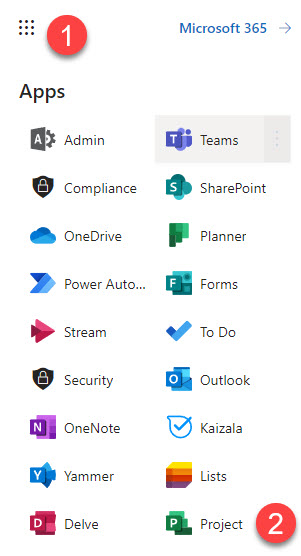
There are several ways to create a new schedule in Project for the Web. To access all the options, first, navigate to https://project.microsoft.com/ or click on Project for the Web from the Microsoft App Launcher.

Option 1. Create from Blank

The first way to create a new schedule is to start from scratch.

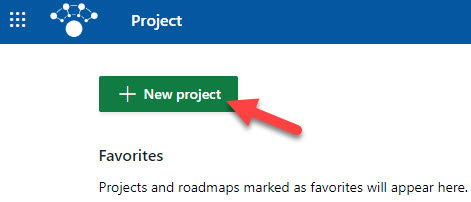
  1. From the Project for the Web Homepage, click New projectcreate a Schedule in Project for the Web
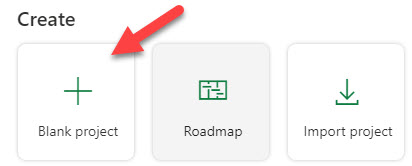
  2. Next, click Blank projectcreate a Schedule in Project for the Web
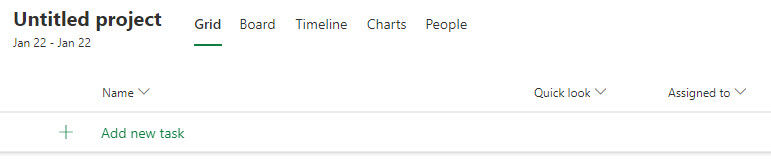
  3. A blank project schedule will then be created
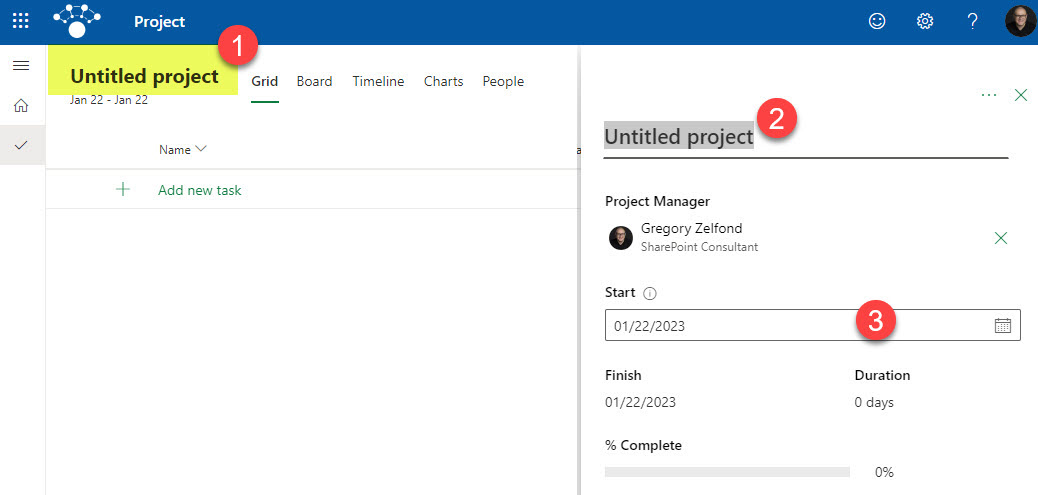
  4. You can then click on the title of the Project to change its default name from Untitled Project + change some other parameters about it (i.e., Start Date)

Option 2. Create from Template

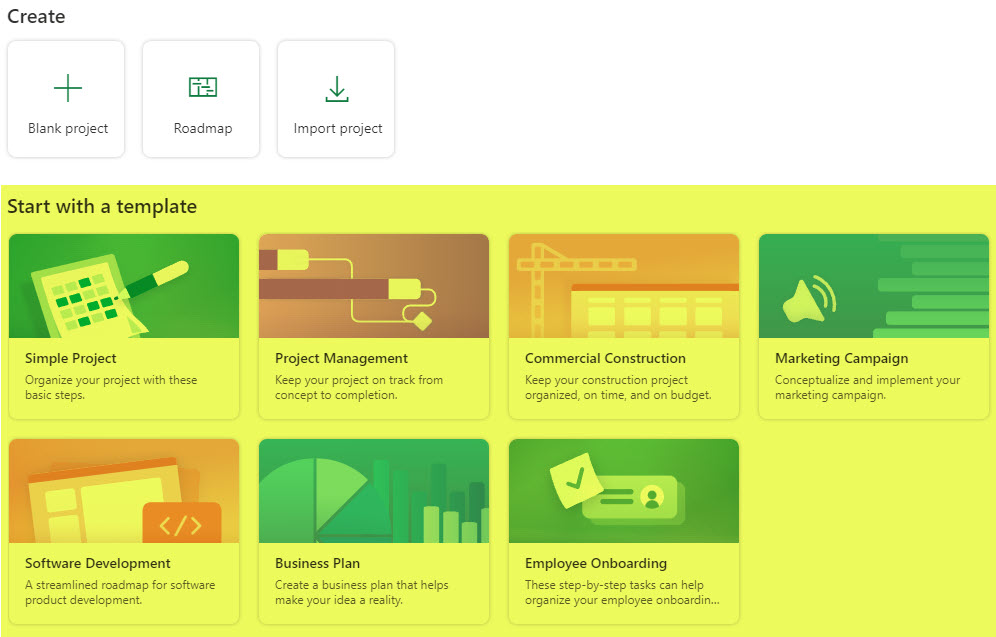
Another way to start a new schedule is to create one from a template. Just like in Lists, we have the option to create a list based on a certain business use case, we do have the same capability in Project for the Web. Microsoft has a few templates available to give you some ideas about tasks/dependencies based on certain use cases. For example, there are sample schedules for construction projects, software development, etc.

  1. From the Project for the Web Homepage, click New project
  2. Next, on the pop-up that appears, choose a template from the ones presented on a screencreate a Schedule in Project for the Web
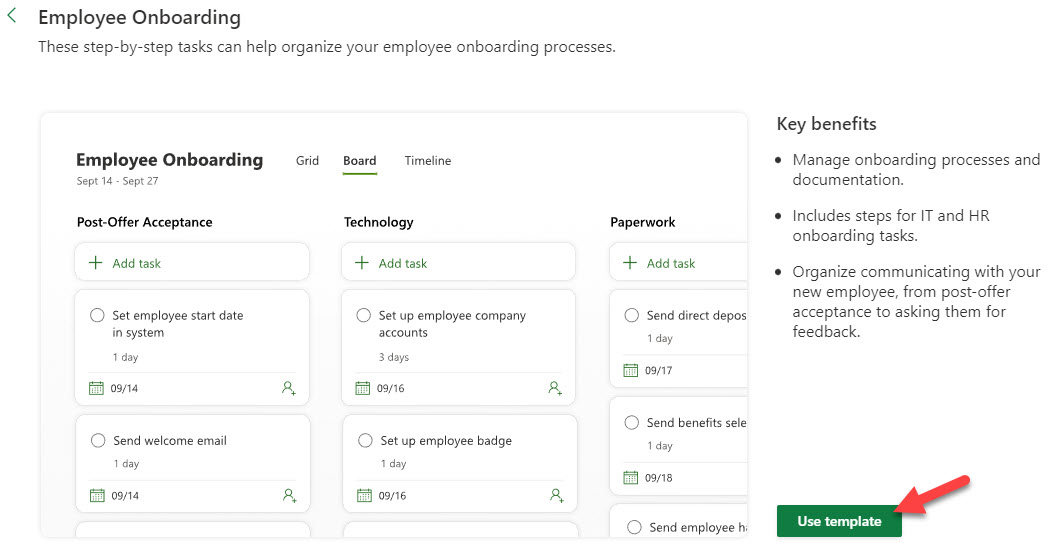
  3. Once you choose a given template, it will show you a preview of it. Click the Use template button.
  4. The schedule with sample tasks will now be created in the Project for the Web. You can change it/customize to your process from there.

Option 3. Import from MS Project .mpp file

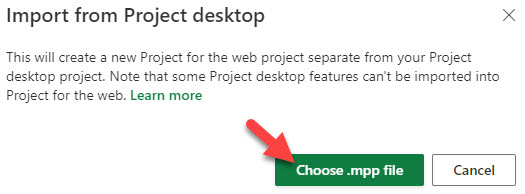
This option is great if you have used MS Project (the desktop version) in the past and have some schedules already created there. This option allows you to (almost) seamlessly import a desktop .mpp file to Project for the Web. I blogged about this method in this article a bit earlier. The article mentioned above also discusses some of the limitations you will encounter with the import process.

create a Schedule in Project for the Web

Option 4. Copy from existing schedule

Finally, we have an option where you can take an existing schedule and copy it over to a new schedule. This option is great when you or someone else has already created a Project Schedule in Project for the Web, and you need to copy it for a similar project.

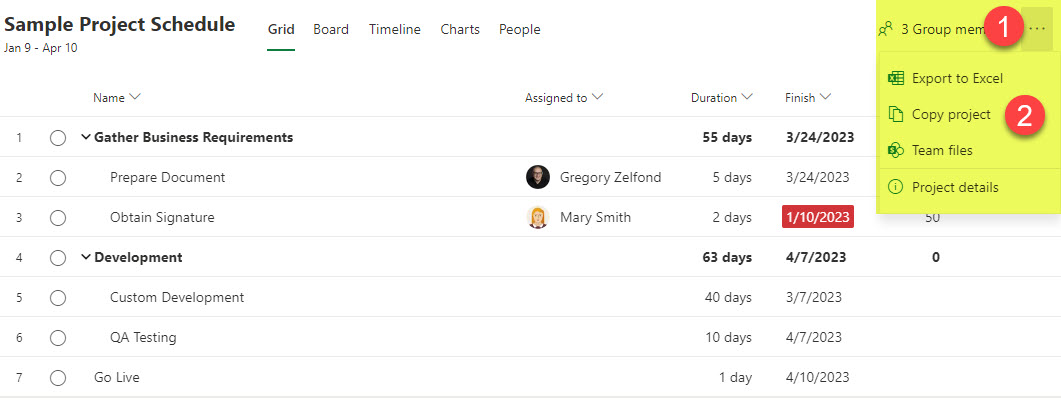
  1. On a given project, click three dots in the upper-right-hand-corner, then choose Copy projectcreate a Schedule in Project for the Web
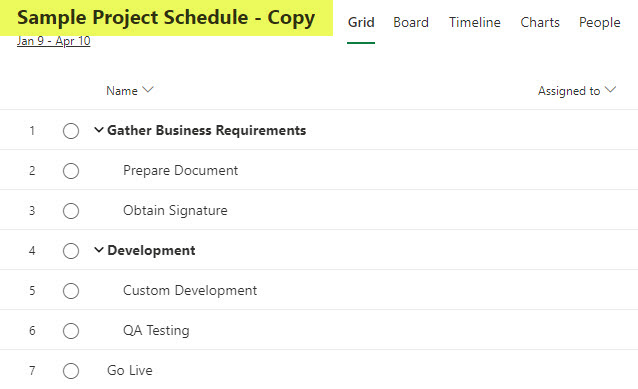
  2. This will create a copy of the Project. You can then change its name and customize it further.
  3. It is important to note that if the original Project you copied was already part of a certain Microsoft 365 group, the copied Project would not be part of that same group. You will need to manually associate that new schedule with the same group or another group.

The post 4 Ways to create a Schedule in Project for the Web appeared first on SharePoint Maven.

✇SharePoint Maven

4 ways to display Department or Team Members on a SharePoint Site

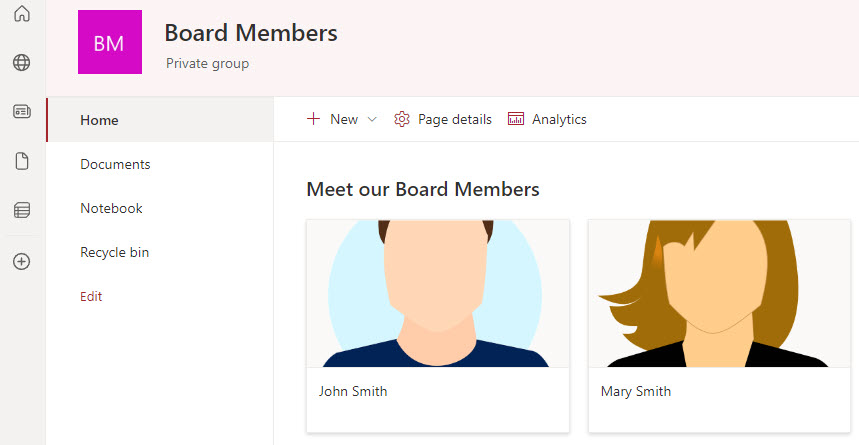
A frequent request for company intranets is to display and share information about the Team Members. This could be a Welcome New Team Members Page on a Human Resources site, welcoming new employees, or a page to display a roster of external users, say a list of Board Members for a nonprofit organization. So in this article, I want to show you a few ways to display department or team Members on a SharePoint Site.

Option 1: People Web Part

The first option involves the use of the People Web Part. I blogged about it previously. The idea is that it automatically displays information from your Active Directory and shows you the user’s name, photo, role, contact information, etc. In addition, you can switch the layout to large and add additional information about the user. Once again, I covered it all in this post.

display department or team Members

Pros

  • Nice and easy to set up

Cons

  • It only works for users in your Active Directory (internal users, it does not work for external users)
  • This option assumes that Active Directory is maintained by IT and contains user photos and other relevant information
  • Limited area to add a description about the user (255 characters max)
  • Limited display options

Option 2: Image Gallery Web Part

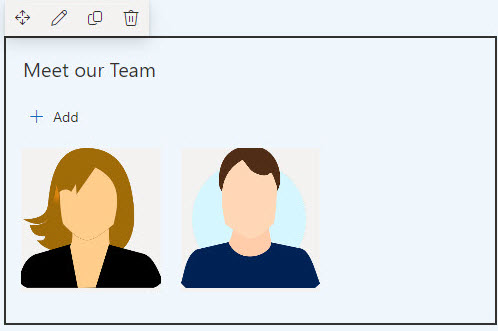
If you want more control over the layout, you may try using the Image Gallery web part. This way, you are getting a nice visual photo of each employee and an area to add some text below the photo.

Pros

  • Nice and easy to set up, visually appealing
  • Multiple layouts available
  • Ability to manually upload user photos or dynamically display them from the document library
  • Works for both internal and external team members (since we are not relying on Active Directory)

Cons

  • The Name and additional information (Title and Caption, respectively) do not appear under the photo unless you choose the Carousel layout. With the other two layouts, they will only appear after you click on a photo/image.display department or team Members

Option 3: SharePoint Pages and Quick Links

OK, this is my favorite option, because it delivers the best experience for you and the users. It does take a bit more time to set it up, but, hey, at least you will not need to pretend in front of your boss that you are doing some actual work 😊. Plus, your boss will think you are smart. Let me walk you through this option.

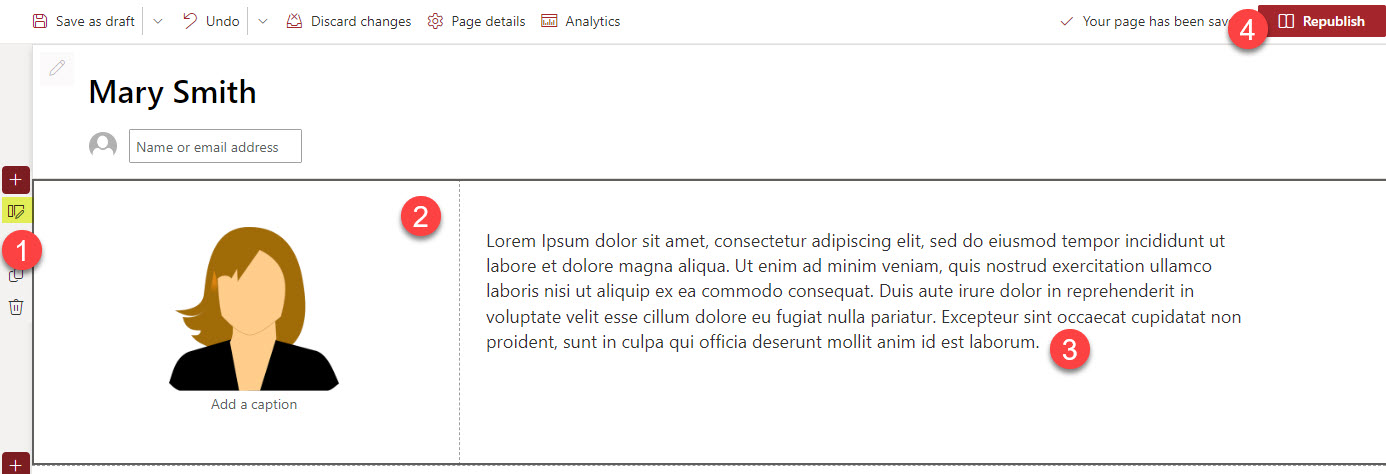
The idea behind this option is that every member gets their own page containing a photo and text/description of them. On the homepage, there will be a Quick Links Web Part to link to each and every team member’s page. I documented step-by-step instructions on how to set it all up in this article.

display department or team Members

Pros

  • Looks amazing. Visually appealing.
  • Works for both internal and external team members (since we are not relying on Active Directory)

Cons

  • It takes a bit of time to set up, but totally worth it

Option 4: Gallery View on a List

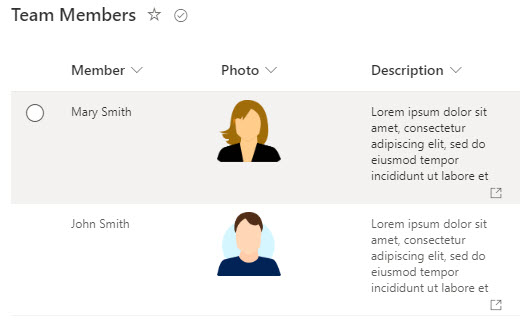
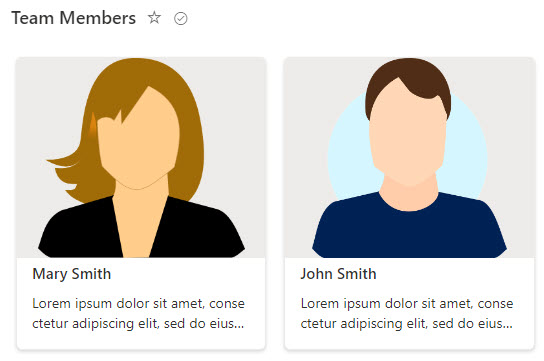
Believe it or not, there is another cool option that exists to display department/team members, and this one involves Microsoft Lists. The idea is that you would maintain the users in the Custom List and then present the data using the Gallery view. The setup is pretty simple, and I actually documented how to create a Gallery View in this article.

List View

display department or team Members

Gallery View

Pros

  • Looks amazing as well
  • Works for both internal and external team members. If you just have internal members, you can rely on the People Column to draw the name of the members from the Active Directory. If you have external members, you can create a Text Column to capture their names.
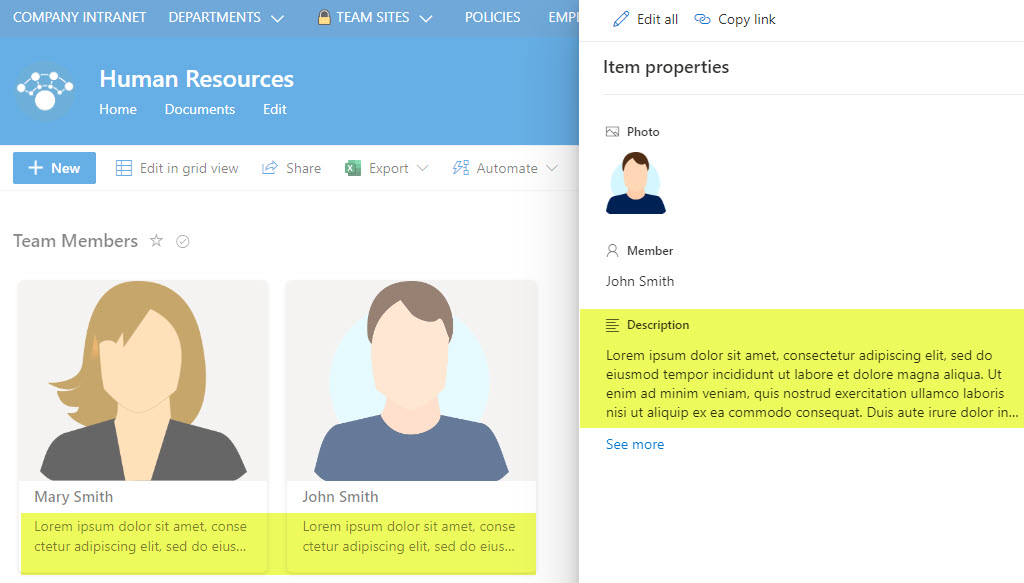
  • Ability to add additional information/metadata to a user “card” (by adding extra columns to a list). For example, you can add the date of birth or city/town they are from.
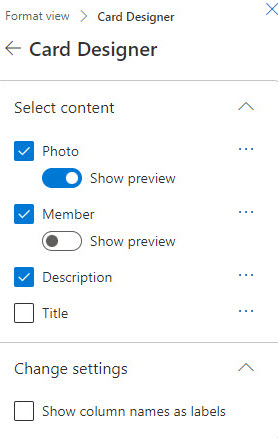
  • Good options in terms of changing the order of the fields/format via the Gallery Card Designer

Cons

  • It takes a bit of time to set up
  • Limited area for the text on the cards; you have to click on the photo to get more informationdisplay department or team Members

The post 4 ways to display Department or Team Members on a SharePoint Site appeared first on SharePoint Maven.

✇SharePoint Maven

How to organize company templates in SharePoint Online

As I work with my clients, assisting them with the build-out of the Intranet portal, a persistent question/request I get is what is the best way to organize company templates in SharePoint Online. So in this article, I decided to list a few options available.

I wrote a similar post back in 2020 where I shared a total of 5 ways to store templates. However, that post was more of a way to store department templates and those used by a limited group of users. In contrast, in this article, I am listing options for company-wide, global templates to be used by the whole organization.

Option 1: Read-only Document Library

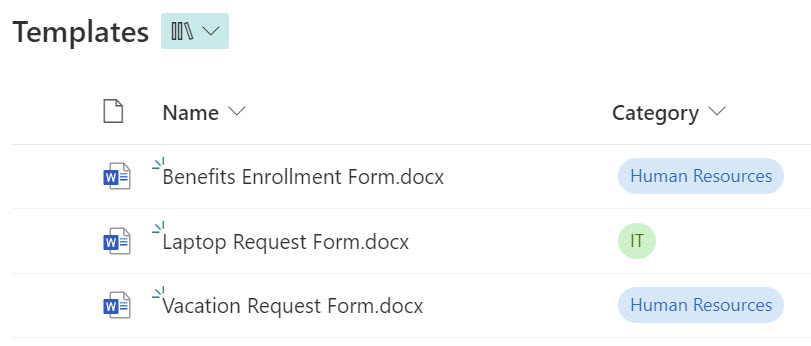
The first option is pretty standard and most frequently used by many organizations. The idea is to create a read-only document library and have it prominently displayed/accessed via your SharePoint Intranet. You can also get creative and use metadata to organize the library as well.

company templates in SharePoint Online

Pros

  • Easy to implement

Cons

  • Users have to manually download, complete, and save the template in a separate, designated area

Option 2: New drop-down on a library

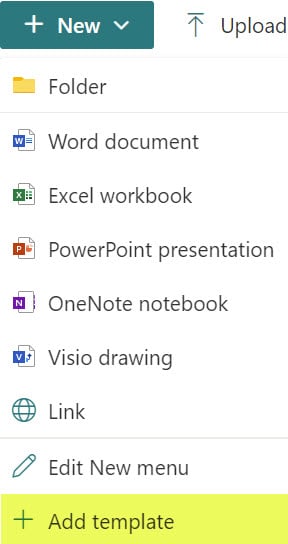
Another option is to utilize Add Template option available on the modern document library. This option allows users to navigate to a designated library, click the New button and complete the template “on the fly.” This will automatically save the filled-out document in a library as well. I described this option in great detail here (Option 5 in that article).

company templates in SharePoint Online

Pros

  • No need for the user to save a template locally, rename and re-upload it to SharePoint

Cons

  • It always opens the template in the browser mode, not the native application, which might limit some capabilities
  • It might not be “evident” to the users to click on the New button

Option 3: Organization Assets Library

The other option available to organize company templates in SharePoint Online is to use PowerShell. This option essentially designates a certain document library in SharePoint as the formal library of templates and makes it available to use from the Office applications as well SharePoint itself when you browse for images/photos.

You can find the detailed instructions on how to set this up here.

Pros

  • Templates are easily accessible from the Office applications

Cons

  • Requires PowerShell + SharePoint Administrators to set up

The post How to organize company templates in SharePoint Online appeared first on SharePoint Maven.

✇SharePoint Maven

How to create custom fields in Project for the Web

One of the capabilities we recently got in Project for the Web is the ability to have custom fields within a project schedule. So today I want to explain how to create custom fields in Project for the Web.

What is Project for the Web?

Project for the Web is a Microsoft application available within Microsoft 365 that allows organizations to manage projects. It fills the gap between Planner, which is more of an informal task management application, and Microsoft Project, which is a desktop project management application that is sophisticated in terms of capabilities but also a bit confusing and not unintuitive to regular users. I actually compared the various task management options within Microsoft 365 in this article, so check it out.

Example of a schedule in Project for the Web

Example of a schedule in Project for the Web

Built-in fields in Project for the Web

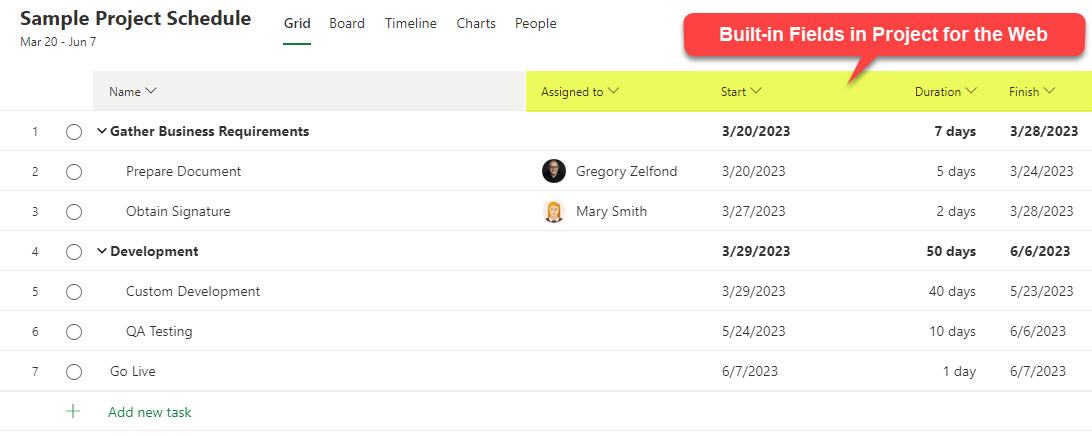
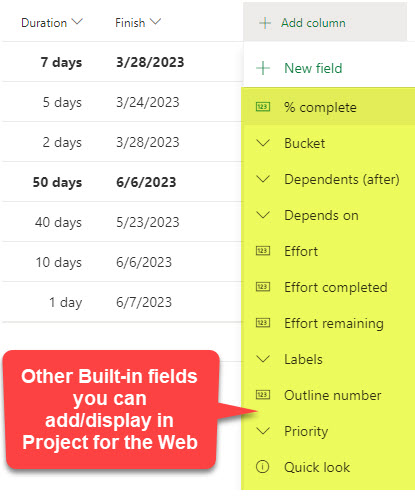
Project for the Web already contains some built-in fields (columns) that you can add/display on any project. Essentially, these are core columns/fields that are either necessary for the Project for the Web to work/function or allow for some additional capabilities in terms of project tracking.

Some built-in fields include Start, Finish, Duration, % completed, Assigned to, and a few others.

When you create a new project, some fields are displayed by default in a Grid, and you can always show/hide others by clicking on the + Add column.

How to create custom fields in Projects for the Web

Just like we can create custom metadata in SharePoint lists and libraries, we can also create custom columns in Project for the Web Task schedules. In Project for the Web, we call these custom metadata fields. Here is how to create a new custom field.

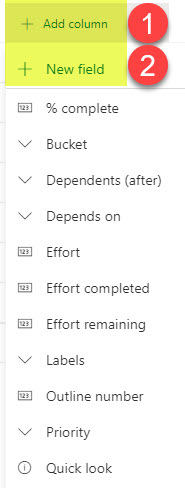
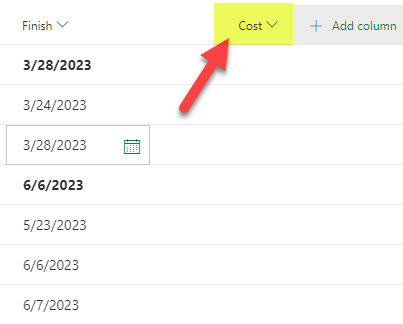
  1. Click the Add column button, then + New Fieldcustom fields in Project for the Web
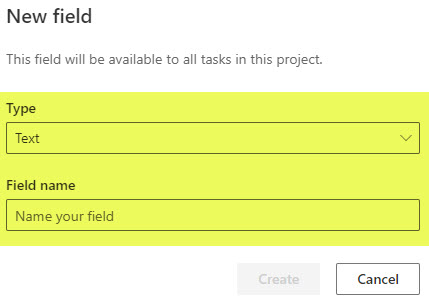
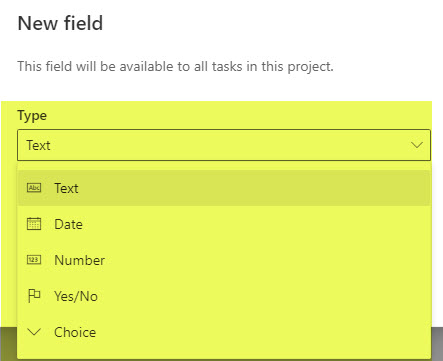
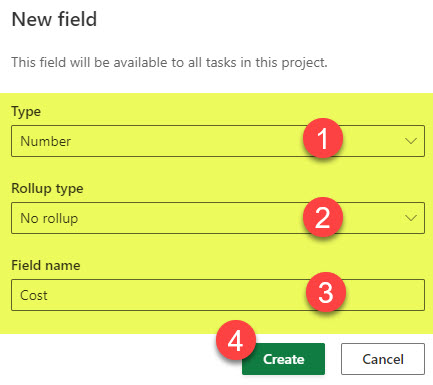
  2. On the next screen, choose the type of column you want to create and its namecustom fields in Projects for the Web
  3. As of the writing of this post, only certain types of columns are supported (shown below)custom fields in Project for the Web
  4. For this article, I would like to add a Cost column (number field), to track the cost of each task on my schedule. The roll-up question is whether or not the numbers for the subtasks will be added together (rolled up/summed up) on the parent tasks.custom fields in Project for the Web
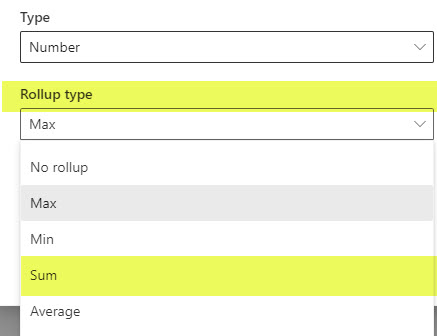
  5. In my case, I will choose to sum up all the subtask costs (roll-up). You may select other math functions as well (i.e., show the min or max, or an average of the task numbers).custom fields in Projects for the Web
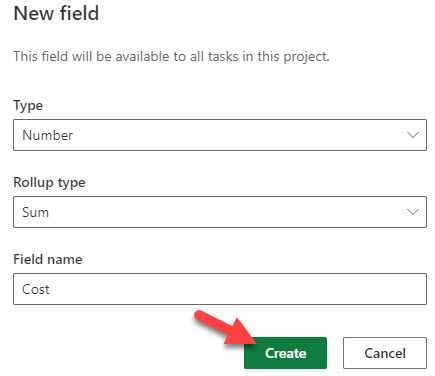
  6. Click Create to create the fieldcustom fields in Project for the Web
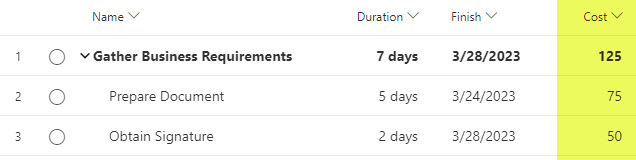
  7. The custom field will now appear in the schedule
  8. By the way, in case you chose roll-up, this is what it looks like. In my case, I chose Roll up Sum of all subtasks, so it totals up the numbers (costs in my case) for the parent task.

How to fill in information for the custom fields in Project for the Web

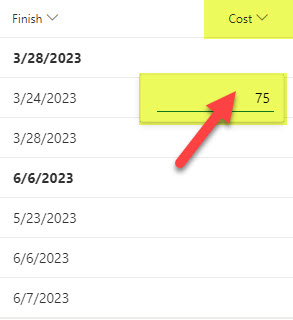
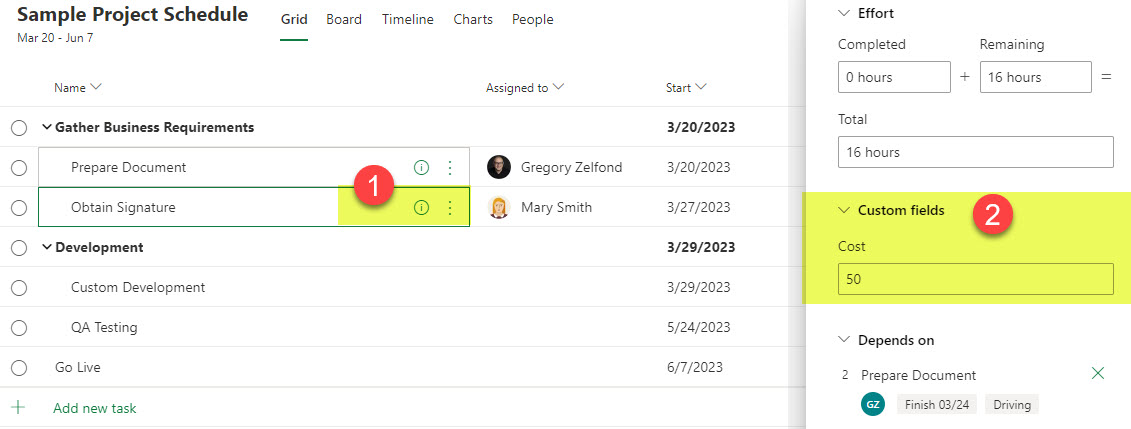
If you want to fill out the custom fields with specific task information, you do so by filling it out like any other field on a task. You have two options:

  • Option 1: Complete the information by filling out a field in the Grid mode (like you do in Excel)custom fields in Project for the Web
  • Option 2: Click in the Task Details Panel and complete the information therecustom fields in Project for the Web

The post How to create custom fields in Project for the Web appeared first on SharePoint Maven.

❌