Vue lecture

Il y a de nouveaux articles disponibles, cliquez pour rafraîchir la page.
✇Microsoft SharePoint Blog articles

Support update for SharePoint 2013 workflow in Microsoft 365

Microsoft strives to deliver utmost value to our customers through modern, optimized, secure solutions in this newly evolved world focused on digital transformation. As part of this evolution of Microsoft 365 solutions, we retired SharePoint 2010 workflow as of November 1, 2020. In continuation with this, we will be retiring SharePoint 2013 workflow and believe Microsoft 365 customers will be better served by modern workflow solutions.


SharePoint 2013 workflows will be retired in 2026


SharePoint 2013 workflow will be turned off for new tenants as of April 2, 2024 and will be removed from existing tenants and will be fully retired as of April 2, 2026. This applies to all environments including Government Clouds and Department of Defense. If you are using SharePoint 2013 workflow, we recommend migrating to Power Automate or other supported workflow orchestration solutions such as those from Preferred members of our Microsoft 365 Business Apps Partner Program. If your tenant is using a 3rd party workflow engine, you should also inquire if it has a dependency on Workflow 2013 and work through options to migrate to a future offering of the workflow engine. There will not be an option to extend SharePoint 2013 workflow beyond April 2, 2026.


Microsoft 365 Assessment tool


To understand if your organization is using SharePoint 2013 workflow or begin planning migration to Power Automate or other 3rd party orchestration tools, we recommend that customers run the Microsoft 365 Assessment tool to scan their tenants for SharePoint 2013 workflows usage. Using the Power BI Workflow Report generated by the scanner tool, you can:


  • Identify all SharePoint 2013 workflows in the tenant, per site collection and site
  • Evaluate the recency and volume of usage of SharePoint 2013 workflows
  • Lists, libraries and content types that use SharePoint 2013 workflows
  • Power Automate upgradability score indicating if the detected actions in the SharePoint 2013 workflows are upgradable to flows with Power Automate


Using the Workflow Report along with site information, tenant administrators can plan the migration of SharePoint 2013 workflows with minimal impact to the users.


Turn off creation of new SharePoint 2013 workflows on your tenant


We recommend Tenant administrators to turn off creation of new SharePoint 2013 workflows using the following PowerShell command. Administrators should do this once you have confirmed there is no business need to allow new workflows to be created and that other applications are not creating workflows. The assessment tool should give administrators the usage information to understand where and when workflows are being created.


Connect-SPOService -Url https://<tenant>-admin.sharepoint.com

Set-SPOTenant -StopNew2013Workflows $true


Existing SharePoint 2013 workflows will continue to function and be editable. You can use the same command to re-enable the creation of SharePoint 2013 workflows if required. However, Microsoft recommends choosing a modern workflow orchestration solution instead.


Use Power Automate for workflow orchestration


Since the release of SharePoint workflows, Microsoft has evolved workflow orchestration to not only encompass SharePoint, but all the productivity services you use with Microsoft 365 and extend to 3rd parties. Power Automate is the Microsoft solution for workflow orchestration.  It connects to all Microsoft 365 services and over 700 other services to let an enterprise build custom workflows. There are also many 3rd party solutions that can directly orchestrate SharePoint data via SharePoint’s open API platform.


Summary


We recognize that these changes may require additional work for some of our customers, and we’re ready to provide support during this transition. We are encouraged by our customer successes, and our ongoing investment in business process modernization in Microsoft 365 on the Power Platform. We’ll continue to share updates through our support articles at https://aka.ms/sp-workflows-2013support.


Thank you.


More information


Friendly link to this blog post: https://aka.ms/sp-workflows-2013update


Friendly link to the support article: https://aka.ms/sp-workflows-2013support


Friendly link to Migration Guidance: https://aka.ms/sp-workflows-guidance


✇Microsoft SharePoint Blog articles

Request external files into SharePoint document libraries

The magic of “requesting files” into Microsoft 365 started with OneDrive (Oct. 2019) providing users with a quick and secure way to request and collect files from anyone. And now we have extended the same capability for SharePoint – specifically requesting file into document libraries. Voila!


It is easy and safe. A file request can start from a link in your email signature (see below tip), a link in a chat, a hyperlink that is a part of your intake or onboarding processes with customers, clients, and vendors. For the recipient, it is a simple web interface to upload a file and send it. And for you, the file(s) arrive(s) without granting access to your SharePoint document libraries or other sites – just the ability to upload to a specific folder you manage and control.


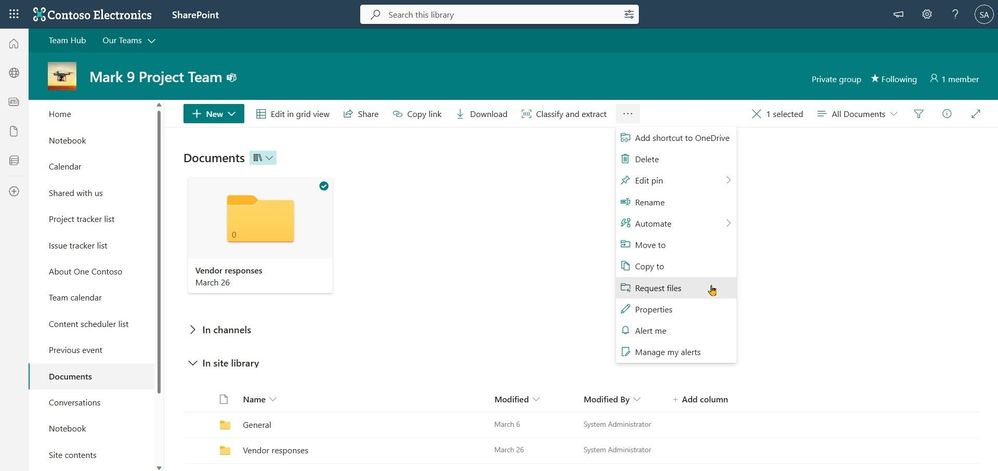
To start, you simply select a folder you want the recipient to place documents into and click Request Files. Fill in the name of the folder, and then type in the email address of the person you want to request files from. The recipient clicks on the link, picks her or his files, and uploads - only able to see the files they upload. The original requestor will get an email when new files are added - seeing the new files with the name of the person who uploaded them. Files requested - files done.


Look at it all in action:


Anyone with the file request link will be able to upload files without having to sign in, no Microsoft 365 account needed. Best of all, uploaders will only be able to upload files. They cannot view, edit, or even see who else may have uploaded to the request.


Once guest sharing is enabled, site owners and members can select a folder to request files into – after which you can send a unique link or email direct from the SharePoint user interface.Once guest sharing is enabled, site owners and members can select a folder to request files into – after which you can send a unique link or email direct from the SharePoint user interface.

There are multiple use cases where this feature can be extremely valuable – consider "Request for Proposal" (RFP) scenario where you need to collect bids, or a marketing professional accumulating quotes from various vendors for a campaign, a teacher collecting assignments, a manager reaching out for feedback from team members, collecting images and videos from an event, or a financial rep or recruiter gathering documents from their clients – just to name a few.


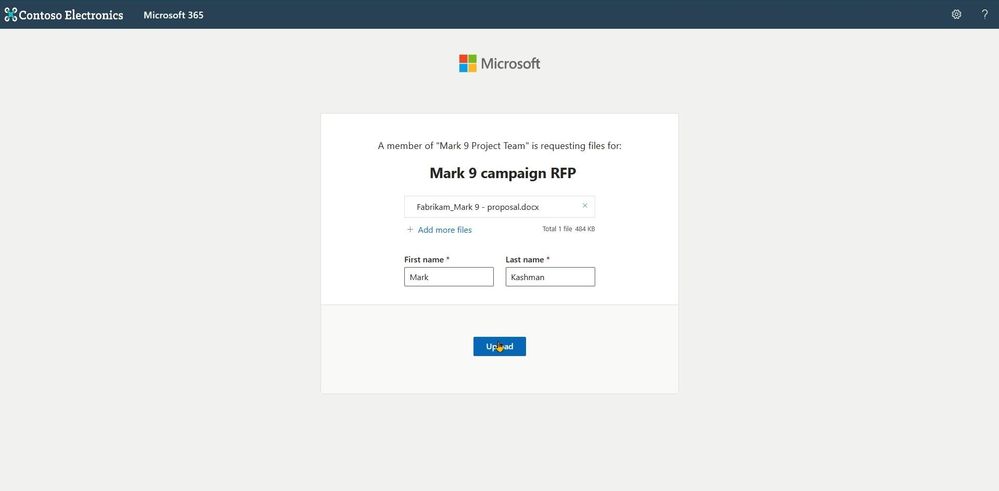
What a recipient sees when they click on a request files link – a web page with a simple browse and upload experience; no access or visibility to anything else in the sender's SharePoint environment.What a recipient sees when they click on a request files link – a web page with a simple browse and upload experience; no access or visibility to anything else in the sender's SharePoint environment.

Note | If Anyone links are enabled at the tenant level, request files are available. Admins can use the SharePoint Online Management Shell to disable or enable the Request Files feature on OneDrive or SharePoint sites. If there is no change in sharing capability for all sites, then the file request feature can be enabled.


Tip | Consider assigning a common folder for broader file requests. Once you set up the right folder within a SharePoint document library – use the request files link within your email signature with a simple phrase: “Send me a file” with the word ‘Send’ hyperlinked using your newly created request files link/URL.


Support.Microsoft.com | Learn more about requesting files to OneDrive and SharePoint, plus how admins can enable file requests.


Let us know what you think in the comments below. You can also reach us via Twitter (@SharePoint) and send future innovation requests to the SharePoint Feedback portal. We are here to expand content collaboration capabilities and refine your experience along the way.


Cheers and thanks, Irfan

✇Microsoft SharePoint Blog articles

Develop Applications that use Sites.Selected permissions for SPO sites.

Develop Applications that use Sites.Selected permissions for SPO sites. 


Microsoft Graph APIs have improved consistently over the years.


In 2021, one highly demanded feature, Application Only or granular access to individual site instead of whole tenant, was implemented, this scope is called “Sites.Selected”.


Initially, for this scope, there are two permission levels that can assigned to the Applications, “read” and “write.”


Some customers found there are management tasks cannot be executed with even “write” permission level. To address that, “fullcontrol” and “manage” permission level was added this year.


Here are the steps to implement App Only Sites.Selected permissions:


Step I, Register AAD Application in Azure Portal, https://portal.azure.com, and let’s call this Application “Target Application”.


Please see these articles for details:
Quickstart: Register an app in the Microsoft identity platform - Microsoft Entra | Microsoft Learn
Tutorial: Register an app with Azure Active Directory (Microsoft Dataverse) - Power Apps | Microsoft...

Once you registered the Target Application, copy below information to a text file:
Display name: Contoso Time Manager App
Client Id: d806f38b-a107****-1ec8e90c8ccc
Client Secret: XZW8Q*****855JDEw1cxP
Directory(tenant) ID: 31********95c59c1b


Step II, Give Target Application the permission for Graph API and/or SharePoint API in Azure Portal depending on whether you will access the site resource with
Graph API, like, 
https://graph.microsoft.com/v1.0/...
or SharePoint Rest API, like, https://contoso.sharepoint.com/sites/demo/_api/...
 

If you need to use Graph API to access SharePoint, you give Graph API permissions.

SPDev_Support_0-1680913069759.png


If you need to use SharePoint APIs, for example, SPO Rest API, SPO CSOM, you give SharePoint API permissions.

SPDev_Support_1-1680913069765.png


Step III, Use Graph API endpoint listed in this article, https://learn.microsoft.com/en-us/graph/api/site-post-permissions?view=graph-rest-1.0&tabs=http , to assign Target Application the permission to specific SharePoint Online site.


POST https://graph.microsoft.com/v1.0/sites/{sitesId}/permissions Content-Type: application/json{ "roles": ["write"], "grantedToIdentities": [{ "application": { "id": "89ea5c94-7736-4e25-95ad-3fa95f62b66e", //Target Application’s Client Id "displayName": "Contoso Time Manager App" //Target Application’s Display name } }] }


The import thing is, to do that, you need to have another Application which has Sites.FullControl.All permission for Graph API, then you get an App Only AccessToken with this Application’s identity and you can make above call with Authorization Header, the value is “Bearer {tokenvalue}”.


Below is Fiddler Trace of the Graph API call to assign permission for the target Application:

SPDev_Support_2-1680913069776.png


POST https://graph.microsoft.com/v1.0/sites/fb1e20f2-56fc-4eb7-ae1d-a97804d224e2/permissions HTTP/1.1 Authorization: Bearer eyJ0eXAiOiJKV8CJY2R……………qtlW1WoBXu3fdR8G7R- Accept: application/json User-Agent: NONISV|SharePointPnP|PnPCore/1.11.2.0 (Microsoft Windows NT 10.0.22621.0) Content-Type: application/json Host: graph.microsoft.com Content-Length: 132 {"roles":["write"],"grantedToIdentities":[{"application":{"id":"ea5f05ef-2a5c-418b-b679-0380b3e83fd3","displayName":"aadAppOnly"}}]}


Now, your Target Application has been given the permission to the specific site successfully!


If you have chosen Graph API Sites.Selected Application permission, you can use Graph API to access the site.


If you have chosen SharePoint Sites.Selected Application permission, you can use SharePoint Rest API or CSOM to access the site.

NOTE, For SharePoint APIs, you cannot use just client secret to do the authentication, you have to setup certificate to gain Access Token.


A. Graph API Test Run:


To Test the access to specific site, you can use following sample PowerShell script to get App Only Access Token and retrieve the site with Graph API, see reference https://learn.microsoft.com/en-us/graph/api/site-get?view=graph-rest-1.0&tabs=http


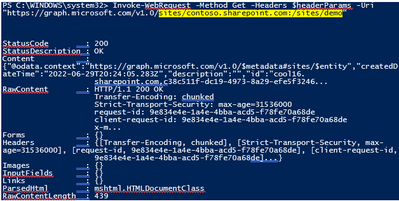
#AAD AppOnly for Graph API $tenantId="{tenantId}" $aadClientId = "{clientId}" $aadClientSecret = "{clientSecret}" $scopes = "https://graph.microsoft.com/.default" $loginURL = "https://login.microsoftonline.com/$tenantId/oauth2/v2.0/token" $body = @{grant_type="client_credentials";client_id=$aadClientId;client_secret=$aadClientSecret;scope=$scopes} $Token = Invoke-RestMethod -Method Post -Uri $loginURL -Body $body $Token.access_token #expires after one hour $headerParams = @{'Authorization'="$($Token.token_type) $($Token.access_token)"} $headerParams #Graph API call to get site Invoke-WebRequest -Method Get -Headers $headerParams -Uri "https://graph.microsoft.com/v1.0/sites/contoso.sharepoint.com:/sites/demo"


Response:


SPDev_Support_3-1680913069781.png


If you try to access another site that permission has not been given to, you will get error (403) Forbidden.:

SPDev_Support_4-1680913069784.png


B. SharePoint API Access:


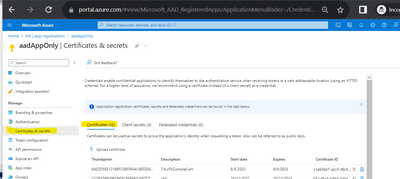
To make App only SPO REST and CSOM calls, you will need to generate certificates and upload the public key (.cer file) to Azure - App Registration – App – Certificates & secrets:


SPDev_Support_5-1680913069787.png


The simplest test script using PnP commands: ReferenceConnect-PnPOnline | PnP PowerShell

$aadClientId = "*" $SiteURL = https://contoso.sharepoint.com/sites/demo $secure = ConvertTo-SecureString "***" -AsPlainText –Force Connect-PnPOnline -Url $SiteURL -CertificatePath c:\..\test.pfx -Tenant contoso.onmicrosoft.com -ClientId $aadClientId -CertificatePassword $Secure Get-PnPSite

In other programming languages, you can use MSAL library to get the App Only Access Token with certificate through client credential flow, then you can attach that Token for the web requests, see reference: https://learn.microsoft.com/en-us/azure/active-directory/develop/sample-v2-code.


✇Microsoft SharePoint Blog articles

SharePoint Roadmap Pitstop: March 2023

March 2023 brought both new updates and big announcements – spanning the value of AI, becoming acquainted with a zippier Teams, and we got even Loop’ier. Keep scrolling to listed to the podcast episode and learn more about each feature below.


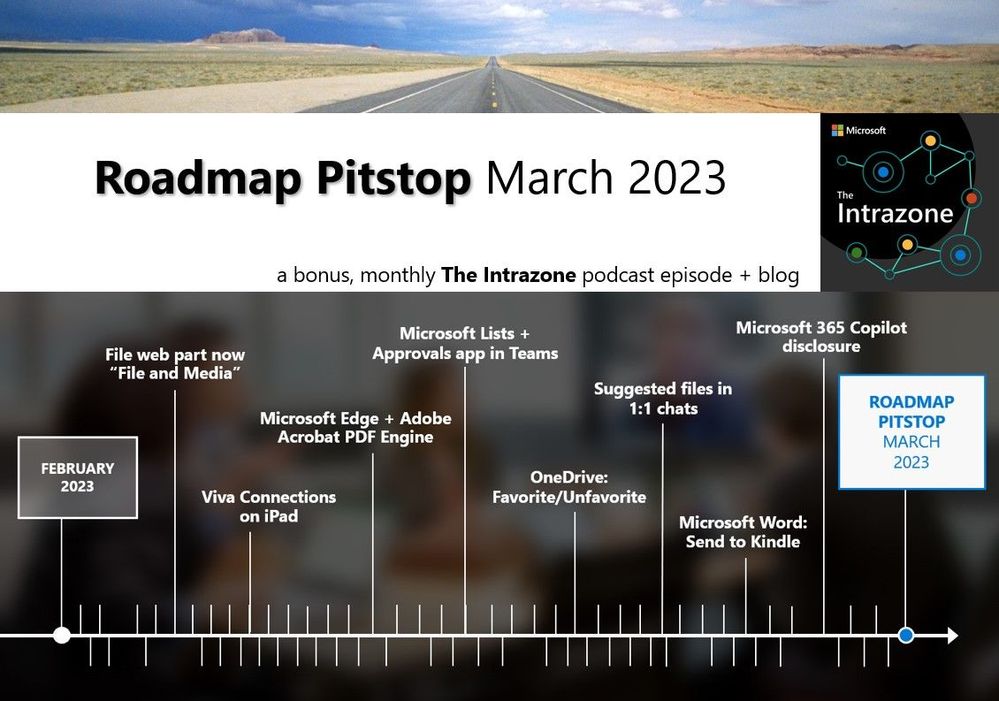
In this episode, we cover the following March updates: File web part now: “File and Media”, Viva Connections on iPad, Microsoft Edge + Adobe Acrobat PDF Engine, Microsoft Lists + Approvals app in Teams, OneDrive: Favorite/Unfavorite, Suggested files in 1:1 chat, Microsoft Word: Send to Kindle, and more.


We have two guests on the podcast: 1) Matt McKenzie, Director of Microsoft 365 product marketing, shares insights about the upcoming Microsoft 365 Conference in Vegas (May 2-3), and 2) Sudha Narayanan explains how Microsoft Lists supports approval scenarios natively within info tracking incorporating the Approvals app in Teams. Plus, our related tech segment highlights three big disclosures: 1) Microsoft 365 Copilot, 2) the Loop app (Public Preview), and the New Teams app (Public Preview) #Speed.


The Intrazone – SharePoint roadmap pitstop: March 2023

The Intrazone guests, left-to-right: Matt McKenzie (Director of product marketing – Microsoft) and Sudha Narayanan (Senior product manager – Microsoft).The Intrazone guests, left-to-right: Matt McKenzie (Director of product marketing – Microsoft) and Sudha Narayanan (Senior product manager – Microsoft).

All features listed below began rolling out to Targeted Release customers in Microsoft 365 as of March 2023 (possibly early April 2023).


Inform and engage with dynamic employee experiences

Build your intelligent intranet on SharePoint in Microsoft 365 and get the benefits of investing in business outcomes – reducing IT and development costs, increasing business speed and agility, and up-leveling the dynamic, personalized, and welcoming nature of your intranet.


Renaming File viewer webpart to 'File and Media'

At first glance, this is a minor update and I've seen a lot of positive feedback on the clarity a simple name change/update brings. Among the set of SharePoint web parts – this brings clarity. We are renaming the Files webpart to File and Media to make this webpart inclusive of more file types like videos.


When adding a new web part to a SharePoint page, you'll now see the File web part reads, "File and Media." Note the longer description appears on-hover.When adding a new web part to a SharePoint page, you'll now see the File web part reads, "File and Media." Note the longer description appears on-hover.

Users will see the new name for the webpart. Functionally, nothing changes w.r.t. the capabilities of the webpart. This is a step to educate everyone about the capabilities of the webpart beyond Word, Excel, PowerPoint, PDF and extended to videos as well - aka Stream (on SharePoint).


Note: Image files are not supported in the File and Media web part. However, if you want to insert an image on your page, you can use the use the Image web part.


Microsoft Viva Connections: Available on iPad

Meet your people where they work. And if they work on an iPad, great - you can connect via Viva Connections 'on their iPad.' With the launch of tablet support, coupled with the new desktop experience of Viva Connections and existing mobile capabilities, Viva Connections has a quick time to set up, unified UI and experience across any device. Now, whether employees are on their mobile device, tablet, or desktop, the same critical news and information from the Dashboard, Feed, or Resources, are easily discoverable and actionable.


Viva Connections, the gateway to a modern employee experience, is accessible on iPads.Viva Connections, the gateway to a modern employee experience, is accessible on iPads.

If you have deployed Viva connections in your organization, the change will impact all iPad users. Before rollout begins, iPad users will see a "Not available for tablet", however, once we begin rollout, iPad users will see the full experience for news, dashboard items, layout, functionality and more.


Note: Android users can access Viva Connections on their device starting early April 2023. This, too, is a boost to ISVs and Line of business developers of Viva Cards and Teams apps, because users will start accessing Viva Connections on every device they have.


Microsoft Edge to replace built-in PDF engine with Adobe Acrobat PDF engine

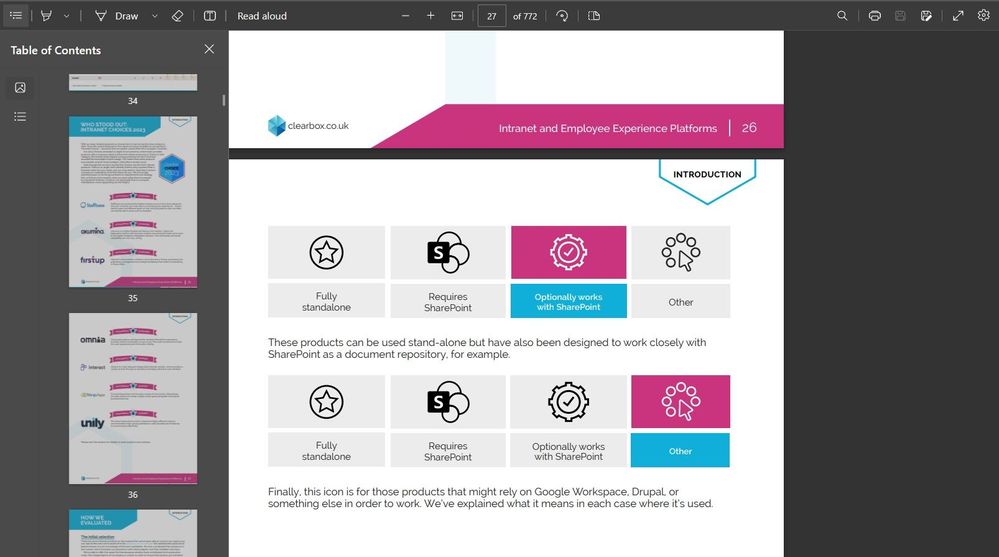
As part of the Adobe and Microsoft collaboration to re-envision the future workplace and digital experiences, we are natively embedding the Adobe Acrobat PDF engine into the Microsoft Edge built-in PDF reader.


With the use of the Adobe Acrobat PDF engine, users will have a unique PDF experience that includes higher fidelity for more accurate colors and graphics, improved performance, strong security for PDF handling, and greater accessibility – including better text selection and read-aloud narration. There will be no loss of functionality with the use of the Adobe Acrobat PDF engine and these capabilities will continue to be free of cost.


Viewing a PDF with the new Adobe Acrobat PDF engine in Microsoft Edge.Viewing a PDF with the new Adobe Acrobat PDF engine in Microsoft Edge.


New List Templates with Approvals

Whether you need to approve a purchase order, a vacation request, or a blog post, Microsoft Approvals in Microsoft Lists can help you streamline the process and collaborate with your team.


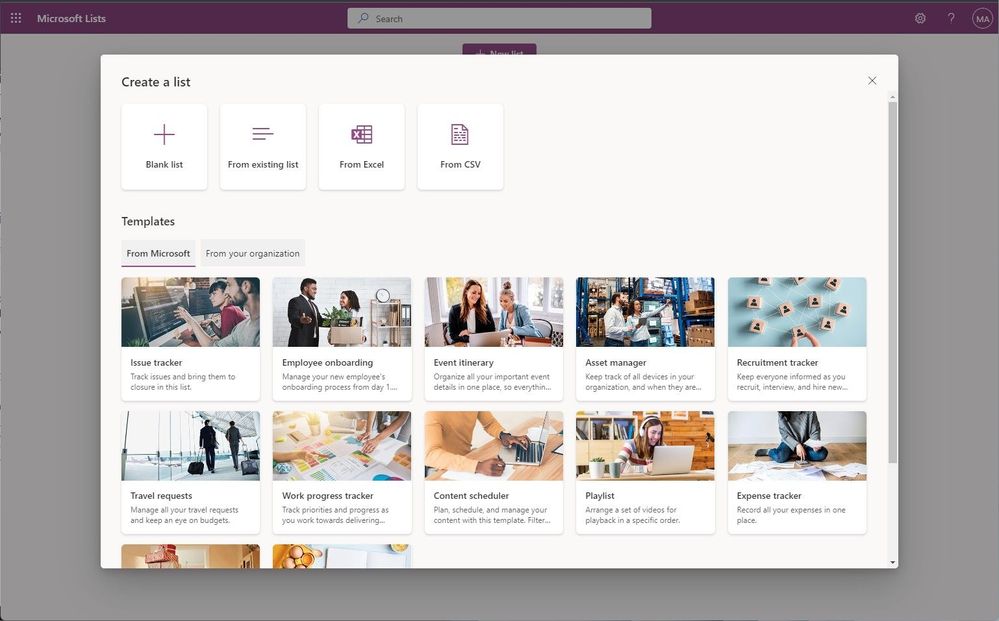
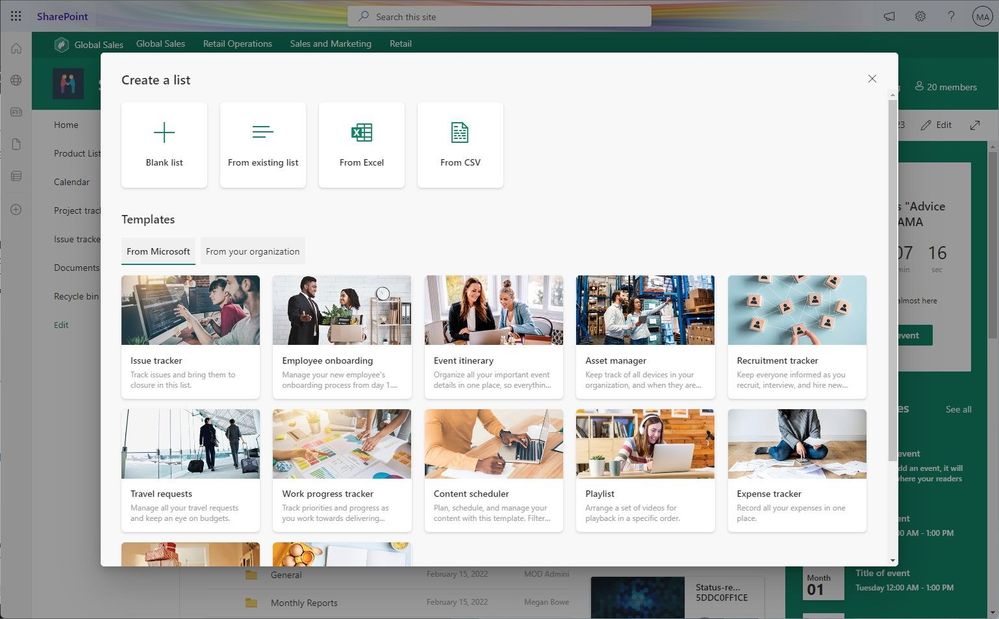
We are introducing two new list templates that embed the Approvals app (service) into the Lists experience. With this change, two Microsoft Lists templates appear – specifically Travel Requests with approvals and Content Scheduler with approvals; both bring integration with the Approvals app in Microsoft Teams. You'll see the new list templates within the Create list experience.


Kicking off an approval request from within Microsoft Lists.Kicking off an approval request from within Microsoft Lists.

With these two templates, you can create a list item and submit it for approval by creating an approval request and specifying the approver, the request will appear in the Approvals app in Teams or can be approved directly within the list. Once approved, the list item status is updated.


Note: This is an optional feature that users can leverage by using one of the two new list templates. If they opt out of the Approvals integration when creating the list, the value of each template carries through - minus the added approval functionality.


Teamwork updates across SharePoint team sites, OneDrive, and Microsoft Teams

Microsoft 365 is designed to be a universal toolkit for teamwork – to give you the right tools for the right task, along with common services to help you seamlessly work across applications. SharePoint is the intelligent content service that powers teamwork – to better collaborate on proposals, projects, and campaigns throughout your organization – with integration across Microsoft Teams, OneDrive, Yammer, Stream, Planner and much more.


OneDrive Web: Favorite/Unfavorite Files

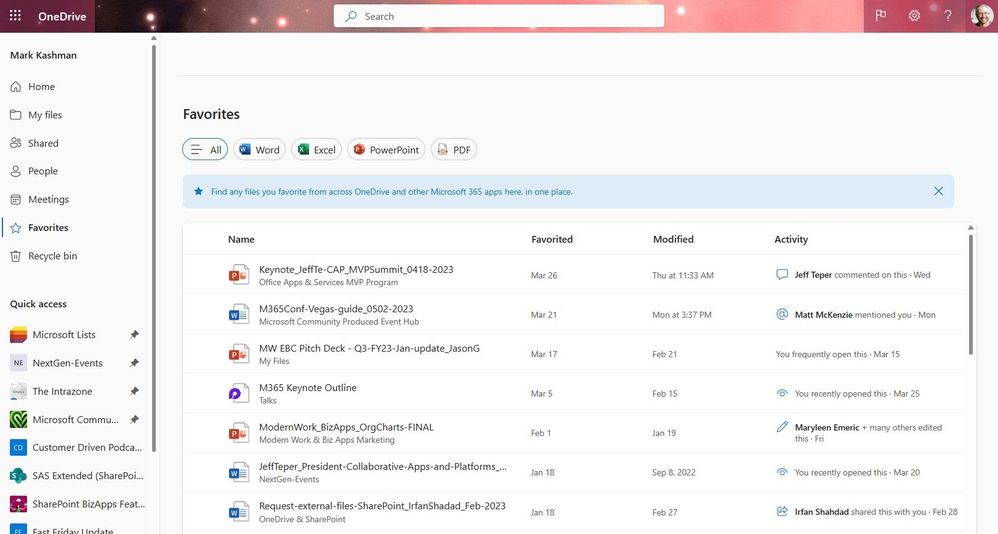
Adding files to Favorites is a great way to mark content of personal importance and can help you get to the content you're looking for more easily. We have made sure that the favorites experience is consistent across Microsoft 365 apps by building on top of the existing pinning and favorites experience. This release will include support for favoriting files from OneDrive web and SharePoint document libraries.


Find any files you favorite from across OneDrive and other Microsoft 365 apps here, in one place.Find any files you favorite from across OneDrive and other Microsoft 365 apps here, in one place.

Once you favorite a file, you can easily access them from the Favorites pivot in the left nav. Users can Favorite/Unfavorite files using the Favorite/Unfavorite command in the context menu, command bar, or by simply using the star icon which will show up on hover.


Suggested files in 1:1 Chats

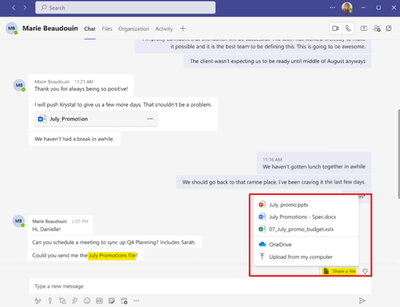
As an extension of suggested replies in 1:1 chats, you can now save time when you need to send a file in a chat by tapping on a "Share file" suggestion. This is another example of where you save time with AI-based file suggestions in chat, especially when the service detects an intent to share. Now, people will be able to respond to their chat message AND attach a file in one click.


Save time with AI based file suggestions in Teams chat. When the service detects the intent to share, respond and attach a file in one click.Save time with AI based file suggestions in Teams chat. When the service detects the intent to share, respond and attach a file in one click.

NOTE: If you wish to disable this feature in your tenant, please disable the Suggested Replies setting that is found in Messaging Policies. Users also have a setting within the app so they can disable the feature.


Send to Kindle

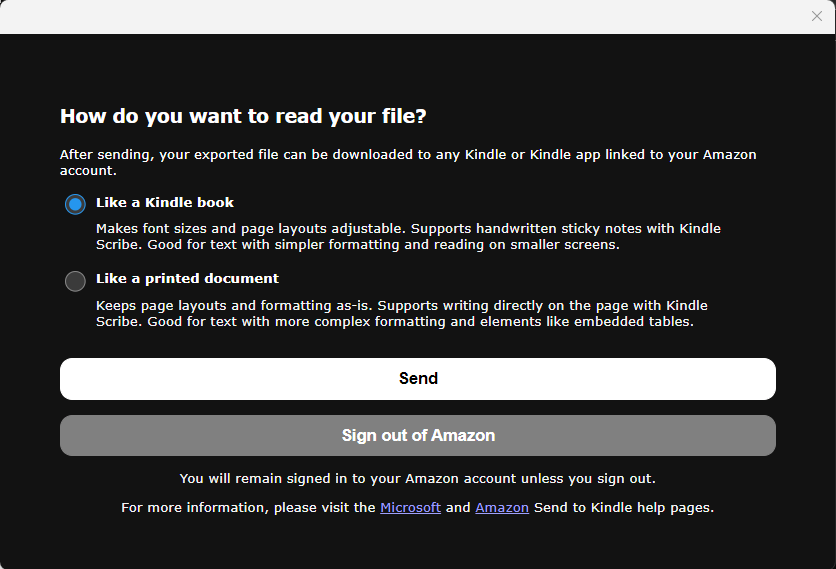
Review your documents alongside your next read. We will be adding the ability for users to send documents from Microsoft Word (Win32, Web, Mac) to the Kindle e-reader device or Kindle app.


I tested this out to use my Kindle to review an upcoming Message Center post from a colleague. In Word, go to the File > Export > Send documents to Kindle. I signed in with my Amazon.com account and off it went. And voila: appeared on my Kindle within my Library ready to read and review.


The prompt you see in Microsoft Word when you choose to export to Kindle, aka - Send to Kindle.The prompt you see in Microsoft Word when you choose to export to Kindle, aka - Send to Kindle.

The Word document, "MC post" by my peer, Bert Jansen, appears on my Kindle Oasis reader device.The Word document, "MC post" by my peer, Bert Jansen, appears on my Kindle Oasis reader device.


Related technology

March 16, 2023 | “Introducing Microsoft 365 Copilot – your copilot for work” - Learn from Sumit Chauhan – CVP-Office Product Group – on how Microsoft 365 Copilot seamlessly integrates into the apps you use every day to turn your words into the most powerful productivity tool on the planet.


March 22, 2023 | “New Microsoft Loop app is built for modern co-creation” - In this show, Derek Liddell, an engineering leader from the Loop team at Microsoft presents the end-to-end experiences with the new Microsoft Loop app, available both on the web and in mobile.


March 27, 2023 | “Introducing the new Microsoft Teams, now in preview” - In this episode, Derek Snyder speaks with Jeff Teper, President of Collaborative Apps & Platforms about what this means for the future.


April 2023 teasers

Psst, still here? Still scrolling the page looking for more roadmap goodness? If so, here is a few teasers of what’s to come to production next month…


  • Teaser #1: Project for the Web Integration in Viva Goals [Roadmap ID: 117462
  • Teaser #2: People in Viva [Learn more]


… shhh, tell everyone.


Helpful, ongoing change management resources


Thanks for tuning in and/or reading this episode/blog of the Intrazone Roadmap Pitstop – March 2023. We are open to your feedback in comments below to hear how both the Roadmap Pitstop podcast episodes and blogs can be improved over time.


Engage with us. Ask those questions that haunt you. Push us where you want and need to get the best information and insights. We are here to put both our and your best change management foot forward.


Stay safe out there on the road’map ahead. And thanks for listening and reading.


Thanks for your time,

Mark Kashman – senior product manager (SharePoint/Lists) | Microsoft)


The Intrazone Roadmap Pitstop - March 2023 graphic showing some of the highlighted release features.The Intrazone Roadmap Pitstop - March 2023 graphic showing some of the highlighted release features.

✇Microsoft SharePoint Blog articles

The Service That SharePoint Built – a cumulative evolution story

Tech enthusiasts, the wait is over. “Goodnight Subsites” paved the way to have fun while learning – parodical tales tested through time – since March 27th, 2001.


And now, in 2023, a new tale emerges – one that is sure to rise to the top of the Tech PDF charts. The Service That SharePoint Built is a must read for everyone – a Spring gift to anyone asking, “How does it work?” or “What platform does this or that run on?” or “Where is that stored, really?”


Imagine, two IT Pros floating in the sky looking down at a Microsoft 365 data center. The first IT Pro says, “Wait, it’s all SharePoint?” And the second astronaut pointing a laser pointer at and endless stream of apps and services built on the backbone of this industry-leading content service says, “Always has been.”


This is not your typical technical PDF. It is a tech parody intended to bring the giggles while learning a thing or two about the glue that binds – that many Microsoft 365 applications are powered by SharePoint: Loop, OneDrive, Sites, Designer, Syntex, Office, Teams, Viva, Stream, Whiteboard, Search, Yammer, and Lists. Read and share the full story below:


 The Service That SharePoint Built by Mark Kashman [Author], Susan Hanley [Author], and Rebecca Jackson [Illustrator]


Visit and share aka.ms/Story/BuiltBySharePoint to experience this wonderful cumulative tale of a service that is both platform and app. 


#BuiltBySharePoint #SharePoint @SusanHanley @MKashman @RebeccaJLJ.


Learn more: “The role of SharePoint in Microsoft 365”, the SharePoint community blog: aka.ms/SharePoint/blog, and Microsoft Viva: aka.ms/Viva.


Full, written text of The Service That SharePoint Built: [Download]


This is the service that SharePoint built.


This is the metadata – powered by Syntex

That is stored in the service that SharePoint built.


This is the file

That was tagged with the metadata – powered by Syntex

That is stored in the service that SharePoint built.


This is the library

That syncs the file

That was tagged with the metadata – powered by Syntex

That is stored in the service that SharePoint built.


This is the site

That contains the library

That syncs the file

That was tagged with the metadata – powered by Syntex

That is stored in the service that SharePoint built.


This is the hub

That associates the site

That contains the library

That syncs the file

That was tagged with the metadata – powered by Syntex

That is stored in the service that SharePoint built.


This is Search

That finds the hub

That associates the site

That contains the library

That syncs the file

That was tagged with metadata – powered by Syntex

That is stored in the service that SharePoint built.


This is Viva Topics

That adds relevancy to Search

That finds the hub

That associates the site

That contains the library

That syncs the file

That was tagged with metadata – powered by Syntex

That is stored in the service that SharePoint built.


This is Microsoft Teams

That shows knowledge from Viva Topics

That adds relevancy to Search

That finds the hub

That associates the site

That contains the library

That syncs the file

That was tagged with metadata – powered by Syntex

That is stored in the service that SharePoint built.


This is Viva Connections

That brings your intranet to Teams

That shows knowledge from Viva Topics

That adds relevancy to Search

That finds the hub

That associates the site

That contains the library

That syncs the file

That was tagged with metadata – powered by Syntex

That is stored in the service that SharePoint built.


This is Microsoft 365

That combines apps and services in the cloud

That brings your intranet to Connections

That shows knowledge from Topics

That adds relevancy to Search

That finds the hub

That associates the site

That contains the library

That syncs the file

That was tagged with the metadata – powered by Syntex

That is stored in the service that SharePoint built.


[End]

_______________________


A tech parody inspired by the 1755 nursery rhyme, “The House That Jack Built.


The Service That SharePoint Built (PDF (c) March 2023), by Mark Kashman (Author), Susan Hanley (Author), and Rebecca Jackson (Illustrator). Licensed under CC BY-ND 4.0.


Happy Spring, cheers and enjoy, @Mark Kashman@Susan Hanley, and @RebeccaJLJ 

✇Microsoft SharePoint Blog articles

Microsoft 365 Conference event guide to keynotes, AMA, sessions, and more

The Microsoft 365 Conference (May 2-4, 2023) offers numerous in-person Microsoft keynotes with product leaders – left-to-right: Jeff Teper, Kirk Koenigsbauer, Rajesh Jha, Charles Lamanna, Karuana Gatimu, and Dan Holme.The Microsoft 365 Conference (May 2-4, 2023) offers numerous in-person Microsoft keynotes with product leaders – left-to-right: Jeff Teper, Kirk Koenigsbauer, Rajesh Jha, Charles Lamanna, Karuana Gatimu, and Dan Holme.

  • WhatMicrosoft 365 Conference to learn more
  • When & whereMay 2-4, 2023 | In-person event – Las Vegas, Nevada – MGM Grand
  • Content4 Microsoft keynotes || 150+ overall sessions – 60+ Microsoft-led | 18 full-day workshops (pre-day and post)
  • Presenters: 150+ speakers | 50+ Microsoft alongside MVPs and community members
  • Twitter & hashtag@M365CONF | #M365CONF
  • Cost$1,849 - full conference (Includes 3 continental breakfasts, 3 lunches, a T-shirt, and backpack. Additional costs for full-day workshops.)


It's a big year for Microsoft already, and we've got much more coming. I would foreshadow you will see and learn about the new ways AI is transforming work. We're going to run the gamut of Microsoft 365 and unique D&I content. Of course, we'll spend time talking about Teams, SharePoint, the Office apps, newer modules like Viva and Syntex, connections with the Power Platform, content on governance, adoption, and development. The Microsoft 365 Conference is a wonderful place to get together with the best community in tech – to see old friends, meet new friends, compare notes on best practices, go to the amazing Expo Hall and learn from our partners and see their latest solutions.
– Jeff Teper, President – Collaborative Apps and Platforms – Microsoft


Join Microsoft and community experts in-person, in one place. The Microsoft 365 Conference returns to Las Vegas, NV, May 2-4, 2023 – with two pre-event and one post-event workshop days. It’s a wonderful event dedicated to AI, SharePoint, Teams, Viva, Syntex, Power Platform, and related Microsoft 365 apps and services. Our new AI track will focus on Copilot across Microsoft 365, Power Platform, Dynamics 365, and more.


You’ll hear the latest news and roadmap from top industry experts, filled with real-world solutions across keynotes, sessions, and pre/post event deep-dive workshops to build your expertise - presented by Microsoft product team members, Microsoft MVPs, and community experts. We hope you join in to learn, share, and engage –including evening gatherings, the attendee party, and Microsoft will have a dedicated, fully-staffed booth within the Expo Hall.


Hear pre-conference insights from Matt McKenzie - Director of Microsoft 365 product marketing on the latest episode The Intrazone podcast:


Microsoft keynotes, sessions, and workshops: SharePoint, OneDrive, Teams, Syntex, Viva, Power Platform, D&I, and related technology


Microsoft keynotes and AMA (Ask Microsoft Anything)

Hear from Microsoft leadership revealing the latest innovations shaping the flexible, innovative, and secure business environments of the future. [all times listed in PT]

  • New Era of Work” with Jeff Teper (President of Collaboration Apps and Platforms), Rajesh Jah (Executive Vice President, Microsoft Experiences + Devices), Sumi Singh (Corporate President, Teams Engineering), Sumit Chauhan (Corporate Vice President, Office Product Group), Jason Moore (Vice President, OneDrive and Microsoft Lists), Denise Trabona (Partner Design Manager, OneDrive and SharePoint), and Sesha Mani (Principal GPM, Microsoft 365 Security and Compliance) | Tuesday, May 2nd, 8:00am – 9:30am [MSKEY01]
  • Power Platform in the Age of AI - Copilot and more” with Charles Lamanna – CVP, Business Applications & Platform and Vesa Juvonen (Principal Product Manager, OneDrive and SharePoint) | Wednesday, May 3rd, 8:00am – 9:00am [MSKEY02]
  • Viva: The Platform for Productivity and Engagement” with Kirk Koenigsbauer - Chief Operating Officer & Corporate Vice President, Microsoft Experiences + Devices, Sharat Shroff – Partner Group PM (Viva Goals), Ketih Boyd – Senior Director of Business Programs, Naomi Moneypenny – Principal Group Product Manager (Viva Topics and Amplify), Dan Holme – Principal Group Product Manager (Viva Engage), and Quentin Mackey – Principal Group Program Manager (Viva Insights and Glint) | Wednesday, May 3rd, 9:15am – 10:15am [MSKEY03]
  • Empowering Real-World Results” with Karuana Gatimu – Principal PM Manager, Customer Advocacy Group (Microsoft Teams) and Dan Holme – Principal Product Manager Lead (Viva Engage) | Thursday, April 7th, 8:00am – 9:00am [MSKEY04]
  • Microsoft AMA” with Jeff Teper, Sumi Singh, Sumit Chauhan, Charles Lamanna, Adam Harmetz, Cathy Dew, Vesa Juvonen, Heather Newman, Dan Holme, Jason Moore, and moore | Wednesday, May 3rd, 4:15pm – 5:15pm [MSAMA]

:cool:Register today! [Note MSCUST150 discount code]


Microsoft-led breakout sessions [Each 60 minutes]

Take the opportunity to select the sessions best suited for your role and interests. All breakouts are packed with news, demos, customer stories, best practices, and insights into product and solution strategy.


You can review all sessions and the unique set of Microsoft-led sessions – all of which are listed below in this guide. We will keep everything up to date as there are still a few embargoed sessions :stareyes::


Copilot and AI [sessions]


SharePoint, OneDrive, Lists, Stream, Project, Exchange, and related technology [sessions]


Microsoft Syntex [sessions]


Microsoft Viva [sessions]


:cool:Register today! [Note MSCUST150 discount code]


Microsoft Teams track [sessions]


Power Platform track [sessions]


Diversity & Inclusion [events & sessions]


Microsoft 365 administration [sessions]


Developer [sessions]


:cool:Register today! [Note MSCUST150 discount code]


Full-day, Microsoft-led developer workshops [all times listed in PT]
The learning and skilling continues, on your own time. Take a deep dive into technology to help refine your practices and bring learnings back to your team and organization to extend the application and use of your Microsoft 365 investment. All Microsoft 365 Conference workshops either take place pre-event on Sunday (April.30) or Monday (May.1) or post-event on Friday (May.5).

Learn more

Visit M365Conf.com and follow the action on @Twitter: @M365CONF@SharePoint@OneDrive, @MSPowerPlat, and @MicrosoftTeams.


Microsoft 365 Conference – covering Microsoft Viva, Teams, SharePoint, Power Platform, and more – May 2-4, 2023, Las Vegas, NV, MGM Grand Hotel – Sponsored by Microsoft.Microsoft 365 Conference – covering Microsoft Viva, Teams, SharePoint, Power Platform, and more – May 2-4, 2023, Las Vegas, NV, MGM Grand Hotel – Sponsored by Microsoft.

I hope you will join us in Las Vegas for what will be a fantastic week! I am looking forward to the action alongside the community, MVPs, and Microsoft product members from Teams, Office, SharePoint, OneDrive, Loop, Syntex, Viva, Power Platform, Lists, Project, Exchange, and more.  


Remember, Microsoft customers can use the discount code MSCUST150 for $150 off your conference registration. 


Cheers,

Mark Kashman, senior product manager – Microsoft

✇Microsoft SharePoint Blog articles

What’s Next for SharePoint

The SharePoint product team has been working with customers, partners, developers, community members, and stakeholders across Microsoft to answer the question: What’s next?  


What’s next for the world’s most flexible content platform? 


What’s next for SharePoint portals & Microsoft Viva that will enable customers to engage and align their workforce in new ways?


How will SharePoint evolve in the era of AI?


We are excited to unveil the next step of SharePoint’s journey at the Microsoft 365 Conference in Las Vegas, NV in early MayJoin us for an in-person celebration of SharePoint’s past, present, and future – and build new connections with a full return of a vibrant in-person community event.


View all currently published Microsoft-led sessions - with more coming soon.   


In many ways, the upcoming event reminds me of the ‘Future of SharePoint’ event in 2016. This event defined the product visuals we know today as modern SharePoint, introduced the SharePoint Framework as a durable way of extending SharePoint and Microsoft 365 UX, integrated SharePoint and the Power Platform, and ushered in multiple years of product delivery and community-fueled inspiration as SharePoint matured and new products like Microsoft Teams, Microsoft Search, Microsoft Viva, and Microsoft Syntex emerged – all powered by the flexible SharePoint platform.   And most importantly, it clarified a commitment that remains true to this day: Our product making is rooted in the deep understanding of our customers’ journey and how we can partner with them to modernize and bring forward their existing, multi-decade bet on SharePoint.  


The SharePoint product team catching up with the community at The Future of SharePoint event in 2016.The SharePoint product team catching up with the community at The Future of SharePoint event in 2016.

Our ambitions for the next era of SharePoint are as bold as they were in 2016. As product makers, we are motivated first and foremost by creators – the millions of site owners, news authors, page creators, and portal administrators who inspire us with their passion and creativity to create, brand, publish & share stellar intranet content – across sites, pages, news, images, videos, and so much more.   I don’t want to spoil any of the news you’ll hear in May, but you’ll be surprised by what SharePoint enables as you create and how it quickly it empowers you to achieve more.


I love that we will unveil and celebrate this moment in SharePoint’s history with our community. SharePoint has long had the best community in tech, and I’m thrilled that so many key product leaders will be present in Vegas this May. Leaders like Melissa Torres, who we refer to as the “Mother of Hubs” (Game of Thrones was big when SharePoint hub sites was released). And Cathy Dew, who founded ‘Women in SharePoint’ 15 years ago and will be on site as the expert in portal building.  Vesa Juvonen will share the stage with our friends from Power Platform to continue demonstrating the power of the SharePoint Framework and the developer community who have innovated on our platform since the beginning.  Denise Trabona, the design leader for SharePoint, will unveil our vision in Jeff Teper’s opening keynote. Naomi Moneypenny, an industry leader in AI and founder of products like Viva Topics and Microsoft Syntex, will be giving several talks. I’m looking forward to speaking on Microsoft Viva, AI, and how we can all thrive in an inclusive and diverse tech community. Dozens more designers, engineers, product managers, researchers, and customer success experts will be on site – ready to share, ready to connect, ready to listen.


Every new employee on the SharePoint product team learns about the power of our community. It gives us purpose when we enable the success of so many who bet their careers on SharePoint and Microsoft 365. In my career, I’ve come to believe that a key element of this community ethos is the in-person tech conference.


We can’t wait for you to join us! We’ll be there May 2-4 in Las Vegas for the Microsoft 365 Conference - you’ll learn best practices you can apply to your current projects, get a peek at the future of SharePoint at a critical moment in its product history, and make connections with the best community in tech. And we are all ears to your feedback and your own lessons learned. What you create dictates what we create.


Of course, the conference will also cover the latest on Power Platform, Microsoft Teams, Microsoft Syntex, and Microsoft Viva and much more.   There is an entire track for SharePoint developers covering the SharePoint Framework and Viva extensibility.   There are so many reasons to attend.


Yes, in-person tech conferences are back, and the SharePoint team will be out there in full force!

See you there, Adam 


SharePoint can't wait to see you in Las Vegas and to share the news.SharePoint can't wait to see you in Las Vegas and to share the news.

✇Microsoft SharePoint Blog articles

The SharePoint storage platform supports the Loop app - Components, pages, and workspaces

Today marks the start of the Microsoft Loop app journey. The Loop app is now available in public preview! Loop is about people - people who want to create together with ease, no matter where they are or what tools they use. It’s a transformative co-creation experience that brings together teams, content, and tasks across your tools and devices. Loop helps you organize everything you need for your project into a single workspace and even does the searching for you to kick it off. 


SharePoint provides the underlying storage and collaboration technology for Loop. We want to take a moment and share more about what happens under the hood and how we work with partner teams here at Microsoft. The outcome is to deliver a modern co-creation experience and provide a solid storage foundation for the future.


Microsoft Loop + SharePoint = Built for modern co-creation.Microsoft Loop + SharePoint = Built for modern co-creation.

Enabling products like Loop to build and innovate quickly on the SharePoint platform requires significant planning and work. We would like to highlight four key areas that enhance user value while keeping IT security and compliance value intact: 


Tree Structured Storage – Optimizing for innovation and performance, SharePoint has moved from a traditional file stream architecture to tree-structured storage. Leveraging B-Tree graph nodes allows us to unlock powerful collaboration capabilities and unmatched flexibility in a data structure that works for existing file types but also natively supports Fluid Framework, the underlying tech for Microsoft Loop. This architecture enables faster innovation allowing Microsoft Stream, Designer, Whiteboard, and other apps to build on the SharePoint platform.


Performance Optimizations – The Loop experience sets a new bar in editing and real-time collaboration, especially for speed and scale. This drives performance improvements – not only in core SharePoint – throughout our partners in Azure on Blob, SQL, Networking, as well contributions to Windows and Chromium http stacks. This intense focus on product experience benefits numerous Microsoft 365 and Azure scenarios today, with more to come.


Personal and Work - Today's Loop announcement is a major milestone because it is simultaneously available for both personal (MSA) and organization (AAD) accounts. This is the direct result of work inside SharePoint to support both authentication models.   This enhanced SharePoint stack gives customers unified experiences with faster speed when new work and life scenarios appear. 


Security and Compliance – By building on the core SharePoint platform, Loop components, pages, and workspaces inherit all of SharePoint’s industry-leading work on compliance and security. Sharing, permissions, authorization, and much more – enhancing trust as we work to implement the same capabilities for new products and services across Microsoft. From eDiscovery to fine-grained access control – adopting innovative features no longer means customers must wait for them to be secure and compliant.


Please read the full Loop announcement blog – which includes a nice, new explainer video: “New Microsoft Loop app is built for modern co-creation,” published by my colleague, Wangui McKelvey - General Manager, Apps and Endpoints - Microsoft. And note the new Loop Twitter handle: @MicrosoftLoop; give it a follow.


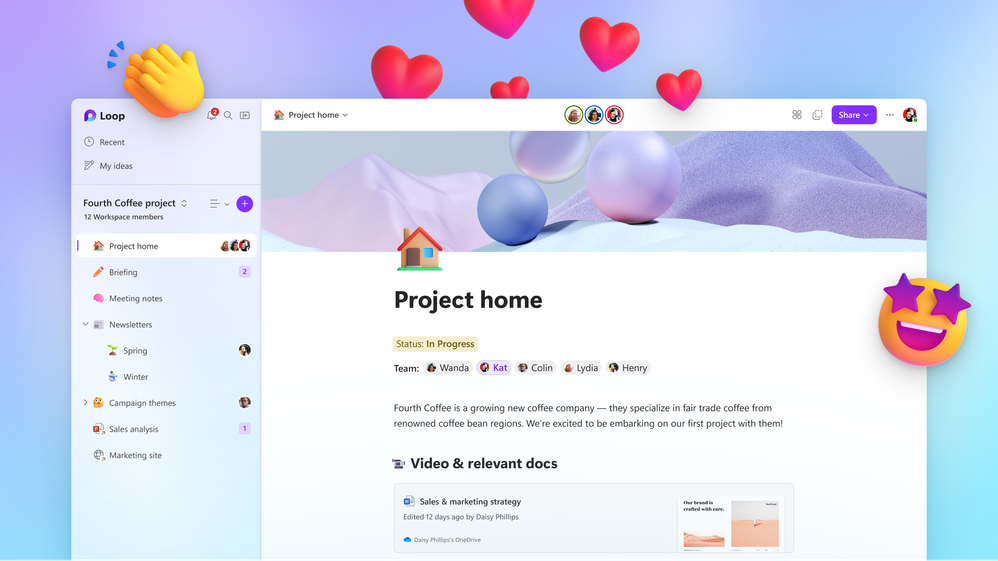
A visual of a Loop workspace showing a page titled Project Home with reacting to the content.A visual of a Loop workspace showing a page titled Project Home with reacting to the content.

Congratulations and thank you to our Loop colleagues! We love being in the Loop. Many Microsoft 365 applications are powered by SharePoint – Loop, OneDrive, Sites, Designer, Syntex, Office, Teams, Viva, Stream, Whiteboard, Search, Yammer, and Lists. We do not take this lightly and enjoy the partnership now and into the future.


We're excited to share more on our platform journey and to see your feedback to improve the experience in Loop, Teams, SharePoint, and all of Microsoft 365 soon. Join us at the Microsoft 365 Conference (Las Vegas | May 2-4, 2023) where we will share more from our experts alongside announcements and depth training on Loop, OneDrive, SharePoint, Viva, Syntex, Outlook, Teams, Power Platform, and more. You can review all posted Microsoft-led sessions - including an opening keynote with @Jeff Teper - President – Collaborative Apps and Platforms at Microsoft.


Thank you for your time,

Zach

✇Microsoft SharePoint Blog articles

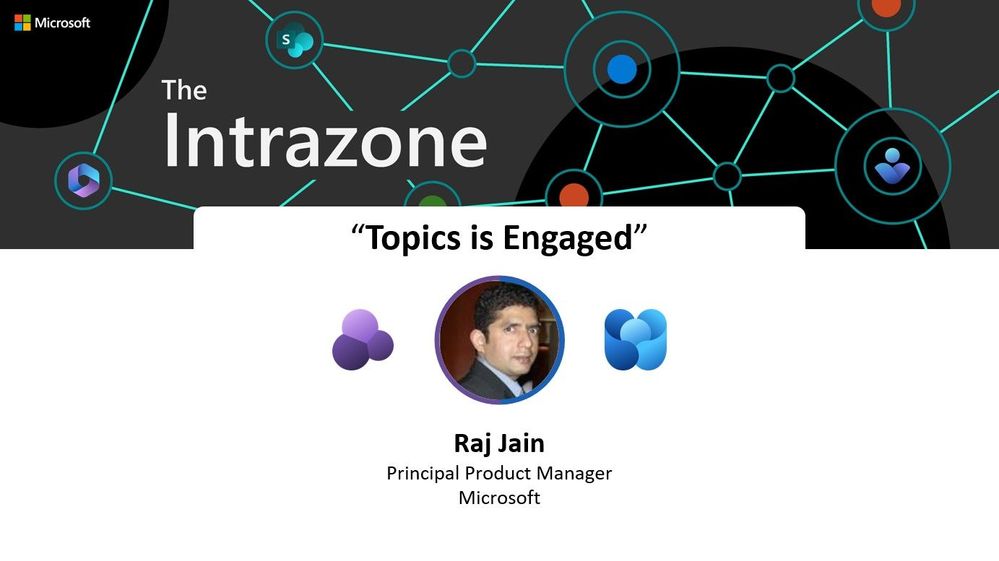
“Topics is Engaged” 🎙 – The Intrazone podcast

Viva Topics in Engage doubles the impact and access of your knowledge at your fingertips - and how you pay it forward to others.


On today's episode, we hear from Raj Jain (Principal product manager - Viva Engage and Answers team at Microsoft) about all things topical about Viva Topics, specifically - the role of Viva Topics within your Viva Engage community discussions, questions, and announcements posts. The real value gives you a built-in knowledge management system that balances and refines the length of your internal communications without sacrificing the depth you pay forward to each person that reads your comm.


Two Viva apps, one great outcome. 


The Intrazone, episode 94:

Subscribe to The Intrazone podcast + show links and more below.


The Intrazone guest: Raj Jain - Principal Product Manager - Viva Engage and Answers team.The Intrazone guest: Raj Jain - Principal Product Manager - Viva Engage and Answers team.

Links to important on-demand recordings and articles mentioned in this episode:  


Subscribe today!

Thanks for listening! If you like what you hear, we'd love for you to Subscribe, Rate and Review on iTunes or wherever you get your podcasts.


Be sure to visit our show page to hear all episodes, access the show notes, and get bonus content. And stay connected to the SharePoint community blog where we’ll share more information per episode, guest insights, and take any questions or suggestions from our listeners and SharePoint users (TheIntrazone@microsoft.com).


Intrazone Links

+ Listen to other Microsoft podcasts at aka.ms/microsoft/podcasts.


The Intrazone, a show about the Microsoft 365 intelligent intranet (aka.ms/TheIntrazone).The Intrazone, a show about the Microsoft 365 intelligent intranet (aka.ms/TheIntrazone).


✇Microsoft SharePoint Blog articles

What's new for SharePoint Server Subscription Edition - March 2023

In this article:

Updates to SharePoint Server Subscription Edition

Support policy changes for SharePoint Server Subscription Edition

Antimalware Scan Interface integration with SharePoint Server 2019

SharePoint Server 2013 End of Support

Looking forward


When we launched SharePoint Server Subscription Edition in November 2021, we shared our vision of a server built for continuous innovation, which emphasized the specific needs of our on-premises customers including new features to help simplify management, improve your security posture, and streamline your upgrade from earlier versions of SharePoint Server.


To take our first step on this journey, in September 2022 we introduced new features aligned to this vision including the ability to opt-in to early release rings that accelerate the time to innovation for our customers.


In keeping with our commitment to make SharePoint Server Subscription Edition the foundation for our evolution of SharePoint Server, today we’re delighted to share the next step on this journey: the new 23H1 feature update for SharePoint, built on these same principles as the 22H2 feature update.


Infrastructure Improvements

Unified patches

We heard your feedback and we’re making it easier to manage SharePoint Server.  To simplify the process for updating your SharePoint Server Subscription Edition environments, we’re introducing a single update each month for SharePoint Server Subscription Edition, starting with the March 2023 public update. This unified update combines all of the improvements that would have previously been released in separate STS and WSSLOC updates. The single uber updates are cumulative, so you only need to install the latest update to get all of the latest improvements for SharePoint Server Subscription Edition.


No STS or WSSLOC updates will be released for SharePoint Server Subscription Edition after the February 2023 public updates.


Support for SharePoint Framework (SPFx) version 1.5.1

To expand the customization scenarios that SharePoint Server Subscription Edition supports, the 23H1 feature update adds support for SharePoint Framework (SPFx) version 1.5.1. With the SharePoint Framework, you can use modern web technologies and tools in your preferred development environment to build productive experiences and apps that are responsive and mobile-ready. This is the first step on a long-term journey to continue investing in SharePoint Framework for SharePoint Server Subscription Edition.


For more information, see SharePoint Framework development with SharePoint Server 2019 & SharePoint Server SE.


New PowerShell cmdlets for variations feature

SharePoint Server Subscription Edition Version 23H1 introduces 4 new PowerShell cmdlets that will replace the functionality of the "stsadm.exe -o variationsfixuptool" command. Those cmdlets are:


  • Deploy-SPVariation -Identity <SPWebPipeBind> [-Recurse] [-Label <String>] 
  • Repair-SPVariation -Identity <SPWebPipeBind> [-Recurse] [-Label <String>] 
  • Test-SPVariation -Identity <SPWebPipeBind> [-Recurse] [-Label <String>] 
  • Get-SPVariationJob -Identity <SPWebPipeBind> 


SharePoint Server recompiled with Visual C++ 2022

As the long-term foundation for SharePoint Server, we continue to invest in keeping SharePoint Server Subscription Edition updated with modern technologies. To that end, we've recompiled SharePoint Server Subscription Edition with the newest Visual C++ compiler: Visual C++ 2022. This will ensure SharePoint Server Subscription Edition can take advantage of the latest capabilities available from Visual C++.  The 23H1 feature update will automatically install the Visual C++ Redistributable Package for Visual Studio 2015-2022 to support the recompiled binaries.


Private key management in certificate management

SharePoint Server Subscription Edition introduced a new certificate management feature that allows SharePoint farm administrators to directly manage the deployment and lifecycle of SSL/TLS certificates in their SharePoint Server farms. The certificate management feature applied a standard set of permissions to the private keys of these certificates regardless of their use cases.


To better support least privileges scenarios and minimize the permissions given to these private keys, SharePoint Server Subscription Edition Version 23H1 applies more granular and sophisticated permission management for these private keys. The permissions will be based on the certificate assignments and will be dynamically updated when the certificate assignments change.

Support for wildcard host header bindings

SharePoint Server Subscription Edition Version 23H1 adds support for specifying a wildcard host header binding for a web application. This will allow you to specify different wildcard bindings across multiple web applications that can share the same TCP port such as "*.external.example.com" and "*.internal.example.com". You can then provision host-named site collections in the first web application using the *.external.example.com DNS naming scheme (such as site1.external.example.com, site2.external.example.com, etc.) and other host-named site collections in the second web application using the *.internal.example.com DNS naming scheme (such as site1.internal.example.com, site2.internal.example.com, etc.).


Information Worker Improvements

Expanded usage of modern sharing dialog

In earlier releases of SharePoint Server Subscription Edition, using sharing functionality in lists, document libraries, pages, or site contents would trigger the classic sharing dialog, even when using the modern view in a modern Team site or Communication site.


To deliver a more intuitive sharing experience, these sharing entry points have been updated to use SharePoint’s modern sharing dialog. The modern sharing dialog is also a more accessible experience.


Column totals in modern list views

SharePoint Server Subscription Edition Version 23H1 adds support for displaying column totals in modern list views just like in classic list views. This option can be enabled in the "save view” feature.


Enhanced Quick Chart web part

Using the Quick Chart web part, you can add simple, basic charts to your page. Enter your data points or get data from a list or library, add labels, pick your chart type (column or pie), and publish.  In earlier versions of SharePoint Server Subscription Edition users were unable to connect the Quick Chart web part to a list or library within the site to consume its data.


SharePoint Server Subscription Edition Version 23H1 enhances the Quick Chart modern web part by adding a "Get data from a list or library on this site" option. Users can now configure the Quick Chart web part to consume data from a list or library within the site.


For more information, see Use the Quick Chart web part.


Improved file picker

SharePoint Server Subscription Edition Version 23H1 improves the modern file picker used by the Quick Links and File Viewer web parts. The Quick Links web part file picker can now support more file types such as PDF, TXT, MP4, M4V, MP3, OGG, and WAV. The File Viewer web part file picker can now support PDF files.


To learn more about the 23H1 feature update for SharePoint Server Subscription Edition refer to https://learn.microsoft.com/sharepoint/what-s-new/new-and-improved-features-in-sharepoint-server-subscription-edition-23h1-release.


New product servicing policy for SharePoint Server Subscription Edition

As SharePoint Server Subscription Edition evolves with the new continuous release model, our product servicing policy also evolves with it. Starting in January 2023, each public update for SharePoint Server Subscription Edition will be supported for one year after its release date (until the second Tuesday of the same month in the following year). All previous builds of SharePoint Server Subscription Edition, including the original RTM release, will be supported until December 12, 2023.


Customers must run a supported build of SharePoint Server Subscription Edition to be considered supported, which includes the ability for Microsoft Support to offer technical support. Customers will need to install a public update at least once a year, although since each public update contains important security and functionality improvements, we encourage customers to stay up to date with each public update release.


For more information, see Updated Product Servicing Policy for SharePoint Server Subscription Edition.


Antimalware Scan Interface integration comes to SharePoint Server 2019

Our 22H2 feature update for SharePoint Server Subscription Edition first introduced Windows Antimalware Scan Interface (AMSI) integration to SharePoint Server. This important security improvement helps protect customers from attacks against SharePoint Server by scanning incoming web requests to detect and block potentially malicious requests.


Given the increased cybersecurity threats on-premises customers face, Microsoft is expanding this protection to earlier versions of SharePoint Server as well. This feature will be available to SharePoint Server 2019 customers starting with the March 2023 public update for SharePoint Server 2019. This feature will also become available to SharePoint Server 2016 customers later this year.


For more information about Windows Antimalware Scan Interface (AMSI) and how to enable it, see Configure AMSI integration with SharePoint Server.


SharePoint 2013 reaches end of support on April 11, 2023

Can you believe it’s been 10 years since the launch of SharePoint 2013? So much has changed in the industry since then, from the rise of cloud computing to the promise of AI. As the last on-premises release before SharePoint Online became the mainstream SharePoint experience, SharePoint 2013 has served as an important part of the collaboration and productivity story for so many customers.


As a final reminder for those customers who haven’t migrated to SharePoint Online or upgraded to a newer version of SharePoint Server yet, SharePoint 2013 will reach end of support on April 11, 2023. That’s just one month away! You can find more guidance about your options to move off of SharePoint 2013 at Upgrading from SharePoint 2013.


Looking forward

For those customers who are currently using SharePoint Server 2016 or SharePoint Server 2019, now is a great time to start thinking about the future as both products will reach end of support in July 2026. SharePoint Online is our premier SharePoint experience and should be the default path forward for most customers. There are great tools to help you migrate your SharePoint on-premises environments to SharePoint Online such as our SharePoint Migration Tool.


But if you still have a long-term need for an on-premises presence, we encourage you to start evaluating SharePoint Server Subscription Edition now. Thanks to its “N - 2” upgrade support, you can easily upgrade to it directly from either SharePoint Server 2016 or SharePoint Server 2019.


As you can see from today’s announcements, Microsoft continues to stand behind our SharePoint Server customers wherever they are on their journey to the cloud. We’re excited about the improvements we’re bringing to the on-premises experience and hope you are too. We also look forward to the next feature update for SharePoint Server Subscription Edition, coming in the second half of this year.

✇Microsoft SharePoint Blog articles

SharePoint Roadmap Pitstop: February 2023

February 2023 kept pace bringing updates across employee experiences and teamwork.


In this episode, we cover: Yammer > Engage rebrand, Viva Topics in Viva Engage, Stream Playlists, SharePoint Advanced Management (SAM), updated OneDrive Home and Shared, external file requests for SharePoint document libraries, export Microsoft Lists as datasets for Power BI, update to rules email notifications, and more. You can listen to the podcast version here and continue to scroll to review further details and screenshots about each feature. 


In the podcast episode, I chat with Sesha Mani (LinkedIn | Twitter), Principal group product manager on the SharePoint team focused on admin, security, and compliance. Sesha highlights the value of new SharePoint Advanced Management capabilities when working with proposals, contracts, invoices, and more - to help IT address sprawl and oversharing with a new set of advanced security and content management capabilities - broadly speaking advanced access policies for secure content collaboration AND advanced sites content lifecycle management.
 

PM Guest, Sesha Mani – Principal group product manager on the SharePoint team focused on admin, security, and compliance (Microsoft). [The Intrazone guest]PM Guest, Sesha Mani – Principal group product manager on the SharePoint team focused on admin, security, and compliance (Microsoft). [The Intrazone guest]

All features listed below began rolling out to Targeted Release customers in Microsoft 365 as of February 2023 (possibly early March 2023).


Inform and engage with dynamic employee experiences

Build your intelligent intranet on SharePoint in Microsoft 365 and get the benefits of investing in business outcomes – reducing IT and development costs, increasing business speed and agility, and up-leveling the dynamic, personalized, and welcoming nature of your intranet.


Microsoft Syntex | SharePoint Advance Management (SAM) Add-on (GA)

To help SharePoint and IT Admins address sprawl and oversharing, we are thrilled to announce the general availability of Microsoft SharePoint Advanced Management (SAM) add-on, a new set of advanced security and content management capabilities.


SharePoint Advanced Management helps when working with proposals, contracts, invoices, and more -- helping IT with advanced access policies for secure content collaboration AND advanced sites content lifecycle management.


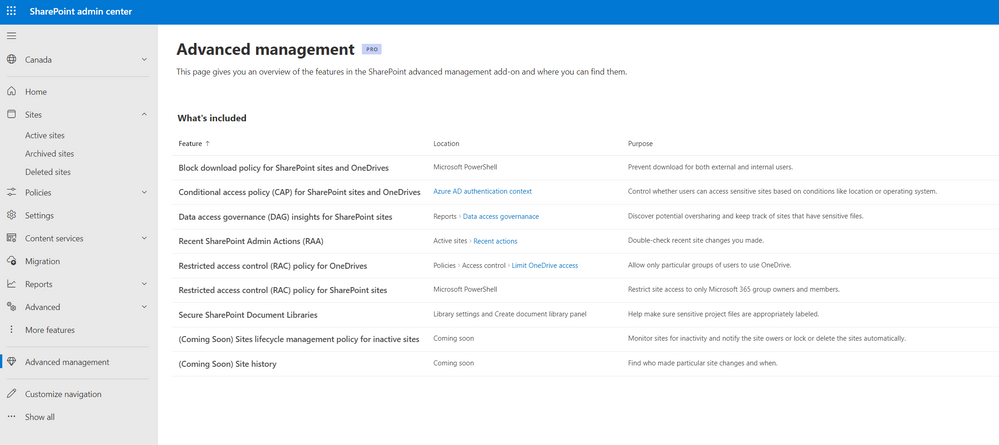
The view a SharePoint admin sees when viewing the “Advanced management” tab within the SharePoint admin center.The view a SharePoint admin sees when viewing the “Advanced management” tab within the SharePoint admin center.

The breadth of the SAM add-on offers:

  • Advanced access policies for secure content collaboration
    • Data access governance (DAG) insights for SharePoint sites
    • Restricted access control (RAC) policy for SharePoint sites
    • Restricted access control (RAC) policy for OneDrives
    • Conditional access policy for SharePoint sites and OneDrives
    • Secure SharePoint Document Libraries
  • Advanced sites content lifecycle management
    • Sites lifecycle management policy for inactive sites
    • Recent SharePoint Admin Actions
    • Sites history
    • Block download policy for SharePoint sites and OneDrives

Learn more about SharePoint Advanced Management and read the announcement blog, “Microsoft Syntex – SharePoint Advanced Management (SAM) Add-on – Announcing GA.”


Yammer is evolving into Viva Engage aka – “Yammer Is Engaged” ;)

Microsoft announced the intention to rebrand Yammer into Viva Engage to provide a consistent and delightful experience for our customers. This change will happen across all existing Yammer surfaces-- including web, mobile, and integrations (Embed, SharePoint, and Outlook) and will occur throughout 2023. In the coming months you can expect Yammer to become Viva Engage through the update of brand elements like logo, app icon and name.


Yammer is evolving into Microsoft Viva Engage - as shown here in the mobile app.Yammer is evolving into Microsoft Viva Engage - as shown here in the mobile app.

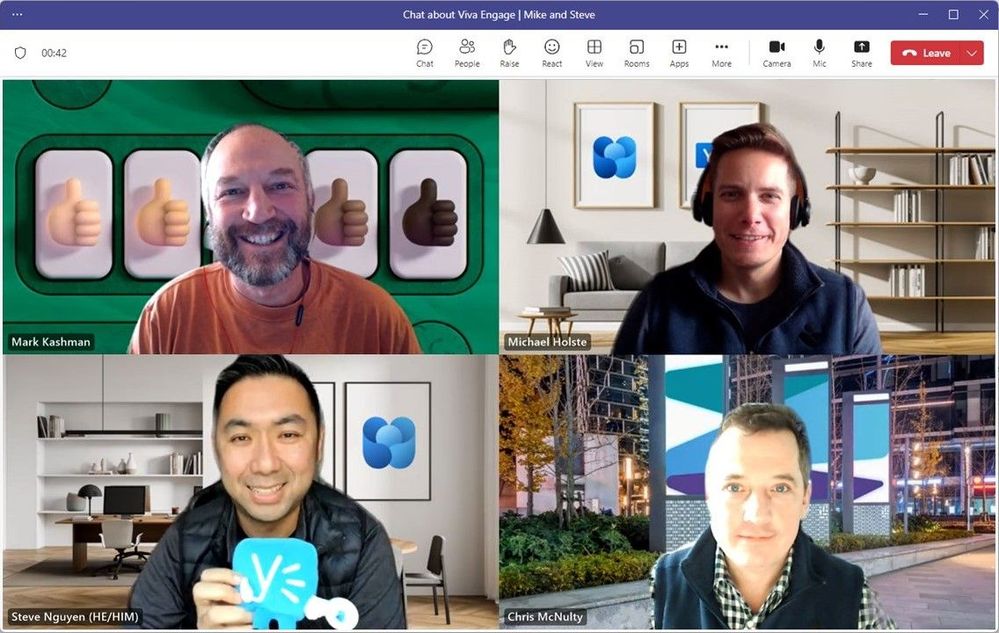
We had a great discussion with @Michael Holste and @Steve Nguyen from the Viva Engage team, about the rebrand and new feature set that hit GA this past month. Learn and listen to this unique episode of The Intrazone, "Viva Engage has the answer."


Viva Topics brings new integrations with Viva Engage (formerly Yammer)

Engage is integrating with and adopting Viva Topics to make community-sourced knowledge easily accessible across an organization and support a consistent experience in Microsoft 365. Among others, this brings: 1) Topic cards will show in Engage when you hover over a highlighted topic, and 2) Topic pages and cards will include content from Engage such as questions and answers, and conversations from the relevant community. 
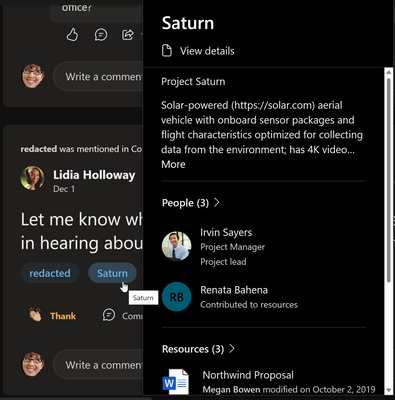
 

You can see the Topic Card for a given topic when you hover over the topic pill associated with a conversation. - showing here for the "Saturn" topic.You can see the Topic Card for a given topic when you hover over the topic pill associated with a conversation. - showing here for the "Saturn" topic.

Topics are easy to add to your Engage stories and posts, and it offers your audience a way to dive deeper in line with any topics they aren't yet fully up-to-speed on.


Microsoft Stream (on SharePoint): Create, View and Share Playlists

This one is like making a mixed tape for a friend. And hey, your co-worker peers are your work friends. So why not make a mixed tape for them within your organization.


This feature will allow users to organize their video and audio files into a playlist for easy organization, sharing and playback. Playlist creators can share their playlist with others. People with access to the playlist and to the files in the playlist can watch/listen to the video/audio files in order or skip back and forth between items in the playlist - along with the full player capabilities with chapters, closed captions, playback speeds, and more.
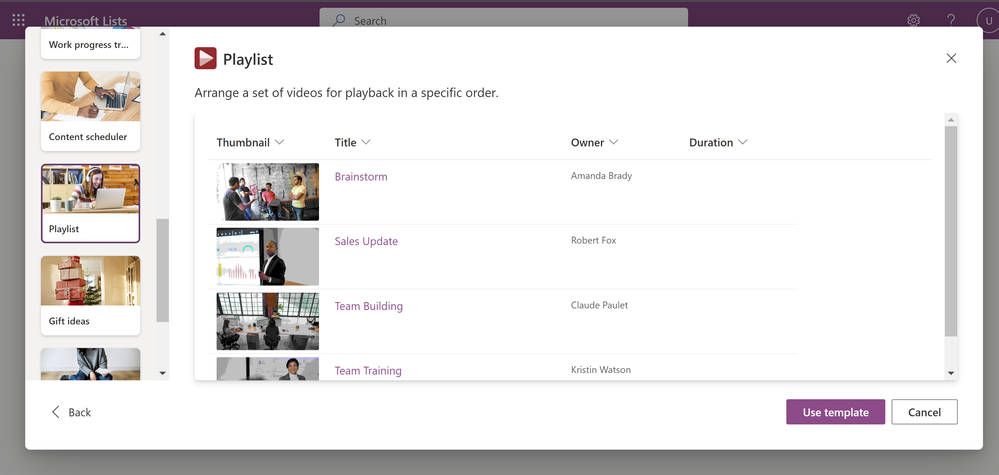
 

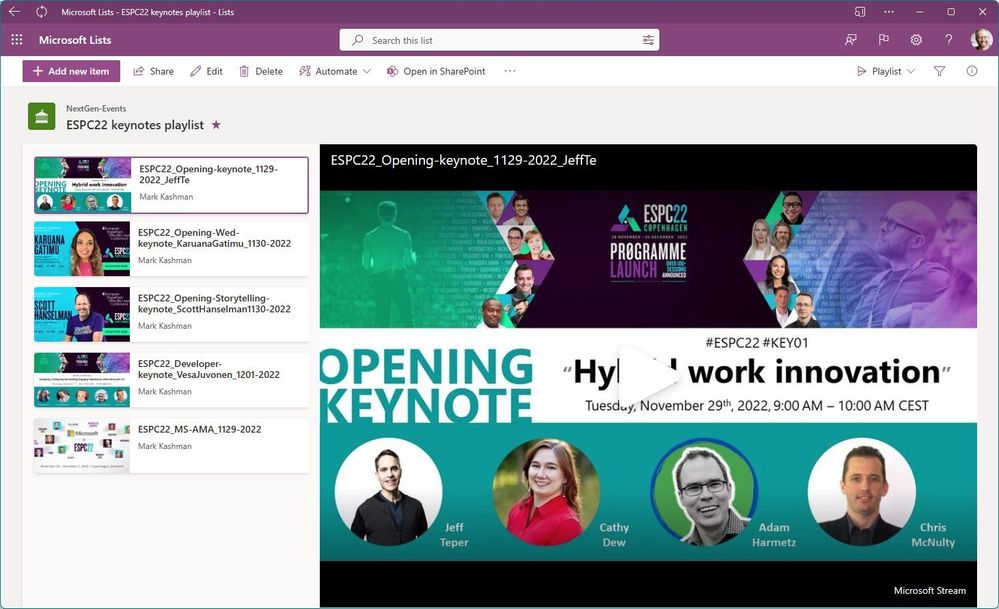
Using the new Playlist template when creating a new list in Microsoft Lists.Using the new Playlist template when creating a new list in Microsoft Lists.

A published Playlist makes it easy to view and share a collection of audio and video files. The example above 'packages up' all the keynote session recordings from the European SharePoint Conference 2022 (ESPC22).A published Playlist makes it easy to view and share a collection of audio and video files. The example above 'packages up' all the keynote session recordings from the European SharePoint Conference 2022 (ESPC22).

Stream playlists are both built and accessed via Microsoft Lists and can use other Lists capabilities. Playlists can be created directly from Stream and via Lists creation flows across Office, SharePoint, and Lists. Users can add any video and audio files to a playlist that they have access to. Playlists can be accessed from stream.office.com or from the Microsoft Lists home page in Microsoft 365.


Teamwork updates across SharePoint team sites, OneDrive, and Microsoft Teams

Microsoft 365 is designed to be a universal toolkit for teamwork – to give you the right tools for the right task, along with common services to help you seamlessly work across applications. SharePoint is the intelligent content service that powers teamwork – to better collaborate on proposals, projects, and campaigns throughout your organization – with integration across Microsoft Teams, OneDrive, Yammer, Stream, Planner and much more.


OneDrive Home, the new landing experience

We have refreshed the OneDrive Commercial Web landing experience to help you get to the files you’re working on quickly and easily. The new OneDrive Home experience surfaces your most recently used files, along with relevant file activity, so you can see everything at a glance and quickly prioritize where to start working. 
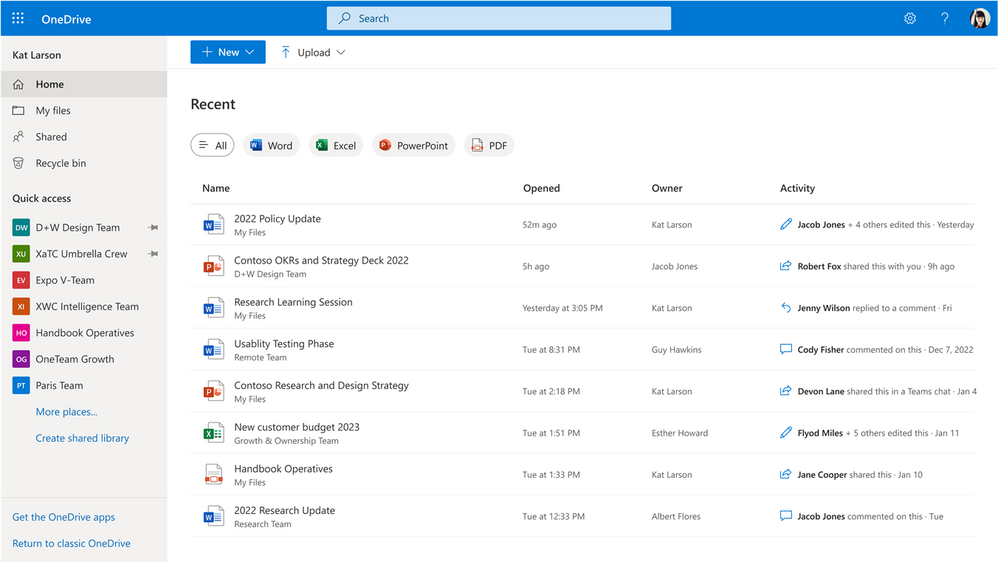
 

OneDrive home page showing Recent files, filters, activities per file, and more.OneDrive home page showing Recent files, filters, activities per file, and more.

You will see OneDrive Home when they navigate to OneDrive on the web. This new view shows all of the files that you’ve used, ordered by when you last opened them. You can filter this list by file type to quickly find the file you’re looking for. You’ll also be able to stay up to date on any changes happening in the file with Activity. This new experience appears alongside files organized in folders within your My files view in the left navigation. 


Learn more about getting started with OneDrive (for work and school).


New OneDrive Shared Experience

Continuing with OneDrive, we have made updates to the Shared > Shared with you experience that also lives in the left nav on OneDrive Web -- to make it easier for users to quickly get back to shared content.


The Shared view shows the files others have shared with you and the files you've shared with others.The Shared view shows the files others have shared with you and the files you've shared with others.

You will find files and folders shared over email, chats, and meetings all in one place. In addition, you can identify updates to files by using the activity column, as well as leverage filters to easily find files.


SharePoint: External File Request in SharePoint Document Library

Initially, this feature was released for OneDrive. And we're pleased it's now here for SharePoint document libraries. You now have an easy and secure way to request and obtain files from anyone. Just choose a folder in a SharePoint Document Library where others can upload files to - this accomplished with a unique, secure share link that you share with them.


The recipient's view of a files request after clicking Select files, add their name, and click Upload.The recipient's view of a files request after clicking Select files, add their name, and click Upload.

Recipients who upload files to you upon your request can only upload files; they can't see the content of the folder, edit, delete, or download files -- or even see who else has uploaded files. To use this feature in the SharePoint Document Library: 1) Admin enables Anyone links at the tenant level, and 2) Admin configure view, edit, and upload permission for Anyone links.


Export list as a dataset to Power BI

We are adding a new option under the "Export" menu for Microsoft Lists: Export to Power BI. With this feature, users can easily and quickly create a dataset based on their list in the Power BI service, in their environment of choice.
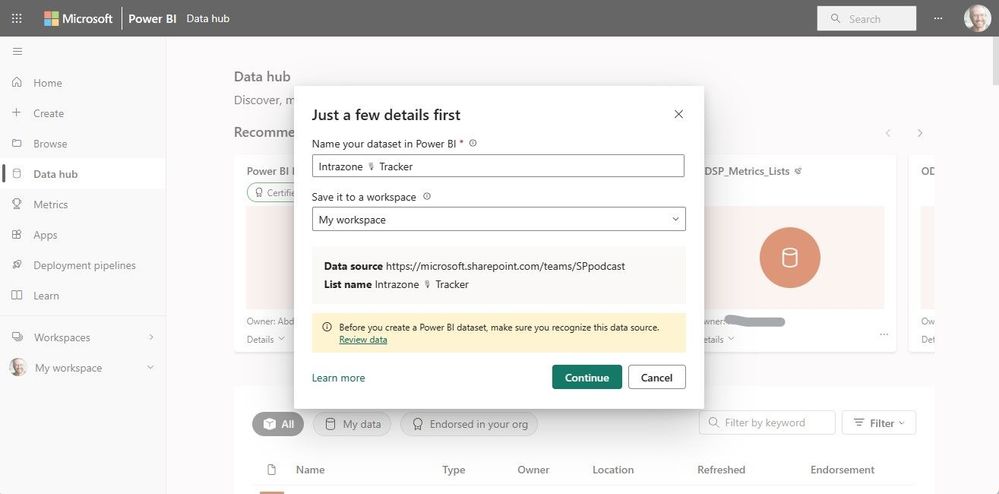
 

Exporting a list to the Data hub in Power BI. The Data hub makes it easy to find, explore, and use the data items in your organization, such as datasets and datamarts.Exporting a list to the Data hub in Power BI. The Data hub makes it easy to find, explore, and use the data items in your organization, such as datasets and datamarts.

Give it a try | From within your list, click on the Export drop-down menu > Export to Power BI. You’ll land in Data hub within the Power BI service (as pictured above).


Datasets are sources of data that are ready for reporting and visualization in Power BI. This adds to the options of inline reporting with Power BI in Lists, and now the ability to export list data as datasets and use them in the Power BI app.


SharePoint: Update to Rules Email Notifications for Lists and Libraries

Rules can be created for lists and libraries to send automatic email notifications based on events in the target list or library. Previously, these email notifications were sent from SharePoint Online <no-reply@sharepointonline.com>.


Automatic email notification sent when a rule criterion was met. Note the sender is me (Mark Kashman) as I'm the one who created the rule (or last modified it).Automatic email notification sent when a rule criterion was met. Note the sender is me (Mark Kashman) as I'm the one who created the rule (or last modified it).

To improve the security of the rules feature, email notifications will now be sent from the email account of the user who last modified the rule. If the rule was newly created, this will be the creator's email address.


Related technology

Microsoft Teams: Wiki retirement and the future of note taking in Teams Channels

We are announcing that Wiki's will be retired from Teams. We are offering note taking capabilities through Teams Channels powered by OneNote.


With this release, users have an option to export their wiki content to OneNote notebooks in Teams standard channel. After exporting, users can go to the Notes tab to collaborate using OneNote in channels. Note: With this change users can continue to access and edit existing wikis but can’t create new wikis in Teams channels.


Animated sequence showing Wiki being replaced by OneNote in Microsoft Teams.Animated sequence showing Wiki being replaced by OneNote in Microsoft Teams.

OneNote provides enhanced note taking experiences: Easy collaboration across the team, view all channel notes in a team in one place organized within a single notebook, rich editing with typing, ink annotations, highlighting, file attachments, etc., and easy recall & search for channel notes within OneNote on any platform.


Microsoft Teams: Automatic lowering of a user's Raised Hand after speaking

Keeping your hand raised can be virtually tiring. And when you forget to lower it, you might be prone to your digital hand falling asleep. Got to hand it to the Teams team, this feature alerts you and saves you from that tingling feeling and keep the meeting moving forward.


Attendees in meetings that have raised their hands and have spoken – presuming their question has been addressed – will have the hand automatically lowered; and it’s easy to “Keep it raised.” This will allow meeting organizers to focus on unanswered questions.


Prompt Microsoft Teams to let you know your hand will be lowered after it notices that you’ve spoken.Prompt Microsoft Teams to let you know your hand will be lowered after it notices that you’ve spoken.

Note: This release will be rolling out only to Microsoft Teams Desktop users.


Use Microsoft Teams to produce Yammer Live Events

The value of live events carries forward. It’s the where you start to produce one that has evolved. Live events can be held in a public group to reach all employees or in a private group so that only those with membership in the group can participate.


Yammer live events have historically used Stream live events for video processing. Microsoft is retiring Stream live events in September 2023. Teams live events is the successor service that will allow you to create, host and produce live events within Yammer with the same functionality that you get with Stream.
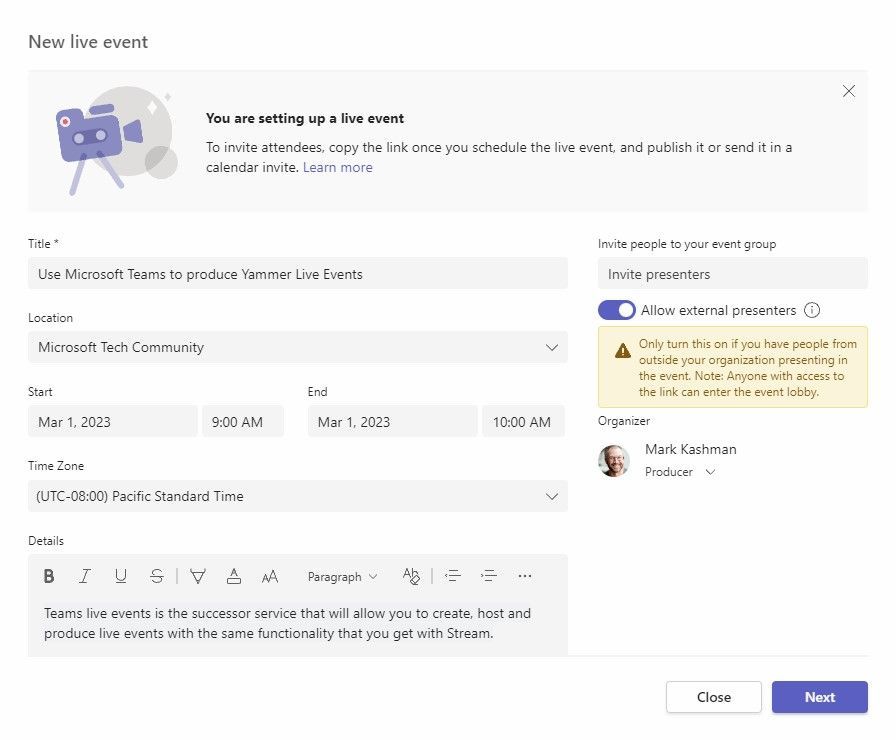
 

If you are the organizer of a live event, you can schedule it in Teams the same way you schedule a regular Teams meeting.  This process will add the live event to your and your event group's calendars. After that, you'll need to invite the attendees.If you are the organizer of a live event, you can schedule it in Teams the same way you schedule a regular Teams meeting. This process will add the live event to your and your event group's calendars. After that, you'll need to invite the attendees.

Note: Live Events videos created using Stream will continue to function - attendees can continue to watch those videos on demand broadcasted on Microsoft Stream. However, you should migrate those videos from Stream to SharePoint.


Schedule Send Suggestions Available in Microsoft Teams Chat

When composing a 1:1 message in Teams chat after-hours, users will see schedule send suggestions that enable postponing message delivery until the start of the chat recipient’s working hours.
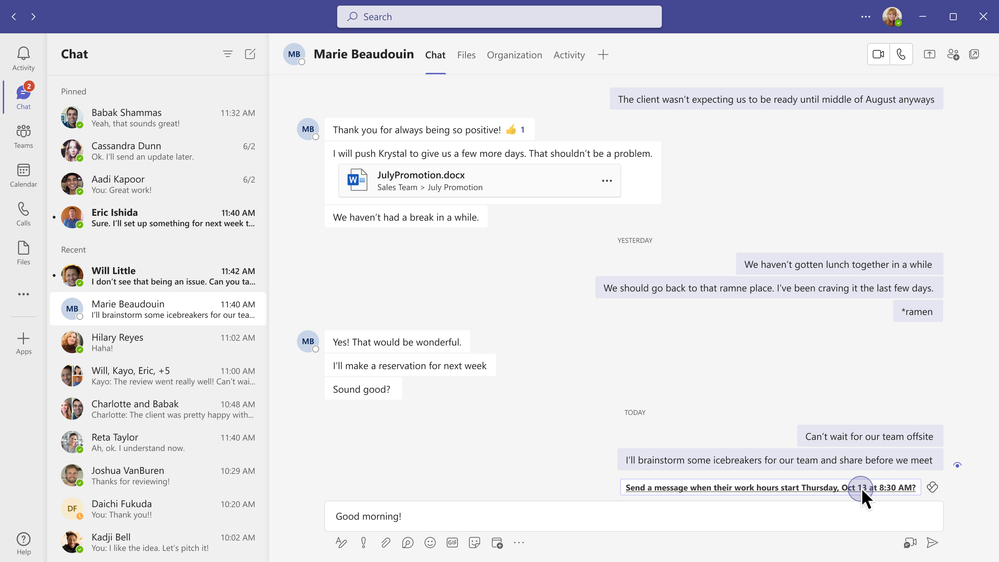
 

If you are about to send a chat/reply to a recipient outside of their noted working hours, you will be an actionable prompt to schedule send based on their next preferred online availability.If you are about to send a chat/reply to a recipient outside of their noted working hours, you will be an actionable prompt to schedule send based on their next preferred online availability.


Visio Personal App in Teams

Visio will be available as a Teams Personal App. There are no changes to the existing file open behavior, however there are new abilities that the Visio Personal App can provide. With a private workspace, users will be able to view and edit Visio files in a central location without leaving Teams.
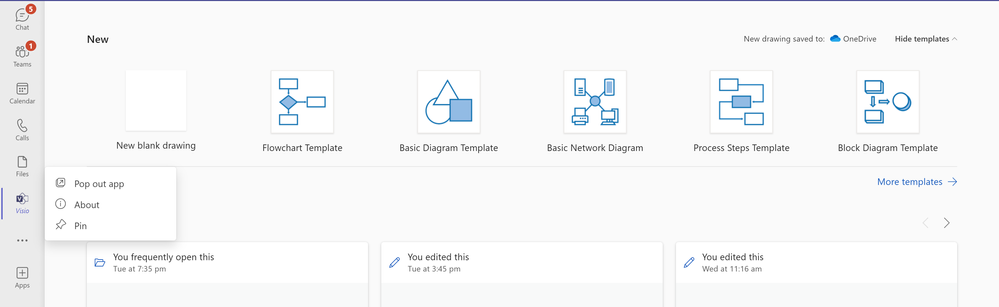
 

The Visio app highlights Visio documents, view recommended files, create new files, and see all the activities on your Visio diagrams.The Visio app highlights Visio documents, view recommended files, create new files, and see all the activities on your Visio diagrams.

You’ll be able to pin the app to the Teams app bar (left rail). From the Visio app home page, you can navigate documents, view recommended files, create new files, and see all the activities on your Visio diagrams.


March 2023 teasers

Psst, still here? Still scrolling the page looking for more roadmap goodness? If so, here is a few teasers of what’s to come to production next month…


  • Teaser #1: Suggested Files in 1:1 Teams Chats [Roadmap ID: 95065
  • Teaser #2: Microsoft Viva Connections – iPad support [Roadmap ID: 101167]

… shhh, tell everyone.


Helpful, ongoing change management resources

  • Follow me to catch news and interesting SharePoint things: @mkashman; warning, occasional bad puns may fly in a tweet or two here and there.

Thanks for tuning in and/or reading this episode/blog of the Intrazone Roadmap Pitstop – February 2023. We are open to your feedback in comments below to hear how both the Roadmap Pitstop podcast episodes and blogs can be improved over time.


Engage with us. Ask those questions that haunt you. Push us where you want and need to get the best information and insights. We are here to put both our and your best change management foot forward.


Stay safe out there on the road’map ahead. And thanks for listening and reading.

Thanks for your time,


Mark Kashman – Senior product manager (SharePoint/Lists) | Microsoft)
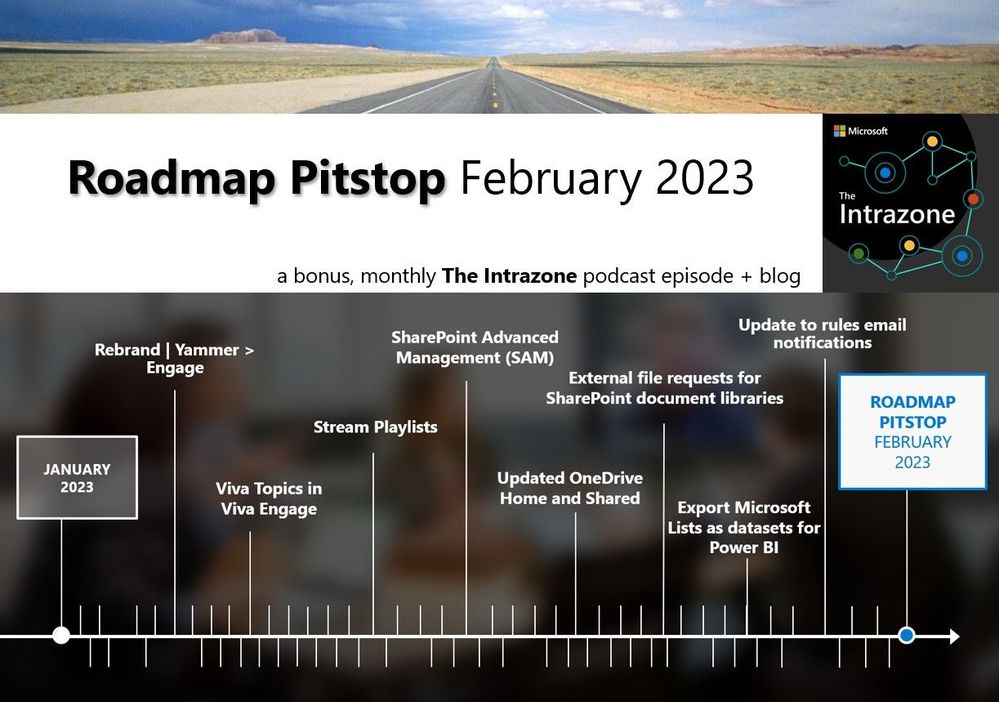
 

The Intrazone Roadmap Pitstop - February 2023 graphic showing some of the highlighted release features.The Intrazone Roadmap Pitstop - February 2023 graphic showing some of the highlighted release features.

✇Microsoft SharePoint Blog articles

Announcing the release of SharePoint Workflow Manager for SharePoint Server

Last year Microsoft shared plans for several new investments in our SharePoint Server ecosystem. One of those investments is our long-term support for the SharePoint 2013 Workflows platform for SharePoint Server. SharePoint 2013 Workflows are a key scenario for SharePoint Server customers as they power many critical business processes and can operate in purely on-premises deployments. 


Today, Microsoft is pleased to announce the release of SharePoint Workflow Manager, a new workflow engine to power the SharePoint 2013 Workflows platform for SharePoint Server and replace Service Bus and Microsoft Workflow Manager. SharePoint Workflow Manager is compatible with SharePoint Server 2013, 2016, 2019, and Subscription Edition. We recommend that all SharePoint Server customers using SharePoint 2013 Workflows upgrade to SharePoint Workflow Manager as soon as they're able to. Microsoft will focus all future investments and maintenance on SharePoint Workflow Manager rather than Microsoft Workflow Manager, including providing support beyond the year 2026. 


Microsoft will continue to provide technical support for existing deployments of Service Bus and Microsoft Workflow Manager until the version of SharePoint Server they're being used with reaches end of support, or until July 14, 2026, whichever comes first. However, the Service Bus and Microsoft Workflow Manager installers are no longer available from the Microsoft Web Platform Installer (WebPI). Customers who need new SharePoint 2013 workflow engine installations can only install SharePoint Workflow Manager. 


This announcement is another example of Microsoft standing behind our SharePoint Server customers as we continue to meet their strategic needs. We look forward to sharing more examples soon with the upcoming release of SharePoint Server Subscription Edition Version 23H1, the next feature update for SharePoint Server Subscription Edition. Stay tuned! 

✇Microsoft SharePoint Blog articles

Use Playlists to create collections of video or audio files in Microsoft 365

Today, we’re introducing Playlists - a new and simple way to curate and share video or audio collections within Microsoft 365. Until now, you had to build a SharePoint page with web parts and load in the content to create a video collection. With playlists in Microsoft 365, you add content using the new 'Playlist' template in Microsoft Lists. Once you have the right collection of audio or video files, it's instantly ready to playback and share. This combines Lists ease of use with the trusted value of Stream (on SharePoint) powering the playback experience. 


A published Playlist makes it easy to view and share a collection of audio and video files. The example above 'packages up' all the keynote session recordings from the European SharePoint Conference 2022 (ESPC22).A published Playlist makes it easy to view and share a collection of audio and video files. The example above 'packages up' all the keynote session recordings from the European SharePoint Conference 2022 (ESPC22).

Playlists can be created directly from Stream or via Lists creation across Office, SharePoint and Lists. Users can add any video and audio files to a playlist that they have edit access to. People with access to the playlist and to the files in the playlist can view the videos in order or skip back and forth between items in the playlist. Playlists can be used to create an organized collection of podcasts, training videos, product demo videos, Teams meeting recordings, or other audio/video content. Simply tap any video in the list to begin watching.


How to create a playlist from the Stream start page

To create a playlist from the Stream start page:
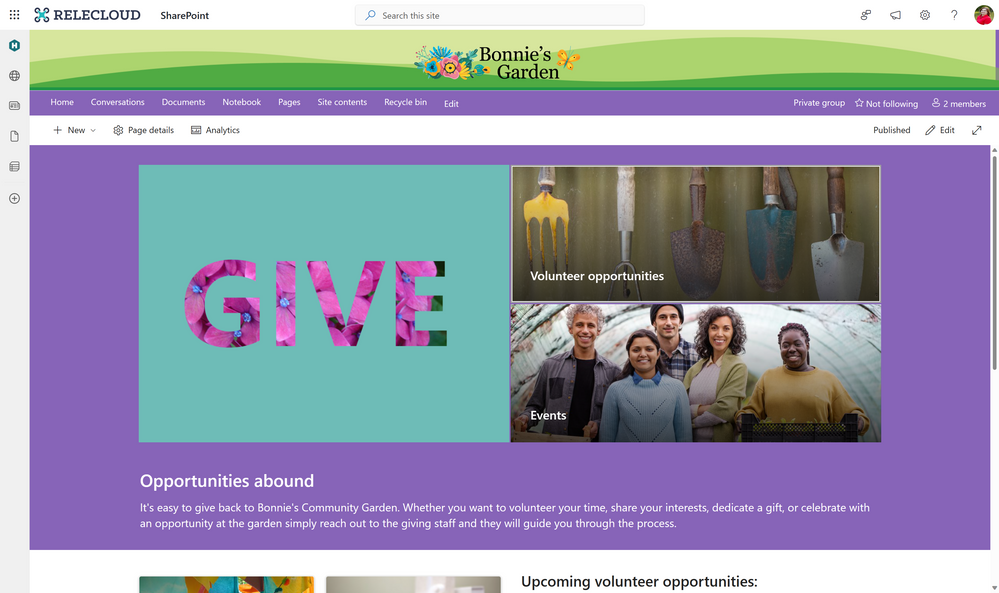
    • Go to stream.office.com
    • Tap the down arrow next to the “New Recording” button
    • Select “Playlist in Lists” option from the dropdown menu.
    • Add a name and description.
    • Select where you want to save this list and tap “Create
    • Select “Add new item” and to begin adding videos to your playlist.


How to create a playlist from Microsoft Lists

To create a playlist from Lists:
    • Go to the Lists start page: Office.com/Launch/Lists
    • Tap the "New List" button at the top of the screen
    • Select “Playlist” from the templates displayed
    • Tap “Use Template”
    • Add a name and description.
    • Select where you want to save this list and tap “Create
    • Select “Add new item” and to begin adding videos to your playlist.


The Playlist template as shown with example content when creating new in Microsoft Lists.The Playlist template as shown with example content when creating new in Microsoft Lists.

Once you’ve created a playlist you can share it with others using the Share button in Playlist view. Using permissions, you can make your Playlist accessible to all or limited set of people in your organization. It's important that your intended audience have access to the playlist and to its audio or video files for proper playback. Note: sharing a Playlist doesn’t override permissions for videos that are part of the playlist. Users who have access to the playlist but don’t have access to the videos will need to request permission to watch videos. If you want to make all videos accessible to everyone by default, then you can change video permissions accordingly.

After you create a playlist or when a playlist is shared with you, it will appear on the Stream Start Page under “Quick Access” section. You can also add a playlist as your favorite, and it will appear under the Favorites filter. Learn more about all the places and ways to create a new list - including use of the new Playlist template.

See it in action. In this new demo video, @Mark Kashman shows you how to create a playlist in Microsoft 365, along with a tip for reordering your audio and video files in the list:


In the coming months, we expect to add Playlist support to web parts to enable the display of Playlists in SharePoint pages and news. We, too, expect to enable notification functionality to alert you when any new video is added to playlists that you are subscribed to. Keep up to date on the Microsoft 365 public roadmap


Happy 'mix taping' within your organization,
@Paul Diamond 


✇Microsoft SharePoint Blog articles

Building beautiful sites with purpose: Part 2

Building beautiful sites with purpose: Part 2

CroppedBlogHeaderGarden.png

In this Part 2 of our “Building Beautiful sites with purpose” series we are going to focus on the practical build out of the Bonnie’s Community Garden site in both communication site and team site formats. We will cover our remaining 3 sections of focused content:


  4. Images and Content

  5. Layouts and web parts

  6. The Extras


4.      Images and content

As you are building out your site one of the ways that you can add visual interest to your site is through your choice of images. You have multiple options when it comes to picking images for your site including stock photography if allowed through your organization.


TIP: All images should have alternate or decorative text applied to them to make your images and sites fully accessible. Do your best to describe the important parts of your images with text.


When you are building your site, you should try to pick images with a similar theme and color scheme to create consistency in the site. This can include using the same colors, images of objects, images of people, there are so many ways to pick images that are consistent.  If you look at the samples below you will notice that each pairing of 3 images have similarities between them. This type of consistency makes your site look more cohesive.


Image selection with soil as the common themeImage selection with soil as the common theme

Image selection with bright colors and blurred backgrounds as themeImage selection with bright colors and blurred backgrounds as theme
Image selection with gray/white background and people as themeImage selection with gray/white background and people as theme

General tips for working with images: 
  • Diversity of people in images – ideally images depicting people are diverse and have a full range of people from different races, geographies, demographics, and genders represented.
  • Theme of images – creating consistency in your template by picking a theme, i.e., using abstract images or using images from a retail store; it can help to tie together your scenario to have consistent visual representation.
  • Consistent color – choosing images that have consistent colors throughout the site will make it not only more visually appealing but provide another way to unify your scenario.
Things to avoid in images:
  • Images with text – translation of content into different languages is important for a fully accessible scenario.
  • Culture or regional references - Images that have specific cultural or geography references that your scenario does not account for most often do not translate universally.


One easy way to achieve consistency in your site images is to make use of your Organization Assets for your content owners.  The Organization assets library is available for most environments and enables an organization to curate their logo, image, and template assets into a site and libraries to provide them in a uniform way to content creators.


TIP: Create more than one Organization Asset Library to add more than one entry point from the Your organization tab in the image picker.


When you create your Organization Assets Library, you are able to utilize this like most SharePoint document libraries. The structure that you setup of folders and containers for your Organization assets appears as the containers in the Your organization section of the image picker. It is always best to split your content up into different folders to provide more context for the usage of the images for your content creators.


Setting up your organization assets site and librariesSetting up your organization assets site and librariesImage picker: Organization assets libraryImage picker: Organization assets libraryImage picker: Organization assets contents presentationImage picker: Organization assets contents presentation


TIP: Give your image files descriptive names to provide more details about content and usage


Organization assets with combination of friendly and non-friendly file namesOrganization assets with combination of friendly and non-friendly file names


Learn more about creating and configuring your organization assets libraries here: Create an organization assets library - SharePoint in Microsoft 365 | Microsoft Learn


When it comes to content beyond images, variety is needed as much as possible. This means trying to mix up blocks of text with images, links, lists, and different ways to communicate your message. Most users get tired if you only present them with a long block of text to read. There are so many ways to convey your messages without using text alone.


There are many different web part options to use for including your content in your site, it is important to think about what you are trying to convey and the best method for how to do this.


Some tips for building out content:

  • Do correct spelling and grammar.
  • Update the site on a regular timeline – stale content isn’t good for anyone.

General guidance about display text for links:

  • Never use Click here and avoid mid-sentence links.
  • Link text should be short and describe the destination or match the title of the page the user is navigating to. Example: Manage guest users
  • Don’t say just Learn more on the page. Say Learn more about [topic]. Example: Learn more about RBAC roles

5.      Layout and Web Parts

This is where we start to have fun digging into the layout of our sites. There are a few core differences between a communication and team site that will require us to make different choices to make our sites look beautiful.


First let’s dig into the communication site version of Bonnie’s Community Garden. In this site option, we can utilize the Full-width sections and web parts. This allowed us to go with a more natural feeling flow for our site’s overall layout.


Most of our layout and content choices for our site occur at the Page level. This is where we introduce variety into our content and structure out layout.


Your pages are made up of different sections. These sections allow you to add structure to your site. We have provided a set of section templates that are available for you to use when creating your pages and news content. These section templates give you a quick start to creating content using sections, but you can create your own section designs as well using the different section layouts.


Section templates available in SharePoint sitesSection templates available in SharePoint sites


Now let's look at the comparison of the layout and web parts between the two sites designed for Bonnie's Community Garden. 


Bonnie's Community Garden - Communication SiteBonnie's Community Garden - Communication Site

First, we will examine the communication site for Bonnie’s Community Garden. 


As we move past the tenant and site level decisions, we start to dig into the page content and decisions that made the site shine.


For the homepage of the communication site, we started out with a full-width section that utilized an image web part to display a high impact garden image with our prominent headline for our homepage included on the image. This full-width image provides the visual impact we wanted at the top of the site below our site header, providing the right introduction to our site.


Below this we utilized a single column section with the primary theme color as the section background to provide an easy transition from the full color image to the content on our page. We added a quick links web part to this section and utilized the button layout with icons to provide additional page/content navigation.  


As you will see in the diagram of the screenshot, the content is continued down the page using different section layouts and web parts to convey the messaging we wanted for the home page of the site.


Bonnie's Community Garden - team siteBonnie's Community Garden - team site

As we dig into the team site version of Bonnie’s Community Garden, we see that there are immediately some differences in the design. 


For this design, we utilized the vertical column in the primary theme color of purple to provide some visual interest on the site. Team sites do not allow full-width sections and web parts. The vertical column helps to provide visual interest and a pop of color on the site. 


With this layout option, we decided to have the vertical content bar move to the bottom of the page when rendered in a small viewpoint. The content that we chose for this vertical column was not as important as the page content.


With this layout, you can see we utilized many of the same web parts and layouts of sections as we did in the communication site, however, we did change up the visual layout with different section background colors and added an additional image for visual interest.


6.      The Extras


Now for the fun pieces.  As you looked in detail at both of the sites created, you might have noticed that some of these had some extra pieces in them that made the site stand out a bit more and are not available directly out of the box.


With these items they do require a little bit of a designer hand to create and make ready for use in your sites, however the impact of these when used in the right places can be large. For this I am referring to the custom shapes that we added on the communication site and the image filled text on the team site. All 3 of these elements are fairly easy to create using any standard design software and can be used to provide an extra pop of sizzle to your sites.


Let’s talk about the shapes and custom dividers first.  In our communication site we are able to utilize these customizations to provide changes to the sections on our pages so that they don’t all appear square all the time. In this site, we utilized two different divider shapes to break up the monotony of the site.


In the first we used a vector image to create a line of flowers growing that would sit on top of our section nicely.  And for the second we used a solid color shape to change the bottom of the section to not appear as a square/rectangle. 


Flower dividerFlower divider


Color shape dividerColor shape divider


So, how do you create these and use them?  It is fairly simple to create these using the appropriate tool. Whether you are using Figma, Illustrator, Microsoft Designer, or any other tool to create these shapes there are a few important things to note. #1, the background of your shape should be transparent. This is the most important rule of creating custom divider shapes.


Followed closely by #2, the connection between your shape and the section should be thought through and planned.  With this connection, you need to make sure that the color bleeds completely off the divider image on the side you want to connect to your section. We utilized 2 different methods for the two divider shapes shown in our sample.  For the Flower divider we wanted the flowers to look like they were growing out of the top of the section, so the green color is consistent and attaches the divider to the section.  For our colored shape divider, we made sure to utilize the same hexadecimal color as our theme primary color to ensure a seamless flow from one shape to the next.


Adding these onto your page is done by utilizing a full-width section with the image web part immediately above or below your section you want to transform. This allows you to add your custom divider image above or below your section and customize the section to use whatever layout and content you desire.


On our team site, since full-width sections aren’t allowed, we utilized an image with a colored background that used text filled with an image/picture to provide some additional visual impact.


Custom image with picture in textCustom image with picture in text


With this image we chose to use a related color to our sites images to allow the picture in the text to “pop” and have the right high contrast from the background. This allowed us to insert multiple colors into the site and provide interest in a different way than the custom divider shapes.


There are so many options for ways that you can customize your sites with images and designs, let your imagination run wild and create something beautiful. 


Hopefully this blog series gave you a little inspiration for how you can take the same design and customize a site and make it beautiful.  Building, sites, pages, and news is a fun exercise, and we provide so many options for you to customize the way your content is delivered to your users. My best advice is always to have fun and don't feel constrained. There are ways to do what you want (the SharePoint way) you just have to get creative to find them. 


TIP: Stay tuned for more enhancements to our current page authoring experiences that will give you even more inspiration than this blog! 


Links to view site details larger: 
Communication site details

Team site details

✇Microsoft SharePoint Blog articles

“Viva Engage has the answer” 🎙 – The Intrazone podcast

You have questions. Viva has answers.


On today's episode, we chat with Michael Holste (Senior product marketing manager - Microsoft) and Steve Nguyen (Principal program manager – Microsoft) who focus on Microsoft Viva Engage and all the goodness it brings - with many exciting announcements disclosed today.


You're going to hear about things geared toward leadership communications, ways to host and run internal AMAs, and the general notion of getting answers to your questions when using Microsoft Viva, what you'll hear referred to as Answers in Viva.


Plus, you’ll hear a little future news on Yammer branding… it's a packed episode that will warm the community part of your heart.


Let’s get engaged! ;)


The Intrazone, episode 93:

Subscribe to The Intrazone podcast + show links and more below.


Recording this episode via Teams, from top left going clockwise: Mark Kashman (Senior product manager – Microsoft), Michael Holste (Senior product marketing manager – Microsoft), Chris McNulty (Director – Microsoft), and Steve Nguyen (Principal program manager – Microsoft).Recording this episode via Teams, from top left going clockwise: Mark Kashman (Senior product manager – Microsoft), Michael Holste (Senior product marketing manager – Microsoft), Chris McNulty (Director – Microsoft), and Steve Nguyen (Principal program manager – Microsoft).

Links to important on-demand recordings and articles mentioned in this episode:  


Subscribe today!

Thanks for listening! If you like what you hear, we'd love for you to Subscribe, Rate and Review on iTunes or wherever you get your podcasts.


Be sure to visit our show page to hear all episodes, access the show notes, and get bonus content. And stay connected to the SharePoint community blog where we’ll share more information per episode, guest insights, and take any questions or suggestions from our listeners and SharePoint users (TheIntrazone@microsoft.com).


Intrazone Links

+ Listen to other Microsoft podcasts at aka.ms/microsoft/podcasts.


The Intrazone, a show about the Microsoft 365 intelligent intranet (aka.ms/TheIntrazone)The Intrazone, a show about the Microsoft 365 intelligent intranet (aka.ms/TheIntrazone)

✇Microsoft SharePoint Blog articles

Building beautiful sites with purpose: Part 1

Building beautiful sites with purposeBuilding beautiful sites with purpose

For many people getting started with your pages and sites is the hard part. Not knowing exactly what you want to build or how you want your site or page to look. In this blog we will utilize the Bonnie’s Community Garden volunteer site as our basis to take a deep dive into how you can build out a beautiful site using the tools available to you in today’s Modern SharePoint Online sites.


Let’s examine the scenario that we want to use our site to highlight:

“At Relecloud we believe in giving back to our community and this quarter we want to highlight the new Giving opportunity in Bonnie’s Community Garden. We will utilize a new site that will link off our existing Give site to highlight the organization, share details about the opportunities available for our employees and their families to participate in, get engaged and sign up to participate, and even participate in conversations about this garden.”


In this blog we will build out both a Communication site and a Team site to highlight 2 different ways that you can build a beautiful site using modern SharePoint and to learn more tips and tricks for making these sites in your organization.


One of the best ways to get started with any site is to start from a site template.  Once you have selected your site type, there are a wide variety of different scenario-based site templates that you can start from. With each site template, you can discover different designs, layouts, themes, contents, and scenarios that will help you get started building your site. When you are picking a template, it is important to note that you can utilize a template that is not your scenario but utilizes a design that you want to replicate or start from. This kind of a head start is a valuable way to begin your site as well. All the contents of a site template are completely editable and available for customization or deletion if desired or not needed.


In building our site, we will go through 6 different areas to evaluate what choices we made and how this impacted our site and what we were able to customize in these areas.


  1. Site type and template
  2. Themes and colors
  3. Site Headers and pages
  4. Images and content
  5. Layout and web parts
  6. The extras

Bonnie's Community Garden - Communication site


Bonnie's Community Garden - Communication siteBonnie's Community Garden - Communication site

Bonnie's Community Garden - Team site


Bonnie's Community Garden - Team siteBonnie's Community Garden - Team site


1.  Site Type and Template

Getting started creating your site begins with several choices. These choices can feel very daunting without understanding the impact of the choices. As you decide between Communication site and Team site the best news is that you can build beautiful sites with either.


Let’s look at the two site types and what the differences are.


Communication sites are the foundation of our company portals. These sites are best used to broadly share information across an organization. Communication sites can become a home site for your organization and are often utilized for Viva Connections.


Team sites are the foundation of our corporate collaboration. These sites are best used to collaborate and share information within groups of people within an organization. These sites are typically connected to a M365 group when utilizing the modern framework of SharePoint. Team sites can also be associated to Microsoft Teams and Yammer communities.


TIP: You cannot change between site types after creation. 


A few things to note when making the choice between site types for design purposes:

Communication site Team site

Full width sections

Horizontal navigation only

Centered content

Navigation orientation choice (vertical or horizontal)


Site templates are a great resource to get started quickly for creating your sites. When you are first creating your site you often don’t know how you want your site to look, but you might know the scenario that you want your site to fit. Or the opposite might be true, you might know more about how you want your site to look and know less about your content. Both of these are valid options that using a site template can help you get started quickly.

SharePoint site template gallerySharePoint site template gallery


Learning Central site templateLearning Central site templateMicrosoft provides several site templates that can help you get started right out of the box. Using our site template gallery you can browse and apply a site template to your site. For the Bonnie’s Community Garden site, we started from the Learning Central site template and customized from there on our communication site which inspired the design of our site and the theme and design of our team site as well.


We took design inspiration from the color scheme with the site theme and the layout of the Learning Central site template to inspire our Bonnie's Community Garden site, despite the content and scenario being completely different. By starting from a site template, we were able to replace the template content with our own content and get a head start on designing our site with inspiration. 


TIP: I got a chance to share more about "Templates, templates, templates" on The Intrazone podcast. 


2. Themes and Colors

When working on your site, one of the most impactful things you can customize is the color.  The site theme has a very visual and distinct impact on your site.


SharePoint provides a set of themes that can be utilized on your sites that are based on Microsoft product color schemes. These themes offer a variety of options that will allow you to change the color of your site based on what your desired look is. You can also create your own custom themes to put your own colors into your SharePoint sites.

SharePoint's site theme optionsSharePoint's site theme options


Working with themes it is important to keep in mind that accessibility is a necessity when you are designing your theme. You need to make smart choices to make sure that your colors have the correct contrast ratio. The SharePoint themes are evaluated and updated as needed to conform to accessibility standards.


When creating your own theme, there are many approaches you can take. The simplest approach is to customize one of the out of the box themes using Change the Look. This option gives you minimal options to change the main and accent colors using a set of provided color options.  


If you are looking to create your own site theme, we always suggest you start by using the Fluent UI theme designer provided by Microsoft which you can find at: Aka.ms/themedesigner . This easy-to-use tool allows you to select your primary theme color, text color, and background color and will automatically generate everything needed for the theme file. The tool allows you to preview your theme on different controls and to confirm that it meets the proper accessibility contrast ratios. Once you have completed creation of your theme, you can utilize the Export theme button to save out your theme file to apply it to your tenant or site.


Poor accessibility - checker resultsPoor accessibility - checker resultsGood accessibility - checker resultsGood accessibility - checker results


Using the Export option in the Theme Designer you will either utilize the JSON or PowerShell tabs to export your theme. Site themes have two primary options for application.  The first and most common option is to install the theme as a tenant theme using PowerShell. This method allows the site theme to be available to all sites created within your organization under the Company themes heading in Change the Look. This option does require administrator privileges to perform the installation. 


TIP: Install your theme using PowerShell and the PowerShell export of your site theme. Additional customization of your theme may be done prior to installation. Make sure you name your site theme appropriately; this name will be displayed in the Change the Look panel. 

TIP: Adding an accent color will add an additional color to your theme in the Change the Look panel and in some limited display properties in the site. 


https://learn.microsoft.com/sharepoint/dev/declarative-customization/site-theming/sharepoint-site-theming-powershell


For our Bonnie's Community Garden site, I utilized one of the SharePoint themes (purple) to theme our site.

SharePoint themes and company themesSharePoint themes and company themes


In many cases you do not find a theme you want to use for your site from your company themes or from the SharePoint site themes installed into your tenant. These sites might call for a one-off site theme for a special purpose or event.  There are options for this type of theme, but they should be used sparingly and only in accordance with your organization's rules and policies. 


This second option for installing a site theme is to install one directly on a SharePoint site.  This limits the usage of this theme to a single site. It also means that if you use Change the Look, the theme will not be listed as a company theme and if the theme is changed, you will need to reapply it. This theme is stored locally for use on the site it is applied to only, but not stored as a long-term theme. To utilize this method of side loading a site theme onto a single site, you will utilize our REST API method and the JSON code from your theme export.

A site with a side-loaded site themeA site with a side-loaded site theme


In the sample site above using a side-loaded theme, you will notice that the theme name does not appear on the change the look panel and the theme is not available. If you change the theme from the panel, you will lose access to the installed theme from this method. This method should be used in a limited manner in your organization. 


TIP: Install the theme from Site Contents to apply it to your site and make sure you rename the theme in your code.

https://learn.microsoft.com/sharepoint/dev/declarative-customization/site-theming/sharepoint-site-theming-rest-api#applytheme

Sample of a side loaded site theme.  The theme only appears as the current selection in your site, it is not listed as an option to select. If you pick another theme in Change the look, this side loaded theme disappears.


TIP: Keep a copy of your full code to side load a theme in case it gets overwritten by another site owner accidentally, making it easy for you to reapply the theme.


3. Site Header and pages

Now that you picked the colors for your site, you can focus on building the site and the content within it.  One of the first areas that you can utilize that will have an impact on your site is the site header.  You have 4 different layout options to choose from in your header and each has its separate advantages.  

SharePoint site header layout optionsSharePoint site header layout options

In our Bonnie’s Community Garden sites, we decided to select the extended site header which allows us to select a background image and a larger site logo to customize the top of our site. By utilizing this site header layout, we are also able to introduce an additional color into the mix for our site by creating a custom image for the background of our site header space. 


The extended site header layout option gives site owners/designers a unique opportunity to introduce a visual element that is a graphic or colorful way to introduce your site/brand to your users. Our Designing sites with beautiful headers blog gives you more details about what you should do in your site header. This does require a bit more of a design skillset than other site design components to create the custom site header background image. 


For the Bonnie’s Garden site, we took advantage of the extended header to introduce a brand pattern in a unique color scheme that will not be utilized by the site theme creating a neutral background for our site logo and a pop of color at the top of the site.  We can then use this color in our photographs and images throughout the site to introduce more consistency in our pages.

Bonnie's Community Garden - Extended site headerBonnie's Community Garden - Extended site header

The extended site header layout option gives site owners/designers a unique opportunity to introduce a visual element that is a graphic or colorful way to introduce your site/brand to your users. Our Designing sites with beautiful headers blog gives you more details about what you should do in your site header.


For the Bonnie’s Garden site, we took advantage of the extended header to introduce a brand pattern in a unique color scheme that will not be utilized by the site theme creating a neutral background for our site logo and a pop of color at the top of the site.  We can then use this color in our photographs and images throughout the site to introduce more consistency in our pages.


For our home page, we utilized the home page layout that does not have a page title region and allows our content to go directly to the top of the site under the site header. On additional pages and news, we have the option of using different page title layouts to create a break between the site header and the content on our pages/news posts to provide clear guidance for our users on their location in the site. This guidance is core to the user experience for understanding where a user is within your site. 


Much like our site header we have multiple page title layouts to utilize to introduce our content to our users. It is important that the introduction of the page showcases the purpose of the page, and this is why the page title region is included on each page/news post you create.

Page header layoutsPage header layouts

Each of the different page title region layouts have a different impact on your content and page and allow you to influence the way that your users are introduced to your content. You can think about how you want to showcase your content right from the beginning with an image, title, additional headline (text above title), and details.  You can be strategic with your use of the Text above title to group pages together and guide your users through an experience.  


Giving back page - Communication site 

Image and title layout

Giving Back page - Communication siteGiving Back page - Communication site

Giving back page- Team site

Home page layout

Giving Back page - Team siteGiving Back page - Team site


TIP: If you want to use a page without the page title region you can copy your homepage and rename it to create a new page without the page title region.


Stay tuned for Part 2 of this series coming next week on February 14, 2023. 

✇Microsoft SharePoint Blog articles

“Templates, templates, templates” 🎙 – The Intrazone podcast

It's a templates world, from start to finish - if you want to finish on time.


In this episode, we first chat with Cathy Dew, senior product manager on the SharePoint team, about the value and design of SharePoint templates, Microsoft 365 templates, Lists templates, and more. We then connect with two of our partners from Pointwork in Copenhagen, Denmark: Peter Larsen, their CTO, and Lars Kristensen, a Principal consultant; we drill down into the real-world use and adoption of templates + governance and hear how they help streamline your business in production. 


The Intrazone, episode 92:

Subscribe to The Intrazone podcast + show links and more below.


The Intrazone guests, left-to-right: Cathy Dew (Senior product manager – Microsoft), Peter Larsen (Pointwork – CTO), and Lars Kristensen (Pointwork – Principal consultant).The Intrazone guests, left-to-right: Cathy Dew (Senior product manager – Microsoft), Peter Larsen (Pointwork – CTO), and Lars Kristensen (Pointwork – Principal consultant).

Links to important on-demand recordings and articles mentioned in this episode:  


Subscribe today!

Thanks for listening! If you like what you hear, we'd love for you to Subscribe, Rate and Review on iTunes or wherever you get your podcasts.


Be sure to visit our show page to hear all episodes, access the show notes, and get bonus content. And stay connected to the SharePoint community blog where we’ll share more information per episode, guest insights, and take any questions or suggestions from our listeners and SharePoint users (TheIntrazone@microsoft.com).


Intrazone Links

+ Listen to other Microsoft podcasts at aka.ms/microsoft/podcasts.


The Intrazone, a show about the Microsoft 365 intelligent intranet (aka.ms/TheIntrazone)The Intrazone, a show about the Microsoft 365 intelligent intranet (aka.ms/TheIntrazone)

✇Microsoft SharePoint Blog articles

Create a list across Microsoft 365

When the ‘information tracking’ inspiration strikes, create, create, create – no matter where you are!


Since launching Microsoft Lists in May 2020 – revitalizing SharePoint lists value of many years – we’re pleased to have made much progress on numerous fronts: design, performance, capabilities, templates, integration, mobile, and more. And one major area of investment is the notion of creating a list from wherever you work.


“Give a person a list, and they track information for a day. Teach a person to create a list themselves, and they’ll track information for a lifetime.” – Modern Office Axiom


This article focuses on raising awareness of new and old entry points, to create a list when you need it in:


  • Microsoft Lists itself
  • Microsoft 365 app (Microsoft365.com, formerly Office.com)
  • SharePoint app bar
  • SharePoint itself (team sites, communication sites, hub sites, home sites)
  • Microsoft Teams
  • Microsoft Lists app for iOS and Android
  • BONUS | A Microsoft 365 connected template


Let’s create a list right here – a ‘blog list’ of all the places within Microsoft 365 where you can create a list, or where one gets created for you. Start by reviewing the new, below demo video to see it all in action. Then, keep scrolling to learn more about each list creation entry point.


Do you feel a strike of listspiration coming? I do. Let’s do this!


One | Create a list using the Microsoft Lists app itself

The Microsoft 365 app launcher is where it’s at – figuratively and technically. Click the app launcher icon (the upper-left square of nine dots, often referred to as the hamburger). Once clicked, you’ll see all your Microsoft 365 apps – ready to launch – including the beautiful, multicolored Lists app (it looks like yellow, orange, red and purple stacked books (or rows :smiling_face_with_smiling_eyes:)). When you view the app launcher for the first time, you'll see the core Office apps, as well as apps that your organization has added for you on top. If you don’t immediately see Lists, try searching for it right there within the app launcher user interface. Or click All Apps to see all apps ;). Once you see the Lists app, click it, and you’re halfway there. This is true within Microsoft 365 for work and school (AAD), and personal and home plans (MSA – Preview).


Click the + New list button at the top for the Microsoft Lists app in Microsoft 365. This brings up the common ‘Create a list’ dialog, front, and center.Click the + New list button at the top for the Microsoft Lists app in Microsoft 365. This brings up the common ‘Create a list’ dialog, front, and center.

Clicking the Lists app icon brings you to the Lists app in Microsoft 365. And to start creating a new list, click the + New list button at the top. This brings up the common Create a list dialog front and center. It is here where you choose what type of list you want to create: a Blank list (one of my favorite list templates) or use the smarts and formatting of an existing list, import data from Excel or CSV, or use a ready-made or custom organizational template. The beauty is – you choose. Give it a name, choose an icon and color that best represents your list, and then select where to create the list – either in your own personal workspace: “My lists” or within one of your frequently used SharePoint team sites, often connected to a Microsoft Teams team.


That’s it. I’ll spend less time on the create experience for the other methods below – mainly because the create experience is the same. It’s where you start that’s different, with a few “by design” nuances along the way that I’ll highlight.

Learn more about creating a list from the Lists home experience.


Two | Create a list from the Microsoft 365 app (Microsoft365.com, formerly Office.com) – across commercial and consumer

For this one, let’s jump you right into the Create experience within the Microsoft 365 app – type Microsoft365.com/create into your browser; I’ll meet you there. And FYI, this is what is replacing Office.com (which still works) and is also being referred to as Microsoft 365 app going forward.


Once on Microsoft365.com, click the + Create button in the upper left side of the screen (for work and school (first graphic below - AAD) AND home and personal (second graphic below – MSA)). Here you’ll find the Create > List (alongside various other Microsoft 365 app templates) that takes you directly into the Lists app to create a list, right into the common create list experience.


The main Create page when signed into Microsoft365.com with your work or school ID (AAD). Note: Lists is now one of the main content types to create from the top carousel.The main Create page when signed into Microsoft365.com with your work or school ID (AAD). Note: Lists is now one of the main content types to create from the top carousel.

The main Create page when signed into Microsoft365.com with your Microsoft account (MSA). Note: Lists is now one of the main content types to create from the top carousel if you’ve signed up for the Lists – MSA Preview (sign up at lists.live.com).The main Create page when signed into Microsoft365.com with your Microsoft account (MSA). Note: Lists is now one of the main content types to create from the top carousel if you’ve signed up for the Lists – MSA Preview (sign up at lists.live.com).

The Microsoft 365 app evolves to show you your most recent, relevant work AND as a launching pad to create whatever you need to create next. Launch away!


Learn more about getting started at Microsoft365.com.


Three | Create a list from the SharePoint app bar

The SharePoint app bar makes important content and resources easier to find no matter where you are in SharePoint. You'll find it on the left-hand side anywhere in modern sites (team sites, communication sites, hub sites, and home sites. Use it to get to your content, listed as: My sites, My news, My files, and My lists – all personalized and powered by Microsoft Graph. And below all these site and content pivots appears the new + Create experience – to create sites, files, and lists.


The SharePoint app bar allows you to navigate to content and destinations throughout your SharePoint-based intranet, and now with the ability to Create new destinations and content, including lists.The SharePoint app bar allows you to navigate to content and destinations throughout your SharePoint-based intranet, and now with the ability to Create new destinations and content, including lists.

When you select List from the SharePoint app bar Create menu (as shown above), you’re taken to the create list experience within the Microsoft Lists user interface. From there, you step through the same list creation experience as highlighted above and choose the preferred SharePoint site you wish to store your new list.


Learn more about the SharePoint app bar.


Four | Create a list in SharePoint itself – within team sites, communication sites, hub sites, and home sites

This is where it all started for lists – listerally – as SharePoint lists (intentionally lower case ‘l’). And as we evolved lists into Microsoft Lists (note the capital “L”), we carried forward the value of SharePoint (including the lists themselves) and added loads of new capabilities in use in Lists today.


So, can you still create a new list in SharePoint? 100% yes! Does it utilize the modern, common list creation experience? Again, 100% yes! The main ‘FYI’ beneficial caveats: 1) We keep you in the SharePoint user interface where you were already working, and 2) We don’t ask you where you wish to store the list – it automatically gets created in the SharePoint site you are creating the new list from. To get started in SharePoint, find the + New drop-down menu and select List; you can also create a new list from the Site contents page – in the same way.


Creating a list directly from within SharePoint brings up the common list creation dialog experience.Creating a list directly from within SharePoint brings up the common list creation dialog experience.

This is all true and possible for SharePoint team sites, communication sites, hub sites, and home sites – any site where you have member or owner access, you can create a list. And though you created the list from SharePoint, it will appear as a Recent lists section in the Microsoft Lists app home page; aka, a list of all your lists – no matter where you created them. :smiling_face_with_smiling_eyes: You can even favorite the list in SharePoint, and it’ll appear within the top favorites section of Microsoft Lists.


Learn more how to create a list in SharePoint. Note: this Support article denotes relevancy to SharePoint Server 2019, 2016 and Subscription Edition – and the user experience is the same when creating a list directly in SharePoint in Microsoft 365.


Five | Create a list in Microsoft Teams

The vision of the Lists app in Teams is to bring all the collaboration and communication modalities to lists and list items, so it is easy to get work done.


To get started, simply go to any channel where you would like to start tracking a list and hit the “+” Add a tab button to explore the tab gallery and select the Lists app. Once the tab is added you can either create a new list or bring in an existing list (from another team or an older SharePoint site, but not a personal list) into the channel as a new tab.


Create a new list from within Microsoft Teams and choose from numerous ready-made templates, including your own custom organizational templates.Create a new list from within Microsoft Teams and choose from numerous ready-made templates, including your own custom organizational templates.

Once you have configured the tab and have a list with list items, you can start a conversation about individual list items, view your list in the Teams mobile app, or access the list from the Lists app in Microsoft 365. And similar to the ‘FYI’ beneficial caveats when creating a list in SharePoint, creating a list in Teams: 1) Keeps you in the Teams user interface, and 2) automatically creates the list in the connected SharePoint team site, appearing as a new tab in your Teams channel; it’s ready, by default, for your team owners and members to access and work together.


Learn more about creating lists in Teams.


Six | Create a list from the Microsoft Lists app for iOS and Android

The Lists mobile apps help you work with your lists on the go – on both iOS and Android. Beyond viewing and editing existing lists and list items, you can create new lists… while sipping coffee - create an Issue tracker list, or when in the passenger’s seat headed to a work event – create a blank list to capture all your new people contacts. No matter the out-and-about scenario, work and information management doesn’t have to stop when you’re on the go.


Create new lists from within the Microsoft Lists mobile app (for iOS and Android).Create new lists from within the Microsoft Lists mobile app (for iOS and Android).

Creating a list from your mobile device is 100% “thumb ready.” From the home page of the Lists mobile app, click the “+” sign in the middle on the bottom. Choose Blank list or your preferred template. And from here it’s the same as if you’re using Lists app in Microsoft 365: give your list a name, description, icon, color, and then choose where you wish to create the list – in your personal space or in a team workspace. The Microsoft Lists mobile apps are not just companion apps. You’ll be surprised at all you can accomplish with a few finger and thumb taps.


Note: Microsoft Lists for iOS supports work and school accounts and is in preview for signing into the Lists – MSA Preview for home and personal use; coming soon to Android, too.


Get Microsoft Lists for iOS (iPhone and iPad support) and Android (phones and coming support for tablets). Learn more about getting started with the Microsoft Lists mobile apps.


BONUS | Create a list while using a Microsoft 365 connected template

We are combining the best of Microsoft Teams templates with SharePoint site templates – into the same flow of creation. When we create a new team using a default template – for example the “Manage a Project” template, the project management channels and apps, and the connected SharePoint template get applied automatically. And the SharePoint pages, lists, and Power Platform integrations that get created in the new, same SharePoint site. Once it finishes, you’ll see all pinned as tabs in Teams automatically. And best of all these pages and lists are fully editable right in Teams.


When users create a team using the template – above shows the “Manage a Project” template - the connected SharePoint template is applied to the site and the team. SharePoint components such as pages, lists (note the Issue Tracker and Project Tracker lists), and Power Platform integrations are automatically added and pinned as tabs to the General channel in the team.When users create a team using the template – above shows the “Manage a Project” template - the connected SharePoint template is applied to the site and the team. SharePoint components such as pages, lists (note the Issue Tracker and Project Tracker lists), and Power Platform integrations are automatically added and pinned as tabs to the General channel in the team.

Microsoft 365 connected templates save you time and highlight the art of the possible as content and collaboration blend in the flow of your collaborative work management.

Learn more about getting started with Microsoft Teams team templates. You’ll see ~ 6-7 connected templates listed today, with more in planning.


BONUS.2 | List creation methods from IT and dev perspectives

Thanks to Twitter and the depth of @TheChrisKent knowledge, we’re adding a BONUS.2 section to highlight the numerous ways to build list creation into your own custom solutions or programmatically scale your approach to creating many lists on behalf of others. Thanks, @Chris Kent :smiling_face_with_smiling_eyes:. 


Here’s the list of ways IT and devs can create lists:

  • SharePoint Framework (SPFx) | Provision SharePoint assets from your client-side web part.
  • REST API | Follow examples how to create, update, and delete lists.
  • Microsoft Graph | Learn how to call the Lists API via microsoft.graph.
  • CSOM | Create and update a list using the ListCreationInformation class.
  • PnP PowerShell | Create a new list using New-PnPList.
  • PnPJS | add a list to the web's list collection using the .add-method.
  • PnP Remote Provisioning | Use available APIs (SharePoint REST, the SharePoint CSOM or Microsoft Graph) to create those artifacts.

See what’s possible: “SharePoint Framework Tutorial - Provisioning SharePoint assets from SPFx solution”:


In the end…

Creating a list is fast and simple, and our goal is to give you the list-maker keys when you need it, wherever you work. Varoom! And I’m certain we missed one or two list-making methods – like creative use of the Lists API (go, devs, go!). If so, let us know. And know that no matter what you are looking to do with lists, we’re there to help (training) and listen (feedback).


Have fun create-creating lists-upon-lists-upon-lists.


Cheers, Mark "Lists everywhere" Kashman - Senior product manager at Microsoft 


Create lists across Microsoft 365. (Microsoft Lists icon on the left with arrows pointing to the new Microsoft 365 app icon on the right)Create lists across Microsoft 365. (Microsoft Lists icon on the left with arrows pointing to the new Microsoft 365 app icon on the right)

✇Microsoft SharePoint Blog articles

SharePoint Roadmap Pitstop: January 2023

Pow! Kicking off January 2023 with AI front and center.


In this episode, you’ll learn about all the following features and updates: Microsoft Feed, Planner integration with Viva Goals, extracting PDFs in OneDrive for Android, Microsoft Lists: Calendar week layout, Microsoft Teams @Everyone, Microsoft named a Leader in 2022 Gartner® Magic Quadrant™ for Insight Engines, Stream (Classic) sets to retire: February 15, 2024, and more.


And in the podcast, we chat with Bill Bär – Senior product manager (LinkedIn | Twitter) from the 'content AI' team focused on Search, Syntex, and a whole lot of AI. Bill shares insights into the design and value of Microsoft Feed - a smart aggregate of all sorts of things happening around - content, people, videos, reminders, actionable tasks, and more -- coming to Outlook and the Office mobile apps.


Bill Bär – Senior product manager (Microsoft) [Intrazone guest].Bill Bär – Senior product manager (Microsoft) [Intrazone guest].

All features listed below began rolling out to Targeted Release customers in Microsoft 365 as of January 2023 (possibly early February 2023).


Inform and engage with dynamic employee experiences

Build your intelligent intranet on SharePoint in Microsoft 365 and get the benefits of investing in business outcomes – reducing IT and development costs, increasing business speed and agility, and up-leveling the dynamic, personalized, and welcoming nature of your intranet.


Microsoft 365: Microsoft Feed

Microsoft Feed provides users with a mix of relevant content from across Microsoft 365 that helps users discover and learn about people and interests relevant at work. The feed is personal to users and will show users content based on what's likely to be most relevant to the current user at any given time.


Use your Microsoft Feed in Outlook – in the context of Search (left) and the Microsoft 365 mobile app Feed [formerly Office mobile] (right).Use your Microsoft Feed in Outlook – in the context of Search (left) and the Microsoft 365 mobile app Feed [formerly Office mobile] (right).


Planner integration with Microsoft Viva Goals is here!

It's time to connect your Viva Goals projects and key results to Microsoft Planner. This allows you to view your team tasks and update the relevant Objectives and Key Results (OKRs) in Viva Goals. As you update and complete your day-to-day plans and tasks in Planner, everything gets update and helps show progress in Viva Goals automatically.


For more information about Viva Goals, I encourage you to check out two articles: Make Your Goals a Reality with OKRs and New Capabilities from Microsoft Viva Goals and 4 goal-setting trends for 2023 and how Microsoft Viva Goals can help


OneDrive for Android: Extract PDF Pages (Requires Microsoft Syntex)

Get ready to slice and dice your PDFs – saving them back to OneDrive. If this is you - or the value speaks to future you (encapsulating all the Syntex value), to split a PDF:


  • Open any PDF file in OneDrive for Android.
  • Click on the horizontal bar at the bottom upwards to expand the new menu.
  • Tap Extract.
  • Select the page(s) you want to split and the location of where you want the new PDF to be saved. 
  • Done.


Open a PDF in OneDrive for Android, select the pages you wish to extract into a new PDF file.Open a PDF in OneDrive for Android, select the pages you wish to extract into a new PDF file.

Note: This feature is available for licensed Syntex users in OneDrive in Microsoft 365.


Teamwork updates across SharePoint team sites, OneDrive, and Microsoft Teams

Microsoft 365 is designed to be a universal toolkit for teamwork – to give you the right tools for the right task, along with common services to help you seamlessly work across applications. SharePoint is the intelligent content service that powers teamwork – to better collaborate on proposals, projects, and campaigns throughout your organization – with integration across Microsoft Teams, OneDrive, Yammer, Stream, Planner and much more.


Microsoft Lists: Calendar Week Layout

While creating a calendar view, users can now choose between month layout or new week layout to visualize their list information in a way that works best for them. There is a provision to create multiple calendar views - using both month and week layouts. Week Layout also supports all features from the month layout including the drag and drop operations to reschedule items and conditional formatting to color code items on the canvas.


Calendar view now supports viewing your information one week at a time.Calendar view now supports viewing your information one week at a time.

Once you create the view, you can drag and drop items in a calendar to schedule, reschedule or unschedule them. You, too, can apply conditional formatting to color code items on the calendar.


Microsoft Teams @Everyone

Grab the attention of everyone in a chat quickly with @everyone, removing the hassle of mentioning each person’s name one by one or missing someone.


Like how users mention individuals in chat, users will now have the option for “Everyone” within their options for mentions. After typing @, users will see the same people results they see today, but a new option, “Everyone” will be available. By selecting Everyone and sending the message, a notification will be sent to all users in the group chat based on their selected notification settings. Users can adjust how they are notified within their Teams notification settings.


Grab the attention of everyone in a Teams chat quickly using @Everyone.Grab the attention of everyone in a Teams chat quickly using @Everyone.

Note: In group chats with more than 50 users, we will alert the sender that their message will notify many users. This ensures that senders are fully aware of what will happen when they send a message with Everyone tagged. 


Related technology

Microsoft named a Leader in 2022 Gartner® Magic Quadrant™ for Insight Engines

In this new world of hybrid work, insight engines are our digital watercooler, our gateway to information, and Microsoft has now been named a leader in Gartner recently released 2022 Gartner Magic Quadrant for Insight Engines.


According to the report, “Gartner defines insight engines as the ability to apply relevancy methods to describe, discover, organize, and analyze data. This allows existing or synthesized information to be delivered proactively or interactively, and in the context of digital workers, customers, or constituents at timely business moments.”


This graphic was published by Gartner, Inc. as part of a larger research document and should be evaluated in the context of the entire document. The Gartner document is available upon request from Microsoft. Gartner does not endorse any vendor, product or service depicted in its research publications, and does not advise technology users to select only those vendors with the highest ratings or other designation. Gartner research publications consist of the opinions of Gartner research organization and should not be construed as statements of fact. Gartner disclaims all warranties, expressed or implied, with respect to this research, including any warranties of merchantability or fitness for a particular purpose. Gartner, Magic Quadrant for Insight Engines, Stephen Emmott, Anthony Mullen, David Pidsley, Tim Nelms, 12 December 2022.This graphic was published by Gartner, Inc. as part of a larger research document and should be evaluated in the context of the entire document. The Gartner document is available upon request from Microsoft. Gartner does not endorse any vendor, product or service depicted in its research publications, and does not advise technology users to select only those vendors with the highest ratings or other designation. Gartner research publications consist of the opinions of Gartner research organization and should not be construed as statements of fact. Gartner disclaims all warranties, expressed or implied, with respect to this research, including any warranties of merchantability or fitness for a particular purpose. Gartner, Magic Quadrant for Insight Engines, Stephen Emmott, Anthony Mullen, David Pidsley, Tim Nelms, 12 December 2022.

Gartner is a registered trademark and service mark and Magic Quadrant is a registered trademark of Gartner, Inc. and/or its affiliates in the U.S. and internationally and are used herein with permission. All rights reserved.


Microsoft delivers two integrated solutions to address our customers’ broad insight engines’ needs, Microsoft Search available to customers of Microsoft 365 and Azure Cognitive Search available as a platform as-a-service with Microsoft Azure.


Whether you’re already a customer of Microsoft 365 or you’re a professional developer or data scientist, we hope that you can use Microsoft Search and Azure Cognitive Search services to build impactful AI-powered search solutions that solve complex problems and enhance customer experience.


On-demand video | Microsoft Viva panel discussion at #ESPC22

This is a conversation with Jeff Teper, Suzy Dean (CEO - Addin365), Richard Gifford (CIO Ordnance Survey), and Andreea Ailenei (PM - AgriiUK). They focused on some of the recent Viva announcements, how to approach planning and implementation, and some of the early wins at Ordnance Survey to improve their overall employee experience.


FYI | Stream (Classic) Sets Retirement Date of Feb 15, 2024

Microsoft will retire Stream (Classic) on February 15, 2024. As a part of the retirement process, certain parts of the service will retire sooner -- unless you act. People will be blocked from uploading new videos on May 15, 2023, and will not be able to access Stream (Classic) at all after October 15, 2023, unless you delay these changes by using the new migration settings in Stream (Classic) admin center. The new migration settings will become available to you in February.


Stream (Classic)'s successor service, Stream (on SharePoint), is generally available as of October 2022. We recommend that you 1) begin using Stream (on SharePoint), 2) direct your users to upload videos into SharePoint, Teams, OneDrive, and Yammer, and 3) put a plan in place for migration. 


Learn more: Review the Stream (Classic) retirement timeline plus the Stream migration overview documentation.


February 2022 teasers

Psst, still here? Still scrolling the page looking for more roadmap goodness? If so, here is a few teasers of what’s to come to production next month…


  • Teaser #1: External file requests for SharePoint document libraries [Roadmap ID: 103625
  • Teaser #2: Microsoft Stream (on SharePoint): Create, view and share playlists [Roadmap ID: 109564]


… shhh, tell everyone.


Helpful, ongoing change management resources

  • Follow me to catch news and interesting SharePoint things: @mkashman; warning, occasional bad puns may fly in a tweet or two here and there.


Thanks for tuning in and/or reading this episode/blog of the Intrazone Roadmap Pitstop – January 2023. We are open to your feedback in comments below to hear how both the Roadmap Pitstop podcast episodes and blogs can be improved over time.


Engage with us. Ask those questions that haunt you. Push us where you want and need to get the best information and insights. We are here to put both our and your best change management foot forward.


Stay safe out there on the road’map ahead. And thanks for listening and reading.


Thanks for your time,

Mark Kashman – senior product manager (SharePoint/Lists) | Microsoft)


The Intrazone Roadmap Pitstop - January 2023 graphic showing some of the highlighted release features.The Intrazone Roadmap Pitstop - January 2023 graphic showing some of the highlighted release features.

❌