Vue lecture

Il y a de nouveaux articles disponibles, cliquez pour rafraîchir la page.
✇Ganesh Sanap Blogs

Disable Quick property editing (Grid view) from SharePoint Online list

SharePoint Online and Microsoft Lists offers a multitude of features to enhance collaboration and streamline data management. One such feature is the Quick Property Editing (Edit in Grid view), which allows users to bulk edit metadata for multiple list items directly from the list view. While this feature can improve efficiency, there are scenarios where disabling it becomes necessary. In this blog post, we’ll explore various methods to achieve this in SharePoint Online.

From SharePoint UI

Follow below steps to disable quick edit (Edit in grid view) from SharePoint list UI:

1. Go to your SharePoint Online list.

2. Click on Settings (gear icon) from the top right corner and select List settings.

3. Click on Advanced settings link from List settings page.

4. From Advanced settings page, scroll down and set Quick property editing (Allow items in this list to be edited using Quick Edit and the Details Pane?) to No.

5. Click OK button at the bottom of advanced list settings page.

Using PnP PowerShell

You can use below PnP PowerShell script to disable Quick property editing (Grid view) from SharePoint Online list or document library:

# Display name of SharePoint online list or document library
$listName = "My SharePoint List"

# SharePoint online site URL
$siteUrl = Read-Host -Prompt "Enter your SharePoint site URL (e.g https://contoso.sharepoint.com/sites/pnppowershell)"

# Connect to SharePoint online site
Connect-PnPOnline -Url $siteUrl -Interactive

# Disable Quick property editing (Grid view) from SharePoint list
Set-PnPList -Identity $listName -DisableGridEditing $true

Write-Host "Done! :-)" -ForegroundColor Green

# Disconnect SharePoint online connection
Disconnect-PnPOnline

You can set -DisableGridEditing to $false to enable the quick edit (edit in grid view) back to your SharePoint list.

Using CLI for Microsoft 365

Use below CLI for Microsoft 365 script to disable Quick property editing (Edit in grid view) from SharePoint Online or Microsoft Lists:

# Display name of SharePoint online list or document library
$listName = "My SharePoint List"

# SharePoint online site URL
$siteUrl = Read-Host -Prompt "Enter your SharePoint site URL (e.g https://contoso.sharepoint.com/sites/cliformicrosoft365)"

# Get Credentials to connect
$m365Status = m365 status
if ($m365Status -match "Logged Out") {
m365 login
}

# Disable Quick property editing (Grid view) from SharePoint list
m365 spo list set --webUrl $siteUrl --title $listName --disableGridEditing true

Write-Host "Done! :-)" -ForegroundColor Green

# Disconnect SharePoint online connection
m365 logout

You can set --disableGridEditing to false to enable the quick property editing (edit in grid view) for your SharePoint online list.

Learn more

✇Collabmania

Limit who can create Microsoft Teams – Quick tutorial

For governance reason you need to configure who can create Office 365 Groups in Outlook, Teams or SharePoint Site ?

There are no out of the box way to disable in two click. For SharePoint Sites, it is possible to disable the creation by everybody from the SharePoint admin.

But why disabling Teams Creation for everybody ?

If not, you could end up with so many Teams without business context, way to know when to archive them and without knowing who is the main responsible for this workplace. Some companies want this to test out the product but once you want to ensure two groups doesn’t serve the same purpose : Office 365 Admin needs to block the creation authorization that every users have by default.

So below is a procedure for the Office 365 Admin, to restrict who can create Office 365 Groups.

This is a summary of this microsoft article

To go further, Chris Obrien has created a tutorial to allow users to request Office 365 Groups using SharePoint list and Flow

Tutorial objective

Limit who can create Office 365 Groups. Groups are created when you create a new TEAM / Planner / Outlook Group / SharePoint Site

Pre requisite

  • Global admin access
  • Office 365 Admin center access
  • PowerShell

Steps

For info, you will need to add users to a security group, to allow only certain people to add office 365 Groups

Step Detail
Install PowershellGet Install-Module -Name PowerShellGet -Force
Install or re install azureADPreview Uninstall-Module AzureADPreview

Install-Module -Name PowerShellGet -Force

Create security group, https://admin.microsoft.com/AdminPortal/Home#/groups

New > Security Group

Add inside the group who can create office 365 Groups Filter security groups only

Click the group, click edit

  Import-Module AzureADPreview

Connect-AzureAD

Run those commands


If you get an error in last command, ignore it

Get-AzureADGroup -SearchString “Office 365 Groups Admins”

$Template = Get-AzureADDirectorySettingTemplate | where {$_.DisplayName -eq ‘Group.Unified’}

$Setting = $Template.CreateDirectorySetting()

New-AzureADDirectorySetting -DirectorySetting $Setting

  $Setting = Get-AzureADDirectorySetting -Id (Get-AzureADDirectorySetting | where -Property DisplayName -Value “Group.Unified” -EQ).id
  $Setting[“GroupCreationAllowedGroupId”] = (Get-AzureADGroup -SearchString “Office 365 Groups Admins”).objectid

Set-AzureADDirectorySetting -Id (Get-AzureADDirectorySetting | where -Property DisplayName -Value “Group.Unified” -EQ).id -DirectorySetting $Setting

Verify that your group can create Office 365 Groups

It shows the id of your group

(Get-AzureADDirectorySetting).Values
If you want to cancel this configuration, run this command $SettingId = Get-AzureADDirectorySetting -All $True | where-object {$_.DisplayName -eq “Group.Unified”}

Remove-AzureADDirectorySetting –Id $SettingId.Id

Verify by trying to create a team or planner, with a non admin account


Wrap up

Disabling Teams Creation for everybody is the pre-requisite for Digital Workplace Team to implement a request system for Teams, Office 365 Groups.

The post Limit who can create Microsoft Teams – Quick tutorial appeared first on Collabmania.

✇Collabmania

Programmatically remove every Teams except some by PowerShell Script

Why such script ?

My customer was a school, each year they need to recreate the Teams classroom, to reset the content and canal

The solution was to remove every Teams except the permanent one (workgroup Teams)

Below is the PowerShell Script. I use an xml file to connect easily to the Microsoft 365, avoiding re entering login / password

#By Jeff ANGAMA
#02.09.2020

#************GOAL************#
#This script remove every TEAMS except the one specified in variable $keepThoseTeams
#Write the list of TEAMS without ACCENT !!!

#************PRE REQUISITE - Run those commands to save your creds************#
#$pathToCred = "C:\credTenant.xml"
# $credential = Get-Credential
# $credential | Export-CliXml -Path $pathToCred

#************CONFIG************#
$keepThoseTeams = (
    'IT Team',
    'Support Informatique',
    'Training',
    'Administration',
    'College',
    'Coordinateurs lycee',
    'Documents de suivi lycee',
    'Budget',
    'Demande de creation de classe'
    )

#LOGS
$currentFolder = Get-Location
$timeStamp = $(((get-date).ToUniversalTime()).ToString("yyyyMMddThhmmssZ"))
$logFileName = "$currentFolder\logs\logDeleteTeams_" + $timeStamp + ".txt"
Start-Transcript -path $logFileName -append

#Connect
$pathToCred = "C:\credTenant.xml"
$credential = Import-CliXml -Path $pathToCred
Connect-MicrosoftTeams -Credential $credential

#remove accent from text, to avoid issue with contains or eq function containing accents
function get-sanitizedUTF8Input{   
    Param(
        [String]$inputString
    )
    #replace diacritics
    $sb = [Text.Encoding]::ASCII.GetString([Text.Encoding]::GetEncoding("Cyrillic").GetBytes($inputString))
    
    #remove spaces and anything the above function may have missed
    return $sb
}

Get-Team | ForEach-Object { 
    $valueToCheck = get-sanitizedUTF8Input -inputString $_.DisplayName

    if($keepThoseTeams -contains $valueToCheck){
        Write-Host -ForeGroundColor Green "Do not delete this Team " $_.DisplayName $_.GroupId
    }else {
        Write-Host "Deleting Team " $_.DisplayName $_.GroupId
        #Remove-Team -GroupId $_.GroupId
    }
}

Stop-Transcript

Write-Host -ForeGroundColor Green "END OF SCRIPT"

The post Programmatically remove every Teams except some by PowerShell Script appeared first on Collabmania.

✇Waldek Mastykarz

#65 Find meeting times and schedule a meeting using Microsoft Graph

#65 Find meeting times and schedule a meeting using Microsoft Graph

In my last newsletter, I shared with you a few resources to help you get started building apps for Microsoft 365. If you work with an organization that uses Microsoft 365 for work, you've got a great opportunity to use your developer skills and bring data and insights stored on Microsoft 365 into your work apps.

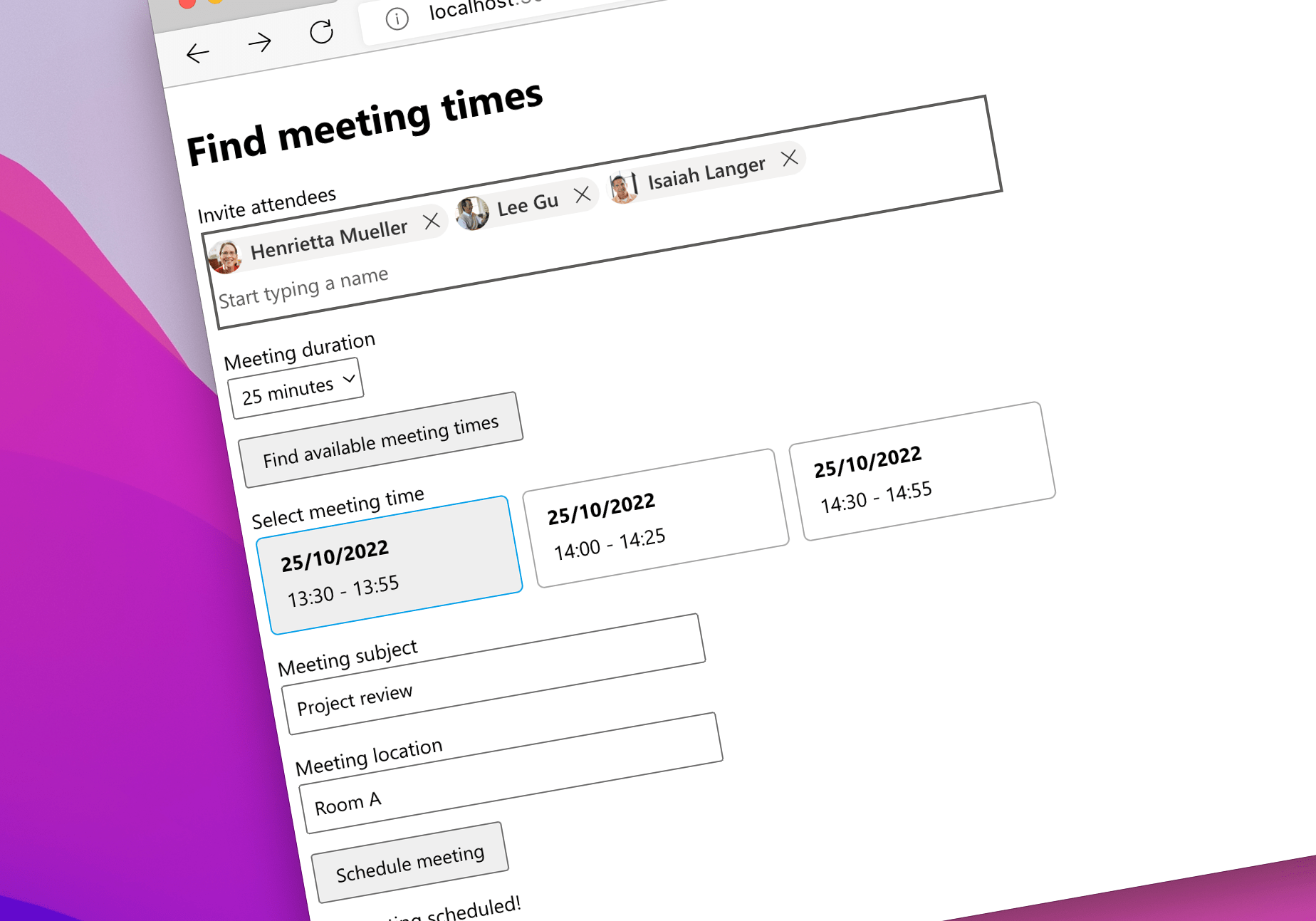
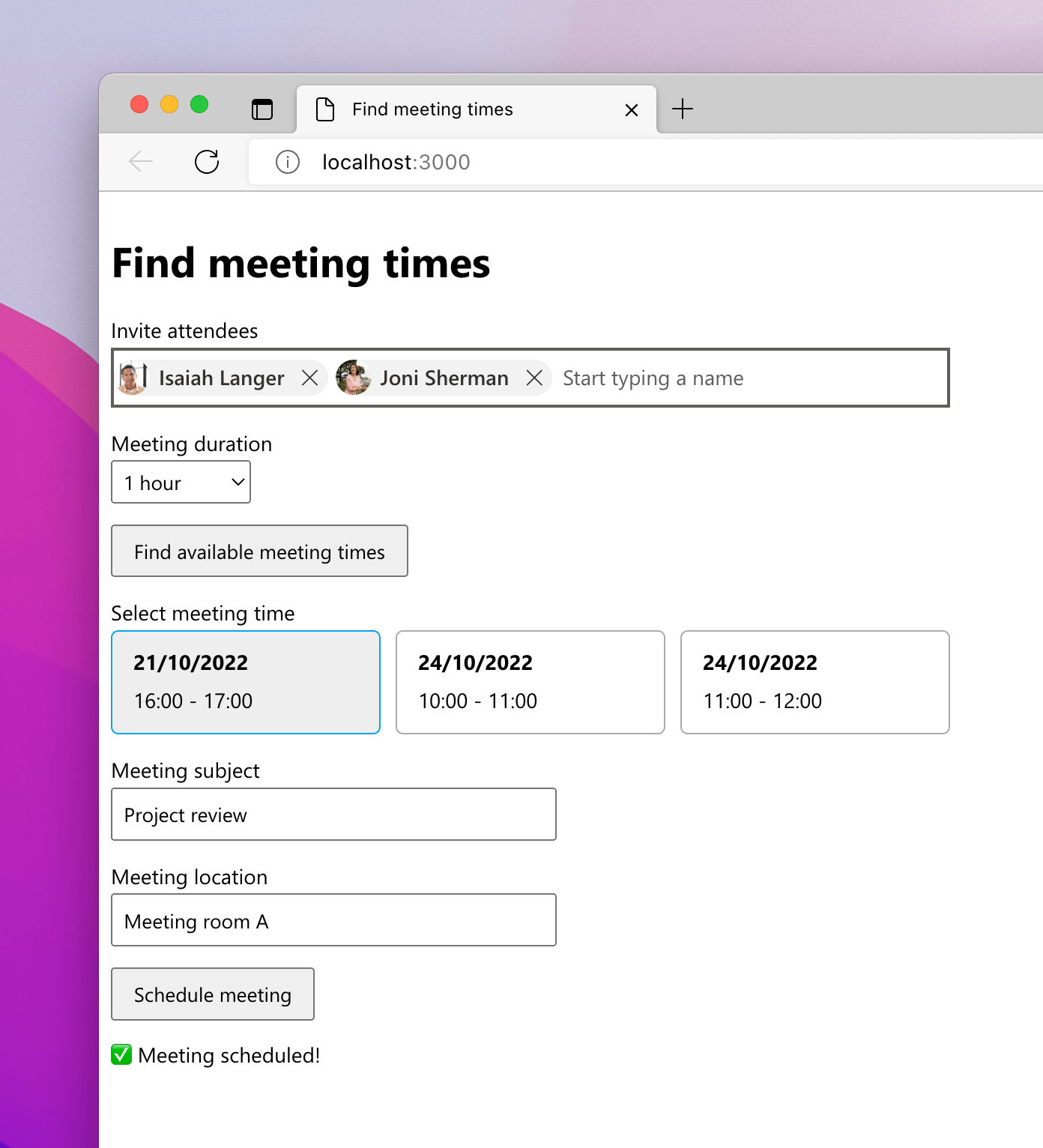
Recently I've been working on another app that shows how you'd find meeting times and schedule a meeting for you and other people in your organization. This is a common scenario for work apps, and while it's available in Outlook, having it directly in the work app helps your colleagues stay in the flow of work.

📝 Check out the article I published about this scenario on freeCodeCamp.

📺 Here's also a recording from a recent community call where I showed the app in action.

👾 And if you're interested in digging into it some more, here's the code.

Remember, the best way to check the app out, is to see it running. Follow the setup steps in the readme and run it on your tenant.

I've got some more ideas for new demos that I'll be working on in the coming weeks, so stay tuned for more updates. Meanwhile, if you've got any questions, don't hesitate to reach out by leaving a comment.

✇Waldek Mastykarz

Find a meeting time and schedule a meeting on Microsoft 365

Find a meeting time and schedule a meeting on Microsoft 365

Many work apps need the ability to schedule a meeting with others in their organization. Here's how to do it for apps connected to Microsoft 365.

Work apps need work data

Work apps serve a specific purpose: they help you track projects, follow orders or manage resources. But rarely do they contain all the information that users need to complete their work. Typically, information about people, their calendars, or communication is stored elsewhere, like in Microsoft 365. And that's a shame because completing a task requires users to switch between different apps, which is detrimental to their productivity. Unless of course, you bring work data into your work app.

Find a meeting time and schedule a meeting on Microsoft 365

A common scenario for work apps is to schedule a meeting with others in the organization. While it sounds trivial, the app must be able to access attendees' calendars, find a suitable meeting time and schedule the meeting. And that's where Microsoft Graph comes in.

Recently I published an article on freeCodeCamp that shows you how to build an app connected to Microsoft 365 that can find a meeting time and schedule a meeting.

The app shows you how to make the best use of features available in the Microsoft Graph Toolkit and Microsoft Graph to build a UI that you could integrate with another app.

Check it out, and I'm looking forward to hearing what you think!

✇Waldek Mastykarz

Show upcoming meetings for a Microsoft 365 user with Microsoft Graph Toolkit

Show upcoming meetings for a Microsoft 365 user with Microsoft Graph Toolkit

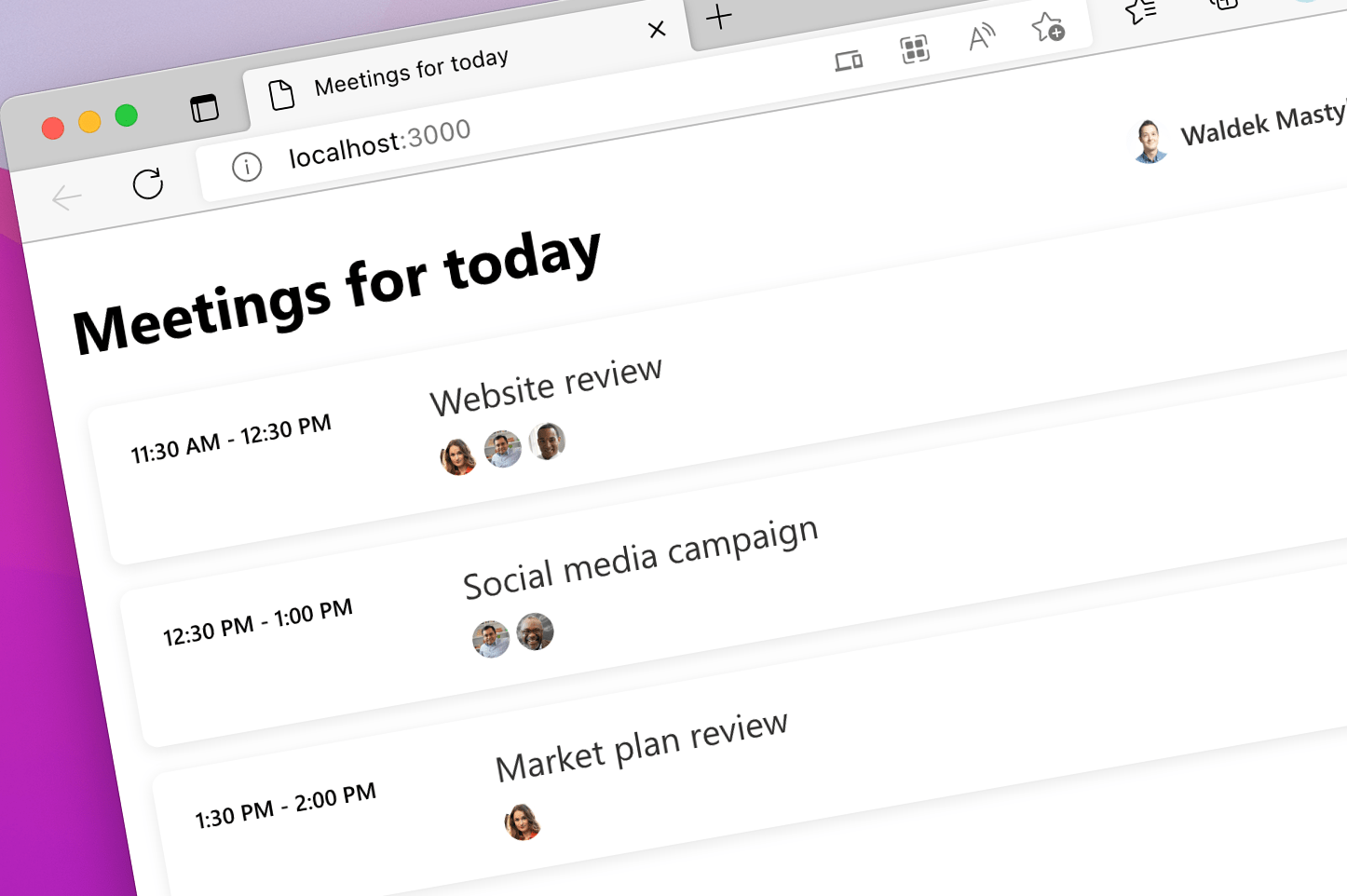
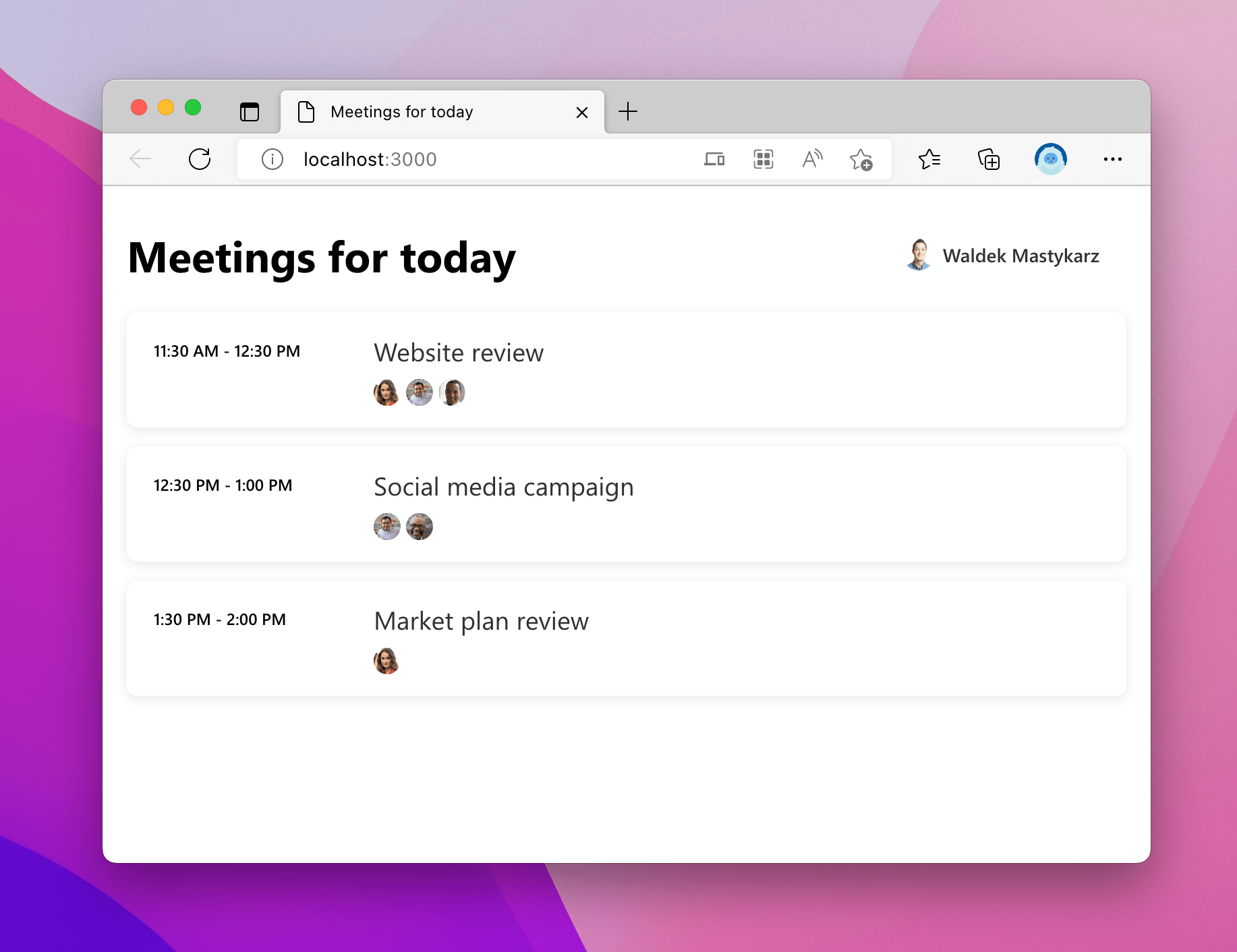
Recently, I showed you how you can build in under 10 minutes a simple personal assistant that shows users meetings they have left for the day. Here's an even easier way to do it using the Microsoft Graph Toolkit.

Show upcoming meetings for a Microsoft 365 user

Showing upcoming meetings is a common scenario when integrating Microsoft 365 in work applications. Using Microsoft Graph, your app can connect to Microsoft 365 and access a user's calendar. By building a specific query, you can retrieve meetings between now and the end of the day.

Recently, I walked you step by step how to complete this scenario in under 10 minutes using the Microsoft Graph JavaScript SDK. But there's an even easier way to do it using the Microsoft Graph Toolkit.

The easiest way to connect to Microsoft 365

Microsoft Graph Toolkit (MGT) is a set of components and authentication providers connected to Microsoft 365. MGT takes away the complexity of implementing authentication, loading data from Microsoft Graph, and showing it in your app. And if anything goes wrong, it also properly handles exceptions. Microsoft Graph Toolkit's components are highly customizable so that you adjust them to your app.

A quick comparison: signing in to your app

To understand the benefits of using Microsoft Graph Toolkit, let's have a look at an example: let users sign in to your app using their Microsoft 365 account.

Typically, you'd need code similar to the following:

<html>
<head>
  <title>Upcoming meetings</title>
  <script src="https://alcdn.msauth.net/browser/2.28.3/js/msal-browser.min.js"></script>
</head>
<body>
  <h1>Upcoming meetings</h1>
  <div id="auth"></div>
  <script>
    (() => {
      const scopes = ['Calendars.Read'];
      const msalConfig = {
        auth: {
          clientId: '021aa7bb-9aaa-4185-92ad-c7b75a7fb9d2'
        }
      };
      const msalClient = new msal.PublicClientApplication(msalConfig);

      function render() {
        msalClient
          .handleRedirectPromise()
          .then(response => {
            const accounts = msalClient.getAllAccounts();

            if (accounts.length === 0) {
              document.querySelector('#auth').innerHTML = '<button>Login</button>';
              document.querySelector('#auth button').addEventListener('click', login);
            }
            else {
              document.querySelector('#auth').innerHTML = '<button>Logout</button>';
              document.querySelector('#auth button').addEventListener('click', logout);
            }
          });
      }

      function login(e) {
        e.preventDefault();
        msalClient.loginRedirect({
          scopes
        });
      }

      function logout(e) {
        e.preventDefault();
        msalClient.logoutRedirect();
      }

      render();
    })();
  </script>
</body>
</html>

In comparison, here's the same functionality built using Microsoft Graph Toolkit:

<html>
<head>
  <title>Upcoming meetings</title>
  <script src="https://unpkg.com/@microsoft/mgt@2/dist/bundle/mgt-loader.js"></script>
</head>
<body>
  <h1>Upcoming meetings</h1>
  <mgt-msal2-provider client-id="021aa7bb-9aaa-4185-92ad-c7b75a7fb9d2" scopes="Calendars.Read"></mgt-msal2-provider>
  <mgt-login></mgt-login>
</body>
</html>

See the difference? And we didn't even get to the good part yet: calling Microsoft Graph!

With Microsoft Graph Toolkit you can focus on building your app and solving problems for your customers. Microsoft Graph Toolkit takes care of the rest.

Show upcoming meetings with Microsoft Graph Toolkit

To give you a more complete comparison, I rebuilt the same scenario using Microsoft Graph Toolkit.

The best way to check out the app is to run the app locally by following the instructions in the README.

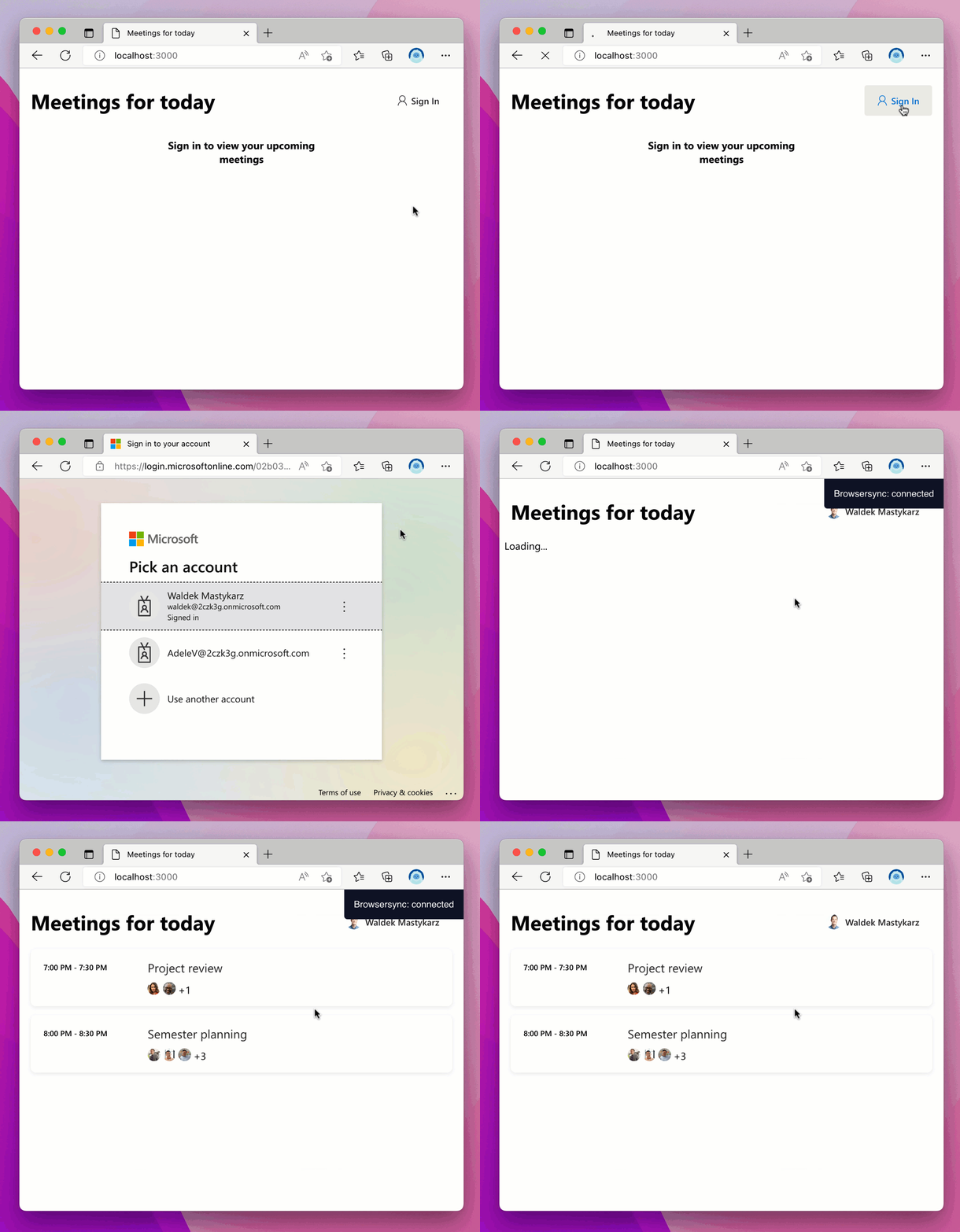
Browser window with a web page showing upcoming meetings for a user

Because retrieving the data using MGT is so simple, I added some extra UI to differentiate between the different states of the app.

The MGT Agenda component, which I use to show the upcoming meetings offers different templates to customize the UI. When loading the data, I show a simple text message:

<mgt-agenda>
  <template data-type="loading">
    <div class="loading">Loading...</div>
  </template>
  <!-- trimmed for brevity -->
</mgt-agenda>

When there's no data to show, I take into account the fact that there might be no data because the user hasn't signed in to the app yet, or that the user might have no upcoming meetings:

<mgt-agenda>
  <template data-type="loading">
    <div class="loading">Loading...</div>
  </template>
  <template data-type="no-data">
    <div class="no-data" data-if="mgt.Providers.globalProvider.state === mgt.ProviderState.SignedIn">
      <!-- No upcoming meetings -->
    </div>
    <div class="no-data" data-else>
      <p>Sign in to view your upcoming meetings</p>
    </div>
  </template>
</mgt-agenda>

I use for this the conditional rendering capability in MGT.

To show upcoming meetings, for simplicity, I use the default template provided with the Agenda component.

Animated gif showing signing in to the app with a Microsoft 365 account and viewing upcoming meetings

Summary

Microsoft Graph Toolkit is a great way to build apps that connect to Microsoft 365. It takes away the complexity of connecting to Microsoft 365 and provides a set of components that you can use to build your app and bring in the data and insights from Microsoft 365. Because MGT components are highly customizable, you can seamlessly integrate them in your app.

Run the sample app locally and see for yourself how easy it is to build apps that connect to Microsoft 365 using Microsoft Graph Toolkit.

❌