Vue normale

Il y a de nouveaux articles disponibles, cliquez pour rafraîchir la page.
À partir d’avant-hierMS Technology Talk

Building Custom SharePoint Solutions to Meet Your Business Needs

SharePoint is a powerful platform for building custom solutions that meet the unique needs of your business. One way to extend SharePoint’s functionality is by creating custom web parts. A web part is a modular component that can be added to a SharePoint page to display information or perform a specific function. In this blog post, we’ll explore how to create custom web parts in SharePoint to build custom solutions for your business needs.

Planning Your Custom Web Part

Before you begin building your custom web part, it’s important to plan out the requirements and functionality you need. This includes identifying the data sources, user interface, and any other features that you want your web part to include. Some questions you may want to consider during the planning phase include:

  • What data sources will your web part use?
  • How will users interact with your web part?
  • Will your web part require any custom logic or functionality?

Creating Your Custom Web Part Using Out-of-the-Box Features

SharePoint provides several out-of-the-box web parts that you can use as a starting point for your custom web part. These web parts include the Content Editor, Image Viewer, and Script Editor web parts, among others. You can customize these web parts by modifying their properties or adding your own code. To create your custom web part using out-of-the-box features, follow these steps:

  • Navigate to the page where you want to add your web part and click the Edit button.
  • Click the Insert tab on the ribbon and select the web part you want to modify.
  • Modify the properties of the web part or add your own code using the Script Editor web part.

Creating Your Custom Web Part Using PowerApps

PowerApps is a low-code platform that allows you to create custom web parts without writing code. With PowerApps, you can create custom forms, dashboards, and other components that can be added to a SharePoint page. To create your custom web part using PowerApps, follow these steps:

  • Navigate to the PowerApps portal and create a new canvas app.
  • Design your app by adding screens, forms, and other components.
  • Publish your app to SharePoint by selecting the PowerApps option on the Insert tab in the SharePoint ribbon.

Creating Your Custom Web Part Using SPFx

The SharePoint Framework (SPFx) is a modern development framework that allows you to build custom web parts using modern web technologies such as React, Angular, and TypeScript. With SPFx, you can create powerful, dynamic web parts that can be added to any SharePoint page. To create your custom web part using SPFx, follow these steps:

  1. Install the necessary tools and dependencies for SPFx development.
  2. Create a new SPFx web part project using the Yeoman generator.
  3. Develop your web part by adding components, styling, and logic.
  4. Deploy your web part to SharePoint by packaging it as a SharePoint solution and uploading it to the SharePoint app catalog.

Creating custom web parts in SharePoint can be a powerful way to extend SharePoint’s functionality and build custom solutions for your business needs. Whether you use out-of-the-box features, PowerApps, or SPFx, you have the flexibility and power to create web parts that are tailored to your organization’s unique requirements. By planning out your requirements and following best practices for development, you can create web parts that deliver real value to your organization.

The post Building Custom SharePoint Solutions to Meet Your Business Needs appeared first on MS Technology Talk.
Add Multiple control in SPFX Web Part Property Pane

Developing custom components require technical skills but to make it reusable, one need to add configurations to it and this might require a few lines of extra code but will make the component leverage to do customizations on the fly instead of redeploying the component again and again and can be used as a reusable component

Today I will share the scripts to add different type of controls in an SPFx web part which could help to perform different actions and configurations in your web part. I will be using SPFX and PnP property pane controls. For PnP controls, you need to install PnP control module to your solution.

Today I will be sharing Below components to the Property Control

  • Text Field – PropertyPaneTextField
  • SharePoint List Picker Control – PropertyFieldListPicker
  • Date Field – PropertyFieldDateTimePicker
  • Number Field – PropertyFieldNumber
  • Dropdown – PropertyPaneDropdown
  • Checkbox – PropertyPaneCheckbox
  • Color picker – PropertyFieldSwatchColorPicker

Text Field – PropertyPaneTextField Control

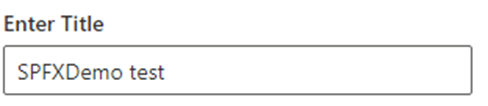
This is the most simple control which you can see when you create a new spfx web part, a default Text field control is added to the property Pane.

Import Section

import {
  IPropertyPaneConfiguration,
  PropertyPaneTextField
} from '@microsoft/sp-property-pane';

Declare property in Export interface

export interface ISpfxDemoWebPartProps {
  title: string;  
}

Code Snippet

 PropertyPaneTextField('title', {
                  label: "Enter Title"
                
})

SharePoint List Picker Control – PropertyFieldListPicker Control

This control shows all the SharePoint list and libraries under current SharePoint site

Import Section

import { PropertyFieldListPicker, PropertyFieldListPickerOrderBy } from '@pnp/spfx-property-controls/lib/PropertyFieldListPicker';

Declare property in Export interface

export interface ISpfxDemoWebPartProps {
  listId?: string;
}

Code Snippet

PropertyFieldListPicker('listId', {
                  label: 'Select List',
                  selectedList: this.properties.listId,
                  orderBy: PropertyFieldListPickerOrderBy.Title,
                  includeHidden: false,
                  onPropertyChange: this.onPropertyPaneFieldChanged.bind(this),
                  properties: this.properties,
                  context: this.context,
                  deferredValidationTime: 0,
                  key: 'listId'
                })

Date Field – PropertyFieldDateTimePicker Control

This control will help you to select the Date and time.

Import Section

import { PropertyFieldDateTimePicker, DateConvention, TimeConvention, IDateTimeFieldValue } from '@pnp/spfx-property-controls/lib/PropertyFieldDateTimePicker';

Declare property in Export interface

export interface ISpfxDemoWebPartProps {
   defaultDate?: IDateTimeFieldValue;
 }

Code Snippet

PropertyFieldDateTimePicker('defaultDate', {
                  label: 'Default Date',
                  initialDate: this.properties.defaultDate,
                  dateConvention: DateConvention.Date,
                  onPropertyChange: this.onPropertyPaneFieldChanged,
                  properties: this.properties,
                  deferredValidationTime: 0,
                  key: 'defaultDate'
                })

Number Field – PropertyFieldNumber Control

This control allows you to select a numeric value from property pane. You can also set min and max value for the control.

Import Section

import { PropertyFieldNumber } from '@pnp/spfx-property-controls/lib/PropertyFieldNumber';

Declare property in Export interface

export interface ISpfxDemoWebPartProps {
  repeatValue?: number;
}

Code Snippet

PropertyFieldNumber("repeatValue", {
                  key: "repeatValue",
                  label: "Select Repeat Value",
                  description: "Number field ",
                  value: this.properties.repeatValue,
                  maxValue: 10,
                  minValue: 1,
                  disabled: false                  
                })

Dropdown – PropertyPaneDropdown Control

The control is used to select a value from a choice of list, you can add custom values to it as I am using it for language selection.

Import Section

import { PropertyPaneDropdown } from '@microsoft/sp-property-pane';

Declare property in Export interface

export interface ISpfxDemoWebPartProps {
  language?: string;
}

Code Snippet

PropertyPaneDropdown('language', {
                  label: "Select Language",
                  options: [
                    { key: 'Eng', text:'English'},
                    { key: 'Ur', text:'Urdu'},
                    { key: 'Ar', text:'Arabic'}
                  ]
                })

Checkbox – PropertyPaneCheckbox Control

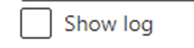
This control is available with sp-property-pane module. It is used to show a checkbox on the control which could be use for multiple reasons. I used it for enabling logs in my solution.

Import Section

import { PropertyPaneCheckbox } from '@microsoft/sp-property-pane';

Declare property in Export interface

export interface ISpfxDemoWebPartProps {
  showlogs?: string;
}

Code Snippet

PropertyPaneCheckbox('showlogs',{  
                  checked:false,  
                  disabled:false,  
                  text: 'Show log'  
                })

Color picker – PropertyFieldSwatchColorPicker Control

This control allows you to pick a color and you can define a list of color to be available for selection.

Import Section

import { PropertyFieldSwatchColorPicker, PropertyFieldSwatchColorPickerStyle } from '@pnp/spfx-property-controls/lib/PropertyFieldSwatchColorPicker';

Declare property in Export interface

export interface ISpfxDemoWebPartProps {
  bgColor: string;
}

Code Snippet

PropertyFieldSwatchColorPicker('bgColor', {
                  label: 'Select Background Color',
                  selectedColor: this.properties.bgColor,
                  onPropertyChange: this.onPropertyPaneFieldChanged,
                  properties: this.properties,
                  colors: [
                    { color: '#ffb900', label: 'Default Yellow' },
                    { color: '#fff100', label: 'Light Yellow' },
                    { color: '#d83b01', label: 'Orange'},
                    { color: '#e81123', label: 'Red' },
                    { color: '#a80000', label: 'Dark Red'},
                    { color: '#5c005c', label: 'Dark Magenta' },
                    { color: '#e3008c', label: 'Light Magenta'},
                    { color: '#5c2d91', label: 'Purple'},
                    { color: '#0078d4', label: 'Blue'},
                    { color: '#00bcf2', label: 'Light Blue' },
                    { color: '#008272', label: 'Teal'},
                    { color: '#107c10', label: 'Green'},
                    { color: '#bad80a', label: 'Light Green' },
                    { color: '#eaeaea'},
                    { color: 'black', label: 'Black'},
                    { color: '#333333', label: 'Neutral'},
                    { color: 'rgba(102, 102, 102, 0.5)', label: 'Half Gray' }
                  ],
                  key: 'bgColor'
                })

The post Add Multiple control in SPFX Web Part Property Pane appeared first on MS Technology Talk.

❌
❌