
Vue normale

Il y a de nouveaux articles disponibles, cliquez pour rafraîchir la page.
À partir d’avant-hierMS Technology Talk

SharePoint Online and Power Platform: Creating Powerful Solutions

SharePoint Online is a powerful collaboration tool that enables organizations to store, share, and manage content and documents securely in the cloud. However, with the integration of Power Platform, SharePoint Online becomes a robust platform for creating powerful solutions that can automate business processes, build custom applications, and integrate with other services.

Power Platform is a suite of tools that includes PowerApps, Power Automate, and Power BI. These tools are designed to enable users to create custom applications, automate workflows, and gain insights from data. By combining the capabilities of SharePoint Online and Power Platform, organizations can create powerful solutions that address their unique business needs.

Here are some of the ways that SharePoint Online and Power Platform can be used to create powerful solutions:

Automating workflows

Power Automate, formerly known as Microsoft Flow, is a cloud-based service that enables users to create automated workflows between different applications and services. With SharePoint Online, users can create workflows that automate tasks such as document approval, notifications, and reminders. These workflows can be triggered automatically based on specific conditions, such as when a document is added or modified.

Building custom applications

PowerApps enables users to build custom applications without any coding knowledge. With SharePoint Online, users can create custom forms and applications that integrate with SharePoint lists and libraries. This enables users to create custom solutions that automate business processes, such as managing customer information or tracking inventory.

Integrating with other services

Power BI is a business analytics service that enables users to analyze data and share insights. With SharePoint Online, users can create dashboards and reports that integrate with Power BI. This enables users to gain insights from data stored in SharePoint Online and other services, such as Excel or Dynamics 365.

Creating chatbots

Power Virtual Agents is a service that enables users to create chatbots without any coding knowledge. With SharePoint Online, users can create chatbots that provide quick access to information stored in SharePoint lists and libraries. This enables users to create conversational interfaces that automate common tasks and provide answers to frequently asked questions.

In conclusion, SharePoint Online and Power Platform can be used to create powerful solutions that automate business processes, build custom applications, and integrate with other services. These tools enable organizations to work more efficiently, gain insights from data, and provide better service to customers. If you’re not already using SharePoint Online and Power Platform, it’s worth exploring how these tools can help you achieve your business goals.

The post SharePoint Online and Power Platform: Creating Powerful Solutions appeared first on MS Technology Talk.

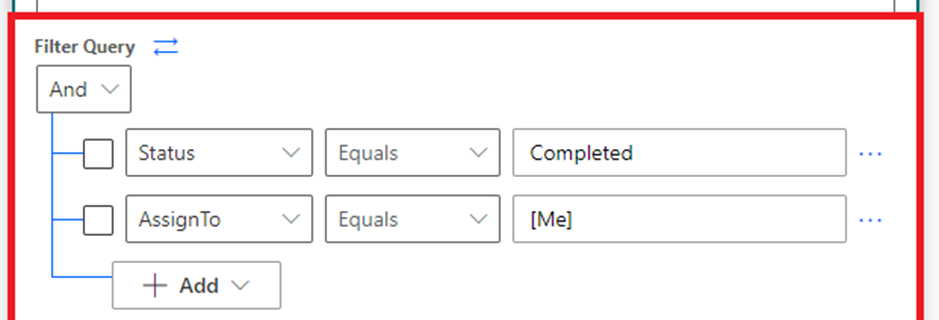
SharePoint filter query in Power Automate

SharePoint is a powerful tool for businesses to store and manage data. However, as data accumulates, it can become difficult to find and sort through information. That’s where filters come in. SharePoint filter queries allow users to narrow down their data to only what they need, making it easier to manage and analyze.

In this blog post, we’ll explore SharePoint filter queries in Power Automate, and how they can help streamline your business processes.

What are SharePoint filter queries?

SharePoint filter queries are a way to narrow down the data stored in SharePoint lists or libraries. Filters allow users to specify which data should be returned based on specific criteria. These criteria can include anything from dates and numbers to text strings and user names.

Filter queries in SharePoint are written in OData syntax, which is a standardized way of expressing queries across a range of data sources. This syntax can be a bit intimidating for those who are new to SharePoint, but once you get the hang of it, it can be a powerful tool for managing your data.

Using filters in Power Automate

Power Automate is a cloud-based tool that allows users to automate tasks and workflows. With Power Automate, you can easily connect SharePoint to other applications and automate tasks based on specific criteria.

To use filters in Power Automate, you’ll need to create a flow that connects to your SharePoint list or library. Once you’ve done that, you can add a “Get items” action to your flow. This action allows you to specify which items you want to retrieve from your SharePoint list or library.

To add a filter query to your “Get items” action, you’ll need to click on the “Show advanced options” link in the action’s configuration panel. From there, you can enter your filter query using the OData syntax.

Here’s an example of a filter query that retrieves all items from a SharePoint list where the “Status” column is set to “In Progress”:

Status eq 'In Progress'

In this example, “Status” is the name of the column we want to filter by, “eq” is the operator we’re using to compare values, and “In Progress” is the value we’re comparing against.

You can also use logical operators like “and” and “or” to combine multiple criteria in your filter query. Here’s an example of a filter query that retrieves all items from a SharePoint list where the “Status” column is set to “In Progress” and the “Assigned To” column is set to the current user:

Status eq 'In Progress' and AssignedTo eq '[Me]'

In this example, “[Me]” is a special keyword that represents the current user.

Once you’ve added your filter query, you can save your flow and test it to make sure it’s working correctly.

Benefits of using filters in Power Automate

Using filters in Power Automate can help streamline your business processes in a number of ways. Here are a few benefits:

  • Reduced workload: By automating tasks based on specific criteria, you can reduce the amount of manual work required to manage your data.
  • Improved accuracy: Filters help ensure that you’re only working with the data you need, which can improve the accuracy of your analyses and reports.
  • Faster decision-making: By quickly retrieving the data you need, you can make faster and more informed decisions.
  • Better collaboration: By sharing specific views of your data with others, you can improve collaboration and communication within your team.

SharePoint filter queries in Power Automate are a powerful tool for managing and analyzing data. By using filters, you can narrow down your data to only what you need, making it easier to manage and analyze. If you’re new to SharePoint filter queries, it may take some time to learn but at you will get the data what you need.

The post SharePoint filter query in Power Automate appeared first on MS Technology Talk.

How to Check if a Microsoft Team Already Exists using Power Automate using Team Title

Power Automate (formerly known as Microsoft Flow) is a powerful tool that allows you to automate workflows between different applications and services. One common use case is to automate the creation of Microsoft Teams. However, before creating a new Microsoft Team, it’s important to check if a team with the same title already exists. In this blog post, we’ll show you how to use Power Automate to check if a Microsoft Team already exists using the team title.

Comparing a Microsoft Team’s existence based on its title is a simple process. You can add this activity to a new Flow by passing the team title as a parameter, or you can include it in an existing Flow. The result of this action will be a Boolean value.

Step 1: “List Teams” Action from the Microsoft Teams Connector

Next, you need to add the “List Teams” action from the Microsoft Teams connector. To do this, search for “List Teams” in the search bar and select the “Get teams” action.

Step 2: Add expression to “Compose” Action

Now, Add the “Compose” Action and can add a formula express on “List Teams” action verifying the Team Title to compare. Check the below example:

contains(string(outputs('List_teams')?['body']),triggerBody()['text'])

This will return a Boolean value which you can condition to condition and can add actions to your flow to perform additional actions based on this information.

In this blog post, we showed you how to use Power Automate to check if a Microsoft Team already exists using the team title. By following these steps, you can ensure that you don’t create duplicate Microsoft Teams and streamline your workflow. Power Automate is a powerful tool that can help you automate many repetitive tasks, saving you time and improving your productivity.

The post How to Check if a Microsoft Team Already Exists using Power Automate using Team Title appeared first on MS Technology Talk.

❌
❌