
Vue normale

Il y a de nouveaux articles disponibles, cliquez pour rafraîchir la page.
À partir d’avant-hierMS Technology Talk

Managing Files Across Microsoft 365

Microsoft 365 is a powerful suite of productivity tools that includes a wide range of apps and services. One of the key features of Microsoft 365 is its ability to manage files across various apps and services. With Microsoft 365, you can store, share, and collaborate on files with ease. In this blog post, we’ll explore some best practices for managing files across Microsoft 365.

Use OneDrive for Business or SharePoint Online

One of the most important things you can do to manage your files effectively is to use OneDrive for Business or SharePoint Online. These cloud storage solutions are designed to help you manage and share files across Microsoft 365. They offer features such as version control, co-authoring, and access control to help you manage your files effectively.

With OneDrive for Business, you can store files in the cloud and access them from anywhere. You can also share files with others, and set up access controls to ensure that only authorized users can view or edit them. SharePoint Online, on the other hand, is a powerful collaboration platform that allows you to create team sites, share files, and collaborate with team members.

Use the Microsoft 365 Admin Center

The Microsoft 365 Admin Center provides a centralized location for managing your organization’s files across Microsoft 365. From here, you can manage user permissions, set up retention policies, and configure data loss prevention settings. You can also track user activity and audit logs to ensure that your files are being used appropriately.

One of the key benefits of the Microsoft 365 Admin Center is its ability to manage permissions. You can grant or revoke access to files and folders, and set up role-based access controls to ensure that only authorized users can access sensitive data.

Use Microsoft Teams

Microsoft Teams is a collaboration platform that integrates with Microsoft 365. You can use Teams to store files, collaborate on documents, and chat with team members. Teams also integrates with other Microsoft 365 apps like OneNote, Planner, and Power BI.

One of the key benefits of using Teams is its ability to integrate with other apps. You can create channels for specific projects, and share files and information with team members. You can also use Teams to host virtual meetings and collaborate on documents in real-time.

Use Compliance Manager

Compliance Manager is a Microsoft 365 feature that helps you manage compliance-related tasks, such as GDPR, ISO 27001, and HIPAA. It provides a dashboard for tracking compliance tasks and provides guidance on how to meet compliance requirements.

With Compliance Manager, you can track compliance tasks across your organization, and get guidance on how to meet compliance requirements. You can also use Compliance Manager to create reports and dashboards that show your compliance status.

Use Power Automate

Power Automate is a Microsoft 365 tool that allows you to automate tasks across Microsoft 365. You can use Power Automate to create workflows that move files between apps, trigger actions based on certain events, and automate other repetitive tasks.

One of the key benefits of Power Automate is its ability to automate tasks. You can create workflows that move files between apps, and trigger actions based on certain events. This can help you save time and reduce manual errors.

Managing files across Microsoft 365 can be a complex process, but with the right tools and strategies, you can make it easier. By using OneDrive for Business or SharePoint Online, the Microsoft 365 Admin Center, Microsoft Teams, Compliance Manager, and Power Automate, you can manage your files effectively, ensure compliance, and collaborate with team members seamlessly.

The post Managing Files Across Microsoft 365 appeared first on MS Technology Talk.

Disable OneDrive for Business Access for All licensed users

OneDrive for Business is a cloud-based storage solution that allows users to store, share, and collaborate on files from anywhere. However, in some cases, an organization may want to disable OneDrive for Business access for licensed users. In this blog post, we will look at how to disable OneDrive for Business access for licensed users.

Access the SharePoint admin center

To disable OneDrive for Business access for licensed users, you need to access the SharePoint admin center. You can access this center by signing in to your Microsoft 365 admin center and selecting “Admin centers” > “SharePoint.”

Go to the “User profiles” page

Once you are in the SharePoint admin center, go to the “User profiles” page. You can find this page by selecting “More Features” > > “User profiles” from the left-hand navigation menu.

Modify the Manage User Permissions

In the “User profiles” page, you can edit the user profile properties. Select the user profile you want to disable OneDrive for Business access for and click on the “Edit” button and disable the OneDrive access.  But to disable it for all users across tenant you can click on “Manage User Permissions”.

Select the Everyone except external users and uncheck “Create Personal Site (required for personal storage, newsfeed, and followed content)”

Click “Save” to apply the changes.

Verify the changes

To verify that the changes have been applied, go to the “OneDrive for Business” page in the SharePoint admin center. You can find this page by selecting “OneDrive” from the left-hand navigation menu. Select the user you disabled OneDrive for Business access for and verify that their access has been disabled.

Note: If a user already provisioned the OneDrive than above setting will disable the access for that user. You would need to revoke the access for that user.

Enable OneDrive for Business Access for all licensed users

Follow the same steps to enable the OneDrive for business access for licensed users,

And that’s it! You now know how to disable OneDrive for Business access for licensed users. This can be a useful feature for organizations that want to limit access to OneDrive for Business for some time.

The post Disable OneDrive for Business Access for All licensed users appeared first on MS Technology Talk.

How to Leverage SharePoint Online to Manage Remote Teams

The COVID-19 pandemic has forced many organizations to shift to remote work, and this trend is expected to continue even after the pandemic subsides. While remote work offers many benefits, such as increased flexibility and reduced costs, it also presents unique challenges, such as how to effectively manage teams that are geographically dispersed. Fortunately, SharePoint Online can help organizations overcome these challenges and manage remote teams more effectively. In this post, we’ll explore how to leverage SharePoint Online to manage remote teams.

Set up a Team Site

The first step in managing remote teams in SharePoint Online is to create a Team Site. A Team Site is a dedicated workspace for a team where they can collaborate on projects, share files, and communicate. In SharePoint Online, a Team Site can be created using a template, which includes preconfigured lists, libraries, and web parts that are tailored to the needs of a particular team.

Use the Communication Tools

One of the biggest challenges of managing remote teams is communication. SharePoint Online offers several communication tools that can help teams stay connected and collaborate effectively. For example, Teams can use the News web part to share updates and announcements, the Discussion Board to have conversations, and the Yammer web part to engage in social networking.

Create and Manage Tasks

Managing tasks is another critical aspect of managing remote teams. SharePoint Online offers a built-in task management system that allows teams to create, assign, and track tasks. Tasks can be added to the Tasks list in a Team Site, and they can be assigned to specific team members, given deadlines, and marked as complete when finished.

Use OneDrive for Business

OneDrive for Business is a cloud-based storage service that is included with SharePoint Online. It allows team members to store, sync, and share files securely. By using OneDrive for Business, team members can access files from anywhere, collaborate on documents in real-time, and avoid the risks associated with sending files via email.

Monitor Team Performance

Monitoring team performance is critical for ensuring that remote teams are meeting their goals and objectives. SharePoint Online offers several tools that can help managers track team performance, such as the PerformancePoint Services, which allows managers to create dashboards and reports that provide real-time visibility into team performance.

Train Employees on How to Use SharePoint Online

Effective use of SharePoint Online requires training and education. It’s essential to ensure that all team members understand how to use SharePoint Online and its various features. Training can be provided through online tutorials, webinars, or in-person training sessions.

Ensure Data Security and Compliance

Remote work presents unique security and compliance challenges, particularly with respect to data. It’s essential to ensure that sensitive data is secure and that all team members are following the organization’s data security policies. SharePoint Online offers several security features, such as data encryption and multi-factor authentication, to ensure that data is secure and compliant with regulations. Managing remote teams requires a different set of skills and tools than managing teams in a traditional office setting. SharePoint Online offers many features and tools that can help organizations manage remote teams more effectively. By creating a Team Site, using communication tools, creating and managing tasks, using OneDrive for Business, monitoring team performance, training employees on how to use SharePoint Online, and ensuring data security and compliance, organizations can leverage SharePoint Online to manage remote teams more effectively.

The post How to Leverage SharePoint Online to Manage Remote Teams appeared first on MS Technology Talk.

Microsoft 365 Discovery Series 2022

Welcome to Microsoft 365 Discovery series. We are going to organize series of sessions for Eight weeks starting from 26th Feb, 2022 till 16th of April, 2022. There would be two sessions each Saturday, one would be from the community speaker on any of the Microsoft 365 area and second one would be a continuous series of sessions on Microsoft SharePoint.

This would a free event series and we encourage you to attend if you have basic understand on Microsoft t365. Our goal is to develop skillset on Microsoft 365 Platform. If you are new to Microsoft technologies, then this would be an ideal opportunity for you to develop the right skill set.

Registration link: https://www.eventbrite.com/e/microsoft-365-discovery-series-2022-tickets-287832102567

Event Page Link: https://tinyurl.com/MSTechTalkDiscoverySeries

Event Detail

  • PowerPlatform and AI

    In this session, I will discuss the depth of AI within PowerPlatform and how it’s changing the whole structure of Businesses Applications.

    Week 1
    Thu, 3/10/2022 5:00 pm – 5:45 pm
  • Microsoft 365 Mobile Device Management (Intune) component

    Managing mobile devices and computers is not easy. Especially because mobile users are nowadays, mostly everyone, and therefore the challenges are greater. Through MDM-Mobile Device Management and Azure Intune you can provide business and data by organizing security politics, dynamic groups and assigning rights to access documents and applications.
    Microsoft 365 makes it easy for you to manage your devices as well as protect your data, learn through a demo in class.

    Week 2
    Thu, 3/10/2022 5:10 pm – 5:55 pm
  • Overview on Microsoft 365 and Dev Tenant

    An overview on Microsoft 365 will be shared and the app details and creation of a new dev tenant. A detail walkthrough on admin panel and creation of user accounts, configuring demo accounts and organization setting details for the created Tenant

    Week 1
    Thu, 3/10/2022 6:00 pm – 6:45 pm
  • SharePoint Online Information Architecture

    Well-planned and executed information architecture is a prerequisite for an intelligent and high-performing intranet, hub, or site. The most important first step in planning an effective information architecture is understanding your users and helping them find what they need to complete tasks in a way that makes the most sense to them.

    In this session I will share the details regarding the SharePoint Site templates and Hub Site. Will discuss about information architecture for the site and why its important including overview on content types, site columns and list templates.

    If you haven’t worked on SharePoint before than session will be helpful for you to get understanding about the structure of SharePoint sites and how it works. And if you are working for a company, you will understand that what information you would need from business users.

    Week 2
    Thu, 3/10/2022 6:00 pm – 6:45 pm
  • How to configure Microsoft Teams to meet your needs

    Microsoft Teams offers many options in its separate Admin Center to customize the feature to your needs. It distinguishes between global settings and settings that can be applied by policy to explicit users and groups. In addition, there are various options with the separate Microsoft Cloud features to customize the Teams environment to your needs. This session shows an overview focusing to:
    •Options with the Conditional Access feature
    •Microsoft Teams and Defender for Cloud Apps
    •Defender for Office 365 and scenarios in the context of Microsoft Teams
    •Microsoft Information Protection and Teams
    •App Policies with Endpoint Manger for Microsoft Teams Apps

    Week 3
    Sat, 3/12/2022 5:10 pm – 5:55 pm
  • SharePoint Site Security Management

    In this session I will share details on SharePoint security and will show managing security at site at site level and also at document level. Will also different Tiers of Microsoft Teams security and also customization of security for SharePoint site and Microsoft Team to protect the secure content with ease of collaboration.

    Week 3
    Sat, 3/12/2022 6:00 pm – 6:45 pm
  • Introducing Microsoft Graph Search Connectors

    In this session, I will introduce what is Microsoft Graph & Connectors and how important they are for all our future search in our organization. Search is a key aspect on every product in the market for content management and how it solves the user experience is a topic to discuss.
    We will cover Microsoft & Custom Connectors on this topic and understand the architecture of building them with Microsoft Graph.

    **& Yes, we will see some cool demos

    Week 4
    Sat, 3/19/2022 5:10 pm – 5:55 pm
  • SharePoint List and Power Automate Integration

    In this session I will be sharing an overview about SharePoint lists and Power Automate and will walkthrough the process for creating a flow associated with a SharePoint list.
    If you are new to Microsoft 365 platform and learning about SharePoint than this session would be very helpful for you and will give you understanding about SharePoint lists and how to integrate business processes.

    Week 4
    Sat, 3/19/2022 6:00 pm – 6:45 pm
  • Add to OneDrive – new way to sync?

    This session tells you the different of “classic” sync and “Add to OneDrive”, the Pro’s and Contra’s, the Limits of sync and why Microsoft implement another way of sync. It includes a lot of demo’s to explain, that the new way of sync is much more better.

    Week 5
    Sat, 3/26/2022 5:10 pm – 5:55 pm
  • Microsoft Form, Power Automate and SharePoint list process Integration

    In this session I will share the steps by step integration between Microsoft Form and SharePoint List using Power Automate flow and also will show the integration of different business activities.

    Week 5
    Sat, 3/26/2022 6:00 pm – 6:45 pm
  • PowerApps – Import Excel Files into SharePoint

    Importing data from Excel sheets into an existing or new SharePoint list can be a great tool to have in your toolbox. Let’s take a look at the best approach to executing this from Power Apps using File Pickers and a Flow from Power Automate

    Week 6
    Sat, 4/2/2022 5:10 pm – 5:55 pm
  • Introduction to Azure SQL

    In this session we will cover the different options available in Azure SQL in order to select the appropriate option for our next cloud project. We will see practical cases of how to migrate our on-premises databases to Azure SQL

    Week 7
    Sat, 4/9/2022 2:10 pm – 2:55 pm
  • SharePoint and Teams App Development using SPFx and PnP Modules

    This session is about SharePoint app development using SPFx framework and how we can use PnP modules and other 3rd party components in SharePoint app development. This would be a walk through session where I will share the details on the project creation creation till deployment steps.

    Week 7
    Sat, 4/9/2022 3:00 pm – 3:45 pm
Session and Speaker Management powered by Sessionize.com

Speakers

The post Microsoft 365 Discovery Series 2022 appeared first on MS Technology Talk.
Change storage limit for OneDrive for Business

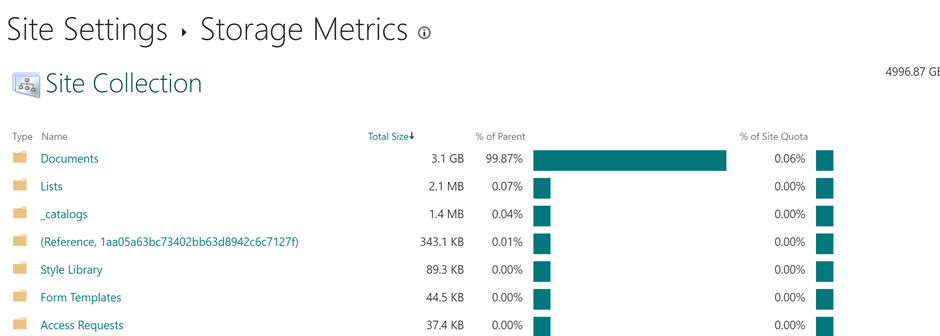
Default storage limit for OneDrive online is 1 TB for all the Microsoft 365 users. SharePoint Admin can change the OneDrive’s storage quota limit from the OneDrive Admin Center but that would be for all users. If a user’s OneDrive is reaching the the 1 TB storage limit than SharePoint admin can increase the storage limit for that user using Microsoft 365 Admin Center and by using SharePoint online PowerShell.

User can view their storage limit by going to OneDrive Settings à More Settings and click on Storage Matrix.

Retrieve OneDrive URL

A user can access his/her OneDrive’s URL directly through brownser by login into Microsoft 365 Tenant. A SharePoint Admin can access it through multiple ways which explained on this blog post. Below is a small PowerShell script which will return of all OneDrive sites

Import-Module Microsoft.Online.SharePoint.PowerShell
$TenantUrl = "https://mstalk-admin.sharepoint.com"
Connect-SPOService -Url $TenantUrl
$OneDriveURLs = 
Get-SPOSite -IncludePersonalSite $true -Limit all 
    -Filter "Url -like -my.sharepoint.com/personal/" | select Title,Url,Owner,StorageUsageCurrent| Out-GridView 

Change user’s OneDrive for Business storage using Microsoft 365 Admin Center

Go to Active users and search for the user. Click on the user’s name for details and select OneDrive Tab and click on Edit button Under Storage used.

Change user’s OneDrive for Business storage using PowerShell

Use below SharePoint online PowerShell to update the storage limit for a user:

Import-Module Microsoft.Online.SharePoint.PowerShell
$TenantUrl = "https://mstalk-admin.sharepoint.com"

$OneDriveSite = "https://mstalk-my.sharepoint.com/personal/adnan_amin_mstechtalk_com"
#Enter the OneDrive Storage Quota in MB 
$OneDriveStorageQuota = "2097152" 
#Enter the OneDrive Storage Quota Warning Level in MB
$OneDriveStorageQuotaWarningLevel = "2097152" 
Set-SPOSite -Identity $OneDriveSite -StorageQuota $OneDriveStorageQuota -StorageQuotaWarningLevel $OneDriveStorageQuotaWarningLevel 

The post Change storage limit for OneDrive for Business appeared first on MS Technology Talk.

❌
❌