Vue normale

Il y a de nouveaux articles disponibles, cliquez pour rafraîchir la page.
À partir d’avant-hierSharePoint Trenches

Closing, Opening and Unlocking SharePoint site collections

The way to implement some sort of site collection life cycle in SharePoint Server and the classic SharePoint Online sites is the Site Policy.
With the site policy you can set when to close the site and what time to wait after closure and delete it.
Closing and Opening of site can be done very easily using server or client side code if the site already has policy assigned.
Below is an example server side powershell code for closing and opening site collections. Note that the code should be executed within elevated privilege context.


Add-PSSnapin *sh*
 
## Close Site Collection
[Microsoft.SharePoint.SPSecurity]::RunWithElevatedPrivileges(
 {
  $spSite = Get-SPSite http://portal.azdev.l/sites/TestSite/
            
  [Microsoft.Office.RecordsManagement.InformationPolicy.ProjectPolicy]::`
   CloseProject($spSite.OpenWeb())
 }
)
 
## Open Site Collection
[Microsoft.SharePoint.SPSecurity]::RunWithElevatedPrivileges(
 {
  $spSite = Get-SPSite http://portal.azdev.l/sites/TestSite/
            
  [Microsoft.Office.RecordsManagement.InformationPolicy.ProjectPolicy]::`
   OpenProject($spSite.OpenWeb())
 }
)


Reopening the site will also update the "Project Expiration date". This is the date when the site will be deleted according to the applied site policy.
You might need to reopen a site if for example you need to do some administrative task over the site collection like disabling feature, removing event receiver or something similar.
However, changing the deletion date might not be acceptable.
When a site is closed a special read-only lock is applied. If you check in the Central Administration you will see below.

Archived Site
If you have to do change in couple of closed sites, you can remove the lock from the Central Administration UI. Doing this for hundreds or thousand of closed sites will not be very practical.
The issue is that doing below command will not unlock the site if it was closed by site policy or using the ProjectPolicy class.


Set-SPSite -Identity http://portal.contoso.net/sites/TestSite -LockState Unlock


The key thing to notice on the picture above is the term "Archived". The SPSite object has Archived Boolean property, if it is true the site is "archived" and read-only, if false and there is no other lock type applied, the site will be read-write. You can just change the value of that property with PowerShell, setting the value to false will not alter the project expiration date.


$spSite = Get-SPSite http://portal.contoso.net/sites/TestSite 
## Unlock the site
$spSite.Archived = $false
 
## DO YOUR THING
 
## Lock back the site
$spSite.Archived = $true


There is no client side analog that I am aware of. I hope it was helpful!

Nintex Workflow UDA Usage report script

Yesterday I worked with a client that have many Nintex workflow published with heavy usage of UDAs(User Defined Actions). I wanted to get a detailed report on the UDA usage. Unfortunately I am not aware of any  out of the box Nintex tool that can do that. The Analyze button can give you some information, but you need to click on the workflow to find out where it is located, you need to be in the scope where the UDA is published, you can get information for one UDA at a time and the information is not really "exportable".
This is why I created a powershell script that will give you information for the UDA usage across the farm on all levels. It will give you useful information like UDA Name, Workflow Name, Defined At, List, Web, Site, WebApplication, WorkflowType, Author, UDA Version Used, Workflow Id.
There are two "modes" of the script, the default will give you just the GUIDs of the list,web,site and the web apps. If you want to get the name of the list and the URLs you need to use the second mode that will require more time to complete but will give you nice looking URLs instead GUIDs. If you want to get the URLs just use switch parameter GetUrls. The result can be saved in CSV format or it can be outputted in powershell. If you give value for CSVPath the Grid View will open at the end to visualize the data. The main source of information is the Nintex Configuration database and you can use the script with SQL authentication if you have an account with enough permissions and your SQL supports it.
I have tested the script with SharePoint 2016,2013 and 2010 and the oldest Nintex Workflow version I tested was 2.3.7.0.
You can see the code and the output examples below. I hope you find it useful!

Output with URLs retrieved:
Nintex Workflow UDA Usage report with URLs

Quick output with GUIDs:
Nintex Workflow UDA Usage report with GUIDs

Trust failed error when browsing the Central Administration

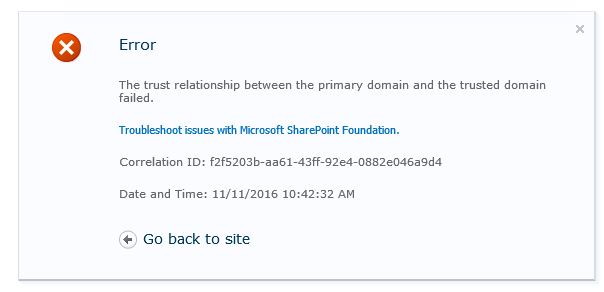
In this quick post I am going to share an issue that I recently hit with one SharePoint Server deployment. While browsing the Central Administration I got below error when clicking on the Manage service applications page.


The key thing with this error is to know the background story, something I was missing.
The story is that this farm was migrated from one domain to another.
Everything was working fine the new farm was in production when we started to get this error.
There was one small detail that we were not aware of and it is that there was domain trust between the new and the old domain during the migration. This is why everithing was working fine until the network link between the old and the new domain was cut.
With this small detail the error below started to make sense. You will see this error in different .NET apps if the app is trying to do something with identity from a trusted domain but no domain controller from the trusted domain can be reached.

The trust relationship between the primary domain and the trusted domain failed.

By looking at the "Delegated Administrators" I concluded that there are accounts from the old domain that have permissions over some of the service applications. I was even unable to get the service applications using Get-SPServiceApplication in powershell. It seems that there is some identity checking when we access the service application management page and it is failing because the trusted domain cannot be reached. The same exception can be reproduced if you try to translate username from the trusted domain to SID. The lines below are a good test to check if there is an issue with the trusted domain with PowerShell.

$userName = "DOMAIN\User"
$objUser = New-Object System.Security.Principal.NTAccount($userName)
$strSID = $objUser.Translate([System.Security.Principal.SecurityIdentifier])
$strSID.Value

Here are some of the things that might not work if you are in this situation:

- You will not be able to access the service management page
- You will not be able to enumerate the service applications in powershell
- In my case the Search and UPA was the SAs with administrators from the trusted domain and you will not be able to restart the service instances
- The UPA might stop working working completely
- If you clear the configuration cache the Timer Service will fall in a loop of rebuild attempts and crashes and no timer jobs will be executed.

As you can see this situation might not be a good place to be :).
The solution to this will be to restore the connection to the trusted domain and I am talking about a physical availability to a DC from the trusted domain or just remove the trust from the current domain. Sometimes the second solution might be the only possible solution, or just maybe this relationship was just not removed by the domain admins when the connection was cut.
If you remove the domain trust the error will be fixed and the translate method in powershell will fail with "Some or all identity references could not be translated." which it seems is handled better. Than you will be able to do some proper cleanup, if you wish.
I hope that this post was helpful! 

Build slider bar graph date time search refiner with custom intervals

A couple of weeks ago I worked with a client that had this requirement for their search center in SharePoint Online. They had a repository with different research documents and these documents had a Publishing Date date/time field with values up to 30 years ago.
The client wanted to build a result page for this documents and have a slider bar refiner with custom intervals up to 10 years ago. 
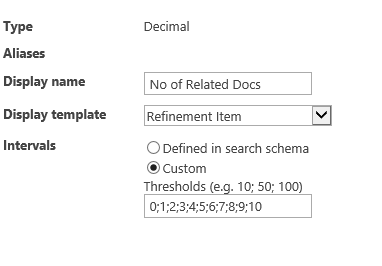
If we have a numeric based managed property we can specify a custom refiner interval like the one below.
Unfortunately the Custom option is missing for date and time datatype. We have predefined intervals that are up to one year ago and "Defined in search schema" which I am not sure what is suppose to mean, but this will be the error you will get if you select this option.

For this Display Template you must specify custom intervals for the values that will be shown. Please change the refinement settings to use custom intervals.

It really does not tell us much if you don't have an option to specify custom interval in the UI.
Luckily if  you export the Refinement webpart you can see more refiner settings. All selected refiners are represented as JSON and below are the settings of our Publication Date refiner(formatted).


There are two settings that grab the attention and they are highlighted in the picture above. They are "useDefaultDateIntervals", which obviously means if the default intervals that cover only one year should be used and "intervals" that should represent the custom intervals. After some research on the web I found that the intervals value should be array of integers that are representing the intervals in days. I came up with these intervals for my client: Ten Years Ago, Five Years Ago, Three Years Ago, One Year Ago, Six Months Ago, Three Months Ago, One Month Ago, 7 days Ago and Today. This will be set with flowing intervals value:

[-3650,-1825,-1095,-365,-180,-90,-30,-7,0]

The first step will be to update the values for "useDefaultDateIntervals" and "intervals". Set the "useDefaultDateIntervals" to false and for "intervals" use your interval array like the picture below.


Then you will need to import the webpart  and use it in your page. The result is below.


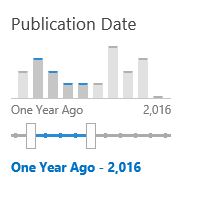
We have our custom intervals and they are working as we expect(at least with me). However we can see one big issue and it is that the intervals are not labeled appropriately. This should be fixed in the refiner display template.
As it is not a good practice or practical in this case to edit the out of the box display template I created a new display template based on the out of the box "Slider with bar graph".
In the new template I have specified values for the Label and the NextIntervalLabel of all "filter boundaries". In this example we are going to have 10 boundaries. NextIntervalLabel is used when you move the mouse over the bar and the Label is used for boundary label in the slider. You can see the entire template below.

On line 104 we can see how to get all boundaries and their values for Label and NextIntervalLabel.
After deploying and setting the new display template we can see that the labels are much more accurate.


There is small detail that should be updated and it is the start and end labels of the bar graph.
Unfortunately my solution to that is to change the text by selecting the elements by class name and this is not the most elegant solution if you have more than one slider bar refiners, in that case you will need to change the index number to get the correct elements. You can see the code below.

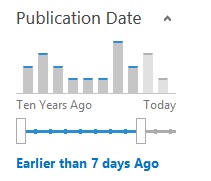
With this final touch this is how our custom slider bar graph refiner looks like.


It looks really cool and useful. If you check the refiner settings in the UI now you will see that "Defined in search schema" is selected. I found this misleading since I have done nothing special in the search schema.
I hope that this was helpful!

Get All Items in 5000+ large list with CSOM in PowerShell

Last week I had to write a script that needed to take all items in large SharePoint Online list.
By large I mean above 5000 items. This means that the list is above the list view threshold in SharePoint Online, which is 5000 and we cannot change that. The way to get all items in SharePoint Online is to use CAML query. However if it is just an empty query without any filtering it will fail, if you use unindexed column for filtering or ordering the query will fail, if you filter/order by indexed column and the query returns more than 5000 items it will fail again. The error in this and other scenarios is similar to the one below.

Exception calling "ExecuteQuery" with "0" argument(s): "The attempted operation is prohibited because it exceeds the list view threshold enforced by the administrator."

The way to workaround this is pagination of the view. This means that we will have a row limit of the result that the query can return that should be less or equal to 5000. Once we get the first 5000 items we can do another query for the next 5000 starting from the position where the first result(page) ends. This is the same with what we do in the UI scrolling foreword in the list view. Below is an example PowerShell snippet that will take all items from a list using 5000 items page size ordering the items by ID.

$list = $ctx.Web.Lists.GetByTitle($DocLibName)
$ctx.Load($list)
$ctx.ExecuteQuery()
## View XML
$qCommand = @"
<View Scope="RecursiveAll">
    <Query>
        <OrderBy><FieldRef Name='ID' Ascending='TRUE'/></OrderBy>
    </Query>
    <RowLimit Paged="TRUE">5000</RowLimit>
</View>
"@
## Page Position
$position = $null
 
## All Items
$allItems = @()
Do{
    $camlQuery = New-Object Microsoft.SharePoint.Client.CamlQuery
    $camlQuery.ListItemCollectionPosition = $position
    $camlQuery.ViewXml = $qCommand
 ## Executing the query
    $currentCollection = $list.GetItems($camlQuery)
    $ctx.Load($currentCollection)
    $ctx.ExecuteQuery()
 
 ## Getting the position of the previous page
    $position = $currentCollection.ListItemCollectionPosition
 
 # Adding current collection to the allItems collection
    $allItems += $currentCollection
}
# the position of the last page will be Null
Until($position -eq $null) 

Few word about the query, I am using RecursiveAll because I used it against library and I wanted to get all items in all folders, the size of the page is 5000, just on the edge of the threshold and I am ordering the result by ID because this column is always indexed.
I am using Do-Until loop to get all pages and setting the position to be the position of the last item collection that was retrieved.
This is really a powerful and quick way to workaround the annoying 5000 list view threshold. I hope you find it useful!

Copy List Views in SharePoint and SharePoint Online with PowerShell

In the last couple of weeks I am working with a customer that mainly uses SharePoint Server as DMS(Document Management System). I had to move a large number of documents from one library to another   due to  corruption in some of the files caused by excessive use of unique permissions (~ 32 000).
In this post I will not talk about why you should limit the usage of unique permissions especial in big libraries, it's a long story.
As part of the work I had to copy many list views to the new library. I am not a fan of "Save as Template" approach, my solution was to use a PowerShell script and copy the views programmatically.
The script did its job and I thought that it will be nice to have something like this for SharePoint Online.
I was unable to find any ready script that can do this, so I wrote one.
Both scripts are doing basically the same thing, getting the source and destination webs, getting the source and destination lists, getting the source and destination View collections and create new view in the destination using properties from the source.
It was a bit tricky to load what I need and not making the script extremely slow with CSOM, since we cannot use simple lambda expressions syntax in PowerShell. My solution to this was to use a function written by the SharePoint automation superstar  Gary Lapointe. You can check it out in his article for ItUnity, where he explains how to workaround the limitation in PowerShell concerning the lambda expressions. I highly recommend to read the entire series dedicated on using PowerShell against SharePoint Online.
You can download both scripts (on premises and online) below. Please, Test, Rate and use Q&A section in the Gallery!


 Download On Premises script from: TechNet Gallery

Download SharePoint Online script from: TechNet Gallery
❌
❌