Vue normale

Il y a de nouveaux articles disponibles, cliquez pour rafraîchir la page.
À partir d’avant-hierSharePoint Trenches

Closing, Opening and Unlocking SharePoint site collections

The way to implement some sort of site collection life cycle in SharePoint Server and the classic SharePoint Online sites is the Site Policy.
With the site policy you can set when to close the site and what time to wait after closure and delete it.
Closing and Opening of site can be done very easily using server or client side code if the site already has policy assigned.
Below is an example server side powershell code for closing and opening site collections. Note that the code should be executed within elevated privilege context.


Add-PSSnapin *sh*
 
## Close Site Collection
[Microsoft.SharePoint.SPSecurity]::RunWithElevatedPrivileges(
 {
  $spSite = Get-SPSite http://portal.azdev.l/sites/TestSite/
            
  [Microsoft.Office.RecordsManagement.InformationPolicy.ProjectPolicy]::`
   CloseProject($spSite.OpenWeb())
 }
)
 
## Open Site Collection
[Microsoft.SharePoint.SPSecurity]::RunWithElevatedPrivileges(
 {
  $spSite = Get-SPSite http://portal.azdev.l/sites/TestSite/
            
  [Microsoft.Office.RecordsManagement.InformationPolicy.ProjectPolicy]::`
   OpenProject($spSite.OpenWeb())
 }
)


Reopening the site will also update the "Project Expiration date". This is the date when the site will be deleted according to the applied site policy.
You might need to reopen a site if for example you need to do some administrative task over the site collection like disabling feature, removing event receiver or something similar.
However, changing the deletion date might not be acceptable.
When a site is closed a special read-only lock is applied. If you check in the Central Administration you will see below.

Archived Site
If you have to do change in couple of closed sites, you can remove the lock from the Central Administration UI. Doing this for hundreds or thousand of closed sites will not be very practical.
The issue is that doing below command will not unlock the site if it was closed by site policy or using the ProjectPolicy class.


Set-SPSite -Identity http://portal.contoso.net/sites/TestSite -LockState Unlock


The key thing to notice on the picture above is the term "Archived". The SPSite object has Archived Boolean property, if it is true the site is "archived" and read-only, if false and there is no other lock type applied, the site will be read-write. You can just change the value of that property with PowerShell, setting the value to false will not alter the project expiration date.


$spSite = Get-SPSite http://portal.contoso.net/sites/TestSite 
## Unlock the site
$spSite.Archived = $false
 
## DO YOUR THING
 
## Lock back the site
$spSite.Archived = $true


There is no client side analog that I am aware of. I hope it was helpful!

Build TreeView with XML data in PowerShell [Tip]

In one of my recent scripts I worked on, I had to visualize XML data in a tree view manor.
I achieved this by using the TreeView Windows Forms control and I think that the result is good and can be used as an example if you have to do something similar.
I tweaked the function and made it a standalone "XML Browser" script that is visualizing the XML document and if you double click on the element you will copy the Outer XML text to the clipboard.

PowerShell XML Browser

In order to visualize xml you need to supply the path to it and the starting element. On the screenshot above I have a web.config file loaded and the starting element I want to visualize is "configuration". You can find the code and the example below. I hope you find it helpful!


Nintex Workflow UDA Usage report script

Yesterday I worked with a client that have many Nintex workflow published with heavy usage of UDAs(User Defined Actions). I wanted to get a detailed report on the UDA usage. Unfortunately I am not aware of any  out of the box Nintex tool that can do that. The Analyze button can give you some information, but you need to click on the workflow to find out where it is located, you need to be in the scope where the UDA is published, you can get information for one UDA at a time and the information is not really "exportable".
This is why I created a powershell script that will give you information for the UDA usage across the farm on all levels. It will give you useful information like UDA Name, Workflow Name, Defined At, List, Web, Site, WebApplication, WorkflowType, Author, UDA Version Used, Workflow Id.
There are two "modes" of the script, the default will give you just the GUIDs of the list,web,site and the web apps. If you want to get the name of the list and the URLs you need to use the second mode that will require more time to complete but will give you nice looking URLs instead GUIDs. If you want to get the URLs just use switch parameter GetUrls. The result can be saved in CSV format or it can be outputted in powershell. If you give value for CSVPath the Grid View will open at the end to visualize the data. The main source of information is the Nintex Configuration database and you can use the script with SQL authentication if you have an account with enough permissions and your SQL supports it.
I have tested the script with SharePoint 2016,2013 and 2010 and the oldest Nintex Workflow version I tested was 2.3.7.0.
You can see the code and the output examples below. I hope you find it useful!

Output with URLs retrieved:
Nintex Workflow UDA Usage report with URLs

Quick output with GUIDs:
Nintex Workflow UDA Usage report with GUIDs

Troubleshoot PowerShell Add-Type Load Error [Tip]

In the last couple of days I am working with a client that has a DMS solution based on SharePoint Server 2010. We inherited the solution so it has it's specifics. One of those little things (that make life exciting) is that they have fields with custom data types. 
I had to do a powershell script that will edit some document metadata. I had to update standard SharePoint native data type fields, but after updating the item in powershell I lost the values of the custom data type fields. I realized that I need the custom data type loaded in the powershell session. So I started to import some DLLs, in the order that I thought it makes sense as we do not have the source code of the solutions.This was fine until I received the error below:

Add-Type : Unable to load one or more of the requested types. Retrieve the LoaderExceptions property for more information.

This error is completely generic and the only useful thing is that it tells us where we can find more useful information.
This simple error handling script turned out to be life saver for me as it showed exactly what the load error is and which dependent assembly I need to load first :)


The nice blue text is our LoaderExceptions property of the exception. I hope that you find it useful!
LoaderExceptions Powershell

Conditionally Show/Hide and Require SharePoint fields with JavaScript

In my last project I worked on DMS system based on SharePoint Server 2016 and had a very common requirement for the document forms. The requirement was to have Document Status field, Approval Reason and Rejected Reason fields. It is logical to want to hide Approval Reason when the document status is Rejected or Rejected Reason when the document is Approved.The client also wanted to make the fields required when the corresponding document status is selected. 
All customizations were going to be deployed using the classic way, with farm solution. I also had Nintex Forms, but I was unable to use it in this case due to other technical constraints.
That's why I decided to solve this requirement using JQuery and JavaScript script that are deployed with the WSP solution and included in the mater page.
The end result was pretty good and this is why I decided to share the script and a way to safely deploy it in SharePoint Online without the need to edit the master page or the list forms. The script is really simple and can be used/deployed as it is or with minor changes by person with moderate JavaScript experience.
Few notes on the SPO environment that was used. There are 3 custom site columns with following Title, InternalNames and Type: 
- Title: Document Status, InternalName: DocumentStatus, Choice, radio buttons
- Title: Approval Reason, InternalName: ApprovalReason, Multi-line text, Not required by definition
- Title: Rejected Reason, InternalName: RejectedReason, Multi-line text, Not required by definition

You can see the script below:

There are two main functions, showOrHideFields that will be started when the page is loaded and will show or hide Approval Reason or Rejected Reason field depending on the value of the Document Status field in New,View and Edit forms. The second function is with the specific name PreSaveAction, it will be launched when Check In or Save button is clicked and will not allow the form to be saved if Approval Reason or Rejected Reason fields are empty and will pop-out an "error" message below the field, again depending on the Document Status field value.
Below you can see how the form looks like in New,Edit and View mode.

New, Edit and View forms

In order to deploy the script without modifying the forms or the master page we are going to use the SharePoint PnP PowerShell module for SharePoint Online. In order to "inject" the javascript links we are going to use Add-PnPJavaScriptLink command. In the example below I am uploading the JS file, adding ScriptLink to it and adding ScriptLink to Google hosted JQuery library.


Add-PnPFile -Path "C:\Users\Ivan\Documents\ShowHide.js" -Folder "Style Library/scripts/" `
    -Checkout -Publish -CheckInComment ""
 
Add-PnPJavaScriptLink -Name JQuery `
    -Url "https://ajax.googleapis.com/ajax/libs/jquery/3.1.1/jquery.min.js"
 
Add-PnPJavaScriptLink -Name ShowHide `
    -Url "https://mod44444.sharepoint.com/Style%20Library/scripts/ShowHide.js"


Once the commands are executed the scripts will be loaded in all classic pages in the web(default scope for this command).
Unfortunately this really useful way of injecting JavaScript will not work with the modern pages and the new Library and List experience. More info on this huge gap can be found in this post.

I hope that this was helpful!

Trust failed error when browsing the Central Administration

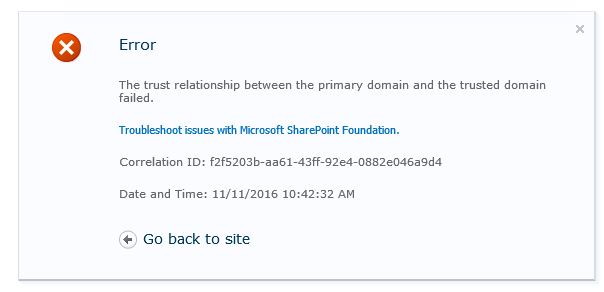
In this quick post I am going to share an issue that I recently hit with one SharePoint Server deployment. While browsing the Central Administration I got below error when clicking on the Manage service applications page.


The key thing with this error is to know the background story, something I was missing.
The story is that this farm was migrated from one domain to another.
Everything was working fine the new farm was in production when we started to get this error.
There was one small detail that we were not aware of and it is that there was domain trust between the new and the old domain during the migration. This is why everithing was working fine until the network link between the old and the new domain was cut.
With this small detail the error below started to make sense. You will see this error in different .NET apps if the app is trying to do something with identity from a trusted domain but no domain controller from the trusted domain can be reached.

The trust relationship between the primary domain and the trusted domain failed.

By looking at the "Delegated Administrators" I concluded that there are accounts from the old domain that have permissions over some of the service applications. I was even unable to get the service applications using Get-SPServiceApplication in powershell. It seems that there is some identity checking when we access the service application management page and it is failing because the trusted domain cannot be reached. The same exception can be reproduced if you try to translate username from the trusted domain to SID. The lines below are a good test to check if there is an issue with the trusted domain with PowerShell.

$userName = "DOMAIN\User"
$objUser = New-Object System.Security.Principal.NTAccount($userName)
$strSID = $objUser.Translate([System.Security.Principal.SecurityIdentifier])
$strSID.Value

Here are some of the things that might not work if you are in this situation:

- You will not be able to access the service management page
- You will not be able to enumerate the service applications in powershell
- In my case the Search and UPA was the SAs with administrators from the trusted domain and you will not be able to restart the service instances
- The UPA might stop working working completely
- If you clear the configuration cache the Timer Service will fall in a loop of rebuild attempts and crashes and no timer jobs will be executed.

As you can see this situation might not be a good place to be :).
The solution to this will be to restore the connection to the trusted domain and I am talking about a physical availability to a DC from the trusted domain or just remove the trust from the current domain. Sometimes the second solution might be the only possible solution, or just maybe this relationship was just not removed by the domain admins when the connection was cut.
If you remove the domain trust the error will be fixed and the translate method in powershell will fail with "Some or all identity references could not be translated." which it seems is handled better. Than you will be able to do some proper cleanup, if you wish.
I hope that this post was helpful! 

Set Managed Metadata field value with PowerShell and CSOM

In the previous post I demonstrated an easy way to migrate managed metadata term store objects to SharePoint Online with PowerShell.
Now when you have migrated the terms you might need to migrate some documents and set the metadata fields in SharePoint Online. In the same project I had to migrate around 600 documents to SPO including the metadata which had 6 managed metadata fields, 4 of them were multi-valued.
In this post I will share a powershell snipped to make TaxonomyFieldValueCollection and use it as value for field of type Managed Metadata.
I am showing this method because I got some mixed results when I used simple string as value. It is hard for me to explain why simply updating with taxonomy string did not worked in all cases.
For example, if the document was created in Office Web Apps I was unable to set the fields using a simple string. You can try using the string method and then cross-check  if everithing is set, because if you feed only metadata string(multi-valued) or just guid(for single-valued) you might not get any error, but the field will be left blank.
The challenge for me in the "TaxonomyFieldValueCollection" approach was to create TaxonomyField object instance, because I had to use the generic client context method CastTo and PowerShell don't work well with generic methods. This is why I decided it is worth sharing this example. You can see the code below.

Now a couple of words about the string that is used. In the example above I am setting multi-valued MM field with collection of two terms. The string is in format "<int>;#<label>|<guid> " with ;# delimiter between the terms. The integer is the item id of the term in the Taxonomy Hidden List, if you are using the term for first time or you do not know this id you can use the default value "-1".
The label part speaks for itself, this is the label of the term and the most important part is the guid of the term. If something is wrong with the format of the string you will see below error message.

"The given value for a taxonomy field was not formatted in the required <int>;#<label>|<guid> format."


This method is working every time for all items. I hope that this was helpful!

Migrate SharePoint 2010 Term Store to SharePoint Online with PowerShell

Last week I worked with a customer on migrating one SharePoint 2010 site to a new SharePoint Online.
I can qualify the site as Knowledge Base designed for optimal discoverability of the documents that are uploaded. To achieve a good discoverability you will need some good metadata describing the resources. Many times the metadata that is used is actually managed metadata that needs to be migrated/recreated in SharePoint Online.
If you have 10 or 20 terms it will not be an issue to recreate them, but if you have 400 for example it will not be very practical to manually recreate all terms.
There are many powershell scripts out there to export/import terms, but the success rate and the complexity might vary. This is why I would like to share how I did it and it worked out pretty well for me.
For the purpose we are going use the custom cmdlets provided for free by Gary Lapointe.
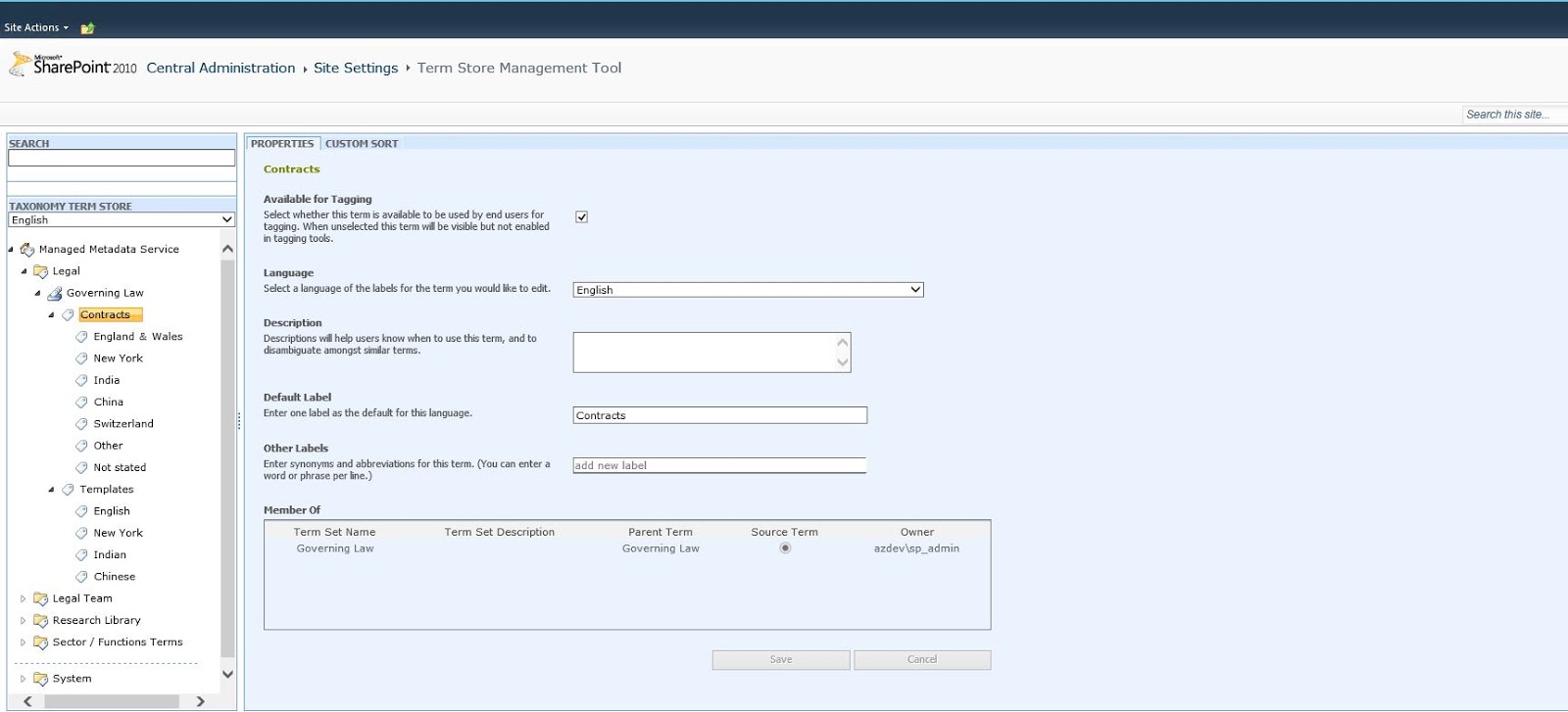
For demonstration purposes I will export one term set group with one term set that has limited number of terms. You can check it out below, it also has some parent/child terms.

SharePoint 2010 Term Store

In order to export the term set group you will need to deploy the WSP that will add the custom SharePoint Server 2010 commands. By doing so you will add the additional 2010 commands directly to the Microsoft.SharePoint.PowerShell snap-in.
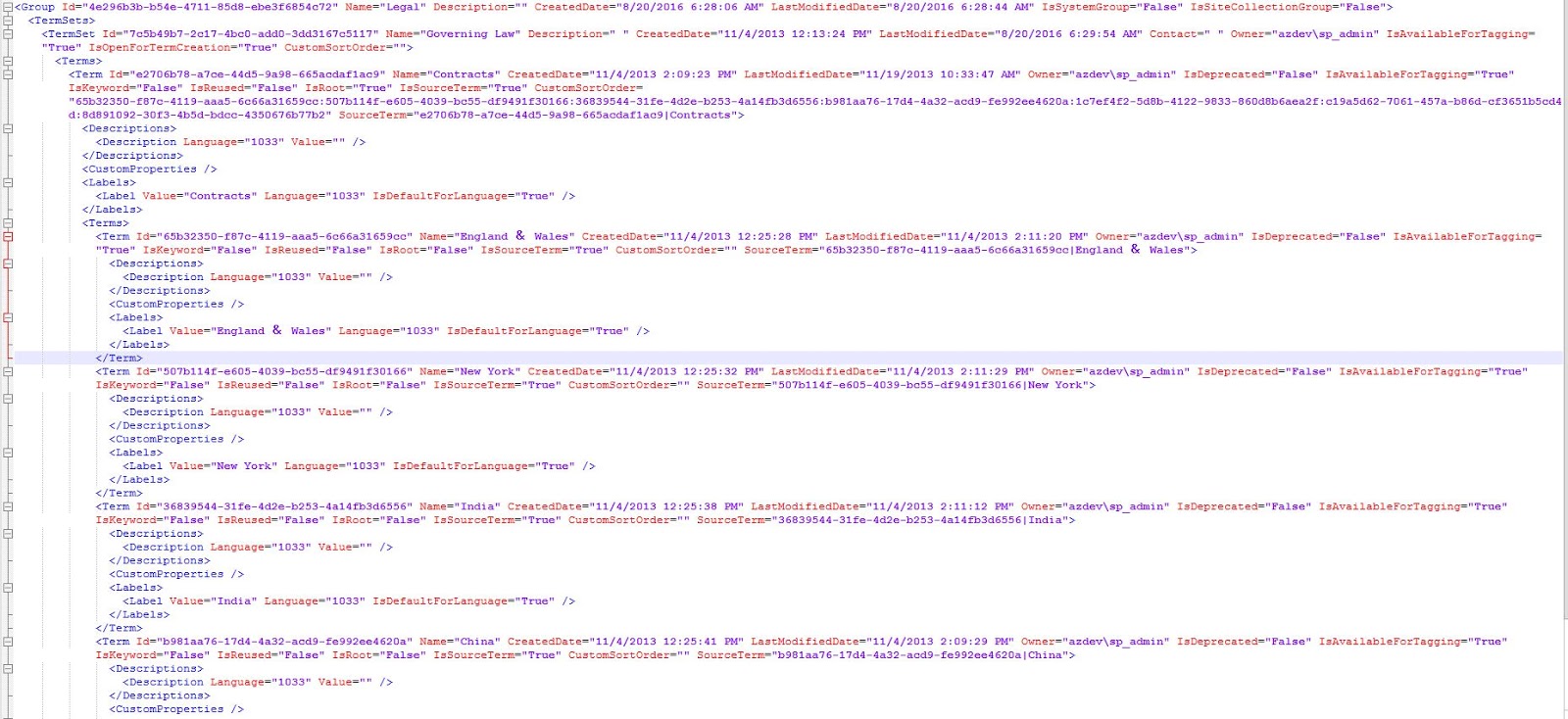
To export taxonomy object as xml we are going to use Export-SPTerms. You will need to supply some taxonomy object as input parameter, this will be a taxonomy session if you want to export everything, for more examples see the cmdlet help. You can see how the Legal term set group looks as  xml below.

Input XML

As you can see all essential information that is needed is exported, even some that will be an issue if you are importing the terms to a different environment or SharePoint Online. This is the Owner or every attribute that represents on-prem identity that you might have. The import command will also try to set this properties with the same values and it will fail because the identity as it was exported cannot be found. The way to workaround this is just to set different value for Owner that will be a valid Online identity. Now it is up to you to decide if you want to do this tradeoff and migrate the objects with different Owner than the source. Below are two lines (3 to make it fit better) that will take the content of the exported XML and will set new Owner for each XML node where the Owner attribute is not empty and later the same XML object can be used for input of the import command.

[xml]$termXML = Get-Content "C:\Legal.xml"
($termXML.SelectNodes("//*")) | Where {$_.Owner -ne $null} | `
ForEach-Object {$_.SetAttribute("Owner", "i:0#.f|membership|admin@MOD******.onmicrosoft.com")}

To import the taxonomy objects in SPO you will need to download and install the SharePoint Online Custom Cmdlets
This will actually install a new module called  Lapointe.SharePointOnline.PowerShell.
The command that we are going to use for the import is Import-SPOTaxonomy. For InputFile parameter we are going to use the variable from the above lines after we have set all identity attributes. If you are importing an object that is not a top level term store you should specify ParentTermStore(can get it with Get-SPOTermStore), if not you should switch on the parameter "Tenant". Before all that, you should connect to a site in your target tenant using Connect-SPOSite. Below are the lines to import the Legal term set group.

Connect-SPOSite -Url "https://mod******.sharepoint.com"
Import-SPOTaxonomy -InputFile $termXML -ParentTermStore (Get-SPOTermStore)

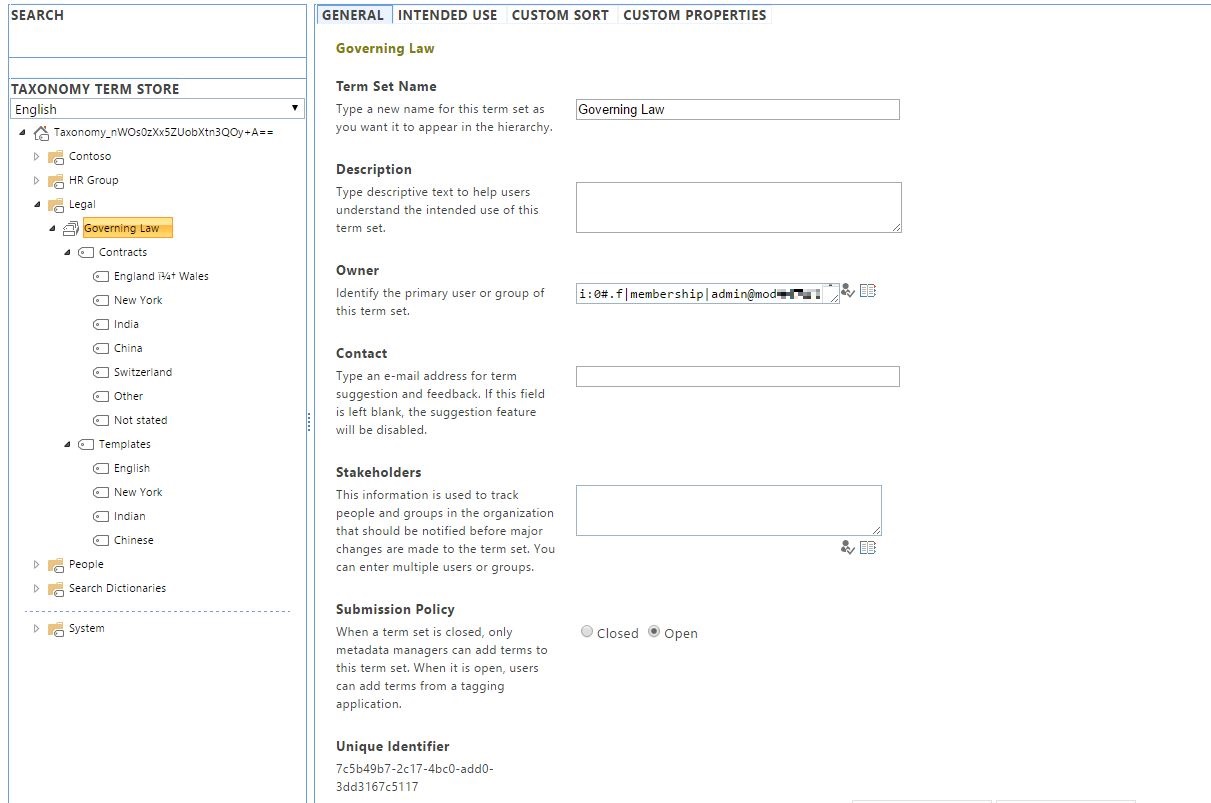
And this is it. Our Legal term set group is recreated and available in the entire tenant. One nice thing is that the GUIDs will be copied as well.

SharePoint Online Term Store

I hope that this was helpful and big thanks to Gary Lapointe for writing this great tools! The same approach should work for SharePoint 2013, but I have not tested this.

Useful file handling commands in the SharePoint PnP PowerShell module

Last week I got a request from one of our customers to help them to move some of the files from one SharePoint library to another in different web. Sounds an easy and quick task, but the catch was that the library had ~ 12000 documents and 1500 folders and the customer also wanted to keep the Created, Created by, Modified and Modified by column values. The number of items that had to be moved was ~ 3500. Pointless to say that with such number of items the Explorer view is not working, the new OneDrive client does not support sync from SharePoint libraries yet and I still had to figure out how to effectively copy the metadata. The way to accomplish this is with PowerShell or with 3rd party migration tool. Since the customer had only this requirements and not migration of the version history for example, my weapon of choice was powershell.
In this post I wont to share a couple of SharePoint PnP PowerShell cmdlets that greatly helped me in writing my migration script. Bluesource is also a contributor to the PnP project, thanks to my colleague Pieter Veenstra.
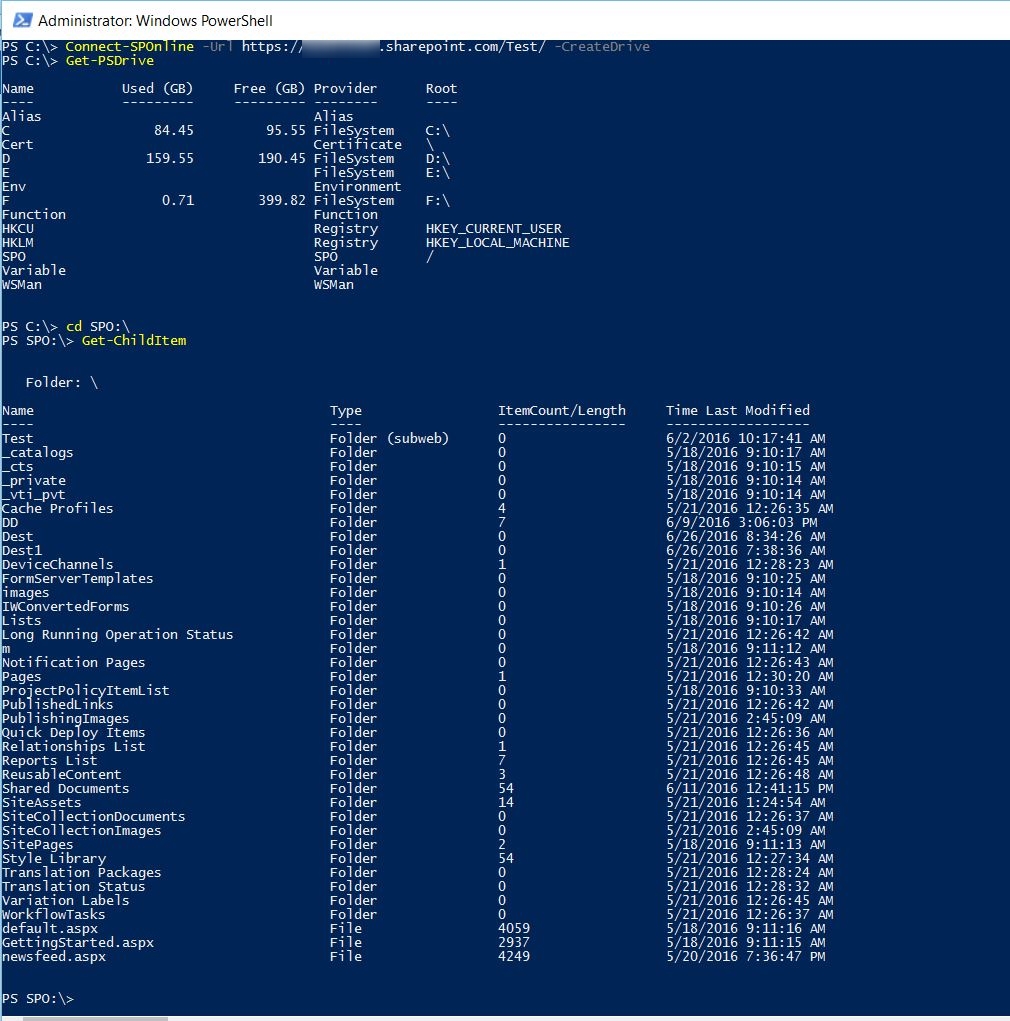
The first thing I want to share is a new feature that came with the June 2016 release. It is the option to map SharePoint site as PSDrive. This is done at the begging using Connect-SPOnline with CreateDrive parameter. You will then get a PSDrive called SPO and a PSProvider also called SPO. See how it looks below.

As mentioned above you will connect to the site and you will be looking at the root web. The sub webs will be shown as folders. You can do many standard things in this PSDrive like listing items, copy, move and more. One thing I was unable to do is listing the items in lists with 5000+ items, it seems that the view threshold limitation is kicking in. The other thing is copy items from SPO drive to the local file system, this is because you cannot copy items from one drive to another if the PSProviders are different. Also it would have been nice if this SPO drive is persistent and you can access it in Windows Explorer, this is not available and I am not sure if it is possible. 
I did not used this in my script, but I think that it is nice to have and you can learn more about this and other improvements in the June 2016 Community Call.

Get-SPOFile - This is one very useful command that will help you to download a file by supplying the server relative url to it. This was easy task after I retrieved all items and their FileLeafRef and FileDirRef fields using the technique from my previous post

Ensure-SPOFolder - With this command you can get a folder by giving a web relative url to the folder. If the folder does not exist it will create it even if the folder is nested in other non-existing folders, they will be created as well.

Add-SPOFile - With this command you can upload a file by supplying web relative url of the folder, the file will be uploaded with the same name. If the folder does not exist this command will create it before uploading the file. Really nice command!

I hope that this was helpful!

Get All Items in 5000+ large list with CSOM in PowerShell

Last week I had to write a script that needed to take all items in large SharePoint Online list.
By large I mean above 5000 items. This means that the list is above the list view threshold in SharePoint Online, which is 5000 and we cannot change that. The way to get all items in SharePoint Online is to use CAML query. However if it is just an empty query without any filtering it will fail, if you use unindexed column for filtering or ordering the query will fail, if you filter/order by indexed column and the query returns more than 5000 items it will fail again. The error in this and other scenarios is similar to the one below.

Exception calling "ExecuteQuery" with "0" argument(s): "The attempted operation is prohibited because it exceeds the list view threshold enforced by the administrator."

The way to workaround this is pagination of the view. This means that we will have a row limit of the result that the query can return that should be less or equal to 5000. Once we get the first 5000 items we can do another query for the next 5000 starting from the position where the first result(page) ends. This is the same with what we do in the UI scrolling foreword in the list view. Below is an example PowerShell snippet that will take all items from a list using 5000 items page size ordering the items by ID.

$list = $ctx.Web.Lists.GetByTitle($DocLibName)
$ctx.Load($list)
$ctx.ExecuteQuery()
## View XML
$qCommand = @"
<View Scope="RecursiveAll">
    <Query>
        <OrderBy><FieldRef Name='ID' Ascending='TRUE'/></OrderBy>
    </Query>
    <RowLimit Paged="TRUE">5000</RowLimit>
</View>
"@
## Page Position
$position = $null
 
## All Items
$allItems = @()
Do{
    $camlQuery = New-Object Microsoft.SharePoint.Client.CamlQuery
    $camlQuery.ListItemCollectionPosition = $position
    $camlQuery.ViewXml = $qCommand
 ## Executing the query
    $currentCollection = $list.GetItems($camlQuery)
    $ctx.Load($currentCollection)
    $ctx.ExecuteQuery()
 
 ## Getting the position of the previous page
    $position = $currentCollection.ListItemCollectionPosition
 
 # Adding current collection to the allItems collection
    $allItems += $currentCollection
}
# the position of the last page will be Null
Until($position -eq $null) 

Few word about the query, I am using RecursiveAll because I used it against library and I wanted to get all items in all folders, the size of the page is 5000, just on the edge of the threshold and I am ordering the result by ID because this column is always indexed.
I am using Do-Until loop to get all pages and setting the position to be the position of the last item collection that was retrieved.
This is really a powerful and quick way to workaround the annoying 5000 list view threshold. I hope you find it useful!

Disable SharePoint Event Firing in PowerShell process

Last week I worked with a customer that is using SharePoint 2010 as part of their enterprise DMS solution. Only a small part of the users are accessing the SharePoint sites directly, but they are accessing and adding documents using 3rd party Outlook integration product and in-house legacy LOB system integrations with SharePoint. If you have dealt with such DMS solutions(which is not uncommon in some industries) you will know that during the exploitation you might end up with a complex folder structures created based on the document metadata. You might also end up with large numbers of empty folders.
The empty folders are an issue for my customer and they reached me with a request to write a PowerShell cleanup script that will run on schedule and will delete the empty folders.
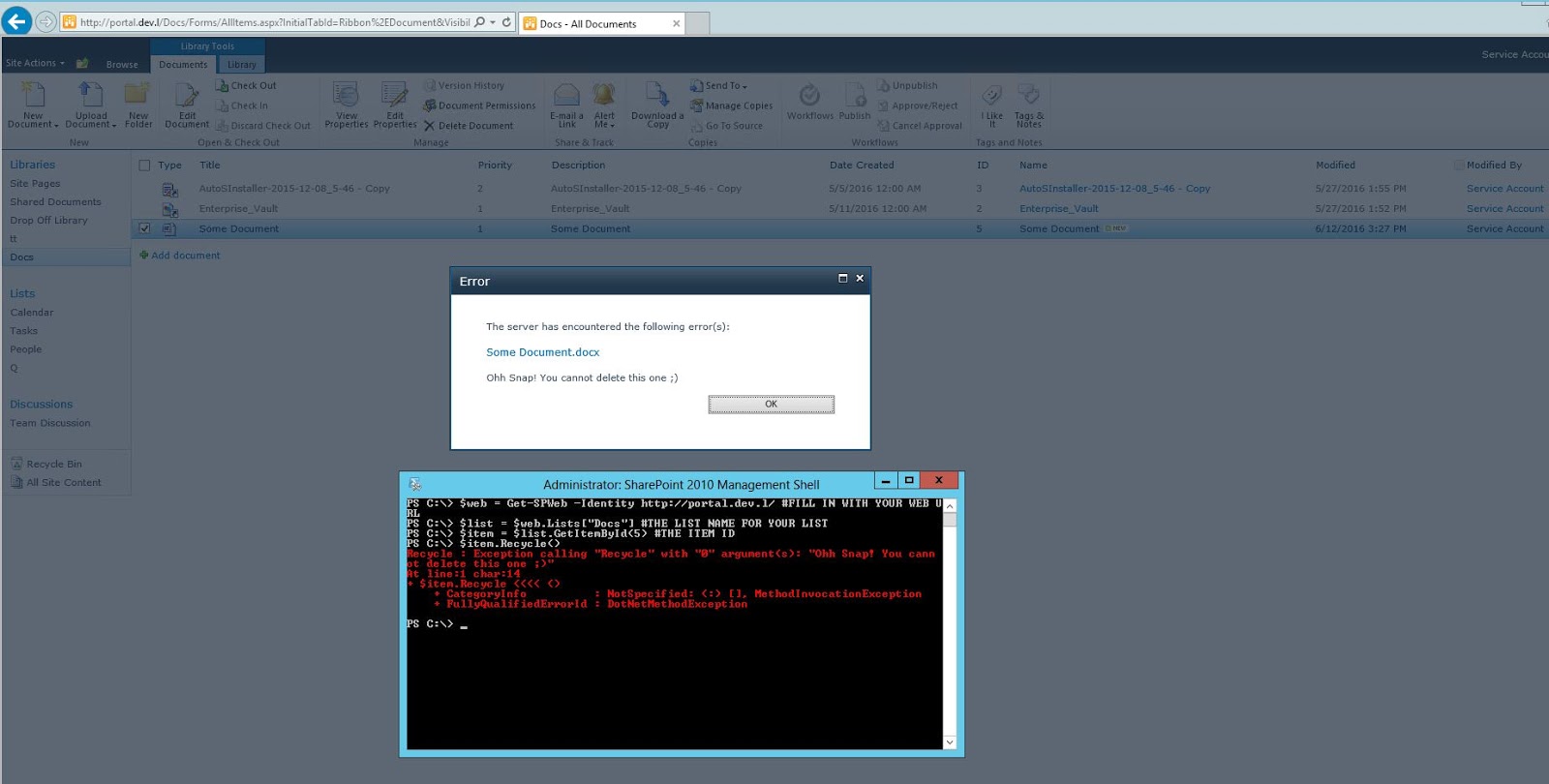
The catch is that there is an ItemDeleting event receiver that is preventing the deletion of any item including folders. You can see in my dev. machine a similar event receiver in action. It is also stopping the operation when I call Recycle() on item in PowerShell.


If you are a developer, most probably you know how to disable the event firing inside an event receiver in order to prevent the firing of other event receivers. This is done by setting the value of property SPItemEventReceiver.EventFiringEnabled. We can do the same thing in powershell with below code and prevent any events from being fired.

$assembly = [Reflection.Assembly]::LoadWithPartialName("Microsoft.SharePoint");
$type = $assembly.GetType("Microsoft.SharePoint.SPEventManager");
$prop = $type.GetProperty([string]"EventFiringDisabled",`
[System.Reflection.BindingFlags] `
([System.Reflection.BindingFlags]::NonPublic -bor [System.Reflection.BindingFlags]::Static)); 
#SET EVENT FIRING DISABLED.
$prop.SetValue($null, $true, $null); 
 
<#
 DO WHAT YOU NEED TO DO
#>
 
#SET EVENT FIRING ENABLED.
$prop.SetValue($null, $false, $null); 

This code will disable the event firing in the current PowerShell thread and I am able to delete/recycle any item without executing the event handler. I have tested this with SharePoint 2010 and 2013, haven't tested it on SharePoint 2016, but I assume that it will work there too.
This is very powerful technique use it carefully on your own responsibility. I hope that this was helpfull!

Get a quick report of the SharePoint Databases with PowerShell [Tip]

Here comes another useful PowerShell one-liner I often use.
It will give you a quick overview of the SharePoint databases with properties like: Name, Server(Alias), TypeName, Web application name, Web application URL, Site collection count and the Size.
The size is actually the amount of disk space required for uncompressed backup. It might look something like a script, but actually it is a long and simple one-liner. You can see it below, I have used grave-accent(`) escape characters to fit it better in the blog. You can see it in one line here. Instead of piping to Format-Table you can generate CSV by piping to Export-CSV and later work with it in Excel.

Get-SPDatabase | Select-Object Name,@{Expression={$_.Server};Label="Server"},TypeName,@{Expression=`
{$_.WebApplication.Name};Label="WebAppLication"},@{Expression={$_.WebApplication.Url};Label="WebAppLicationUrl"}`
,@{Expression={($_.WebApplication.Sites | Measure).Count};Label="SC Count"},@{Label ="Size in MB";`
 Expression ={$_.disksizerequired/1024/1024}} |  Format-Table -AutoSize

Get SharePoint database report

Get Application Pool Identity credentials[Tip]

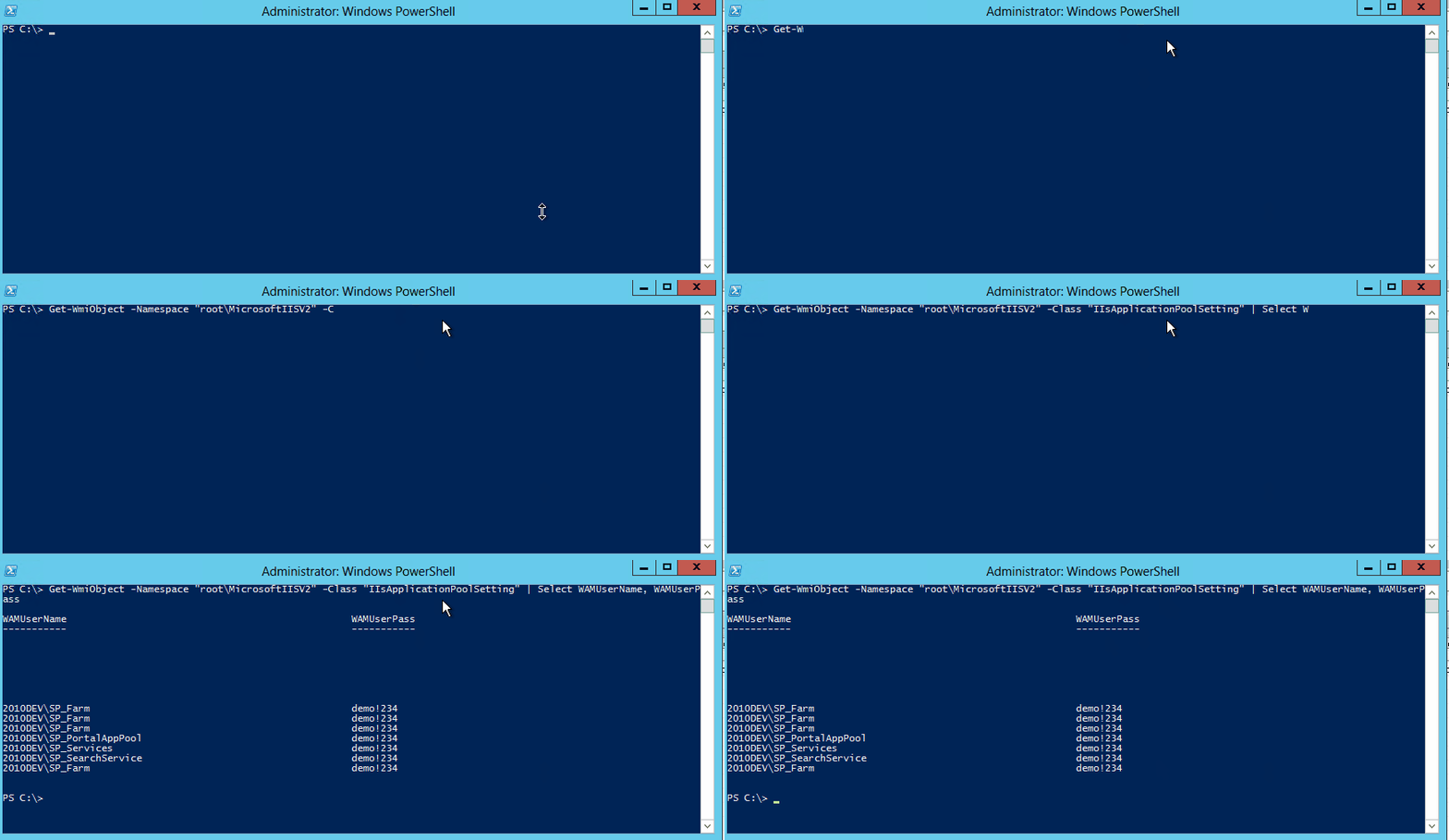
In this short tip I am going to post a PowerShell one-liner from my list of extremely useful one-liners. It can get the the credentials of the IIS application pools identity.
I use it mainly in two scenarios:
  1. Imagine that you will do a remote work on customer where you have only temporary access and credentials. Many times the account that is provided is Farm Admin, has local admin permissions on the SharePoint boxes, however it does not have permission to use PowerShell against SharePoint(no Shell Admin). You can use this short PowerShell script and get the Farm account(STS is running under it), many times it is left in the local admin group and you can log in with it and do what you need to do. Not a best practice, but it is a massive time saver.
  2. Imagine that you are working on issue where you need to restart the User Profile Synchronization Service instance and you need the Farm account password. You can get it with this script.

In order to use it you will need to have local admin permission. I can confirm that it is working on IIS 7.5,8.0 and 8.5.

Get-WmiObject -Namespace "root\MicrosoftIISV2" -Class "IIsApplicationPoolSetting" | Select WAMUserName, WAMUserPass

Get IIS Application pool credentials

Copy List Views in SharePoint and SharePoint Online with PowerShell

In the last couple of weeks I am working with a customer that mainly uses SharePoint Server as DMS(Document Management System). I had to move a large number of documents from one library to another   due to  corruption in some of the files caused by excessive use of unique permissions (~ 32 000).
In this post I will not talk about why you should limit the usage of unique permissions especial in big libraries, it's a long story.
As part of the work I had to copy many list views to the new library. I am not a fan of "Save as Template" approach, my solution was to use a PowerShell script and copy the views programmatically.
The script did its job and I thought that it will be nice to have something like this for SharePoint Online.
I was unable to find any ready script that can do this, so I wrote one.
Both scripts are doing basically the same thing, getting the source and destination webs, getting the source and destination lists, getting the source and destination View collections and create new view in the destination using properties from the source.
It was a bit tricky to load what I need and not making the script extremely slow with CSOM, since we cannot use simple lambda expressions syntax in PowerShell. My solution to this was to use a function written by the SharePoint automation superstar  Gary Lapointe. You can check it out in his article for ItUnity, where he explains how to workaround the limitation in PowerShell concerning the lambda expressions. I highly recommend to read the entire series dedicated on using PowerShell against SharePoint Online.
You can download both scripts (on premises and online) below. Please, Test, Rate and use Q&A section in the Gallery!


 Download On Premises script from: TechNet Gallery

Download SharePoint Online script from: TechNet Gallery
❌
❌