Vue normale

Il y a de nouveaux articles disponibles, cliquez pour rafraîchir la page.
À partir d’avant-hierSharePoint Fire

Export & Import Intune policies and configuration using Graph API

Intune or Microsoft Endpoint Manager is to tool for Mobile Device Management (MDM) or Mobile Application Management (MAM). Device management was mostly focussed on devices like iOS and Android where Windows 10 was most likely managed using System Center Configuration Manager (SCCM). Windows 10 is perfectly manageable in an MDM scenario for years using Microsoft Intune. I’ve created some default policies in my developer tenant which I’ll be exporting and importing using the Graph API. My focus at the moment is Windows 10 but I’ll be adding iOS, Android and MacOS policies later. Some iOS, Android and MacOS policies will also be downloaded automatically. This script can be customized to suit your needs as it can also be used as a backup solution for your policies and configuration, or just to verify if the policies are the same as they were 1 month ago.

Intune policies

Besides some general configuration I’ve created the following policies:

    • Deployment profiles
    • Compliance policy
    • Security baselines
    • Update rings
    • App protection policy
    • Configuration policies

The following settings are still a work in progress

  • Enrollment profiles
  • Apps
  • Branding
  • Other config

Graph API

I will be using the Graph API for exporting and importing Intune policies and configuration.

Permissions

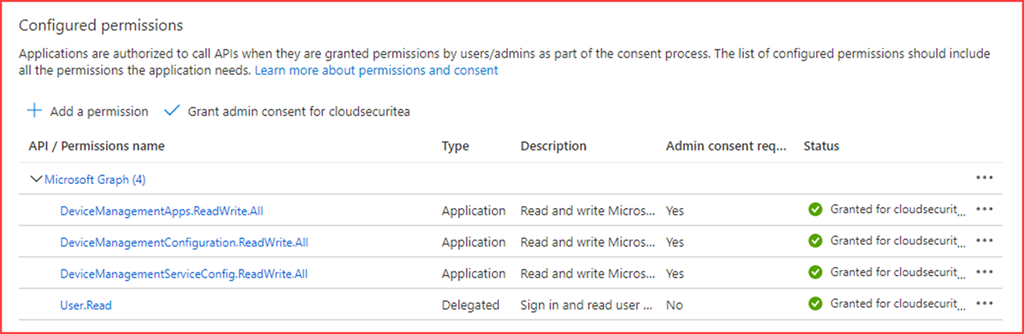
We will be reading and writing so we need to add application permissions to call the API’s in Azure Active Directory.

Add the below API permissions. (Note that these permissions can do harm in the wrong hands. Create conditional access policies to limit the attack surface.)

  • DeviceManagementApps.ReadWrite.All
  • DeviceManagementConfiguration.ReadWrite.All
  • DeviceManagementServiceConfig.ReadWrite.All
image

Note the following information as we will need it for the script

  • Client ID
  • Client Secret
  • Tenant ID
  • Output location

Export Intune policies

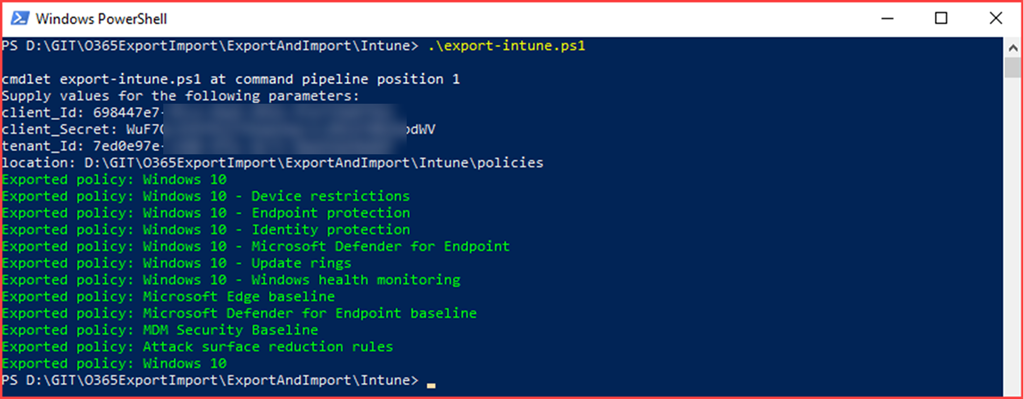
The script has been uploaded to O365ExportImport/ExportAndImport/Intune at main · CloudSecuritea/O365ExportImport · GitHub where it can be downloaded, changed and used. Run the following command to start the export:

export-intune.ps1 and provide the script with the required parameters
SNAGHTML7dfaea

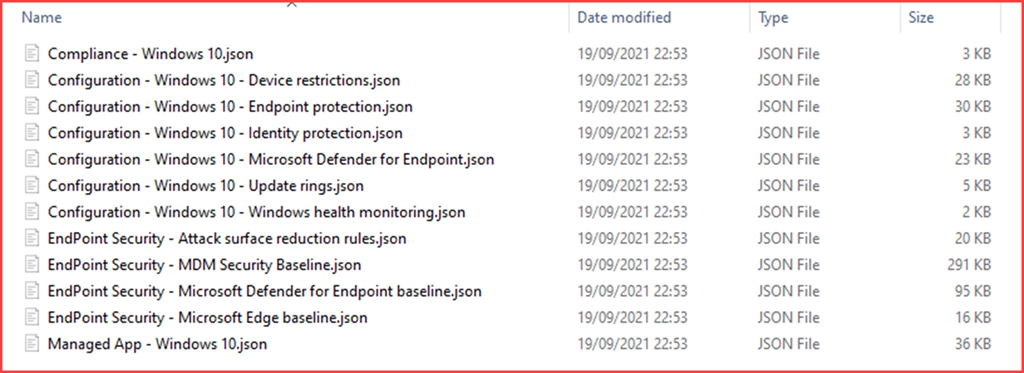
The files will be created in the specified location
image

Import Conditional Access policies

We have just exported the Intune policies. The JSON files will now be used to import this configuration. Note that running the script will create new policies and you will need to delete old policies if present. Assignments are currently not configured directly and will need to be set afterwards.

image

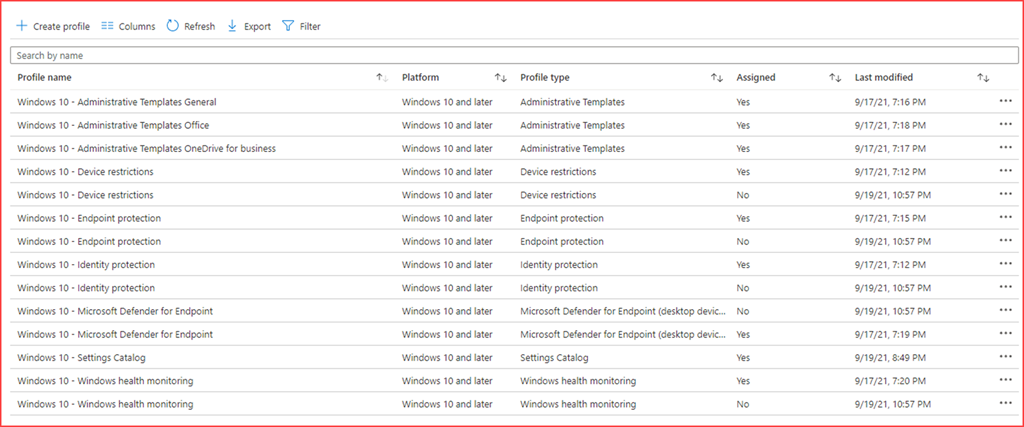
The script has been uploaded to O365ExportImport/ExportAndImport/Intune at main · CloudSecuritea/O365ExportImport · GitHub where it can be downloaded, changed and used. Run the following command to start the import:

import-intune.ps1 and provide the script with the required parameters
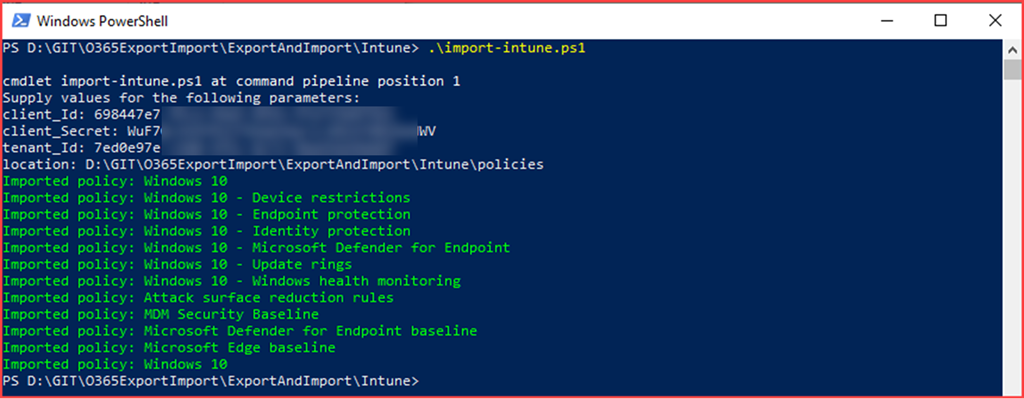
SNAGHTML80c3fd

image

Things to do

  • Add more configuration items
  • Automatically delete and assign

The post Export & Import Intune policies and configuration using Graph API appeared first on Cloud Security | Office 365 | Azure | SharePoint.

Export & Import Conditional Access policies and configuration using Graph API

Conditional access is the tool to enforce organizational policies. Access to resource is granted using if-then statements. You can for example enforce multi-factor authentication from untrusted networks or block legacy authentication.

Conditional access requires an Azure AD Premium Plan 1 license which is included in most bundles or can be purchased as an add-on. Note that you need to license all users benefitting from these conditional access policies. This includes service accounts where you may want to use conditional access to limit access from specific IP’s.

I’ve created the below baseline policies which I use at my developer tenant to restrict certain access. This post will export the configuration and the commands to import it back to the tenant.

Baseline Conditional Access policies

    • Require multi-factor authentication for users with administrative roles
      • Selected directory roles but excluded a group which has my break the glass accounts
      • All cloud apps
      • Require multi-factor authentication
      • Never persistent browser session
    • Require multi-factor authentication for all users
      • Selected all users but excluded a group which has my break the glass accounts
      • All cloud apps except Microsoft Intune Enrolment
      • Require multi-factor authentication
    • Require multi-factor authentication for guest accounts
      • Selected all guests and external users
      • All cloud apps
    • Blocking sign-ins for users attempting to use legacy authentication protocols
      • All users
      • All cloud apps
      • Client app condition to block Exchange ActiveSync clients and other clients
      • Block access
    • Requiring trusted locations for Azure AD Multi-Factor Authentication registration
      • All users except guests and externals and the break the glass accounts group
      • Register security information
      • All locations except trusted locations
      • Block access

    Graph API

    I will be using the Graph API for exporting and importing Conditional Access Policies and named locations

    Permissions

    We will be reading and writing so we need to add application permissions to call the API’s in Azure Active Directory.

    Add “Policy.Read.All, Policy.ReadWrite.ConditionalAccess, Agreement.Read.All, Directory.Read.All and Application.Read.All”

    image

    Note the following information as we will need it for the script

    • Client ID
    • Client Secret
    • Tenant ID
    • Output location

    Export Conditional Access policies

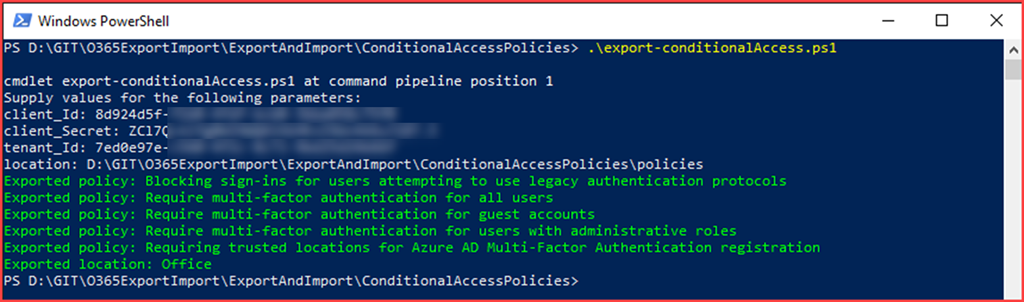
    The script has been uploaded to O365ExportImport/ExportAndImport/ConditionalAccessPolicies at main · CloudSecuritea/O365ExportImport (github.com) where it can be downloaded, changed and used. Run the following command to start the export:

    export-condtionalAccess.ps1 and provide the script with the required parameters
    image

    The files will be created in the specified location

    image

    Import Conditional Access policies

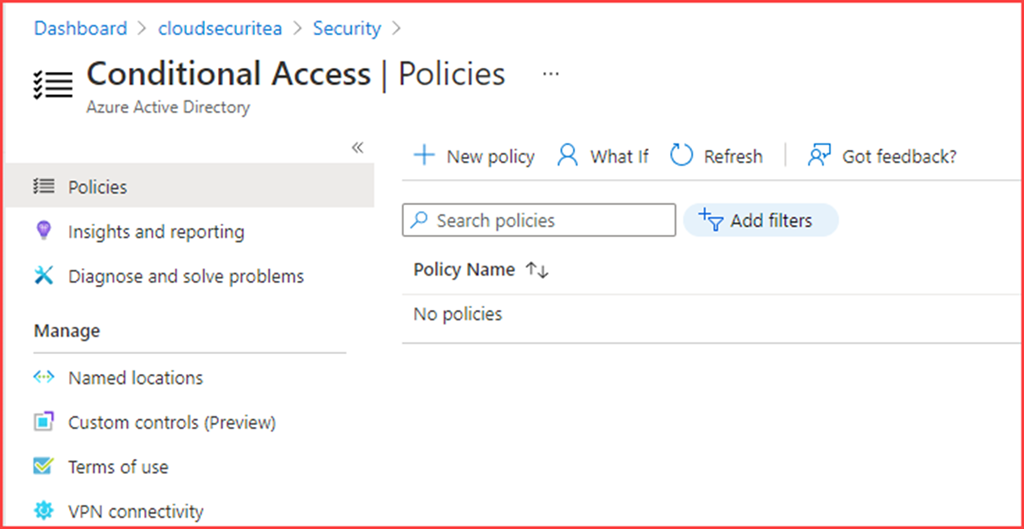
    We have just exported the conditional access policies and named locations. The JSON files will now be used to import this configuration. Note that running the script will create new policies and you will need to delete old policies if present.

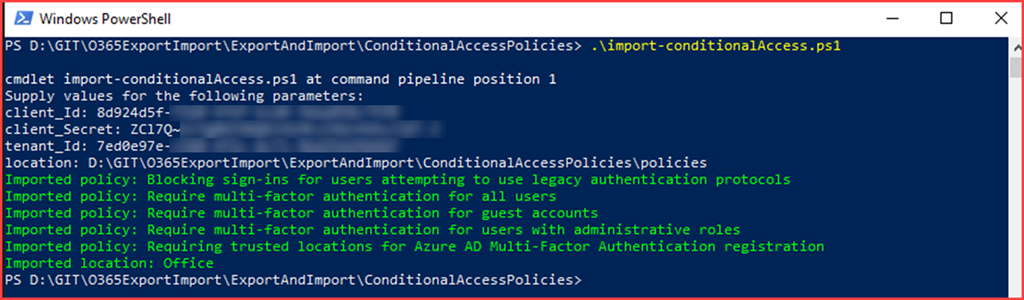
    image

    The script has been uploaded to O365ExportImport/ExportAndImport/ConditionalAccessPolicies at main · CloudSecuritea/O365ExportImport (github.com) where it can be downloaded, changed and used. Run the following command to start the import:

    import-condtionalAccess.ps1 and provide the script with the required parameters

    image

    image

    The post Export & Import Conditional Access policies and configuration using Graph API appeared first on Cloud Security | Office 365 | Azure | SharePoint.

    Export & Import Office 365 and Azure configuration

    In two weeks I’ll be starting at a new company as an Information Security specialist. In order to prepare for this new endeavor I’ll be updating my developer tenant for testing purposes. All best practices I know and found on the internet will be added to the configuration. I want to configure for example Teams, SharePoint, Endpoint, MCAS and Microsoft Information Protection. Developer tenants are auto renewable every 120 days if there has been activity detected on the tenant. The next couple of blogs will be focused on exporting and importing configuration settings using PowerShell so I can get quickly up and running again should my developer tenant expire. For each topic I’ll create a new post. The PowerShell scripts and configs will be stored in GitHub. Bear with me as content will be updated when ready.

    Exporting & Importing topics

    This is the first blog which will outline my ambition to create a post for the below topics. I’m not yet sure if all best practices and configurations are PowerShell/Graph ready but I’ll learn that on the way.

    • Azure Active Directory
    • Azure Active Directory Identity Protection
    • Security Center
    • Compliance Center
    • SharePoint & OneDrive
    • Teams
    • Exchange
    • Endpoint (Intune)
    • Stream
    • Conditional Access
    • Office 365 General
    • Power BI
    • Yammer
    • Defender for Endpoint
    • Defender for Office 365
    • Microsoft Cloud App Security
    • Microsoft Information Protection

    Microsoft 365 developer program

    I was contemplating adding one Microsoft 365 E5 license for testing and updating the configuration for my personal tenant. A Microsoft 365 developer subscription doesn’t have Defender for Endpoint and I really want that functionality in my test environment. I decided to add the Defender for Endpoint add-on to the developer tenant as a trial which is active for 3 months. The developer tenant also has 25 licenses which will make testing easier between users. I’ve created my developer tenant the first moment we were able to create an E5 tenant as it was E3 previously and I’ve got 68 days remaining until Microsoft will verify my activity and decide if I can use it for 120 more days. Interested in a Microsoft 365 E5 tenant to test your solutions for the Microsoft 365 platform? Go to Developer Program – Microsoft 365 and join now with your personal Outlook account or a business account.

    image

    The post Export & Import Office 365 and Azure configuration appeared first on Cloud Security | Office 365 | Azure | SharePoint.

    Provision a Team in Microsoft Teams using Power Apps and Power Automate

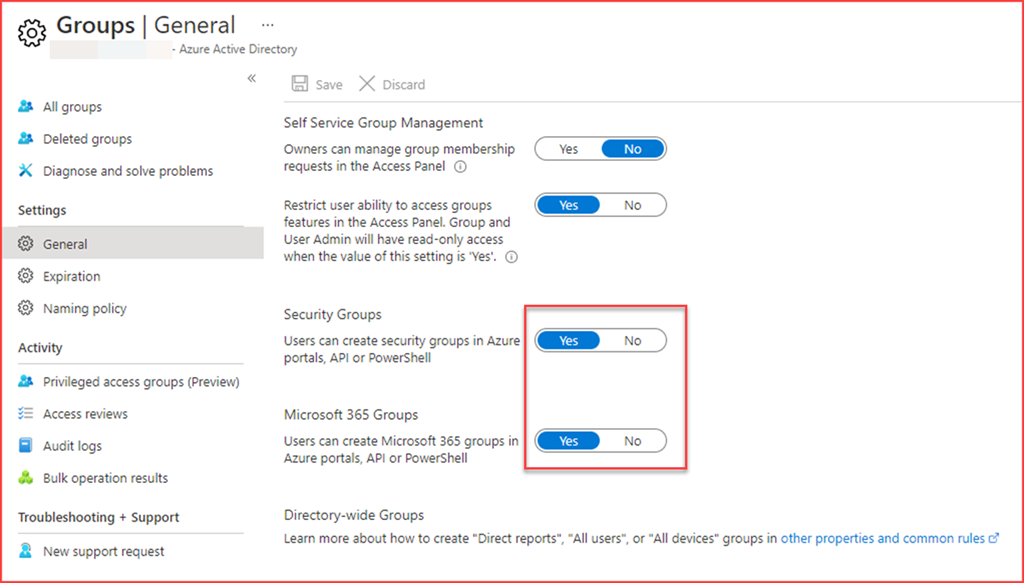
    It’s best practice from a security point of view to disable users from creating security groups or Microsoft 365 groups. Users can create security groups in Azure portals, API or PowerShell by default. The below setting will also prevent users from creating teams in Microsoft Teams as this will create a Microsoft 365 group.

    image

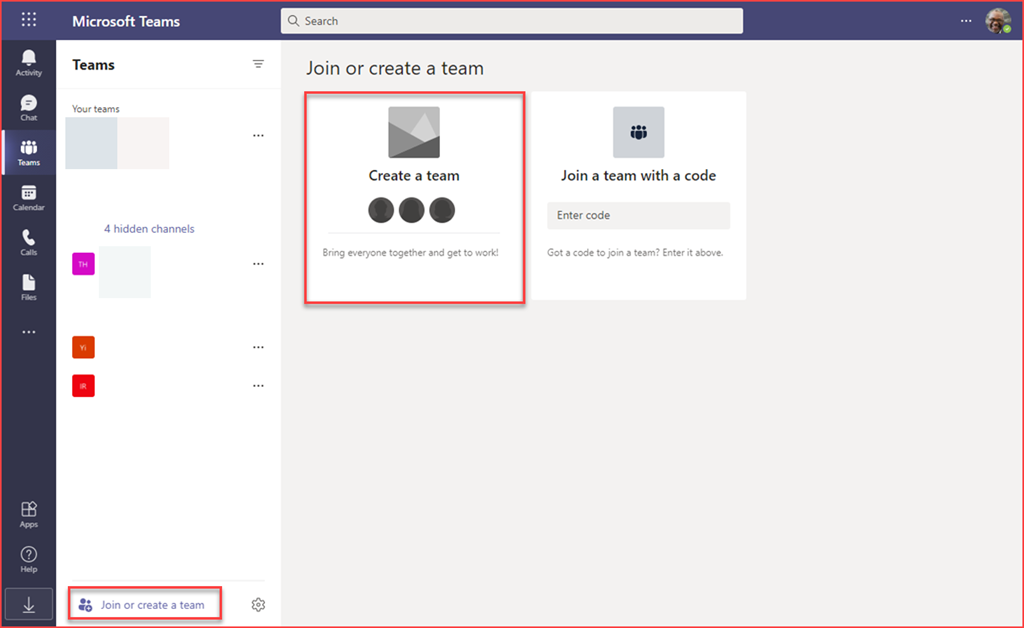
    In this post we will be creating a Power App and workflow to allow users to create teams on our terms. We will be letting users choose what type of Team they need and it will be provisioned. At the end I’ll be listing a few best practices regarding usability and security of this solution.

    Prevent users from creating teams

    The first step is preventing users from creating teams by switching the option to create groups to “No”. The user is able to create teams by default.

    image

    Switching the slider will show the following for users when trying to create a team

    image

    Create your Power App / Power Automate flow

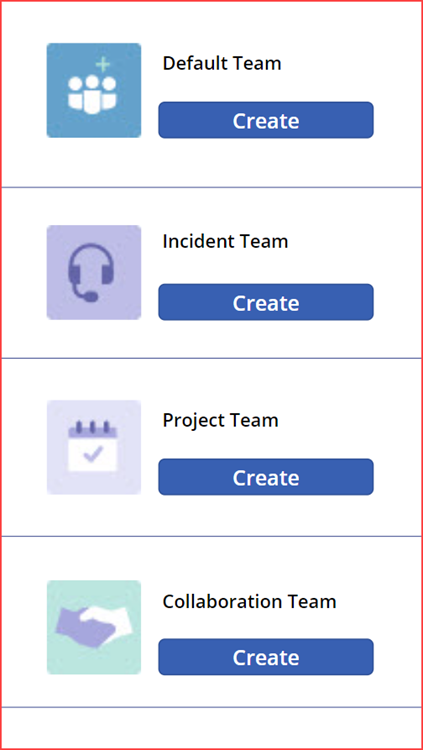
    You can create a Power App to you liking. I’ve just create a simple app with a few buttons.

    image

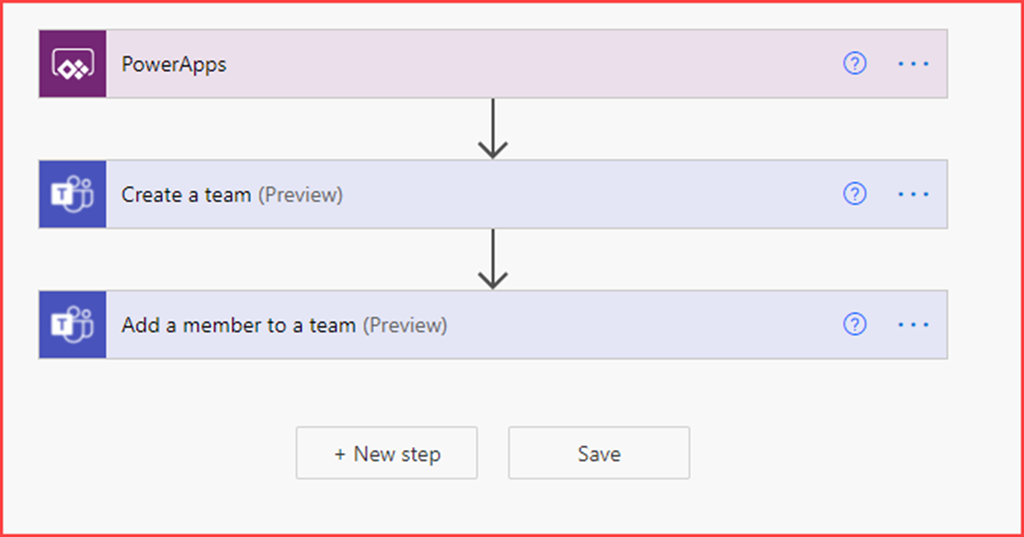
    The Power Automate flow is just as simple which will create a Team and add a user to this team.

    image

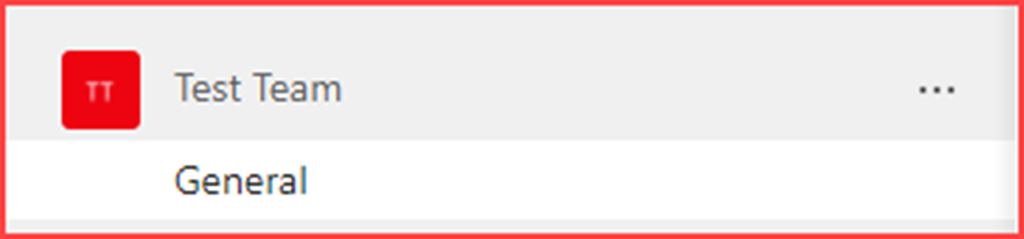
    Clicking on the button will create the default team

    image

    Best practices

    Control and naming conventions

    Adding an approval to the flow will give administrators control on which Teams are being created. Using the app you can use your own naming convention to know which teams have been created and filter based on them.

    Service Account

    Run / create the flow using a non-personal (service) account. This will make sure that the application will stop working when the account who created it is deleted.

    Logic apps

    This flow is created directly from the Power App where it’s also possible to use an Azure Logic App. This allows administrators additional monitoring. The behaviour of the logic app can be exported to a Log Analytics Workspace. An alert can also be created should the Logic App or an action in the Logic App fail.

    The post Provision a Team in Microsoft Teams using Power Apps and Power Automate appeared first on Cloud Security | Office 365 | Azure | SharePoint.
    Building simple parent/child relationship grid in Azure Sentinel Workbook

    There are many different visualizations in Azure Workbooks. A grid can be just a plain grid, or a grid with a parent/child relationship, or grouped by values in columns. This post will show you how to build the grid with a parent/child relationship. We want to group guest user activity for this scenario. We will be needing OfficeActivity logs to get the activity from guest users.

    Setting up the Azure Workbook query

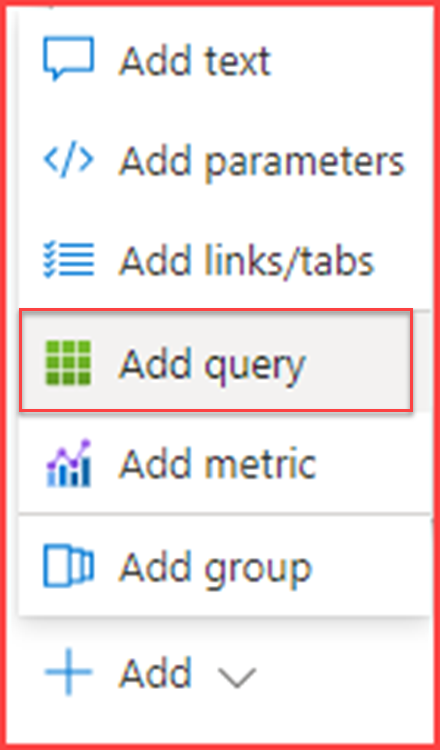
    Build your own workbook and add a new query

    image

    Add query

    image

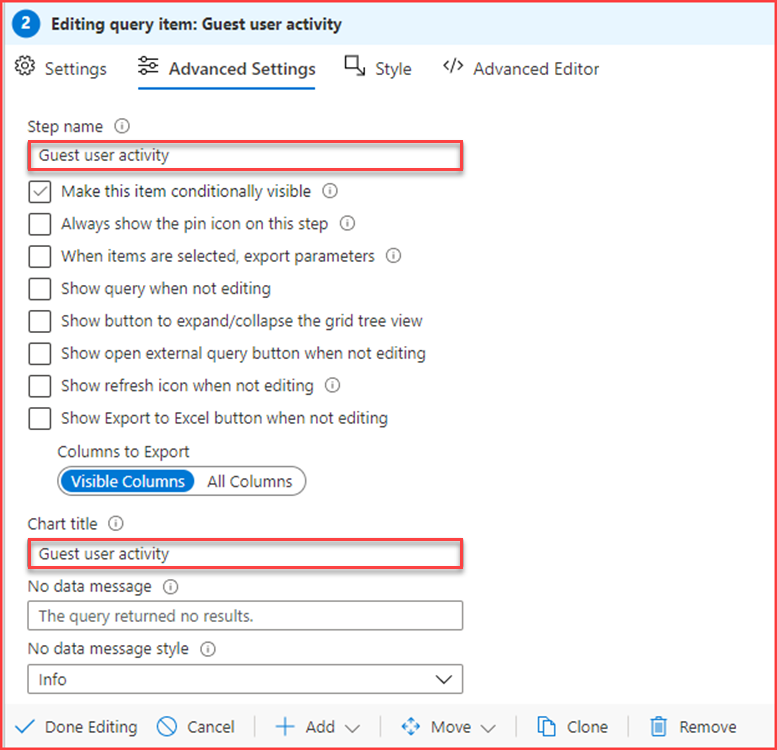
    Give it a name and go to settings

    image

    Fill in the query (you can copy/paste the JSON representation of this item below).

    Query breakdown

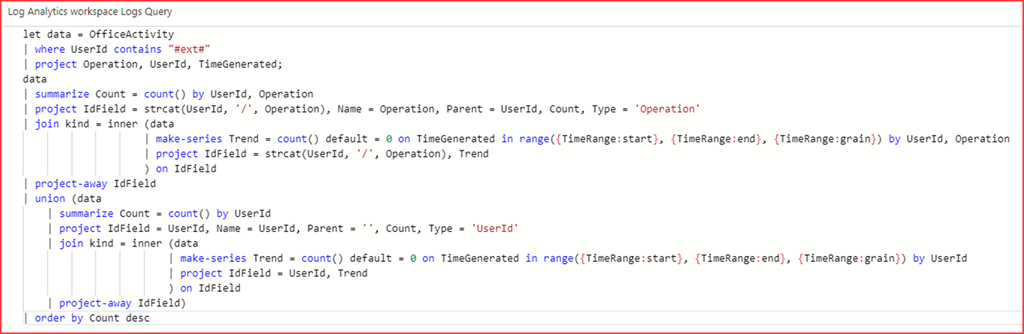
    First get the required information and place them in a variable

    image

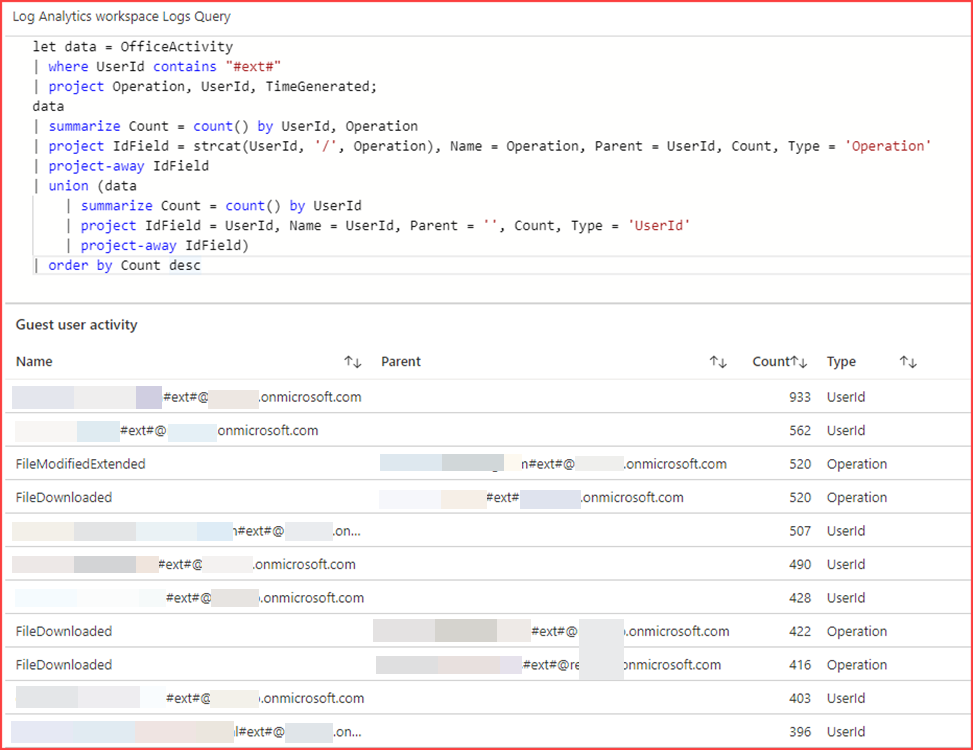
    This will get all Office Activity where the UserID contains #ext# and we only need the operation, UserId and TimeGenerated.
    Note that you need to end with “;”

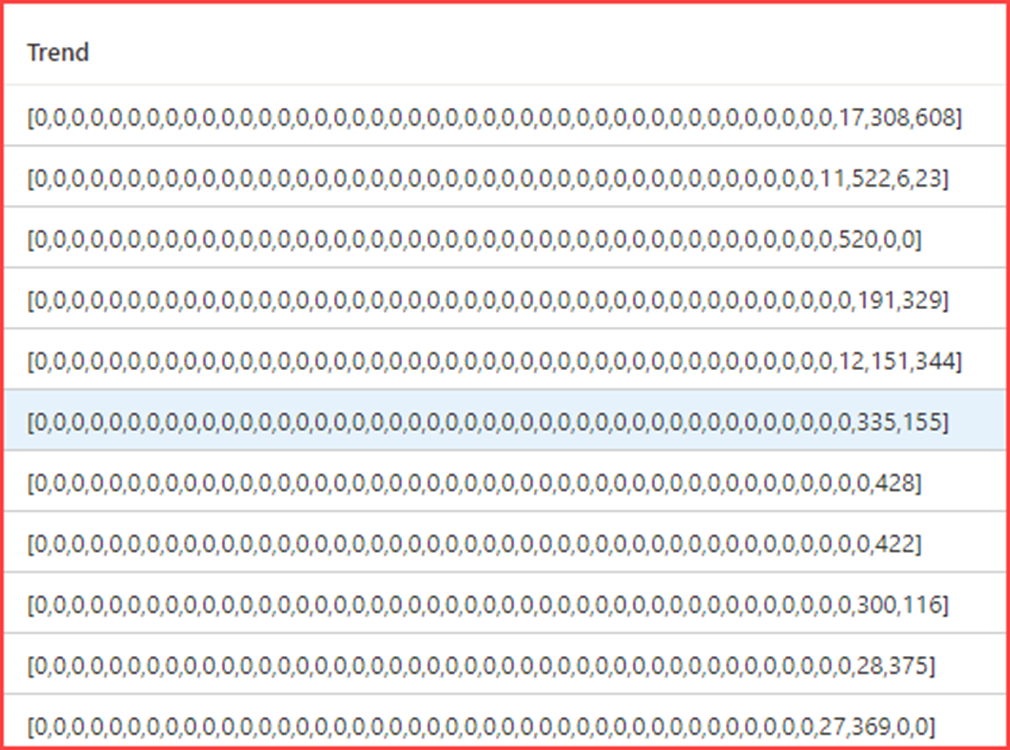
    Running only this will get us the below output.

    image

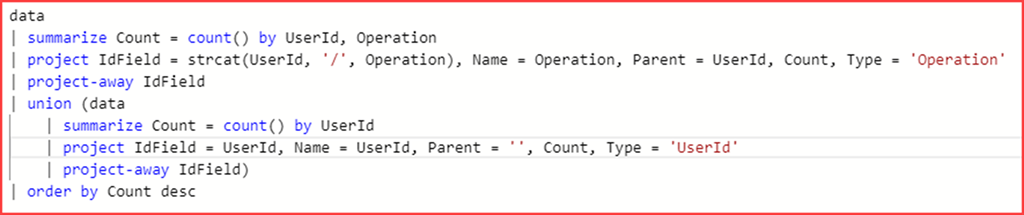
    The next bit will map the parent with the child.

    image

    First we project the columns IdField, Name, Parent, Count and Type. IdField is a concatenation of UserId and Operation. Project-away is used to remove the IdField from the output.
    We will add additional rows with the union operator. These will have the same columns but the IdField is only filled with the UserId. This column is also removed from the output.
    The output will be ordered by Count

    SNAGHTML151c44eb

    Next we will also want to add a trend line. We will be using the join operator for this. The join operator will merge the rows of two tables to form a new table by matching values of the specified columns from each table.

    image

    image

    It will count the number of occurrences and place it in the Trend variable

    image

    Look and feel

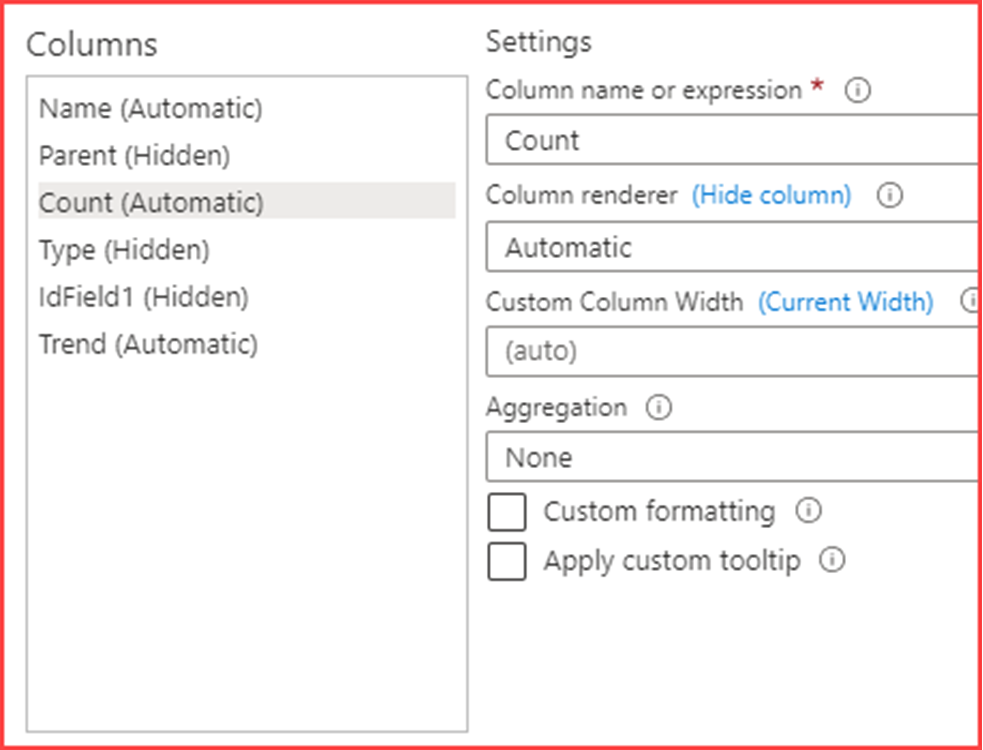
    Customize the column settings

    SNAGHTML1523f780

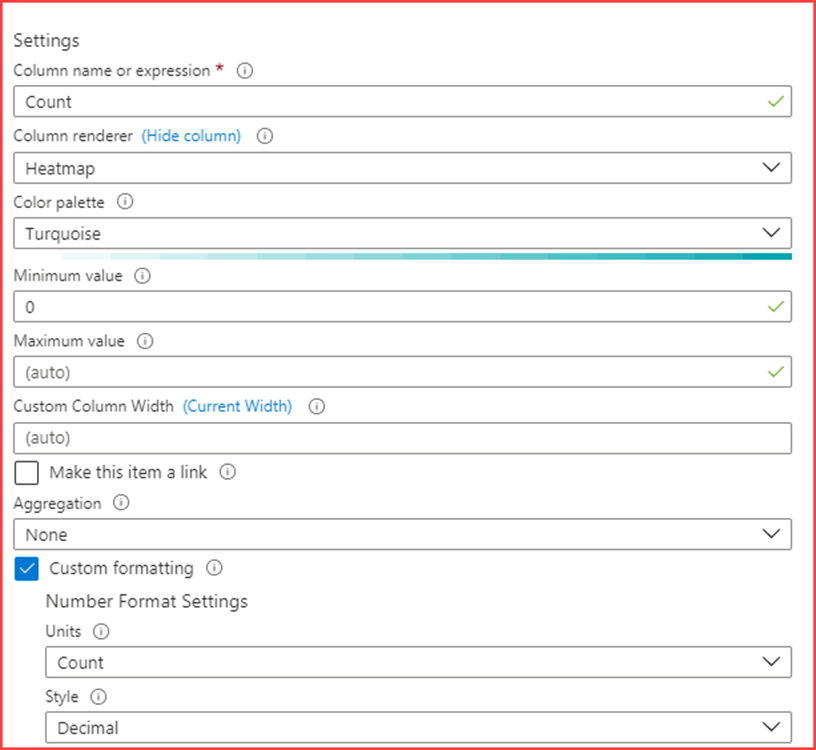
    Hide Parent, Type and IdField and configure Count

    image

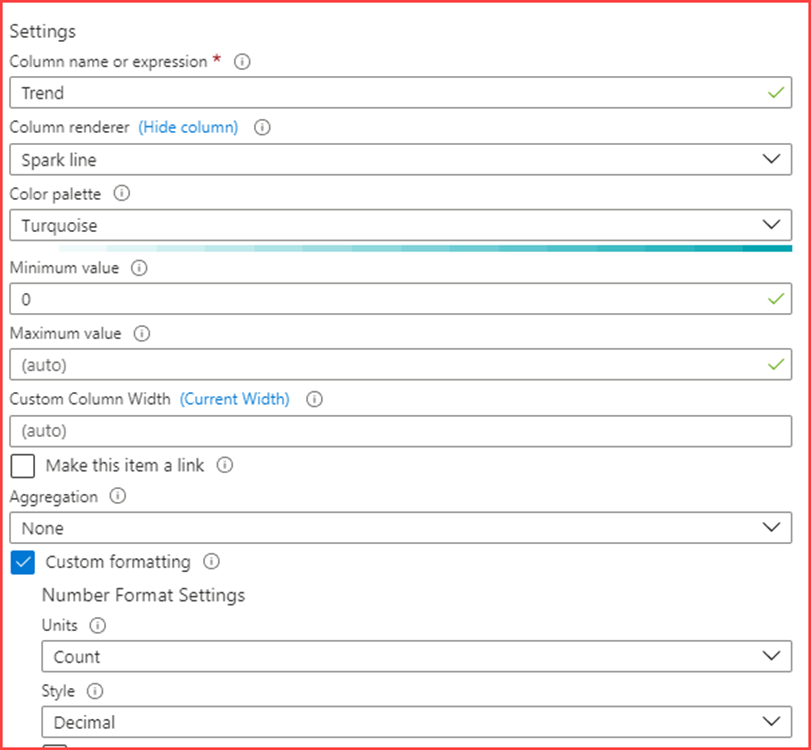
    Create a Heatmap with the above settings. Next configure the Trend column

    image

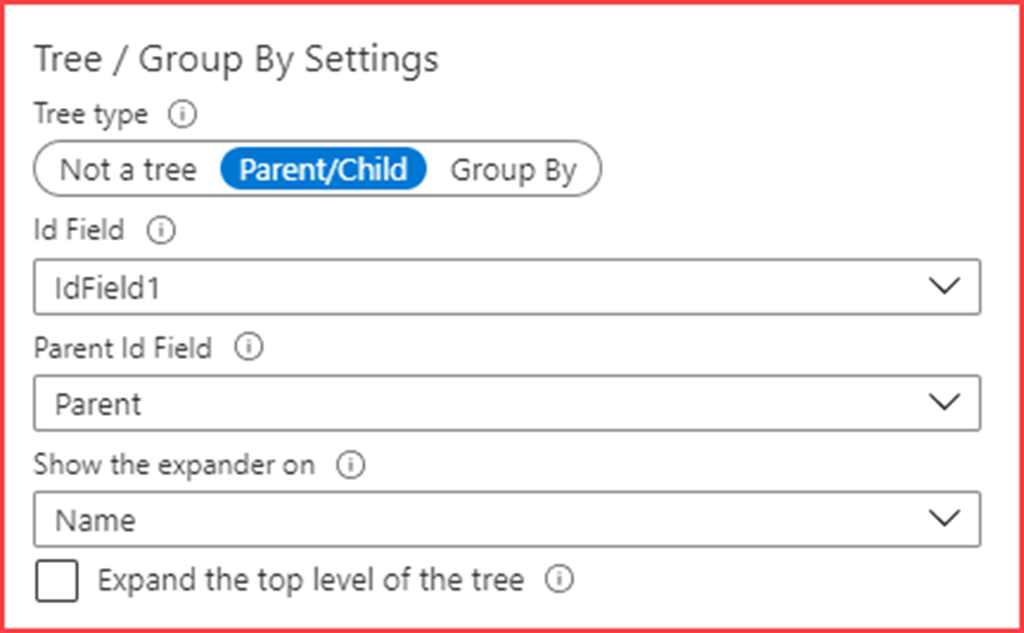
    Also change like above and configure the Tree / Group By Settings like below

    image

    Apply and close which should change the look and feel to

    image

    JSON representation

    You can copy and paste the below code in the advanced editor for a query.

    
    {
      "type": 3,
      "content": {
        "version": "KqlItem/1.0",
        "query": "let data = OfficeActivity \r\n| where UserId contains \"#ext#\"\r\n| project Operation, UserId, TimeGenerated;\r\ndata\r\n| summarize Count = count() by UserId, Operation\r\n| project IdField = strcat(UserId, '/', Operation), Name = Operation, Parent = UserId, Count, Type = 'Operation'\r\n| join kind = inner (data\r\n                    | make-series Trend = count() default = 0 on TimeGenerated in range({TimeRange:start}, {TimeRange:end}, {TimeRange:grain}) by UserId, Operation\r\n                    | project IdField = strcat(UserId, '/', Operation), Trend\r\n                    ) on IdField\r\n| project-away IdField\r\n| union (data\r\n    | summarize Count = count() by UserId\r\n    | project IdField = UserId, Name = UserId, Parent = '', Count, Type = 'UserId'\r\n    | join kind = inner (data\r\n                        | make-series Trend = count() default = 0 on TimeGenerated in range({TimeRange:start}, {TimeRange:end}, {TimeRange:grain}) by UserId\r\n                        | project IdField = UserId, Trend\r\n                        ) on IdField\r\n    | project-away IdField)\r\n| order by Count desc",
        "size": 0,
        "title": "Guest user activity",
        "timeContext": {
          "durationMs": 2592000000
        },
        "queryType": 0,
        "resourceType": "microsoft.operationalinsights/workspaces",
        "visualization": "table",
        "gridSettings": {
          "formatters": [
            {
              "columnMatch": "Parent",
              "formatter": 5
            },
            {
              "columnMatch": "Count",
              "formatter": 8,
              "formatOptions": {
                "min": 0,
                "palette": "turquoise"
              },
              "numberFormat": {
                "unit": 17,
                "options": {
                  "style": "decimal"
                }
              }
            },
            {
              "columnMatch": "Type",
              "formatter": 5
            },
            {
              "columnMatch": "IdField1",
              "formatter": 5
            },
            {
              "columnMatch": "Trend",
              "formatter": 9,
              "formatOptions": {
                "min": 0,
                "palette": "turquoise"
              },
              "numberFormat": {
                "unit": 17,
                "options": {
                  "style": "decimal"
                }
              }
            }
          ],
          "hierarchySettings": {
            "idColumn": "IdField1",
            "parentColumn": "Parent",
            "treeType": 0,
            "expanderColumn": "Name"
          }
        }
      },
      "name": "Guest user activity"
    }

    Privileged access groups in Azure Privileged Identity Management

    It was already possible to use Privileged Identity Management (PIM) to manage, control and monitor administrator roles in your organization. PIM provides time-based and approval-based role activation.  PIM can be used for Azure AD, Azure and other Microsoft 365 resources. It’s possible to for example require approval to activate roles, enforce multi-factor authentication and get information when someone activates their privileged role with their justification. This and more is now possible with groups. There are certain scenario’s where you use groups for administrative purposes. When you for example use role based access controls in Defender for Endpoint. There aren’t any AD roles currently for Defender for Endpoint but you can add extra groups with their respective permissions.

    Privileged Identity Management is an Azure AD Premium P2 license.

    How to create privileged access groups

    Microsoft 365 group

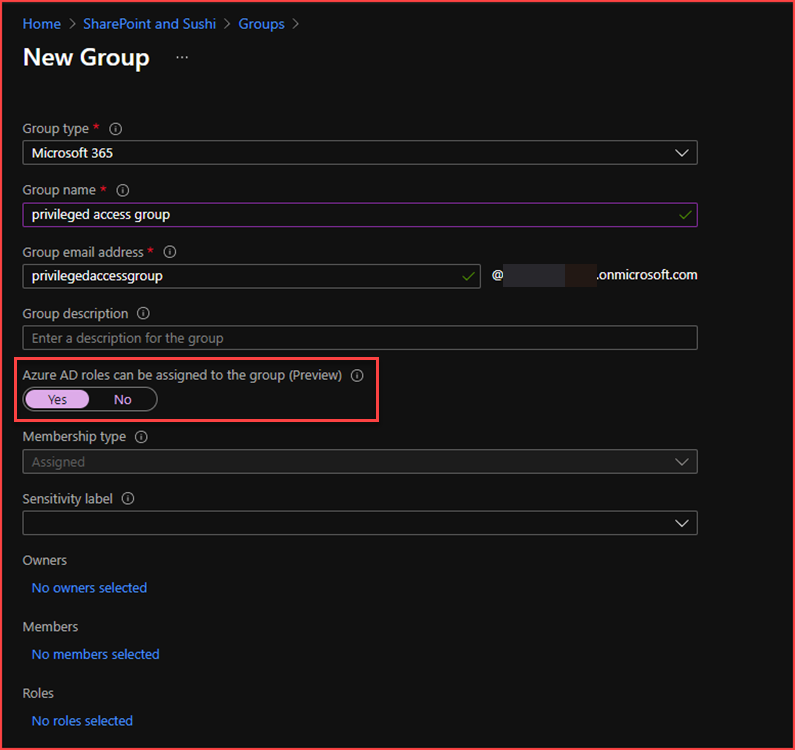
    I’ve created a new Microsoft 365 group

    image

    Note that you need to select “Azure AD roles can be assigned to the group” in order to configure privileged access groups.

    Configure privileged access

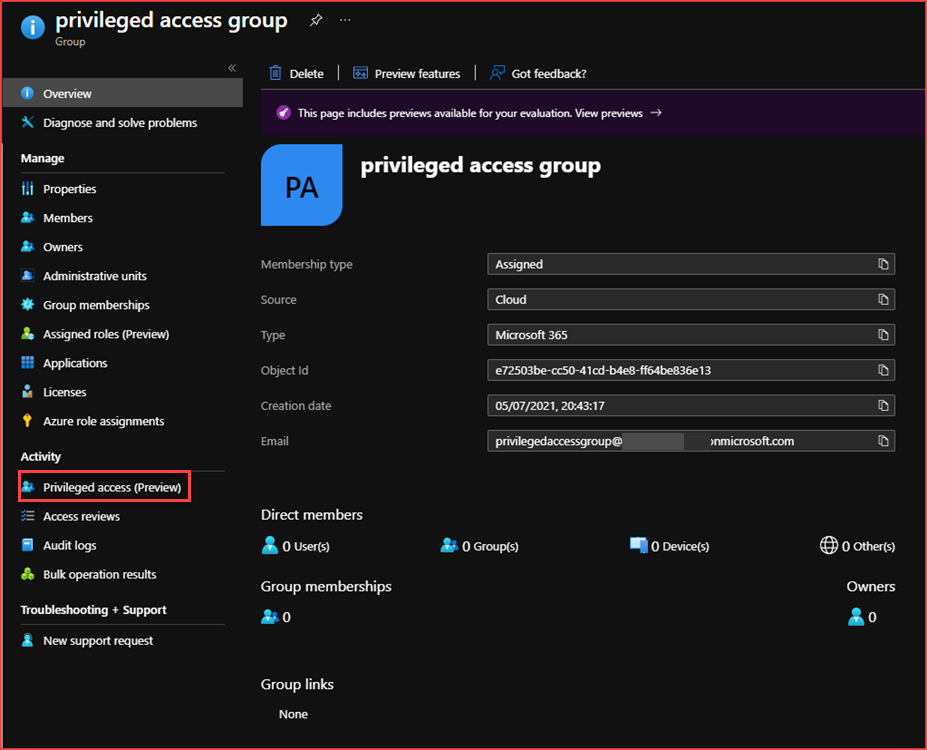
    Open the newly created group

    image

    Select “Privileged access”

    image

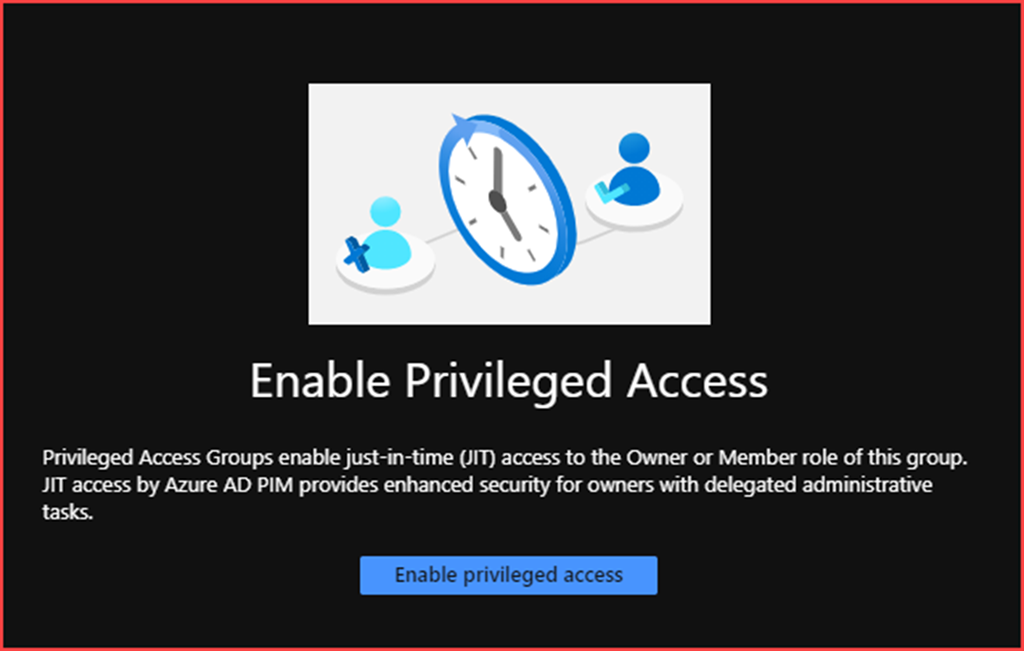
    Enable privileged access

    image

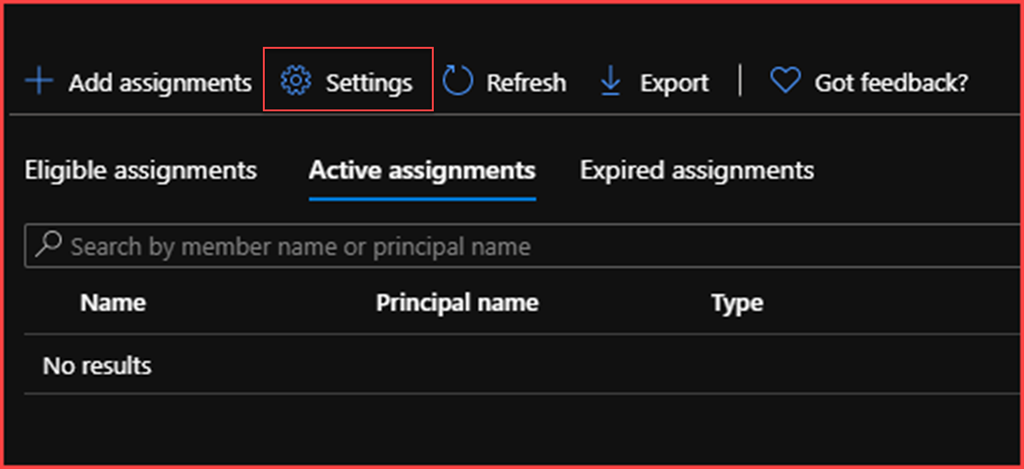
    Settings

    image

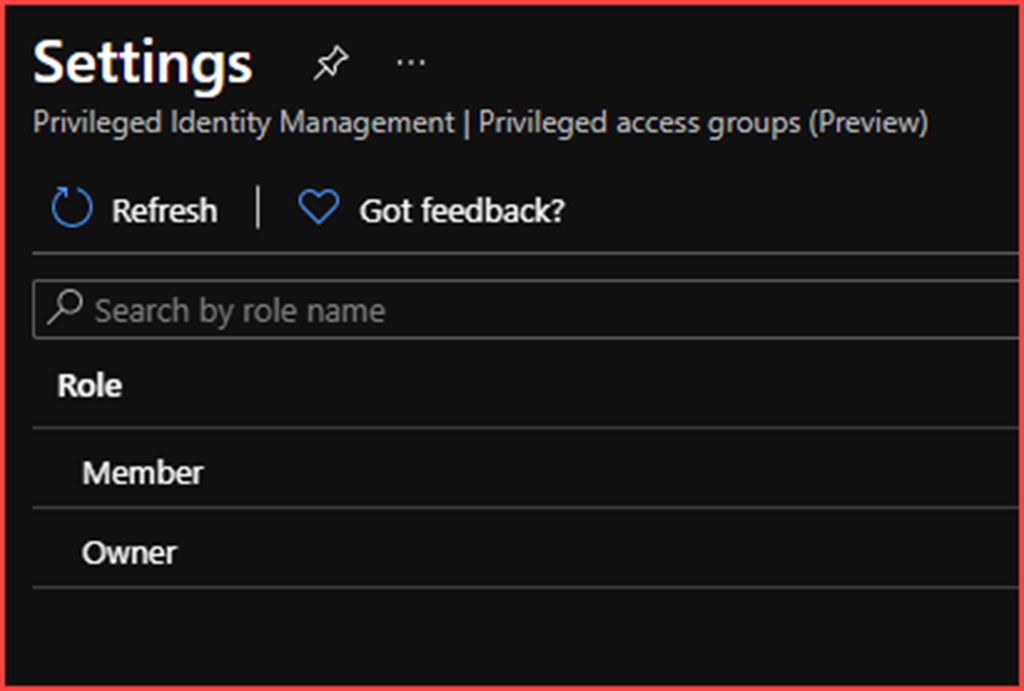
    Select Member or Owner

    image

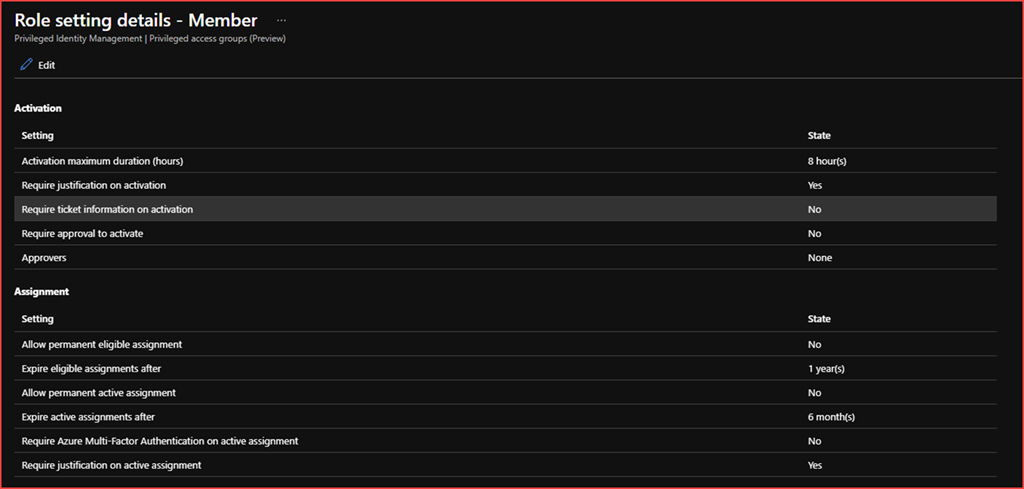
    Edit the settings if needed and go back to the privileged access group settings

    image

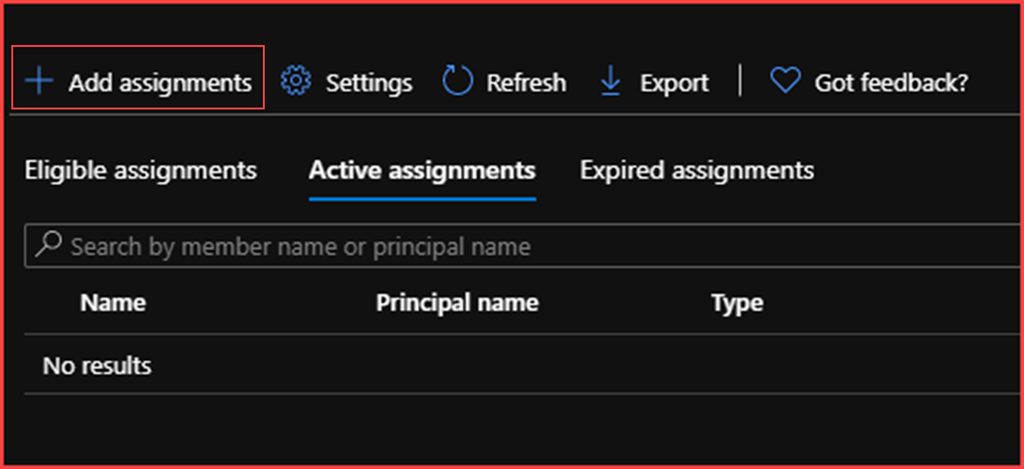
    Add assignments

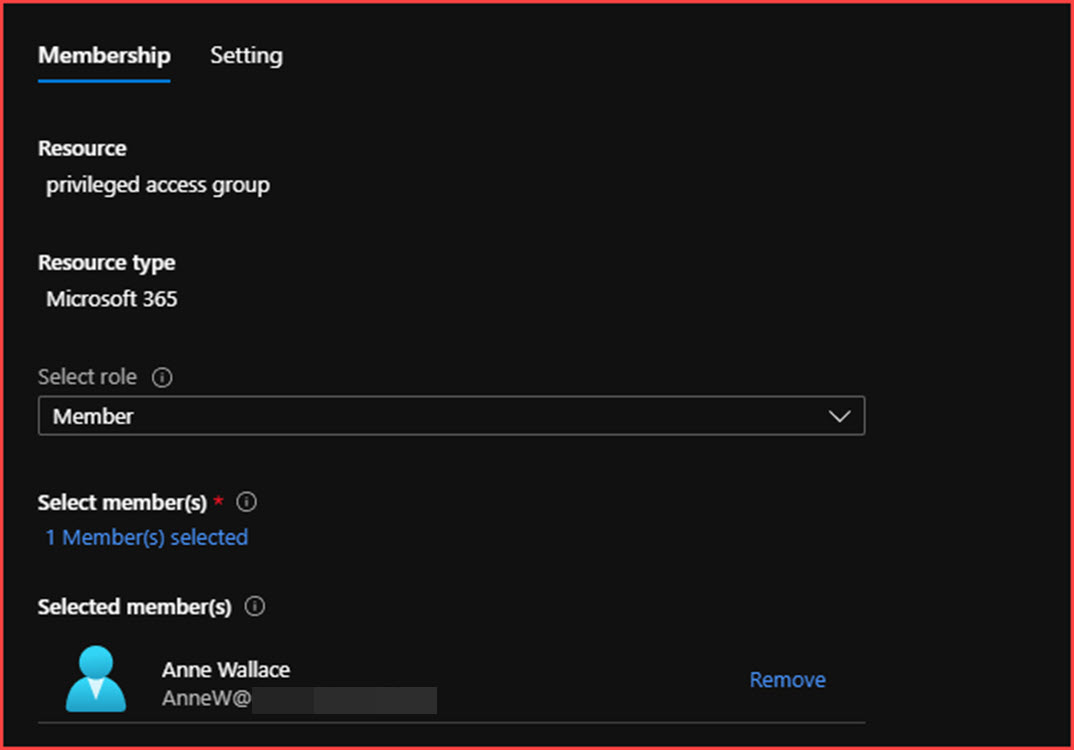
    Add member and select Next

    image

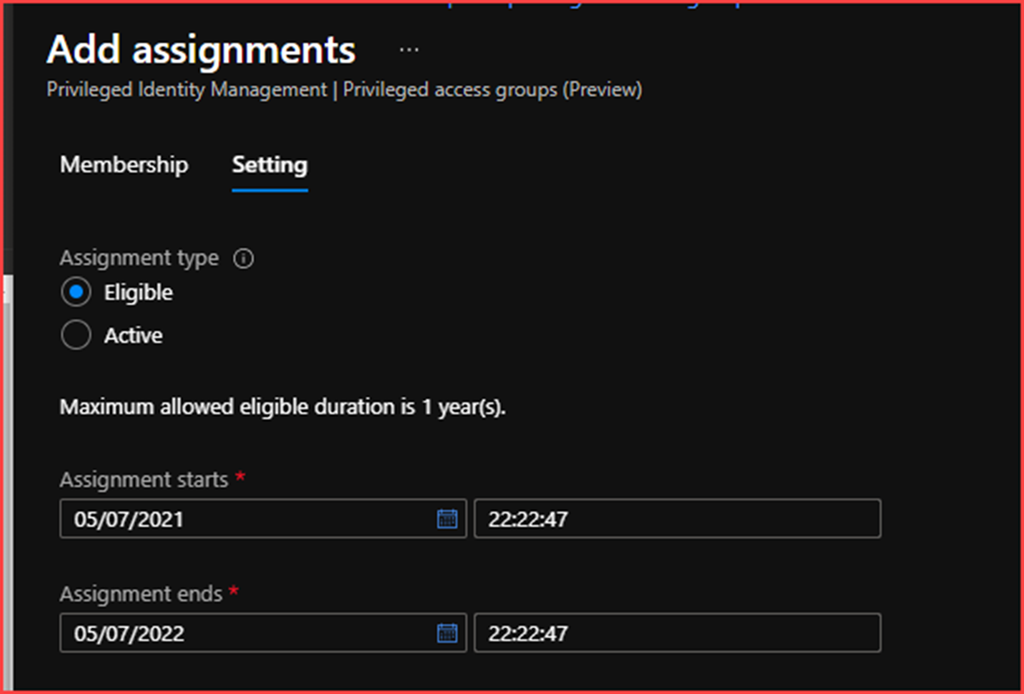
    Select Eligible and click on Assign

    User behaviour

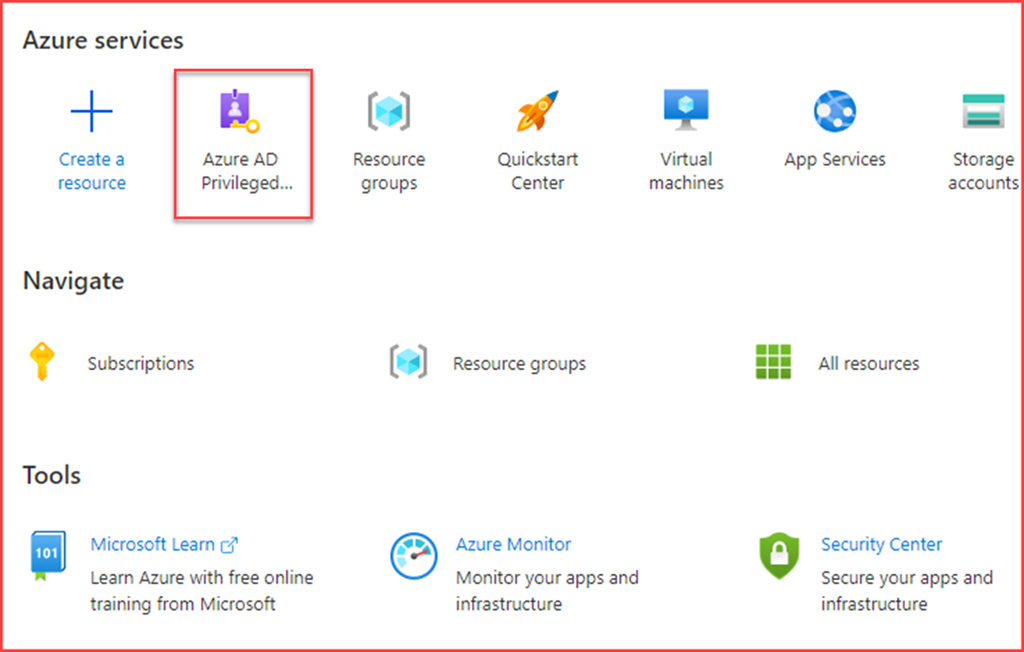
    Go to https://portal.azure.com

    image

    Go to Azure AD Privileged Identity Management

    image

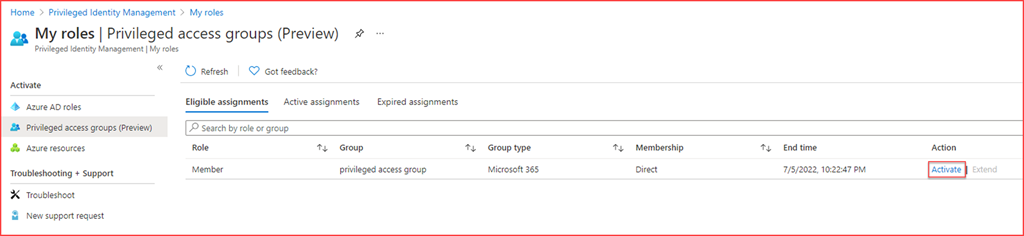
    My roles

    image

    Privileged access groups

    image

    Eligible assignments and select the role for the newly created privileged access group

    image

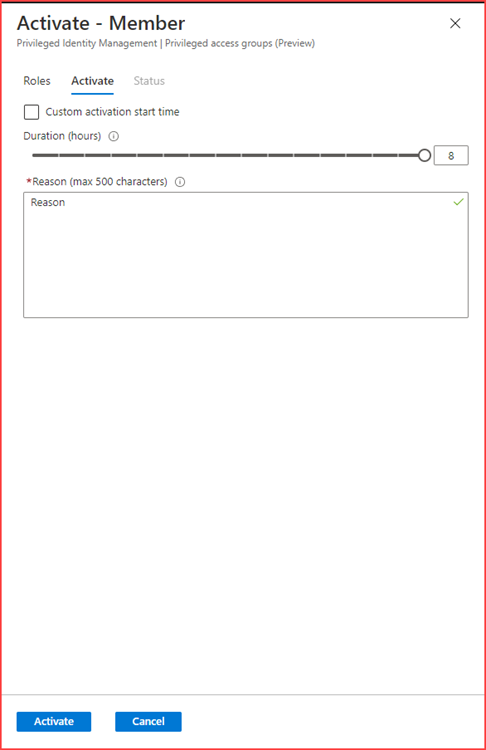
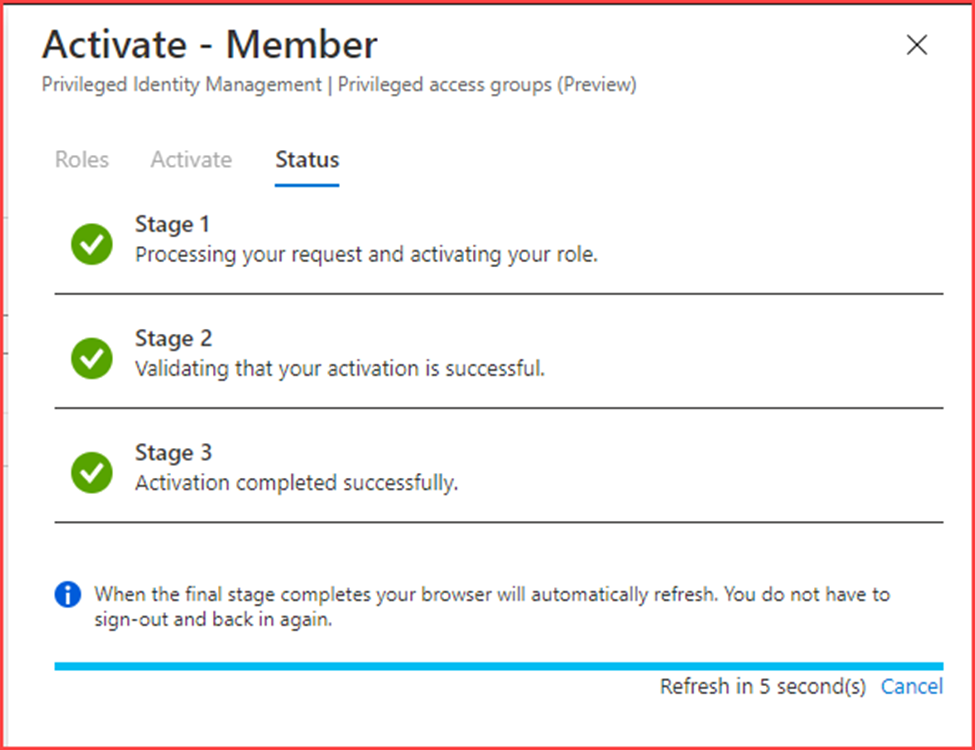
    Activate

    image

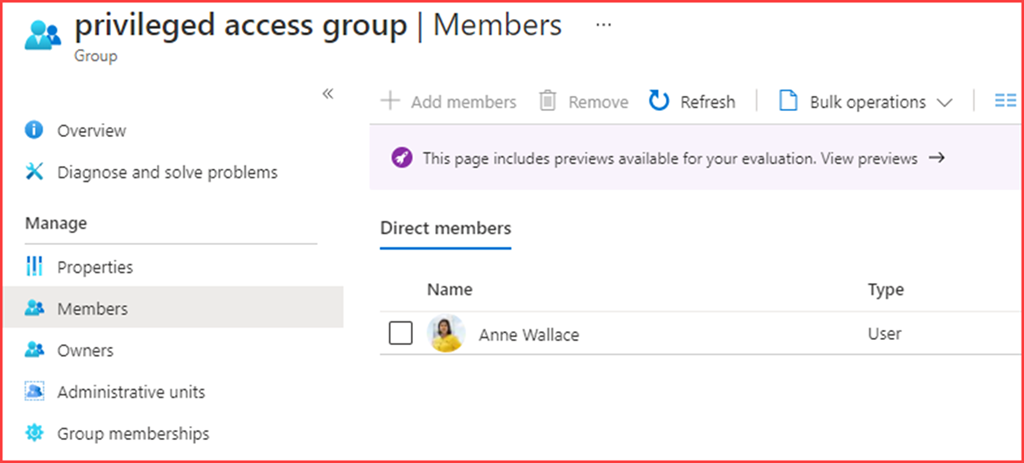
    The user will be added to the group for the amount of time specified

    image

    The post Privileged access groups in Azure Privileged Identity Management appeared first on Cloud Security | Office 365 | Azure | SharePoint.
    First contact safety tip in Defender for Office 365

    Microsoft added the first contact safety tip in Defender for Office 365. This safety tip is shown when recipients first receive an email from a sender or do not often receive email from a sender. Safety tips are a great way to guide users on mail security. It’s advisable to guide your users on these safety tips. Some users don’t read or ignore them. Some users also don’t know that they are there and just miss them.

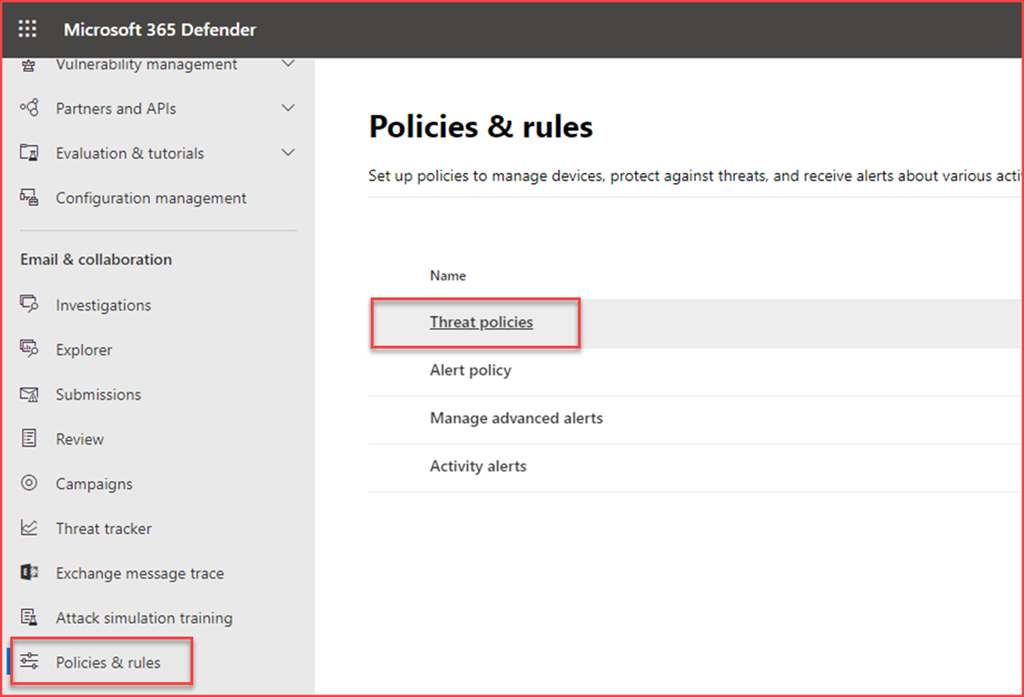
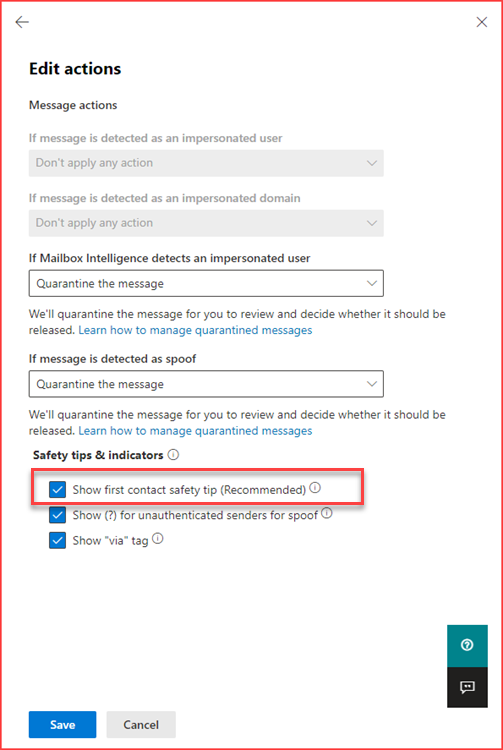
    The first contact safety tip is part of the anti-phishing policy settings in Defender for Office 365. Navigate to the security page and select  “Policies & rules” and then “Threat policies”

    image

    image

    Select “Anti-phishing”

    image

    Edit the default or correct policy and edit actions. Select show first contact safety tip.

    User behaviour

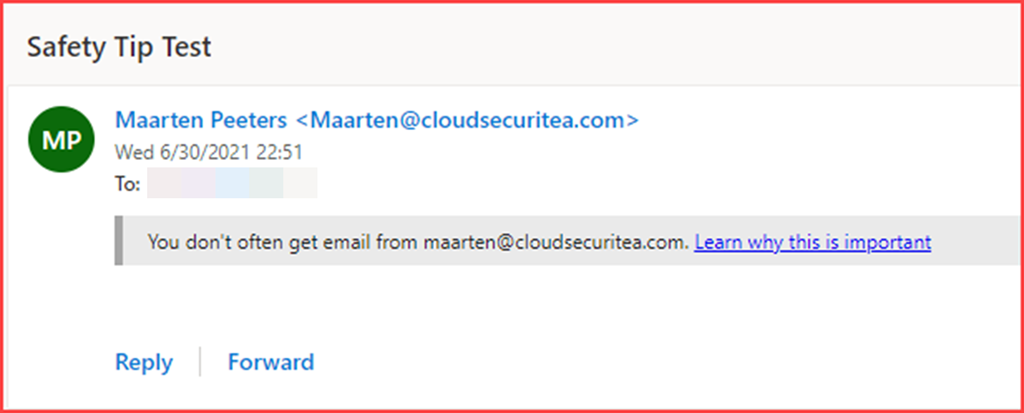
    Users will receive a grey safety tip with a link to more information. This link will navigate users to Protect yourself from phishing (microsoft.com)

    image

    The post First contact safety tip in Defender for Office 365 appeared first on Cloud Security | Office 365 | Azure | SharePoint.

    Enable Tamper Protection with Defender for Endpoint

    Tamper protection protects you from unwanted changes to Microsoft Defender Antivirus. Bad actors normally want to disable the firewall or antivirus in order to install additional malware. Disabling real-time protection or behavior monitoring may lead to data loss or additional attacks. Tamper protection locks Microsoft Defender Antivirus to the baseline configuration of your organization. Bad actors can’t change settings using PowerShell, registry changes or by GPO. With this setting, malicious apps are prevented from taking actions such as:

    • Disabling virus and threat protection
    • Disabling real-time protection
    • Turning off behavior monitoring
    • Disabling antivirus (such as IOfficeAntivirus (IOAV))
    • Disabling cloud-delivered protection
    • Removing security intelligence updates

    We were already able to set tamper protection using Microsoft Intune and Microsoft Endpoint Configuration Manager (+ Tenant Attach) but now we are also able to set this for all devices using Defender for Endpoint. Tamper protection is a feature in Windows 10, Windows Server 2019, Windows Server, version 1803 or later and Windows Server 2016.  An alert will be triggered in Defender for Endpoint if a tamper alert has been detected.

    Note that cloud-delivered protection needs to be enabled in order to set this setting using Defender for Endpoint.

    More information at Protect security settings with tamper protection | Microsoft Docs

    Configuration

    It only requires enabling 1 feature in the Microsoft Defender Security Center.

    image

    Note that this will enable tamper protection tenant wide. You will need to use Intune or Microsoft Endpoint Configuration Manager for a more granular approach.

    Verify it’s turned on

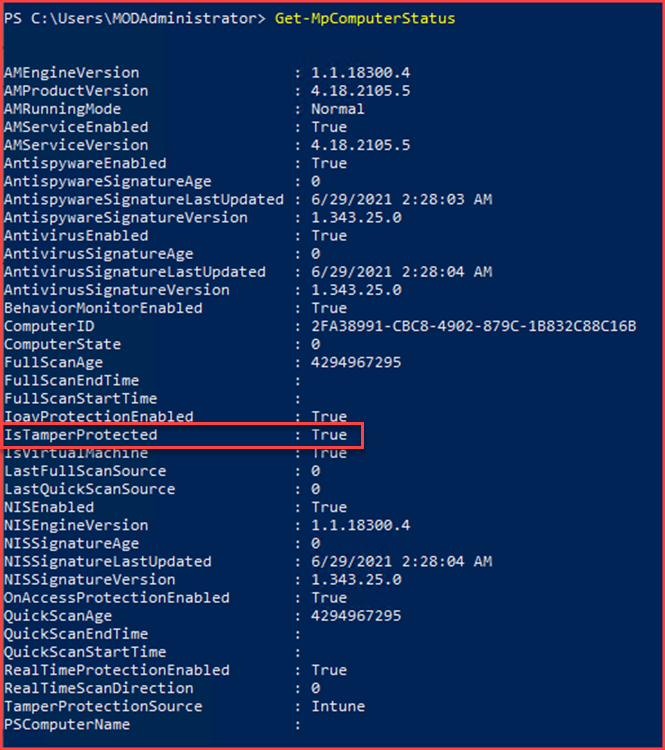
    You can use PowerShell to verify tamper protection is enabled. Open the PowerShell app and run the Get-MpComputerStatus PowerShell cmdlet.

    image

    Test Tamper Alert

    Trigger an alert by trying to turn off certain services that are related to Microsoft Defender Antivirus. The easiest way is to do this using PowerShell.

    Run the following cmdlets:

    • Set-MpPreference -DisableBehaviorMonitoring $true
    • New-ItemProperty -Path “HKLM:\SOFTWARE\Policies\Microsoft\Windows Defender” -Name DisableAntiSpyware -Value 1 -PropertyType DWORD -Force

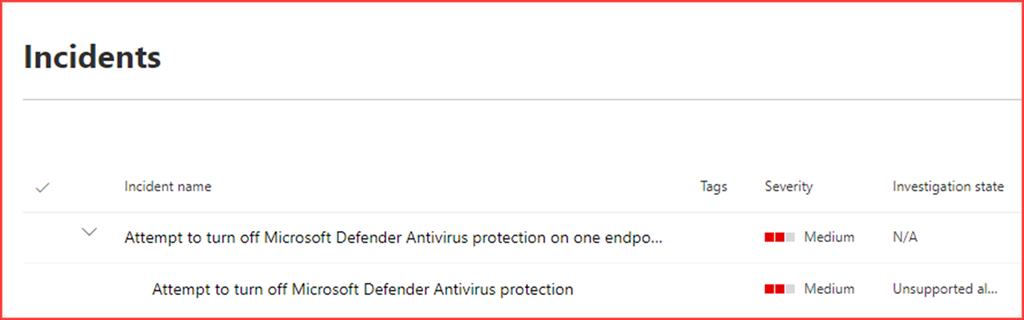
    This will trigger the following incident in Defender for Endpoint

    image

    image


    The post Enable Tamper Protection with Defender for Endpoint appeared first on Cloud Security | Office 365 | Azure | SharePoint.

    Web content filtering with Defender for Endpoint

    Content filters are used almost in every organization. The function of a content filter is to block websites or files. These sites or files may be malicious or it’s in the company policy to restrict access to for example gambling sites on corporate devices. Content filters were mainly deployed at the end of the organizations perimeter. Almost every firewall has the ability to filter content. Users working from home aren’t routing their network through these firewall so these filters won’t apply. Microsoft has the web content filtering feature currently in public preview. This feature will allow administrators to restrict access to certain categories and also get control on users internet behaviour.

    Note that all traffic is being audited automatically. Users need to be aware of all the aspects that is being monitored. The company policy should state the acceptable use policy. It should also state that all of their internet traffic is being audited on company devices.

    Requirements

    You will need to meet the following requirements:

    • Windows 10 Enterprise E5, Microsoft 365 E5, Microsoft 365 E5 Security, Microsoft 365 E3 + Microsoft 365 E5 Security add-on or the Microsoft Defender for Endpoint standalone license.
    • Devices running Windows 10 Anniversary Update (version 1607) or later with the latest MoCAMP update.
    • Windows Defender SmartScreen and Network protection enabled.

    Configuration

    Web content filtering is currently in public preview. Activate preview features to be able to activate web content filtering.

    image

    This will enable the option to activate web content filtering

    image

    Create a policy

    Web content filtering policies can be added at the settings menu

    image

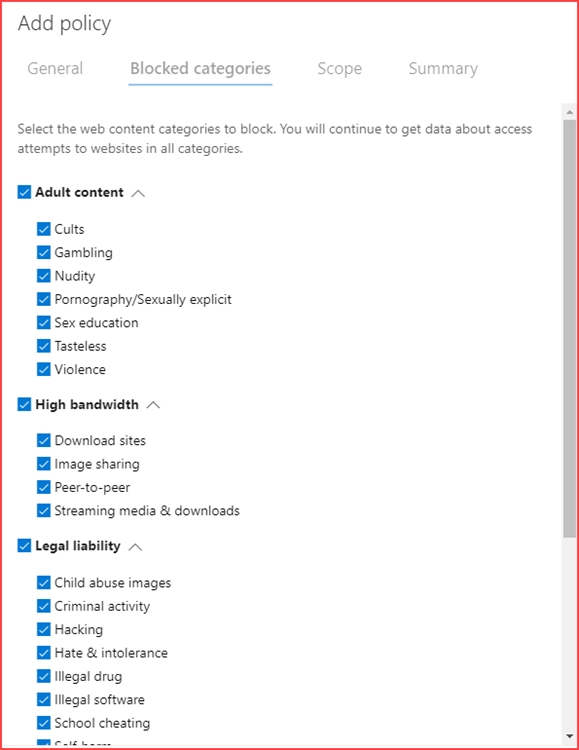
    Give your policy a name and select the categories you would like to block. It’s possible to scope this policy to device groups. You may want to allow streaming media & downloads for endpoints but block these for servers.

    image

    Exclusions

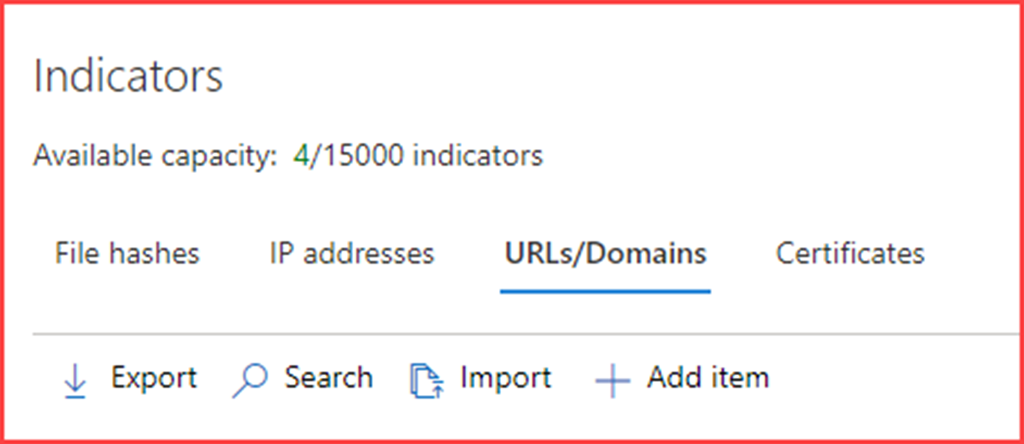
    It’s possible to create exclusions based on URL’s. Navigate to Settings –> Indicators

    image

    Add URL’s or domain names to exclude them from the policy. Set “Allow” as action during the configuration.

    image

    User behaviour

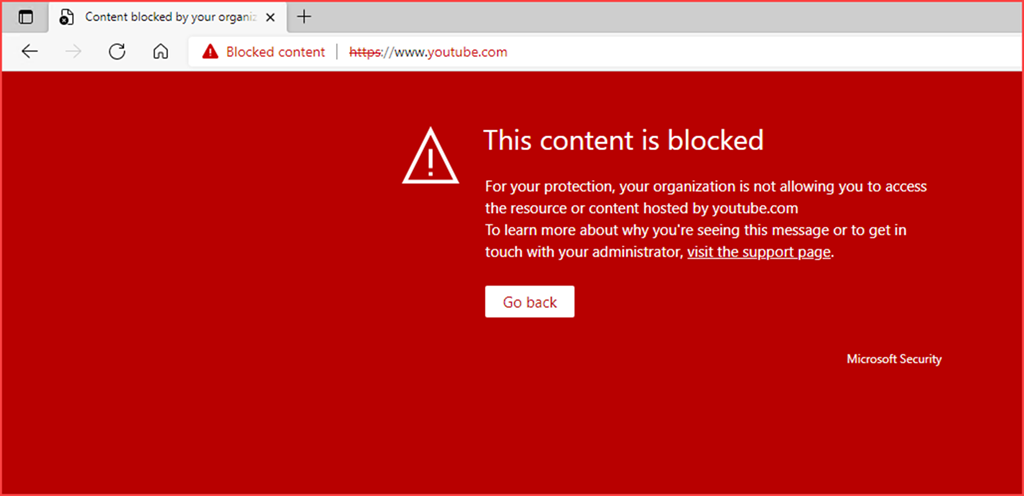
    Web content filtering will work on almost all modern browsers using SmartScreen and Network Protection.

    image

    This URL is available after adding it to the indicators list.

    SNAGHTML5c0e806

    Reports

    Reports are located under Reports –> Web protection

    You can find information about:

    • Web threat detections over time
    • Web activity by category
    • Web activity summary
    • Web content filtering blocks
    • Web threat summary

    The post Web content filtering with Defender for Endpoint appeared first on Cloud Security | Office 365 | Azure | SharePoint.
    Manage apps with Defender for Endpoint and Microsoft Cloud App Security

    It’s easy to manage apps when you have a clear perimeter. There is only one option to access the internet and that’s through the company firewall. Now, with people working from home and bring your own (BYO) or choose your own (CYO) devices it’s difficult. You want to maintain control on company devices by monitoring and allowing or disallowing certain applications or URL’s.

    This post will show how to manage apps with Defender for Endpoint and Microsoft Cloud App Security. We will be implementing policies using Intune and configuring Defender for Endpoint and MCAS with the least amount of settings to enable the integration between MCAS –> Defender for Endpoint –> Endpoint.

    Note: This setup requires a Microsoft E5 license to be able to fully use MCAS and Defender for Endpoint. It’s also possible to buy seperate stand-alone licenses but I recommend the Microsoft E5 license with all the extra security benefits.

    Scenario

    We have Windows 10 endpoints which are enrolled in Intune. Intune is connected with Defender for Endpoint. All onboarded Windows devices are onboarded automatically to Defender for Endpoint. The goal is to block unsanctioned apps on Windows 10 devices manually and automatically.

    Configuration

    Intune

    There are a few requirements from the endpoints perspective.

    • Real-time protection needs to be enabled
    • Cloud-delivered protection needs to be enabled
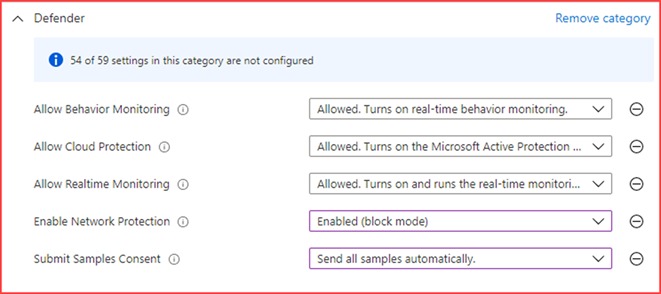
    • Network protection needs to be enabled and configured to block mode

    These settings can be set manually on the device, using GPO, endpoint manager or via Intune.

    Note: I recommend using the Microsoft Defender for Endpoint Baseline as this includes the above requirements and more.

    Create a new Windows 10 and later configuration profile using the settings catalog profile type.

    image

    Enable the above options.

    Defender for Endpoint

    Two features need to be enabled in Defender for Endpoint:

    Custom network indicators

    image

    Microsoft Cloud App Security

    image

    Microsoft Cloud App Security

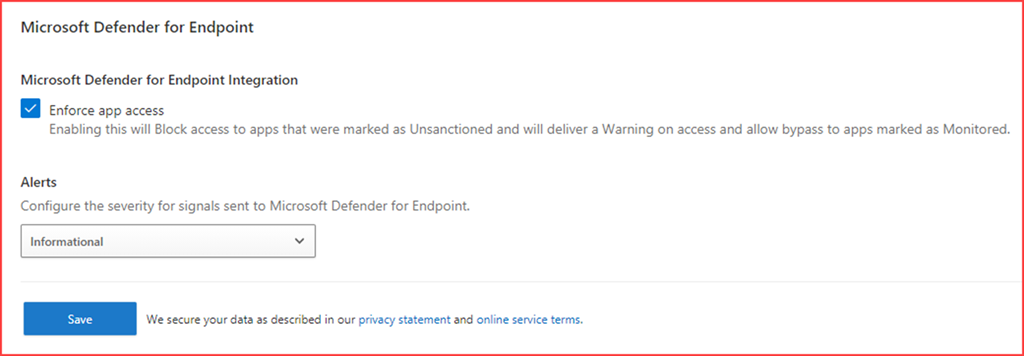
    Enable “Enforce app access” on the settings page in MCAS.

    image

    Block unsanctioned apps

    Manually

    It’s possible to block apps that are being used or apps from the cloud app catalog. There are currently more than 20k apps in the cloud app catalog and it’s impossible to go through them manually.

    image

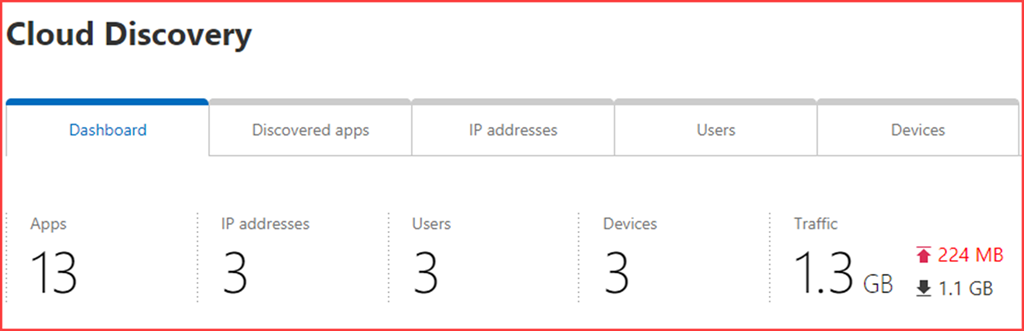
    Apps that users are currently using are displayed in the cloud discovery dashboard

    image

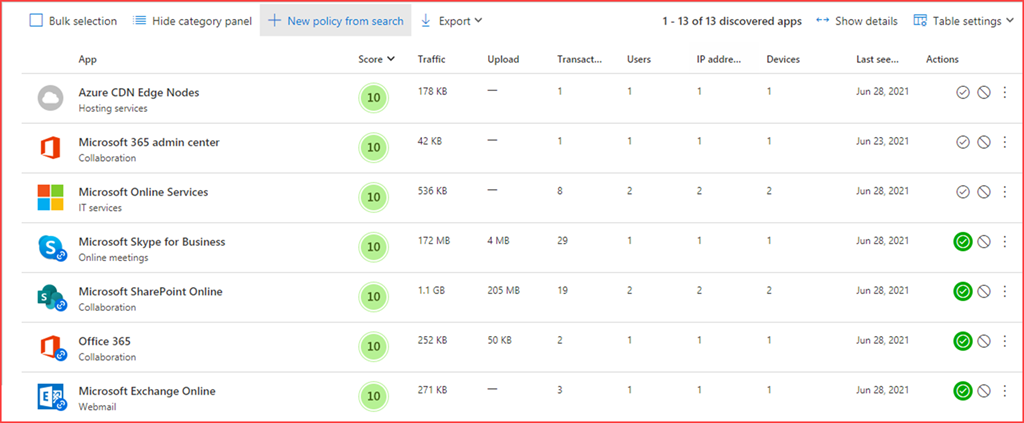
    Clicking on Apps will get you to all the apps currently being used.

    image

    You can block an app by marking it as unsanctioned

    image

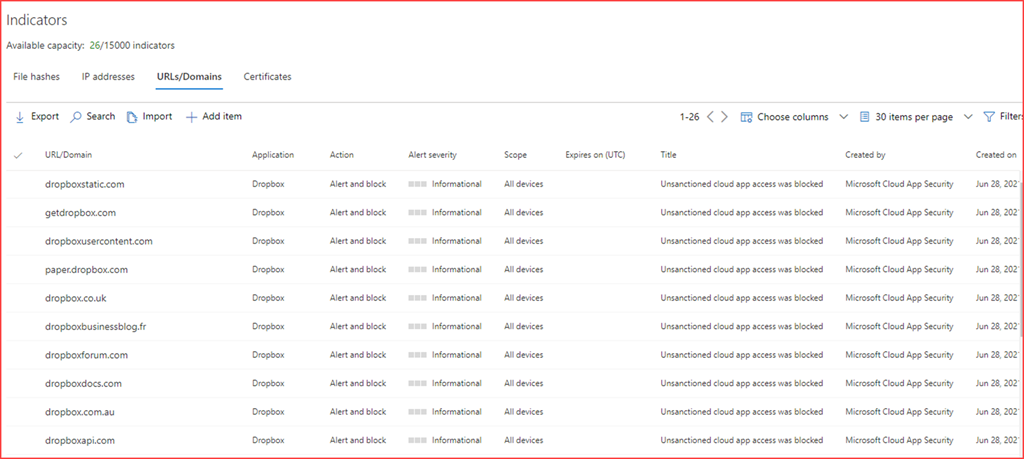
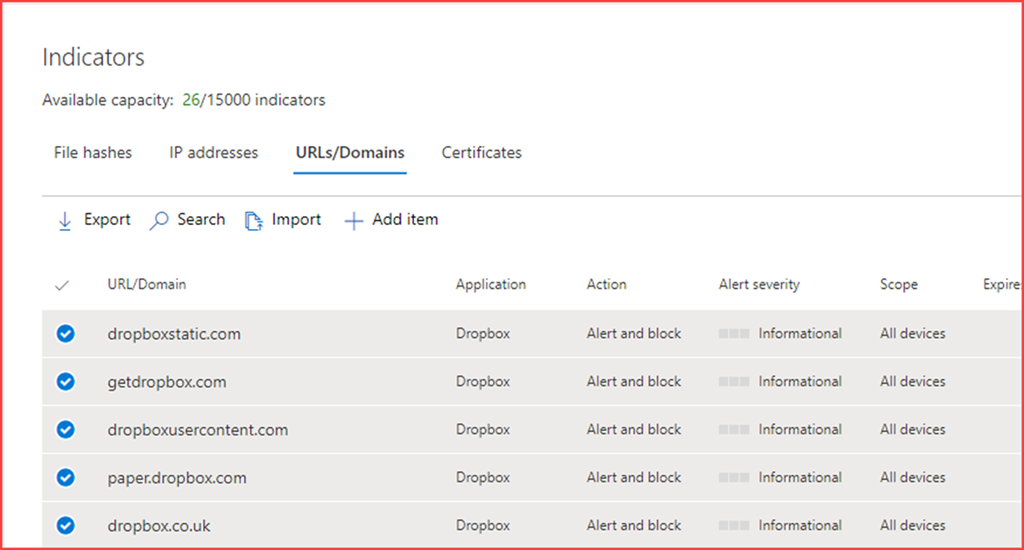
    All URL’s related to Dropbox will be added to the Indicators section at Defender for Endpoint

    image

    Automatically

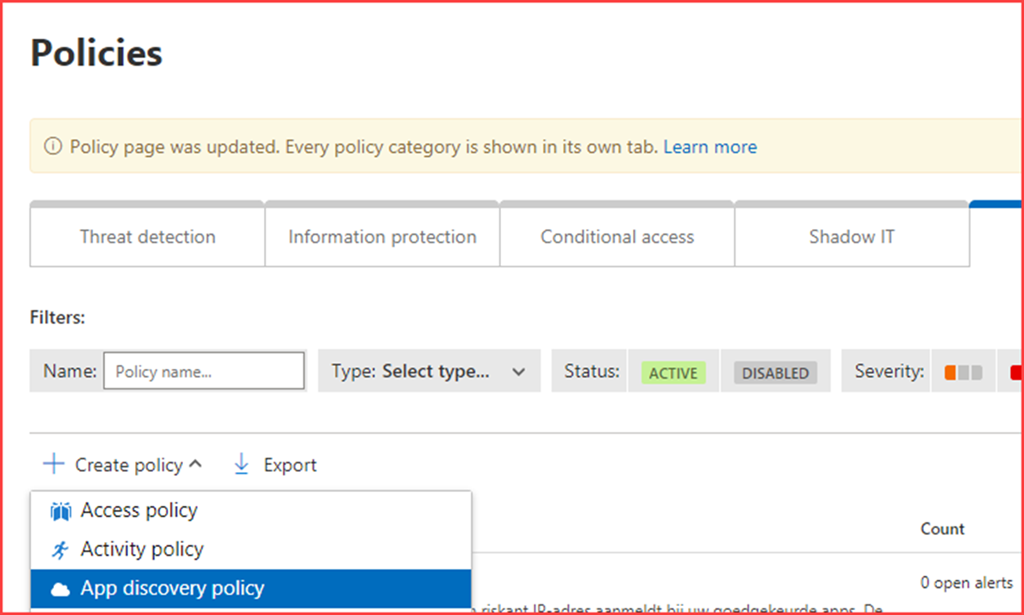
    Create a new “App discovery policy” under control –> Policies

    image

    Give the policy a name and select a suitable filter

    image

    For example:

    • Block apps with a risk score of 0-3
    • Block apps with cloud storage as category
    • Block apps with Social Network as category
    • Block apps without a GDPR readiness statement
    • Block apps where the headquarters is located in a certain location

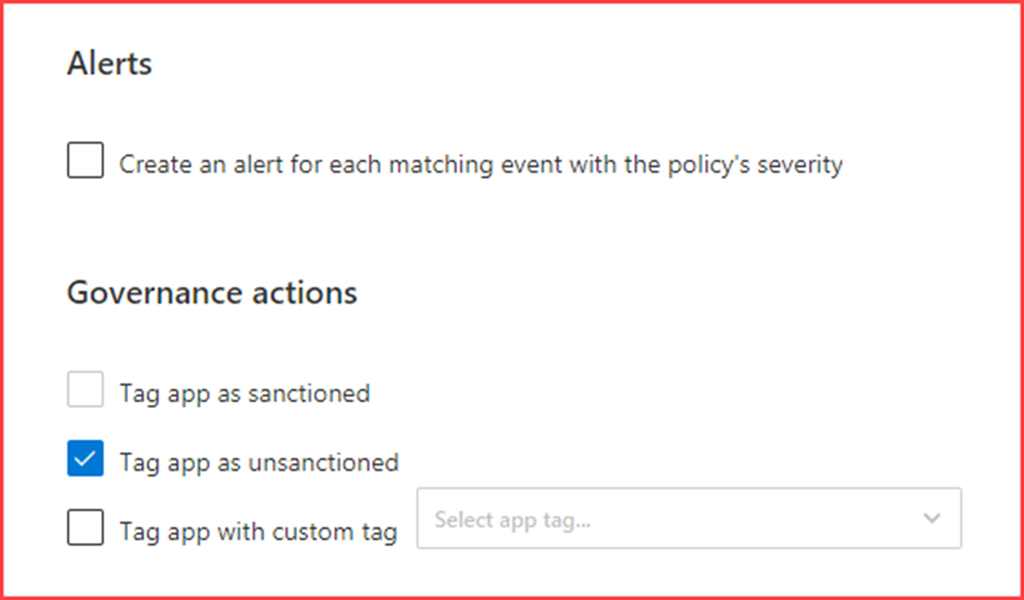
    Next select that the app needs to be set as unsanctioned

    image

    User behaviour

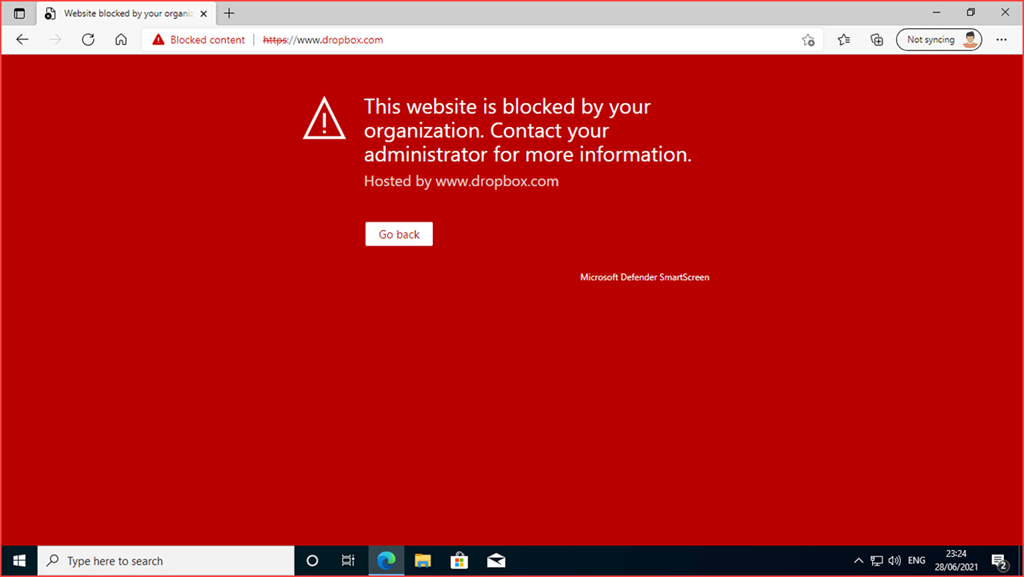
    When a user tries to navigate to https://dropbox.com they will see the following screen in Edge Chromium

    image

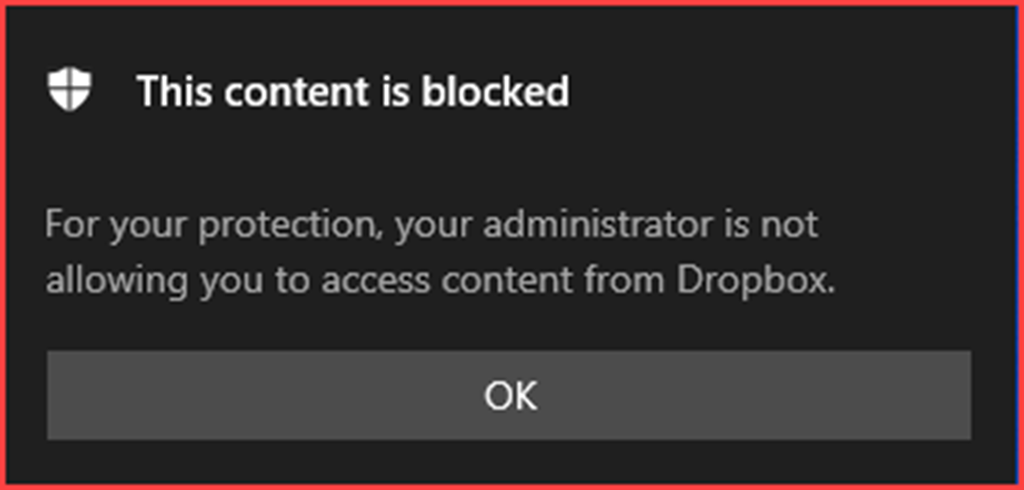
    The app also stops working where users may receive the following message from Microsoft Defender

    image

    Additional notes

    When allowing the app again you may need to remove the URLs/Domains from the Indicator list in Defender for Endpoint.

    image

    The post Manage apps with Defender for Endpoint and Microsoft Cloud App Security appeared first on Cloud Security | Office 365 | Azure | SharePoint.
    ❌
    ❌